> ## Documentation Index
> Fetch the complete documentation index at: https://notes.kodekloud.com/llms.txt
> Use this file to discover all available pages before exploring further.

# Demo Email Extention Notification Freestyle

> This tutorial demonstrates replacing Jenkins email notifications with the Email Extension Plugin, covering installation, configuration, and customization for Freestyle jobs.

In this tutorial, we’ll replace Jenkins’s built-in email notifications with the powerful Email Extension Plugin. You’ll learn how to install the plugin, configure global SMTP settings, and customize notifications for your Freestyle jobs—including attachments and conditional triggers.

## 1. Install the Email Extension Plugin

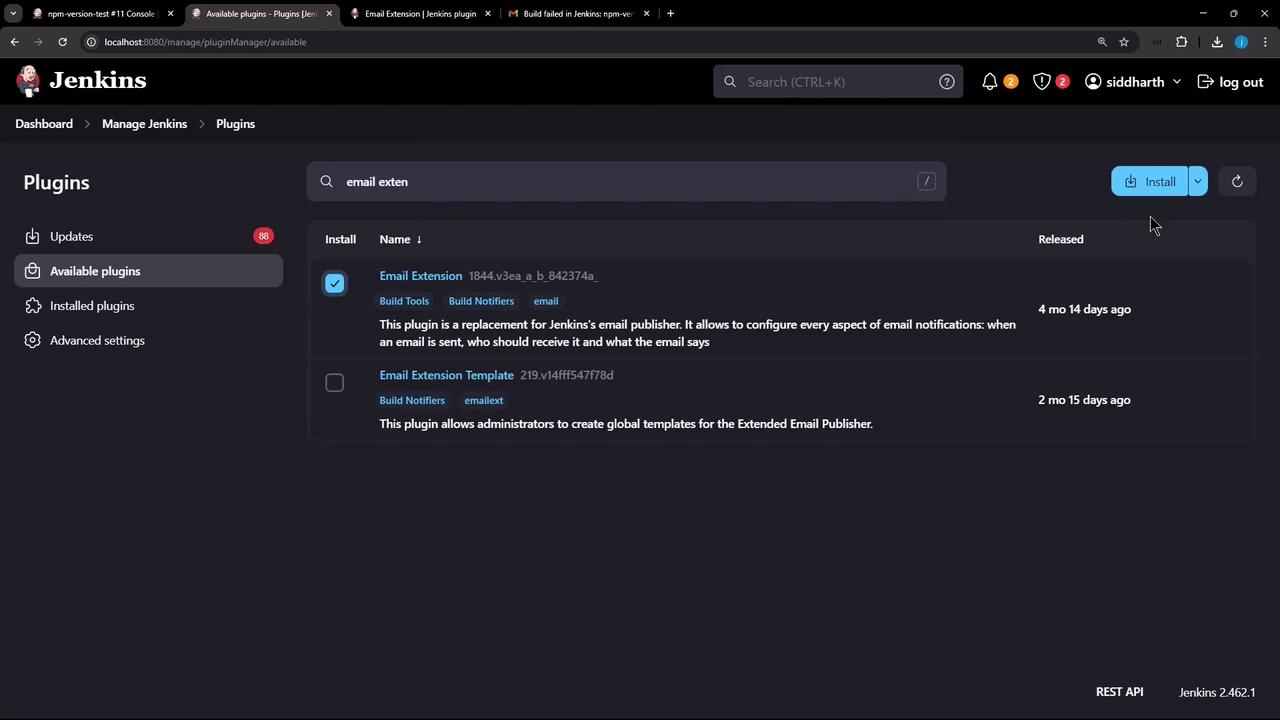
1. Go to **Manage Jenkins → Plugin Manager → Available**.
2. Search for **Email Extension Plugin** and click **Install without restart**.
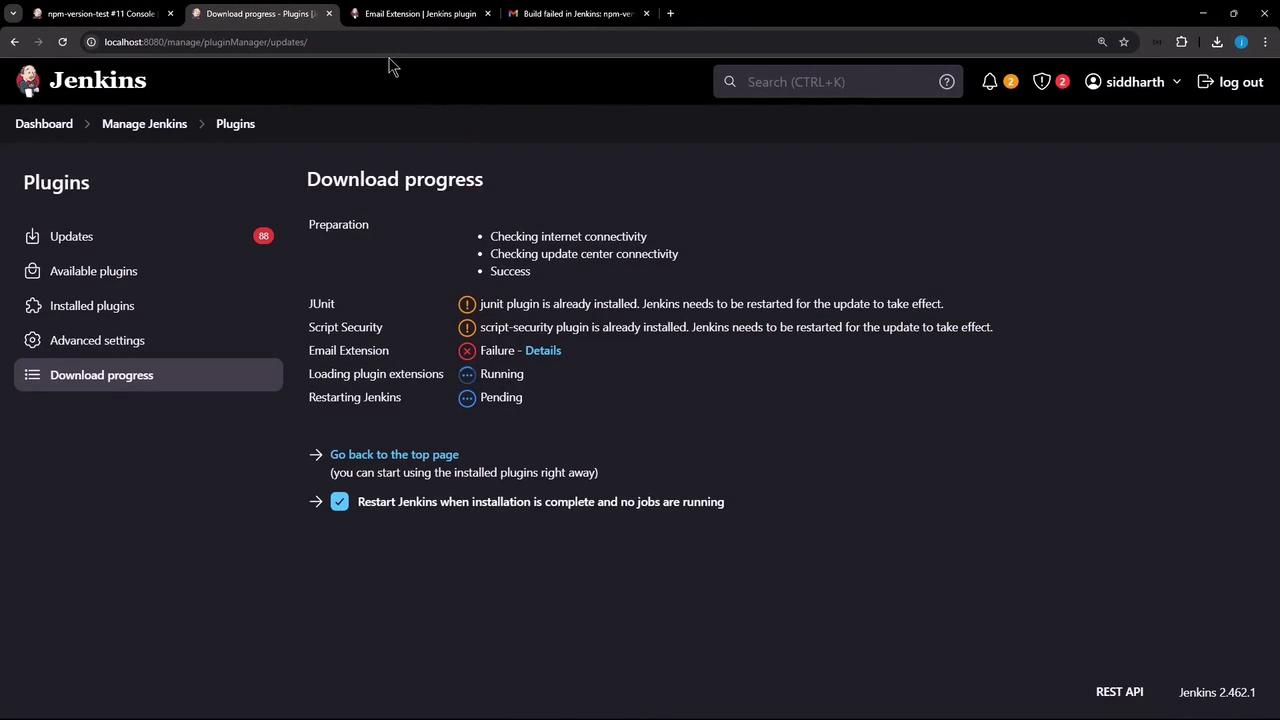
3. When installation completes, restart Jenkins.
<Frame>
  ![The image shows the Jenkins plugin management interface, specifically the "Available plugins" section, with options to install email-related plugins.](https://kodekloud.com/kk-media/image/upload/v1752870348/notes-assets/images/Certified-Jenkins-Engineer-Demo-Email-Extention-Notification-Freestyle/jenkins-plugin-management-email-plugins.jpg)
</Frame>

<Callout icon="lightbulb" color="#1CB2FE">
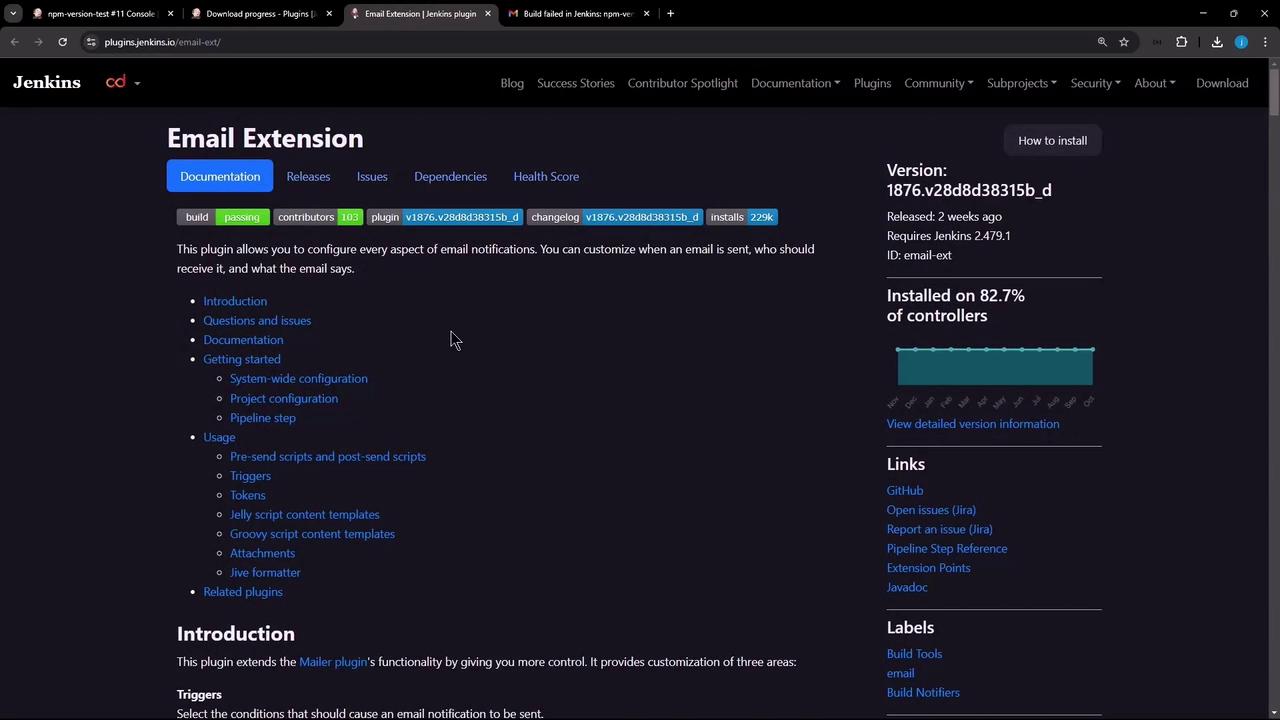
  Refer to the official [Email Extension plugin documentation][email-ext-docs] for advanced examples and template syntax.
</Callout>

<Frame>
  ![The image shows a webpage for the Jenkins Email Extension plugin, detailing its documentation, version information, and usage instructions. It includes links for further resources and installation statistics.](https://kodekloud.com/kk-media/image/upload/v1752870349/notes-assets/images/Certified-Jenkins-Engineer-Demo-Email-Extention-Notification-Freestyle/jenkins-email-extension-plugin-docs.jpg)
</Frame>

Once Jenkins restarts, log in and confirm the plugin appears under **Installed**.
<Frame>
  ![The image shows a Jenkins interface displaying the download progress of plugins, with details about the status of various plugins and options for restarting Jenkins.](https://kodekloud.com/kk-media/image/upload/v1752870350/notes-assets/images/Certified-Jenkins-Engineer-Demo-Email-Extention-Notification-Freestyle/jenkins-plugin-download-progress-interface.jpg)
</Frame>

## 2. Configure Global Email Settings

Navigate to **Manage Jenkins → Configure System** and scroll to **Extended E-mail Notification**. Set up your SMTP details:

| Setting               | Value                       | Description                  |
| --------------------- | --------------------------- | ---------------------------- |
| SMTP Server           | smtp.gmail.com              | Gmail SMTP host              |
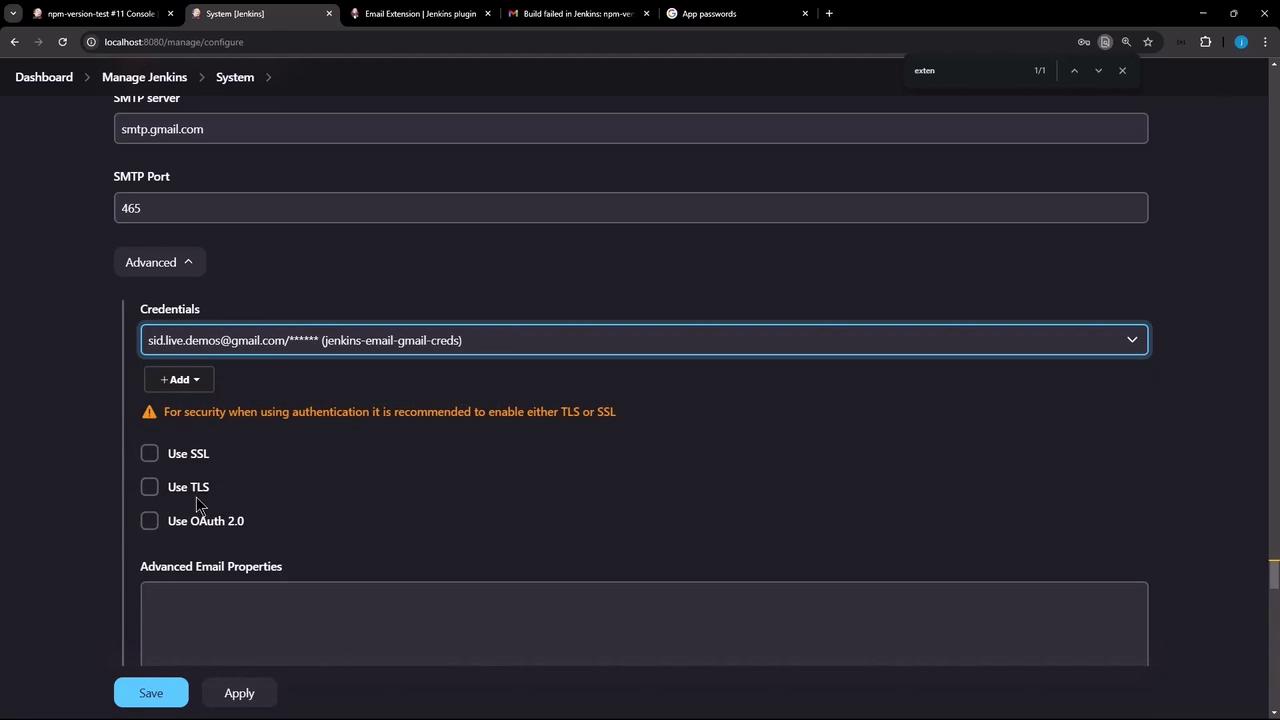
| SMTP Port             | 465                         | SSL port                     |
| Use SSL               | ☑️                          | Secure connection            |
| Credentials           | Add Gmail Username/Password | Use an app-specific password |
| Default Content Type  | text/html                   | HTML format for email body   |
| Attachment Size Limit | (leave blank)               | Unlimited by default         |

1. **Add Credentials**\
   Click **Add → Jenkins** and select **Username with password**.
   * **Username**: your Gmail address
   * **Password**: an [app-specific password][gmail-2fa]

<Callout icon="lightbulb" color="#1CB2FE">
  Generate an app-specific password in your Google Account under Security → App passwords.
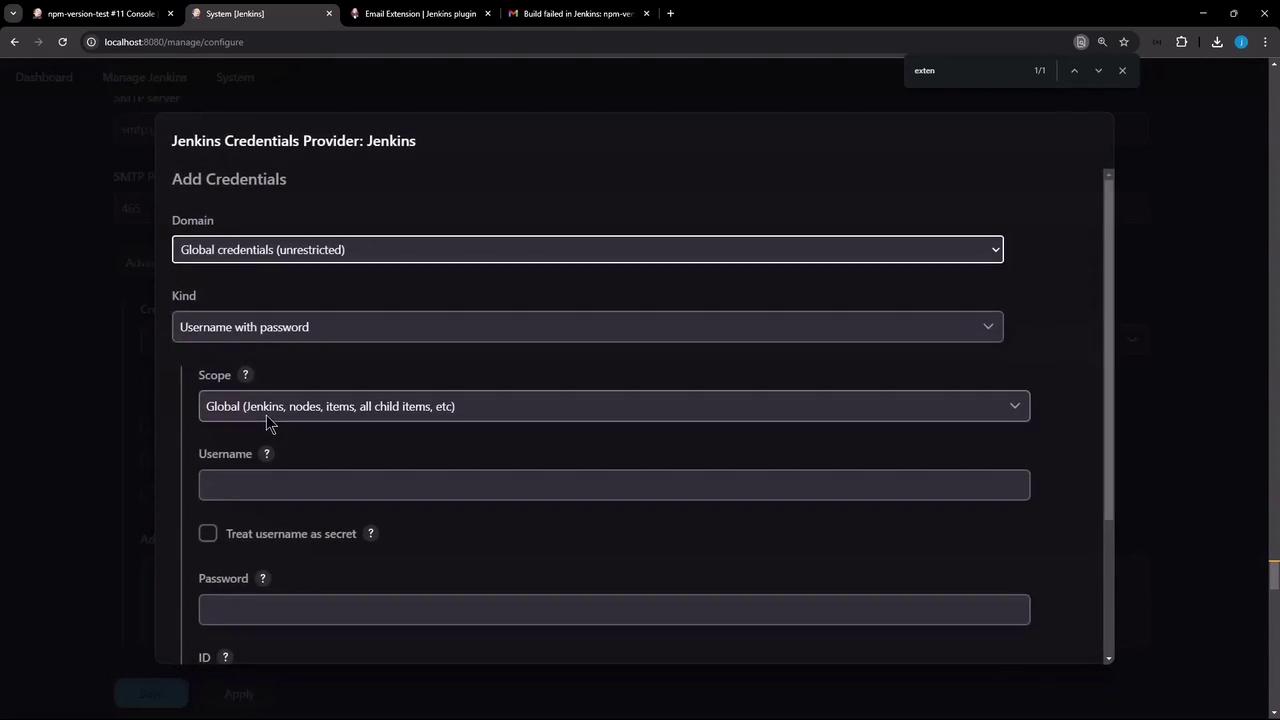
</Callout>

<Frame>
  ![The image shows a Jenkins interface for adding credentials, with fields for domain, kind, scope, username, and password.](https://kodekloud.com/kk-media/image/upload/v1752870351/notes-assets/images/Certified-Jenkins-Engineer-Demo-Email-Extention-Notification-Freestyle/jenkins-add-credentials-interface.jpg)
</Frame>

2. **Select the new credentials** and enable **Use SSL**.
<Frame>
  ![The image shows a Jenkins system configuration page for setting up an SMTP server with fields for server details, credentials, and security options like SSL, TLS, and OAuth 2.0.](https://kodekloud.com/kk-media/image/upload/v1752870352/notes-assets/images/Certified-Jenkins-Engineer-Demo-Email-Extention-Notification-Freestyle/jenkins-smtp-server-configuration.jpg)
</Frame>

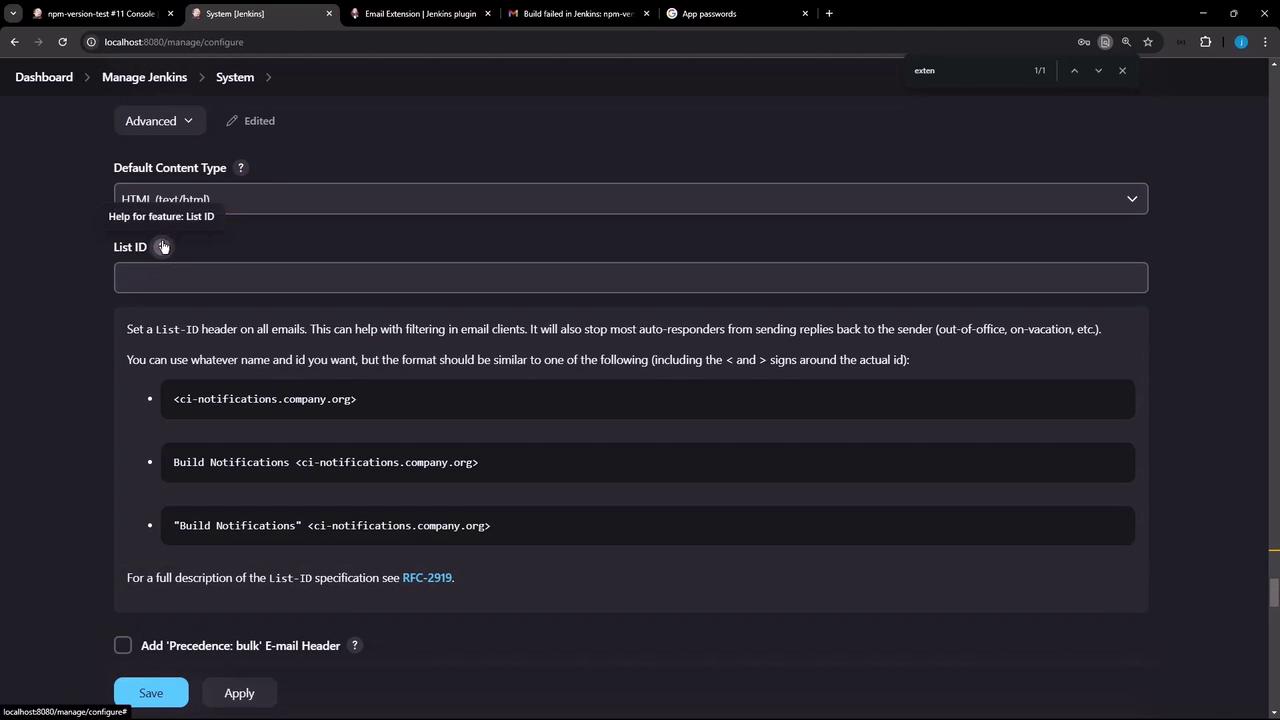
3. **Default List-ID Header**\
   Optionally specify a List-ID to group your emails.
<Frame>
  ![The image shows a Jenkins system configuration page with options for setting a List-ID header for emails. It includes fields for default content type and examples of List-ID formats.](https://kodekloud.com/kk-media/image/upload/v1752870354/notes-assets/images/Certified-Jenkins-Engineer-Demo-Email-Extention-Notification-Freestyle/jenkins-system-configuration-email-header.jpg)
</Frame>

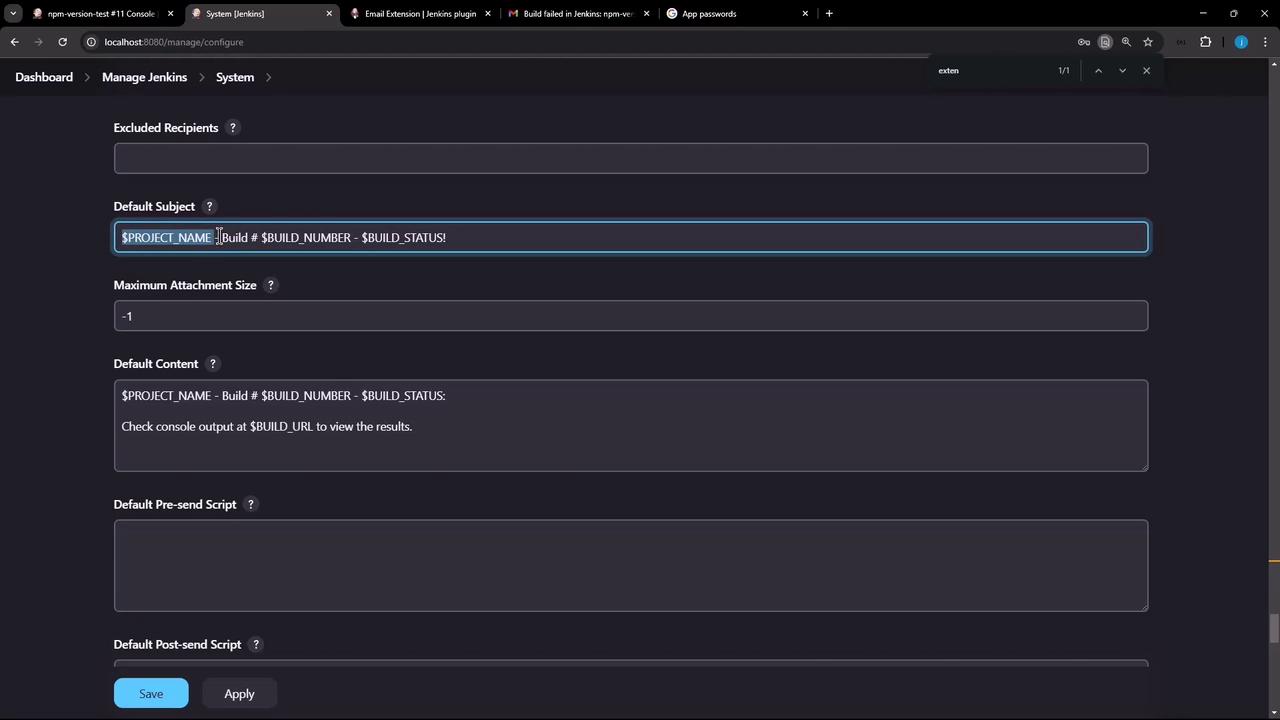
4. **Default Subject & Body**\
   Use tokens like `${PROJECT_NAME}`, `${BUILD_NUMBER}`, and `${BUILD_STATUS}`.
<Frame>
  ![The image shows a Jenkins system configuration page, specifically for setting up email notifications with fields for default subject, content, and scripts.](https://kodekloud.com/kk-media/image/upload/v1752870355/notes-assets/images/Certified-Jenkins-Engineer-Demo-Email-Extention-Notification-Freestyle/jenkins-email-notifications-configuration.jpg)
</Frame>

5. **Default Triggers**\
   Enable **Failure – Any**, and add others (e.g., **Unstable**, **Always**) as needed.

| Trigger       | Sends When                         |
| ------------- | ---------------------------------- |
| Failure – Any | Any build failure                  |
| Unstable      | Builds with test failures          |
| Always        | Every build, regardless of outcome |
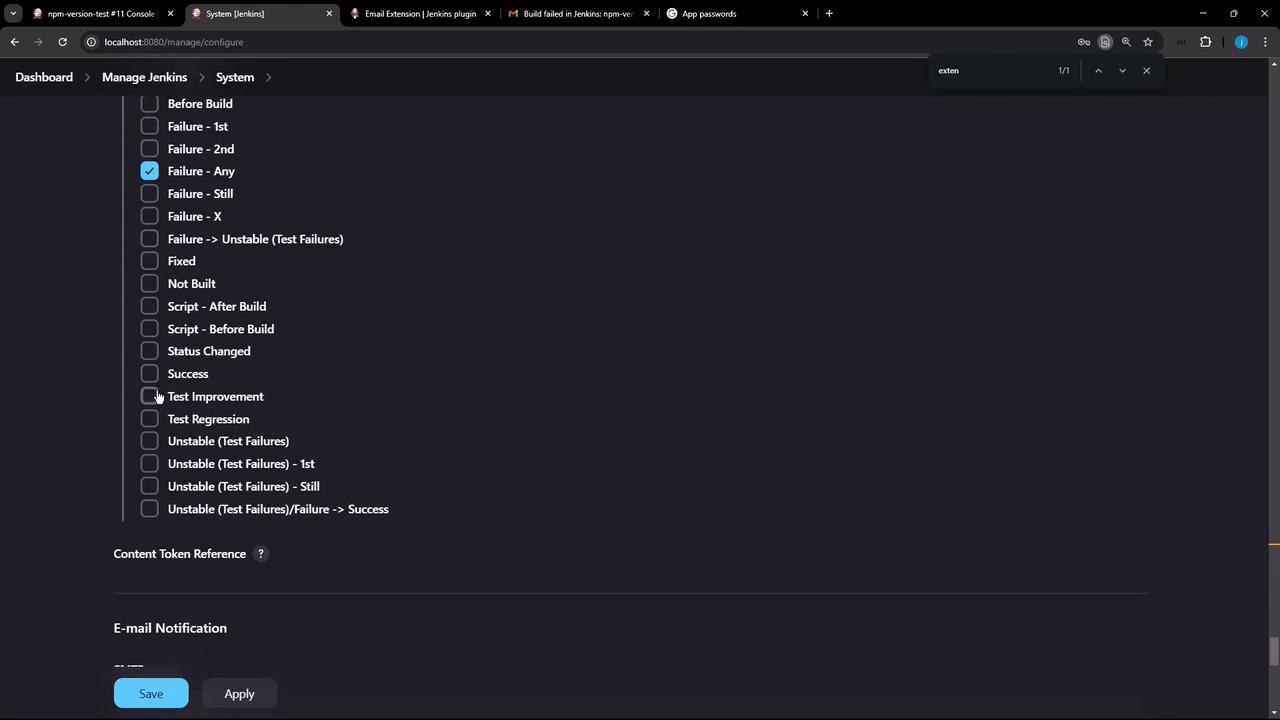
<Frame>
  ![The image shows a Jenkins system configuration page with various build status options, such as "Failure - Any" and "Test Improvement," with checkboxes for selection. There are buttons for saving and applying changes at the bottom.](https://kodekloud.com/kk-media/image/upload/v1752870356/notes-assets/images/Certified-Jenkins-Engineer-Demo-Email-Extention-Notification-Freestyle/jenkins-system-configuration-build-status.jpg)
</Frame>

Click **Apply** and **Save** to persist.

## 3. Configure a Freestyle Job

Open your Freestyle project (e.g., **npm-version-test**) and click **Configure**.

1. Remove any existing **E-mail Notification**.

2. Under **Post-build Actions**, select **Add post-build action → Editable Email Notification**.

3. **Add a Shell Build Step** to simulate failure:

   ```bash theme={null}
   echo "Updating job config using Jenkins CLI"
   node -v
   npm -v
   exit 1
   ```

<Callout icon="triangle-alert" color="#FF6B6B">
  The `exit 1` command will force the build to fail to trigger the failure notification.
</Callout>

4. **Project Recipient List**\
   Leave blank to use global defaults or specify an address (e.g., `sid.live.demos@gmail.com`).
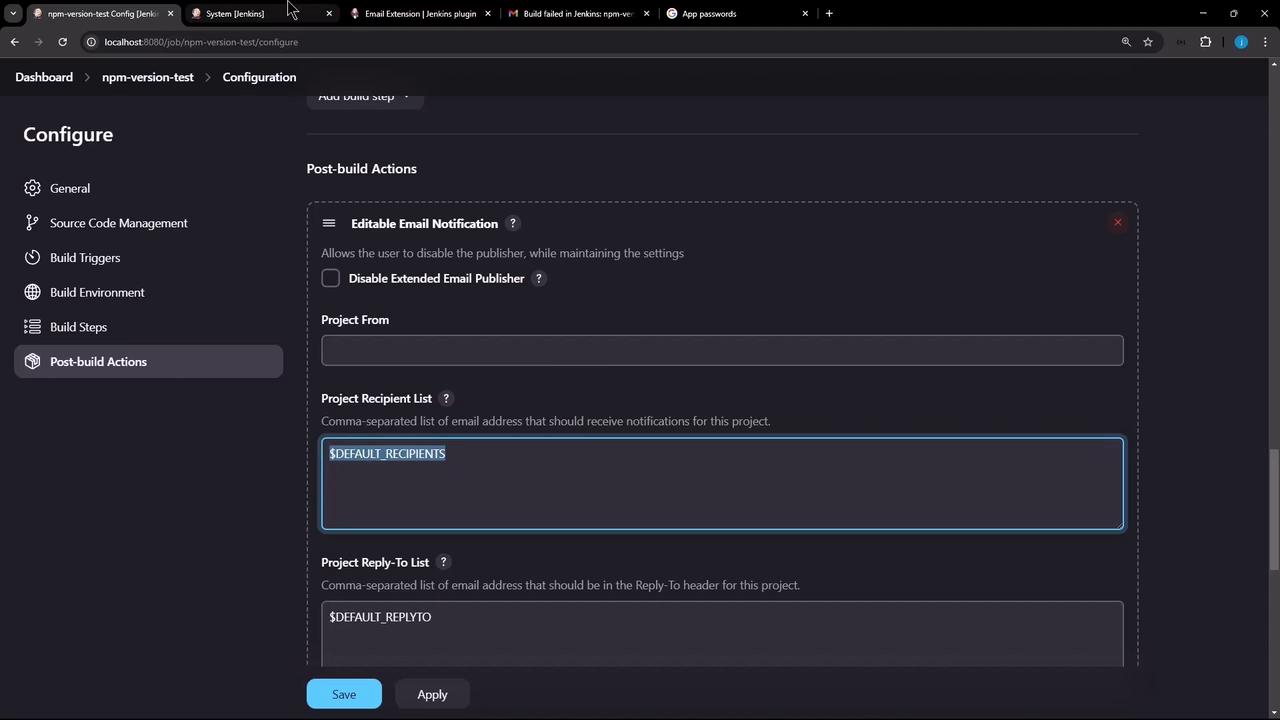
<Frame>
  ![The image shows a Jenkins configuration screen for post-build actions, specifically focusing on email notification settings. It includes options for editable email notifications, project recipient list, and reply-to list.](https://kodekloud.com/kk-media/image/upload/v1752870357/notes-assets/images/Certified-Jenkins-Engineer-Demo-Email-Extention-Notification-Freestyle/jenkins-post-build-email-settings.jpg)
</Frame>

5. Leave **Default Subject** and **Default Content** inherited from global settings.
6. Click **Apply** and **Save**.

### 3.1 Trigger a Build Without Recipients

Run the job to see:

```text theme={null}
Email was triggered for trigger: Failure - Any  
Sending email for trigger: Failure - Any  
An attempt to send an e-mail to empty list of recipients, ignored.
```

By default, the plugin only mails **Developers**, not your recipient list.

## 4. Add Recipients and Rerun

1. In **Editable Email Notification**, expand **Advanced Settings**.
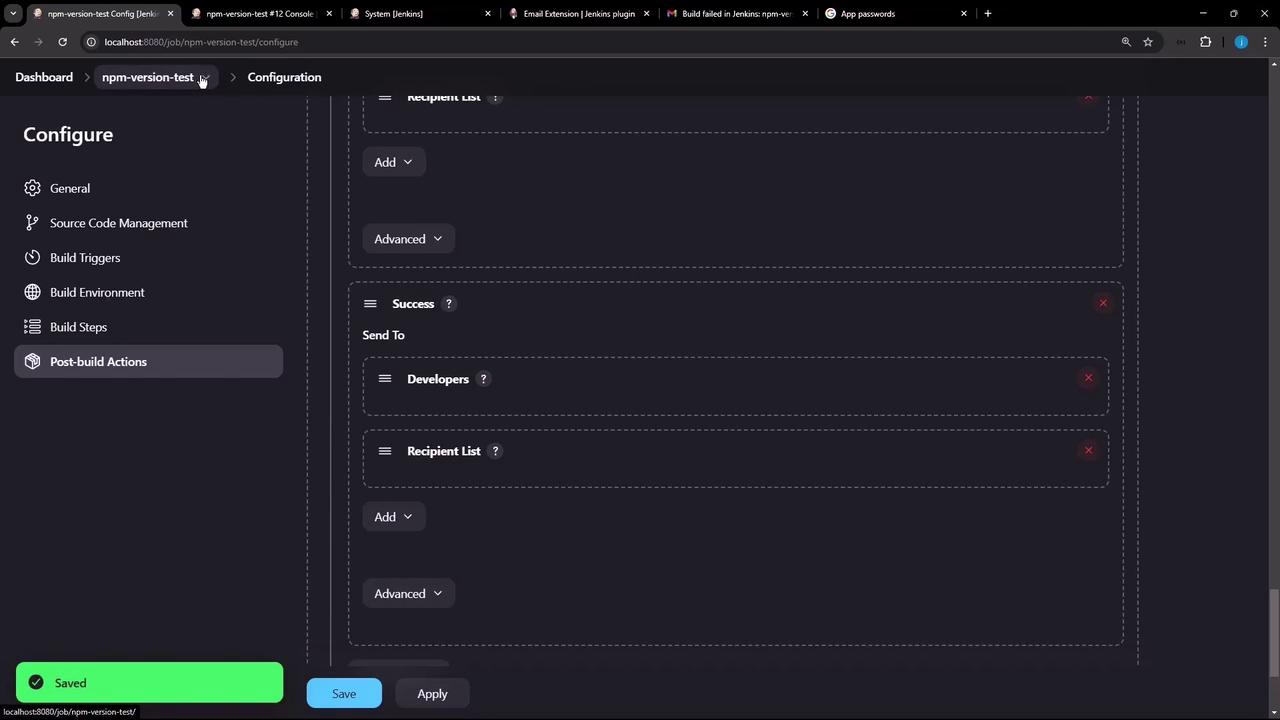
2. Under **Default Recipients**, add your email or check **Send to Recipient List** for each trigger.
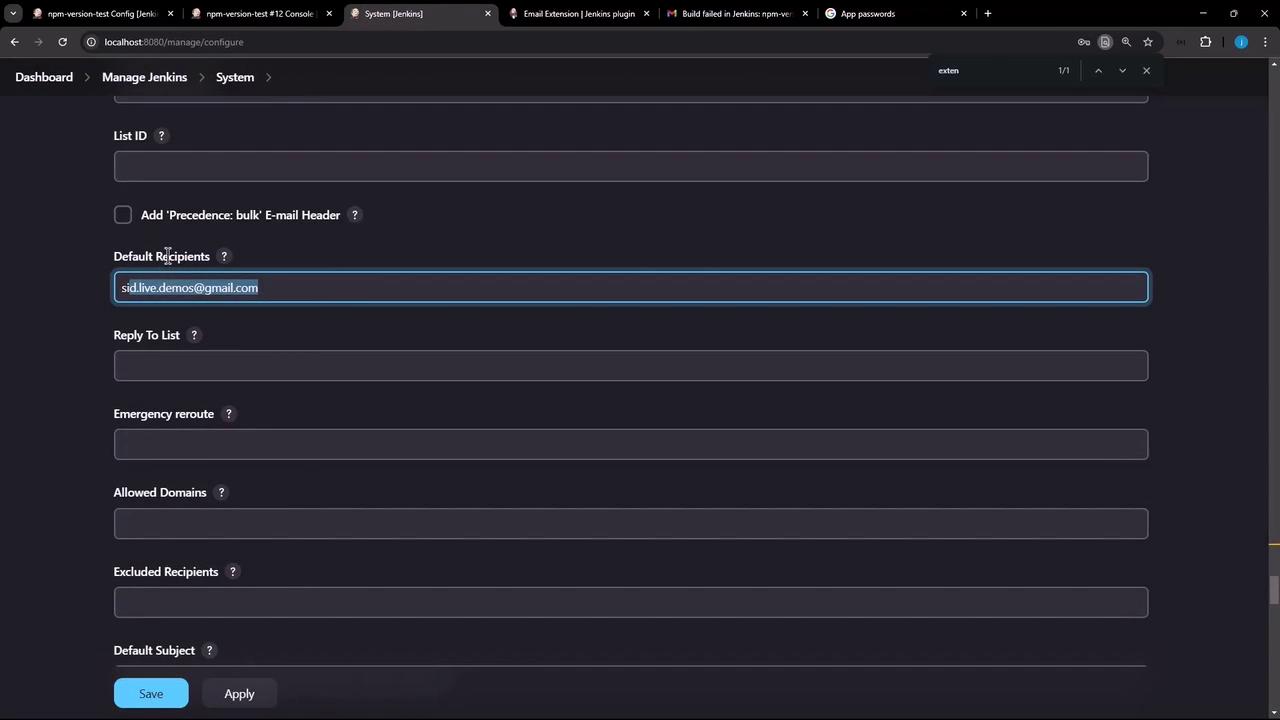
<Frame>
  ![The image shows a Jenkins system configuration page with fields for email settings, including default recipients and other email-related options. The interface has a dark theme with options to save or apply changes.](https://kodekloud.com/kk-media/image/upload/v1752870358/notes-assets/images/Certified-Jenkins-Engineer-Demo-Email-Extention-Notification-Freestyle/jenkins-email-settings-configuration.jpg)
</Frame>

Save and rebuild:

<Frame>
  ![The image shows a Jenkins configuration screen for a job named "npm-version-test," focusing on the "Post-build Actions" section with options to send notifications to developers and a recipient list.](https://kodekloud.com/kk-media/image/upload/v1752870359/notes-assets/images/Certified-Jenkins-Engineer-Demo-Email-Extention-Notification-Freestyle/jenkins-npm-version-test-config.jpg)
</Frame>

Now the console shows:

```text theme={null}
Email was triggered for: Failure - Any  
Sending email for trigger: Failure - Any  
Sending email to: sid.live.demos@gmail.com
```

## 5. Verify in Your Inbox

You should receive a notification with your default HTML template:
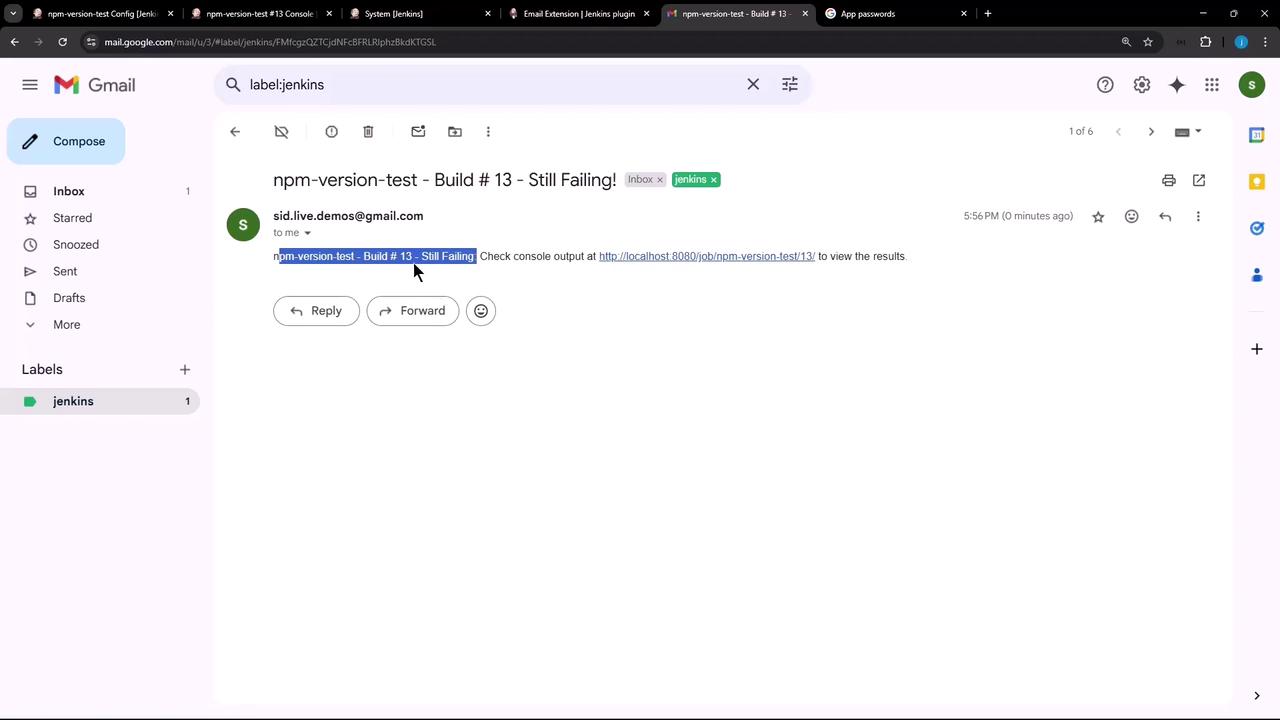
<Frame>
  ![The image shows a Gmail inbox with an email notification about a Jenkins build failure. The email subject indicates "npm-version-test - Build #13 - Still Failing" with a link to view the console output.](https://kodekloud.com/kk-media/image/upload/v1752870360/notes-assets/images/Certified-Jenkins-Engineer-Demo-Email-Extention-Notification-Freestyle/gmail-inbox-jenkins-build-failure.jpg)
</Frame>

## 6. Attach the Build Log

To include the build log in your notification:

1. Under **Editable Email Notification → Advanced Settings**, enable **Attach Build Log** and optionally **Compress Build Log**.
2. Save and rerun the job.
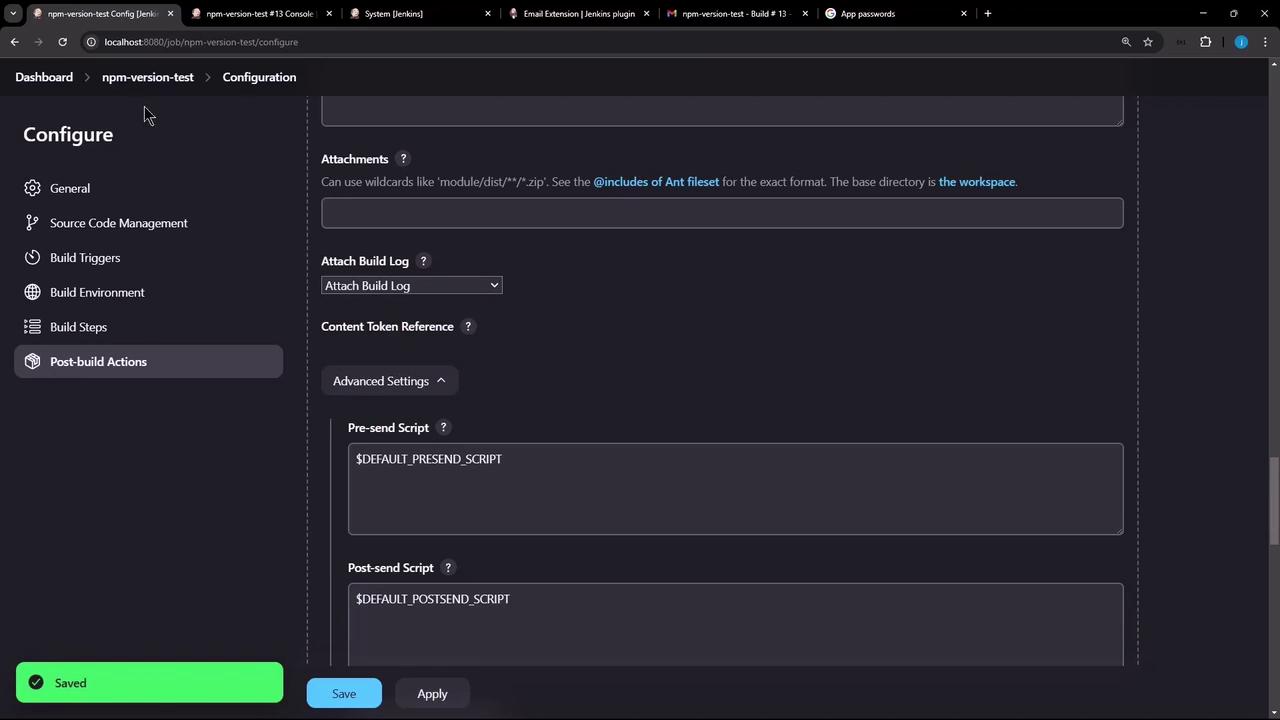
<Frame>
  ![The image shows a Jenkins configuration screen for a job named "npm-version-test," displaying options for post-build actions and script settings.](https://kodekloud.com/kk-media/image/upload/v1752870361/notes-assets/images/Certified-Jenkins-Engineer-Demo-Email-Extention-Notification-Freestyle/jenkins-npm-version-test-config-2.jpg)
</Frame>

The next email will include `build.log` as an attachment:
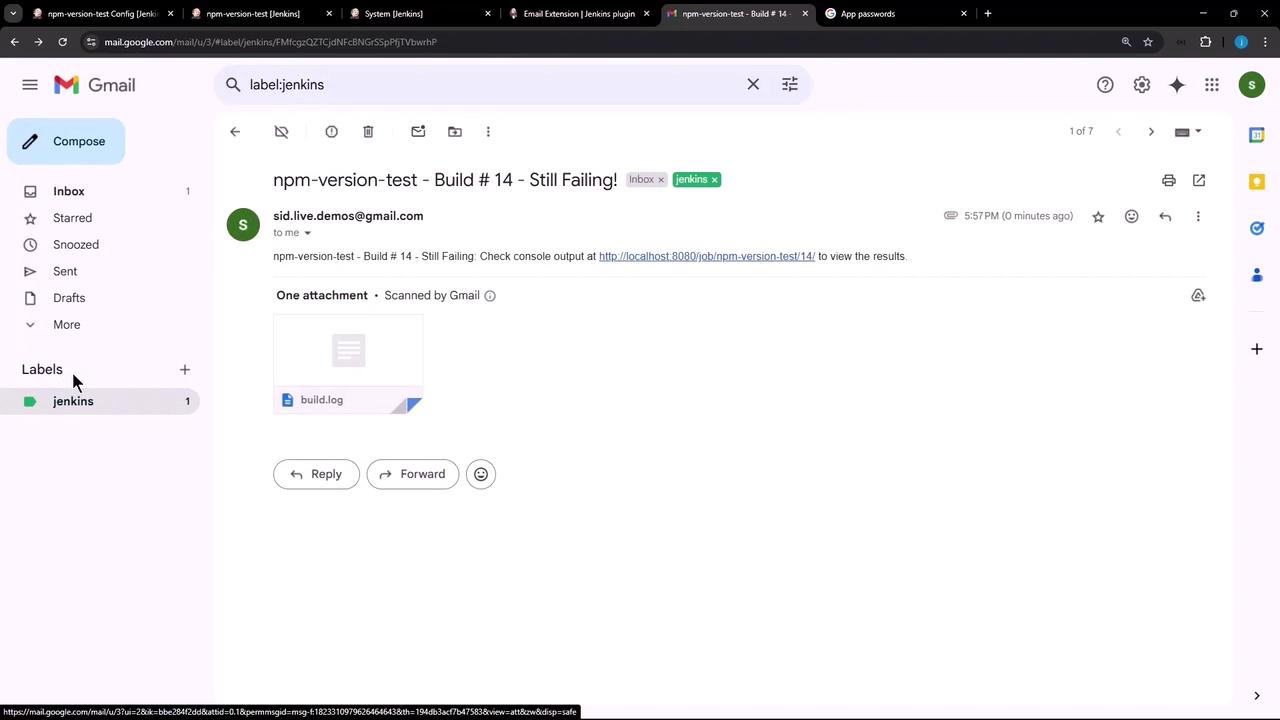
<Frame>
  ![The image shows a Gmail inbox with an email about a failed Jenkins build, labeled "npm-version-test - Build #14 - Still Failing!" It includes a link to view the console output and an attachment named "build.log."](https://kodekloud.com/kk-media/image/upload/v1752870362/notes-assets/images/Certified-Jenkins-Engineer-Demo-Email-Extention-Notification-Freestyle/gmail-inbox-jenkins-build-failure-2.jpg)
</Frame>

***

You’ve now set up the Jenkins Email Extension Plugin for Freestyle jobs—covering installation, global SMTP configuration, project-level notifications, triggers, and attachments.

[email-ext-docs]: https://plugins.jenkins.io/email-ext/

[gmail-2fa]: https://support.google.com/accounts/answer/185833

<CardGroup>
  <Card title="Watch Video" icon="video" cta="Learn more" href="https://learn.kodekloud.com/user/courses/certified-jenkins-engineer/module/4d6d1f39-307c-4fdb-8d2b-834c1650e792/lesson/4a7cb49b-4855-43ed-93ae-4578cc6eb23b" />
</CardGroup>