> ## Documentation Index
> Fetch the complete documentation index at: https://notes.kodekloud.com/llms.txt
> Use this file to discover all available pages before exploring further.

# Demo Jenkins Authentication

> This guide covers configuring authentication and authorization in Jenkins, including user management and security settings.

In this guide, we’ll dive into configuring authentication and authorization in Jenkins. By default, Jenkins creates a single admin user and doesn’t allow team members to self-register. You can integrate with external identity systems (LDAP or Active Directory) or use the built-in database. Follow these steps to secure your Jenkins instance.

## 1. Built-in User Database

1. Log in as the initial admin user.
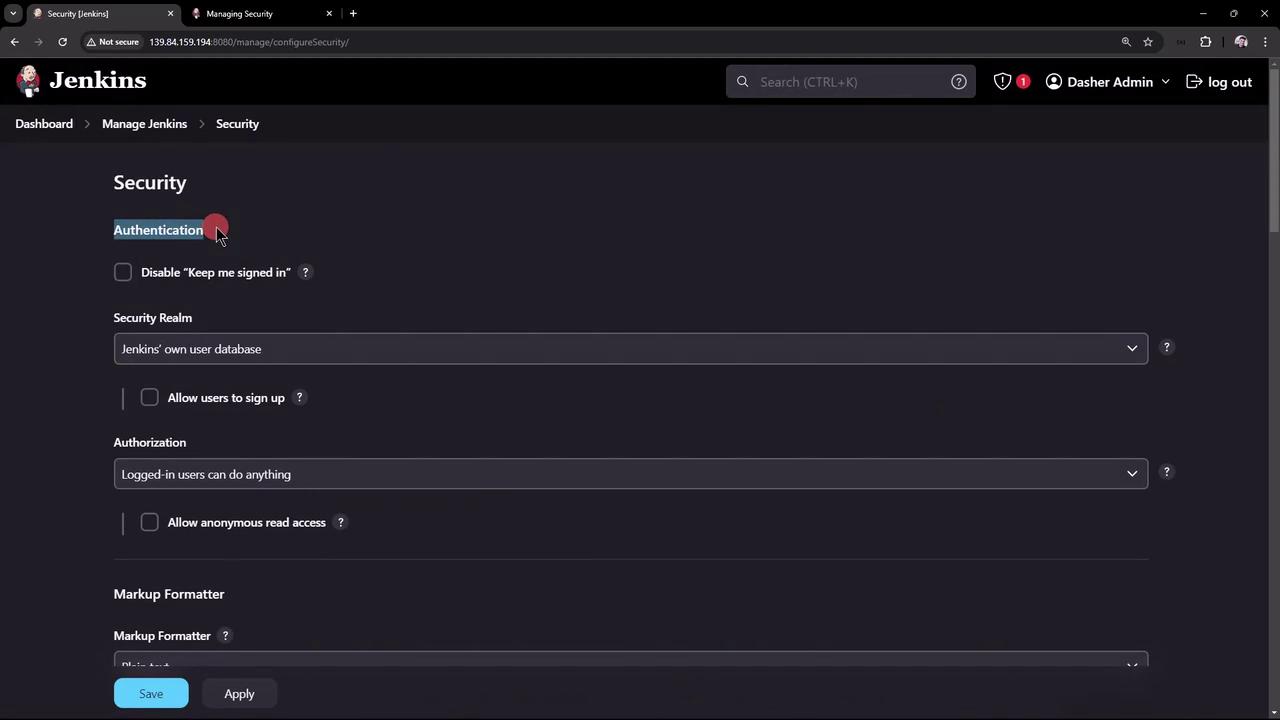
2. Navigate to **Manage Jenkins → Configure Global Security**.
3. Under **Security Realm**, you’ll see the default option:
<Frame>
  ![The image shows a Jenkins security configuration page with options for authentication, security realm, and authorization settings. It includes checkboxes and dropdown menus for managing user access and permissions.](https://kodekloud.com/kk-media/image/upload/v1752870370/notes-assets/images/Certified-Jenkins-Engineer-Demo-Jenkins-Authentication/jenkins-security-configuration-page.jpg)
</Frame>

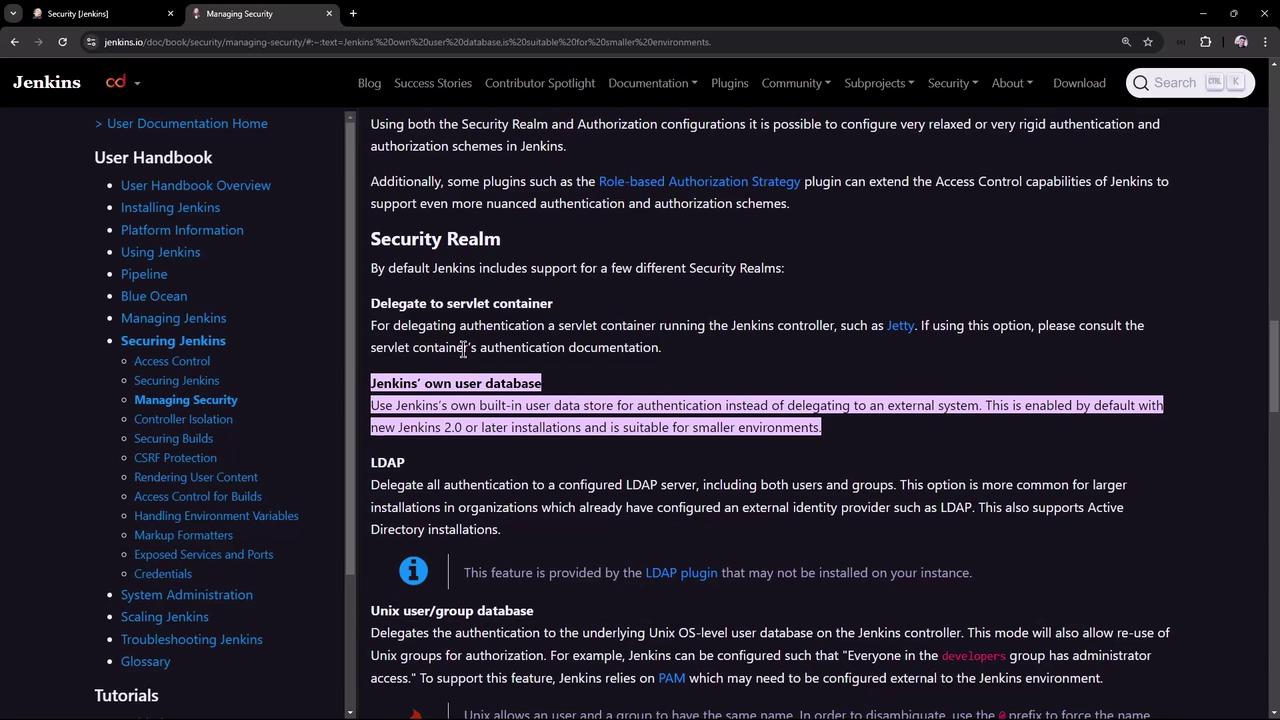
By default, Jenkins uses its own user database:
<Frame>
  ![The image shows a webpage from the Jenkins documentation, specifically focusing on managing security realms. It highlights options like using Jenkins' own user database and LDAP for authentication.](https://kodekloud.com/kk-media/image/upload/v1752870372/notes-assets/images/Certified-Jenkins-Engineer-Demo-Jenkins-Authentication/jenkins-security-realms-authentication.jpg)
</Frame>

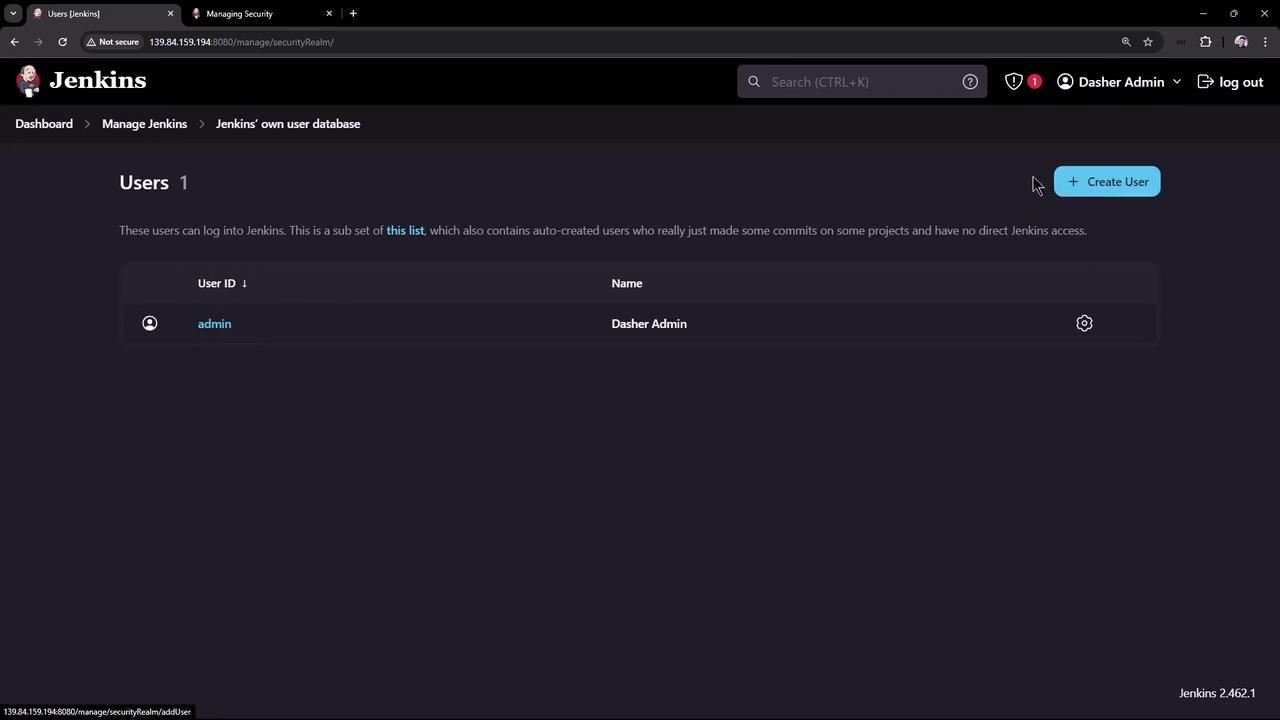
To view or manage these users, go to **Manage Jenkins → Manage Users**:
<Frame>
  ![The image shows a Jenkins user management interface with one user listed, identified as "admin." There is an option to create a new user.](https://kodekloud.com/kk-media/image/upload/v1752870373/notes-assets/images/Certified-Jenkins-Engineer-Demo-Jenkins-Authentication/jenkins-user-management-admin-interface.jpg)
</Frame>

### Enabling Self-Registration

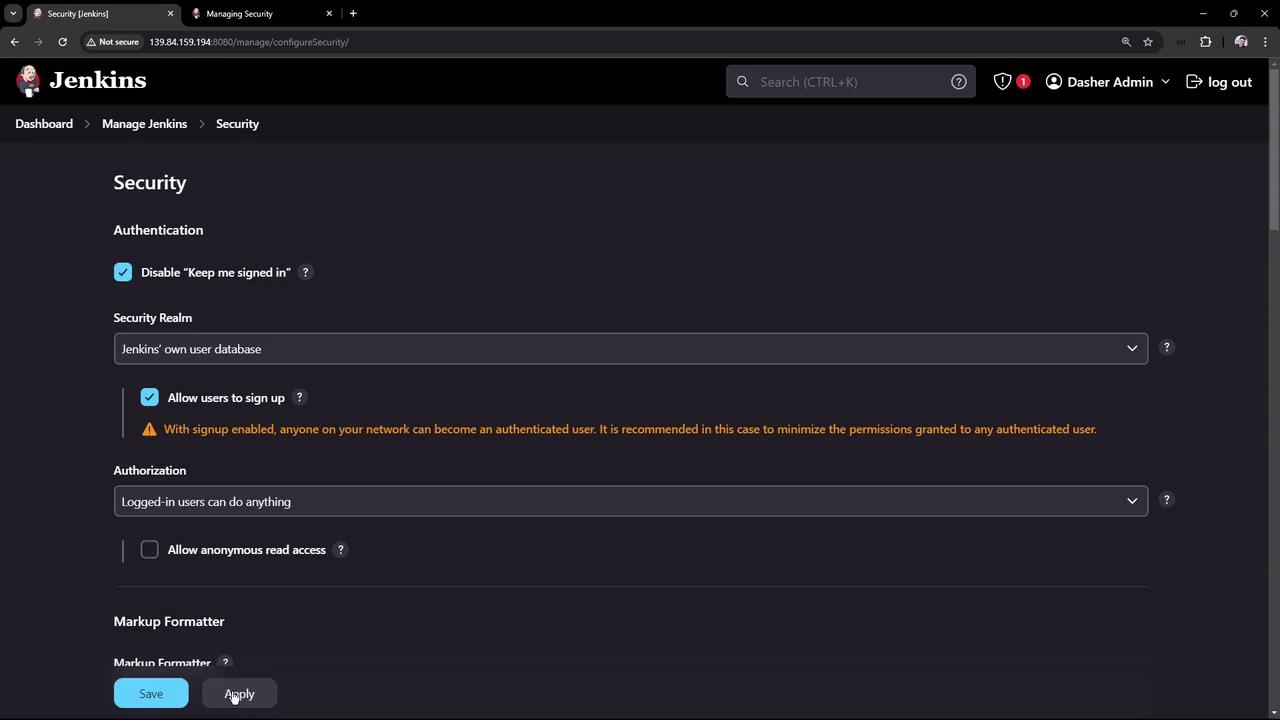
1. Under **Configure Global Security**, disable **Keep me signed in**.
2. Enable **Allow users to sign up** and click **Apply**.
<Frame>
  ![The image shows the Jenkins security configuration page, where authentication and authorization settings are being managed. Options include disabling "Keep me signed in," allowing user sign-up, and setting user permissions.](https://kodekloud.com/kk-media/image/upload/v1752870374/notes-assets/images/Certified-Jenkins-Engineer-Demo-Jenkins-Authentication/jenkins-security-configuration-settings.jpg)
</Frame>

<Callout icon="lightbulb" color="#1CB2FE">
  Allowing public sign-up can lead to unwanted accounts. Review registrations regularly or integrate with an external directory for tighter control.
</Callout>

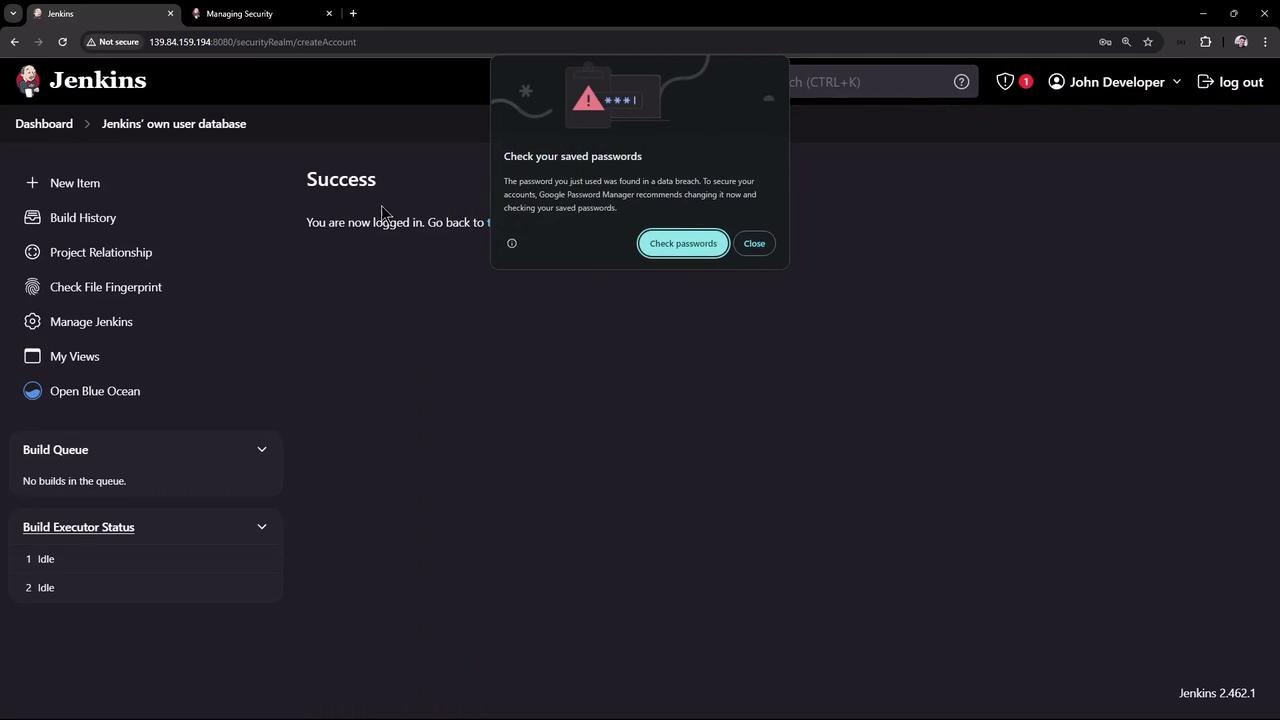
Log out. On the login screen, you’ll now see **Sign up**. Create a new user (e.g., **John**). Jenkins may warn you about weak passwords:
<Frame>
  ![The image shows a Jenkins dashboard with a notification about a password found in a data breach, recommending a password check.](https://kodekloud.com/kk-media/image/upload/v1752870375/notes-assets/images/Certified-Jenkins-Engineer-Demo-Jenkins-Authentication/jenkins-dashboard-password-breach-notification.jpg)
</Frame>

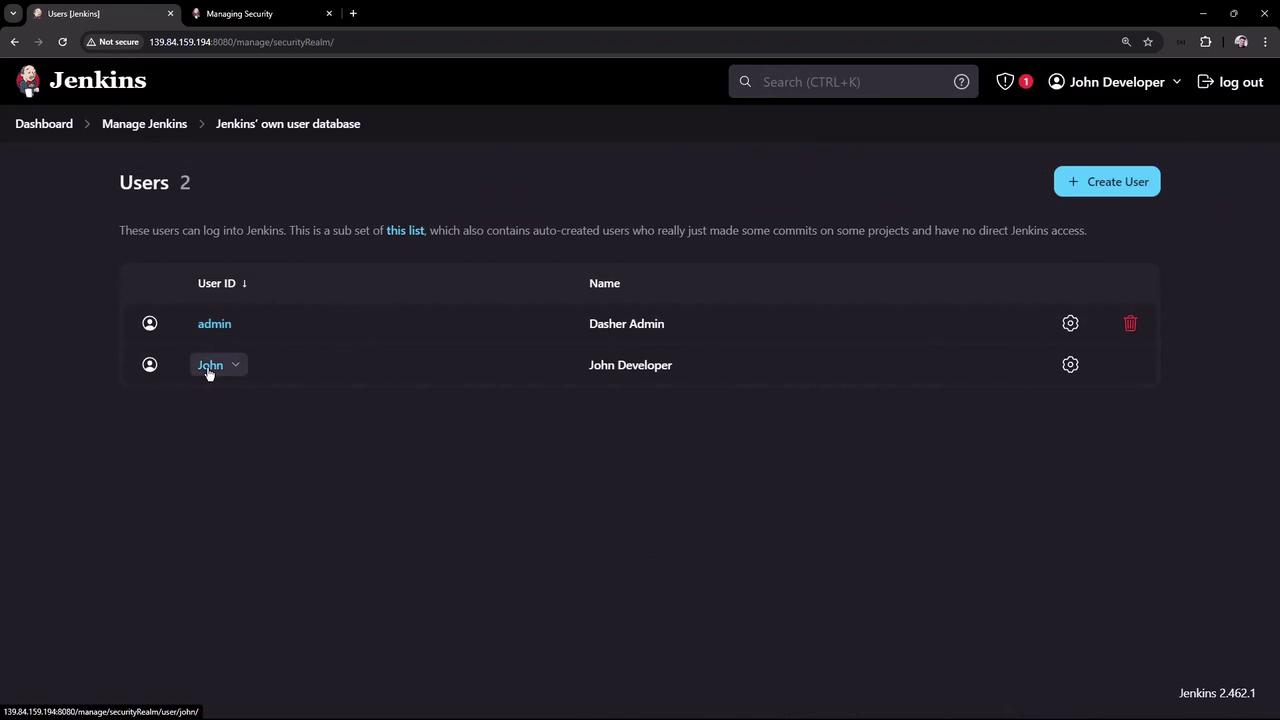
Returning to **Manage Users** shows both **admin** and **John**:
<Frame>
  ![The image shows a Jenkins user management interface displaying a list of users with their IDs and names, along with options to manage or delete them.](https://kodekloud.com/kk-media/image/upload/v1752870376/notes-assets/images/Certified-Jenkins-Engineer-Demo-Jenkins-Authentication/jenkins-user-management-interface.jpg)
</Frame>

## 2. Authorization Strategies

Authorization controls who can view, build, or configure jobs. In **Configure Global Security**, scroll to **Authorization**. The default is **Logged-in users can do anything**—only authenticated users have full access. Another setting is **Anyone can do anything**:

| Authorization Strategy          | Description                                 |
| ------------------------------- | ------------------------------------------- |
| Logged-in users can do anything | Only authenticated users have full access.  |
| Anyone can do anything          | Public access to all actions without login. |

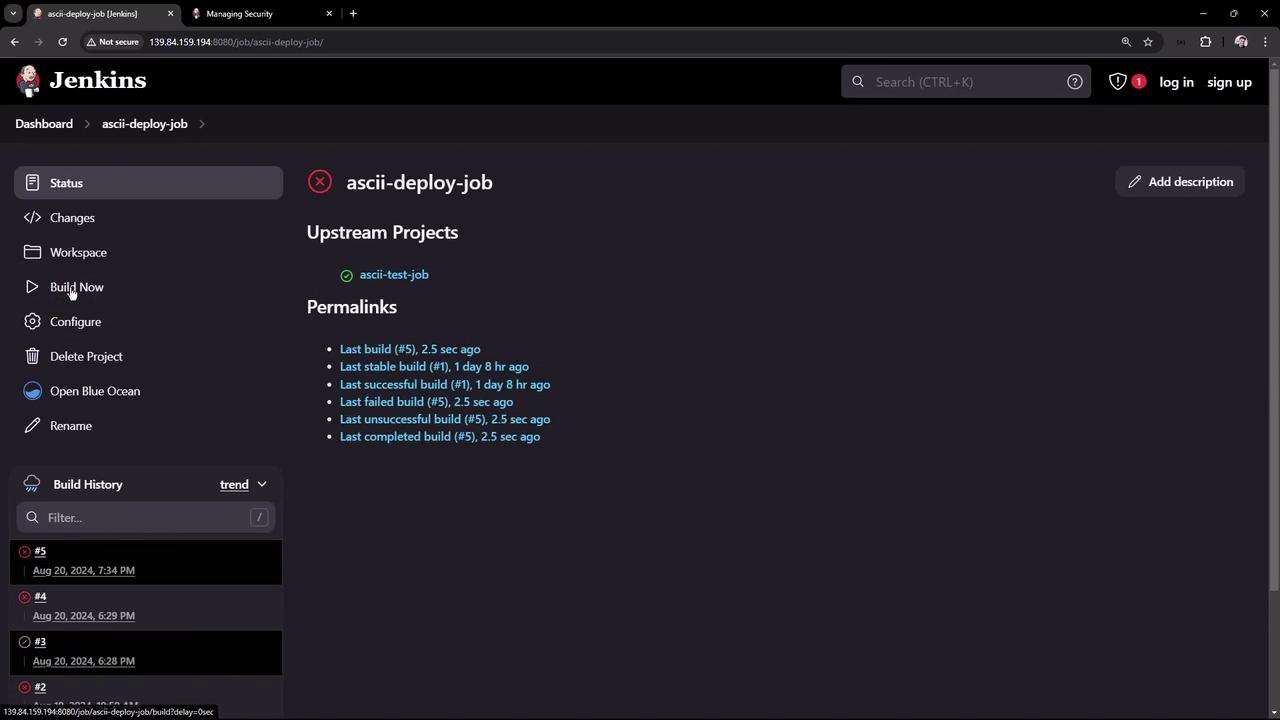
Select **Anyone can do anything**, click **Save**, then log out. Now you can view and trigger builds anonymously:
<Frame>
  ![The image shows a Jenkins dashboard for a job named "ascii-deploy-job," displaying build history and options like "Build Now" and "Configure." It includes details about recent builds and their statuses.](https://kodekloud.com/kk-media/image/upload/v1752870377/notes-assets/images/Certified-Jenkins-Engineer-Demo-Jenkins-Authentication/jenkins-dashboard-ascii-deploy-job.jpg)
</Frame>

```text theme={null}
Started by user unknown or anonymous
Running as SYSTEM
Building in workspace /var/lib/jenkins/workspace/ascii-deploy-job
Copied 1 artifact from "ascii-test-job" build number 5
[ascii-deploy-job] $ /bin/sh -xe /tmp/jenkins37422262028379197254.sh
+ exit 1
Build step 'Execute shell' marked build as failure
Finished: FAILURE
```

<Callout icon="triangle-alert" color="#FF6B6B">
  Allowing anonymous users to trigger builds is a serious security risk. Unauthenticated users should never run jobs on a production Jenkins master.
</Callout>

Log back in as **admin**, set **Authorization** to **Logged-in users can do anything**, and enable **Anonymous users read access**. Click **Save** and log out. Visitors can now view jobs but cannot create or manage them.

## 3. Mock Security Realm (Simulating LDAP)

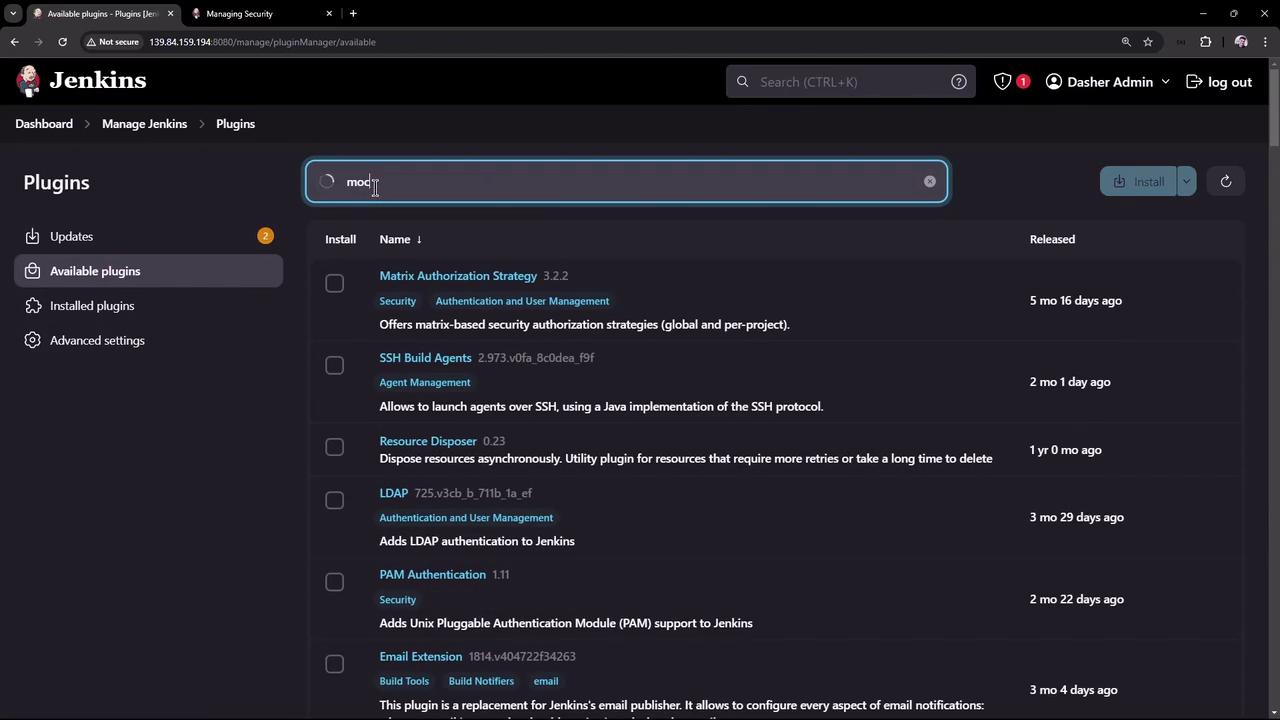
To simulate external authentication without a real directory server, install the **Mock Security Realm** plugin:

1. Go to **Manage Jenkins → Manage Plugins → Available**.
2. Search for **mock-security-realm** and install.
<Frame>
  ![The image shows a Jenkins interface displaying a list of available plugins, with a search bar filtering results for plugins related to "mod."](https://kodekloud.com/kk-media/image/upload/v1752870380/notes-assets/images/Certified-Jenkins-Engineer-Demo-Jenkins-Authentication/jenkins-plugins-interface-search-mod.jpg)
</Frame>

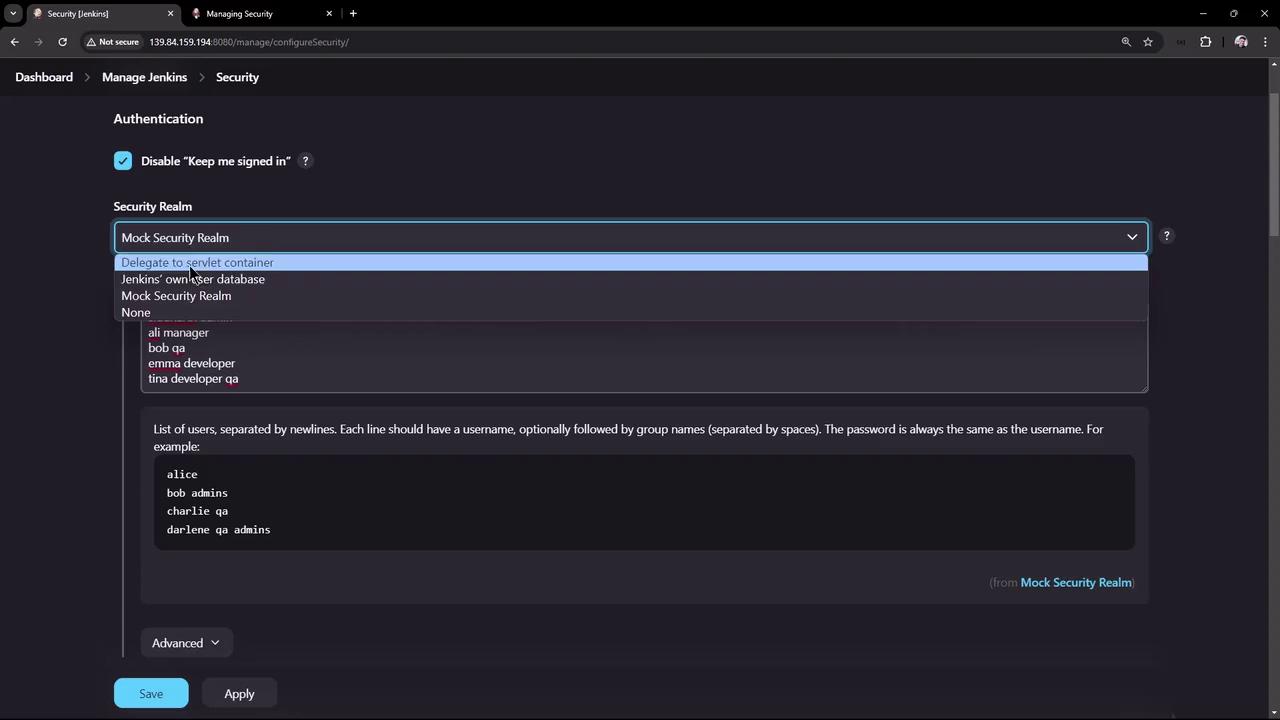
After installing, return to **Configure Global Security**. Under **Security Realm**, select **Mock Security Realm**:
<Frame>
  ![The image shows a Jenkins security configuration page with options for authentication and a dropdown menu for selecting the security realm. It includes a list of users and groups, with buttons to save or apply changes.](https://kodekloud.com/kk-media/image/upload/v1752870381/notes-assets/images/Certified-Jenkins-Engineer-Demo-Jenkins-Authentication/jenkins-security-configuration-page-2.jpg)
</Frame>

In the **User/Group Definitions** box, enter one user or group per line (passwords default to the username):

```text theme={null}
ali manager
bob qa
emma developer
tina developer qa
alice admins
charlie qa
darlene qa admins
```

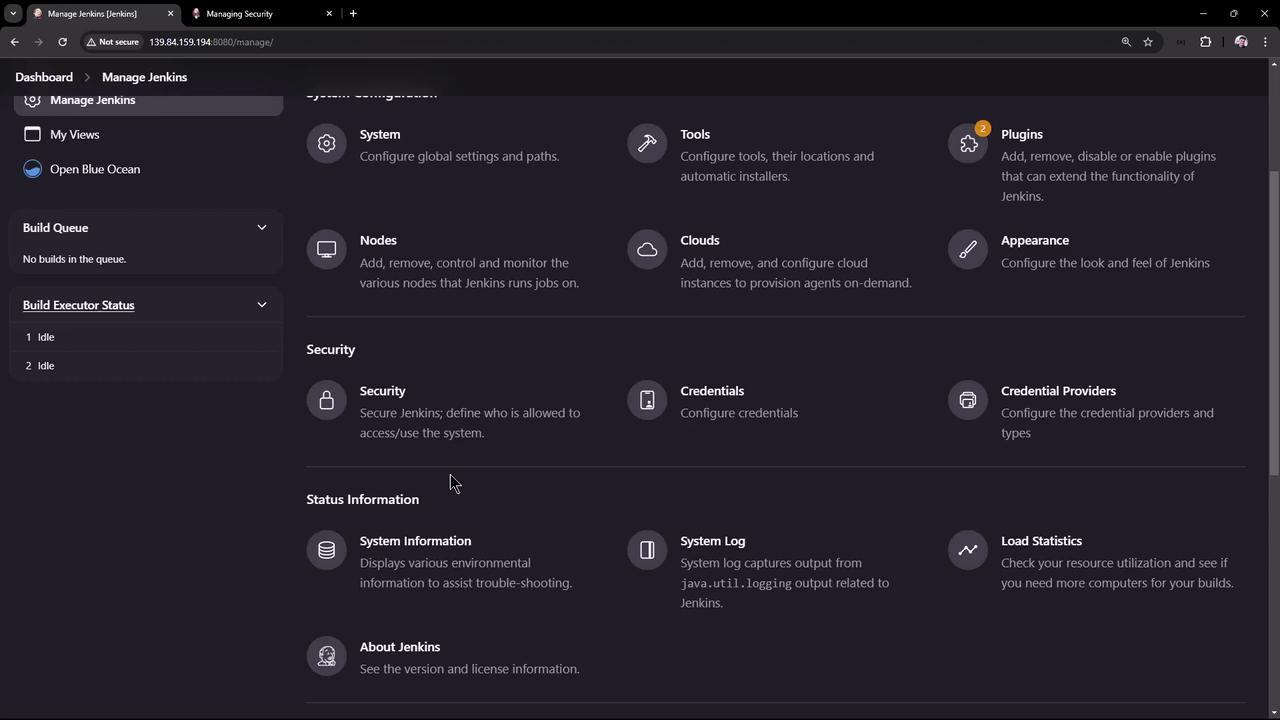
Disable **Allow anonymous read access** if desired, then click **Save**. The **Manage Users** page will disappear:
<Frame>
  ![The image shows the "Manage Jenkins" dashboard, displaying various configuration options such as system settings, tools, plugins, security, and credentials. It is part of a Jenkins server interface used for managing build and deployment processes.](https://kodekloud.com/kk-media/image/upload/v1752870382/notes-assets/images/Certified-Jenkins-Engineer-Demo-Jenkins-Authentication/manage-jenkins-dashboard-config-options.jpg)
</Frame>

### Logging In with Mock Users

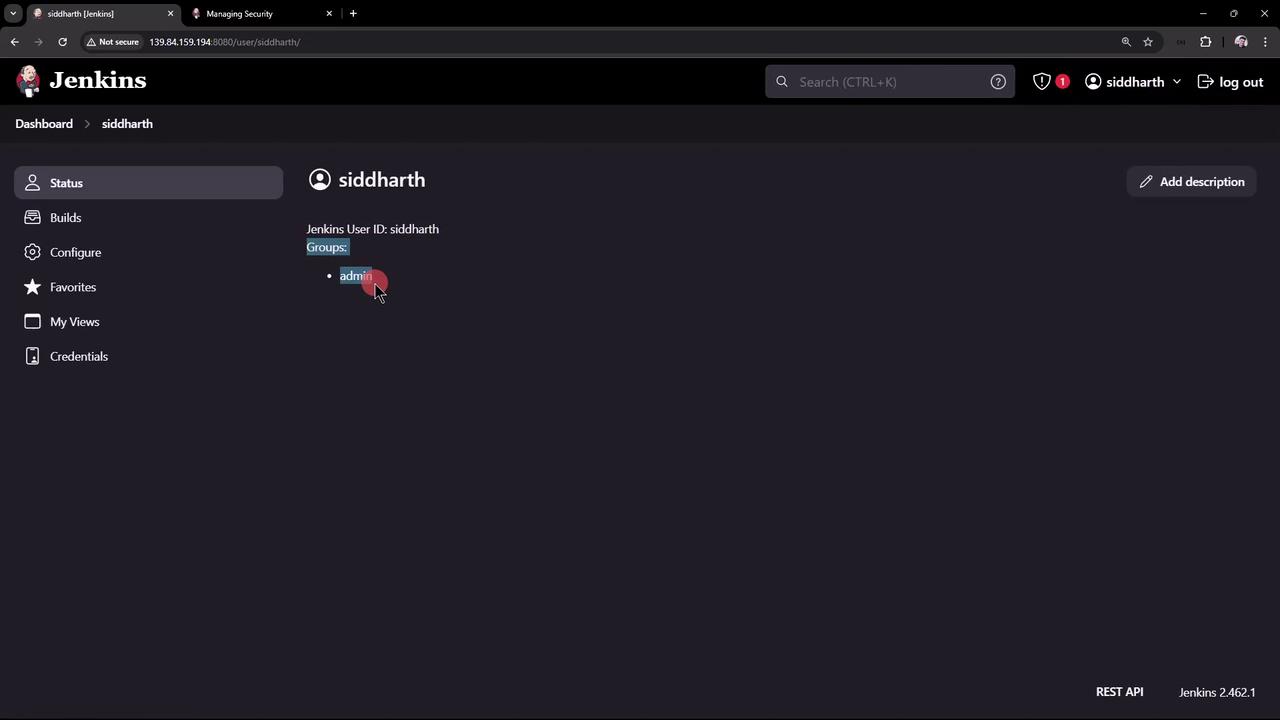
Log out, then log in as one of the mock users:

* **siddharth** (password: `siddharth`)
<Frame>
  ![The image shows a Jenkins user interface displaying the profile of a user named "siddharth," who belongs to the "admin" group. The sidebar includes options like Builds, Configure, Favorites, My Views, and Credentials.](https://kodekloud.com/kk-media/image/upload/v1752870383/notes-assets/images/Certified-Jenkins-Engineer-Demo-Jenkins-Authentication/jenkins-user-profile-siddharth-admin.jpg)
</Frame>

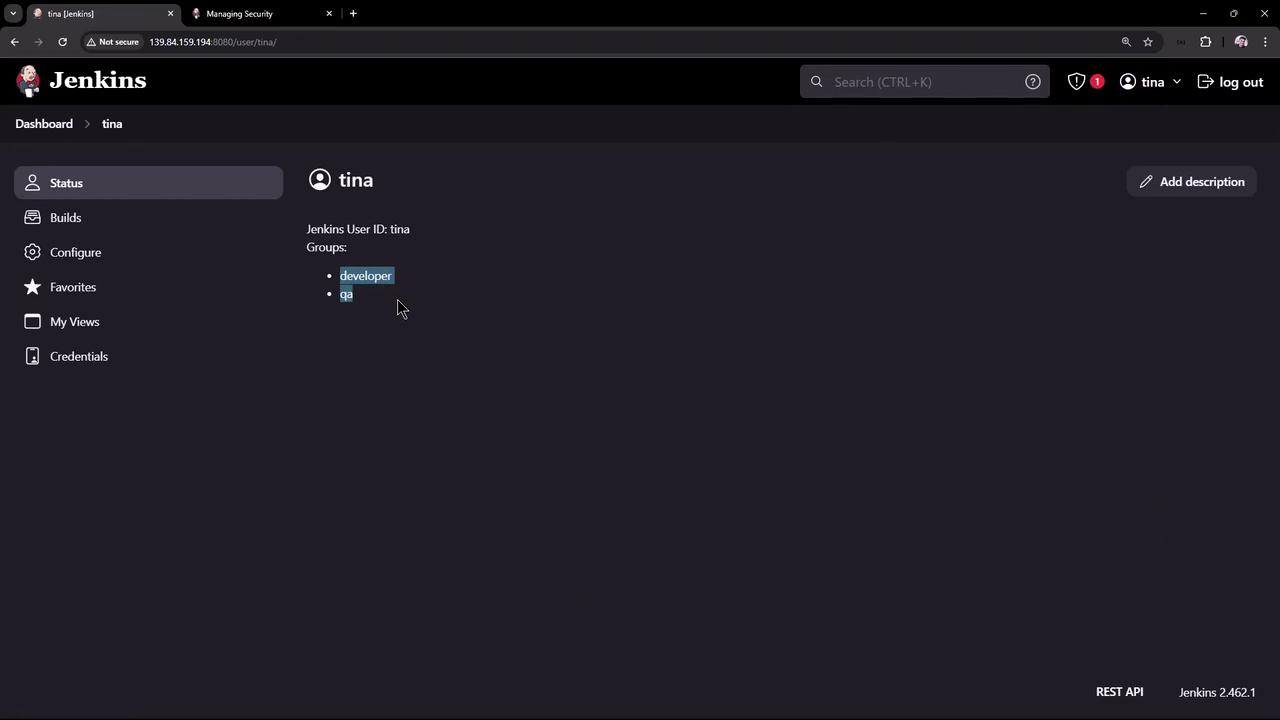
* **tina** (password: `tina`)

<Frame>
  ![The image shows a Jenkins user interface with a user profile for "tina," displaying her user ID and group memberships, which include "developer" and "qa." The sidebar includes options like Builds, Configure, and Credentials.](https://kodekloud.com/kk-media/image/upload/v1752870384/notes-assets/images/Certified-Jenkins-Engineer-Demo-Jenkins-Authentication/jenkins-user-interface-tina-profile.jpg)
</Frame>

The Mock Security Realm handles authentication and group assignments only; it doesn’t enforce permissions. Next, explore role-based authorization to grant the **admin** group exclusive rights to delete or configure jobs.

***

## Links and References

* [Jenkins Security Documentation](https://www.jenkins.io/doc/book/security/)
* [Mock Security Realm Plugin](https://plugins.jenkins.io/mock-security-realm/)
* [Configuring Global Security](https://www.jenkins.io/doc/book/system-administration/security/)

<CardGroup>
  <Card title="Watch Video" icon="video" cta="Learn more" href="https://learn.kodekloud.com/user/courses/certified-jenkins-engineer/module/4d6d1f39-307c-4fdb-8d2b-834c1650e792/lesson/303a824e-4043-459a-98b5-61e6eea5140c" />
</CardGroup>