> ## Documentation Index
> Fetch the complete documentation index at: https://notes.kodekloud.com/llms.txt
> Use this file to discover all available pages before exploring further.
# Demo Jenkins CLI Build a job
> This tutorial teaches how to use Jenkins CLI to download, authenticate, and trigger jobs from the terminal for CI/CD automation.
In this tutorial, you’ll learn how to download the Jenkins CLI, authenticate, and trigger jobs directly from your terminal. This approach helps automate deployments and integrate Jenkins into your CI/CD workflows.
## 1. Download the Jenkins CLI JAR
Navigate to **Manage Jenkins → Jenkins CLI** and copy the link to `jenkins-cli.jar`:
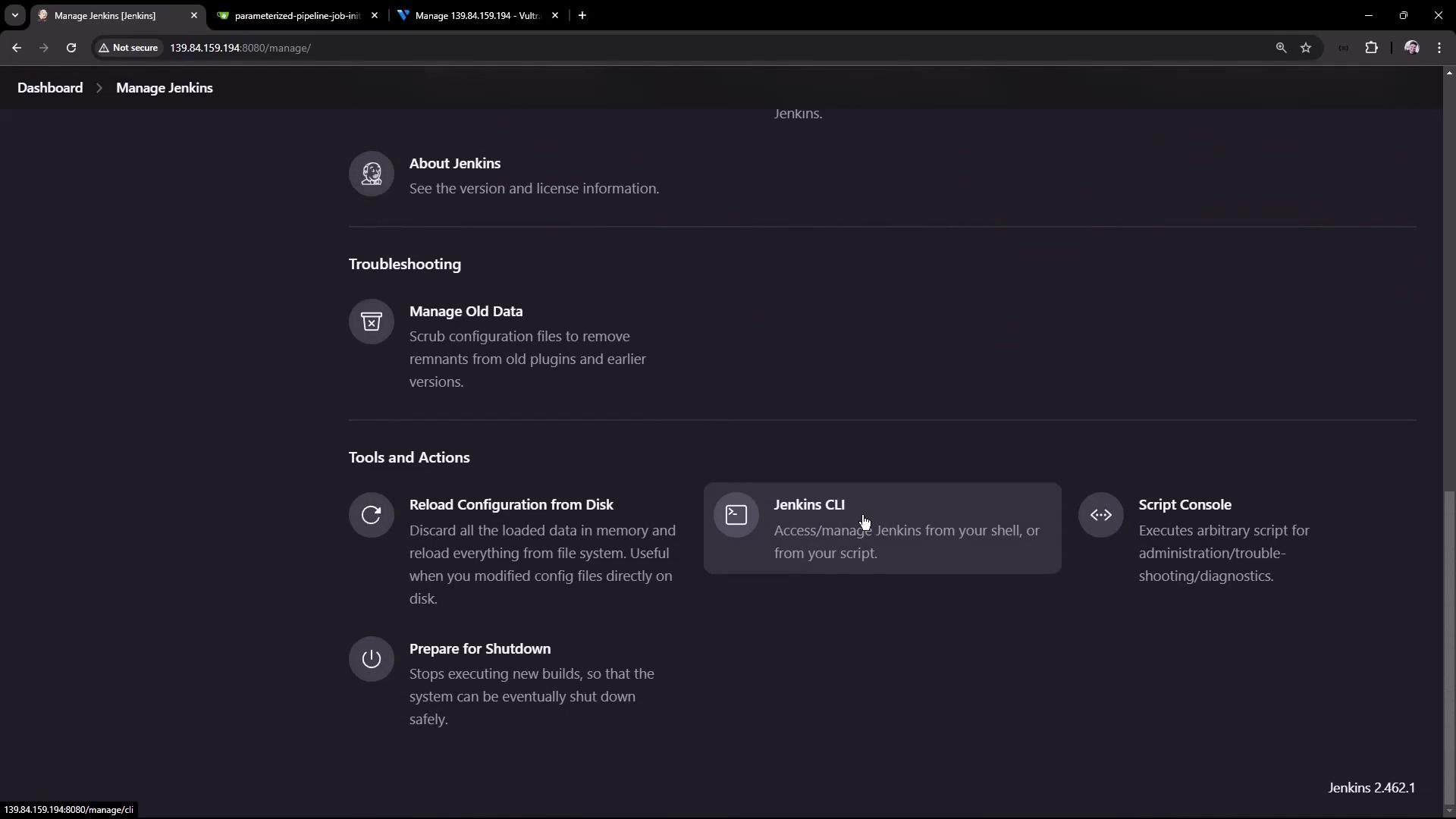
Replace `http://139.84.159.194:8080/` with your own Jenkins URL if different.
On your Jenkins controller VM:
```bash theme={null}
# Switch to home directory and download the CLI JAR
cd ~
wget http://139.84.159.194:8080/jnlpJars/jenkins-cli.jar
```
Verify the download:
```bash theme={null}
ls
# docker-compose.yml gitea jenkins-cli.jar
```
## 2. Explore Available CLI Commands
List all CLI commands and options:
```bash theme={null}
java -jar jenkins-cli.jar -s http://139.84.159.194:8080/ help
```
Check your current identity:
```bash theme={null}
java -jar jenkins-cli.jar -s http://139.84.159.194:8080/ who-am-i
```
```text theme={null}
Authenticated as: anonymous
Authorities:
anonymous
```
Attempting to list jobs without proper credentials results in:
```bash theme={null}
java -jar jenkins-cli.jar -s http://139.84.159.194:8080/ list-jobs
```
```text theme={null}
ERROR: anonymous is missing the Overall/Read permission
```
## 3. Authenticate with Username and Password
Use `-auth USER:SECRET` to provide credentials. For example:
```bash theme={null}
java -jar jenkins-cli.jar -s http://139.84.159.194:8080/ \
-auth admin:password \
list-jobs
```
```text theme={null}
ascii-build-job
ascii-deploy-job
ascii-test-job
Generate ASCII Artwork
hello-world-pipeline
jenkins-hello-world
parameterized-pipeline-job
```
Confirm your authenticated identity:
```bash theme={null}
java -jar jenkins-cli.jar -s http://139.84.159.194:8080/ \
-auth admin:password \
who-am-i
```
```text theme={null}
Authenticated as: admin
Authorities:
authenticated
```
Avoid embedding plaintext passwords in scripts. Use [Jenkins API tokens](https://www.jenkins.io/doc/book/security/managing-tokens/) or SSH key authentication for better security.
## 4. Build Command and Flags
The `build` command accepts several useful flags:
| Flag | Description |
| ------------ | ------------------------------------------ |
| -f | Follow the live build output |
| -p KEY=VALUE | Pass one or more build parameters |
| -s | Wait until the build completes |
| -v | Include the full console log in the output |
| -w | Wait until the build starts |
## 5. Triggering a Parameterized Job
To trigger `parameterized-pipeline-job` with a `BRANCH_NAME` parameter:
```bash theme={null}
java -jar jenkins-cli.jar -s http://139.84.159.194:8080/ \
-auth admin:password \
build parameterized-pipeline-job -f -p BRANCH_NAME=test
```
```text theme={null}
Started parameterized-pipeline-job #4
Completed parameterized-pipeline-job #4 : SUCCESS
```
## 6. View Job Status in Jenkins UI
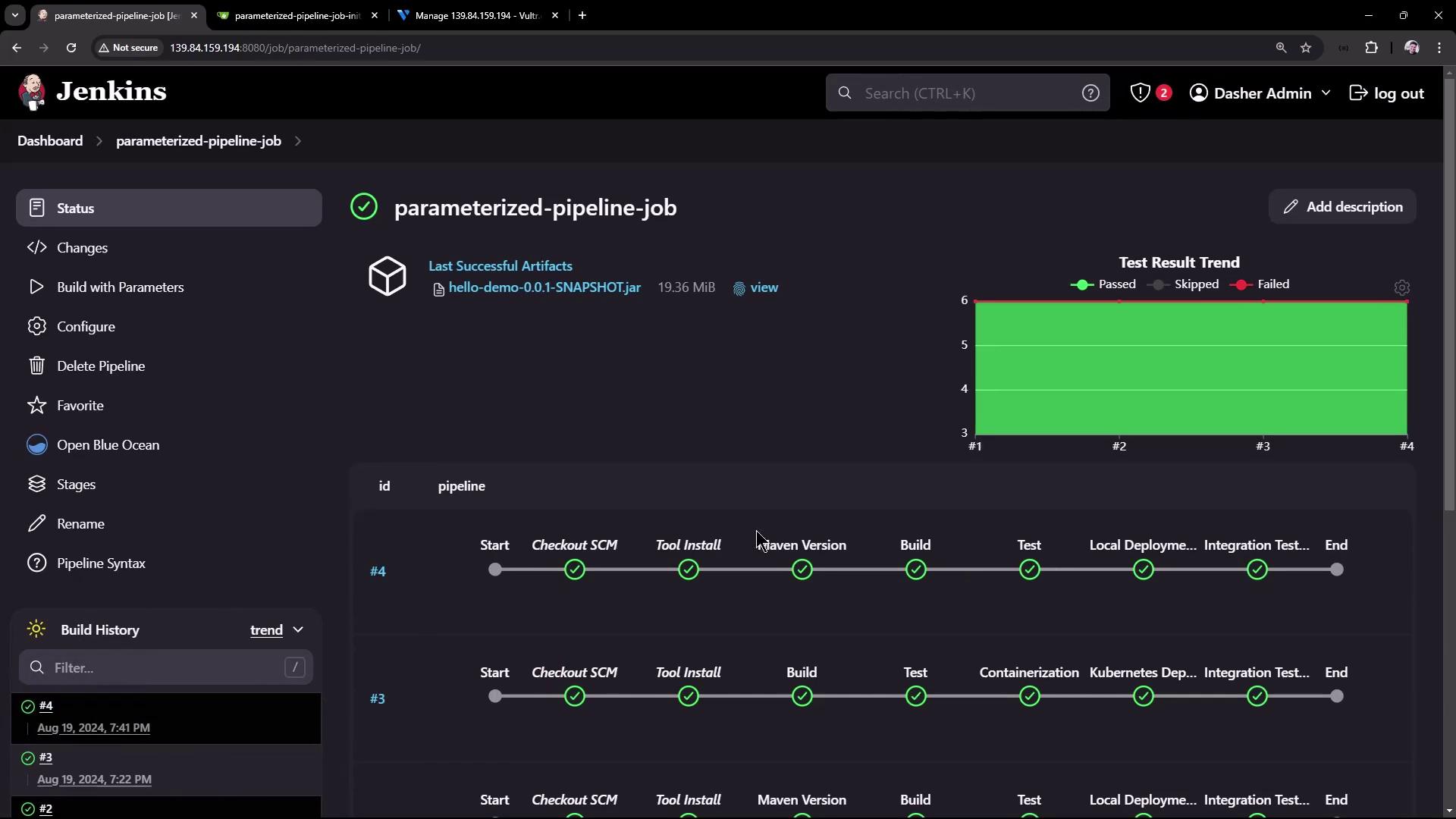
After running the CLI command, you can monitor the build status and trends in the Jenkins dashboard:
## 7. Include Full Console Output
If you need detailed logs in your terminal, add the `-v` flag:
```bash theme={null}
java -jar jenkins-cli.jar -s http://139.84.159.194:8080/ \
-auth admin:password \
build parameterized-pipeline-job -f -v -p BRANCH_NAME=test
```
```text theme={null}
[Pipeline] Start of Pipeline
...
[INFO] Total time: 3.452 s
[INFO] Finished at: 2024-08-19T19:42:29Z
...
[Pipeline] End of Pipeline
Finished: SUCCESS
Completed parameterized-pipeline-job #5 : SUCCESS
```
***
You can automate these steps in shell scripts or integrate them into your CI/CD pipelines. Beyond building jobs, the Jenkins CLI lets you manage views, plugins, credentials, and more.
## Links and References
* [Jenkins CLI Documentation](https://www.jenkins.io/doc/book/managing/cli/)
* [Jenkins Security: Managing API Tokens](https://www.jenkins.io/doc/book/security/managing-tokens/)
* [Jenkins User Handbook](https://www.jenkins.io/user-handbook.pdf)