> ## Documentation Index
> Fetch the complete documentation index at: https://notes.kodekloud.com/llms.txt
> Use this file to discover all available pages before exploring further.
# Demo Jenkins CLI SSH Authentication
> This guide explains how to configure Jenkins for SSH key-based authentication for its CLI, enhancing security and integration with existing SSH infrastructure.
In this guide, you’ll learn how to configure Jenkins to use SSH key–based authentication for its CLI, replacing the default HTTP basic auth. This approach is more secure and integrates seamlessly with your existing SSH infrastructure.
## Prerequisites
| Requirement | Description |
| ----------------- | ---------------------------------------------------------- |
| Jenkins server | Running on `http://localhost:8080` |
| SSH client | Installed on your local machine |
| `jenkins-cli.jar` | Downloaded from your Jenkins server (Manage → Jenkins CLI) |
## 1. Discovering the Jenkins SSH Endpoint
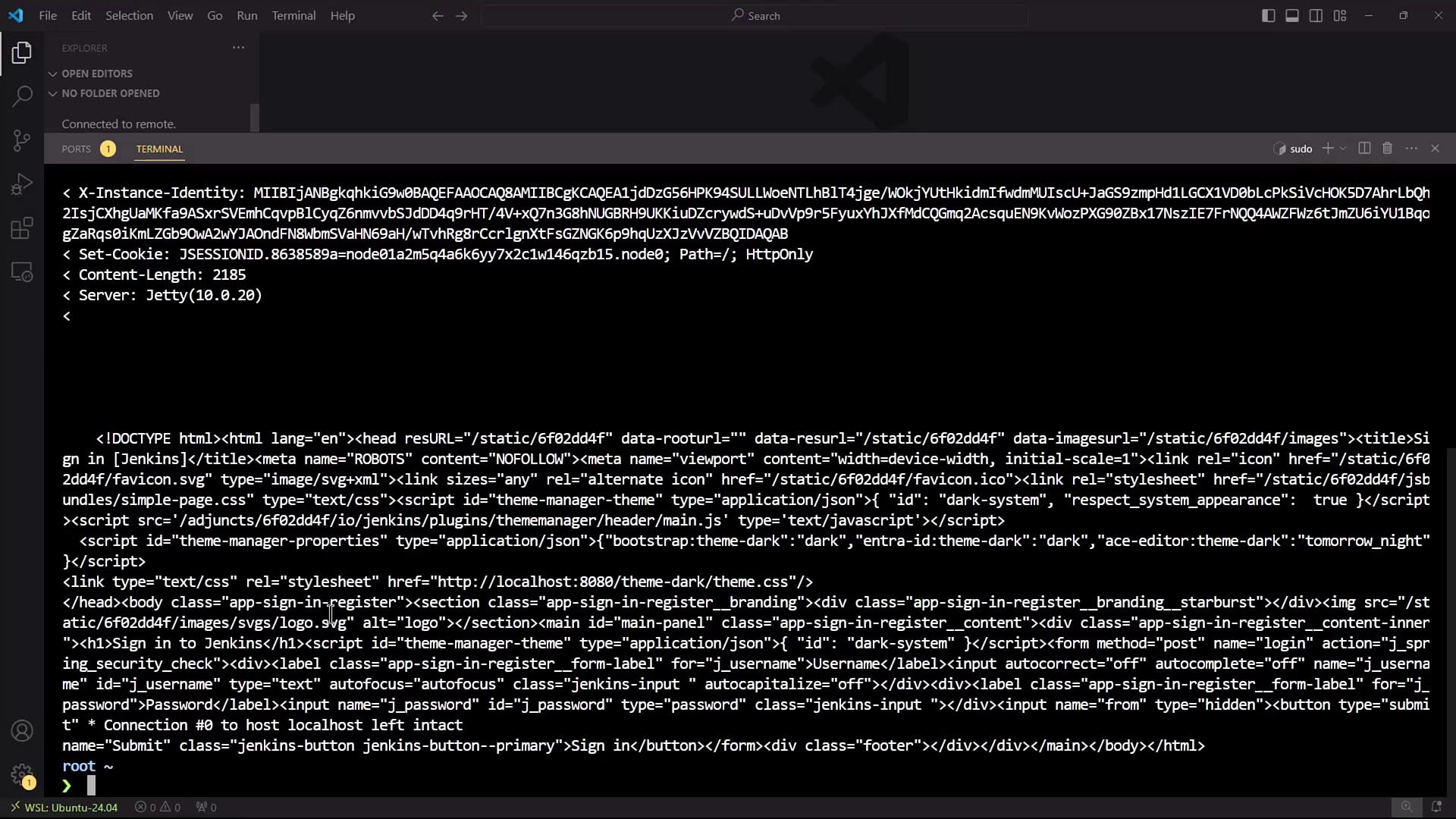
Jenkins exposes its CLI over SSH on a configurable port. To find the SSH endpoint before enabling it, query the `/login` endpoint:
```bash theme={null}
curl -Lv http://localhost:8080/login 2>&1 | grep -i 'x-ssh-endpoint'
```
By default, the SSH server is disabled in Jenkins, so you won’t see the `X-SSH-Endpoint` header until it’s enabled.
## 2. Enabling the Jenkins SSH Server
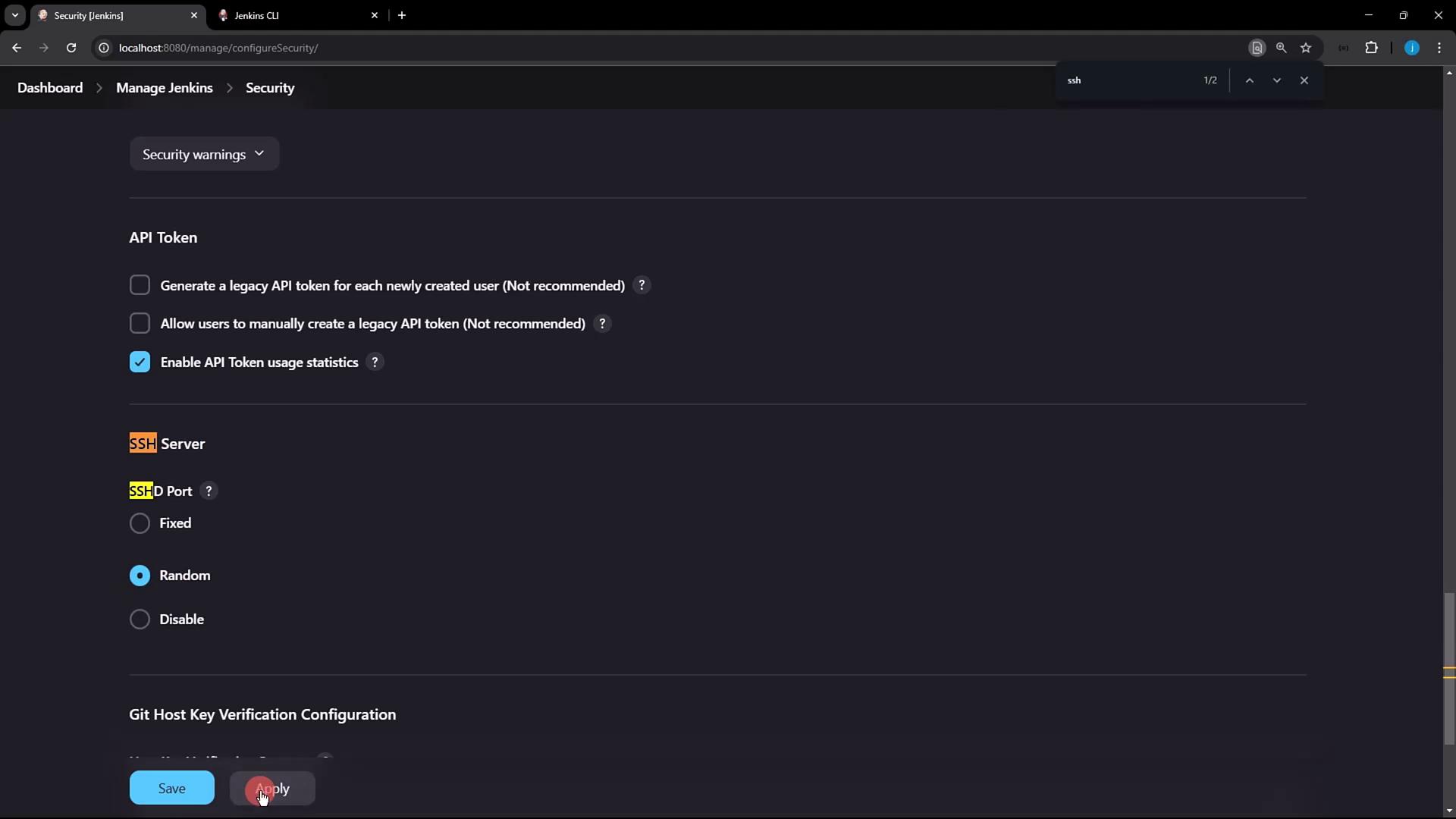
1. In Jenkins, go to **Manage Jenkins** → **Configure Global Security**.
2. Locate the **SSH Server** section and enable the SSH port. You can select **Random** or enter a fixed port (e.g., `2222`).
3. Click **Apply** to save changes.
If you choose a fixed port, make sure it’s open in your firewall and not in use by another service.
After applying, rerun the `curl` command:
```bash theme={null}
curl -Lv http://localhost:8080/login 2>&1 | grep -i 'x-ssh-endpoint'
```
You should now see output similar to:
```text theme={null}
< X-SSH-Endpoint: localhost:4397
```
The SSH server is listening on port **4397**.
## 3. Generating and Registering Your SSH Key
### 3.1 Generate an SSH Key Pair
If you don’t already have an SSH key, generate one:
```bash theme={null}
ssh-keygen -t rsa -b 4096
```
Press **Enter** to accept the default file location (`~/.ssh/id_rsa`) and leave the passphrase empty if you prefer. Then display your public key:
```bash theme={null}
cat ~/.ssh/id_rsa.pub
# ssh-rsa AAAAB3NzaC1yc2EAAAADAQABAAABAQC... root@host
```
### 3.2 Add Your Public Key in Jenkins
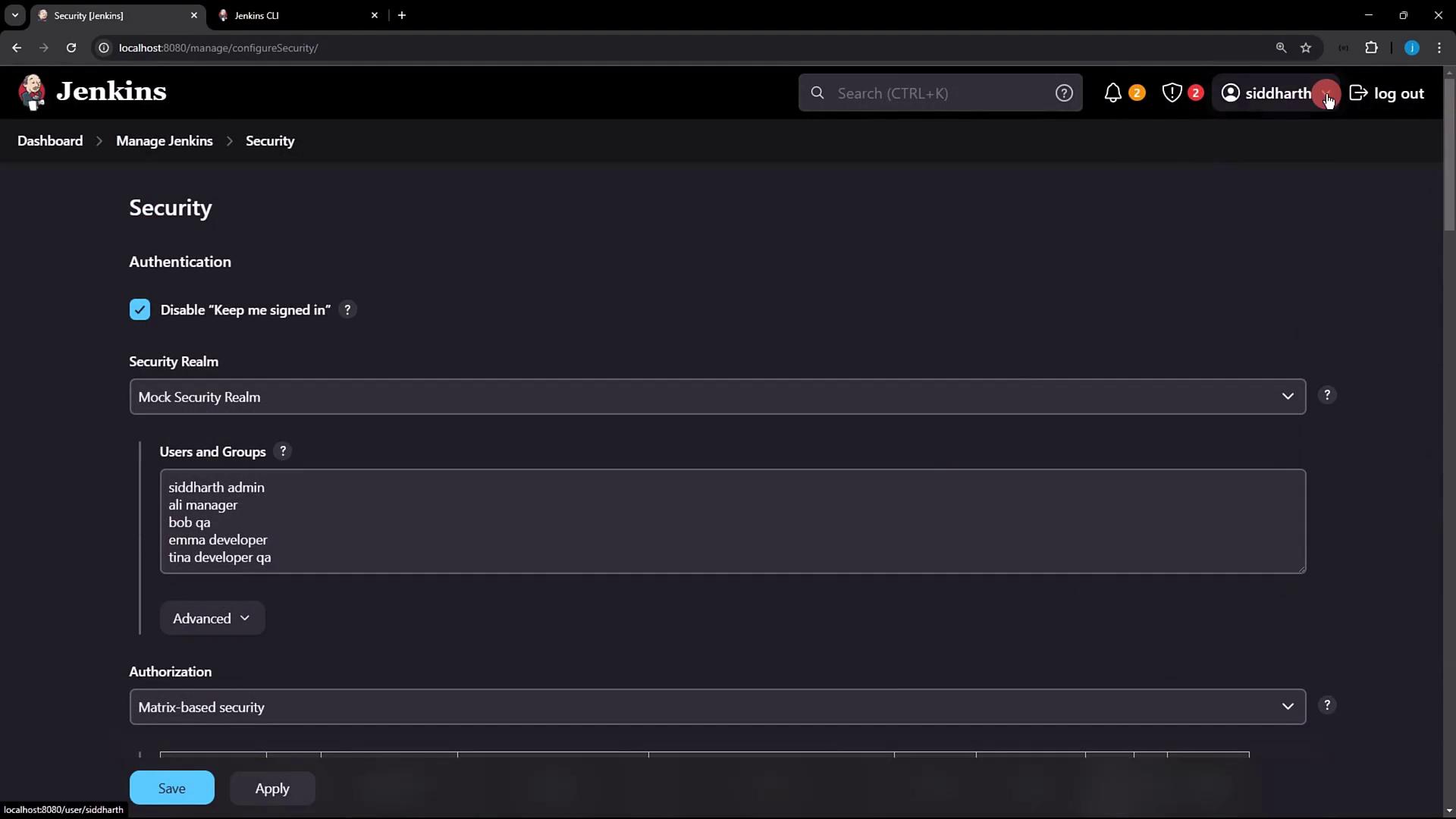
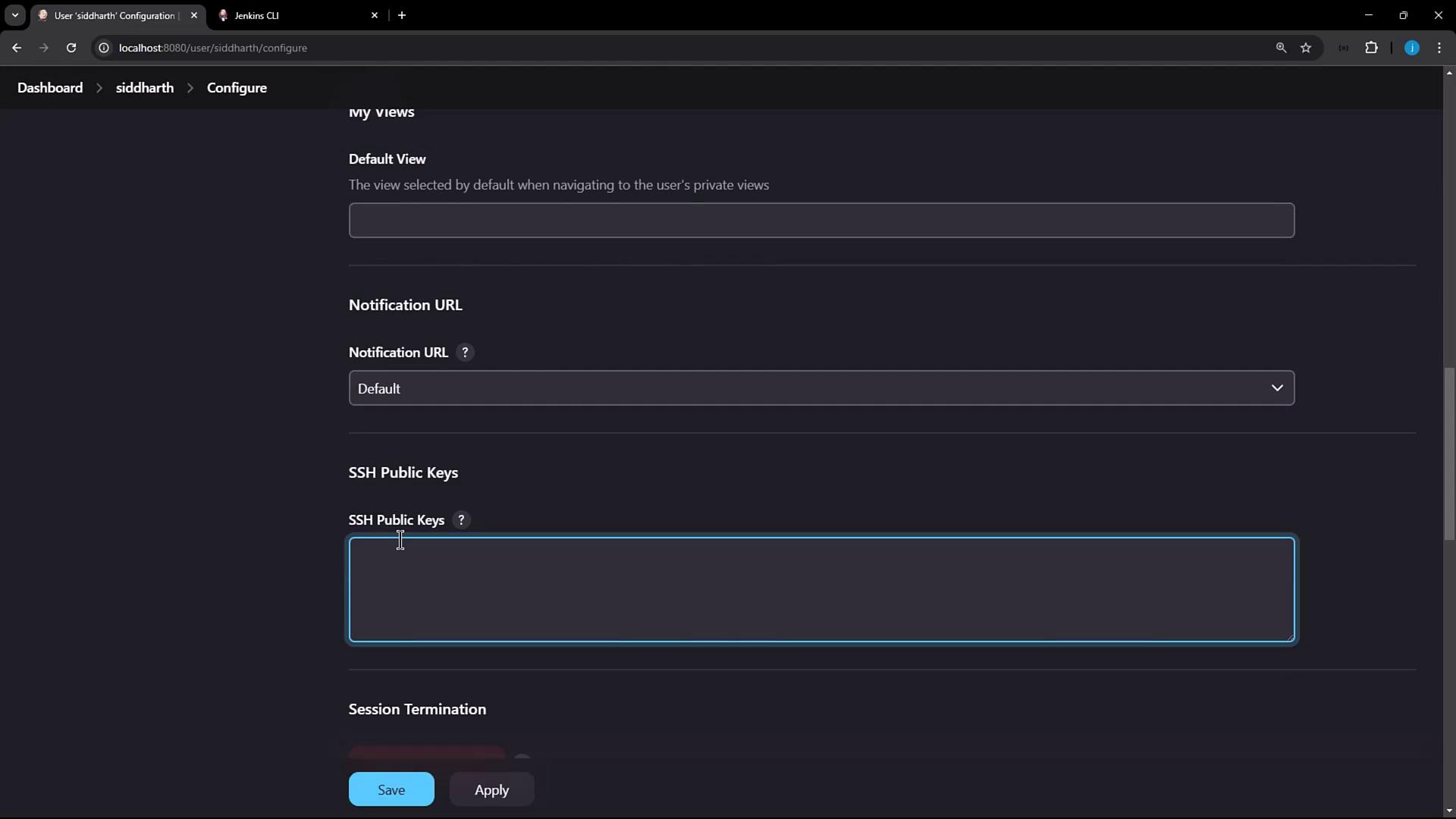
1. Click your Jenkins user name (e.g., **siddharth**) → **Configure**.
2. Scroll to the **SSH Public Keys** section.
3. Paste the contents of `~/.ssh/id_rsa.pub` into the text box.
4. Click **Apply**.
## 4. Connecting to Jenkins via SSH
Now that your public key is registered, connect to Jenkins over SSH and run CLI commands. Replace `4397` with the port reported by `X-SSH-Endpoint`:
```bash theme={null}
ssh -l siddharth -p 4397 localhost help
```
Sample output:
```text theme={null}
add-job-to-view Adds jobs to view.
build Builds a job, and optionally waits until completion.
cancel-quiet-down Cancel the effect of the "quiet-down" command.
clear-queue Clears the build queue.
...
```
## 5. Using SSH Mode with the Jenkins CLI JAR
You can also invoke SSH mode directly via `jenkins-cli.jar`. For full details, see the [Jenkins CLI documentation][jenkins-cli-docs].
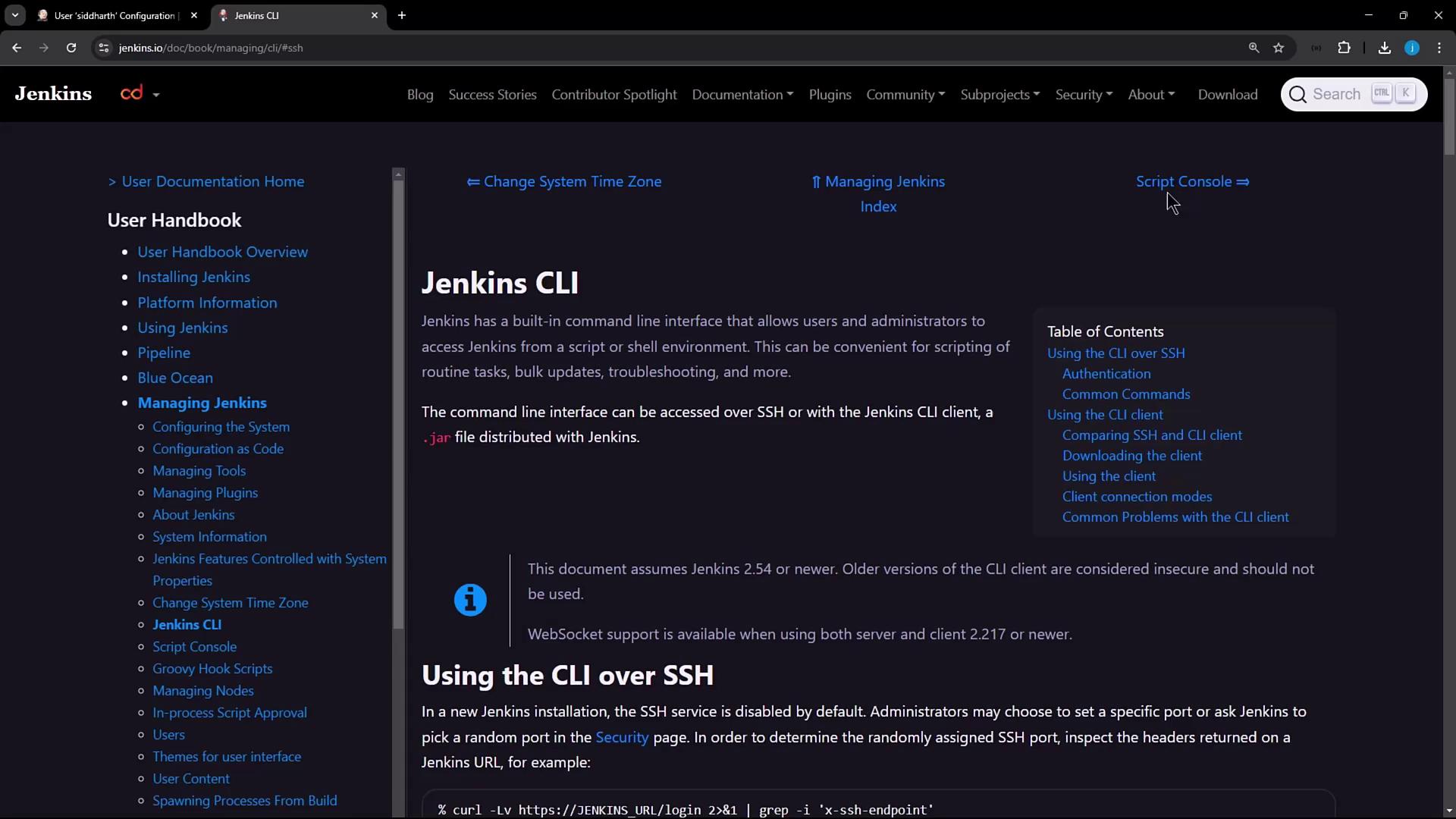
Example—list jobs over SSH:
```bash theme={null}
java -jar jenkins-cli.jar \
-s http://localhost:8080 \
-ssh -user siddharth \
list-jobs
```
Expected output:
```text theme={null}
ascii-build-job
ascii-deploy-job
ascii-test-job
d-v-s-pipeline
Dasher_testJob
...
```
This confirms that authentication is performed via your SSH key pair instead of HTTP basic auth.
## Authentication Methods Comparison
| Method | Port/Protocol | Complexity |
| --------------- | ------------- | ---------- |
| HTTP Basic Auth | 8080 (HTTP) | Minimal |
| SSH Key Auth | Custom (SSH) | Moderate |
## References
* [Jenkins CLI documentation][jenkins-cli-docs]
* [Generating SSH Keys][ssh-keygen-docs]
* [Jenkins Security Concepts][jenkins-security-docs]
[jenkins-cli-docs]: https://www.jenkins.io/doc/book/managing/cli/
[ssh-keygen-docs]: https://www.ssh.com/academy/ssh/keygen
[jenkins-security-docs]: https://www.jenkins.io/doc/book/system-administration/security/