> ## Documentation Index
> Fetch the complete documentation index at: https://notes.kodekloud.com/llms.txt
> Use this file to discover all available pages before exploring further.
# Demo Upgrading Jenkins
> This guide covers safely upgrading Jenkins with minimal downtime using the Prepare for Shutdown feature.
Upgrading Jenkins with minimal downtime requires planning and the built-in **Prepare for Shutdown** feature. In this guide, we’ll cover:
* Checking for new Jenkins releases
* Reviewing changelogs
* Preventing new builds during the update
* Performing the WAR file upgrade
* Verifying the new version
***
## 1. Choose Your Jenkins Release
Navigate to the [Jenkins download and deployment page](https://www.jenkins.io/download/). Compare the Stable (LTS) and Weekly packages:
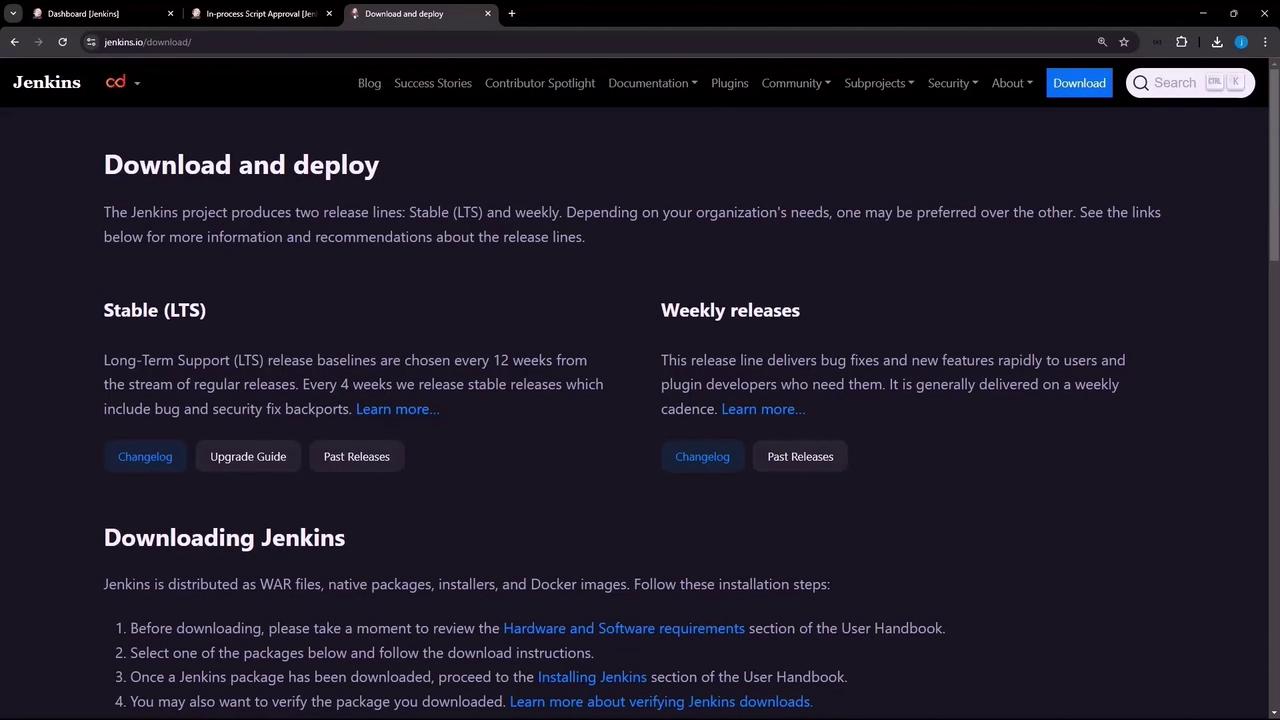
| Release Type | Update Frequency | Ideal For |
| ------------ | ---------------- | ------------------------------------------- |
| LTS | Every 12 weeks | Production environments requiring stability |
| Weekly | Weekly | Testing the latest features and bug fixes |
***
## 2. Check for Updates on Your Dashboard
Log in to Jenkins and go to **Manage Jenkins**. The dashboard shows pending updates and plugin advisories:
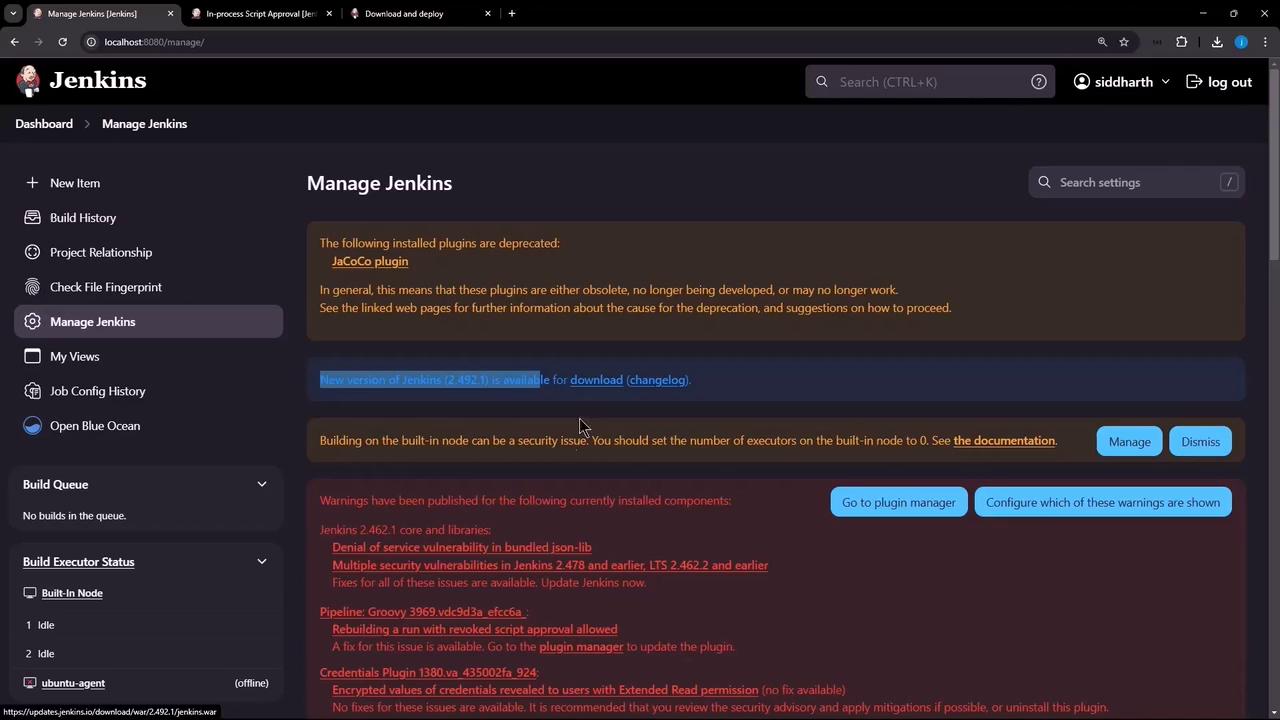
Click **Changelog** to review the release notes:
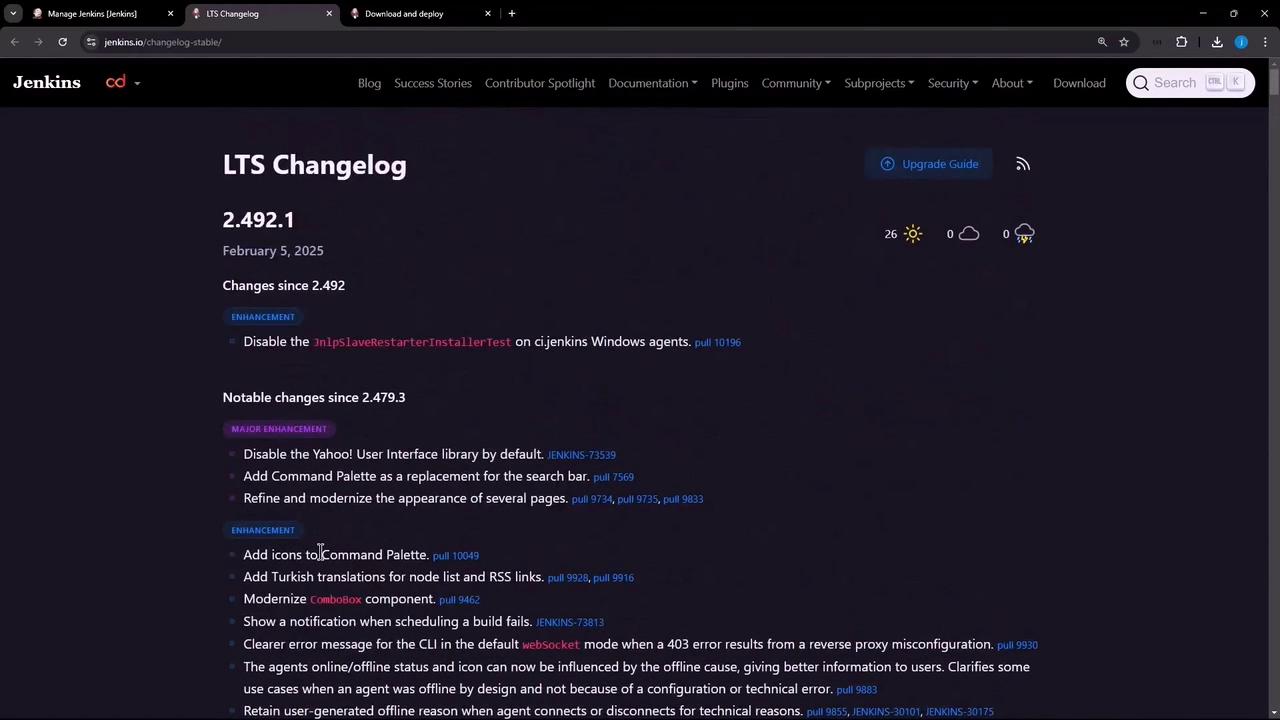
For example, upgrading from **2.462.1** to **2.492.1** brings critical security fixes and performance improvements. Copy the WAR URL (e.g., `https://updates.jenkins.io/download/war/2.492.1/jenkins.war`) for the next step.
***
## 3. Prepare Jenkins for Upgrade
Before replacing the WAR, enter shutdown mode so existing builds finish and no new builds start:
1. Go to **Manage Jenkins → Prepare for Shutdown**
2. Add a reason (e.g., “Planning for upgrade”) and confirm
A banner appears and all new build requests queue:
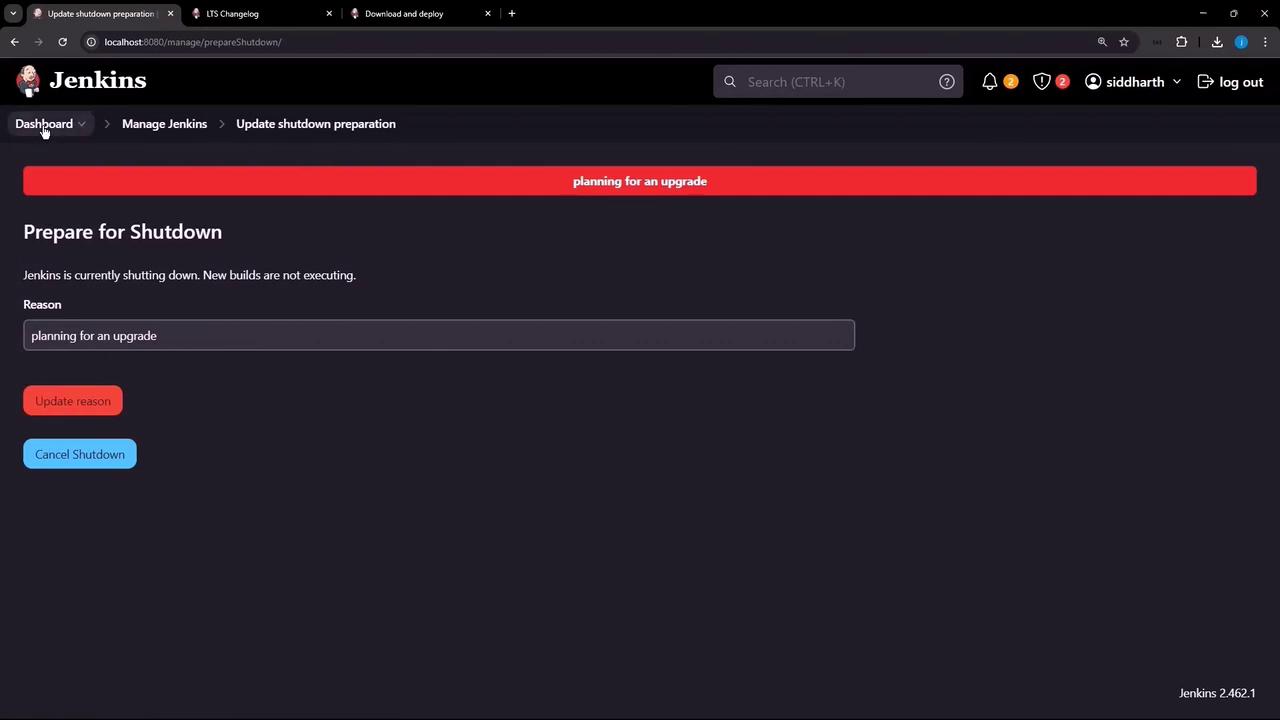
Monitor the build queue to ensure no jobs are running:
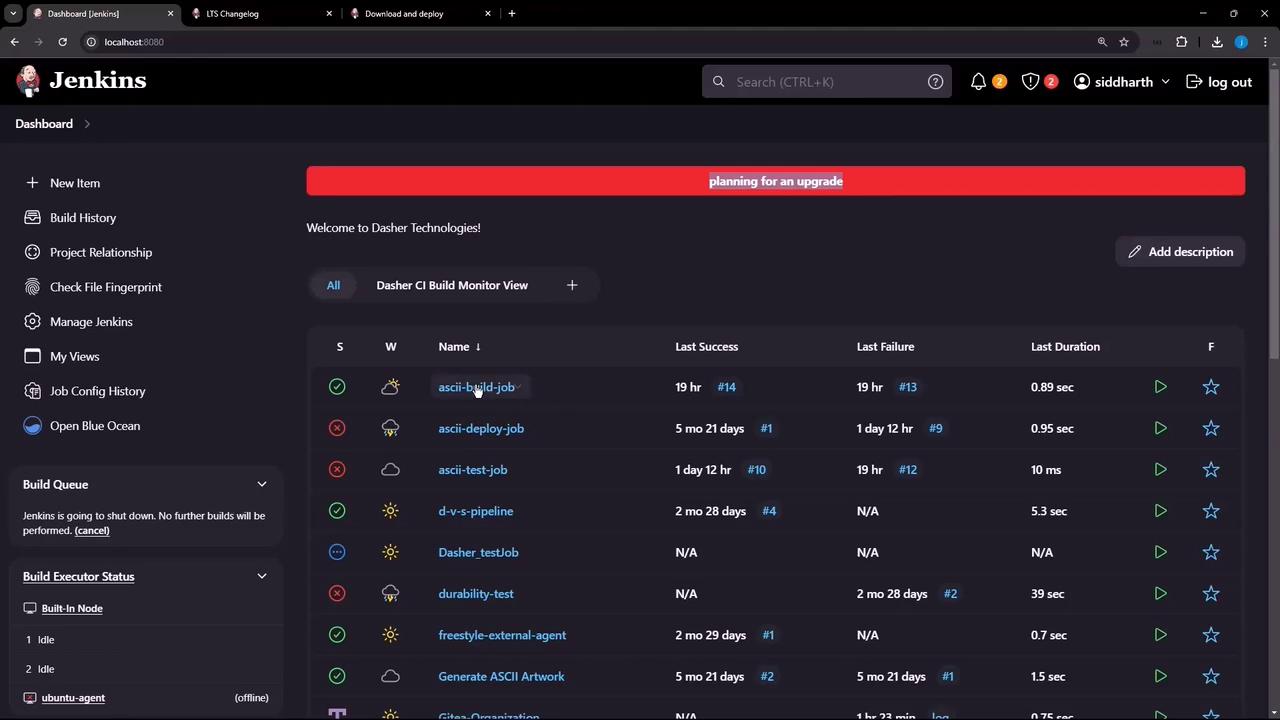
Any attempt to start a new job—like **ascii-build-job**—will now wait until after the upgrade:
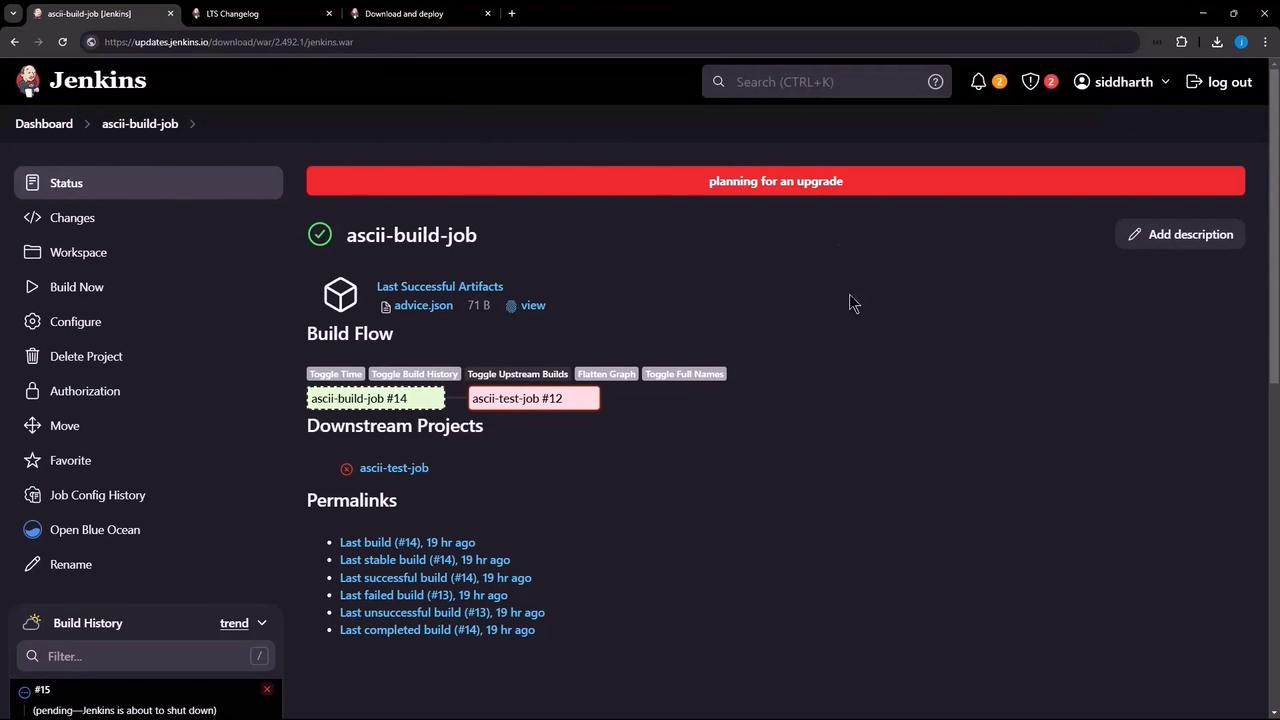
Ensure all running builds complete and no new tasks remain in the queue before stopping the Jenkins service.
***
## 4. Upgrade the Jenkins WAR
On your Jenkins host, run the following commands:
```bash theme={null}
# Stop Jenkins
sudo systemctl stop jenkins
```
Always back up or rename your current WAR before replacing it.
```bash theme={null}
# Backup the existing WAR
sudo mv /usr/share/java/jenkins.war /usr/share/java/jenkins.war.bak
# Download the new WAR
sudo wget -O /usr/share/java/jenkins.war \
https://updates.jenkins.io/download/war/2.492.1/jenkins.war
# Restart Jenkins
sudo systemctl start jenkins
```
***
## 5. Verify the Upgrade
After Jenkins restarts, log back in and confirm the new version under **Manage Jenkins** or in the dashboard footer. It should display **2.492.1**.
***
## Links and References
* [Jenkins Downloads](https://www.jenkins.io/download/)
* [Jenkins Changelog (LTS)](https://www.jenkins.io/changelog-stable/)
* [Jenkins “Prepare for Shutdown” Documentation](https://www.jenkins.io/doc/book/managing/#shutdown)