> ## Documentation Index
> Fetch the complete documentation index at: https://notes.kodekloud.com/llms.txt
> Use this file to discover all available pages before exploring further.
# Demo Use JCasC to Create Jobs
> Learn to use the Jenkins Configuration as Code plugin to define jobs, manage settings, and install tools using YAML.
In this lesson, you’ll learn how to leverage the Jenkins Configuration as Code (JCasC) plugin to define pipeline jobs, manage global settings, and install build tools—all through YAML. We’ll explore official demos, customize configurations, and apply them in your Jenkins instance.
## Prerequisites
* Jenkins with Configuration as Code plugin installed
* Access to Jenkins controller shell
* Basic familiarity with YAML and Jenkins plugins
## 1. Explore Example Configurations
The [JCasC plugin demos on GitHub](https://github.com/jenkinsci/configuration-as-code-plugin/tree/master/demos) contain ready-made use cases:
You can browse the **demos** directory for examples ranging from security setups to cloud integrations.
## 2. Configure Global Authorization
To set up a matrix-based authorization strategy, add the following to your `jenkins-casc.yaml`:
```yaml theme={null}
jenkins:
authorizationStrategy:
globalMatrix:
permissions:
- "USER:Overall/Read:anonymous"
- "GROUP:Overall/Administer:authenticated"
- "USER:Overall/Administer:admin"
```
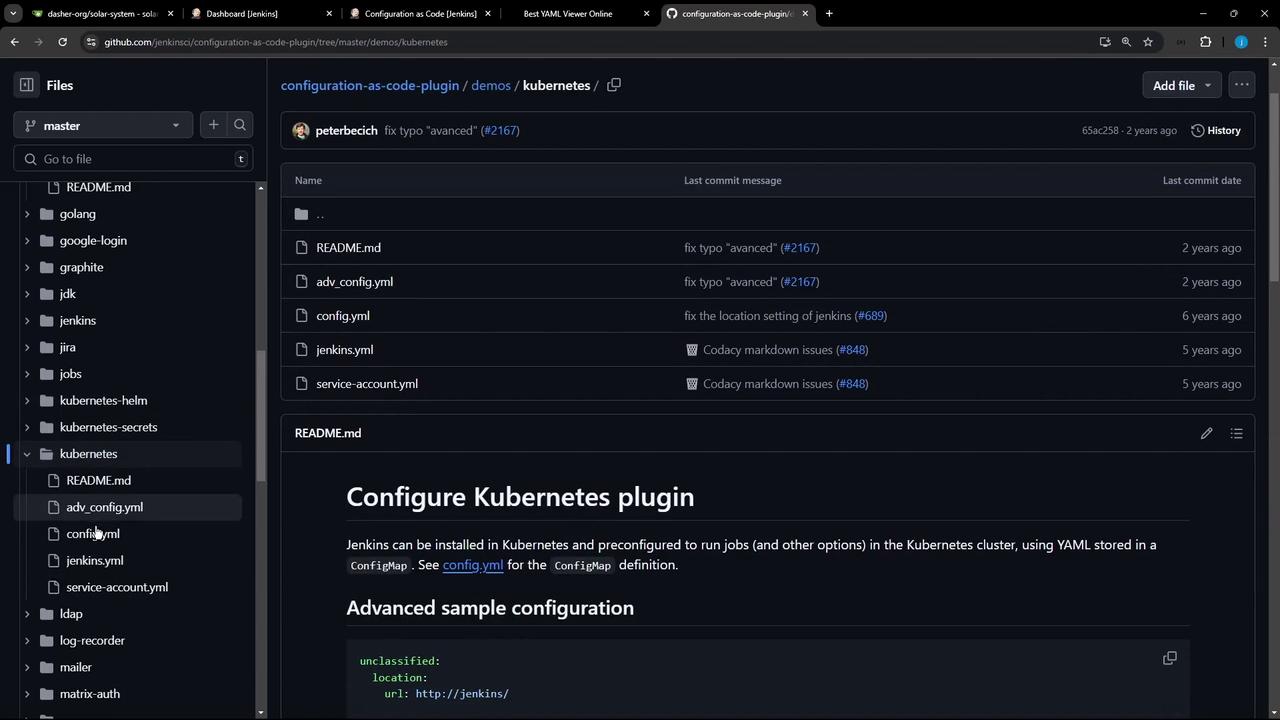
## 3. Configure a Kubernetes Cloud
Click **Config YAML** under the Kubernetes demo to copy this snippet:
```yaml theme={null}
unclassified:
location:
url: http://jenkins/
jenkins:
clouds:
- kubernetes:
name: "advanced-k8s-config"
serverUrl: "https://advanced-k8s-config:443"
serverCertificate: "serverCertificate"
skipTlsVerify: true
credentialsId: "advanced-k8s-credentials"
namespace: "default"
jenkinsUrl: "http://jenkins/"
jenkinsTunnel: "JenkinsTunnel"
containerCapStr: 42
maxRequestsPerHostStr: 64
retentionTimeout: 5
connectTimeout: 10
```
## 4. Install Build Tools
You can also install Node.js, Git, Maven, and SonarQube Scanner using JCasC. Here’s an example for Node.js:
```yaml theme={null}
tool:
nodejs:
installations:
- name: "NodeJS Latest"
home: "" # required until nodejs-1.3.4 release (JENKINS-57508)
properties:
installSource:
installers:
- nodeJSInstaller:
id: "12.11.1"
npmPackagesRefreshHours: 48 # default is 72
```
### Tool Installation Summary
| Tool | Version Identifier | Notes |
| ----------------- | ------------------ | ----------------------------------------------------- |
| Node.js | 12.11.1 | Auto-installed; refreshes npm packages every 48 hours |
| Git | Default | Uses system `git` binary |
| Maven | 3.9.8 | Managed via internal installer |
| SonarQube Scanner | 6.10 | Installed through the SonarRunner installer |
## 5. Edit Your jenkins-casc.yaml
On the controller, open or create your configuration file:
```bash theme={null}
cd /var/lib/jenkins/JENKINS_BACKUP
vi jenkins-casc.yaml
```
A comprehensive file may include credentials, SCM settings, tool definitions, and more:
```yaml theme={null}
credentials:
system:
domainCredentials:
- usernamePassword:
description: 'Gitea Server Credentials'
id: gitea-server-creds
username: gitea-admin
password: '{AQAAB...}'
scope: GLOBAL
- usernamePassword:
description: 'Credentials for MongoDB'
id: mongo-db-credentials
username: superuser
password: '{AQAAB...}'
scope: GLOBAL
- string:
description: 'Mongo Database Username'
id: moneo-db-username
git:
installations:
- home: "git"
name: "Default"
maven:
installations:
- name: "M398"
properties:
- installSource:
installers:
- maven:
id: "3.9.8"
sonarRunnerInstallation:
installations:
- name: "sonarqube-scanner-610"
properties:
- installSource:
installers:
- sonarRunnerInstaller: {}
```
## 6. Define Pipeline Jobs with Job DSL
In the demos folder, there’s a sample that uses the [Job DSL plugin](https://plugins.jenkins.io/job-dsl) to create a folder and pipeline job:
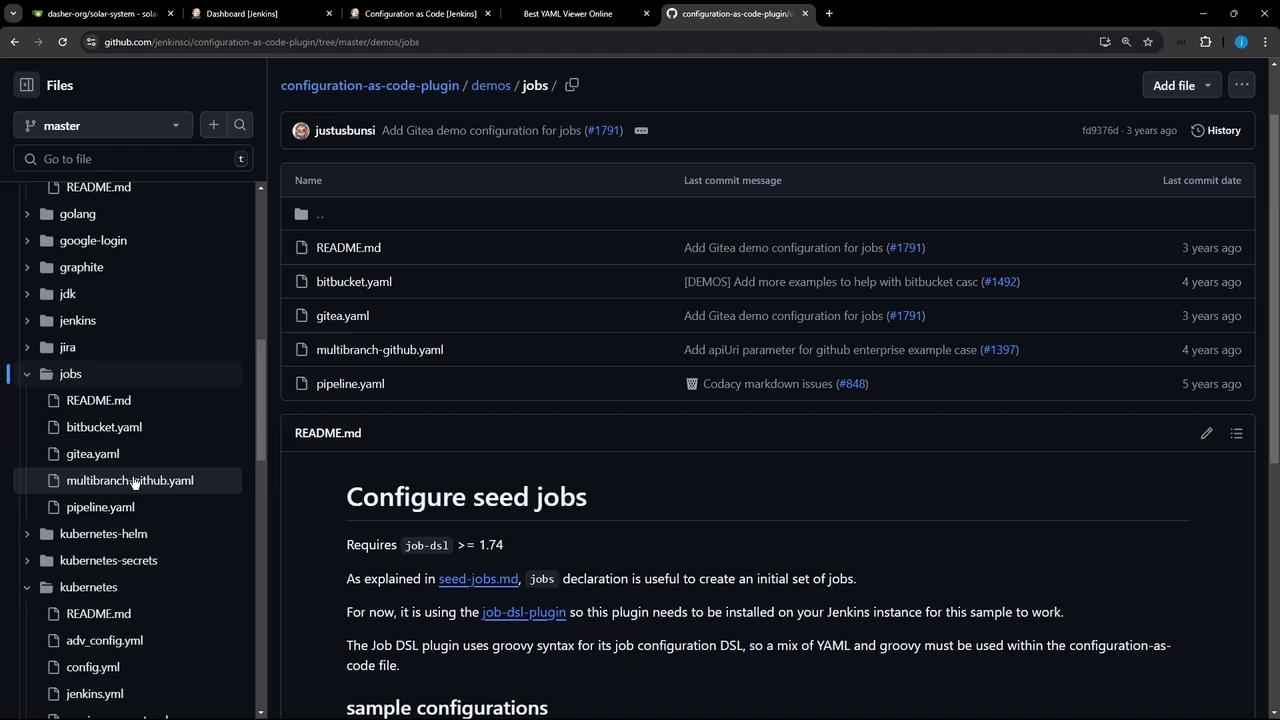
Add these job definitions to your `jenkins-casc.yaml`:
```yaml theme={null}
jobs:
- script: >
folder('test-jobs')
- script: >
pipelineJob('test-jobs/default-agent') {
definition {
cps {
script("""
pipeline {
agent any
stages {
stage('test') {
steps {
echo 'hello'
}
}
}
}
""".stripIndent())
}
}
}
```
## 7. Reload Configuration and Troubleshoot
After saving, go to **Manage Jenkins** → **Configuration as Code** → **Reload Existing Configuration**. You may see:
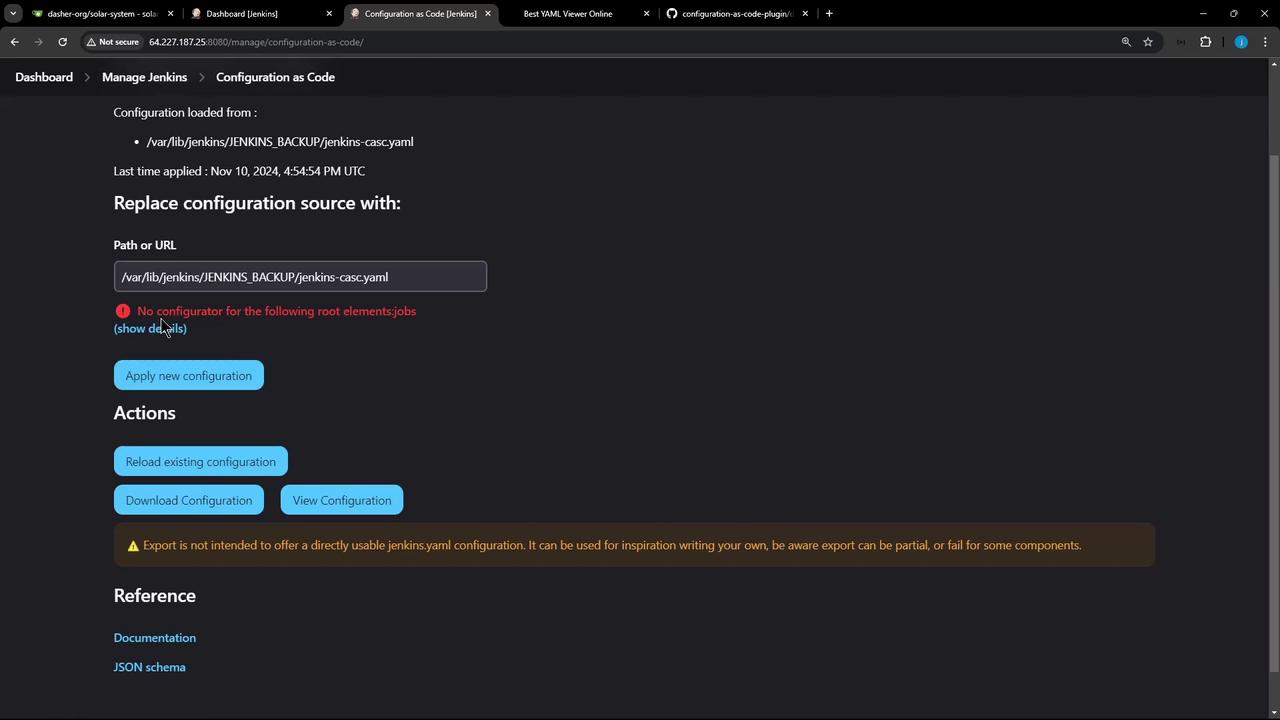
If you encounter `UnknownConfiguratorException: No configurator for the following root elements: jobs`, it means the **Job DSL** plugin is not installed.
To resolve:
1. **Manage Jenkins** → **Manage Plugins**
2. Search for **Job DSL** and install.
3. Reload or reapply your JCasC configuration.
## 8. Verify Jobs and Tools
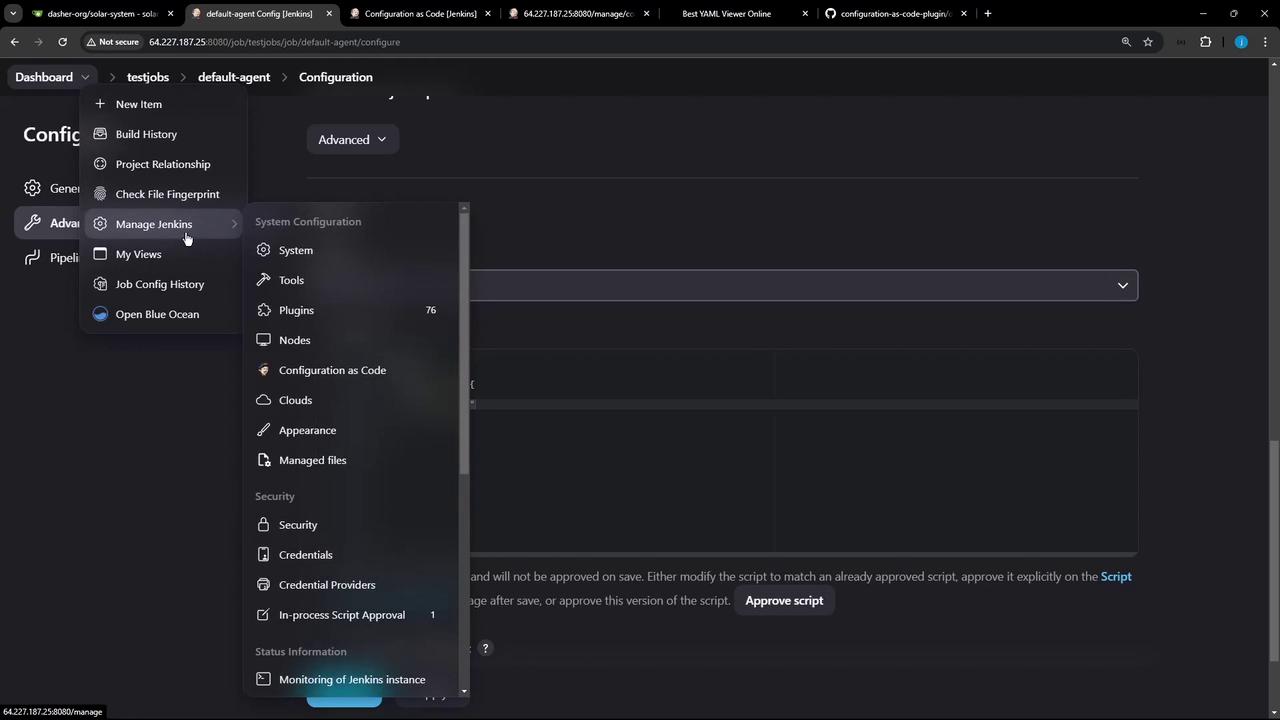
Once the DSL plugin is active, Jenkins will create the `test-jobs` folder and the `default-agent` pipeline automatically. You can also confirm tool installations under **Manage Jenkins** → **Global Tool Configuration**:
```groovy theme={null}
pipeline {
agent any
stages {
stage('test') {
steps {
echo "Hello"
}
}
}
}
```
## References
* [Configuration as Code Plugin](https://github.com/jenkinsci/configuration-as-code-plugin)
* [Job DSL Plugin](https://plugins.jenkins.io/job-dsl)
* [Kubernetes Cloud](https://plugins.jenkins.io/kubernetes)
* [NodeJS Plugin](https://plugins.jenkins.io/nodejs)
* [Maven Integration Plugin](https://plugins.jenkins.io/maven-plugin)