> ## Documentation Index
> Fetch the complete documentation index at: https://notes.kodekloud.com/llms.txt
> Use this file to discover all available pages before exploring further.
# Demo SonarQube Quality Gate Step and Refactoring
> This tutorial teaches automating static code analysis with SonarQube quality gates in Jenkins, securely storing credentials, and refactoring the Jenkinsfile for maintainability.
In this tutorial, you’ll learn how to automate static code analysis with SonarQube quality gates in a Jenkins pipeline, securely store credentials, and refactor the SAST stage for maintainability. By the end, your CI/CD workflow will only proceed when code meets your defined standards.
## Pipeline Interrupt Flow
Jenkins can automatically pause or terminate a build based on SonarQube’s quality gate result. The SonarQube Jenkins plugin exposes a webhook endpoint so SonarQube can notify Jenkins when analysis is complete.
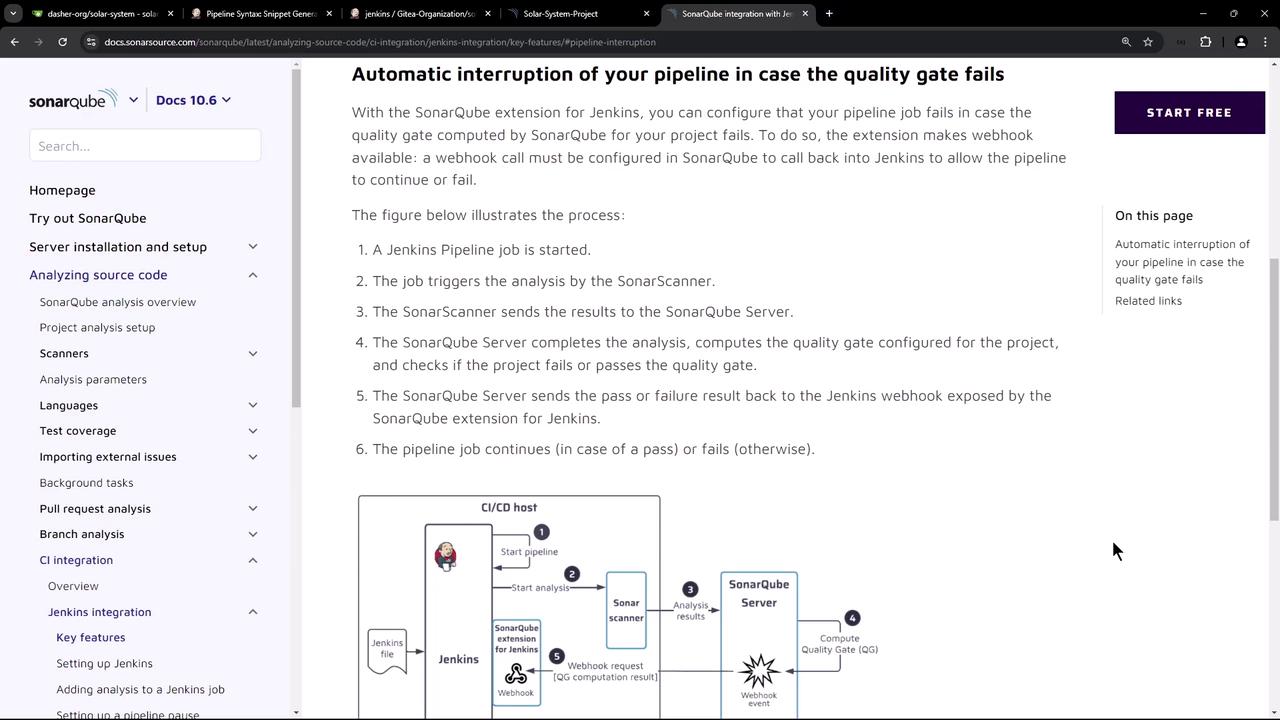
The flow is:
1. Jenkins starts the pipeline.
2. A SAST stage invokes SonarScanner.
3. SonarScanner submits analysis to the SonarQube server.
4. SonarQube evaluates the quality gate.
5. SonarQube calls back Jenkins via webhook.
6. Jenkins continues or aborts the pipeline based on the gate status.
## Configuring the SonarQube Webhook
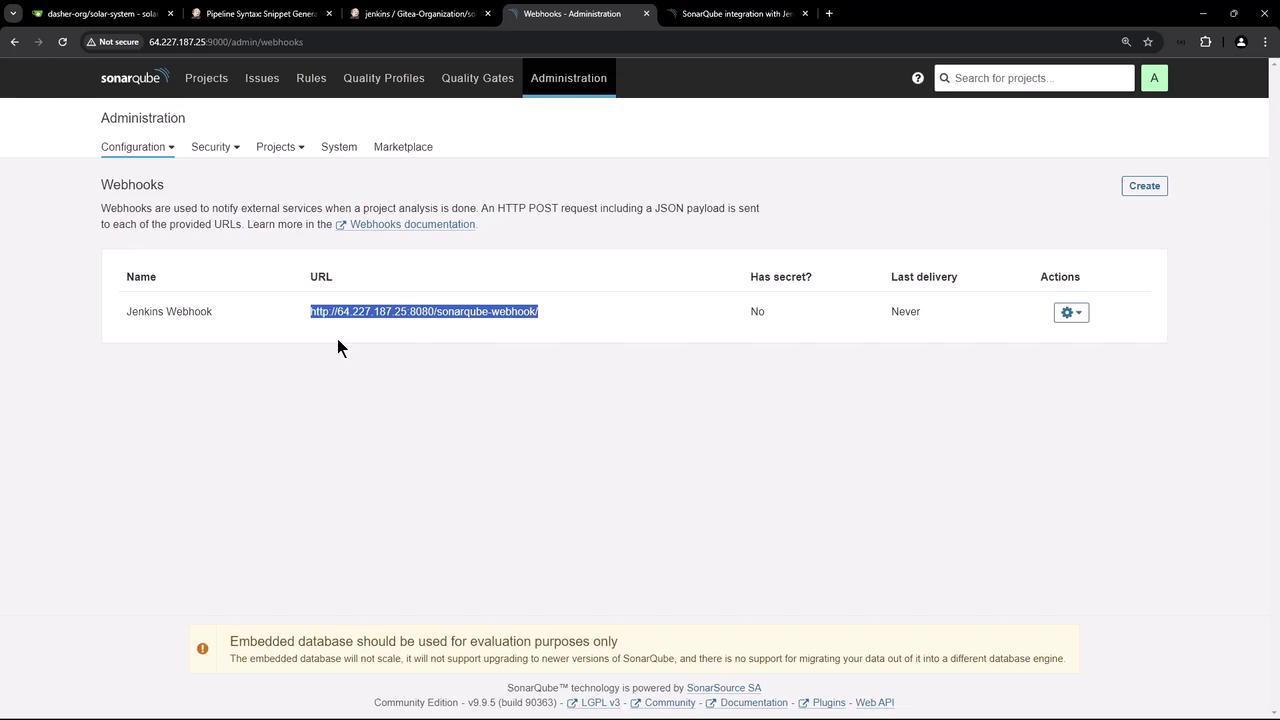
First, retrieve your Jenkins webhook URL:
```bash theme={null}
http://:8080/sonarqube-webhook/
```
Then, in SonarQube:
1. Navigate to **Administration > Configuration > Webhooks**.
2. Click **Create**.
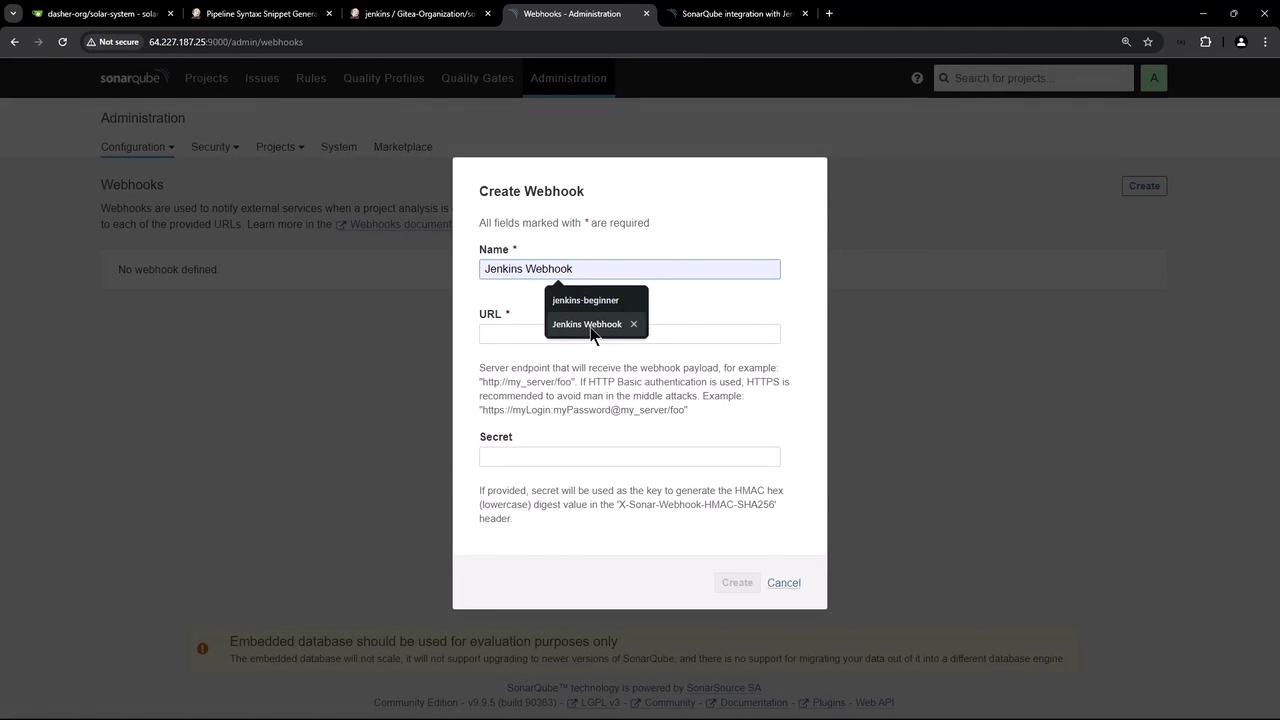
3. Enter a name (e.g., `Jenkins Webhook`), paste the Jenkins URL, leave the secret blank, and save.
## Refactoring the Jenkinsfile
### Original SAST Stage
Below is an example of a Jenkins pipeline stage that hard-codes the Sonar token and URL:
```groovy theme={null}
stage('SAST - SonarQube') {
steps {
sh 'echo $SONAR_SCANNER_HOME'
sh '''
$SONAR_SCANNER_HOME/bin/sonar-scanner \
-Dsonar.projectKey=Solar-System-Project \
-Dsonar.sources=app.js \
-Dsonar.host.url=http://64.227.187.25:9000 \
-Dsonar.javascript.lcov.reportPaths=./coverage/lcov.info \
-Dsonar.login=sqp_54484bd1bbe3a5b3b3088c734cf54c3beba3fd6
'''
}
}
```
Never expose authentication tokens or URLs in your `Jenkinsfile`. Hard-coding credentials can lead to security breaches.
### Defining the SonarQube Server in Jenkins
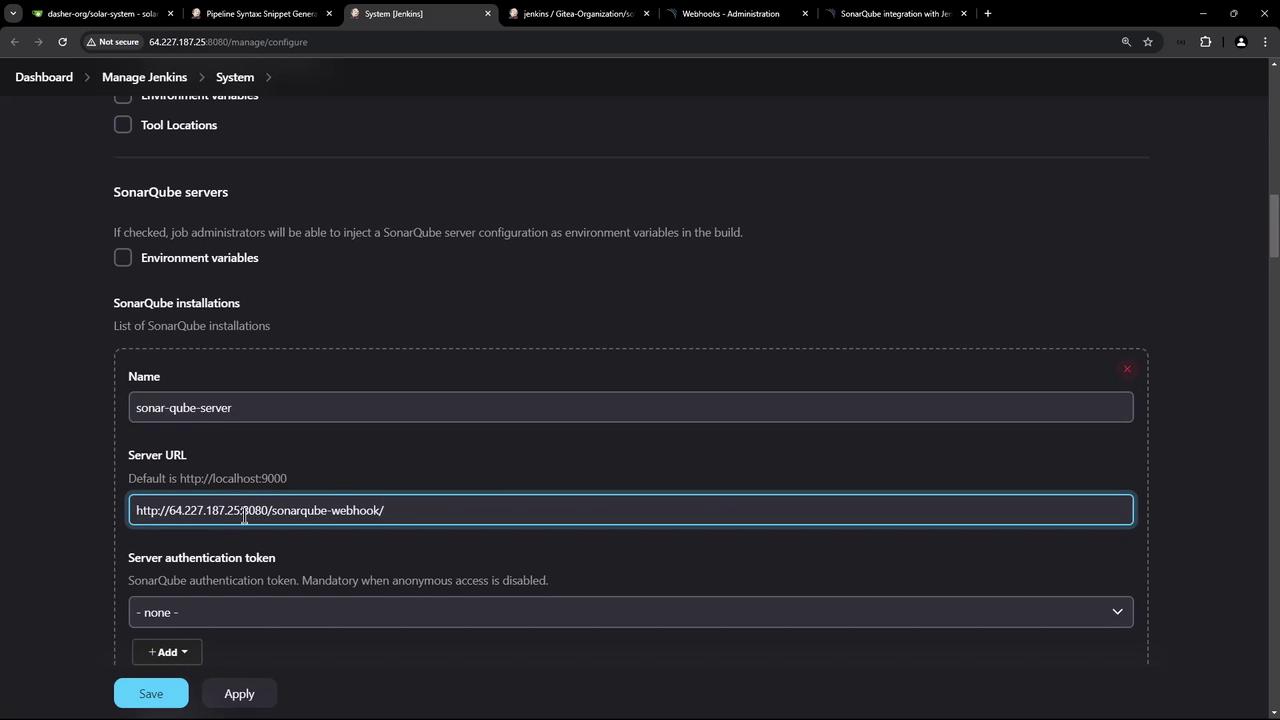
1. Go to **Manage Jenkins > Configure System**.
2. Under **SonarQube servers**, click **Add SonarQube**.
3. Enter:
* **Name**: `sonar-qube-server`
* **Server URL**: `http://64.227.187.25:9000`
4. Save the configuration.
### Storing the SonarQube Token Securely
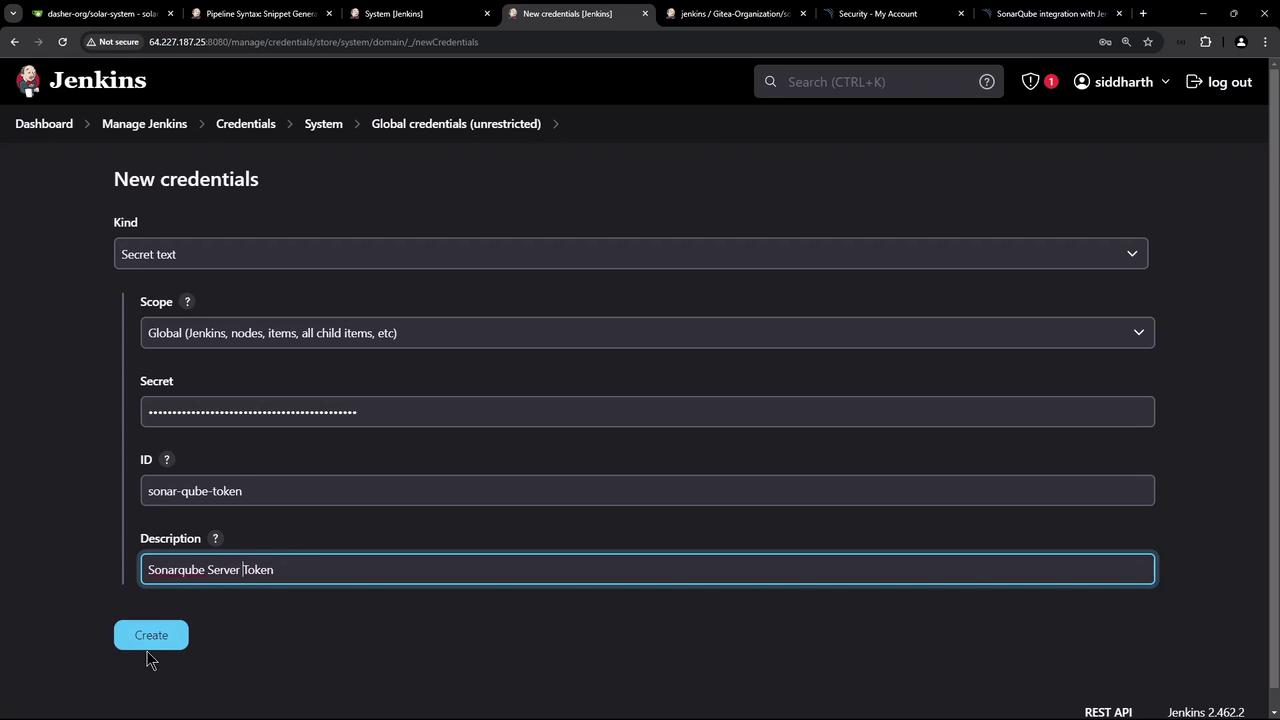
1. In Jenkins, navigate to **Credentials > System > Global credentials**.
2. Click **Add Credentials > Secret text**.
3. Paste your SonarQube token, set an ID (e.g., `sonar-qube-token`), and save.
### Using withSonarQubeEnv
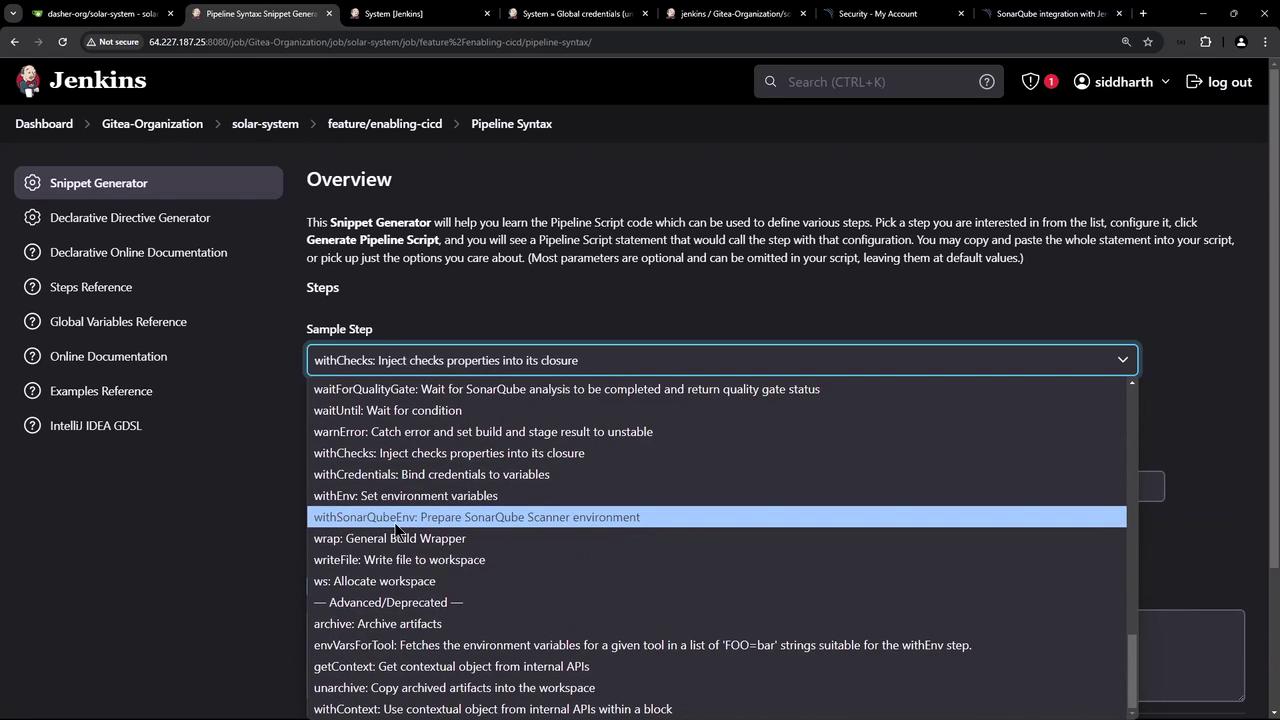
Leverage `withSonarQubeEnv` to inject the server URL and token as environment variables:
```groovy theme={null}
stage('SAST - SonarQube') {
steps {
withSonarQubeEnv('sonar-qube-server') {
sh '''
$SONAR_SCANNER_HOME/bin/sonar-scanner \
-Dsonar.projectKey=Solar-System-Project \
-Dsonar.sources=app.js \
-Dsonar.javascript.lcov.reportPaths=./coverage/lcov.info
'''
}
}
}
```
This approach removes all hard-coded URLs and tokens from the Jenkinsfile, improving security and flexibility.
## Waiting for the Quality Gate
To pause the pipeline until SonarQube returns the quality gate status, use `waitForQualityGate` inside a timeout block:
```groovy theme={null}
stage('SAST - SonarQube') {
steps {
timeout(time: 60, unit: 'SECONDS') {
withSonarQubeEnv('sonar-qube-server') {
sh '''
$SONAR_SCANNER_HOME/bin/sonar-scanner \
-Dsonar.projectKey=Solar-System-Project \
-Dsonar.sources=app.js \
-Dsonar.javascript.lcov.reportPaths=./coverage/lcov.info
'''
}
}
waitForQualityGate abortPipeline: true
}
}
```
If the quality gate fails, Jenkins will abort the build immediately.
## Observing a Failed Build
When code coverage or other metrics fall below thresholds, Jenkins will mark the SAST stage as failed:
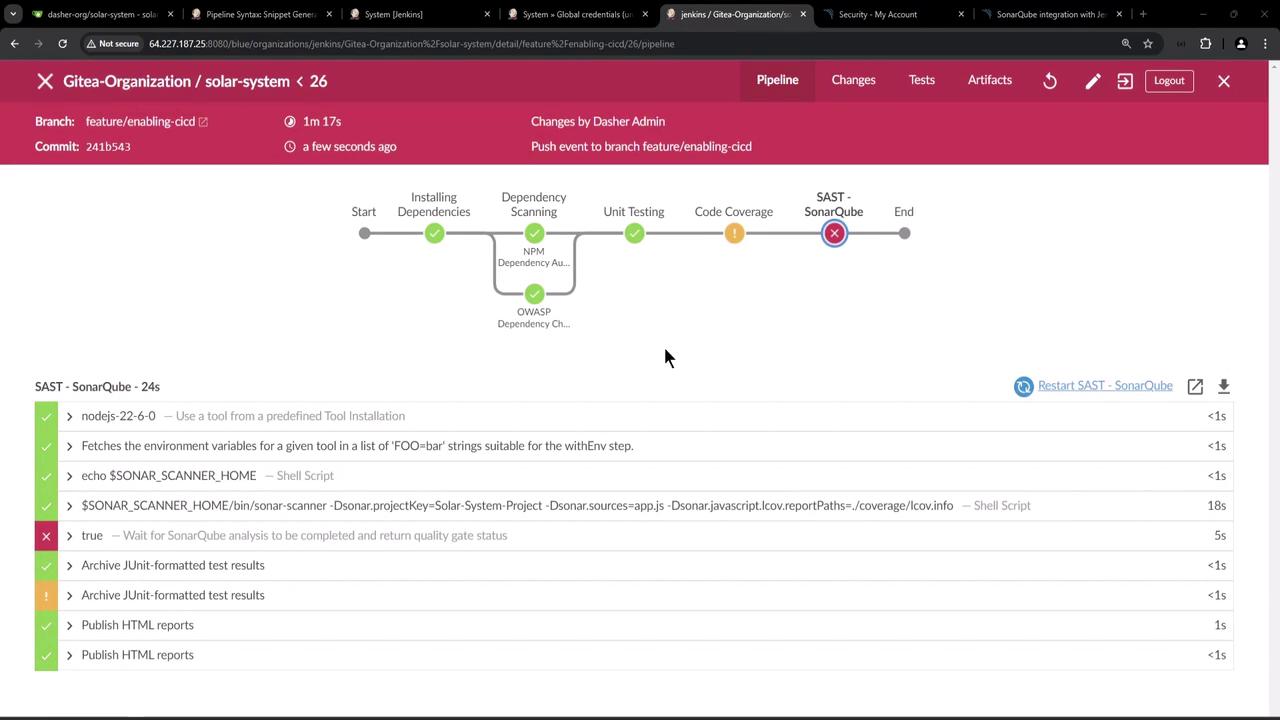
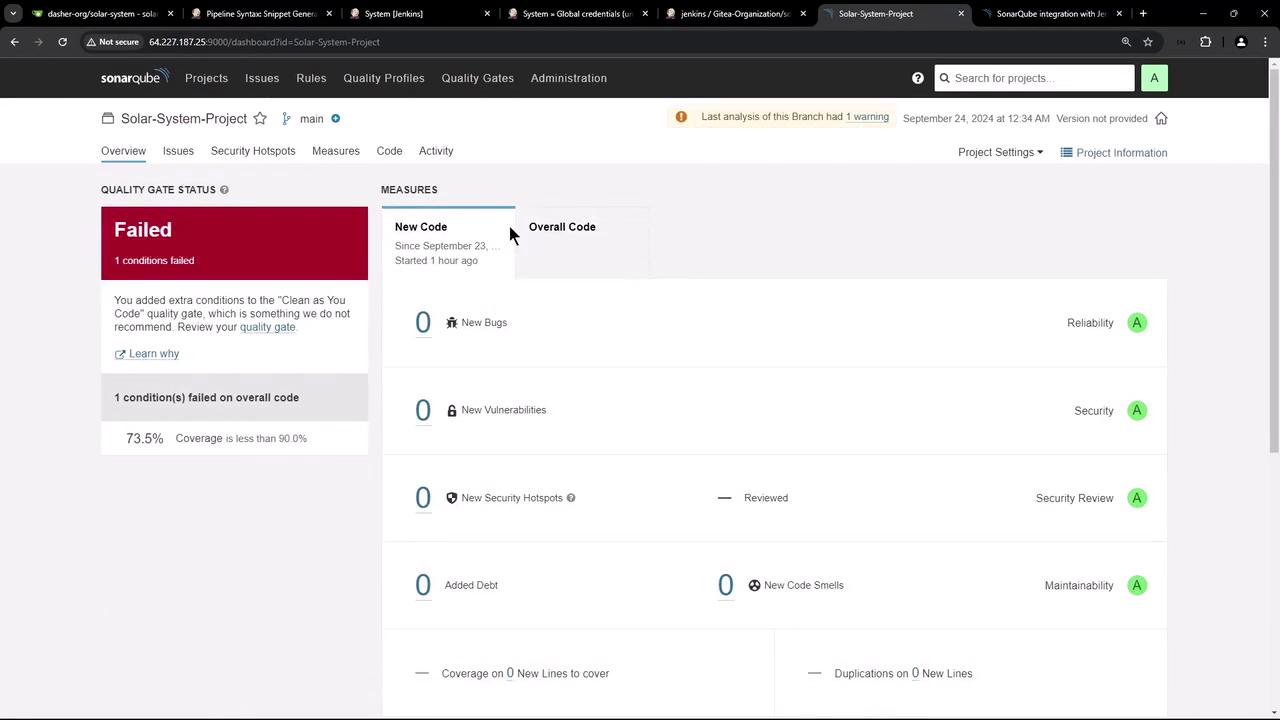
On the SonarQube dashboard, you’ll see the failed gate and the metrics that caused it:
## Webhook Payload Example
When SonarQube calls Jenkins, it sends a JSON payload like this:
```json theme={null}
{
"name": "Solar-System-Project",
"branch": { "name": "main", "isMain": true },
"qualityGate": {
"name": "Default-Quality-Gate",
"status": "ERROR",
"conditions": [
{
"metric": "coverage",
"operator": "LESS_THAN",
"value": "73.5",
"status": "ERROR",
"errorThreshold": "80"
}
]
}
}
```
## Passing the Quality Gate
After raising test coverage (or adjusting thresholds), rerun the SAST stage. A successful webhook payload will look like:
```json theme={null}
[
{
"metric": "coverage",
"operator": "LESS_THAN",
"value": "73.5",
"status": "OK",
"errorThreshold": "70"
}
]
```
## Conclusion
By integrating SonarQube’s quality gates into Jenkins and refactoring your `Jenkinsfile`:
* You enforce static code analysis in CI/CD.
* You secure credentials and avoid hard-coding secrets.
* You automate build interruption on policy violations.
This ensures only high-quality, tested code is merged into your main branches.
## Links and References
* [SonarQube Jenkins Plugin](https://plugins.jenkins.io/sonar/)
* [Jenkins Pipeline Syntax](https://www.jenkins.io/doc/book/pipeline/syntax/)
* [SonarQube Webhooks](https://docs.sonarqube.org/latest/project-administration/webhooks/)
* [Managing Credentials in Jenkins](https://www.jenkins.io/doc/book/using/using-credentials/)