> ## Documentation Index
> Fetch the complete documentation index at: https://notes.kodekloud.com/llms.txt
> Use this file to discover all available pages before exploring further.
# Demo Integration Testing AWS EC2 Instance
> This article enhances a Jenkins pipeline with an integration testing stage for a Docker application on an AWS EC2 instance.
In our previous guide, we deployed a Docker image to an AWS EC2 instance. Now, we’ll enhance our **Jenkins** pipeline with an **Integration Testing** stage that dynamically discovers the EC2 instance’s public endpoint and performs HTTP checks against our service.
## Prerequisites
* Docker container running on EC2 (port 3000)
* AWS CLI configured with permissions to `ec2:DescribeInstances`
* `jq` and `curl` installed on the Jenkins agent
* Jenkins credentials (AWS Access Key & Secret) stored (e.g., ID `aws-s3-ec2-lambda-creds`)
Ensure your EC2 instance is tagged with `Name=dev-deploy`. This tag is used to filter and locate the instance dynamically.
## 1. Verify the Running Container
Log into your EC2 instance and confirm the application is up:
```bash theme={null}
ubuntu@ip-172-31-25-250:~$ sudo docker ps
CONTAINER ID IMAGE COMMAND CREATED STATUS PORTS NAMES
cab88363d990 siddharth67/solar-system:5376ef094c479356f… "docker-entrypoint.s…" 53 minutes ago Up 53 minutes 0.0.0.0:3000->3000/tcp solar-system
```
## 2. Create the Integration Test Script
At the root of your Git repo, add `integration-testing-ec2.sh`:
```bash theme={null}
#!/usr/bin/env bash
set -euo pipefail
echo "Integration test starting..."
aws --version
# Fetch instances and parse JSON
DATA=$(aws ec2 describe-instances)
echo "Raw describe-instances response: $DATA"
# Extract public DNS for tag "dev-deploy"
URL=$(echo "$DATA" \
| jq -r '.Reservations[].Instances[]
| select(.Tags[].Value == "dev-deploy")
| .PublicDnsName')
echo "Discovered URL: $URL"
[[ -z "$URL" ]] && { echo "Failed to fetch URL; check AWS credentials and tags."; exit 1; }
# Define endpoints
declare -A ENDPOINTS=(
["/live"]="GET"
["/planet"]="POST"
)
# Test /live
HTTP_CODE=$(curl -s -o /dev/null -w "%{http_code}" "http://$URL:3000/live")
echo "HTTP status code at /live: $HTTP_CODE"
# Test /planet
PLANET_DATA=$(curl -s -X POST "http://$URL:3000/planet" \
-H "Content-Type: application/json" \
-d '{"id":"3"}')
echo "Response from /planet: $PLANET_DATA"
PLANET_NAME=$(echo "$PLANET_DATA" | jq -r '.name')
echo "Parsed planet name: $PLANET_NAME"
# Validate responses
if [[ "$HTTP_CODE" -eq 200 && "$PLANET_NAME" == "Earth" ]]; then
echo "Integration tests passed."
else
echo "One or more integration tests failed."
exit 1
fi
```
Make it executable:
```bash theme={null}
chmod +x integration-testing-ec2.sh
```
## 3. AWS CLI: `describe-instances`
We use the AWS CLI’s `describe-instances` to list EC2 instances and filter by tag.
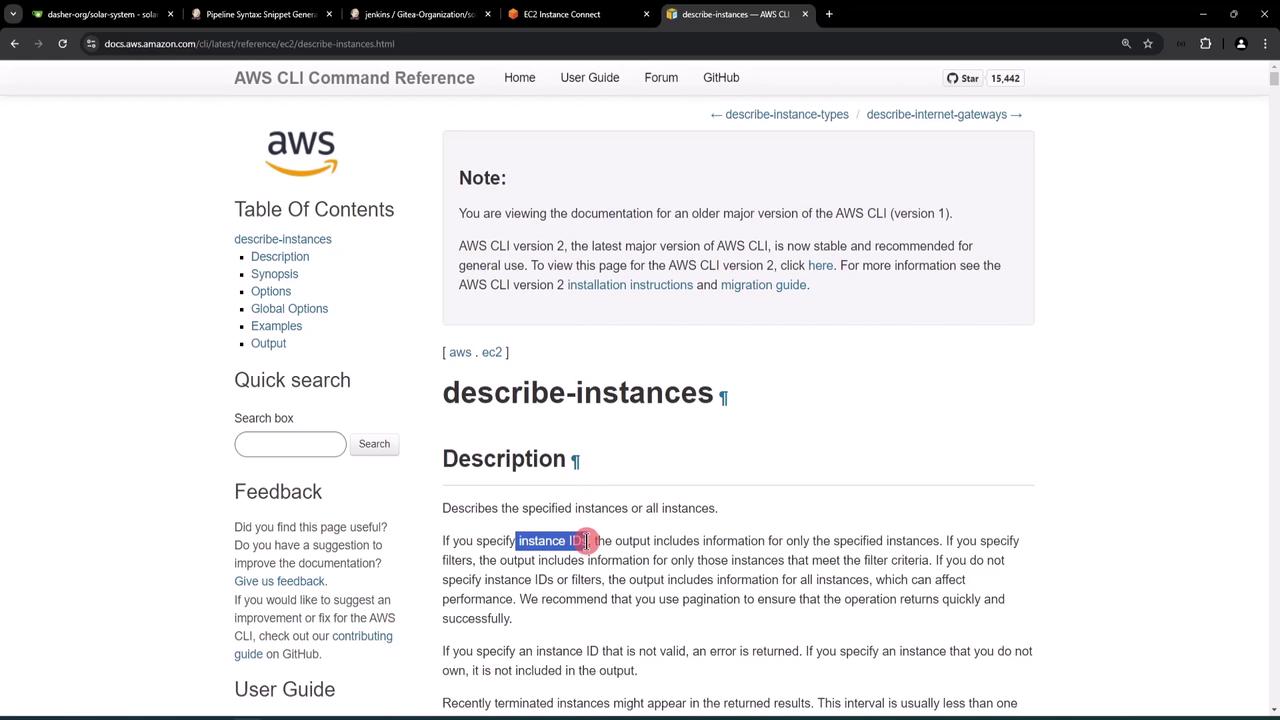
Example JSON snippet:
```json theme={null}
{
"Reservations": [
{
"Instances": [
{
"InstanceId": "i-1234567890abcdef0",
"PublicDnsName": "ec2-34-253-223-13.us-east-2.compute.amazonaws.com",
"PublicIpAddress": "34.253.223.13",
"Tags": [
{ "Key": "Name", "Value": "dev-deploy" }
]
}
]
}
]
}
```
We extract `.PublicDnsName` where `.Tags[].Value == "dev-deploy"` using `jq`.
## 4. Integrating with Jenkins Pipeline
We’ll add a new stage **Integration Testing – AWS EC2** in the `Jenkinsfile`:
1. Trigger on `feature/*` branches
2. Use `withAWS` (AWS Pipeline Steps plugin) for credentials and region
3. Execute our shell script
Store your AWS credentials securely in Jenkins Credentials. Never hard-code keys in your `Jenkinsfile`.
### Credentials Setup
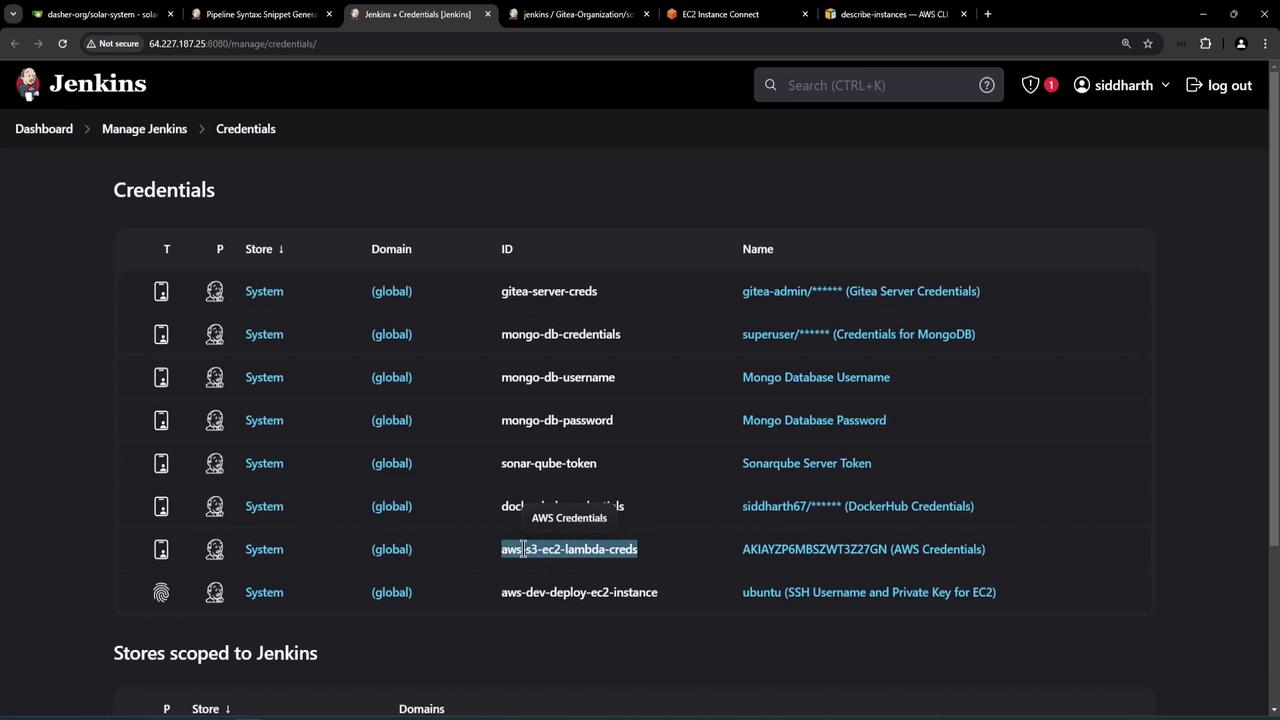
### Generate `withAWS` Snippet
Use Jenkins’ **Pipeline Syntax** to obtain:
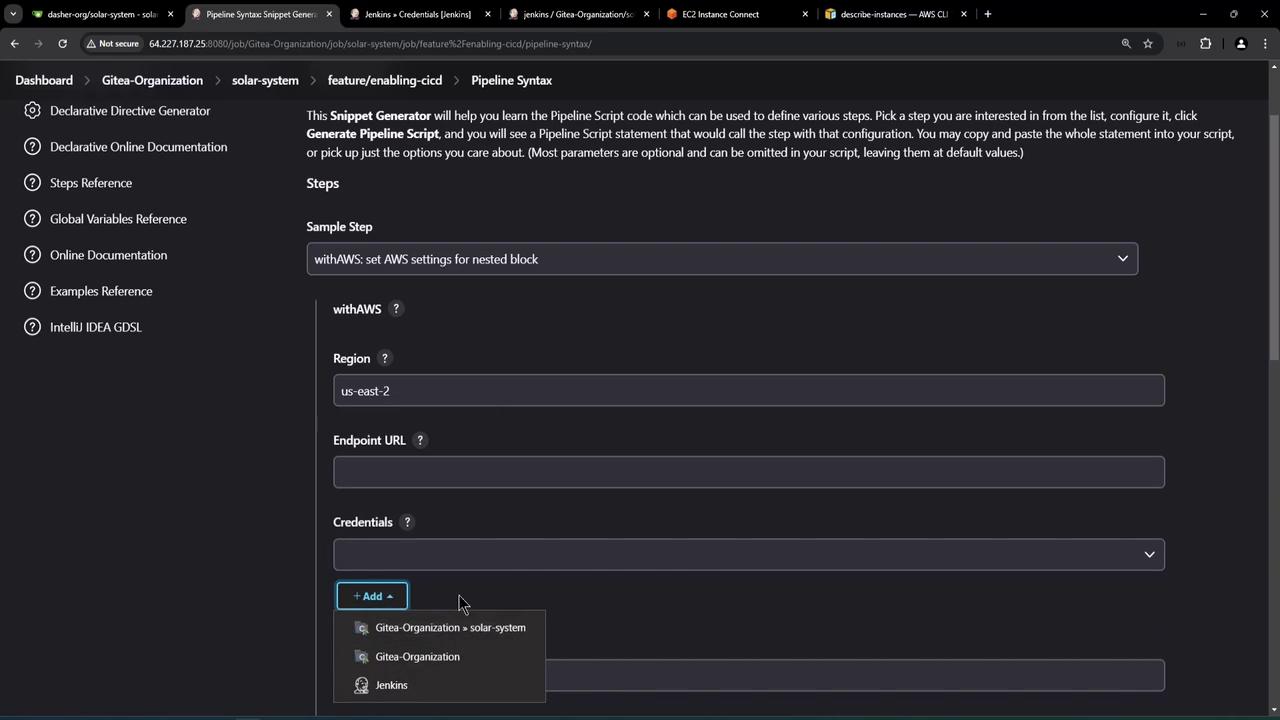
### Jenkinsfile Stage
```groovy theme={null}
stage('Integration Testing - AWS EC2') {
when {
branch 'feature/*'
}
steps {
sh 'printenv | grep -i branch'
withAWS(credentials: 'aws-s3-ec2-lambda-creds', region: 'us-east-2') {
sh 'bash integration-testing-ec2.sh'
}
}
}
```
## 5. Pipeline Execution & Results
After pushing changes, the new stage runs automatically. Here’s a successful pipeline:
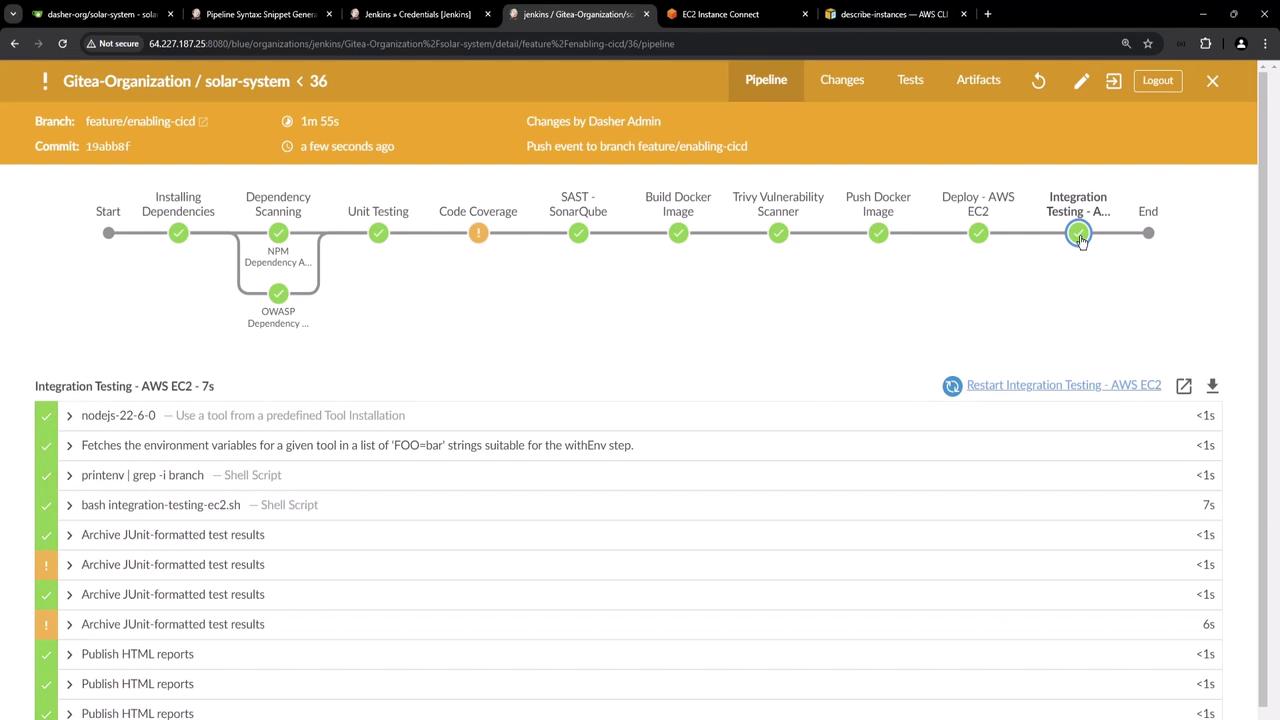
Log excerpt:
```bash theme={null}
$ printenv | grep -i branch
BRANCH_NAME=feature/enabling-cicd
[Integration Testing - AWS EC2] $ bash integration-testing-ec2.sh
Integration test starting...
aws-cli/2.17.56 Python/3.10.6 Linux/...
Raw describe-instances response: { ... }
Discovered URL: ec2-3-140-244-188.us-east-2.compute.amazonaws.com
HTTP status code at /live: 200
Response from /planet: {"id":3,"name":"Earth"}
Parsed planet name: Earth
Integration tests passed.
```
## 6. Summary of Endpoints Tested
| Endpoint | Method | Expected Output |
| -------- | ------ | ------------------------- |
| /live | GET | 200 OK |
| /planet | POST | `{"id":3,"name":"Earth"}` |
With this setup, each commit on a feature branch dynamically locates the EC2 instance, verifies service health, and enforces basic integration tests before completing the pipeline.
## References
* [AWS CLI describe-instances](https://docs.aws.amazon.com/cli/latest/reference/ec2/describe-instances.html)
* [Jenkins AWS Steps Plugin](https://plugins.jenkins.io/aws-steps/)
* [jq Documentation](https://stedolan.github.io/jq/)
* [curl Manual](https://curl.se/docs/manpage.html)