> ## Documentation Index
> Fetch the complete documentation index at: https://notes.kodekloud.com/llms.txt
> Use this file to discover all available pages before exploring further.
# Demo Push to Registry
> This tutorial extends a Jenkins CI pipeline to push a Docker image to Docker Hub after building and scanning it for vulnerabilities.
In this tutorial, you’ll extend your Jenkins CI pipeline to push a Docker image to Docker Hub. We assume you have already:
* Built the Docker image.
* Scanned it for vulnerabilities using [Trivy](https://github.com/aquasecurity/trivy).
Let’s configure Jenkins to authenticate with Docker Hub and push the image.
Make sure your Jenkins agent has Docker installed and the Docker daemon is accessible by the Jenkins user.
## Stage: Push Docker Image
Begin by adding a `Push Docker Image` stage to your `Jenkinsfile`. A minimal example:
```groovy theme={null}
stage('Push Docker Image') {
steps {
sh 'docker push siddharth67/solar-system:$GIT_COMMIT'
}
}
```
If you run this now, Jenkins will error out because it’s not logged in to Docker Hub.
## Install the Docker Pipeline Plugin
To enable registry authentication and image operations in a Jenkins Pipeline, install the **Docker Pipeline** plugin.
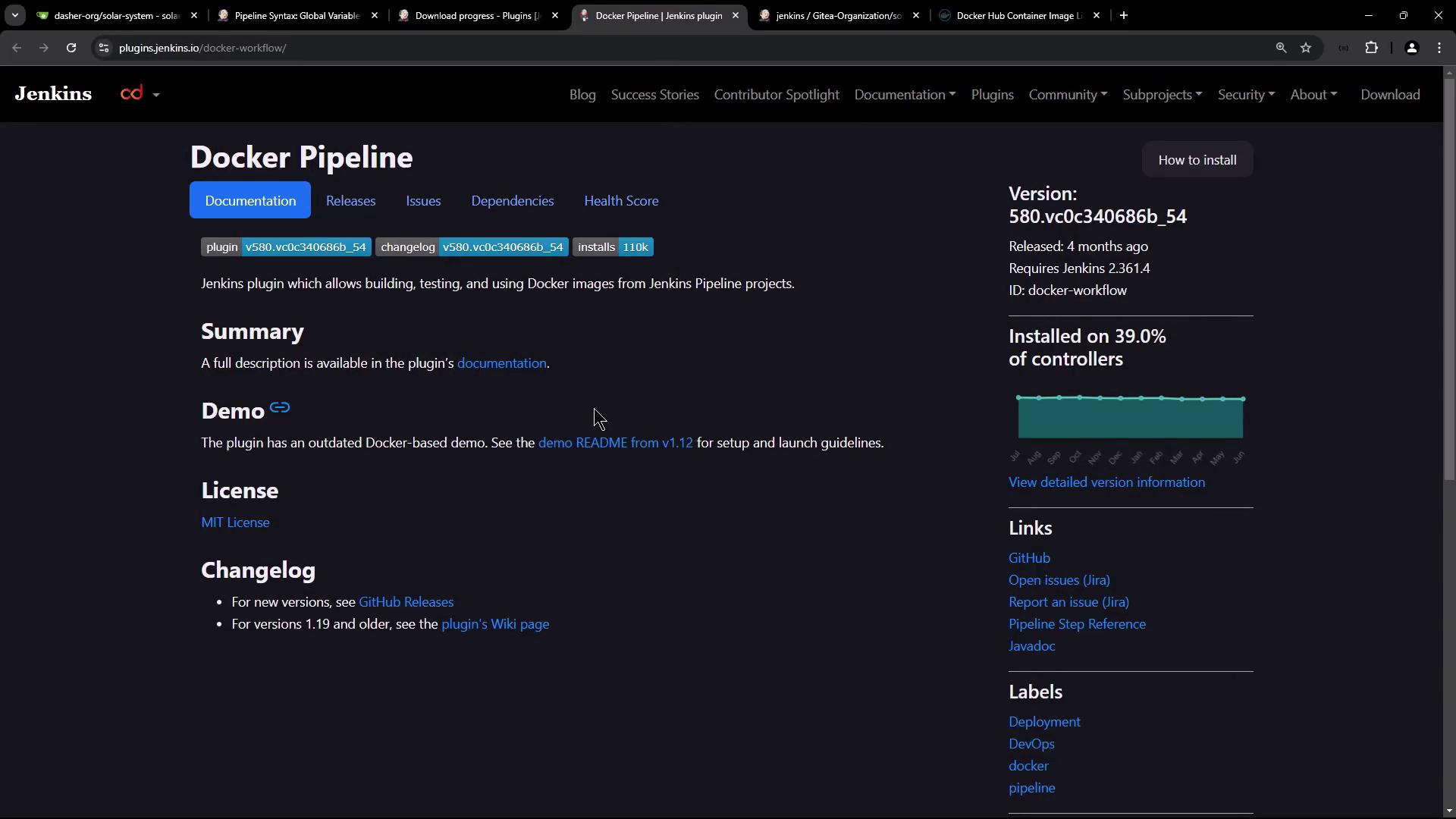
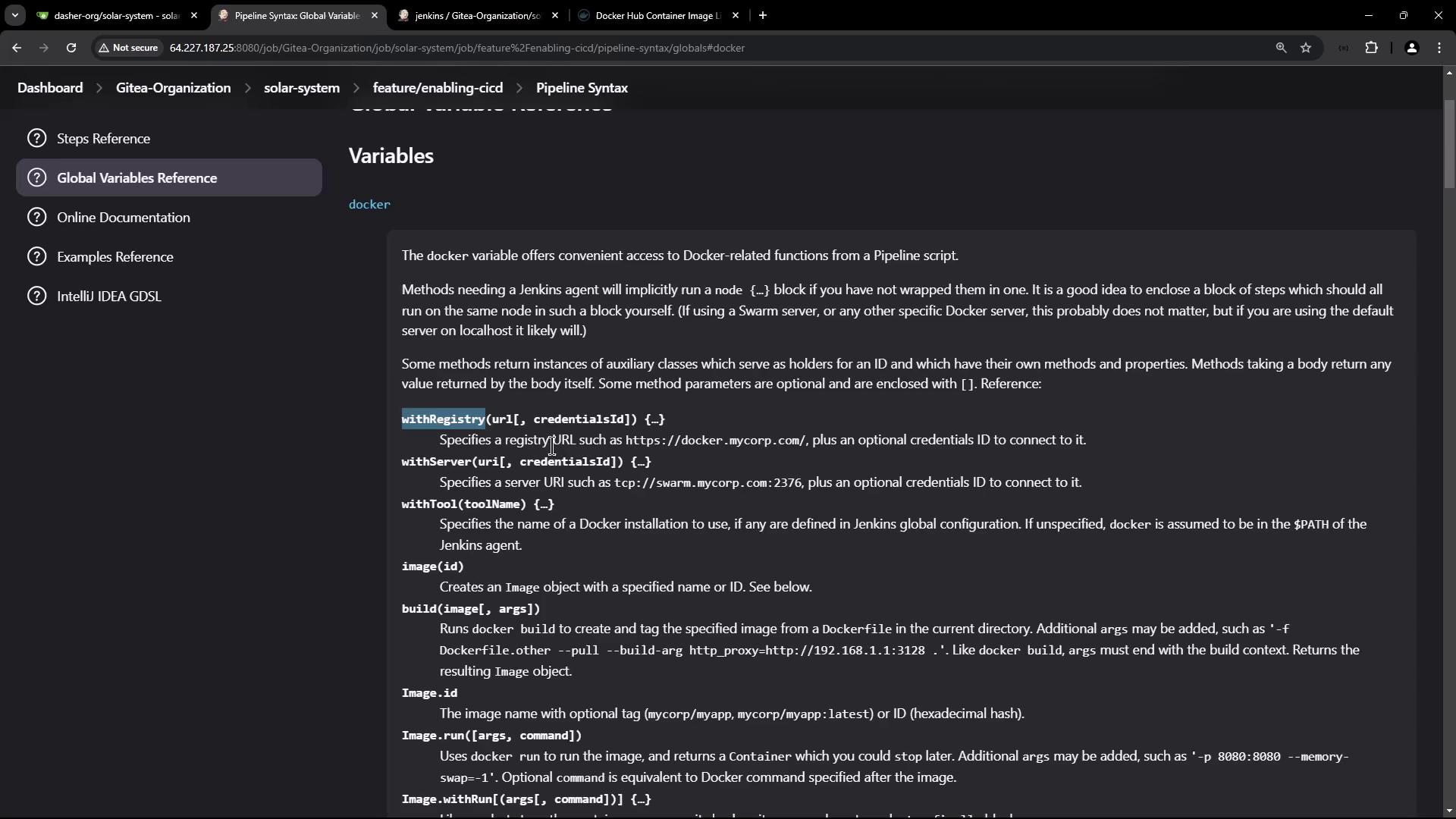
This plugin provides the following key methods and global variables:
| Method / Variable | Description |
| -------------------- | ----------------------------------------------------------- |
| `docker` | Namespace for Docker operations (build, run, push, etc.) |
| `withDockerRegistry` | Wraps steps inside a login session for a container registry |
| `registry` | Reference to a configured registry endpoint |
| `image` | Creates or references a Docker image object in the pipeline |
## Generate the withDockerRegistry Snippet
1. In Jenkins, navigate to **Pipeline Syntax** > **Snippet Generator**.
2. Under **Docker Pipeline**, select **withDockerRegistry**.
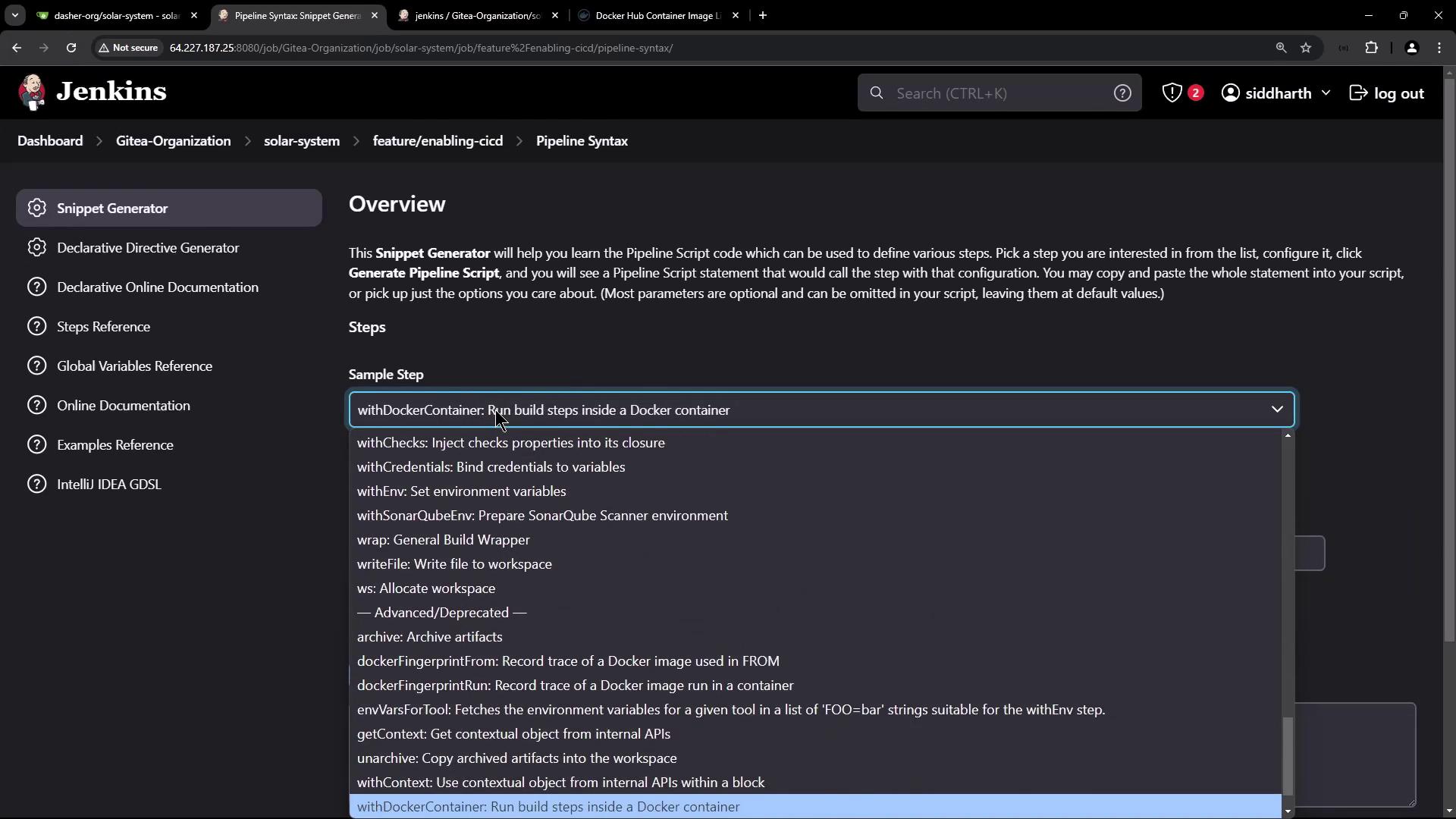
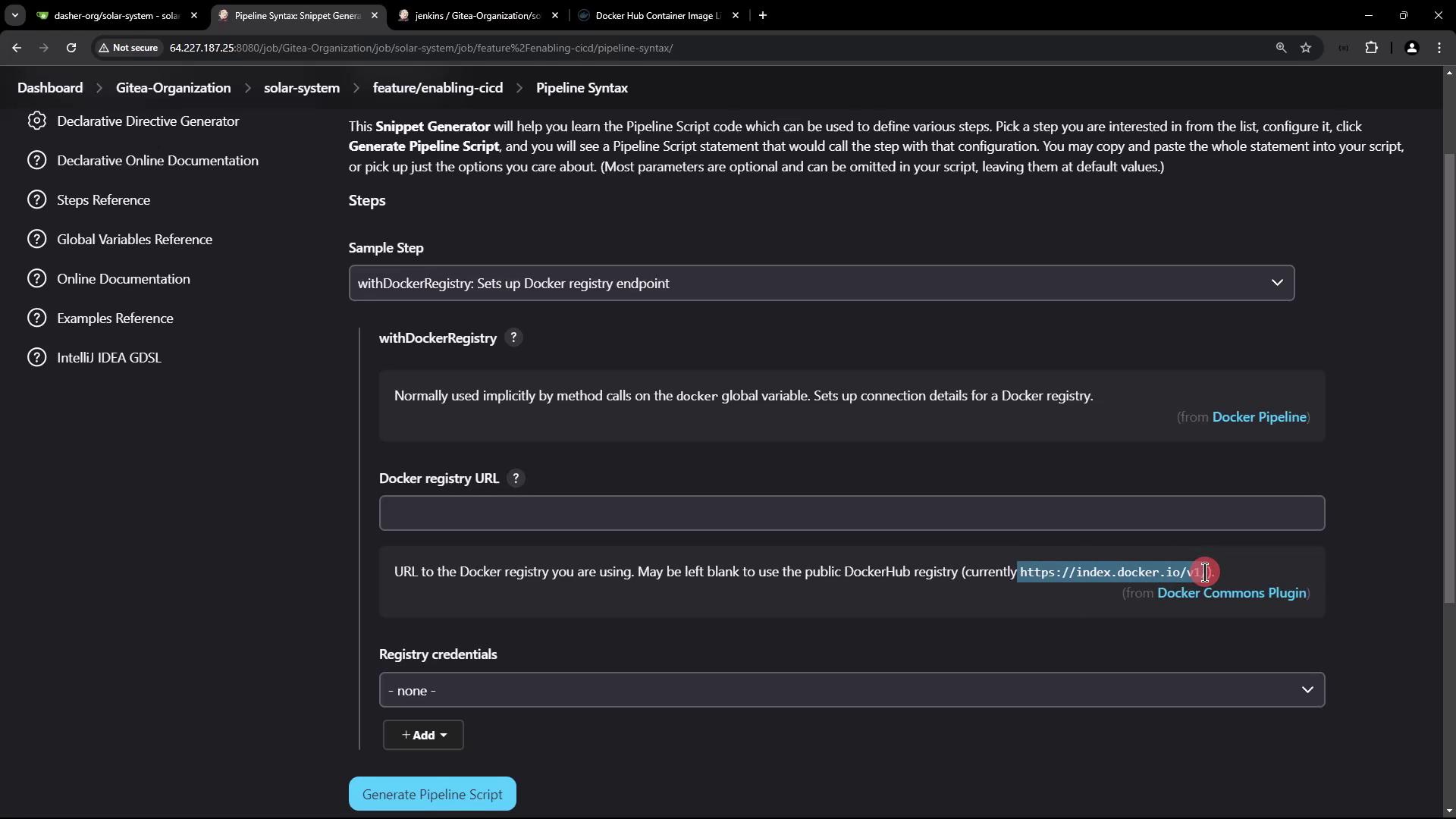
3. Switch to the **Docker Registry** snippet. Configure the registry URL and credentials.
## Add Docker Hub Credentials
Create Docker Hub credentials in Jenkins:
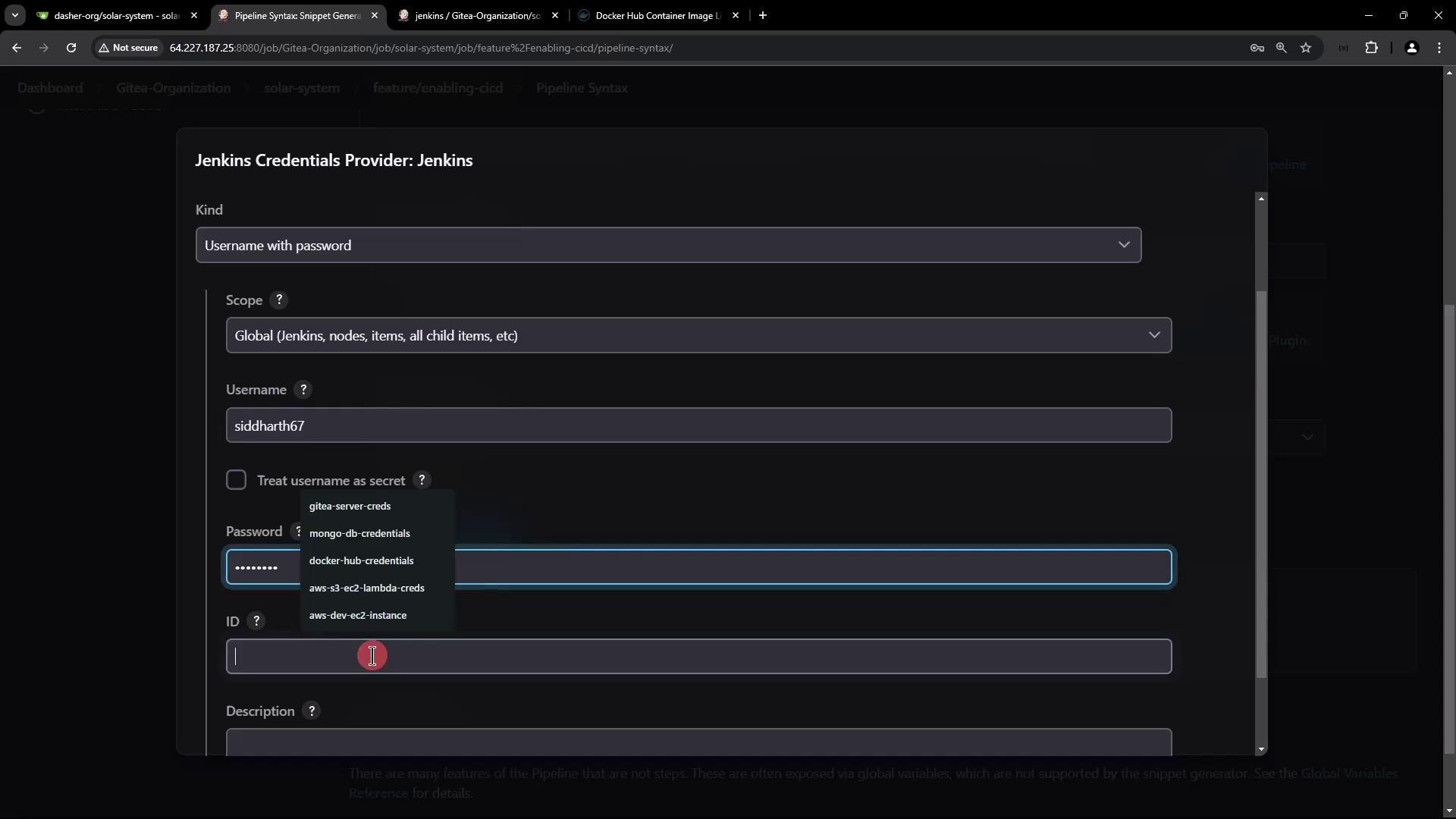
| Field | Description | Example |
| -------- | ----------------------------------- | ------------------------ |
| Kind | Credentials type | Username with password |
| ID | Unique Jenkins ID for lookup | `docker-hub-credentials` |
| Username | Docker Hub account username | `siddharth67` |
| Password | Docker Hub password or access token | `••••••••` |
## Final Jenkinsfile Configuration
Update your `Push Docker Image` stage to wrap the push command in `withDockerRegistry`:
```groovy theme={null}
stage('Push Docker Image') {
steps {
withDockerRegistry(credentialsId: 'docker-hub-credentials', url: '') {
sh 'docker push siddharth67/solar-system:$GIT_COMMIT'
}
}
}
```
Leaving `url: ''` uses the default Docker Hub endpoint (`https://index.docker.io/v1/`).
Commit and push these changes. Jenkins will now authenticate and push the image:
```bash theme={null}
$ docker push siddharth67/solar-system:cf1715a460f1bcb02618528326bd84f70f6a0
The push refers to repository [docker.io/siddharth67/solar-system]
4a0d352d35f4: Preparing
0a471d608574: Preparing
804d07a05ede: Layer already exists
f3b328347c79: Layer already exists
```
## Verifying on Docker Hub
After the pipeline finishes, log in to Docker Hub to confirm your repository and tag:
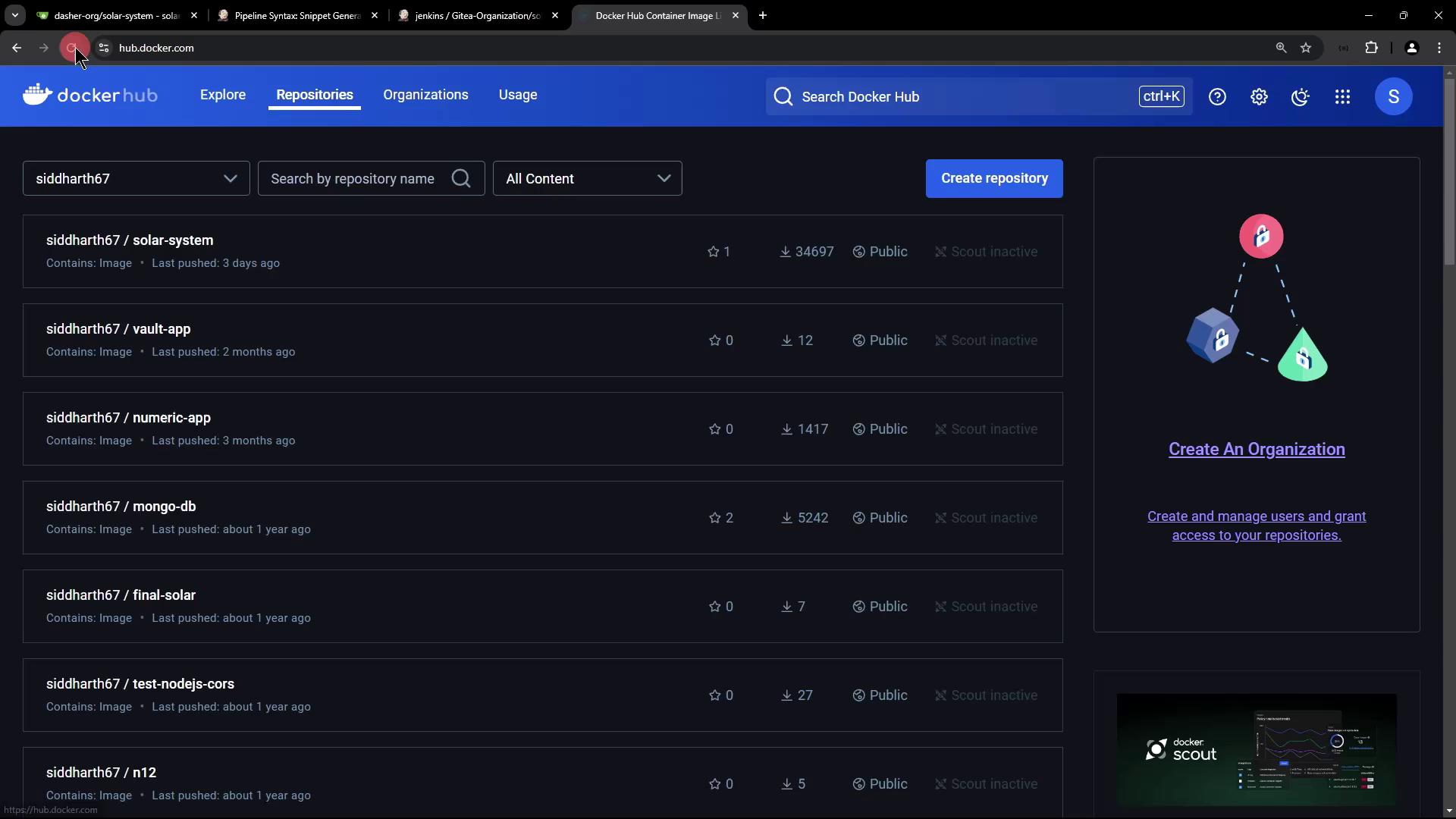
You should see the new image tag matching your git commit hash.
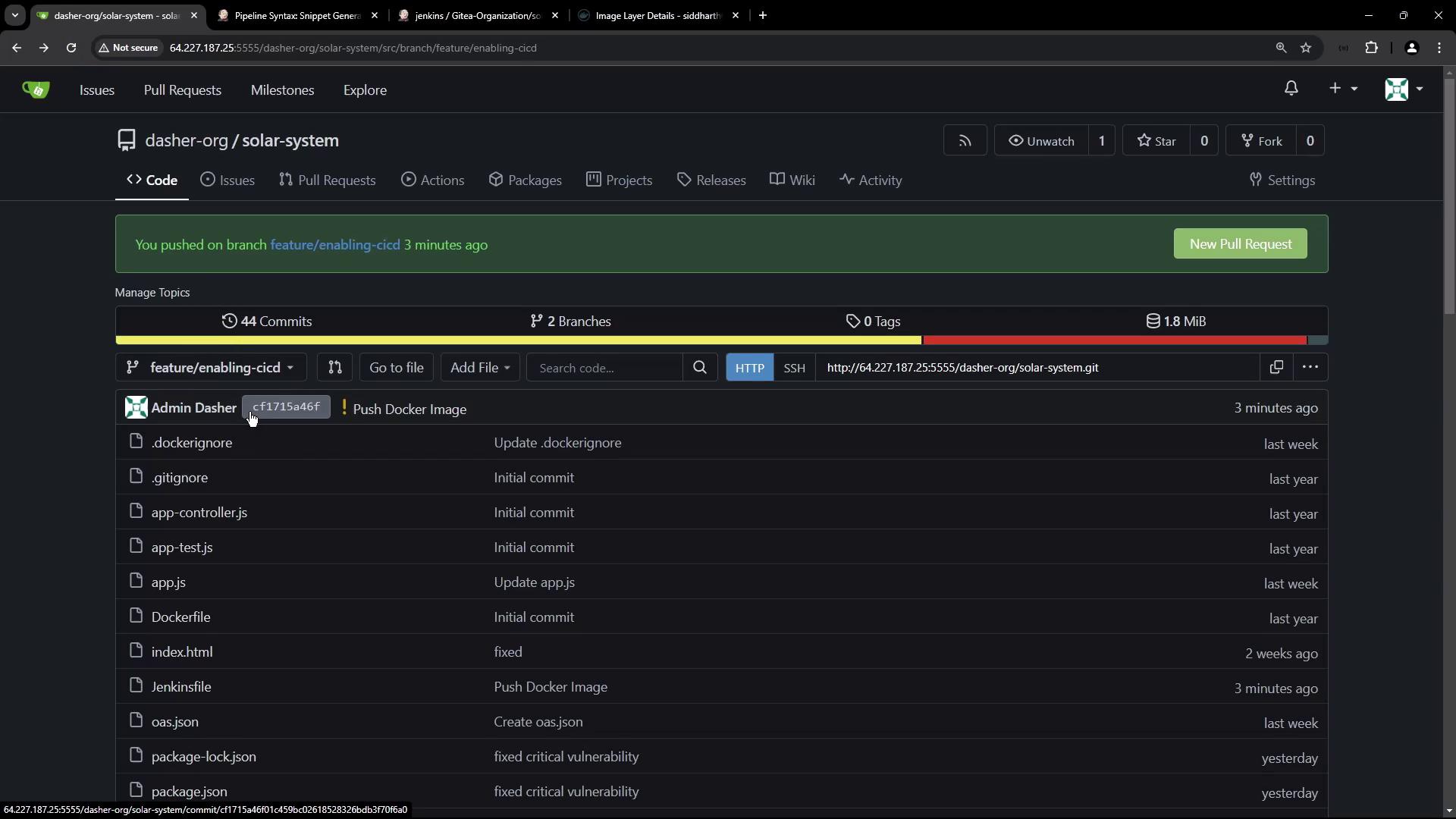
## Confirm in GitHub
You can also verify the commit ID in your source repository:
## Summary
With this configuration, your CI pipeline now:
* Builds a Docker image.
* Scans it with Trivy for vulnerabilities.
* Authenticates and pushes the image to Docker Hub.
Next, we’ll cover automated deployment in a future guide.
## References
* [Trivy – Aqua Security](https://github.com/aquasecurity/trivy)
* [Jenkins Docker Pipeline Plugin](https://www.jenkins.io/doc/book/pipeline/docker/)
* [Docker Hub](https://hub.docker.com/)