> ## Documentation Index
> Fetch the complete documentation index at: https://notes.kodekloud.com/llms.txt
> Use this file to discover all available pages before exploring further.
# Demo Vulnerability Scan using Trivy
> This guide explains how to use Trivy for vulnerability scanning and integrate it into a Jenkins pipeline before pushing Docker images.
Before pushing your Docker image to a registry, it’s crucial to identify and remediate vulnerabilities. In this guide, we’ll walk through how to use **Trivy** for vulnerability scanning and integrate it into a Jenkins pipeline.
## What Is Trivy?
Trivy is an open-source, all-in-one security scanner from Aqua Security. It can analyze:
* Container images
* File systems
* Git repositories
* Kubernetes manifests
* Infrastructure as Code (IaC)
Trivy detects OS package vulnerabilities, software dependency issues, IaC misconfigurations, license risks, and exposed secrets.
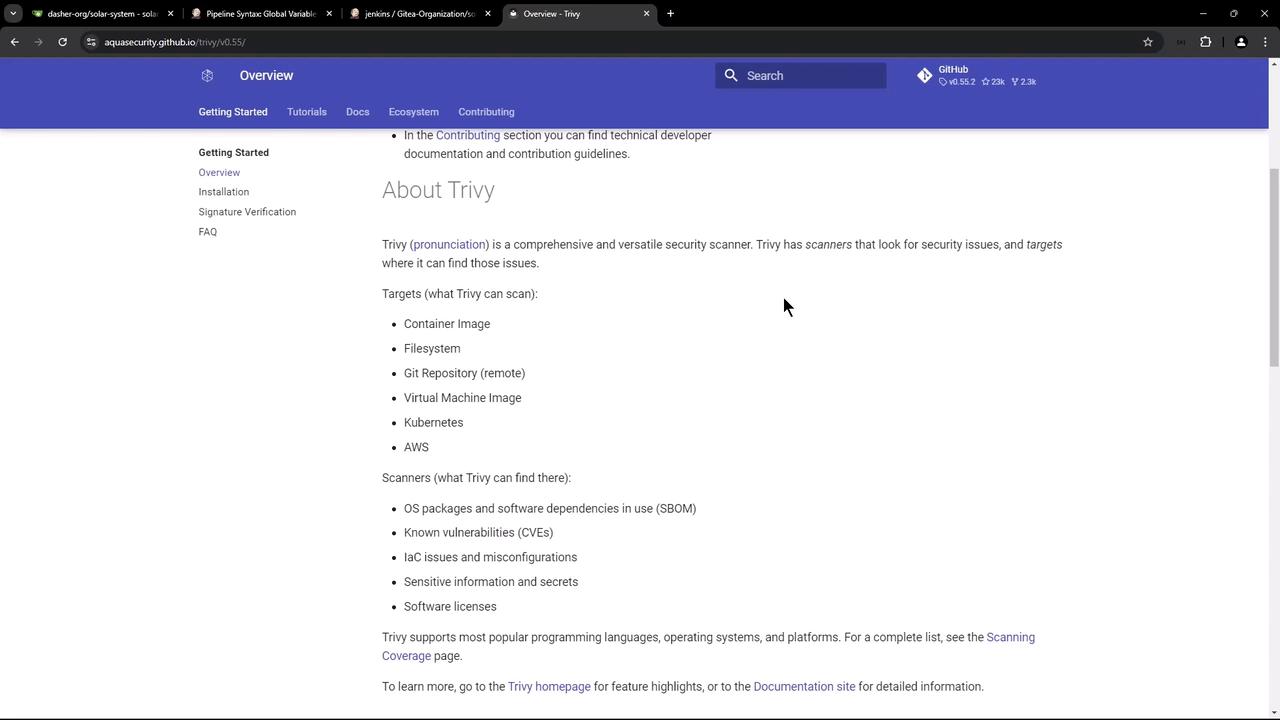
Learn more on the [official Trivy GitHub repository](https://github.com/aquasecurity/trivy).
## Installing Trivy
You can install Trivy via package managers, a standalone binary, or run it in Docker.
| Platform | Method | Command / Reference |
| --------------- | ----------------- | ---------------------------------------------------- |
| macOS | Homebrew | `brew install trivy` |
| Docker | Container image | See *Docker* block below |
| RPM-based Linux | YUM repository | Add repo then `sudo yum install trivy` |
| Manual / Source | Shell script & Go | Use Aquasecurity install script or build from source |
### Homebrew (macOS)
```bash theme={null}
brew install trivy
```
### Docker
```bash theme={null}
docker run --rm \
-v /var/run/docker.sock:/var/run/docker.sock \
-v $HOME/Library/Caches/:/root/.cache \
aquasec/trivy image python:3.4-alpine
```
### RPM-Based Linux
```bash theme={null}
sudo tee /etc/yum.repos.d/trivy.repo <
By default, Trivy exits with code `0` even if it finds non-critical issues. Use `--exit-code` to control build failures based on severity.
## Integrating Trivy into a Jenkins Pipeline
Add a **Trivy Vulnerability Scanner** stage immediately after your Docker build. Below is an example declarative pipeline:
```groovy theme={null}
pipeline {
agent any
stages {
stage('Build Docker Image') {
steps {
// your build steps...
}
}
stage('Trivy Vulnerability Scanner') {
steps {
// Medium/Low scan does not fail build
sh '''
trivy image siddharth67/solar-system:$GIT_COMMIT \
--severity LOW,MEDIUM,HIGH \
--exit-code 0 \
--quiet \
--format json -o trivy-image-medium.json
# Critical scan fails on findings
trivy image siddharth67/solar-system:$GIT_COMMIT \
--severity CRITICAL \
--exit-code 1 \
--quiet \
--format json -o trivy-image-critical.json
'''
}
post {
always {
// Convert JSON to HTML and JUnit XML
sh '''
trivy convert --format template \
--template "/usr/local/share/trivy/templates/html.tpl" \
--output trivy-image-medium.html trivy-image-medium.json
trivy convert --format template \
--template "/usr/local/share/trivy/templates/html.tpl" \
--output trivy-image-critical.html trivy-image-critical.json
trivy convert --format template \
--template "/usr/local/share/trivy/templates/junit.tpl" \
--output trivy-image-medium.xml trivy-image-medium.json
trivy convert --format template \
--template "/usr/local/share/trivy/templates/junit.tpl" \
--output trivy-image-critical.xml trivy-image-critical.json
'''
// Publish JUnit test reports
junit allowEmptyResults: true, testResults: 'trivy-image-*.xml'
// Publish HTML vulnerability reports
publishHTML([
allowMissing: true, alwaysLinkToLastBuild: true, keepAll: true,
reportDir: '.', reportFiles: 'trivy-image-critical.html',
reportName: 'Critical Vulnerabilities', useWrapperFileDirectly: true
])
publishHTML([
allowMissing: true, alwaysLinkToLastBuild: true, keepAll: true,
reportDir: '.', reportFiles: 'trivy-image-medium.html',
reportName: 'Medium/Low Vulnerabilities', useWrapperFileDirectly: true
])
}
}
}
stage('Push to Registry') {
steps {
// your push steps...
}
}
}
}
```
The critical-scan stage uses `--exit-code 1`. Any CRITICAL vulnerability will fail the build immediately.
## Supported Reporting Formats
Trivy supports several output formats:
| Format | Description |
| -------- | -------------------------------------------------------- |
| Table | Human-readable table view |
| JSON | Machine-parsable data |
| SARIF | Static Analysis Results Interchange Format |
| Template | Custom reports via Go templates (HTML, JUnit, CycloneDX) |
Templates are installed at:
```bash theme={null}
ls /usr/local/share/trivy/templates
# asff.tpl gitlab-codequality.tpl gitlab.tpl html.tpl junit.tpl
```
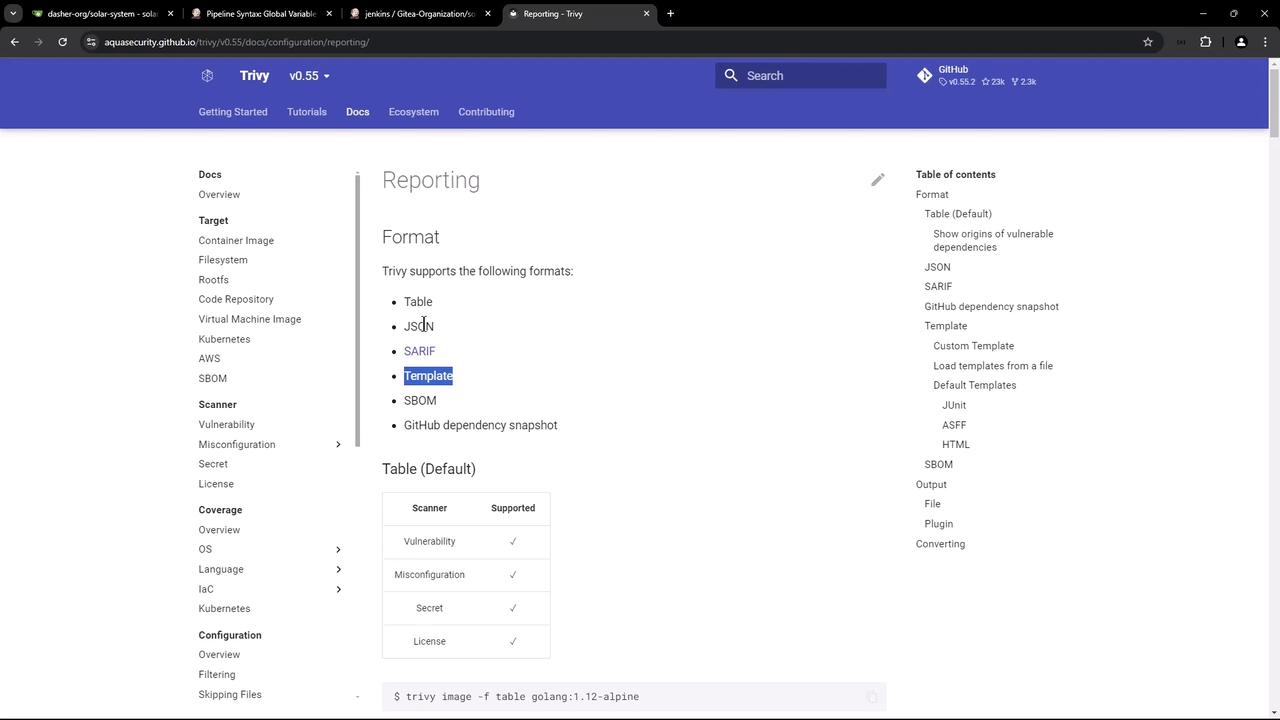
To convert a JSON output into a CycloneDX SBOM:
```bash theme={null}
trivy image --format json -o result.json debian:11
trivy convert --format cyclonedx --output result.cdx result.json
```
## Reviewing Scan Results
After your Jenkins job completes, the workspace will contain:
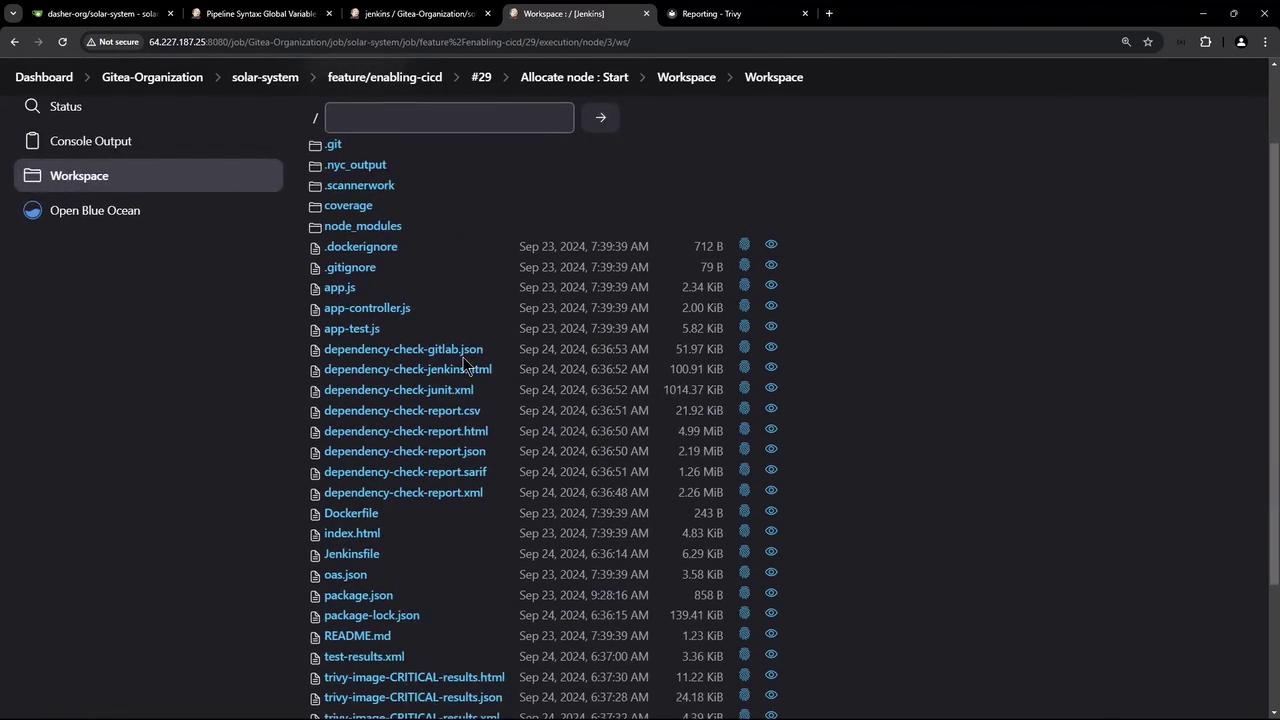
* **trivy-image-medium.html** / **.json / .xml**
* **trivy-image-critical.html** / **.json / .xml**
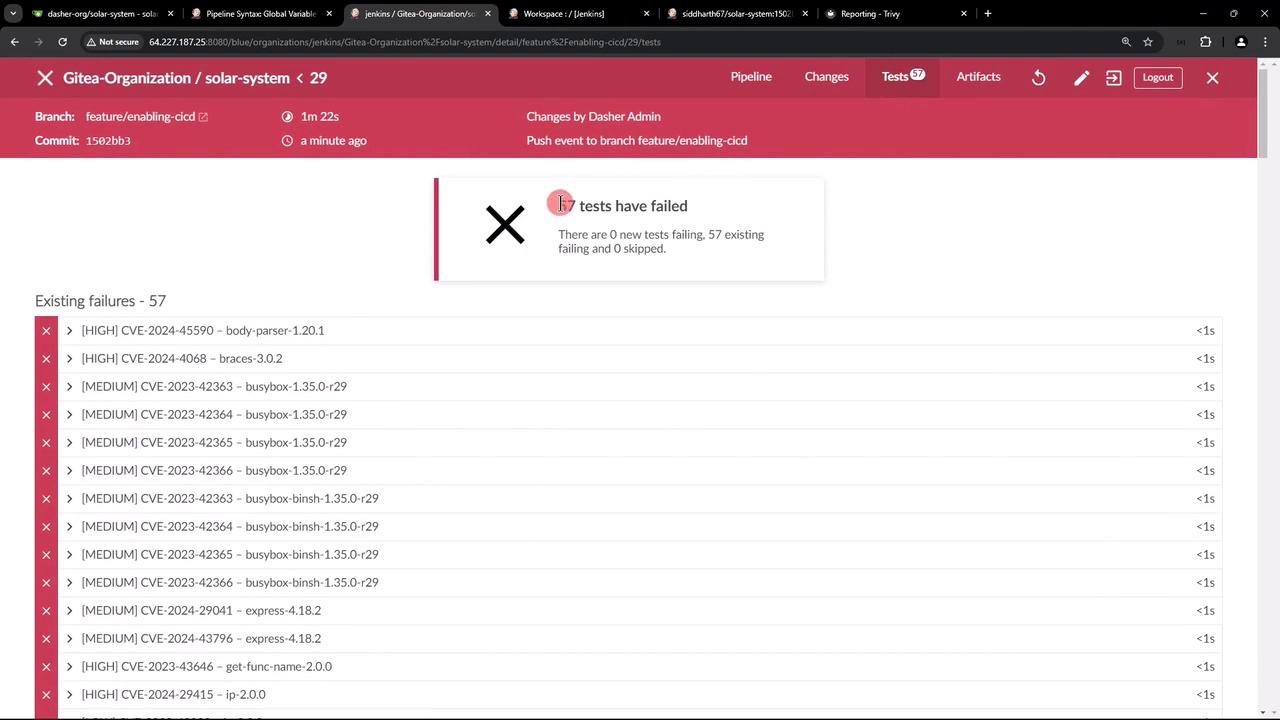
In Jenkins’ **Test Results** view, Trivy’s JUnit entries appear alongside other CI tests:
## Adjusting Severity Thresholds
To treat HIGH severity like MEDIUM (only fail on CRITICAL), include HIGH in the non-failing scan:
```groovy theme={null}
steps {
sh '''
trivy image siddharth67/solar-system:$GIT_COMMIT \
--severity LOW,MEDIUM,HIGH \
--exit-code 0 \
--quiet \
--format json -o trivy-image-medium.json
trivy image siddharth67/solar-system:$GIT_COMMIT \
--severity CRITICAL \
--exit-code 1 \
--quiet \
--format json -o trivy-image-critical.json
'''
}
```
## Summary
In this tutorial, you learned how to:
* Install Trivy on various platforms
* Execute basic vulnerability scans on images and filesystems
* Integrate Trivy into a Jenkins pipeline with pass/fail thresholds
* Convert JSON results to HTML, JUnit, or CycloneDX formats
* Publish and review vulnerability reports in Jenkins
Trivy also supports scanning IaC files, detecting sensitive data, and auditing software licenses. For advanced scenarios, visit the [official Trivy documentation](https://aquasecurity.github.io/trivy/).
## Links and References
* [Trivy GitHub Repository](https://github.com/aquasecurity/trivy)
* [Aqua Security Documentation](https://aquasecurity.github.io/)
* [Jenkins Pipeline Syntax](https://www.jenkins.io/doc/book/pipeline/syntax/)