> ## Documentation Index
> Fetch the complete documentation index at: https://notes.kodekloud.com/llms.txt
> Use this file to discover all available pages before exploring further.

# Demo Installing Plugins

> This tutorial covers the installation and configuration of Jenkins plugins for artifact sharing and build visualization.

In this step-by-step tutorial, we’ll install and configure two essential Jenkins plugins—**Copy Artifact** and **Yet Another Build Visualizer**—to enable artifact sharing between freestyle jobs and to visualize your build pipelines.

***

## Plugins Overview

| Plugin Name                  | Purpose                                       | Documentation                                                                         |
| ---------------------------- | --------------------------------------------- | ------------------------------------------------------------------------------------- |
| Copy Artifact                | Share build artifacts between jobs            | [plugins.jenkins.io/copyartifact](https://plugins.jenkins.io/copyartifact/)           |
| Yet Another Build Visualizer | Display upstream/downstream job relationships | [GitHub Repository](https://github.com/jenkinsci/yet-another-build-visualizer-plugin) |

***

## 1. Installing the Copy Artifact Plugin

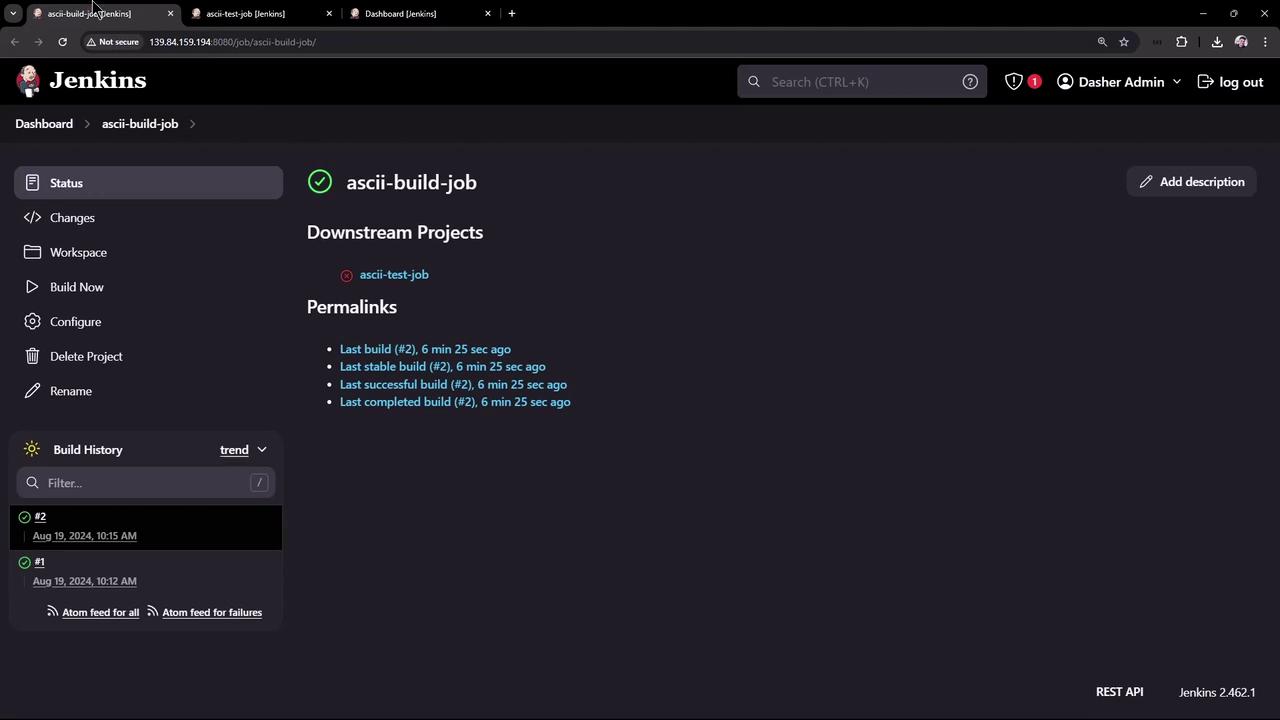
We already have a job called **ascii-build-job** that fetches advice from an external API:
<Frame>
  ![The image shows a Jenkins dashboard for a project named "ascii-build-job," displaying build history and permalinks for recent builds. The interface includes options for managing the project, such as configuring and deleting it.](https://kodekloud.com/kk-media/image/upload/v1752870535/notes-assets/images/Certified-Jenkins-Engineer-Demo-Installing-Plugins/jenkins-dashboard-ascii-build-job.jpg)
</Frame>

To allow another job to consume `advice.json`, install **Copy Artifact**:

1. Navigate to **Manage Jenkins** → **Manage Plugins**.
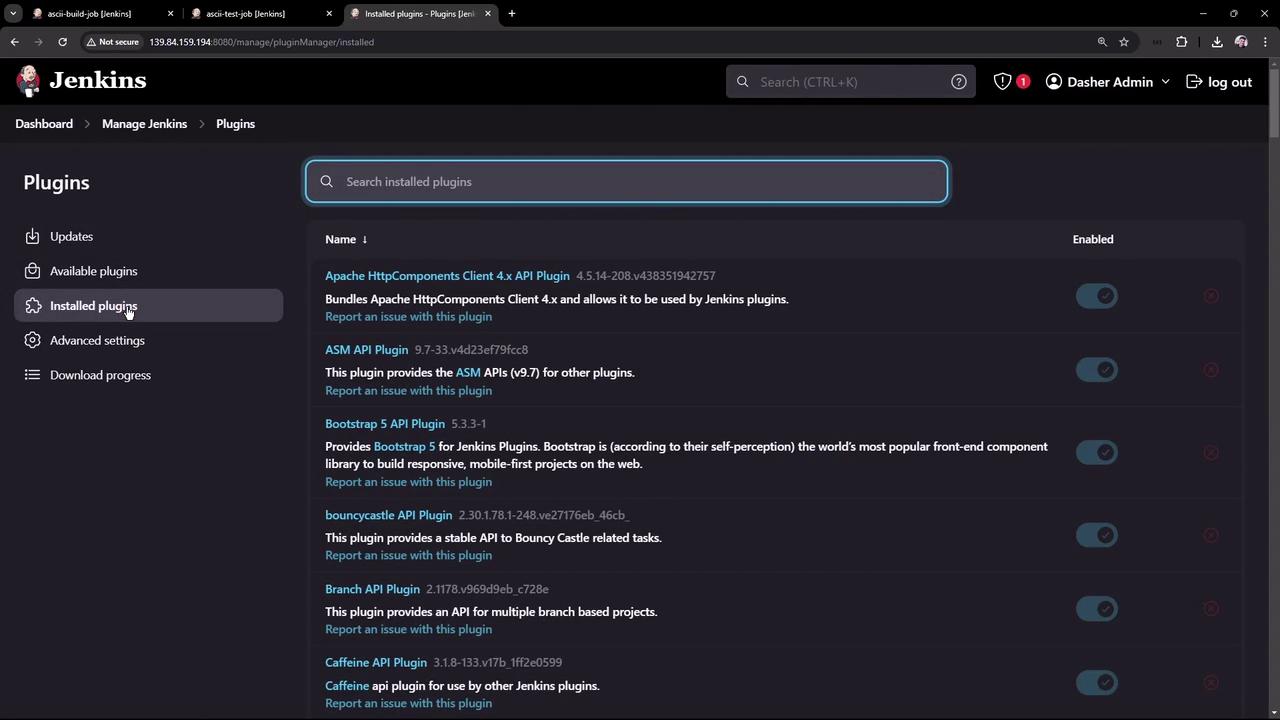
2. Click the **Installed** tab to check which plugins are already present:
<Frame>
  ![The image shows the "Installed plugins" section of a Jenkins dashboard, listing various plugins with options to enable or disable them.](https://kodekloud.com/kk-media/image/upload/v1752870536/notes-assets/images/Certified-Jenkins-Engineer-Demo-Installing-Plugins/jenkins-installed-plugins-dashboard.jpg)
</Frame>

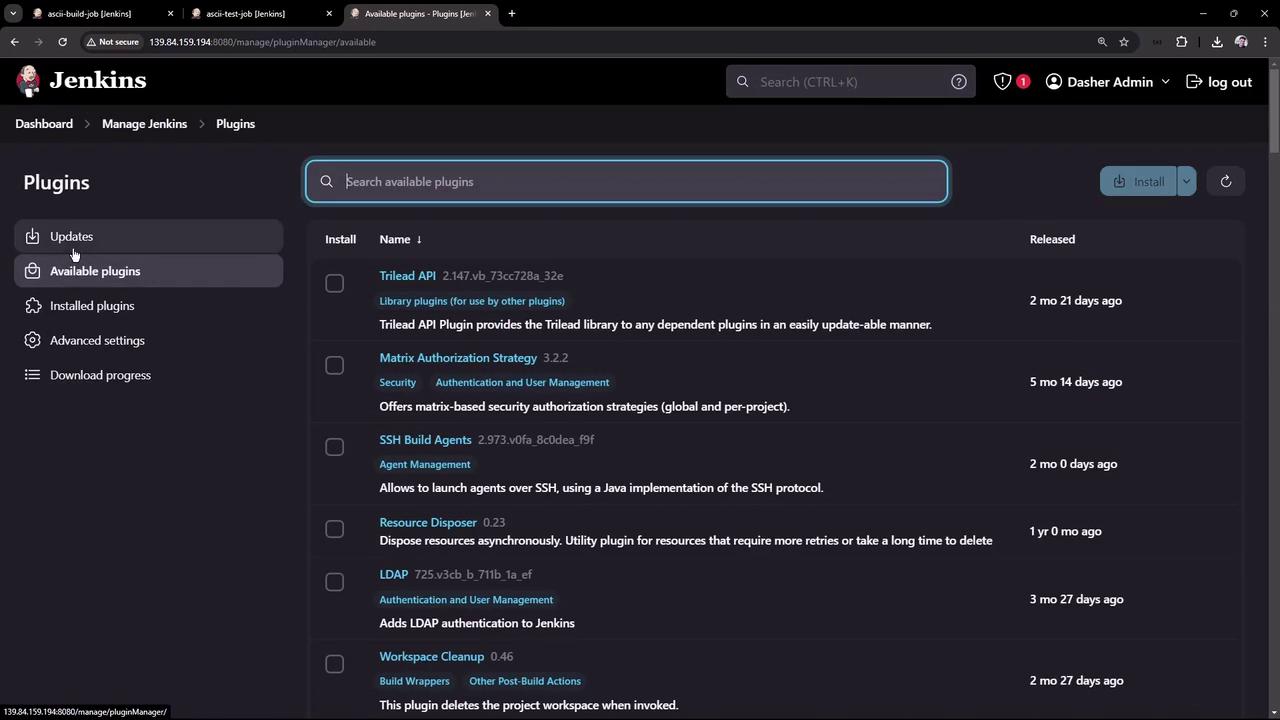
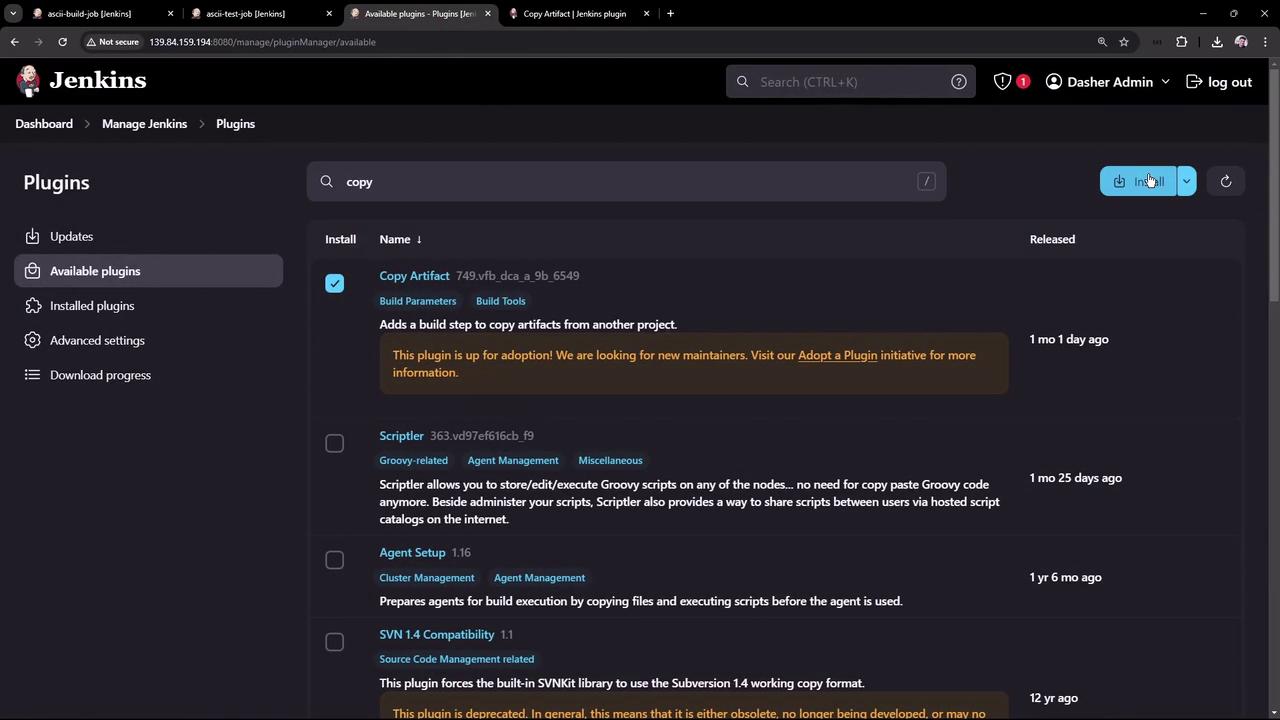
3. Go to the **Available** tab, search for “copy artifact”, select it, then click **Install without restart**:
<Frame>
  ![The image shows the Jenkins plugin management interface, displaying a list of available plugins with options to install them. The interface includes details like plugin names, descriptions, and release dates.](https://kodekloud.com/kk-media/image/upload/v1752870537/notes-assets/images/Certified-Jenkins-Engineer-Demo-Installing-Plugins/jenkins-plugin-management-interface.jpg)
</Frame>

<Frame>
  ![The image shows a Jenkins dashboard displaying a list of available plugins, with options to install them. The interface includes a search bar and details about each plugin, such as name, description, and release date.](https://kodekloud.com/kk-media/image/upload/v1752870539/notes-assets/images/Certified-Jenkins-Engineer-Demo-Installing-Plugins/jenkins-dashboard-plugins-list.jpg)
</Frame>

4. Wait until the status indicator reads **Success**:
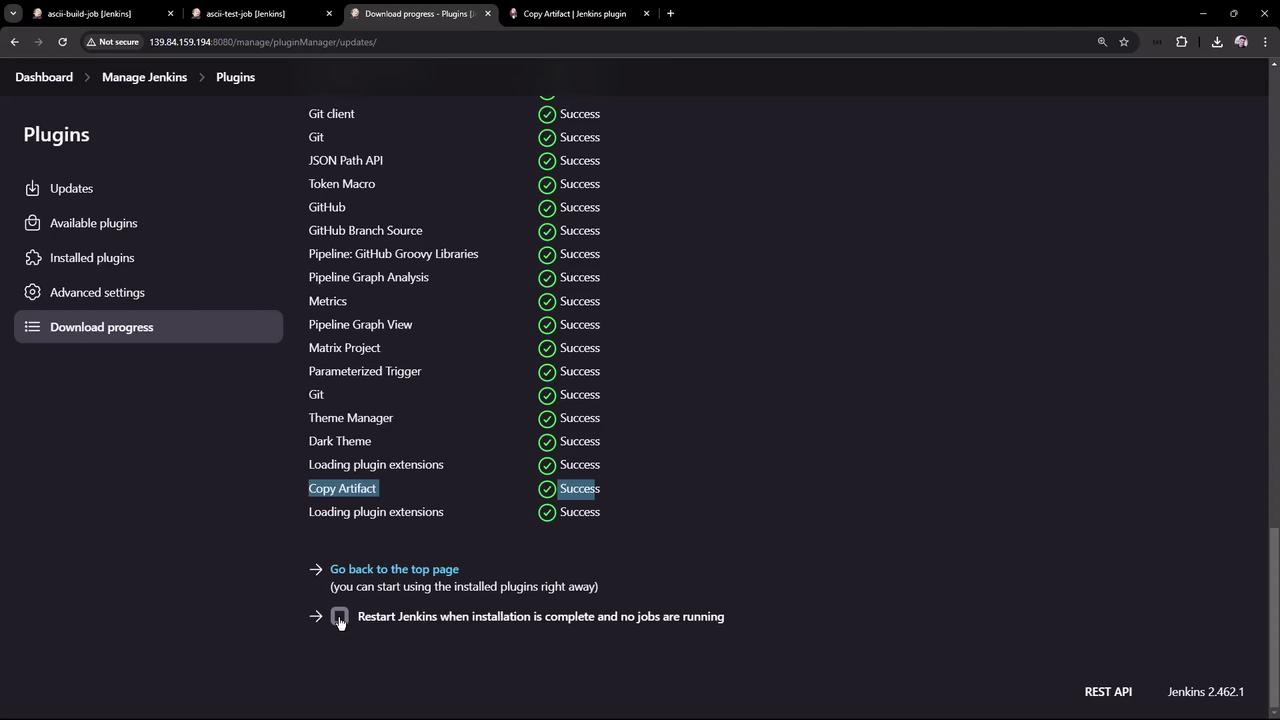
<Frame>
  ![The image shows a Jenkins plugin management interface with a list of plugins, each marked with a "Success" status, indicating successful installation or update.](https://kodekloud.com/kk-media/image/upload/v1752870540/notes-assets/images/Certified-Jenkins-Engineer-Demo-Installing-Plugins/jenkins-plugin-management-success-status.jpg)
</Frame>

5. Review the plugin’s usage patterns, including declarative pipeline snippets and CLI installation:
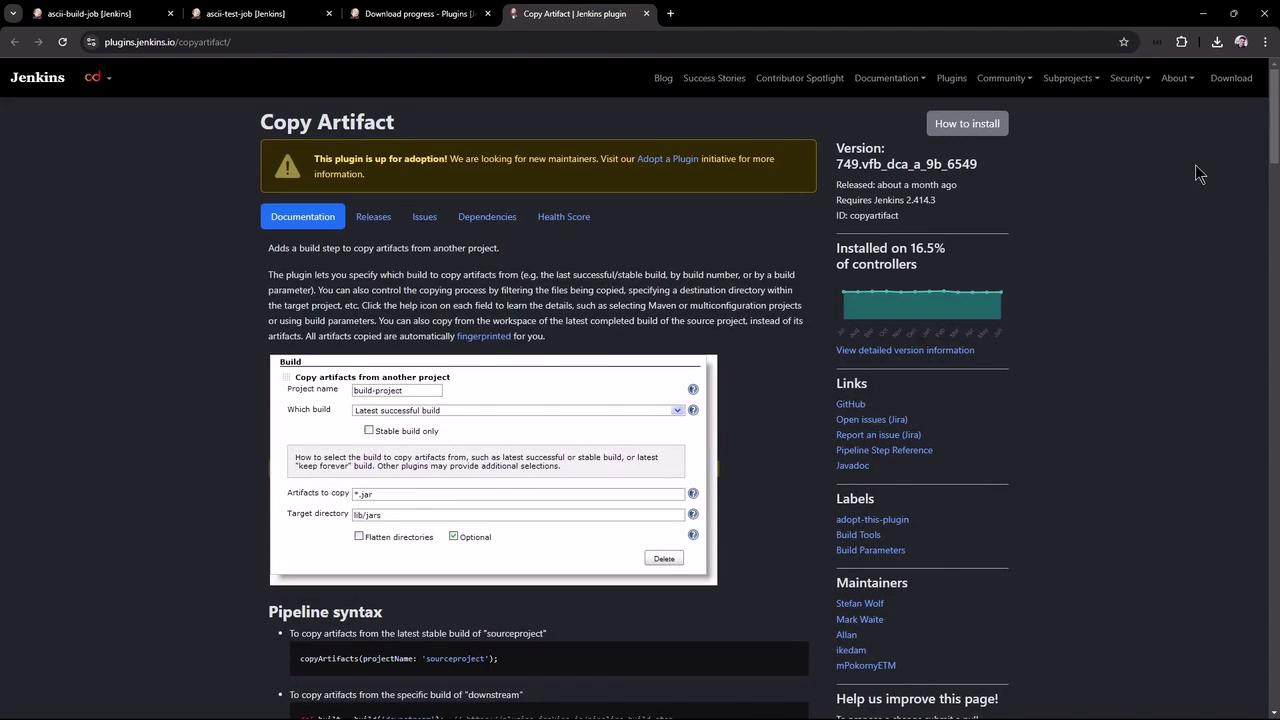
<Frame>
  ![The image shows a webpage for the "Copy Artifact" plugin on the Jenkins website, detailing its features, version information, and installation statistics. It includes a section on how to configure the plugin to copy artifacts from another project.](https://kodekloud.com/kk-media/image/upload/v1752870541/notes-assets/images/Certified-Jenkins-Engineer-Demo-Installing-Plugins/copy-artifact-jenkins-plugin-webpage.jpg)
</Frame>

```groovy theme={null}
// Declarative pipeline example
pipeline {
  agent any
  options {
    copyArtifactPermission('job1,job2')
  }
  stages {
    // ...
  }
}

// Freestyle project permission
properties {
  copyArtifactPermission('ascii-test-job')
}
```

Or install via CLI:

```bash theme={null}
jenkins-plugin-cli --plugins copyartifact:1.46.1
```
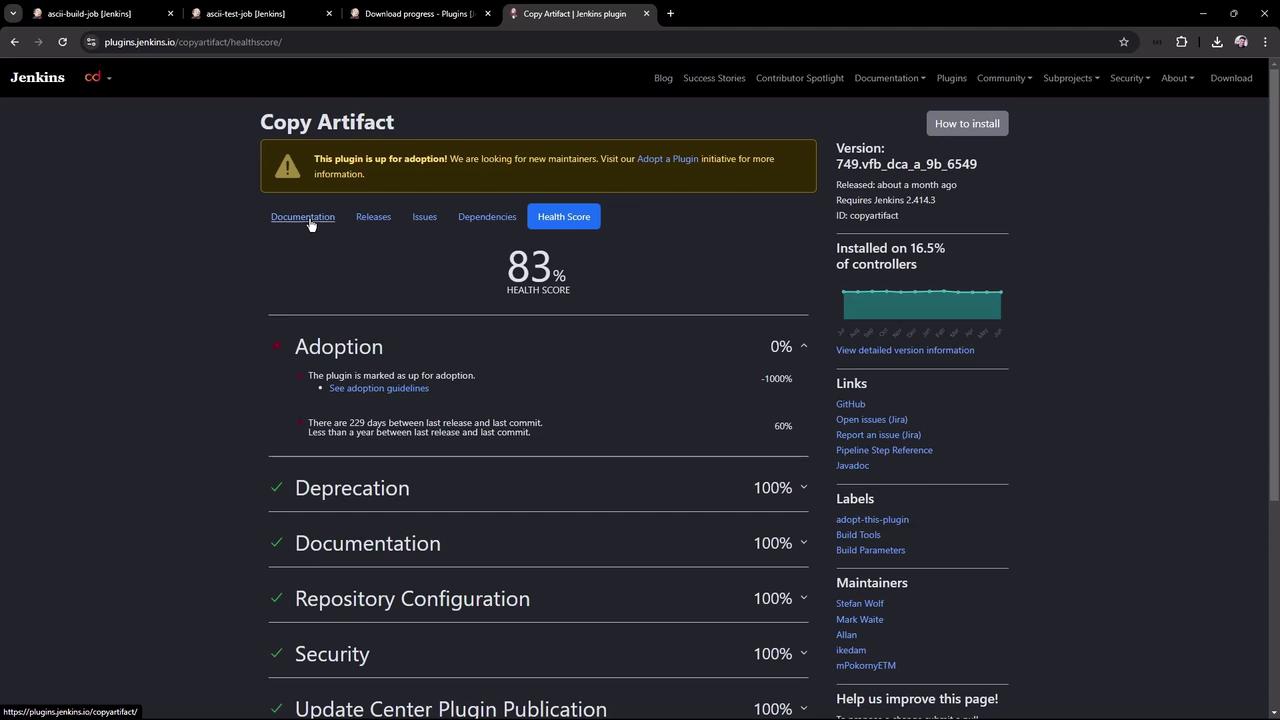
<Frame>
  ![The image shows a Jenkins plugin page for "Copy Artifact," displaying a health score of 83% and various details about adoption, deprecation, documentation, and security. It also includes links and information about the plugin's version and maintainers.](https://kodekloud.com/kk-media/image/upload/v1752870544/notes-assets/images/Certified-Jenkins-Engineer-Demo-Installing-Plugins/jenkins-copy-artifact-plugin-page.jpg)
</Frame>

<Callout icon="triangle-alert" color="#FF6B6B">
  If you install via CLI, ensure Jenkins has been restarted or the plugin has been dynamically loaded. Always verify compatibility with your Jenkins version.
</Callout>

***

## 2. Configure the Build Job (ascii-build-job)

Edit **ascii-build-job** to fetch and archive advice:

1. **Execute Shell** – Fetch advice and output to `advice.json`:
   ```bash theme={null}
   curl -s https://api.adviceslip.com/advice > advice.json
   cat advice.json
   ```
2. **Allow Copy Artifact** – Under **Configure** → **Permission to Copy Artifact**, add `ascii-test-job`:
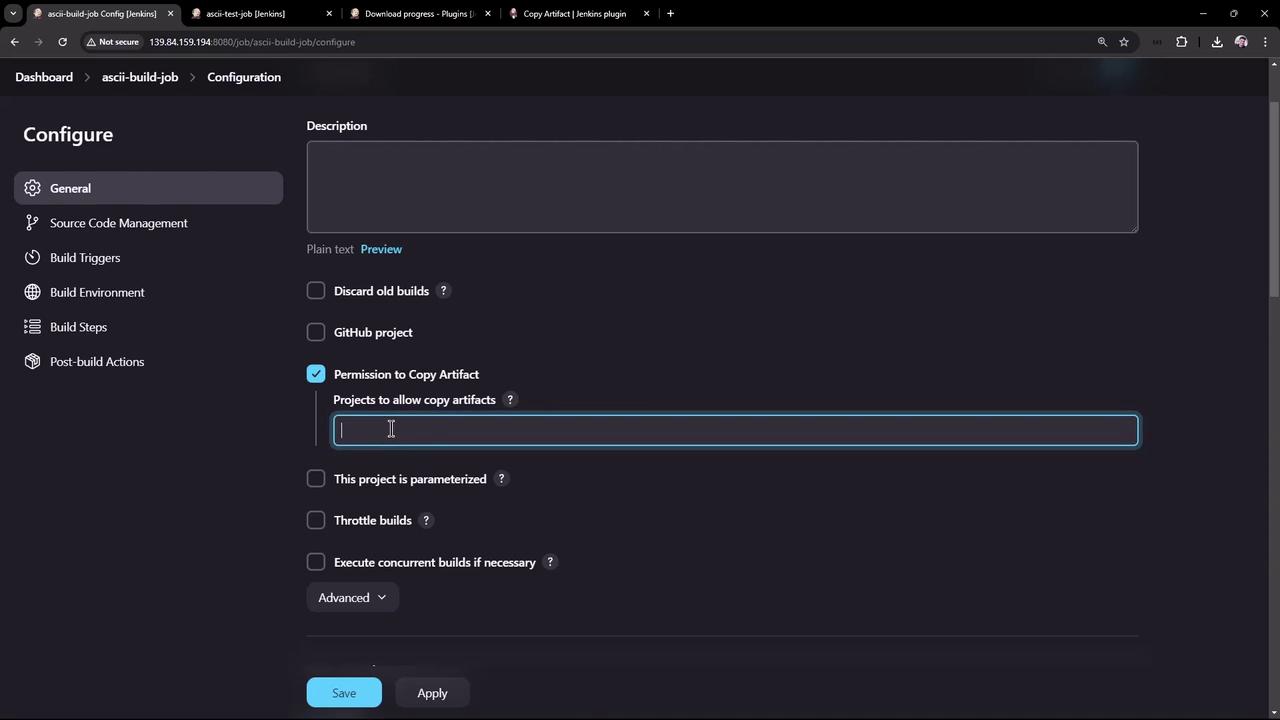
<Frame>
  ![The image shows a Jenkins configuration screen for a job named "ascii-build-job," with options for build settings such as "Permission to Copy Artifact" and other build parameters.](https://kodekloud.com/kk-media/image/upload/v1752870546/notes-assets/images/Certified-Jenkins-Engineer-Demo-Installing-Plugins/jenkins-ascii-build-job-config.jpg)
</Frame>

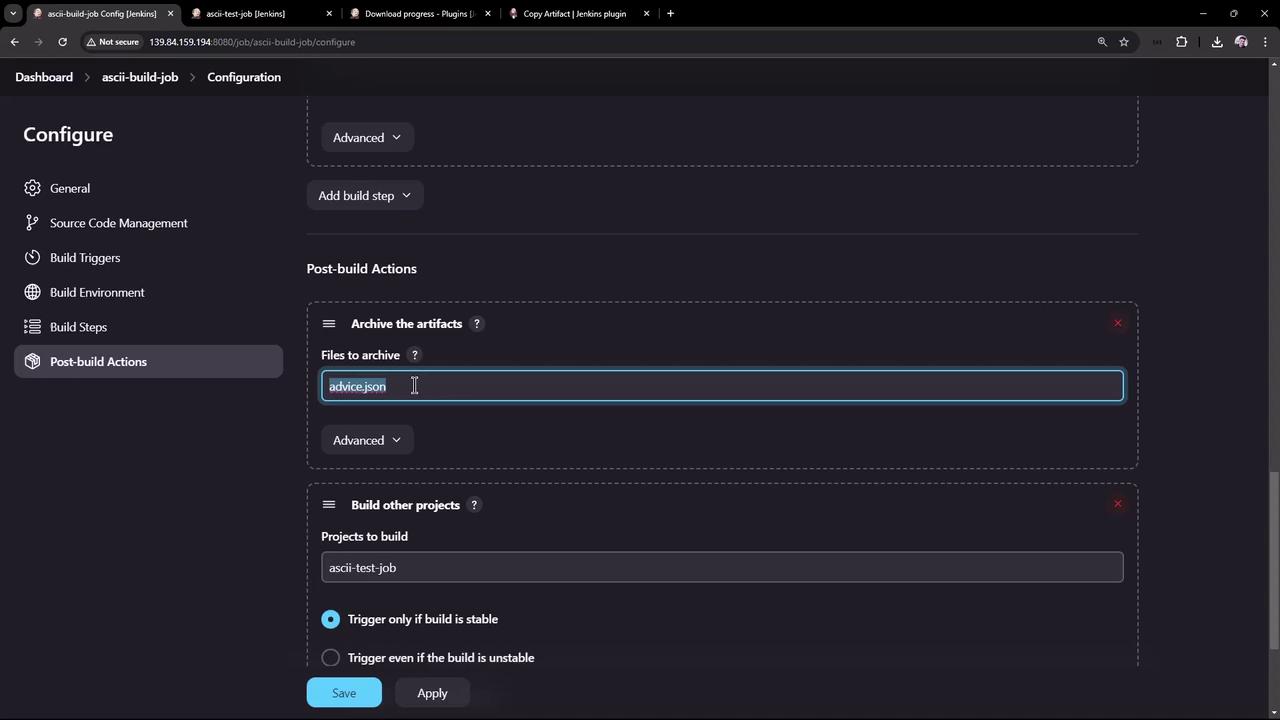
3. **Archive Artifacts** – Post-build action to archive `advice.json`:
<Frame>
  ![The image shows a Jenkins configuration screen for a job named "ascii-build-job," focusing on post-build actions like archiving artifacts and building other projects.](https://kodekloud.com/kk-media/image/upload/v1752870547/notes-assets/images/Certified-Jenkins-Engineer-Demo-Installing-Plugins/jenkins-ascii-build-job-config-2.jpg)
</Frame>

Save and run **ascii-build-job**. You should see `advice.json` archived under **Build Artifacts**.

***

## 3. Configure the Test Job (ascii-test-job)

Now set up **ascii-test-job** to pull that artifact and validate its content:

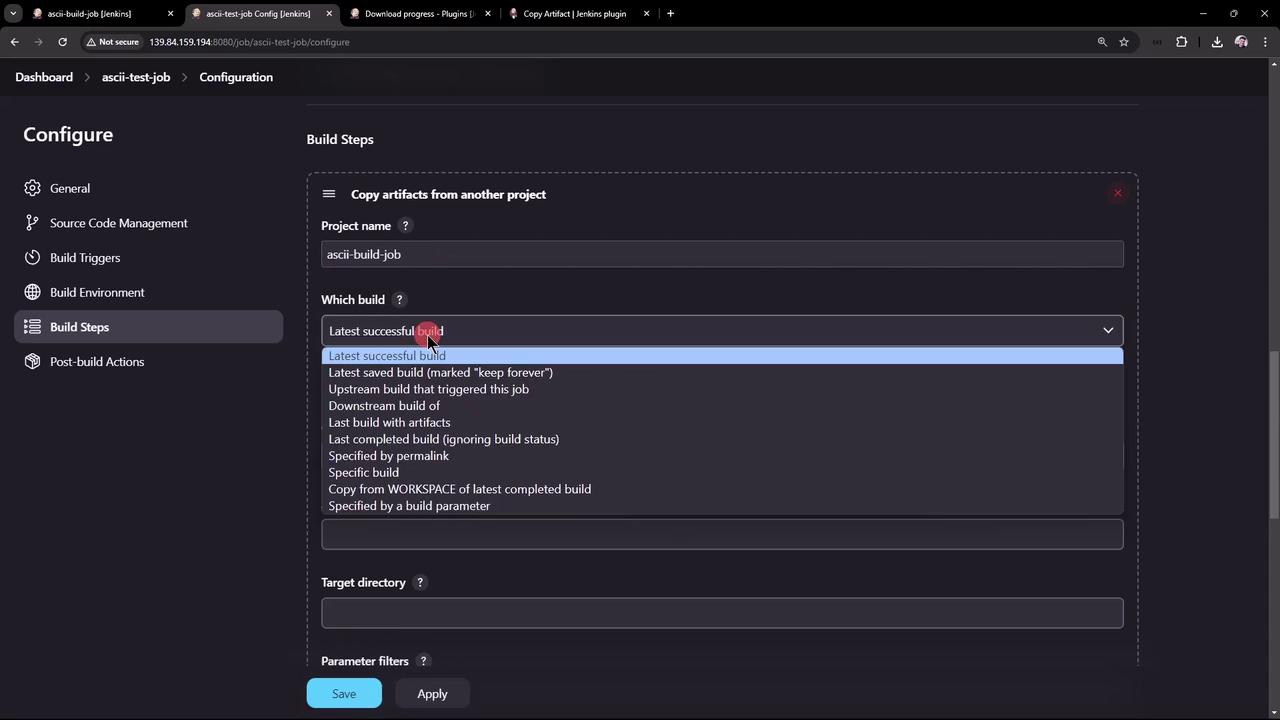
1. **Copy Artifacts from Another Project** (drag this step to the top):
   * **Project Name**: `ascii-build-job`
   * **Which Build**: Latest successful
   * **Artifacts to Copy**: `advice.json`
<Frame>
  ![The image shows a Jenkins configuration screen for a project named "ascii-test-job," focusing on the "Build Steps" section where options for copying artifacts from another project are being selected.](https://kodekloud.com/kk-media/image/upload/v1752870548/notes-assets/images/Certified-Jenkins-Engineer-Demo-Installing-Plugins/jenkins-ascii-test-job-build-steps.jpg)
</Frame>

2. **Execute Shell** – Validate the advice message length:
   ```bash theme={null}
   # Ensure advice.json is present
   ls advice.json

   # Extract advice text
   cat advice.json | jq -r .slip.advice > advice.message

   # Validate word count > 5
   if [ $(wc -w < advice.message) -gt 5 ]; then
     echo "Advice: $(cat advice.message) has more than 5 words"
   else
     echo "Advice: not enough words"
   fi
   ```
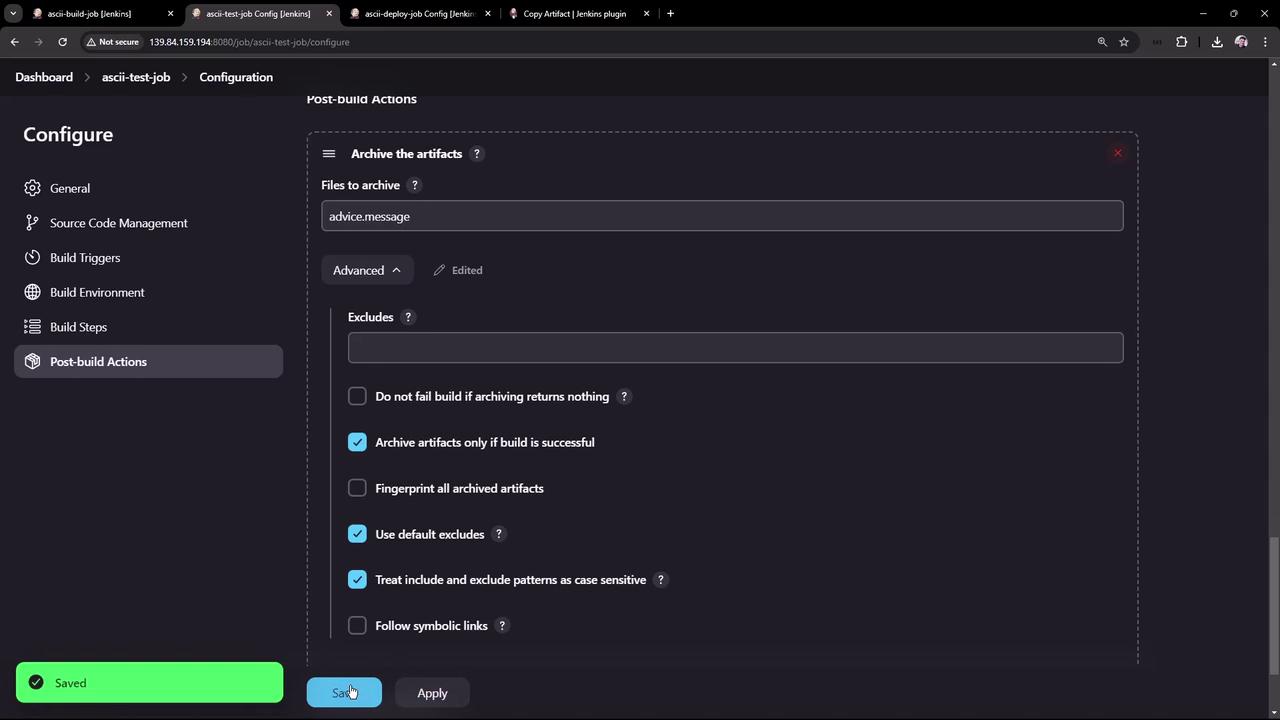
3. **Archive Artifacts** – Only archive `advice.message` on success:
<Frame>
  ![The image shows a Jenkins configuration screen for post-build actions, specifically for archiving artifacts with various options and settings.](https://kodekloud.com/kk-media/image/upload/v1752870549/notes-assets/images/Certified-Jenkins-Engineer-Demo-Installing-Plugins/jenkins-post-build-archive-artifacts.jpg)
</Frame>

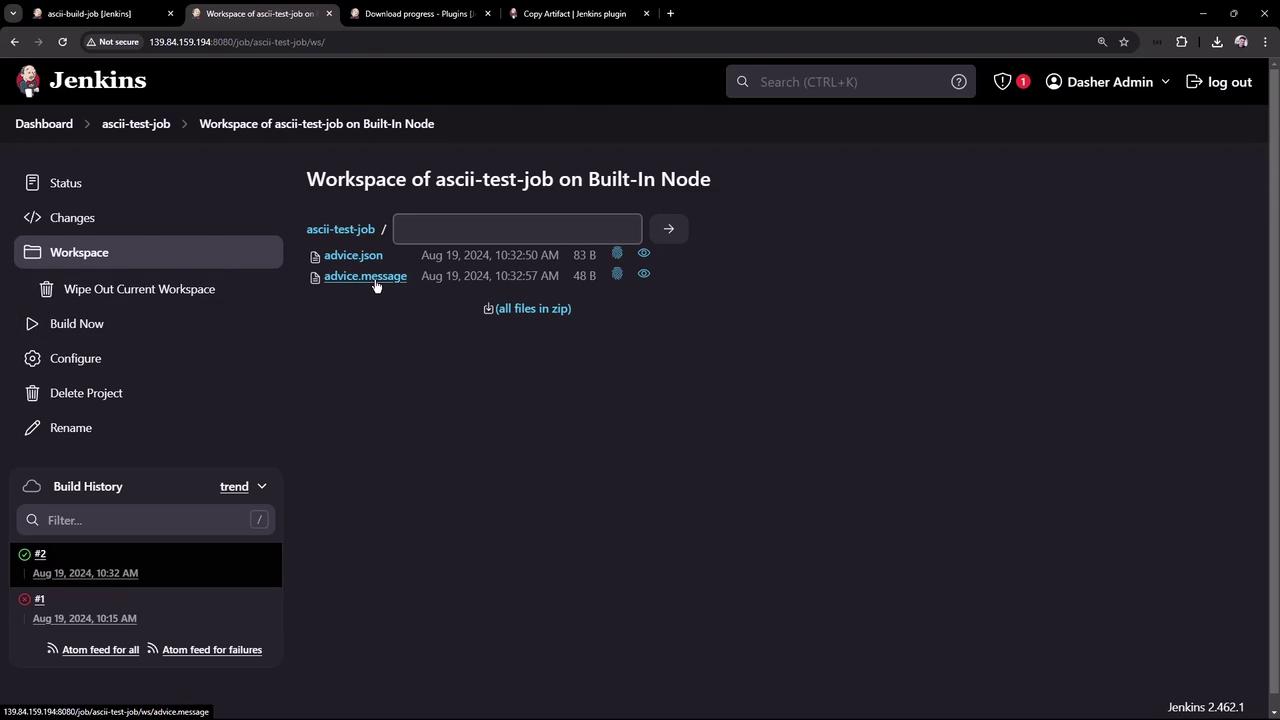
Save and run **ascii-test-job**. Verify both artifacts in the workspace:
<Frame>
  ![The image shows a Jenkins workspace interface for a job named "ascii-test-job" on a built-in node, displaying two files: "advice.json" and "advice.message," along with their details. The build history is visible on the left side.](https://kodekloud.com/kk-media/image/upload/v1752870550/notes-assets/images/Certified-Jenkins-Engineer-Demo-Installing-Plugins/jenkins-workspace-ascii-test-job.jpg)
</Frame>

Console output should confirm the artifact copy and message extraction:

```text theme={null}
Copied 1 artifact from "ascii-build-job" build #3
Advice: What could you increase? What could you reduce? has more than 5 words
Finished: SUCCESS
```

***

## 4. Configure the Deploy Job (ascii-deploy-job)

Create **ascii-deploy-job** to consume `advice.message` and display it with `cowsay`:

1. **Copy Artifacts** from `ascii-test-job` (Latest stable), artifacts: `advice.message`.
2. **Execute Shell**:
   ```bash theme={null}
   sudo apt-get update
   sudo apt-get install -y cowsay
   export PATH=$PATH:/usr/games:/usr/local/games

   cat advice.message | cowsay -f $(ls /usr/share/cowsay/cows | shuf -n 1)
   ```
3. **Build Trigger** – Under **Build Triggers**, select **Build after other projects are built** → `ascii-test-job` (stable only).

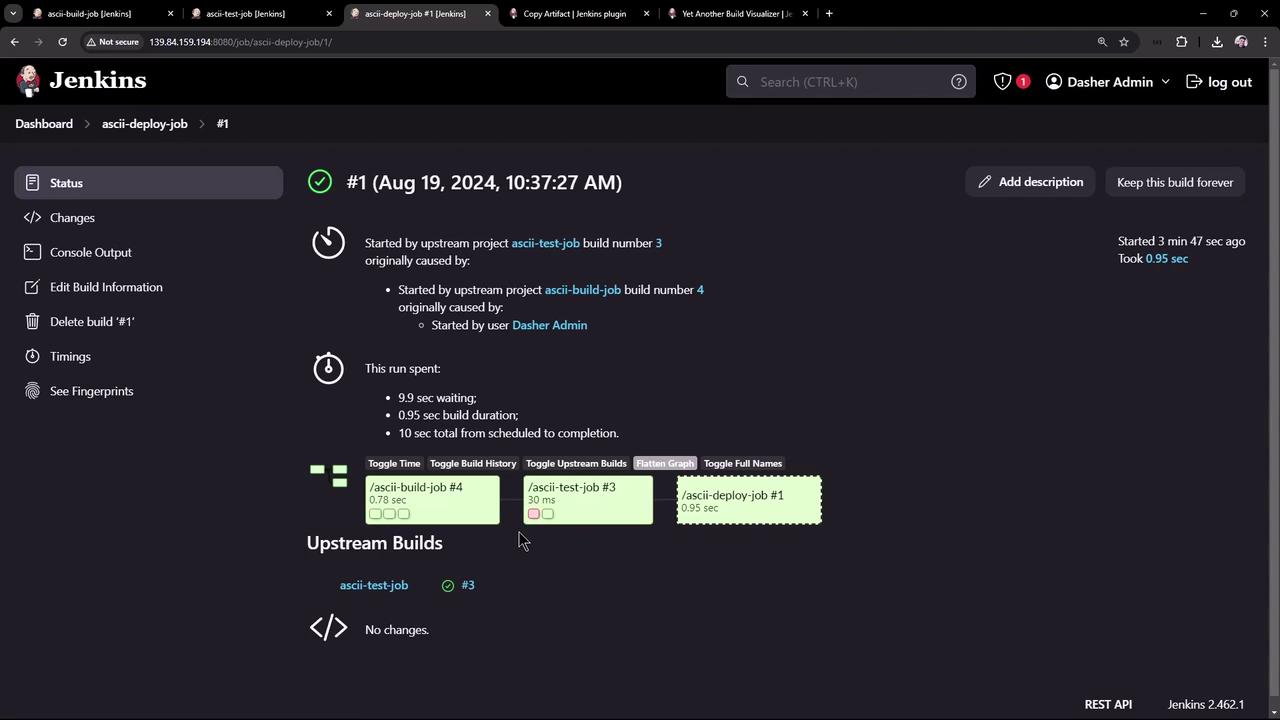
Save and kick off the chain by building **ascii-build-job**. You’ll observe:

* **ascii-build-job** runs first and archives `advice.json`.
* **ascii-test-job** copies that artifact, extracts `advice.message`, and archives it.
* **ascii-deploy-job** triggers automatically and displays the advice in a random cow figure.

Console logs of **ascii-deploy-job**:
<Frame>
  ![The image shows a Jenkins build status page for a job named "ascii-deploy-job," detailing the build process, timing, and upstream projects involved. It includes information about the build duration, user initiation, and related jobs.](https://kodekloud.com/kk-media/image/upload/v1752870551/notes-assets/images/Certified-Jenkins-Engineer-Demo-Installing-Plugins/jenkins-build-status-ascii-deploy-job.jpg)
</Frame>

***

## 5. Visualizing the Build Flow

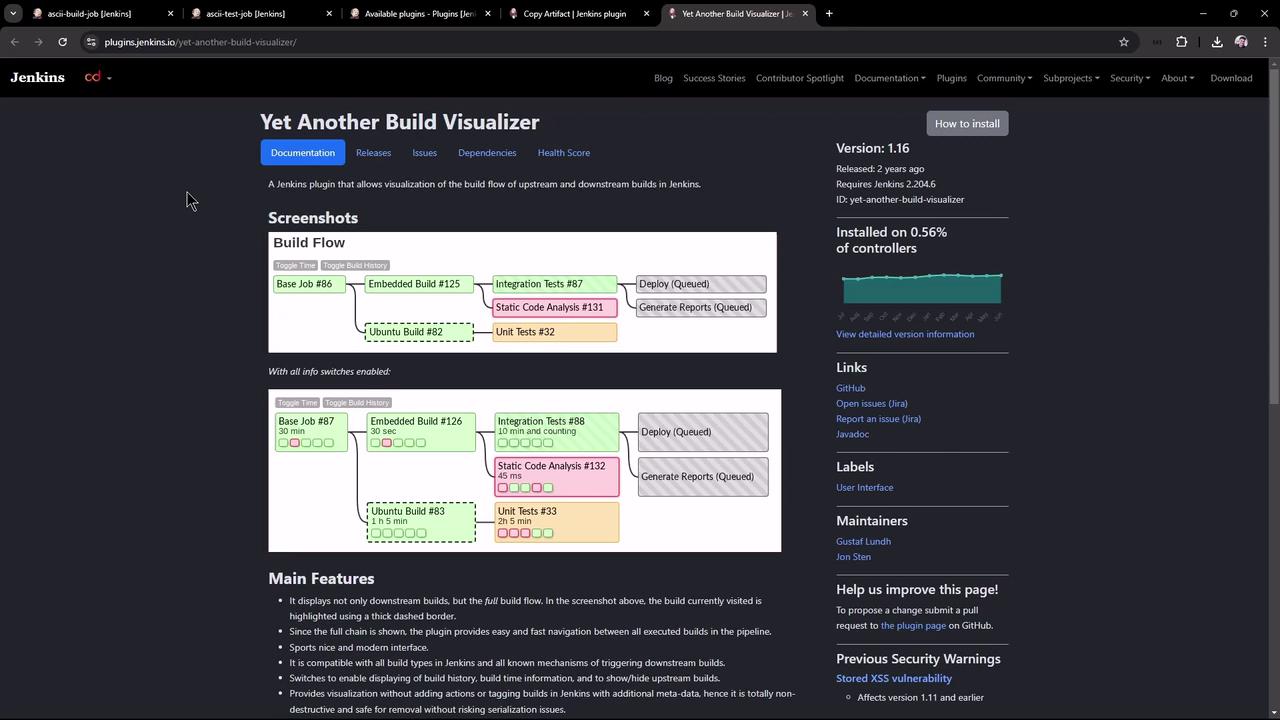
To graphically map upstream/downstream relationships, install **Yet Another Build Visualizer**:

1. Download the latest HPI from the \[releases page]:
<Frame>
  ![The image shows a webpage for the "Yet Another Build Visualizer" Jenkins plugin, featuring build flow diagrams and plugin details such as version, features, and links.](https://kodekloud.com/kk-media/image/upload/v1752870553/notes-assets/images/Certified-Jenkins-Engineer-Demo-Installing-Plugins/yet-another-build-visualizer-plugin.jpg)
</Frame>

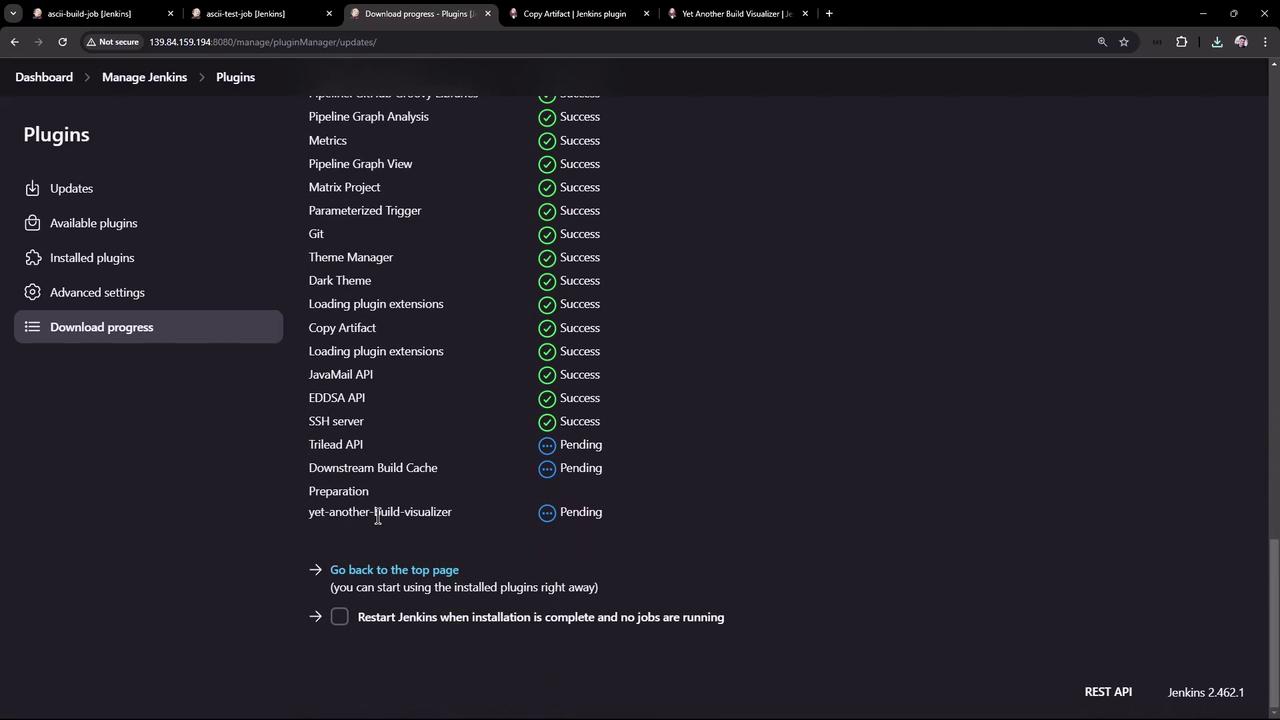
2. In **Manage Jenkins** → **Manage Plugins** → **Advanced**, upload and deploy the HPI:
<Frame>
  ![The image shows a Jenkins plugin management page with a list of plugins and their installation statuses, where most are marked as "Success" and a few as "Pending." The sidebar includes options like "Updates," "Available plugins," and "Download progress."](https://kodekloud.com/kk-media/image/upload/v1752870554/notes-assets/images/Certified-Jenkins-Engineer-Demo-Installing-Plugins/jenkins-plugin-management-page.jpg)
</Frame>

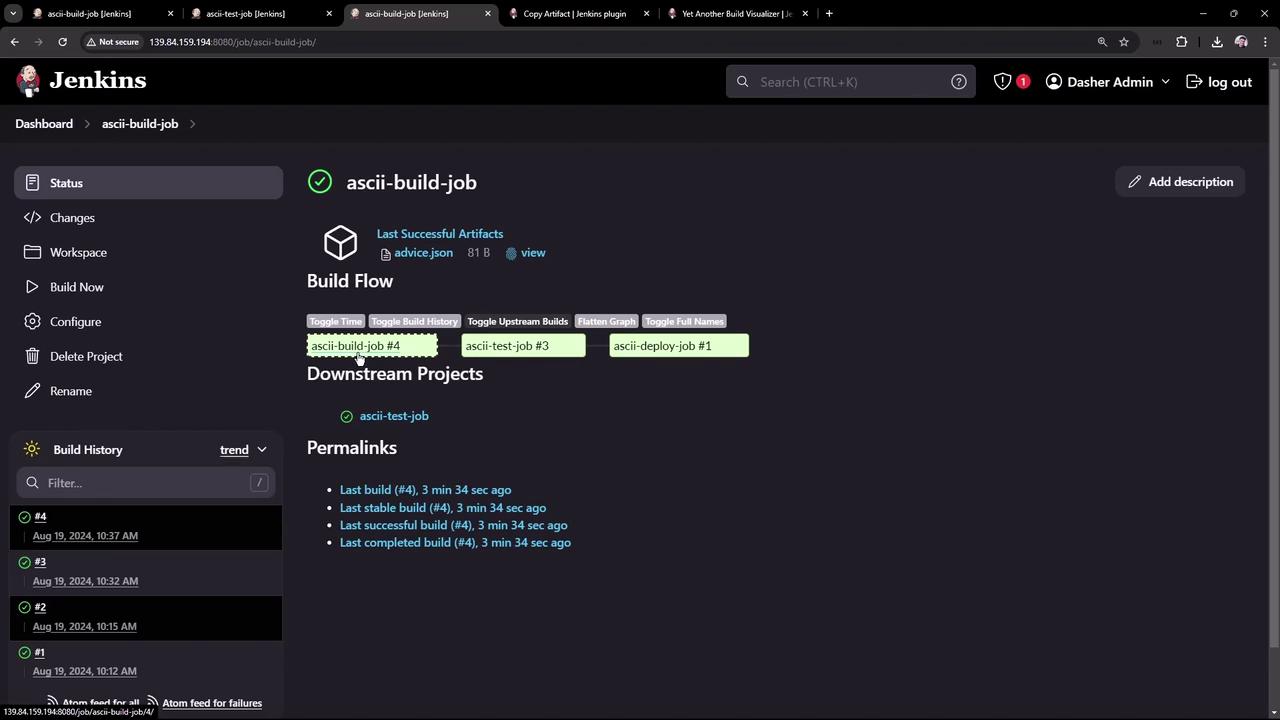
3. Open **ascii-build-job** to view the build flow diagram:
<Frame>
  ![The image shows a Jenkins dashboard for a project named "ascii-build-job," displaying build flow, downstream projects, and build history details.](https://kodekloud.com/kk-media/image/upload/v1752870555/notes-assets/images/Certified-Jenkins-Engineer-Demo-Installing-Plugins/jenkins-dashboard-ascii-build-job-2.jpg)
</Frame>

Use the interactive toggles to inspect build numbers, statuses, and full job names. This visualization helps you quickly understand and debug complex job chains.

***

That’s it! You’ve successfully installed and configured the Copy Artifact and Yet Another Build Visualizer plugins to streamline artifact sharing and gain clear insights into your Jenkins build pipelines.

<CardGroup>
  <Card title="Watch Video" icon="video" cta="Learn more" href="https://learn.kodekloud.com/user/courses/certified-jenkins-engineer/module/6113113b-7852-401b-9c41-c5bc8242ad99/lesson/89c5d504-de0d-43b6-a047-944462574367" />
</CardGroup>
