> ## Documentation Index
> Fetch the complete documentation index at: https://notes.kodekloud.com/llms.txt
> Use this file to discover all available pages before exploring further.
# Demo Manage Old Data
> This article explains how to manage and remove orphaned plugin configurations in Jenkins after uninstalling plugins.
When you uninstall a plugin in Jenkins, its configuration remains in existing jobs. Jenkins’s **Manage Old Data** feature helps you locate and remove these orphaned settings to prevent unexpected behaviors.
## 1. Leftover Plugin Configuration
Even after removing the [Copy Artifact plugin](https://plugins.jenkins.io/copyartifact/), job XML still holds references to it:
```xml theme={null}
ascii-build-job
advice.json
ls advice.json && cat advice.json | jq -r .slip.advice > advice.message && \
[ $(wc -w < advice.message) -gt 5 ] && echo "Advice - $(cat advice.message) has more than 5 words" && exit 1
```
Reinstalling the plugin simply re-enables this existing configuration without warning.
## 2. Accessing the Manage Old Data Page
1. Navigate to **Manage Jenkins** → **Troubleshooting** → **Manage Old Data**.
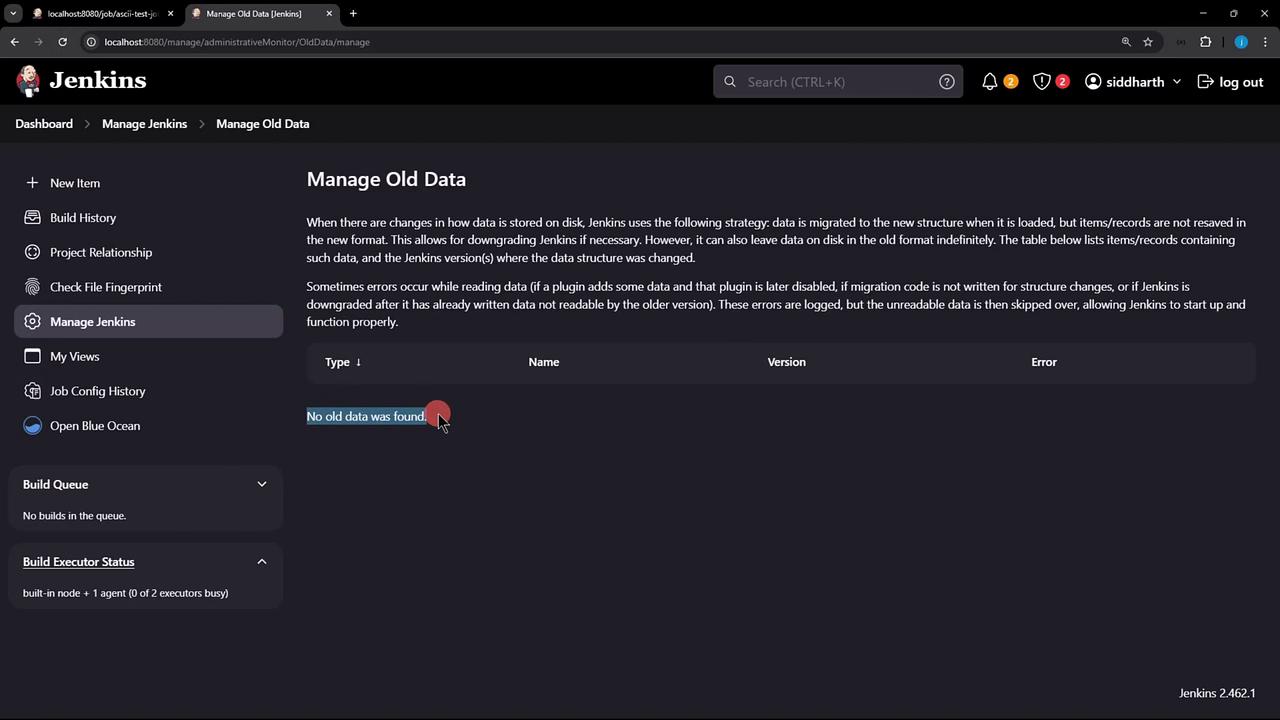
2. Refresh the page. If Jenkins finds no outdated configurations, you’ll see:
3. Restart Jenkins to force detection of stale plugin entries.
## 3. Detecting Unreadable Data
After the restart, return to **Manage Old Data**. Now Jenkins lists entries like `CannotResolveClassException` for missing plugins:
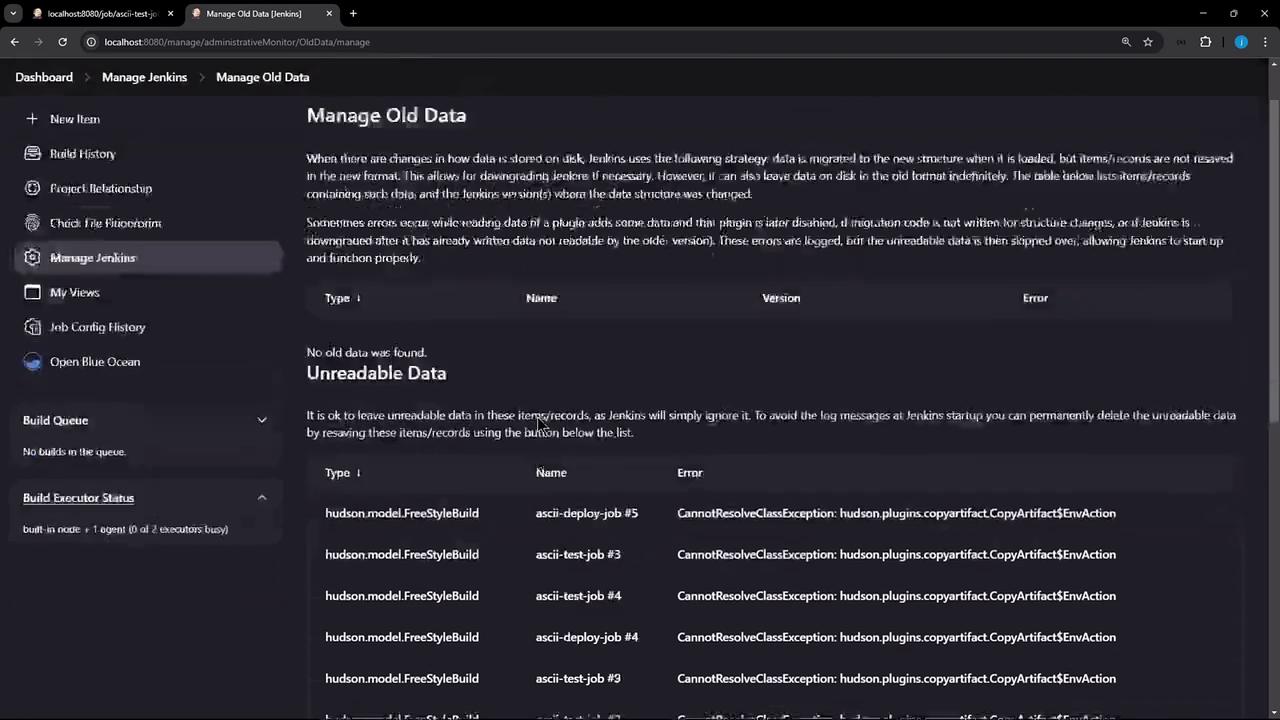
Unreadable entries indicate XML blocks pointing to plugins that no longer exist. These must be discarded to clean up job configs.
## 4. Discarding Unreadable Data
1. Click **Discard Unreadable Data**.
2. Confirm the prompt to remove all XML fragments referencing the deinstalled plugin.
Discarding is irreversible. Ensure you’ve backed up your job configurations before proceeding.
## 5. Verifying Cleanup
1. Trigger a build of **ascii-build-job**.
2. Then run **ascii-test-job**.
Before cleaning workspaces, you may still see the old artifact:
```bash theme={null}
+ ls advice.json
advice.json
+ cat advice.json | jq -r .slip.advice
Don't try and bump start a motorcycle on an icy road.
+ wc -w < advice.message
11
+ [ 11 -gt 5 ]
+ echo "Advice - Don't try and bump start a motorcycle on an icy road. has more than 5 words"
Advice - Don't try and bump start a motorcycle on an icy road. has more than 5 words
```
### Cleaning Up Local Workspaces
Remove any leftover files on the Jenkins controller:
| Job Name | Workspace Path | Cleanup Command |
| --------------- | -------------------------------------------- | --------------------------------------------------- |
| ascii-build-job | `/var/lib/jenkins/workspace/ascii-build-job` | `rm -rf /var/lib/jenkins/workspace/ascii-build-job` |
| ascii-test-job | `/var/lib/jenkins/workspace/ascii-test-job` | `rm -rf /var/lib/jenkins/workspace/ascii-test-job` |
```bash theme={null}
rm -rf /var/lib/jenkins/workspace/ascii-build-job
rm -rf /var/lib/jenkins/workspace/ascii-test-job
```
Re-run both jobs. Now **ascii-test-job** will fail because `advice.json` no longer exists:
```bash theme={null}
$ ls advice.json
ls: cannot access 'advice.json': No such file or directory
```
## Conclusion
Uninstalling a Jenkins plugin does not automatically purge its configurations. Use **Manage Jenkins → Troubleshooting → Manage Old Data** to detect and discard stale plugin data. For a complete reset, clean up any residual workspaces on the controller.
## Links and References
* [Copy Artifact Plugin](https://plugins.jenkins.io/copyartifact/)
* [Jenkins System Administration](https://www.jenkins.io/doc/book/managing/system-administration/)
* [Jenkins Backup and Restore](https://www.jenkins.io/doc/book/system-administration/backing-up/)