> ## Documentation Index
> Fetch the complete documentation index at: https://notes.kodekloud.com/llms.txt
> Use this file to discover all available pages before exploring further.
# Demo Managing Plugins
> This hands-on guide covers uninstalling the Copy Artifact plugin in Jenkins and ensuring no orphaned configurations remain.
In this hands-on guide, we’ll uninstall and clean up the **Copy Artifact** plugin in a simple chained-job workflow: **ascii-build-job** → **ascii-test-job** → **ascii-deploy-job**. By the end, you’ll know how to verify artifact handling, remove a plugin, and ensure no orphaned configuration remains.
## Table of Contents
1. [Job Workflow](#job-workflow)
2. [Step 1: Verify Build Job Generates Artifact](#step-1-verify-build-job-generates-artifact)
3. [Step 2: Configure Test Job to Copy Artifacts](#step-2-configure-test-job-to-copy-artifacts)
4. [Step 3: Trigger Builds and Observe Workflow](#step-3-trigger-builds-and-observe-workflow)
5. [Step 4: Confirm Plugin Installation](#step-4-confirm-plugin-installation)
6. [Step 5: Locate Plugin on Filesystem](#step-5-locate-plugin-on-filesystem)
7. [Step 6: Uninstall Copy Artifact Plugin](#step-6-uninstall-copy-artifact-plugin)
8. [Step 7: Re-run Jobs After Uninstallation](#step-7-re-run-jobs-after-uninstallation)
9. [Step 8: Inspect Job Configuration](#step-8-inspect-job-configuration)
10. [Conclusion](#conclusion)
## Job Workflow
| Job Name | Purpose |
| ---------------- | ---------------------------------------------------------------------------------------- |
| ascii-build-job | Fetches advice from API, archives `advice.json` |
| ascii-test-job | Copies `advice.json` with [Copy Artifact Plugin][copy-artifact] and validates word count |
| ascii-deploy-job | (Optional) Deploys validated advice to target system |
[copy-artifact]: https://plugins.jenkins.io/copyartifact
***
## Step 1: Verify Build Job Generates Artifact
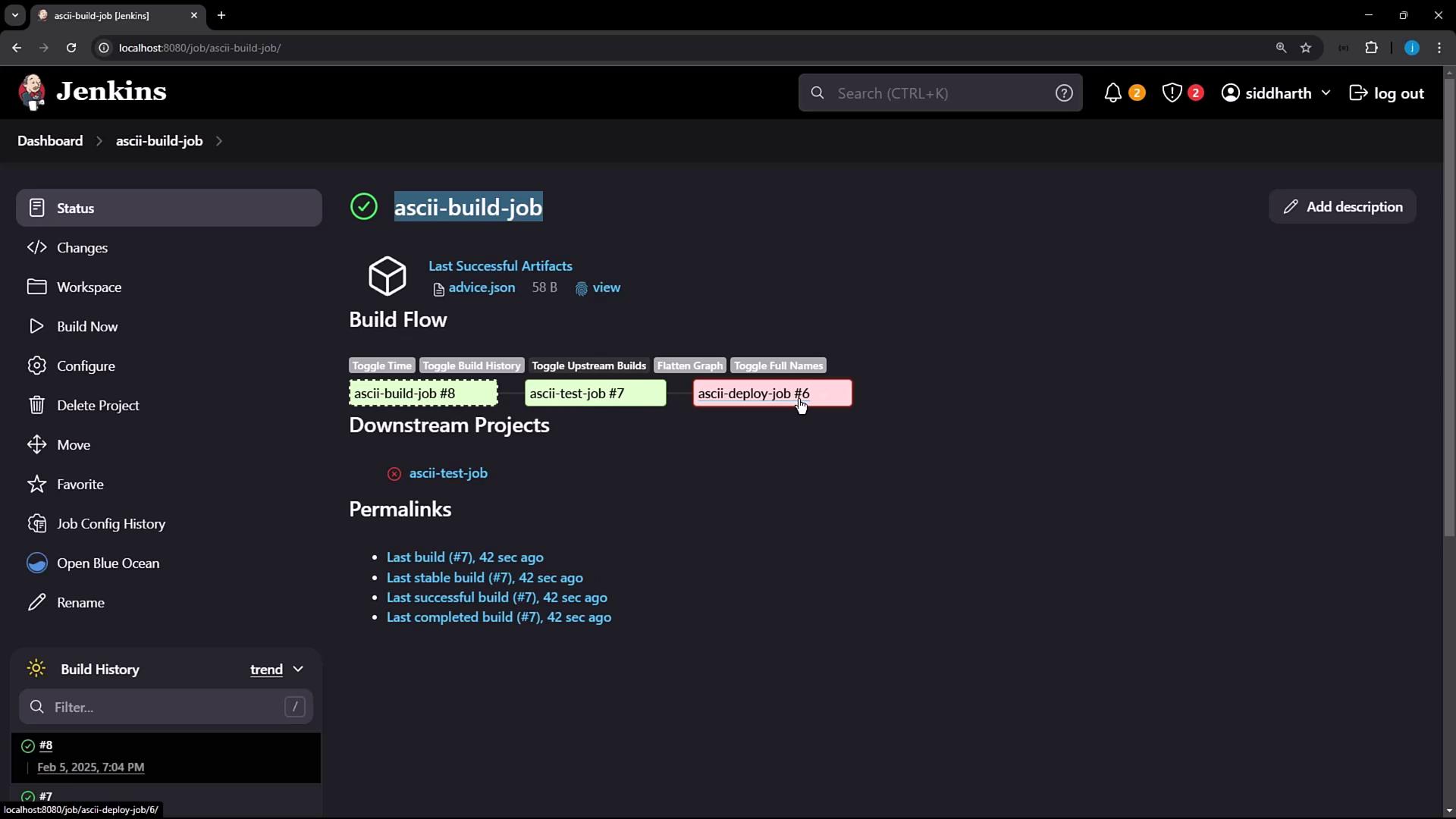
On the **ascii-build-job** dashboard, confirm the build archives `advice.json` successfully.
***
## Step 2: Configure Test Job to Copy Artifacts
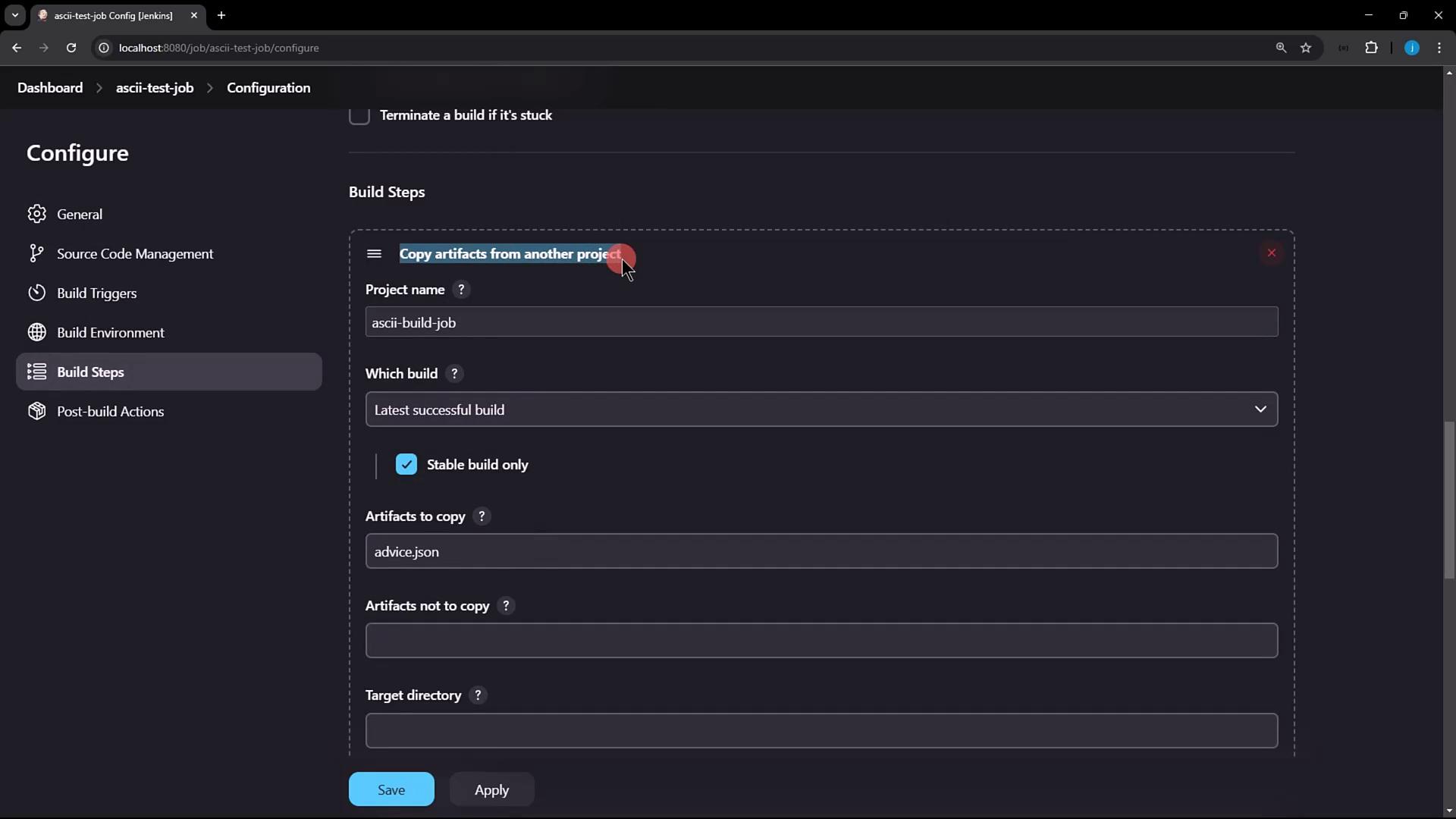
In **ascii-test-job**, add a **Build Step → Copy artifacts from another project**. Select:
* **Project name:** `ascii-build-job`
* **Which build:** Latest successful build
* **Artifacts to copy:** `advice.json`
***
## Step 3: Trigger Builds and Observe Workflow
1. Click **Build Now** on **ascii-build-job**.
2. Review console output to ensure `advice.json` was archived:
```console theme={null}
$ ls advice.json
advice.json
$ cat advice.json
{"slip":{"advice":"Don't promise what you can't deliver."}}
$ jq -r .slip.advice
Don't promise what you can't deliver.
$ wc -w advice.json
6 advice.json
```
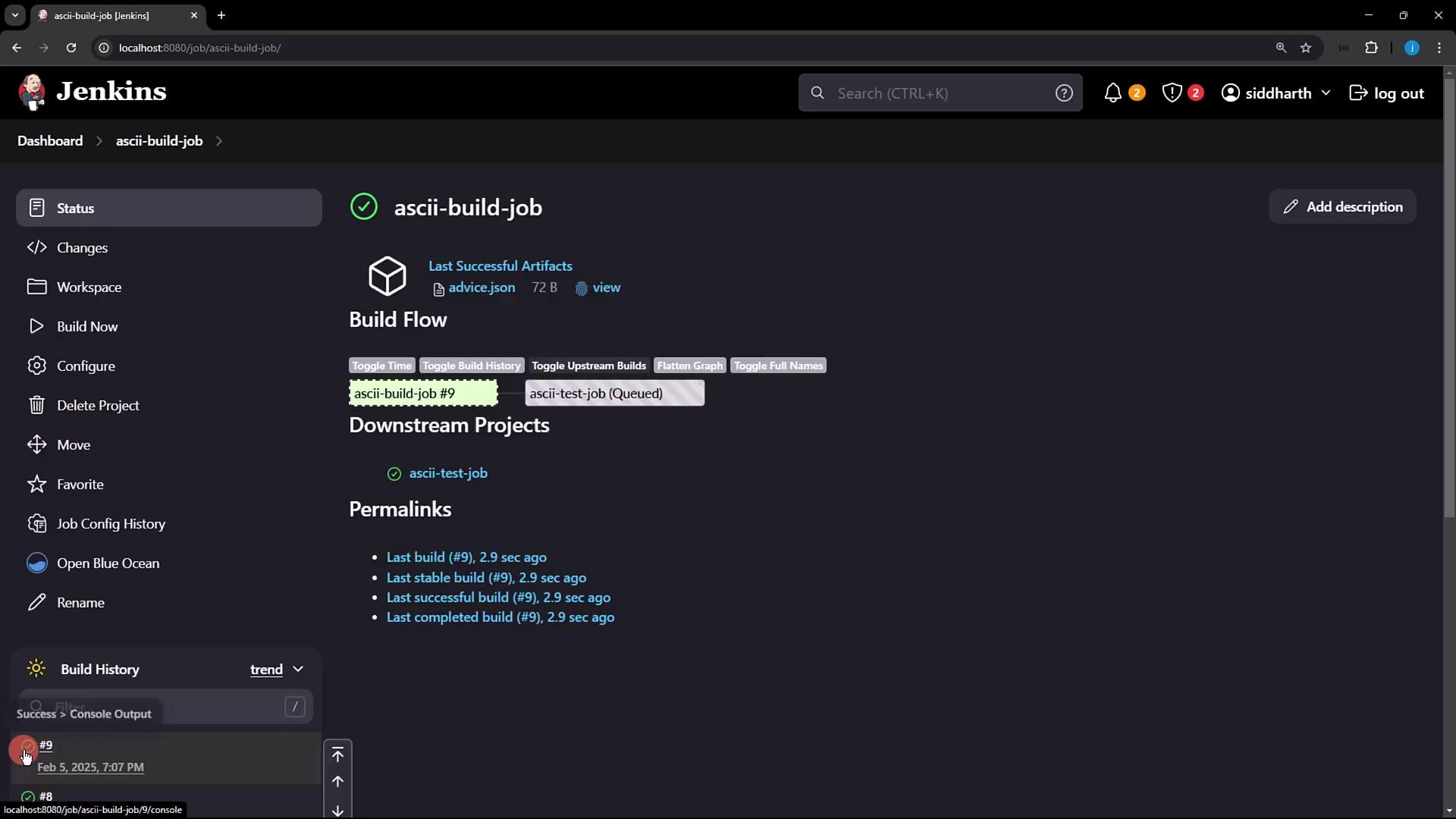
3. Both **ascii-build-job** and **ascii-test-job** should pass:
***
## Step 4: Confirm Plugin Installation
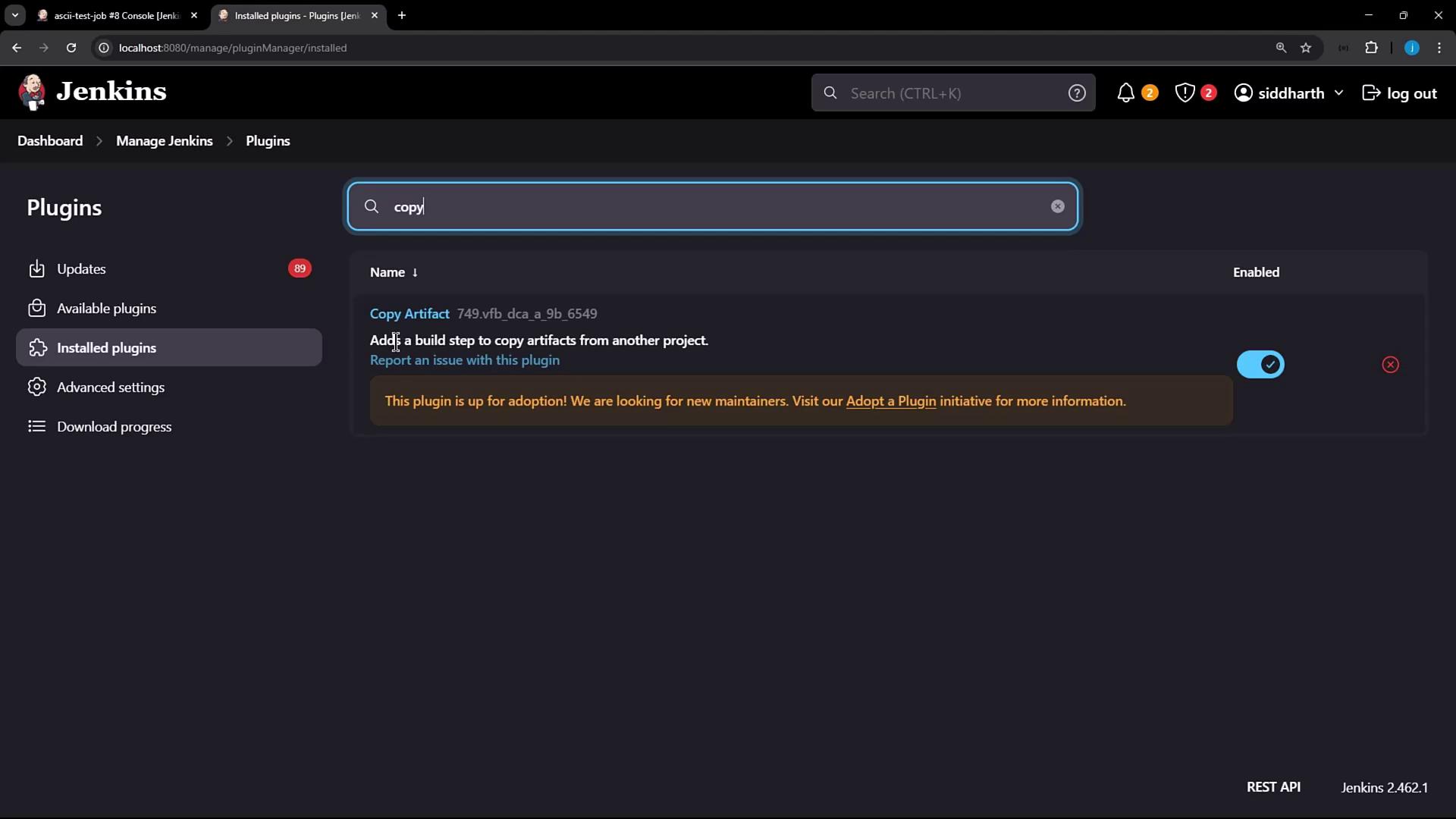
Navigate to **Manage Jenkins → Manage Plugins → Installed**. Verify **Copy Artifact** is listed:
```bash theme={null}
$ cd $JENKINS_HOME/plugins
$ ls | grep -i copy
copyartifact.jpi
```
***
## Step 5: Locate Plugin on Filesystem
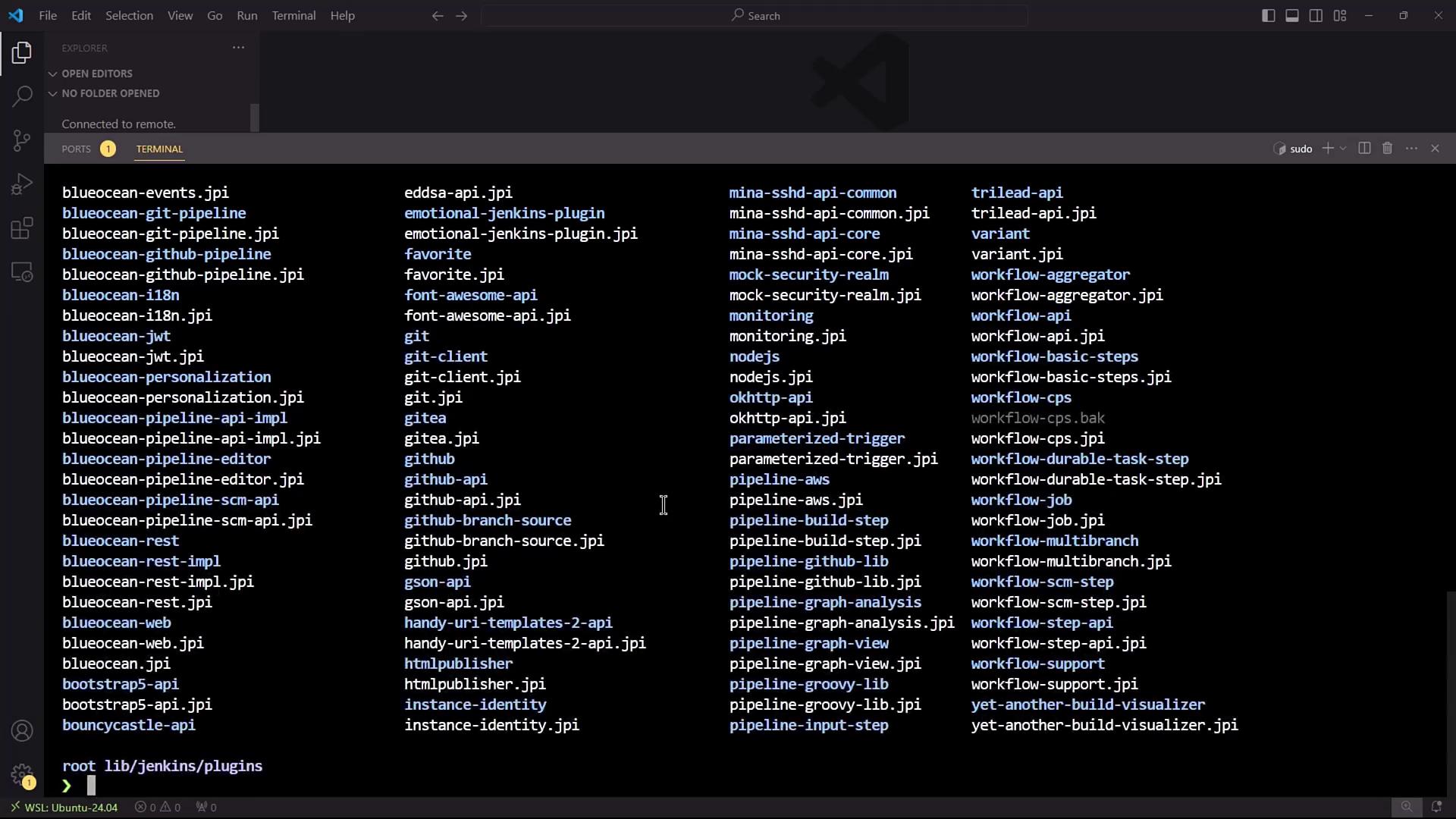
From a terminal (or IDE), inspect the plugin file:
```bash theme={null}
$ cd $JENKINS_HOME/plugins
$ ls | grep -i copyartifact
copyartifact.jpi
```
***
## Step 6: Uninstall Copy Artifact Plugin
1. Go to **Manage Plugins → Installed**.
2. Click **Uninstall** next to **Copy Artifact**.
3. Confirm the dialog to remove the plugin binary.
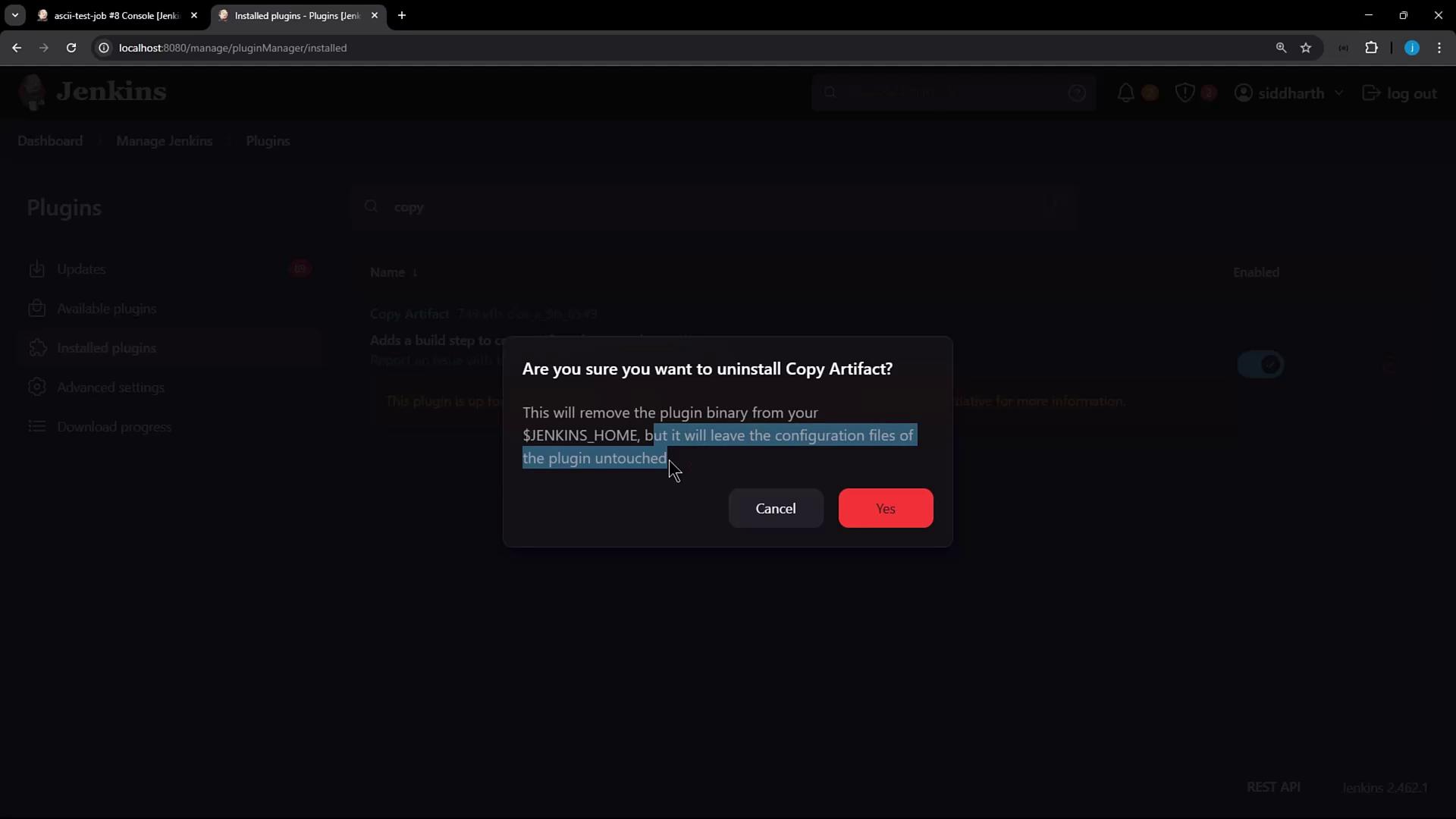
Uninstalling removes `copyartifact.jpi` from `$JENKINS_HOME/plugins`, but job XMLs still reference the plugin until Jenkins is restarted.
***
## Step 7: Re-run Jobs After Uninstallation
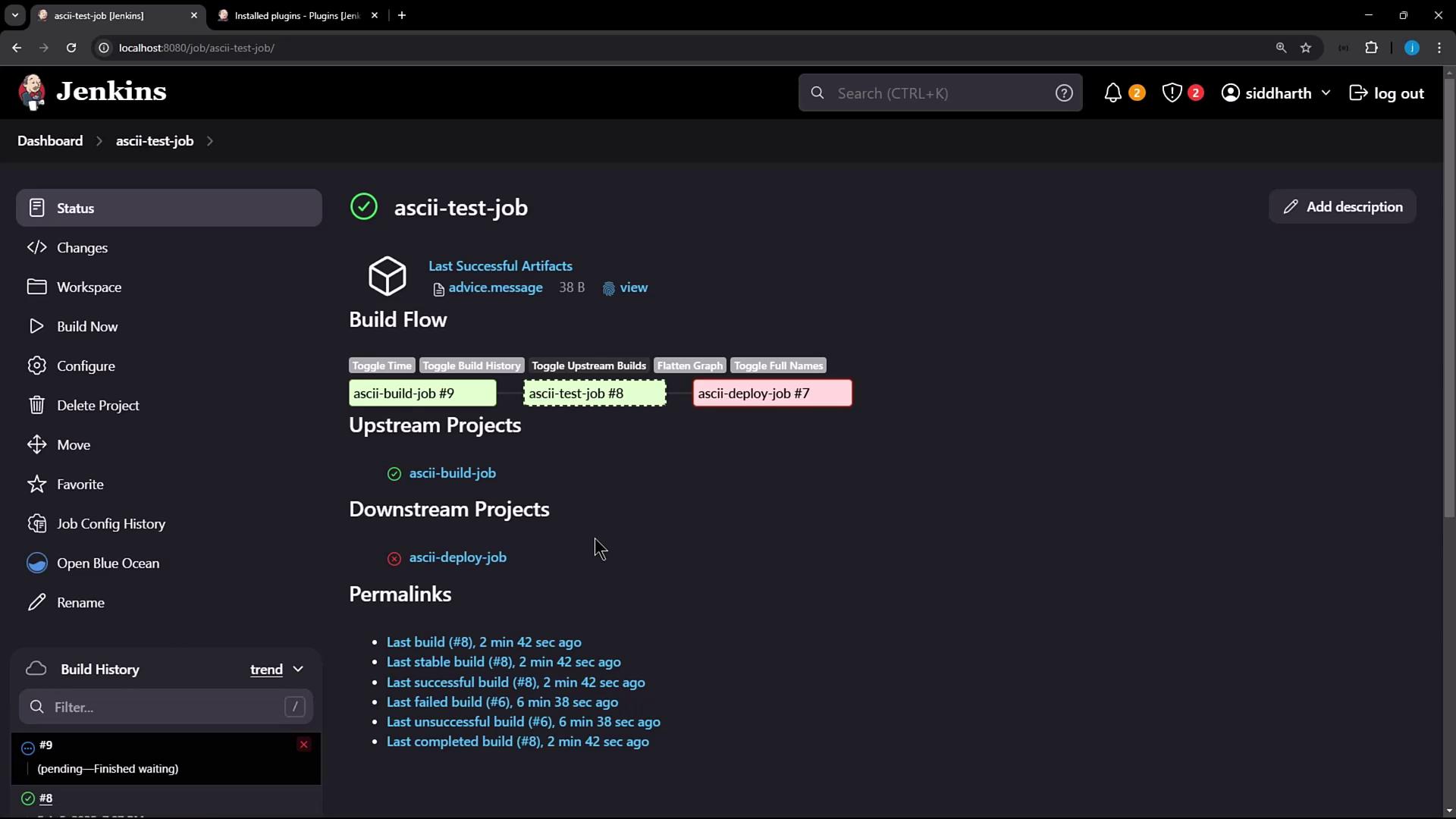
Trigger **ascii-build-job** again, then **ascii-test-job**. You’ll see the copy step succeed (artifact already on disk), but Jenkins still internally uses the missing plugin reference:
```console theme={null}
[ascii-test-job] $ /bin/sh -xe /tmp/jenkinsXXXX.sh
+ ls advice.json
advice.json
+ cat advice.json
{"slip":{"advice":"Don't try and bump start a motorcycle on an icy road."}}
+ jq -r .slip.advice
Don't try and bump start a motorcycle on an icy road.
+ wc -w advice.json
11 advice.json
```
***
## Step 8: Inspect Job Configuration
Open `ascii-test-job/config.xml` and locate the plugin reference:
```xml theme={null}
ascii-build-job
advice.json
true
```
Without the plugin binary, this builder will error after a Jenkins restart. A full restart is required to purge these orphaned entries.
After uninstalling a plugin, always restart Jenkins to remove its XML elements from job configurations.
***
## Conclusion
To fully remove a plugin and its configuration:
1. **Uninstall** the plugin via **Manage Plugins**.
2. **Restart Jenkins** to clean up any residual `` elements in job `config.xml` files.
For more information, see the [Jenkins Plugin Management documentation](https://www.jenkins.io/doc/book/managing/plugins/).