> ## Documentation Index
> Fetch the complete documentation index at: https://notes.kodekloud.com/llms.txt
> Use this file to discover all available pages before exploring further.
# Demo Job Restrictions
> This tutorial explains using the Job Restrictions plugin in Jenkins to control job execution on specific nodes.
In this tutorial, you’ll learn how to use the **Job Restrictions** plugin in Jenkins to control which jobs can run on specific nodes. By leveraging job names, users, and logical operators, you can enforce security policies and prevent unintended builds.
## Table of Contents
1. [Install the Job Restrictions Plugin](#install-the-job-restrictions-plugin)
2. [Configure Node-Level Restrictions](#configure-node-level-restrictions)\
2.1 [Navigate to the Built-In Node](#navigate-to-the-built-in-node)\
2.2 [Enable Job Restrictions](#enable-job-restrictions)
3. [Test the Restriction](#test-the-restriction)\
3.1 [Building an Unmatched Job](#building-an-unmatched-job)\
3.2 [Creating a Matching Job](#creating-a-matching-job)
4. [Add User-Based Restrictions](#add-user-based-restrictions)
5. [Links and References](#links-and-references)
***
## 1. Install the Job Restrictions Plugin
1. Go to **Manage Jenkins** › **Manage Plugins**.
2. Under the **Available** tab, search for **Job Restrictions**.
3. Select the plugin and click **Install without restart**.
4. Once the installation completes, choose **Restart Jenkins when installation is complete and no jobs are running**.
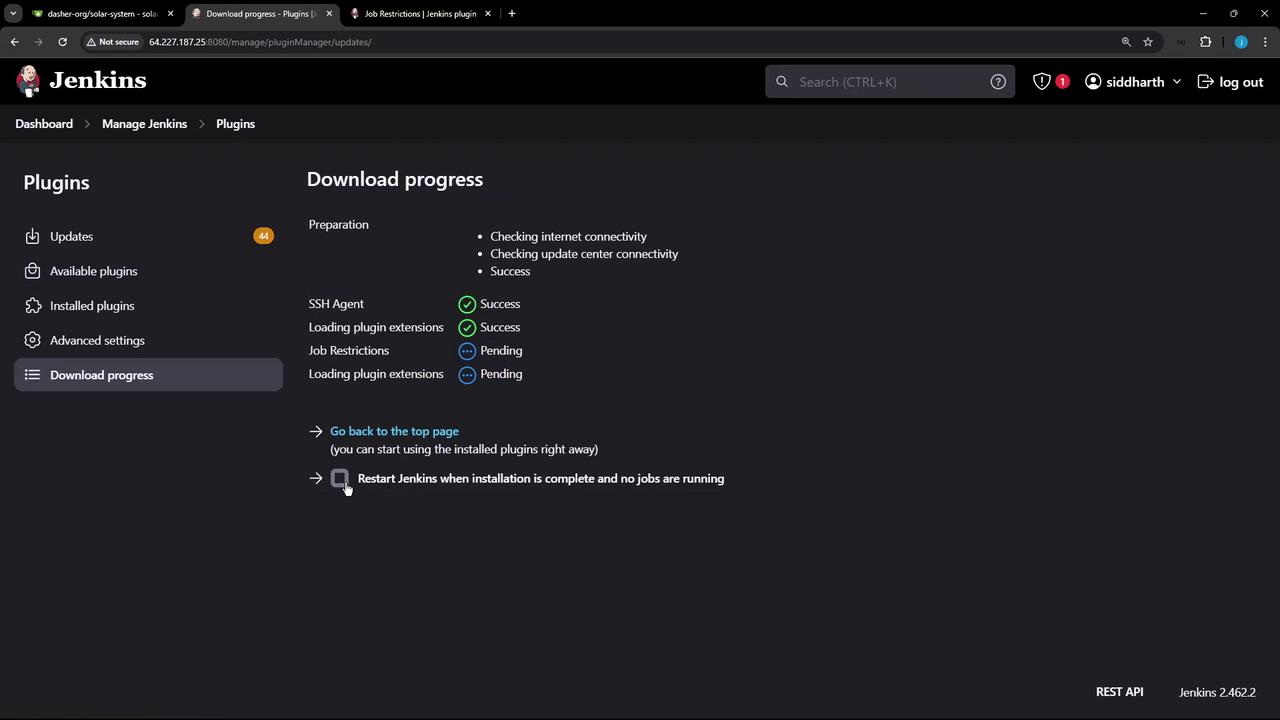
Ensure your Jenkins instance is at least version **2.387** or higher for full compatibility with the Job Restrictions plugin.
After Jenkins restarts, the plugin is ready for configuration.
***
## 2. Configure Node-Level Restrictions
### 2.1 Navigate to the Built-In Node
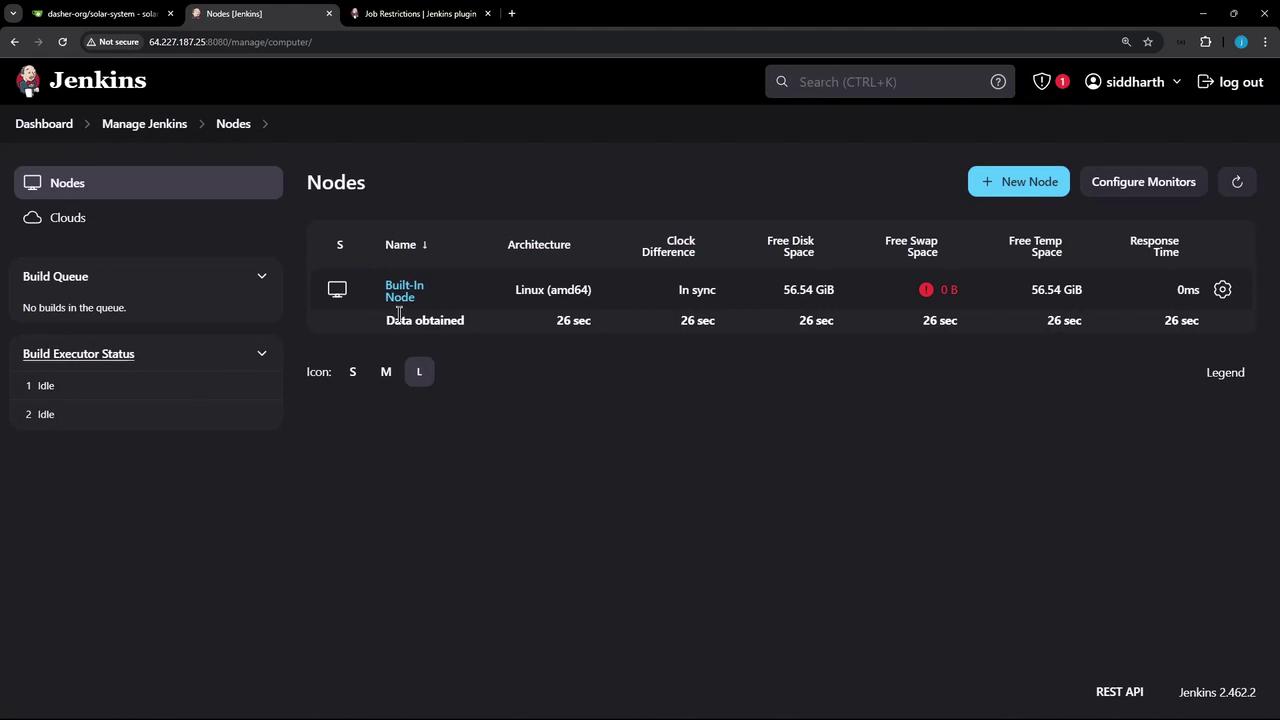
1. From the Jenkins dashboard, click **Manage Jenkins** › **Manage Nodes and Clouds**.
2. Select the **built-in node** (often labeled “built-in”).
### 2.2 Enable Job Restrictions
1. Click **Configure** on the built-in node.
2. Scroll to **Node Properties** and check **Job Restrictions**.
3. Click **Add** and select **Regular Expression — Job Name**.
4. Enter a regex pattern that matches the jobs you want to allow. For example:
```regex theme={null}
^Dasher_.*
```
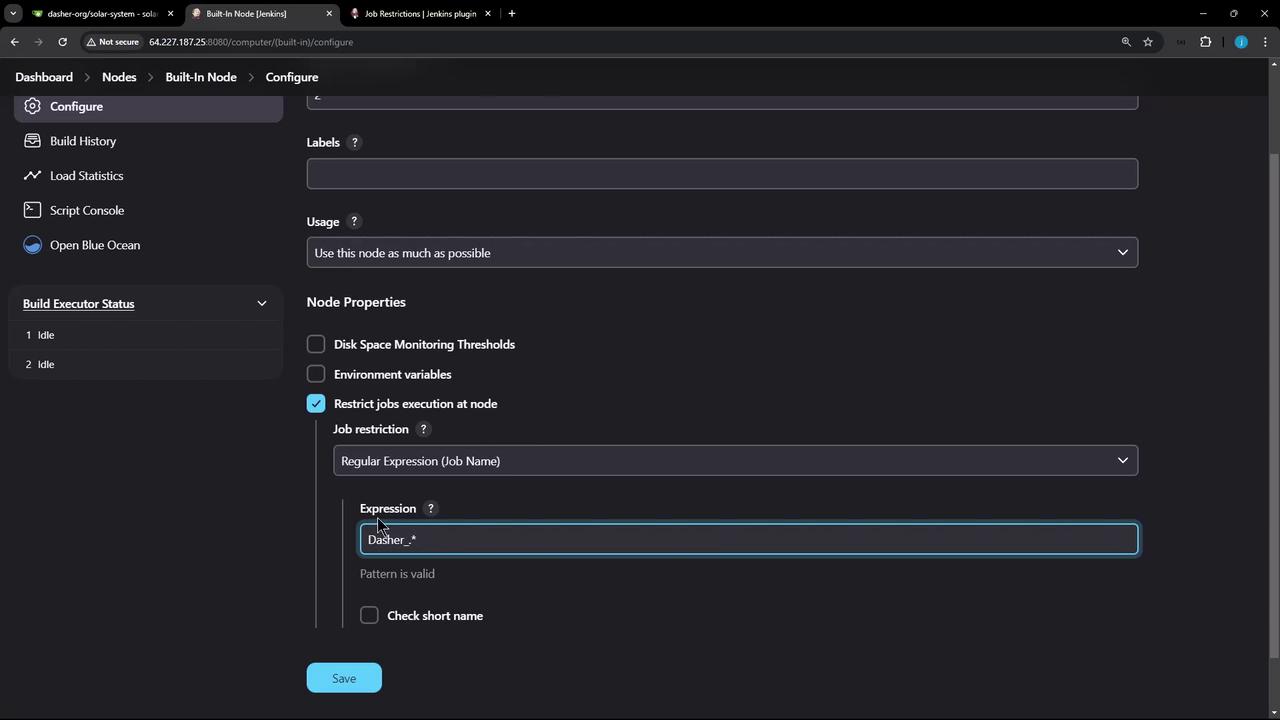
Use **Add** again to combine rules with **AND**, **OR**, or **NOT** logic.
#### Common Restriction Types
| Restriction Type | Purpose | Example Pattern |
| ----------------------------- | ---------------------------------------- | ---------------- |
| Regular Expression — Job Name | Permit jobs matching a name pattern | `^Dasher_.*` |
| Started by User | Allow builds initiated by specific users | `Emma` |
| Parameterized Job | Restrict based on parameter values | `env=production` |
***
## 3. Test the Restriction
### 3.1 Building an Unmatched Job
Attempt to build a job that does **not** match your regex—for example, **npm-version-test**. It will stay in the queue as **Pending**.
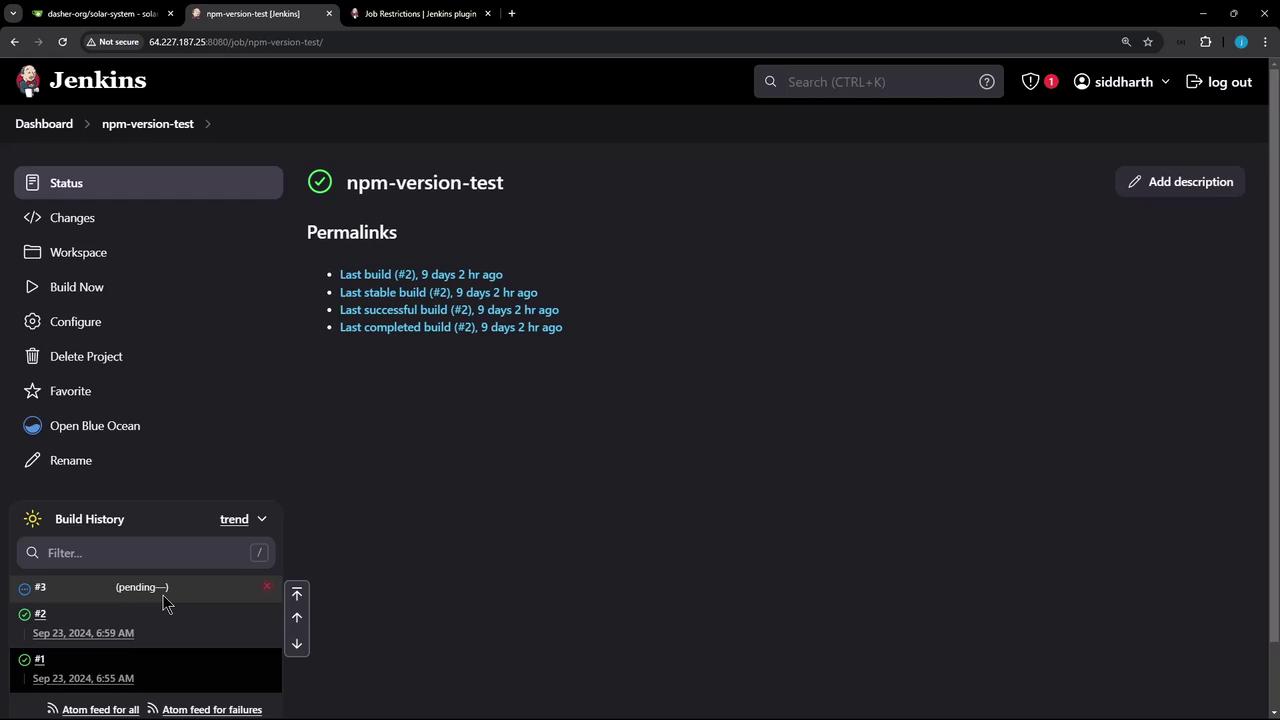
Jobs that don’t meet any restriction rules will remain queued indefinitely. Monitor the queue to avoid resource bottlenecks.
### 3.2 Creating a Matching Job
1. From the dashboard, click **New Item**.
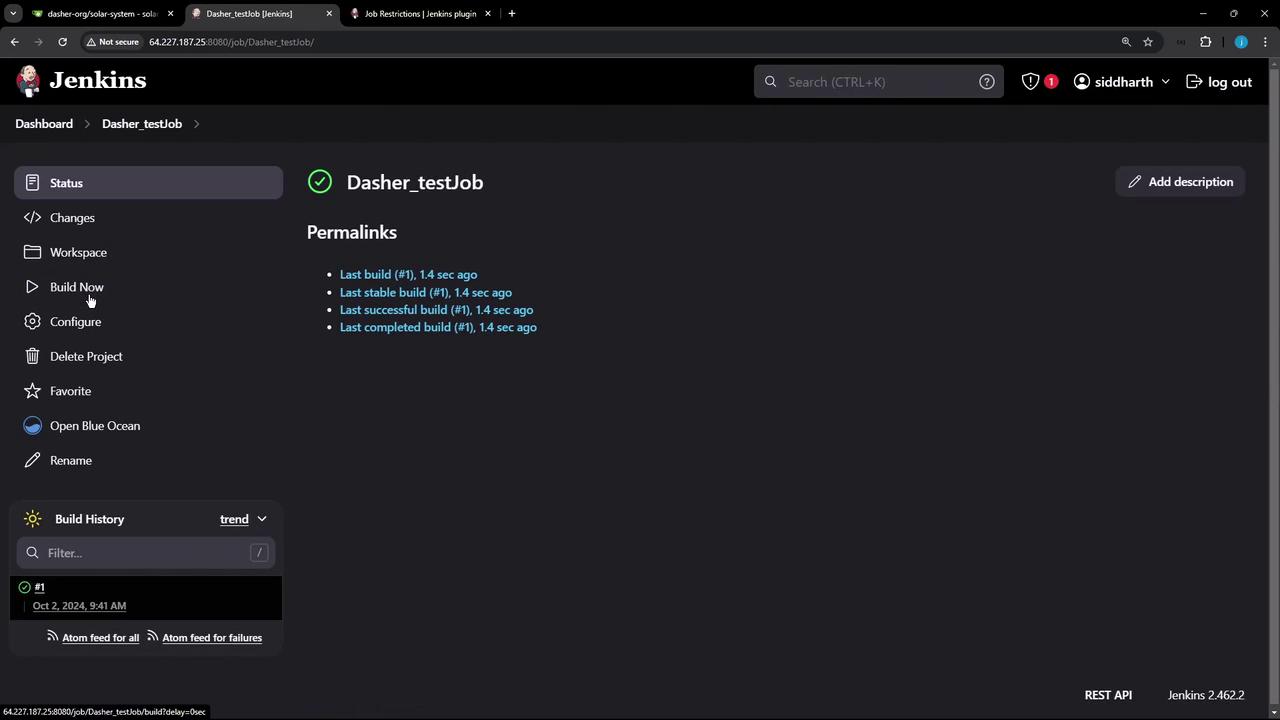
2. Enter **Dasher\_testJob** and select **Freestyle project**.
3. In **Build** steps, add a shell step:
```shell theme={null}
echo "Hello"
```
4. Click **Save**, then **Build Now**. This job matches the pattern and will execute.
***
## 4. Add User-Based Restrictions
To grant specific users the ability to run any job on this node:
1. Navigate back to **Manage Jenkins** › **Manage Nodes and Clouds** › **built-in node** › **Configure**.
2. Under **Job Restrictions**, click **Add** › **Started by User**.
3. Enter the username (e.g., `Emma`).
4. Set the logical operator to **OR** so that jobs match either the regex rule **or** the user rule.
5. Click **Save**.
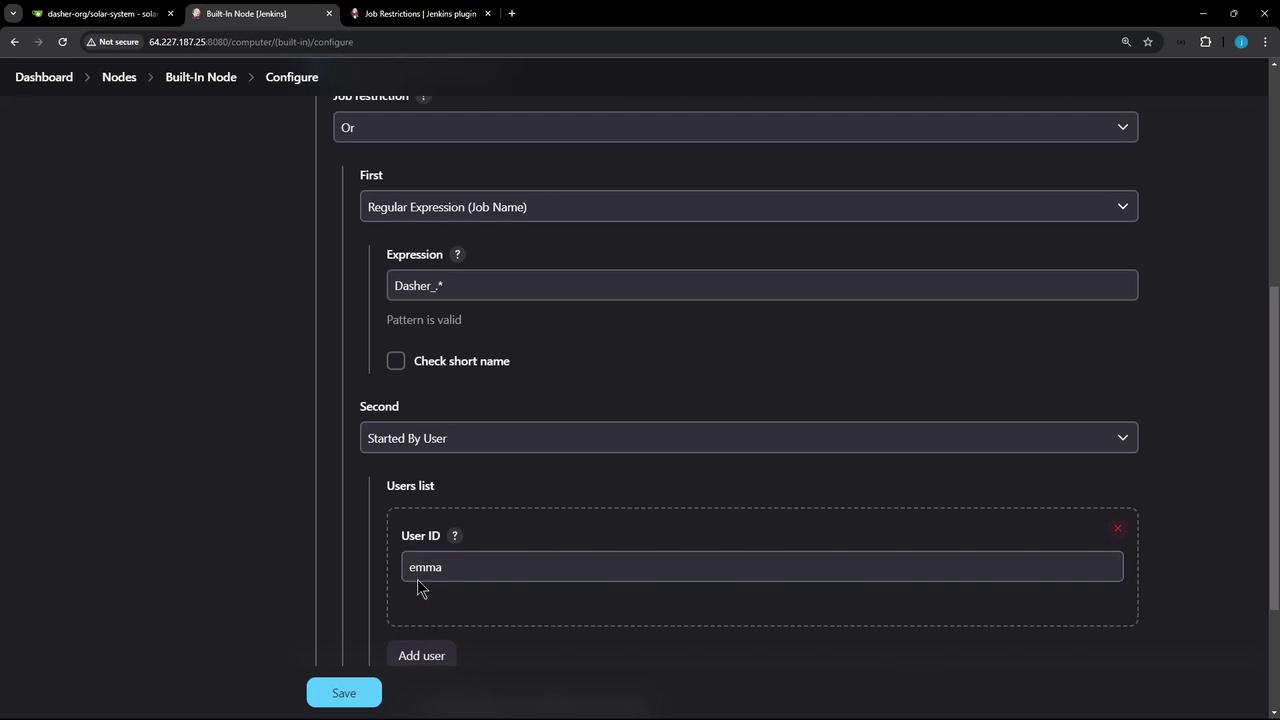
Now, user **Emma** can trigger any job on this node, while all other users must use the `Dasher_` prefix.
***
## Links and References
* [Job Restrictions Plugin](https://plugins.jenkins.io/job-restrictions/)
* [Jenkins Configure Nodes](https://www.jenkins.io/doc/book/managing/nodes/)
* [Jenkins Pipeline Syntax](https://www.jenkins.io/doc/book/pipeline/syntax/)
With regex-based rules, user filters, and logical operators, you can precisely control job execution across your Jenkins nodes.