> ## Documentation Index
> Fetch the complete documentation index at: https://notes.kodekloud.com/llms.txt
> Use this file to discover all available pages before exploring further.
# Demo Groovy Sandbox and In process Script Approval Part 2
> This guide covers enforcing the Groovy Sandbox in Jenkins and hiding the checkbox for non-admin users.
Welcome to the second lesson on the Groovy Sandbox and script approval. In this guide, you'll learn how to:
1. Enable sandbox enforcement globally in Jenkins.
2. Hide the **Use Groovy Sandbox** checkbox for non-admin users.
3. Verify the behavior as both admin and non-admin users.
4. Understand the limitations of hiding the checkbox.
***
## Sample Pipeline
We’ll demonstrate with this simple declarative pipeline:
```groovy theme={null}
pipeline {
agent any
stages {
stage('Topic') {
steps {
echo 'Exploring Groovy Sandbox!'
}
}
}
}
```
***
## 1. Force Groovy Sandbox Globally
1. Navigate to **Manage Jenkins** → **Configure Global Security**.
2. Scroll to the **Sandbox** section (use the browser’s find feature for “sandbox”).
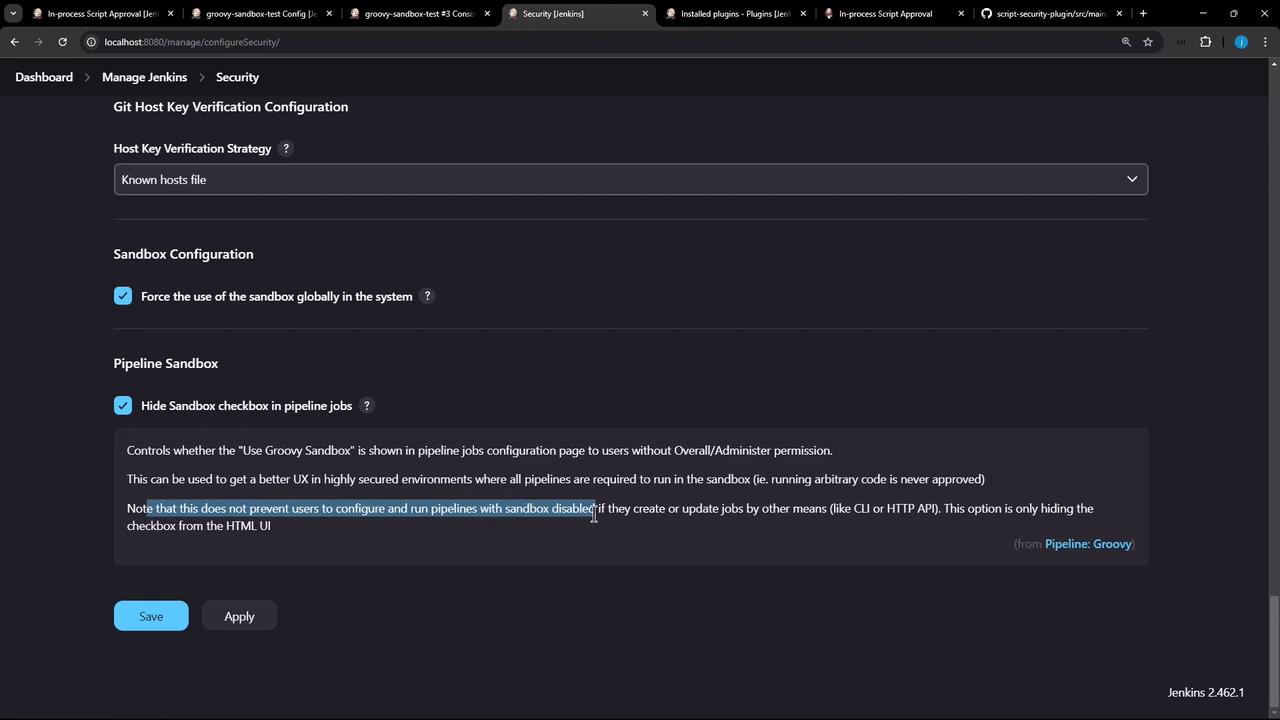
3. Check **Force Use of Groovy Sandbox**.
4. Check **Hide the sandbox checkbox in Pipeline jobs**.
5. Click **Apply** and **Save**.
Jenkins may require a restart for these permission changes to take effect.
***
## 2. Verify Behavior by User Role
Use the following table to confirm what each user sees in the pipeline configuration UI:
| User Role | Pipeline Configuration UI |
| -------------- | ----------------------------------------------------------- |
| Administrator | Sees and can toggle the **Use Groovy Sandbox** checkbox. |
| Non-Admin User | **Checkbox is hidden**; they cannot modify sandbox setting. |
***
## 3. Verify as an Administrator
1. Log in as an administrator.
2. Open any Pipeline job and click **Configure**.
3. Confirm that the **Use Groovy Sandbox** checkbox is still visible and editable.
***
## 4. Verify as a Non-Admin User
1. Via **Manage Jenkins** → **Manage and Assign Roles**, assign the **Configure Jobs** permission to a non-admin user (e.g., `Ali`).
2. Log in as `Ali` (you can use an incognito or private browsing window).
3. Open any Pipeline job (for example, “Groovy Sandbox Test”) and click **Configure**.
4. Confirm that the **Use Groovy Sandbox** checkbox is no longer displayed.
Hiding the checkbox only affects the Jenkins UI. Users with sufficient permissions can still enable or disable the sandbox by:
* Jenkins [CLI](https://www.jenkins.io/doc/book/managing/cli/)
* Jenkins [HTTP Remote Access API](https://www.jenkins.io/doc/book/using/remote-access-api/)
***
## 5. UI Screenshot
***
## 6. Next Steps
In the next lesson, we'll dive into the Groovy Sandbox’s **blacklist** of disallowed signatures and methods.
***
## References
* [Jenkins CLI](https://www.jenkins.io/doc/book/managing/cli/)
* [Jenkins Remote Access API](https://www.jenkins.io/doc/book/using/remote-access-api/)
* [Script Security Plugin](https://plugins.jenkins.io/script-security/)