> ## Documentation Index
> Fetch the complete documentation index at: https://notes.kodekloud.com/llms.txt
> Use this file to discover all available pages before exploring further.
# Demo Install and Configure Audit Trail
> This guide explains how to install, configure, and test the Audit Trail plugin in Jenkins for tracking user activities.
Enhance your Jenkins security posture by tracking user activities—such as job configuration changes, system restarts, and build triggers—using the **Audit Trail** plugin. This guide walks you through installation, configuration, testing, and advanced logging options.
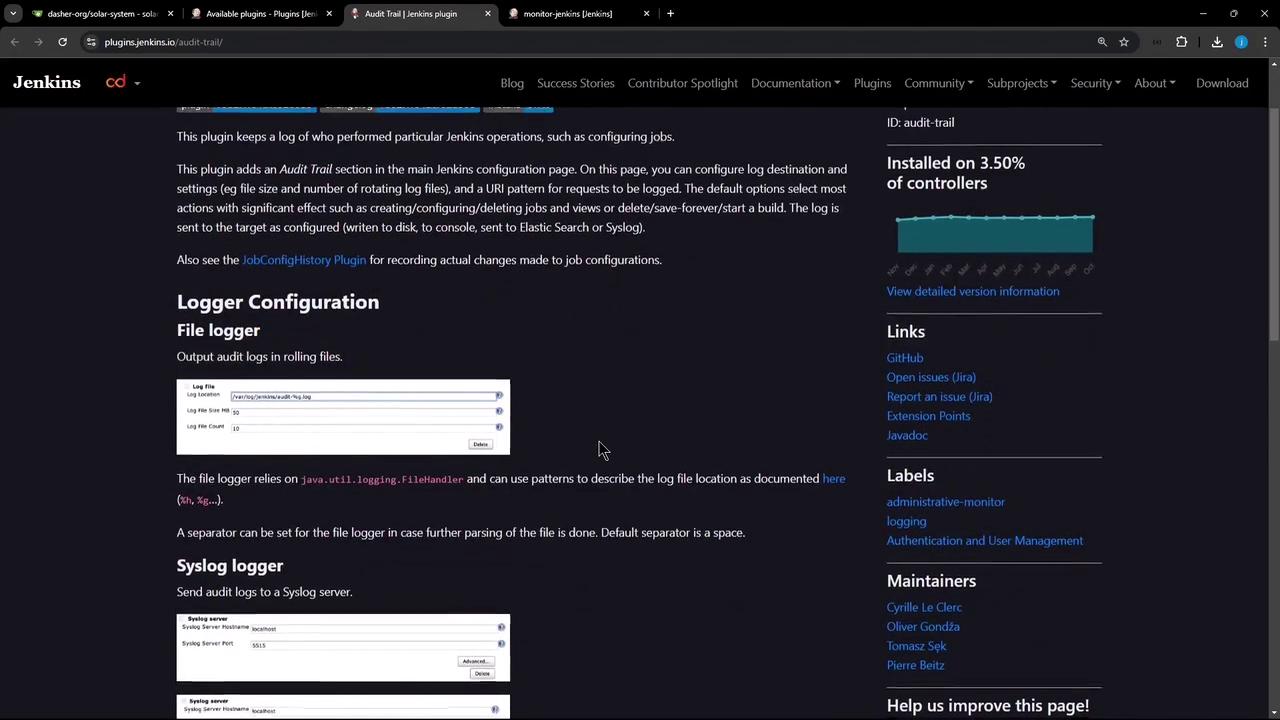
## 1. Install the Audit Trail Plugin
1. From the Jenkins dashboard, go to **Manage Jenkins** → **Manage Plugins**.
2. Select the **Available** tab and search for **Audit Trail**.
3. Check the box next to **Audit Trail** and click **Install without restart**.
## 2. Configure the Audit Trail Plugin
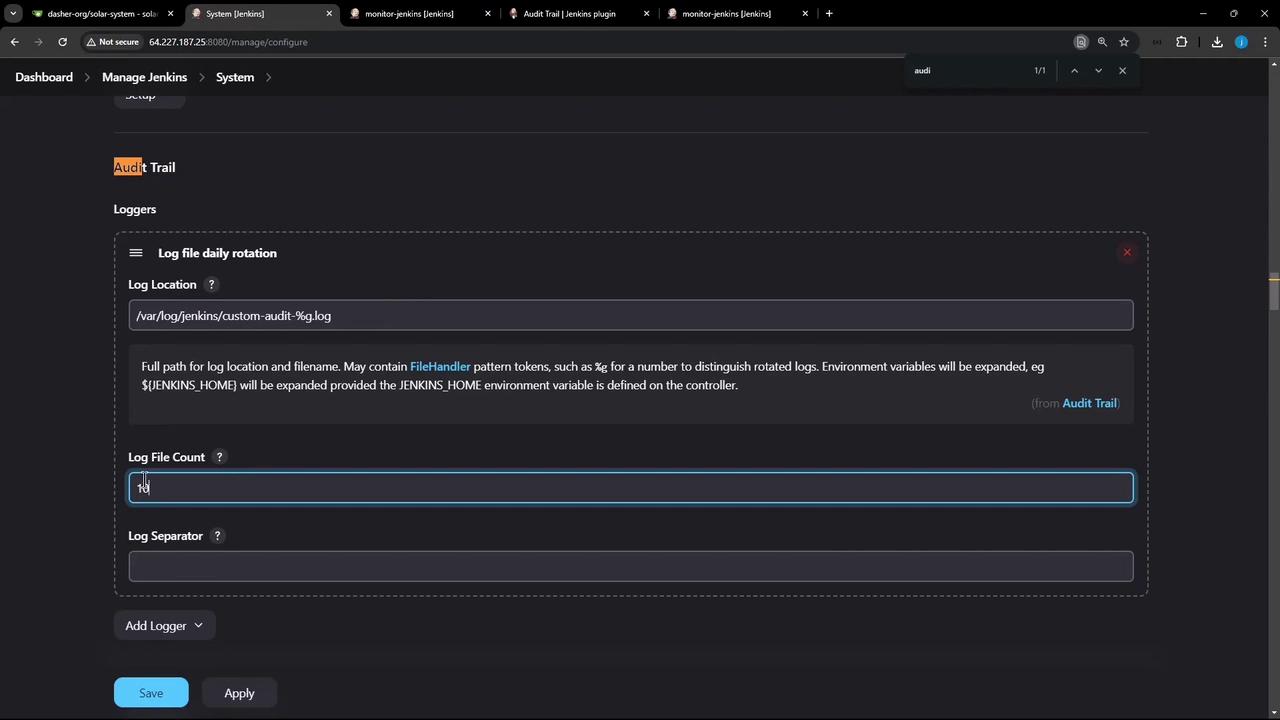
1. Navigate to **Manage Jenkins** → **Configure System**.
2. Scroll down to the **Audit Trail** section.
3. Under **Logger**, choose **Log file (daily rotation)**.
4. In **Log file pattern**, enter:
```text theme={null}
/var/log/jenkins/custom-audit-%g.log
```
Use `%g` to rotate logs daily and prevent oversized files.
5. Keep other settings at their defaults and click **Save**.
## 3. Test Your Audit Trail Setup
### 3.1 Make a Job Configuration Change
* From the dashboard, select an existing job (for example, **monitor-jenkins**).
* Click **Configure**, tweak a build step or description, then click **Apply** → **Save**.
* Trigger a new build and wait for it to finish.
### 3.2 Inspect the Audit Logs
```bash theme={null}
cd /var/log/jenkins
ls
cat custom-audit-0.log-2024-11-10
# Nov 10 10:29:36,662 PM job/monitor-jenkins/configSubmit by siddharth from 124.123.186.17
# Nov 10 10:29:37,069 PM job/monitor-jenkins/#29 Started by user siddharth, Parameters:[]
# Nov 10 2024 2:29:39,042 PM monitor-jenkins #29 Started by user siddharth, Parameters:[] on node #unknown# started at 2024-11-10T14:29:34Z completed in 4361ms complete: SUCCESS
```
Ensure the Jenkins service account has write permissions to `/var/log/jenkins`.
### 3.3 Customize URL Patterns
1. Return to **Manage Jenkins** → **Configure System**.
2. In **URL Patterns to Log**, add:
```text theme={null}
*/(configSubmit|doDelete|postBuildResult|enable|disable|cancelQueue|stop|toggleLogKeep|doWipeOutWorkspace|createItem|createView|toggleOffline|cancelQuietDown|quietDown|restart|exit)
```
3. Click **Save**, perform another job action, then verify:
```bash theme={null}
cd /var/log/jenkins
ls
cat custom-audit-0.log-2024-11-10
# Nov 10, 2024 2:29:30,662 PM /job/monitor-jenkins/configSubmit by siddharth from 124.123.186.17
# Nov 10, 2024 2:29:34,672 PM job/monitor-jenkins/#29 Started by user siddharth, Parameters:[]
ll
# total 12
# drwxr-xr-x 2 jenkins jenkins 4096 Nov 10 14:30 ./
# drwxrwxr-x 10 root syslog 4096 Nov 10 12:00 ../
# -rw-r--r-- 1 jenkins jenkins 2560 Nov 10 14:30 custom-audit-0.log-2024-11-10
# -rw-r--r-- 1 jenkins jenkins 0 Nov 10 14:30 custom-audit-0.log-2024-11-10.lck
```
## 4. Additional Logging Options
Beyond file-based logs, Audit Trail supports:
| Logger Type | Use Case | Configuration Location |
| ------------- | ----------------------------------- | ----------------------------------------------- |
| Syslog | Forward audit events to syslog | Manage Jenkins → Configure System → Audit Trail |
| Console | View events directly in Jenkins log | Manage Jenkins → Configure System → Audit Trail |
| Elasticsearch | Index and search logs externally | Manage Jenkins → Configure System → Audit Trail |

***
## References and Further Reading
* [Audit Trail Plugin](https://plugins.jenkins.io/audit-trail)
* [Managing Plugins — Jenkins User Handbook](https://www.jenkins.io/doc/book/managing/plugins/)
* [Jenkins Documentation](https://www.jenkins.io/doc/)