> ## Documentation Index
> Fetch the complete documentation index at: https://notes.kodekloud.com/llms.txt
> Use this file to discover all available pages before exploring further.
# Demo Build and Test via Pipeline
> This guide extends a Jenkins pipeline to include Build and Unit Test stages for automating a Spring Boot application.
In this guide, we’ll extend our Jenkins pipeline by adding **Build** and **Unit Test** stages alongside the existing **Echo Version** step. By the end, you’ll have an automated flow that compiles, packages, and tests your Spring Boot application.
## Current Pipeline Status
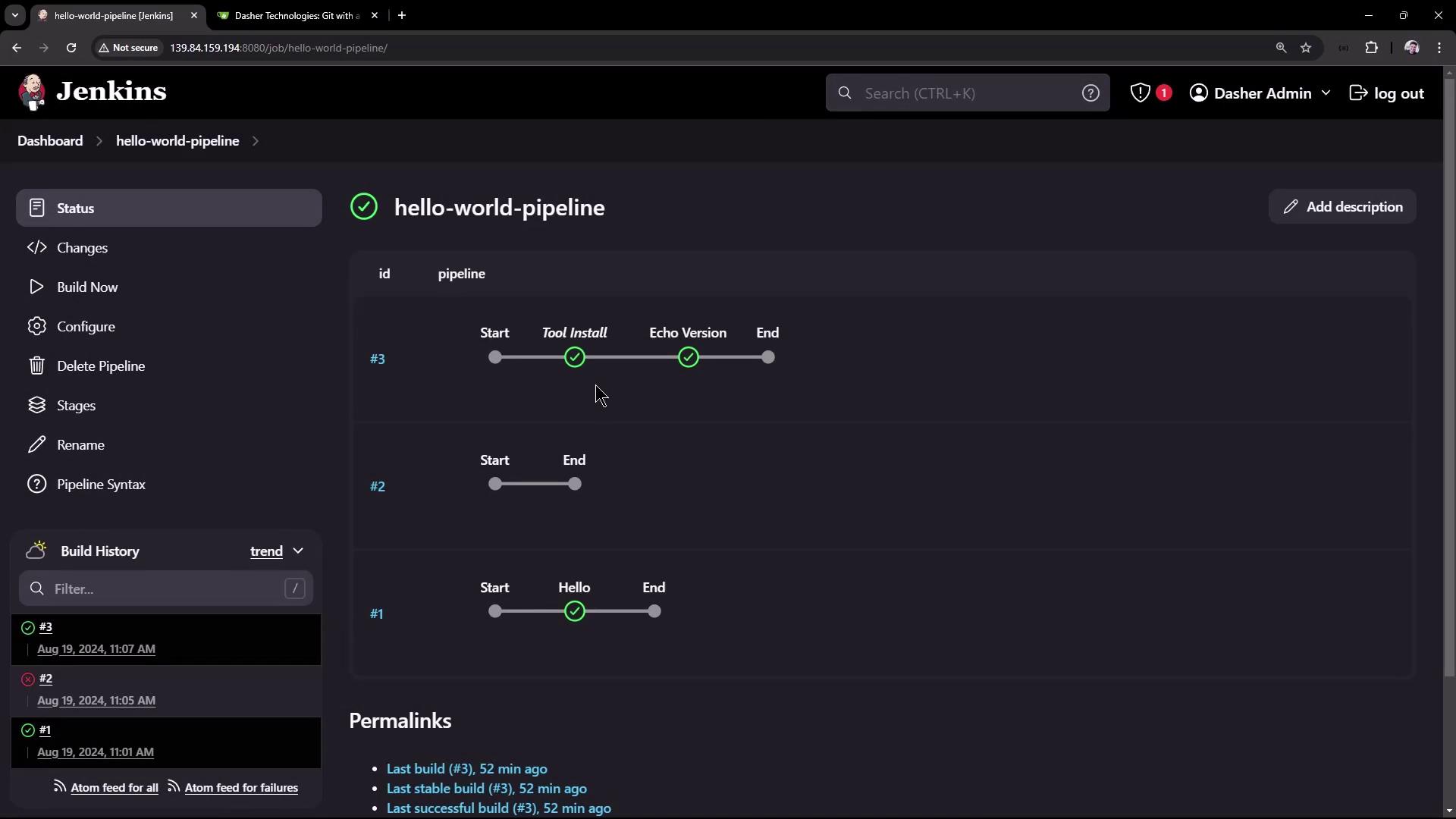
Below is the current pipeline, which installs Maven and echoes its version:
## Application Repository
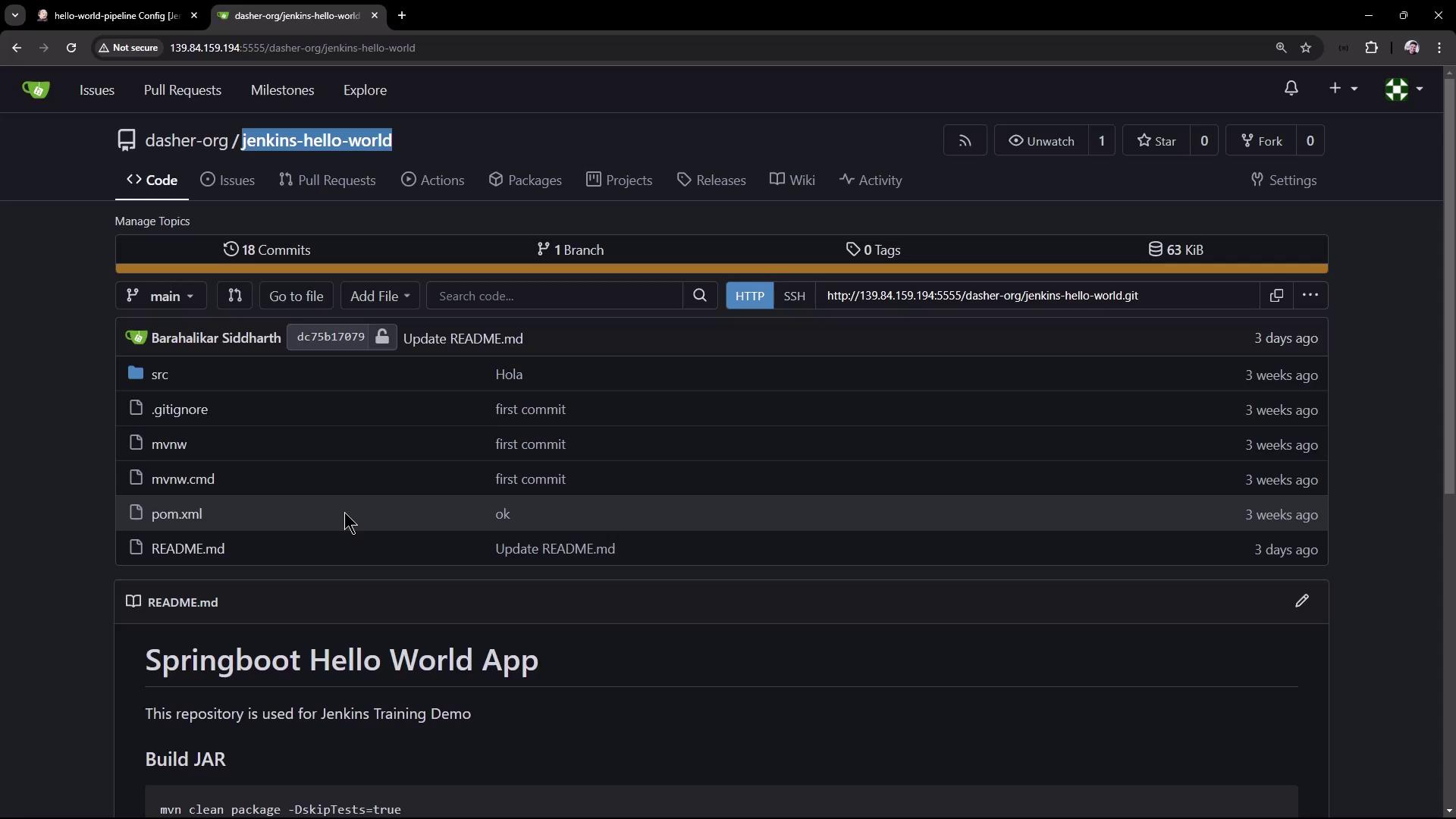
Our sample Spring Boot “Hello World” application resides in the `jenkins-hello-world` repository. It uses Maven to build a JAR and includes six JUnit test cases (five passing, one failing).
## Defining the Pipeline
Create or update a `Jenkinsfile` at the root of your project with the following content:
```groovy theme={null}
pipeline {
agent any
tools {
// Install the Maven version configured as "M398"
maven "M398"
}
stages {
stage('Echo Version') {
steps {
sh 'echo Print Maven Version'
sh 'mvn -version'
}
}
stage('Build') {
steps {
// Clone the repository (defaults to branch "master")
git 'http://139.84.159.194:5555/dasher-org/jenkins-hello-world.git'
// Build without running tests
sh 'mvn clean package -DskipTests=true'
}
}
stage('Unit Test') {
steps {
// Execute JUnit tests
sh 'mvn test'
}
}
}
}
```
### Pipeline Stages Overview
| Stage | Purpose | Command |
| ------------ | ----------------------------------- | ------------------------------------ |
| Echo Version | Verify Maven installation | `mvn -version` |
| Build | Compile and package the application | `mvn clean package -DskipTests=true` |
| Unit Test | Execute JUnit tests | `mvn test` |
## First Run: Checkout Failure
On the initial run, the pipeline fails at the Build stage because the default branch is `main`, not `master`:
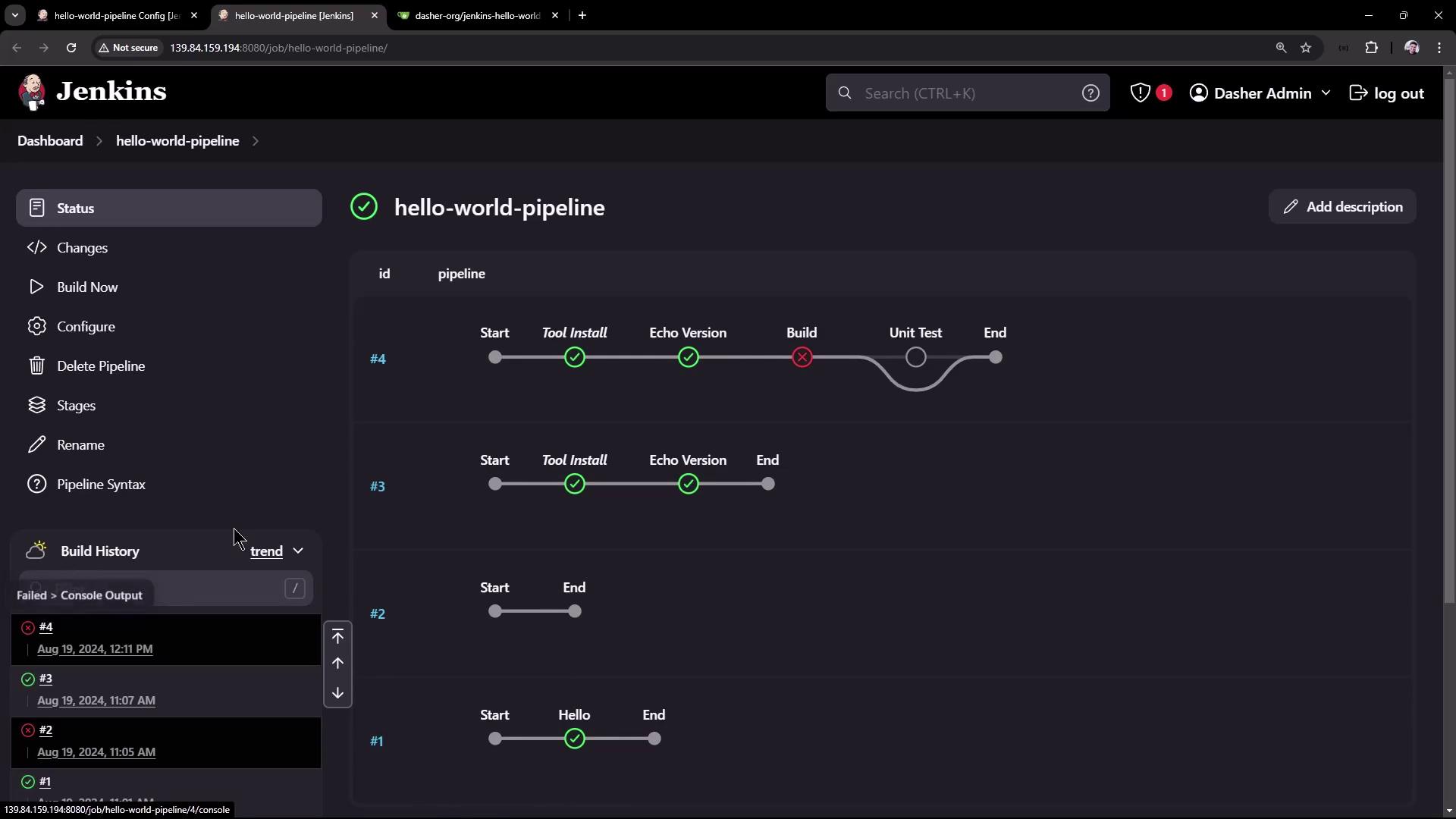
The console logs display:
```text theme={null}
ERROR: Couldn't find any revision to build. Verify the repository and branch configuration for this job.
```
Ensure your `git` step points to the correct branch (`main` in this repository) to avoid checkout errors.
## Specifying the Correct Branch
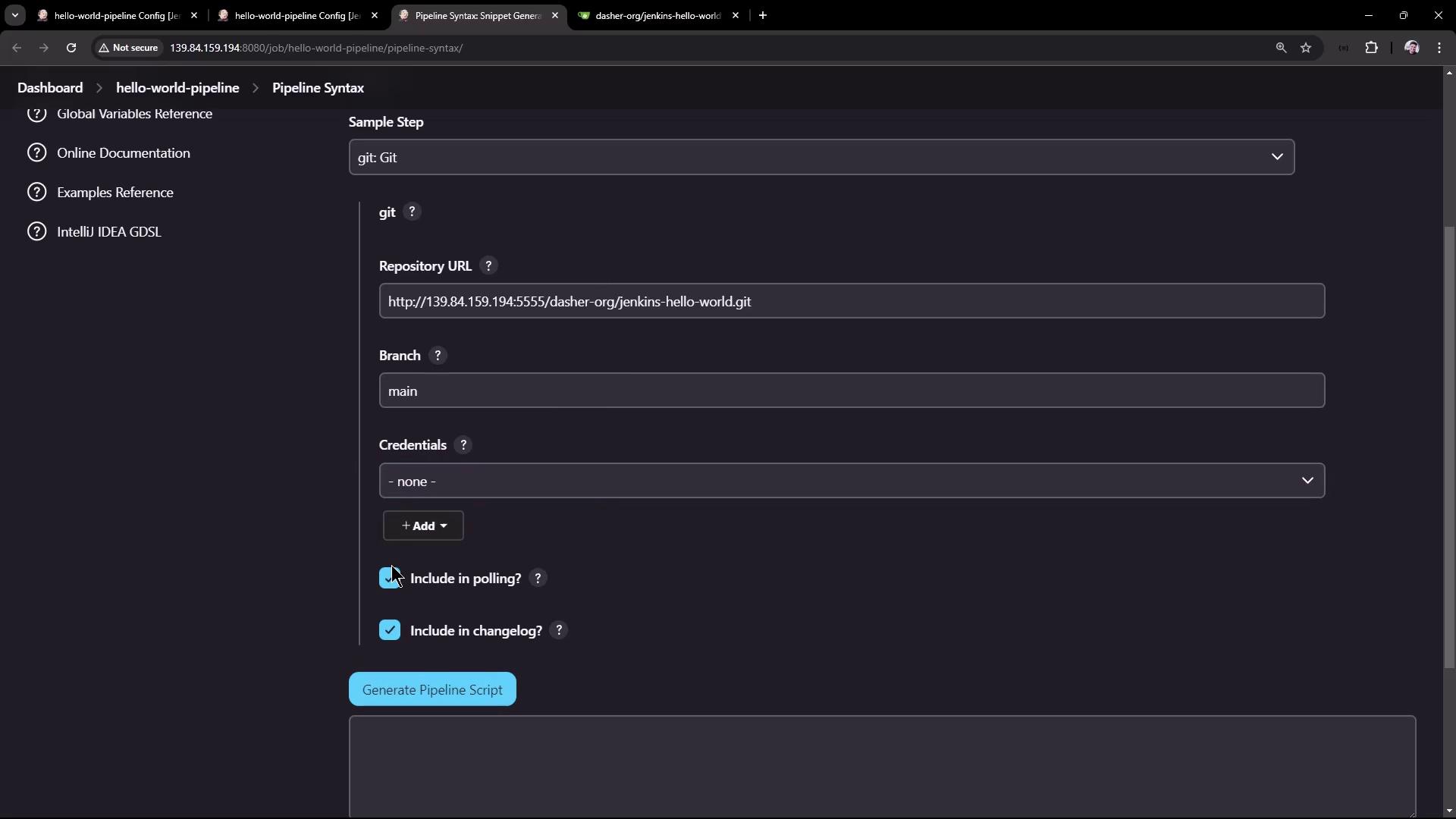
Use the Jenkins **Snippet Generator** to craft a branch-specific `git` checkout:
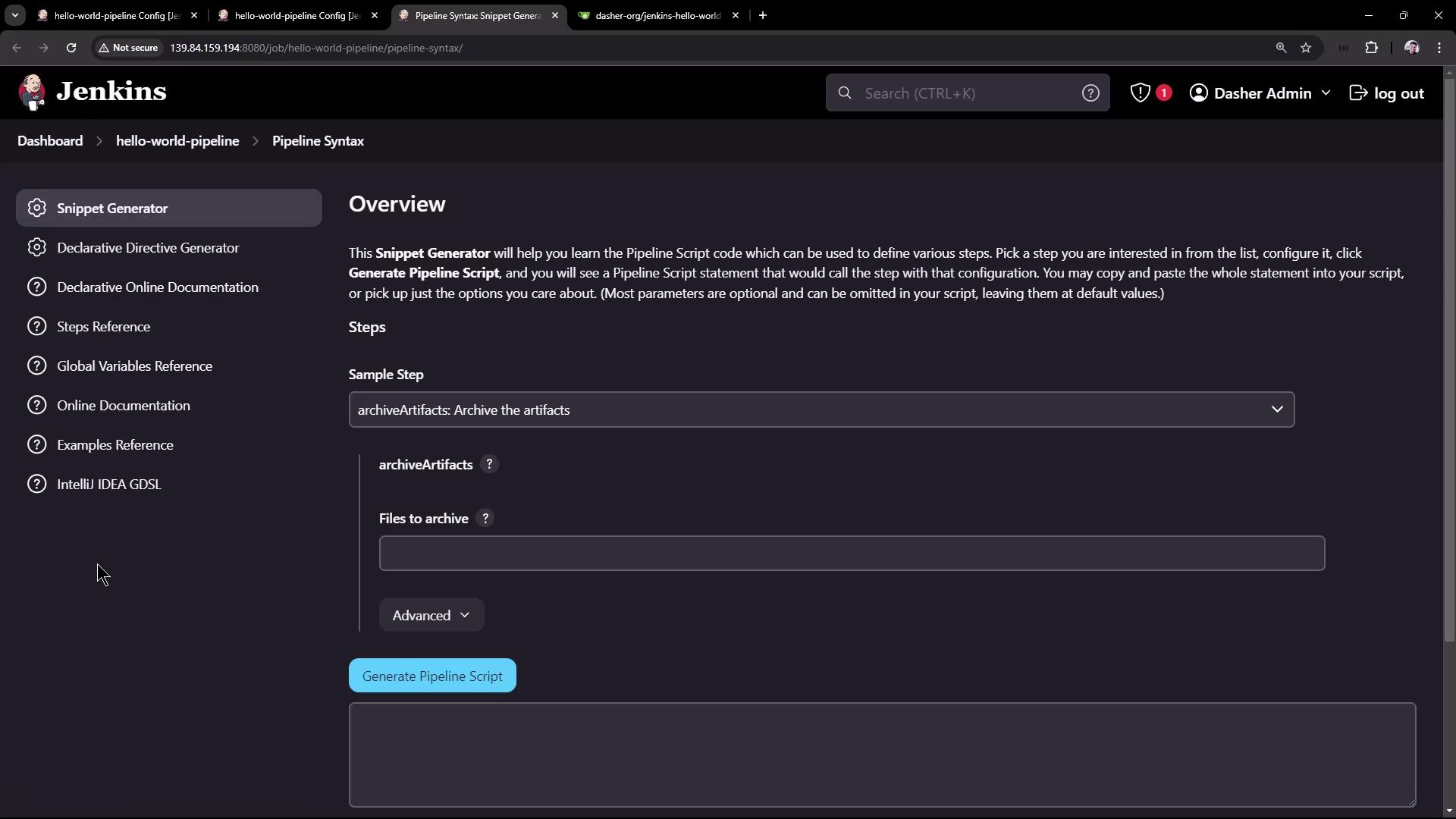
1. Select **Git**.
2. Enter your repository URL.
3. Set **Branch** to `main`.
4. Click **Generate Pipeline Script**.
Adjust your `Jenkinsfile`:
```groovy theme={null}
git branch: 'main', url: 'http://139.84.159.194:5555/dasher-org/jenkins-hello-world.git'
```
Commit and re-run the pipeline. The checkout and build succeed, but one unit test still fails:
```text theme={null}
[ERROR] Tests run: 6, Failures: 1, Errors: 0, Skipped: 0, Time elapsed: 3.539 s <<< FAILURE!
java.lang.AssertionError:
Expected: a string starting with "Hola"
but: was "Hello, KodeKloud community!"
```
## Fixing the Unit Test
Update the assertion in `HelloControllerTests.java` to match the controller’s greeting:
```java theme={null}
@Test
public void welcome_startsWithExpectedGreeting() throws Exception {
mvc.perform(MockMvcRequestBuilders.get("/hello")
.accept(MediaType.APPLICATION_JSON))
.andExpect(status().isOk())
.andExpect(content().string(startsWith("Hello")));
}
```
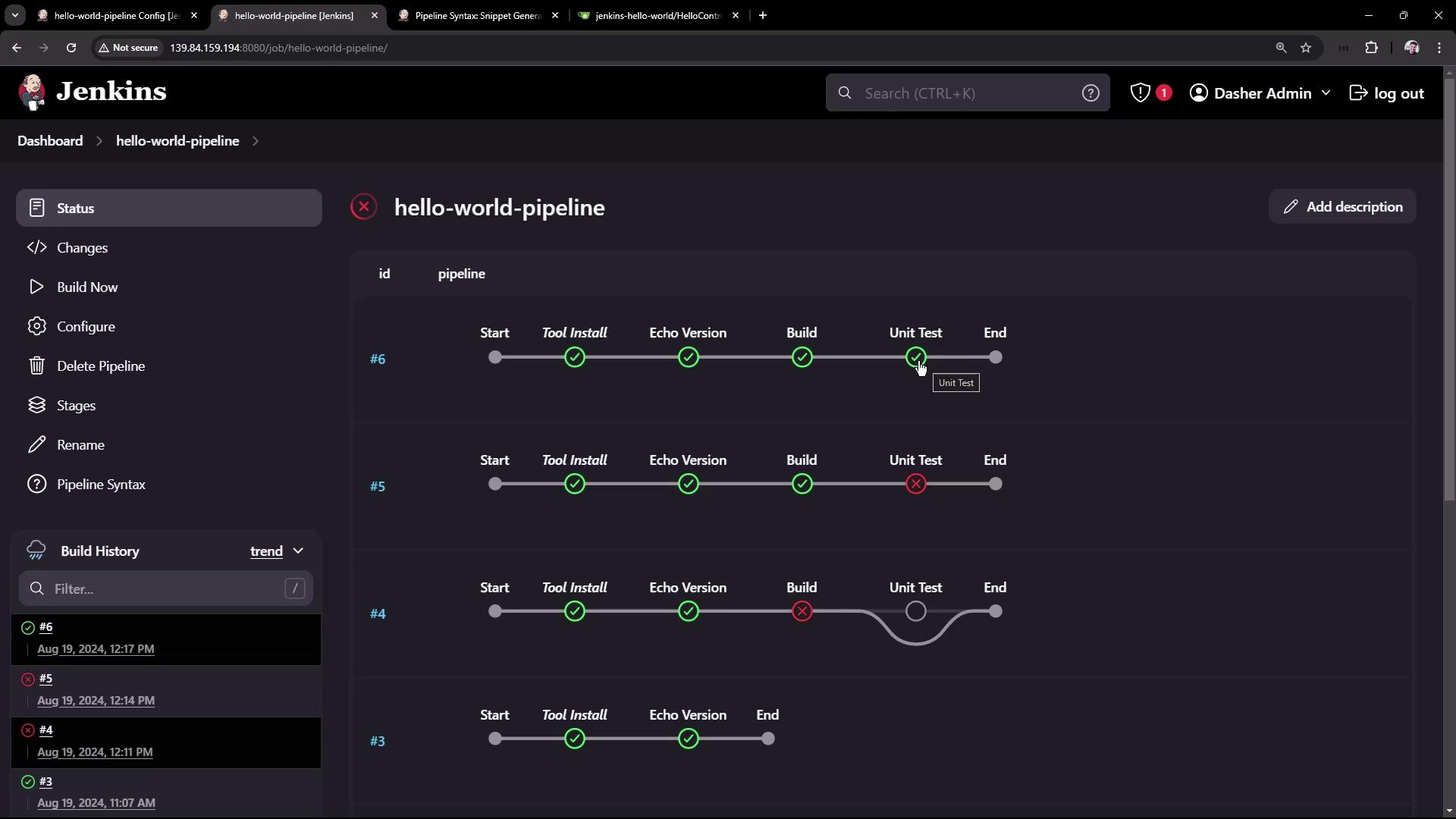
Commit the change and trigger the pipeline again. All stages should now pass:
## Application Overview
**Controller** (`src/main/java/com/kodekloud/hello_demo/HelloController.java`):
```java theme={null}
package com.kodekloud.hello_demo;
import org.springframework.web.bind.annotation.RequestMapping;
import org.springframework.web.bind.annotation.RestController;
@RestController
public class HelloController {
@RequestMapping("/hello")
String hello() {
return "Hello, KodeKloud community!";
}
}
```
**Configuration** (`src/main/resources/application.properties`):
```ini theme={null}
spring.application.name=hello-demo
server.port=6767
```
For better collaboration, commit your `Jenkinsfile` directly into the repository so pipeline changes are tracked alongside your application code.
## Next Steps
With this pipeline, you’ve automated:
1. Tool installation and version verification
2. Source checkout (branch `main`)
3. Maven **clean package** (skipping tests)
4. JUnit **test** execution
Consider adding stages for artifact archiving, static code analysis, or deployment.
## Links and References
* [Jenkins Pipeline Syntax](https://www.jenkins.io/doc/book/pipeline/syntax/)
* [Maven User Guide](https://maven.apache.org/guides/index.html)
* [JUnit 5 Documentation](https://junit.org/junit5/docs/current/user-guide/)