> ## Documentation Index
> Fetch the complete documentation index at: https://notes.kodekloud.com/llms.txt
> Use this file to discover all available pages before exploring further.
# Demo Pipeline Script from SCM
> This tutorial demonstrates sourcing Jenkins pipeline definitions from SCM systems like GitHub or Gitea for improved maintainability and collaboration.
In this tutorial, we’ll demonstrate how to source your Jenkins pipeline definition directly from a Source Control Management (SCM) system such as [GitHub](https://github.com) or [Gitea](https://gitea.io/). Moving your pipeline code into version control improves maintainability, traceability, and collaboration.
***
## 1. Inline Pipeline Definition (Not Recommended)
Defining a pipeline directly in the Jenkins UI is quick but hard to maintain. Changes aren’t versioned, and collaboration is limited.
Avoid storing pipeline scripts in the UI. Inline definitions lack versioning and code review.
```groovy theme={null}
pipeline {
agent any
tools {
maven 'M398'
}
stages {
stage('Echo Version') {
steps {
sh 'echo Print_Maven_Version'
sh 'mvn -version'
}
}
stage('Build') {
steps {
// Fetch source code
git 'http://139.84.159.194:5555/dasher-org/jenkins-hello-world.git'
// Package with Maven
// sh 'mvn clean package -DskipTests=true'
}
}
stage('Unit Test') {
steps {
sh 'mvn test'
}
}
}
}
```
***
## 2. Creating a Jenkinsfile in Your Repository
Store your pipeline script as a `Jenkinsfile` at the root of your project repository:
1. Navigate to your app repo on GitHub or Gitea.
2. Click **Add file** → **Create new file**.
3. Name it `Jenkinsfile`.
4. Paste the pipeline script and commit to `main`.
```groovy theme={null}
pipeline {
agent any
tools {
// Installs Maven configured as "M398"
maven "M398"
}
stages {
stage('Echo Version') {
steps {
sh 'echo Print Maven Version'
sh 'mvn -version'
}
}
stage('Build') {
steps {
// Auto-checkout not yet enabled
git 'http://139.84.159.194:5555/dasher-org/jenkins-hello-world.git'
sh 'mvn clean package -DskipTests=true'
}
}
stage('Unit Test') {
steps {
sh 'mvn test'
}
}
}
}
```
***
## 3. Simplifying the Jenkinsfile
Once Jenkins auto-checks out your code, remove the explicit `git` step to simplify:
Jenkins automatically clones the repository when using **Pipeline script from SCM**.
```groovy theme={null}
pipeline {
agent any
tools {
maven "M398"
}
stages {
stage('Echo Version') {
steps {
sh 'echo Print Maven Version'
sh 'mvn -version'
}
}
stage('Build') {
steps {
// Repository checked out automatically
sh 'mvn clean package -DskipTests=true'
}
}
stage('Unit Test') {
steps {
sh 'mvn test'
}
}
}
}
```
***
## 4. Configuring “Pipeline script from SCM”
In Jenkins:
1. Create (or open) a **Pipeline** job.
2. Under **Pipeline** > **Definition**, select **Pipeline script from SCM**.
3. Choose **[Git](https://git-scm.com)** and enter your repository details:
| Field | Value |
| ---------------- | --------------------------------------------------------------- |
| Repository URL | `http://139.84.159.194:5555/dasher-org/jenkins-hello-world.git` |
| Branch Specifier | `main` |
| Script Path | `Jenkinsfile` |
If the URL is missing or invalid, Jenkins displays an error:
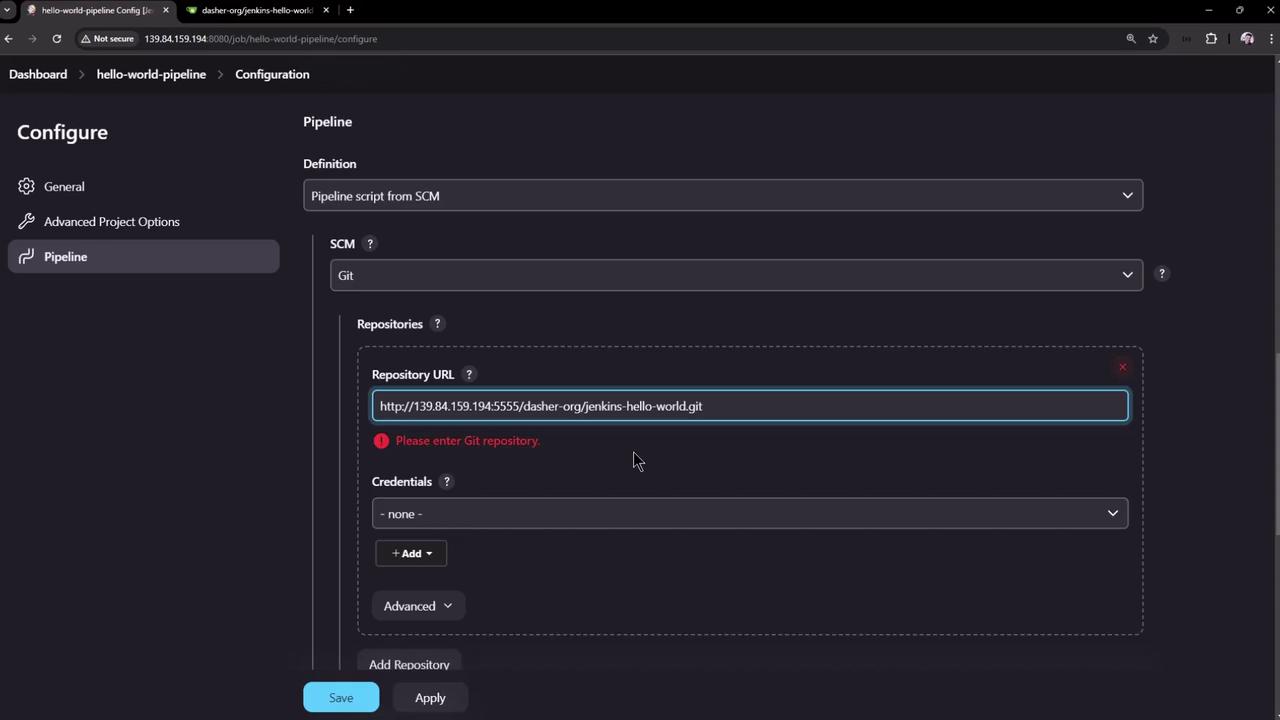
Save the job and click **Build Now**.
***
## 5. Observing Automatic Checkout and Build
When the pipeline runs, Jenkins adds a **Checkout SCM** stage:
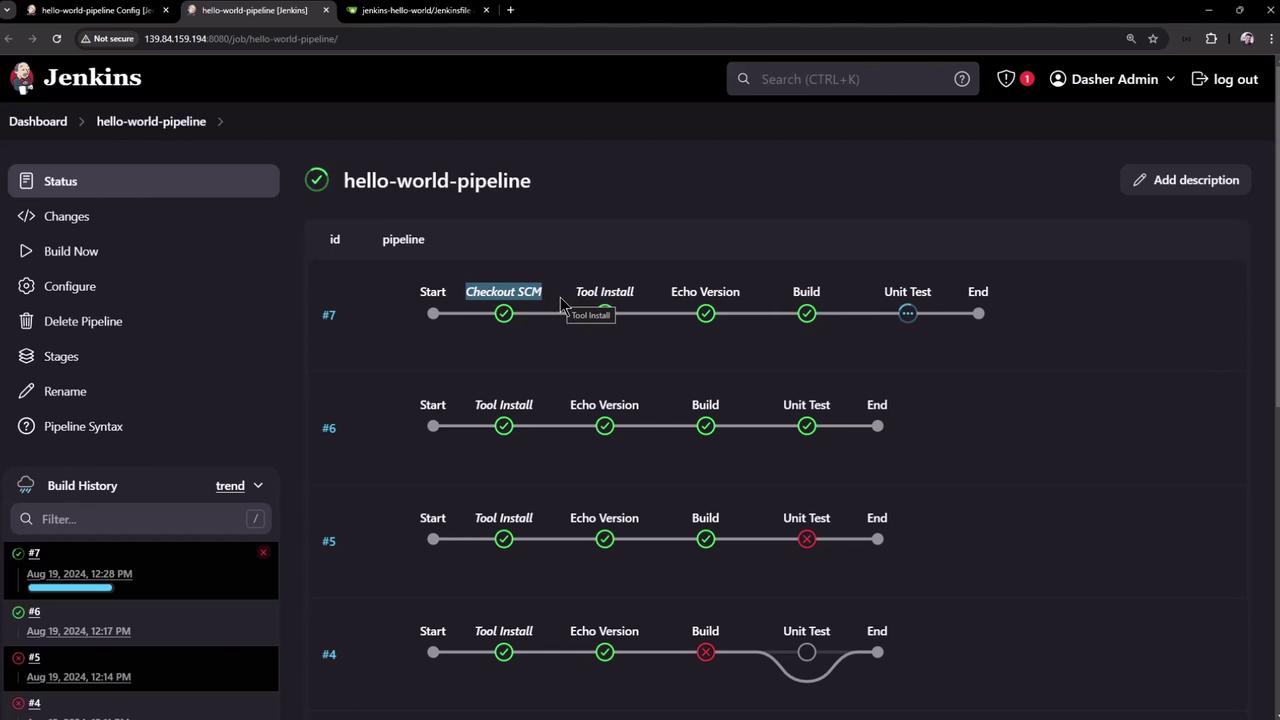
### Console Output Highlights
```shell theme={null}
> git rev-parse --resolve-git-dir /var/lib/jenkins/workspace/hello-world-pipeline/.git # timeout=10
> git config remote.origin.url http://139.84.159.194:5555/dasher-org/jenkins-hello-world.git # timeout=10
> git fetch origin +refs/heads/*:refs/remotes/origin/* # timeout=10
> git checkout -f origin/main # timeout=10
```
```bash theme={null}
echo Print Maven Version
mvn --version
```
```text theme={null}
Apache Maven 3.9.8 (36645f6c9b5079805ea5009217e36cff344256)
Maven home: /var/lib/jenkins/tools/hudson.tasks.Maven_MavenInstallation/M398
Java version: 17.0.12, vendor: Ubuntu
Default locale: en_US, platform encoding: UTF-8
OS name: "linux", version: "6.8.0-39-generic", arch: "amd64"
```
***
## 6. Browsing the Repository in Your SCM
Verify your `Jenkinsfile` and project files in the web UI:
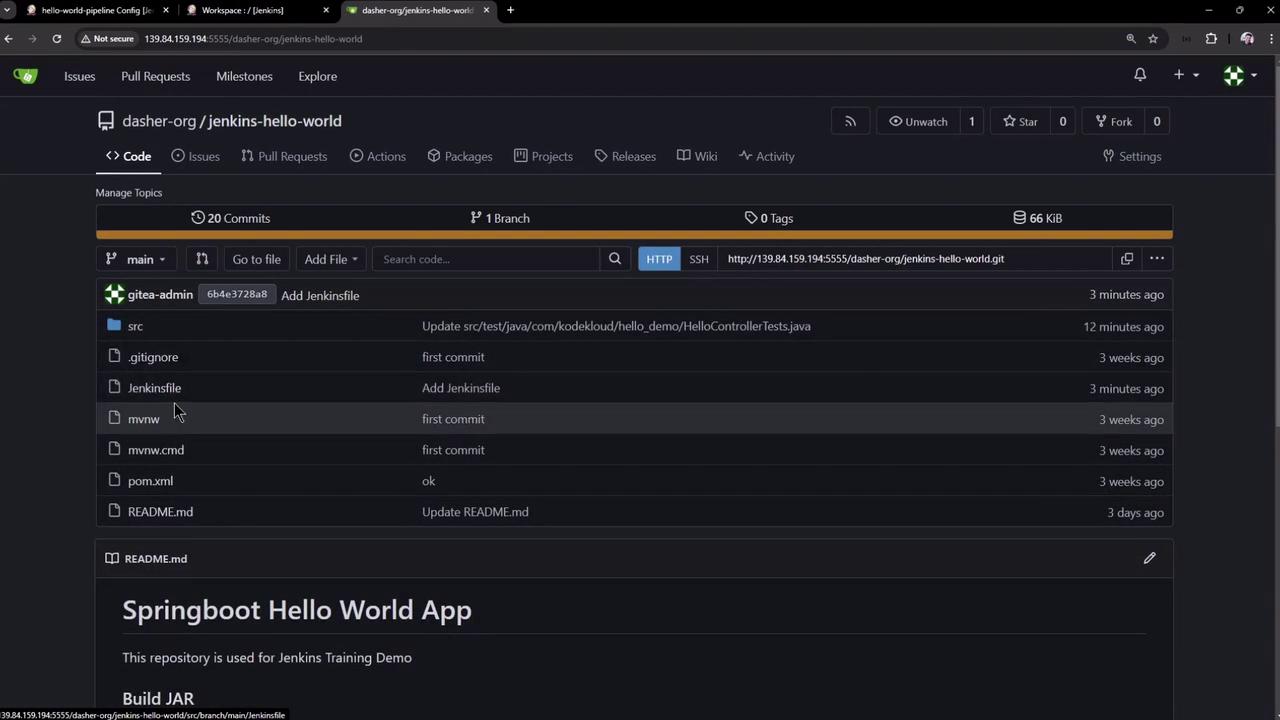
***
## 7. Exploring the Jenkins Workspace
Click **Workspace** in the job sidebar to view checked-out files and build artifacts:
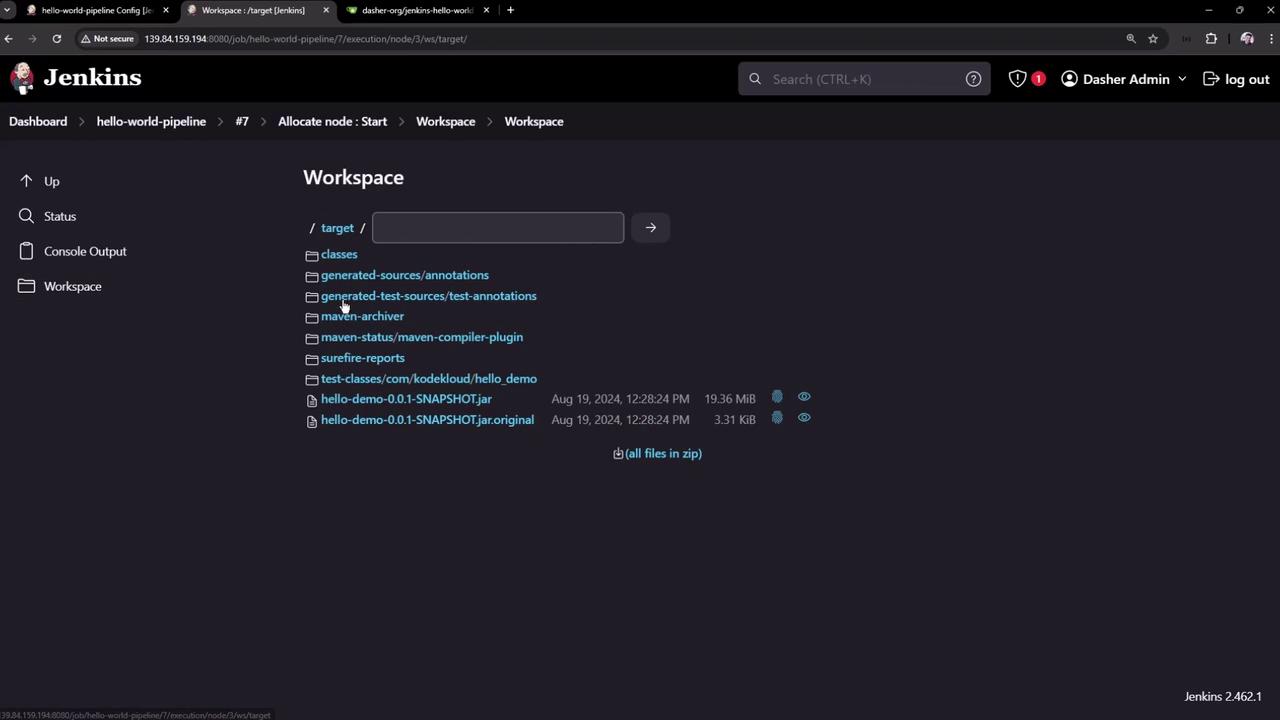
***
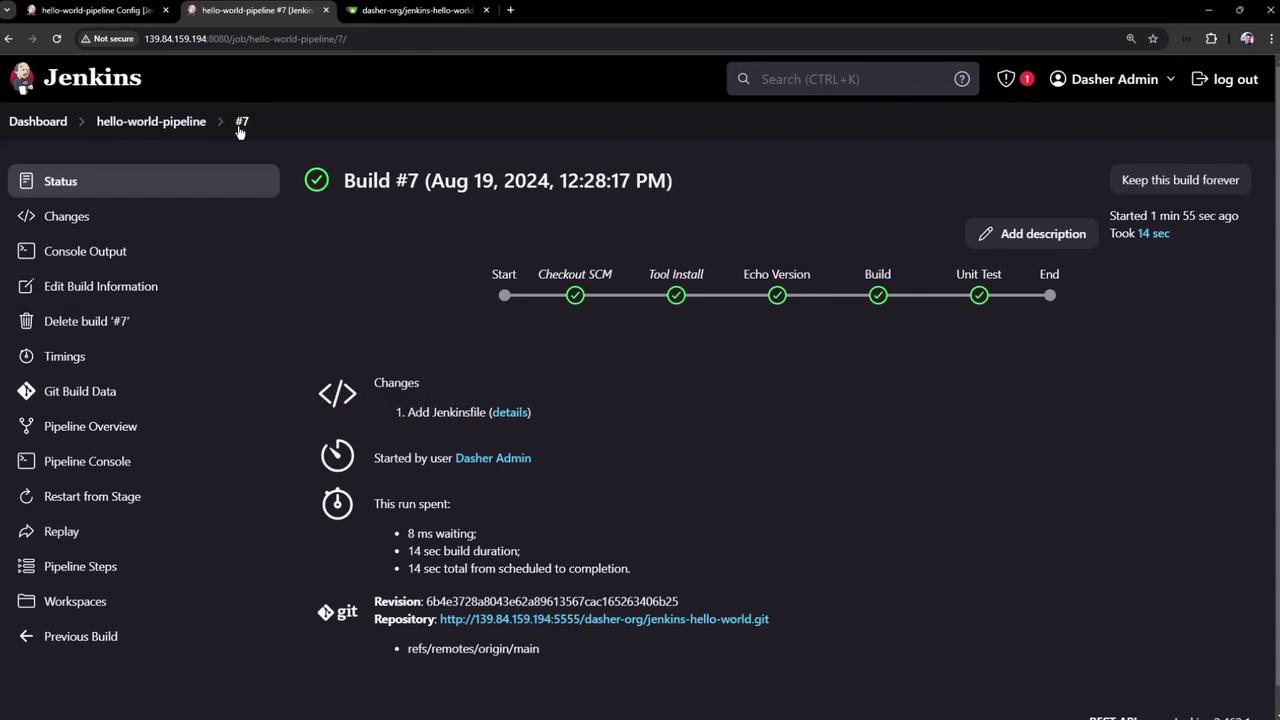
## 8. Reviewing Completed Build Details
Inspect completed builds and each pipeline stage:
***
## 9. Inspecting Jenkins Home and Workspaces on the Controller
Access your Jenkins controller via SSH to list directories:
```bash theme={null}
# View Jenkins home directory
cd /var/lib/jenkins
ls -l
```
```bash theme={null}
# List job workspaces
cd workspace/
ls -l
```
```bash theme={null}
# Inspect hello-world-pipeline workspace
cd hello-world-pipeline
ls -l
```
That’s it! You’ve learned how to manage your Jenkins pipeline script in SCM, run builds, and explore both the SCM repo and Jenkins workspace.
***
## Links and References
* [Jenkins Documentation](https://www.jenkins.io/doc/)
* [Pipeline as Code](https://www.jenkins.io/doc/book/pipeline/)
* [Git SCM](https://git-scm.com/)
* [Jenkinsfile Reference](https://www.jenkins.io/doc/book/pipeline/jenkinsfile/)