> ## Documentation Index
> Fetch the complete documentation index at: https://notes.kodekloud.com/llms.txt
> Use this file to discover all available pages before exploring further.
# Demo Chained Freestyle Projects
> This tutorial explains how to split a Freestyle Project in Jenkins into two jobs and chain them for improved CI pipeline efficiency.
In this tutorial, we’ll walk through splitting a single Freestyle Project into two separate jobs—**ASCII Build Job** and **ASCII Test Job**—and chaining them so that tests run only after a successful build. This approach improves modularity, fault isolation, and scalability of your CI pipeline.
## Overview of Workflow
| Stage | Job Name | Purpose |
| ----- | --------------- | ----------------------------------------------- |
| Build | ASCII Build Job | Fetches advice JSON from ADVICESLIP API |
| Test | ASCII Test Job | Validates that the advice message has > 5 words |
## 1. Create the Build Job
1. From the Jenkins dashboard, click **New Item**, enter **ASCII Build Job**, and select **Freestyle project**.
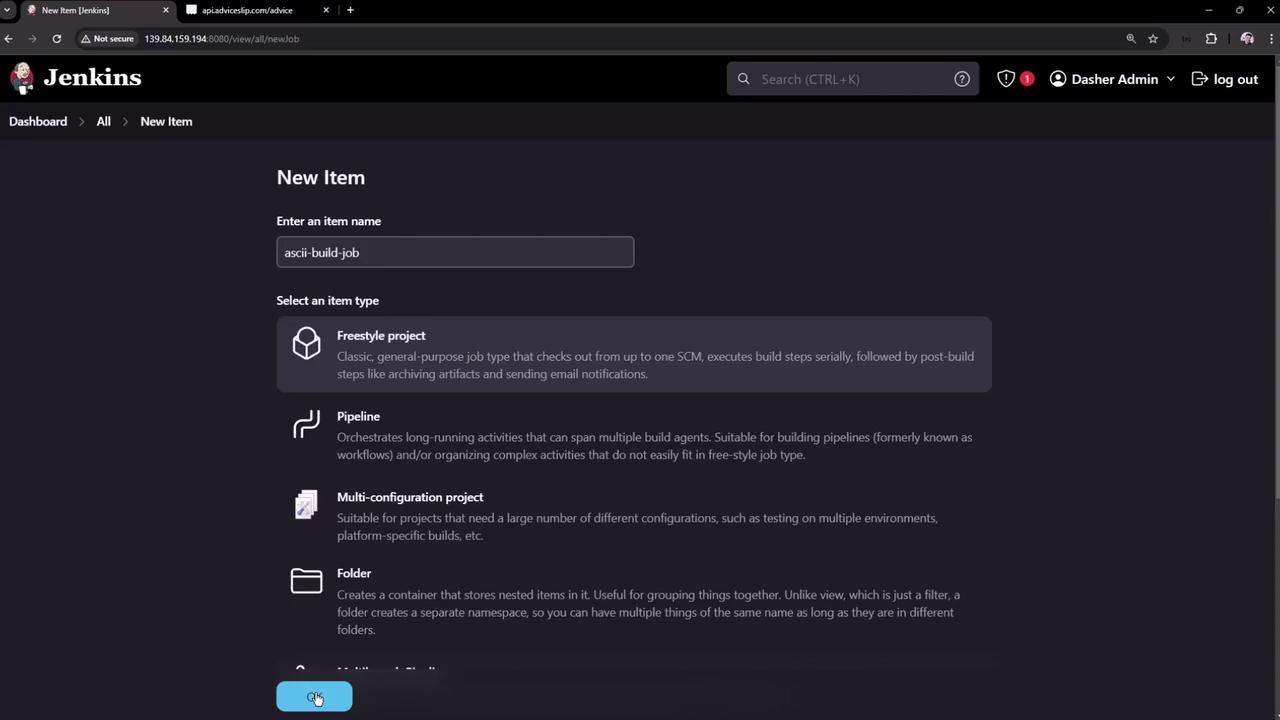
2. In the job’s **Build** section, add an **Execute shell** step with:
```bash theme={null}
# Build: fetch advice from ADVICESLIP API
curl -s https://api.adviceslip.com/advice > advice.json
cat advice.json
```
3. Save and click **Build Now**. A successful build shows up on the dashboard:
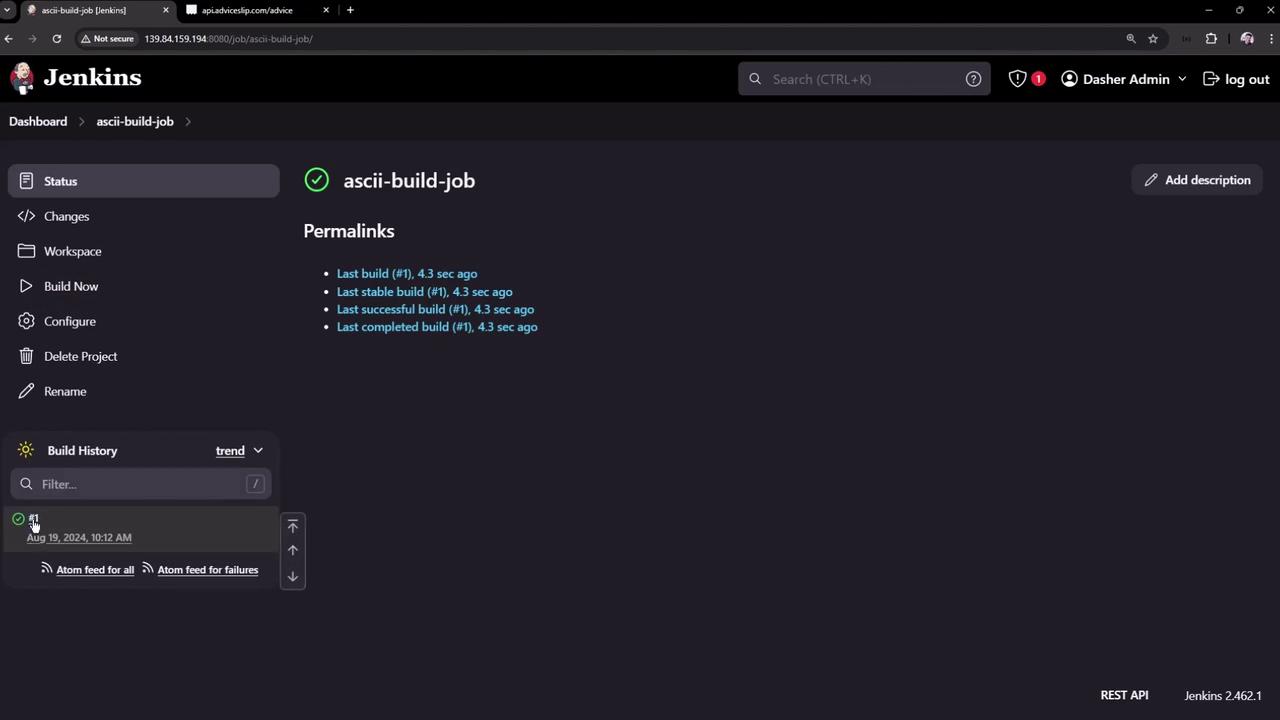
4. Inspect the workspace to confirm `advice.json` exists. Example content:
```json theme={null}
{
"slip": {
"id": 59,
"advice": "Don't be afraid of silly ideas."
}
}
```
## 2. Create the Test Job
1. Go back to **New Item**, name it **ASCII Test Job**, and choose **Freestyle project**.
2. In **Build → Execute shell**, add:
```bash theme={null}
# Ensure the advice has more than 5 words
ls advice.json
jq -r '.slip.advice' advice.json > advice.message
if [ "$(wc -w < advice.message)" -gt 5 ]; then
echo "Advice - $(cat advice.message) has more than 5 words"
else
echo "Advice - $(cat advice.message) has 5 words or less"
fi
```
3. Save the job. (Currently it will fail if run alone, since `advice.json` is missing.)
## 3. Chain Jobs with Post-build Actions
Configure **ASCII Build Job** to trigger **ASCII Test Job**:
1. Open **ASCII Build Job → Configure**.
2. Scroll to **Post-build Actions** and choose **Build other projects**.
3. Enter `ASCII Test Job` and select **Trigger only if build is stable**.
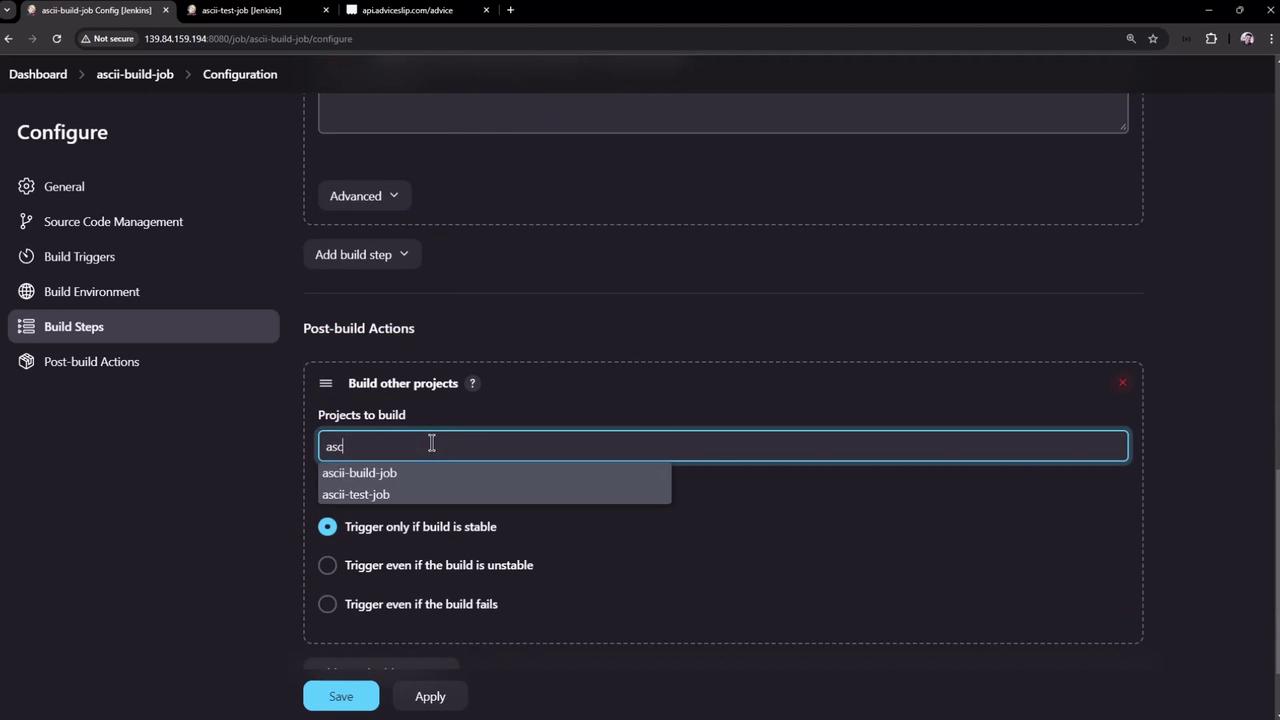
4. Save and rebuild **ASCII Build Job**. Now the dashboard shows the downstream Test job:

## 4. Diagnose Test Failure
If **ASCII Test Job** fails, open its dashboard:

Inspect the console output:
```bash theme={null}
Started by upstream project "ascii-build-job" build number 2
Running as SYSTEM
Building in workspace /var/lib/jenkins/workspace/ascii-test-job
[ascii-test-job] $ /bin/sh -xe /tmp/jenkins*.sh
+ ls advice.json
ls: cannot access 'advice.json': No such file or directory
Build step 'Execute shell' marked build as failure
Finished: FAILURE
```
The failure happens because `advice.json` lives only in the Build job’s workspace.
To share artifacts between upstream and downstream Freestyle Projects, install and use the [Copy Artifact Plugin](https://plugins.jenkins.io/copyartifact/). It lets you pull files like `advice.json` into the Test job’s workspace before running tests.
## References
* [Jenkins Freestyle Project](https://www.jenkins.io/doc/book/pipeline/syntax/#options)
* [Copy Artifact Plugin](https://plugins.jenkins.io/copyartifact/)
* [ADVICESLIP API Documentation](https://api.adviceslip.com/)