> ## Documentation Index
> Fetch the complete documentation index at: https://notes.kodekloud.com/llms.txt
> Use this file to discover all available pages before exploring further.
# Demo Initial Settings and JVM Tuning
> Diagnosing Jenkins HTTP 500 from Java heap OutOfMemoryError and safely increasing JVM heap via systemd drop-in overrides, with container-aware JVM recommendations and verification steps
If Jenkins on your local machine returns an HTTP 500 or the web UI fails to load, the root cause is often a JVM heap exhaustion. This guide shows how to identify a Java heap space OutOfMemoryError, locate where JVM options are configured for a systemd-managed Jenkins service, and safely increase JVM heap settings.
Problem symptom
* The Jenkins web UI at `http://localhost:8080` returned an HTTP 500 when loading `/login`.
* Server logs show `java.lang.OutOfMemoryError: Java heap space`.
Example HTTP error returned by Jenkins:
```text theme={null}
HTTP ERROR 500 jakarta.servlet.ServletException: Unexpected Exception
URI: /login
STATUS: 500
MESSAGE: jakarta.servlet.ServletException: Unexpected Exception
SERVLET: Stapler
CAUSED BY: java.lang.OutOfMemoryError: Java heap space
Caused by:
java.lang.OutOfMemoryError: Java heap space
```
Confirming via logs
Search the system journal for heap-related errors to confirm the OutOfMemoryError:
```bash theme={null}
journalctl -u jenkins | grep -i OutOfMemoryError
```
Example log lines you may encounter:
```bash theme={null}
Feb 05 16:11:33 SilentShadow jenkins[158]: Exception: java.lang.OutOfMemoryError thrown from the UncaughtExceptionHandler in thread "EventHistoryStore.autoExpireTimer"
Feb 05 16:11:42 SilentShadow jenkins[158]: java.lang.OutOfMemoryError: Java heap space
Feb 05 17:39:39 SilentShadow jenkins[158]: Caused by: java.lang.OutOfMemoryError: Java heap space
```
Where are the JVM options configured?
On a systemd-managed Jenkins installation, JVM and environment options are normally supplied by the service unit or a drop-in override. Inspect the current service configuration with:
```bash theme={null}
systemctl cat jenkins
```
Example snippet returned by `systemctl cat`:
```ini theme={null}
[Unit]
Description=Jenkins Continuous Integration Server
Requires=network.target
After=network.target
[Service]
Type=notify
NotifyAccess=main
ExecStart=/usr/bin/jenkins
Restart=on-failure
SuccessExitStatus=143
# /etc/systemd/system/jenkins.service.d/override.conf
[Service]
Environment="JAVA_OPTS=-Djava.awt.headless=true"
```
To create or edit a drop-in file (safe method to override only specific settings) use:
```bash theme={null}
systemctl edit jenkins
```
This opens an editor and writes a drop-in such as `/etc/systemd/system/jenkins.service.d/override.conf`. The service must be restarted for changes to take effect.
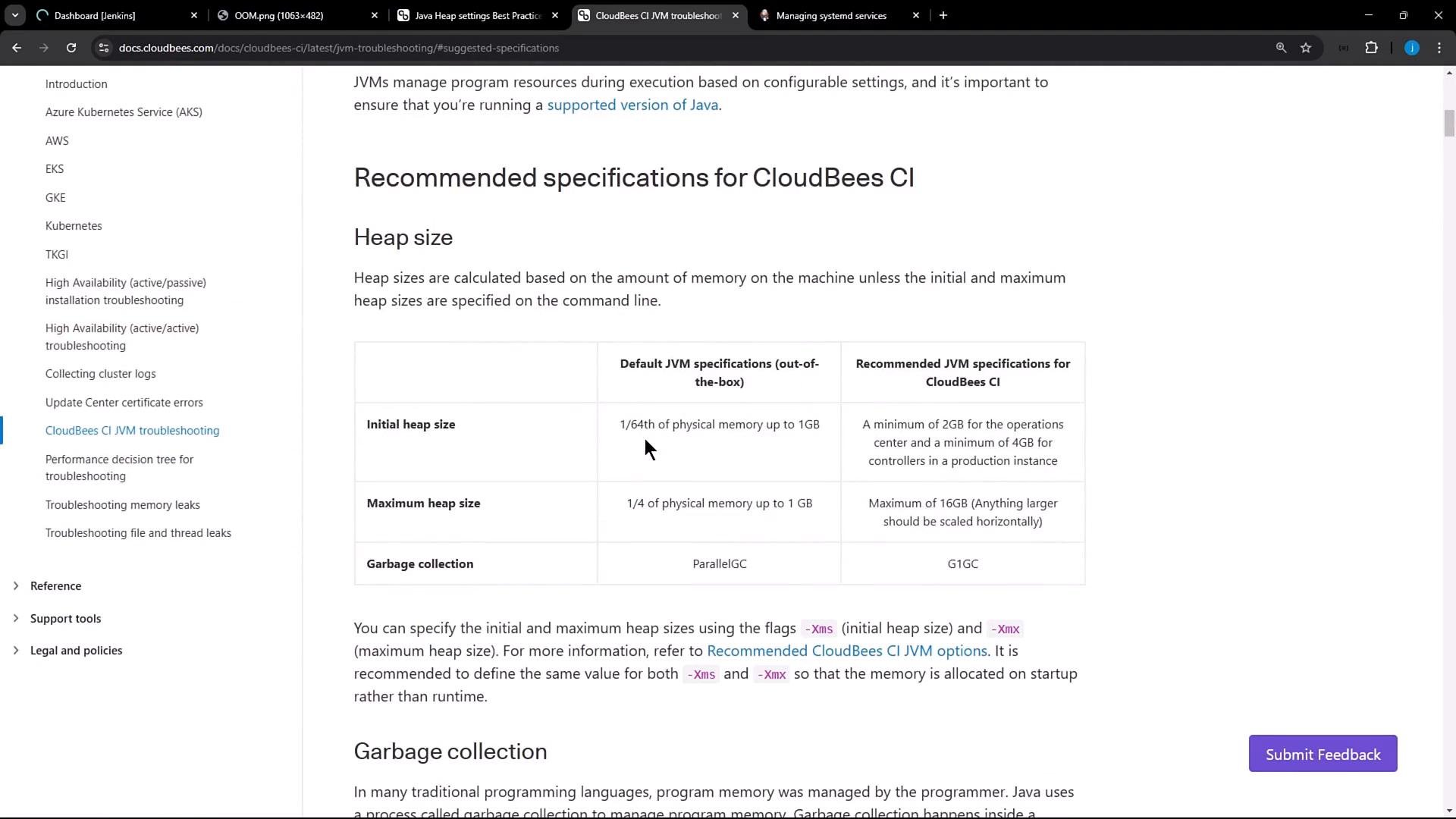
Recommended heap sizes
Below are general recommendations for Jenkins JVM heap sizing. Use these as starting points and adjust based on the number of plugins, jobs, and concurrent activity.
| Installation type | Minimum recommended heap | Notes |
| - | - | - |
| Operations Center | 2 GiB | Suitable for larger coordination services. |
| Jenkins controller / production instance | 4 GiB | Typical production minimum. |
| Single-JVM upper guide | \~16 GiB | Avoid going beyond this; consider horizontal scaling. |
 Important: JVM and container behavior
If running Jenkins inside containers (Docker, Kubernetes), prefer container-aware JVM options such as `-XX:+UseContainerSupport` (enabled by default on modern OpenJDK) and percentage-based options like `-XX:MaxRAMPercentage` / `-XX:InitialRAMPercentage`. These respect container memory limits better than fixed `-Xms`/`-Xmx` values.
Editing the systemd drop-in to increase heap
If your current JVM flags are too small (for example `-Xms90M -Xmx90M`), increase them in the drop-in. Example existing configuration:
```ini theme={null}
# /usr/lib/systemd/system/jenkins.service (excerpt)
[Service]
# ...
# /etc/systemd/system/jenkins.service.d/override.conf
[Service]
Environment="JAVA_OPTS=-Xms90M -Xmx90M"
```
To raise the heap to 1 GiB, run:
```bash theme={null}
systemctl edit jenkins
```
Then add the following to the editor and save:
```ini theme={null}
[Service]
Environment="JAVA_OPTS=-Xms1G -Xmx1G"
```
After saving, you should see a confirmation such as:
```bash theme={null}
Successfully installed edited file '/etc/systemd/system/jenkins.service.d/override.conf'.
```
Restarting Jenkins to apply the change
As a best practice, restart the service after any systemd unit change:
```bash theme={null}
# Restart Jenkins to pick up the new JAVA_OPTS
systemctl restart jenkins
```
Verify the running process and JVM options
Before restarting, you can inspect the running Jenkins process to observe previously active JVM flags:
```bash theme={null}
ps aux | grep -i jenkins
# Example before the change:
# jenkins 158 15.4 4.1 10129960 666824 ? Ssl 15:48 18:53 /usr/bin/java -Xms90M -Xmx90M -jar /usr/share/java/jenkins.war --webroot=/var/cache/jenkins/war --httpPort=8080
```
After restart, confirm the new flags are active:
```bash theme={null}
ps aux | grep -i jenkins
# Example after the change:
# jenkins 27173 2.9 7.5 10877652 1234764 ? Ssl 17:51 0:36 /usr/bin/java -Xms1G -Xmx1G -jar /usr/share/java/jenkins.war --webroot=/var/cache/jenkins/war --httpPort=8080
```
Result
After increasing the heap from 90M to 1G and restarting Jenkins, the login page loaded and I could authenticate successfully. Continue to monitor logs and heap usage to ensure the new values remain sufficient under expected load.
Best practices and guidelines
* For bare-metal or VM installs, tuning `-Xms`/`-Xmx` is straightforward and effective.
* For containerized Jenkins, prefer container-aware JVM options (`-XX:+UseContainerSupport`, `-XX:MaxRAMPercentage`, `-XX:InitialRAMPercentage`) and set appropriate container memory limits.
* Avoid setting a single JVM heap above \~16 GiB; scale horizontally instead of increasing a single JVM heap beyond practical limits.
* After any systemd unit change, restart the service and verify process arguments (`ps`) and logs (`journalctl -u jenkins`).
* Monitor garbage collection and heap usage; increasing heap can alter GC behavior — if GC pauses are problematic, consider GC tuning or changing GC algorithms.
Do not edit the packaged `/usr/lib/systemd/system/jenkins.service` file directly. Use `systemctl edit jenkins` to create a drop-in override so packaged updates or upgrades do not overwrite your custom settings.
Links and references
* Systemd unit documentation: [https://www.freedesktop.org/software/systemd/man/systemd.unit.html](https://www.freedesktop.org/software/systemd/man/systemd.unit.html)
* OpenJDK JVM options and container support: [https://openjdk.org/](https://openjdk.org/) (search for `UseContainerSupport` / `MaxRAMPercentage`)
* Jenkins official documentation: [https://www.jenkins.io/doc/](https://www.jenkins.io/doc/)
This documentation is built and hosted on [Mintlify](https://mintlify.com), a developer documentation platform.
Important: JVM and container behavior
If running Jenkins inside containers (Docker, Kubernetes), prefer container-aware JVM options such as `-XX:+UseContainerSupport` (enabled by default on modern OpenJDK) and percentage-based options like `-XX:MaxRAMPercentage` / `-XX:InitialRAMPercentage`. These respect container memory limits better than fixed `-Xms`/`-Xmx` values.
Editing the systemd drop-in to increase heap
If your current JVM flags are too small (for example `-Xms90M -Xmx90M`), increase them in the drop-in. Example existing configuration:
```ini theme={null}
# /usr/lib/systemd/system/jenkins.service (excerpt)
[Service]
# ...
# /etc/systemd/system/jenkins.service.d/override.conf
[Service]
Environment="JAVA_OPTS=-Xms90M -Xmx90M"
```
To raise the heap to 1 GiB, run:
```bash theme={null}
systemctl edit jenkins
```
Then add the following to the editor and save:
```ini theme={null}
[Service]
Environment="JAVA_OPTS=-Xms1G -Xmx1G"
```
After saving, you should see a confirmation such as:
```bash theme={null}
Successfully installed edited file '/etc/systemd/system/jenkins.service.d/override.conf'.
```
Restarting Jenkins to apply the change
As a best practice, restart the service after any systemd unit change:
```bash theme={null}
# Restart Jenkins to pick up the new JAVA_OPTS
systemctl restart jenkins
```
Verify the running process and JVM options
Before restarting, you can inspect the running Jenkins process to observe previously active JVM flags:
```bash theme={null}
ps aux | grep -i jenkins
# Example before the change:
# jenkins 158 15.4 4.1 10129960 666824 ? Ssl 15:48 18:53 /usr/bin/java -Xms90M -Xmx90M -jar /usr/share/java/jenkins.war --webroot=/var/cache/jenkins/war --httpPort=8080
```
After restart, confirm the new flags are active:
```bash theme={null}
ps aux | grep -i jenkins
# Example after the change:
# jenkins 27173 2.9 7.5 10877652 1234764 ? Ssl 17:51 0:36 /usr/bin/java -Xms1G -Xmx1G -jar /usr/share/java/jenkins.war --webroot=/var/cache/jenkins/war --httpPort=8080
```
Result
After increasing the heap from 90M to 1G and restarting Jenkins, the login page loaded and I could authenticate successfully. Continue to monitor logs and heap usage to ensure the new values remain sufficient under expected load.
Best practices and guidelines
* For bare-metal or VM installs, tuning `-Xms`/`-Xmx` is straightforward and effective.
* For containerized Jenkins, prefer container-aware JVM options (`-XX:+UseContainerSupport`, `-XX:MaxRAMPercentage`, `-XX:InitialRAMPercentage`) and set appropriate container memory limits.
* Avoid setting a single JVM heap above \~16 GiB; scale horizontally instead of increasing a single JVM heap beyond practical limits.
* After any systemd unit change, restart the service and verify process arguments (`ps`) and logs (`journalctl -u jenkins`).
* Monitor garbage collection and heap usage; increasing heap can alter GC behavior — if GC pauses are problematic, consider GC tuning or changing GC algorithms.
Do not edit the packaged `/usr/lib/systemd/system/jenkins.service` file directly. Use `systemctl edit jenkins` to create a drop-in override so packaged updates or upgrades do not overwrite your custom settings.
Links and references
* Systemd unit documentation: [https://www.freedesktop.org/software/systemd/man/systemd.unit.html](https://www.freedesktop.org/software/systemd/man/systemd.unit.html)
* OpenJDK JVM options and container support: [https://openjdk.org/](https://openjdk.org/) (search for `UseContainerSupport` / `MaxRAMPercentage`)
* Jenkins official documentation: [https://www.jenkins.io/doc/](https://www.jenkins.io/doc/)
This documentation is built and hosted on [Mintlify](https://mintlify.com), a developer documentation platform.