> ## Documentation Index
> Fetch the complete documentation index at: https://notes.kodekloud.com/llms.txt
> Use this file to discover all available pages before exploring further.
# Demo Initial Settings and JVM Tunning
> This article provides guidance on adjusting JVM heap settings for Jenkins to prevent out-of-memory errors.
When your local Jenkins instance throws an out-of-memory error loading the dashboard on `localhost:8080`, you may see an HTTP 500 response indicating that the Java heap space has been exhausted:
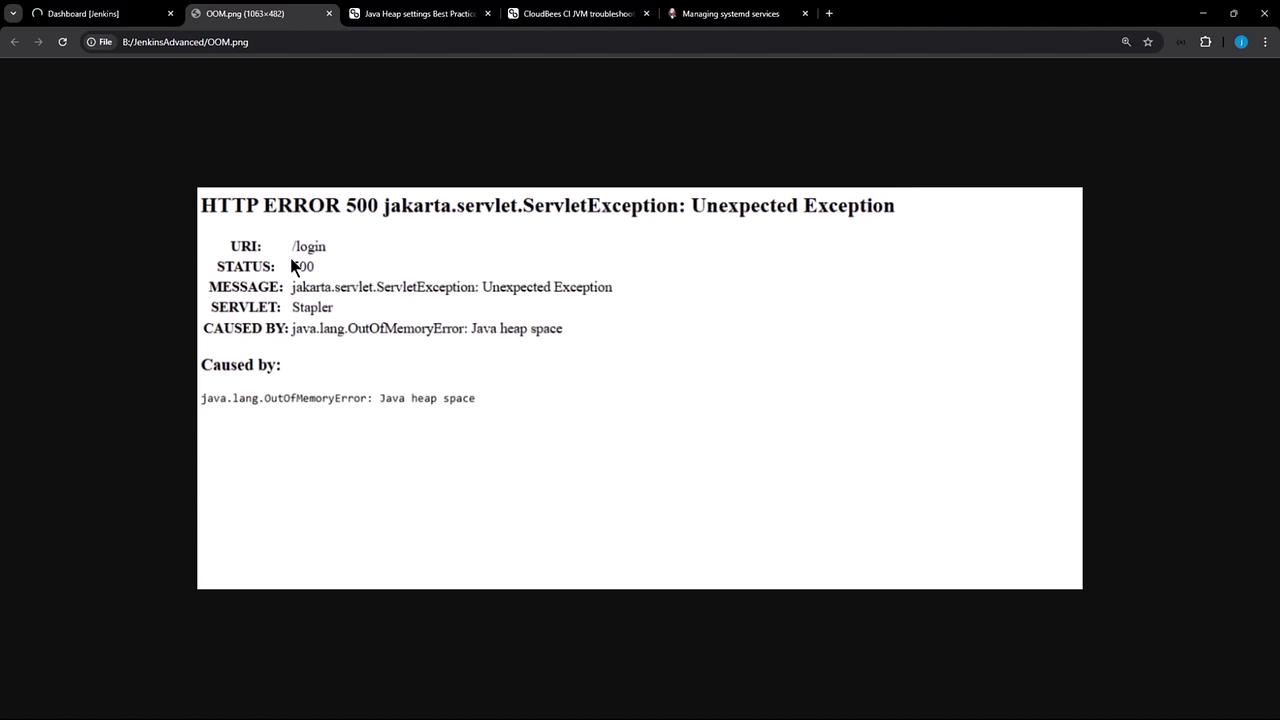
You can quickly confirm this by inspecting the Jenkins logs:
```bash theme={null}
journalctl -u jenkins | grep -i OutOfMemoryError
```
Example output:
```bash theme={null}
Feb 05 16:11:33 SilentShadow jenkins[158]: Exception: java.lang.OutOfMemoryError thrown from the UncaughtExceptionHandler in thread "EventHistoryStore.autoExpireTimer"
Feb 05 16:11:42 SilentShadow jenkins[158]: java.lang.OutOfMemoryError: Java heap space
Feb 05 16:42:59 SilentShadow jenkins[158]: java.lang.OutOfMemoryError: Java heap space
```
## 1. Checking Current JVM Heap Settings
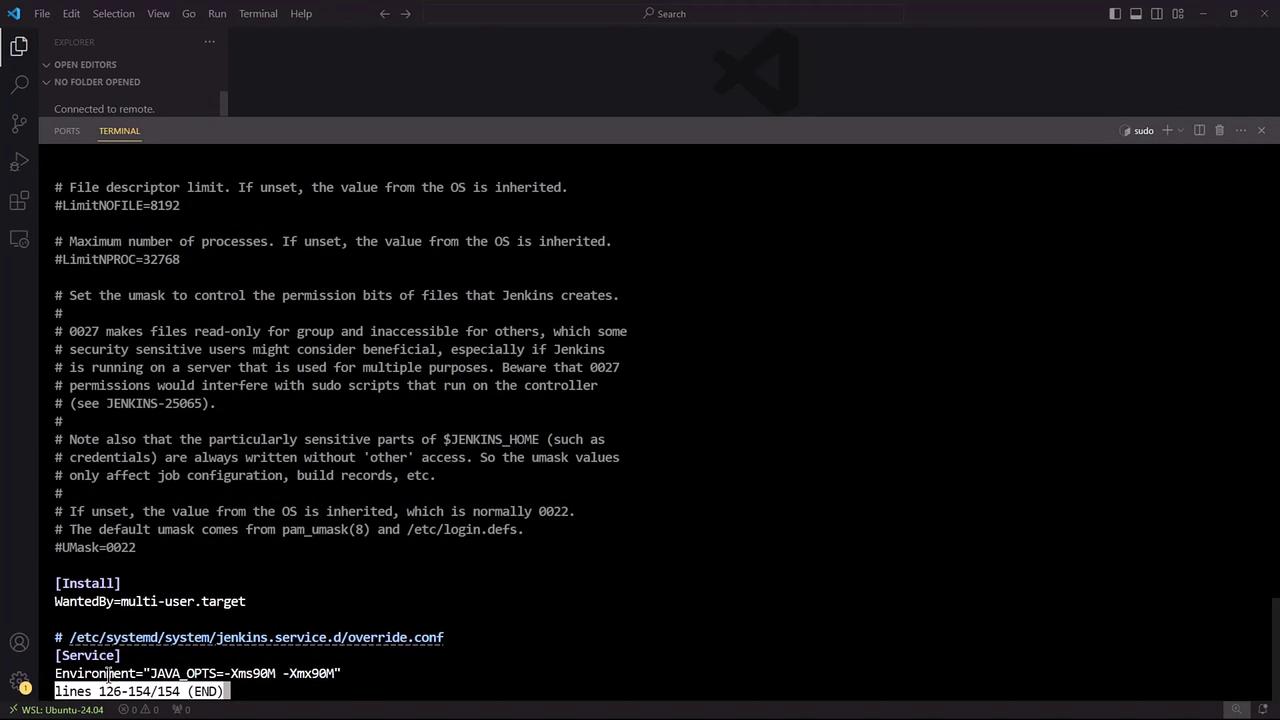
Jenkins runs as a `systemd` service. To view the JVM options set for Jenkins, run:
```bash theme={null}
systemctl cat jenkins
```
Near the bottom of the output, locate the `Environment="JAVA_OPTS=..."` line showing `-Xms` and `-Xmx` values. For example, your service may currently be limited to 90 MB:
## 2. Recommended Heap Settings
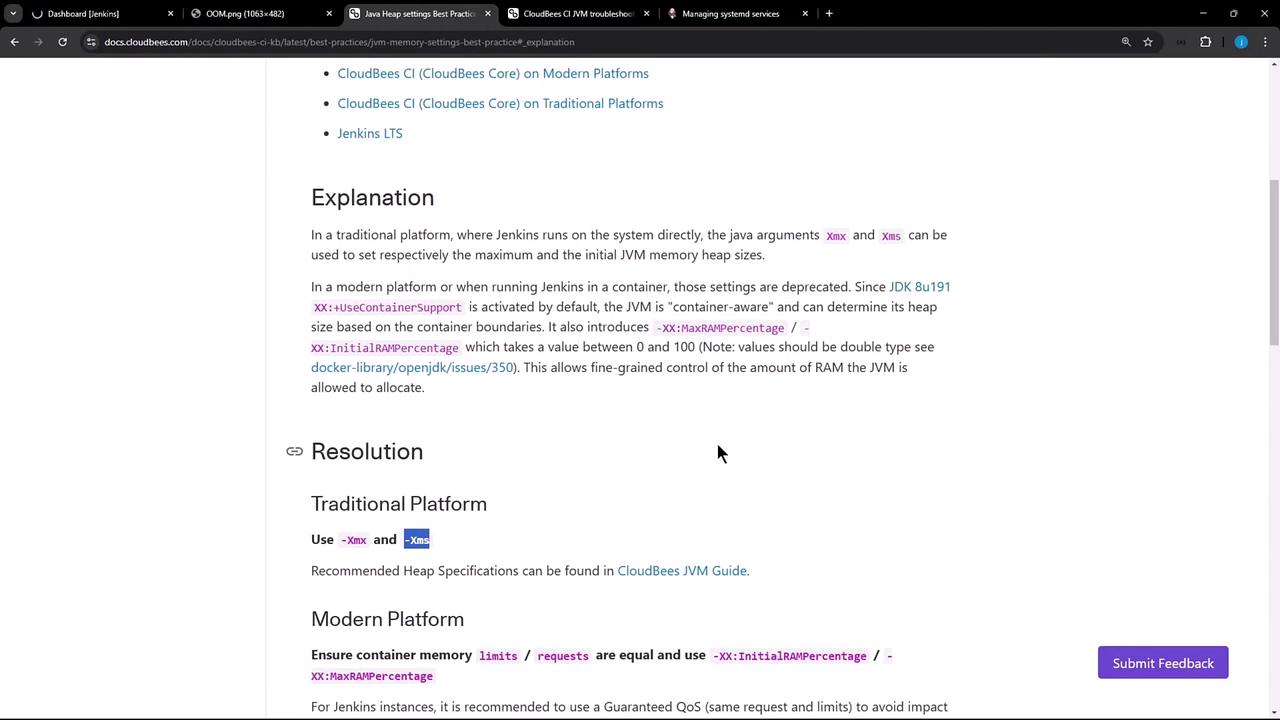
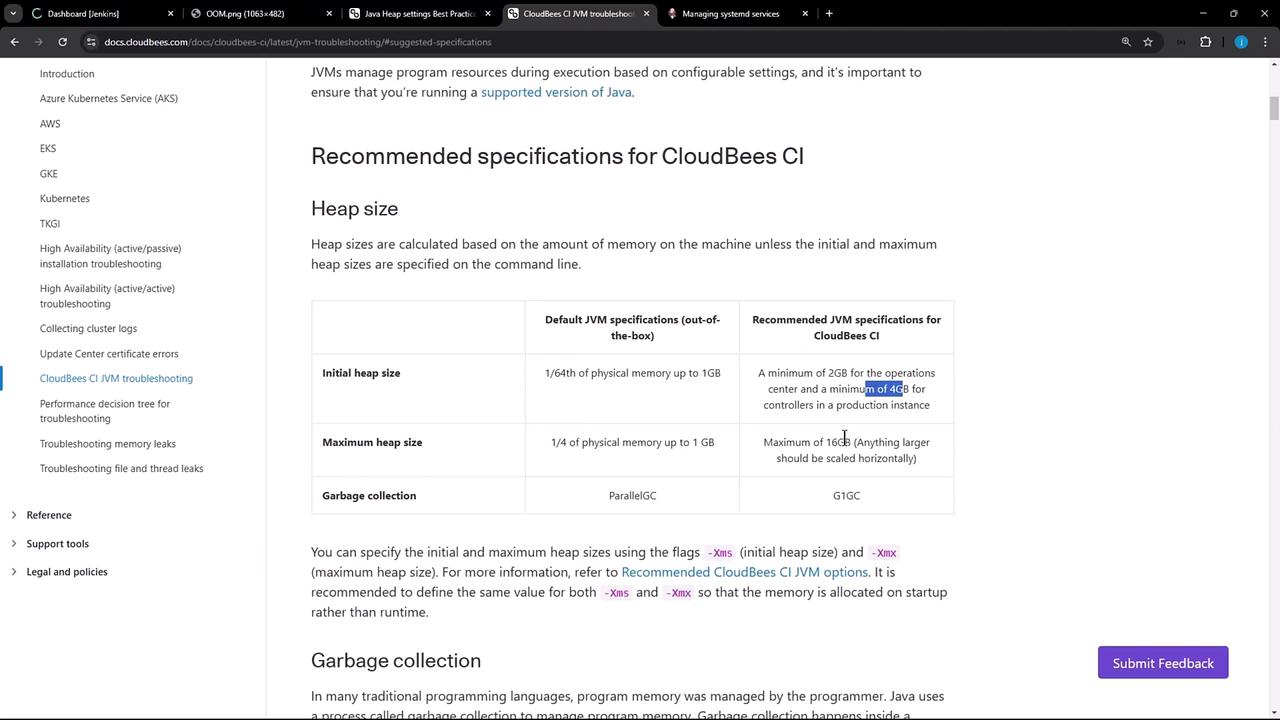
CloudBees recommends different heap configurations depending on your environment:
| Platform Type | Initial Heap (`-Xms`) | Maximum Heap (`-Xmx`) |
| --------------------------- | ------------------------------------------------------- | ------------------------------------------------------- |
| Traditional (VM/Bare Metal) | 4 GB | Up to 16 GB (scale horizontally if > 16 GB) |
| Containerized | Use container memory flags or percentage-based settings | Use container memory flags or percentage-based settings |
For Kubernetes or Docker deployments, leverage `-XX:MaxRAMPercentage` or orchestrator memory limits rather than hard-coded values.
## 3. Creating a Systemd Drop-in to Adjust Heap
To override the default JVM options without editing the main service file, create a `systemd` drop-in:
```bash theme={null}
sudo systemctl edit jenkins
```
Populate the editor with:
```ini theme={null}
[Service]
Environment="JAVA_OPTS=-Xms4G -Xmx4G"
```
Save and exit. This generates `/etc/systemd/system/jenkins.service.d/override.conf`.
## 4. Verifying the Changes
Before restarting, confirm your current Jenkins process:
```bash theme={null}
ps aux | grep -i jenkins
```
You might see something like:
```bash theme={null}
jenkins 158 15.4 4.1 10129960 666824 Ssl 15:48 18:53 /usr/bin/java -Xms90M -Xmx90M -jar /usr/share/java/jenkins.war --httpPort=8080
```
Now restart Jenkins and verify the new heap settings:
```bash theme={null}
sudo systemctl restart jenkins
ps aux | grep -i jenkins
```
Expected output:
```bash theme={null}
jenkins 27173 296 7.5 10877652 1234784 Ssl — /usr/bin/java -Xms4G -Xmx4G -jar /usr/share/java/jenkins.war --httpPort=8080
```
## 5. Confirm in the Jenkins UI
Refresh your Jenkins dashboard. The login page should load successfully, confirming that the JVM heap has been increased.
Regularly monitor heap usage, thread counts, and disk I/O as your Jenkins workloads grow. Insufficient headroom can lead to performance degradation or service outages.
## References
* [Jenkins Configuration as Code](https://github.com/jenkinsci/configuration-as-code-plugin)
* [CloudBees Jenkins Platform Documentation](https://docs.cloudbees.com/)
* [Kubernetes Best Practices for JVMs](https://kubernetes.io/docs/tasks/run-application/run-stateless-application-deployment/)