> ## Documentation Index
> Fetch the complete documentation index at: https://notes.kodekloud.com/llms.txt
> Use this file to discover all available pages before exploring further.
# Demo Jenkins Installation
> This guide explains how to install Jenkins LTS on an Ubuntu VM and complete the initial setup.
In this guide, you’ll learn how to install the **Jenkins LTS** release on an Ubuntu VM, verify prerequisites, install Java 17, and complete the initial setup via the web interface. By following these steps, you’ll have a stable, secure Jenkins server ready for your CI/CD pipelines.
## Table of Contents
1. [Choose a Jenkins Release](#choose-a-jenkins-release)
2. [System Prerequisites](#system-prerequisites)
3. [Add Jenkins APT Repository](#add-jenkins-apt-repository)
4. [Install Jenkins](#install-jenkins)
5. [Verify Jenkins Service](#verify-jenkins-service)
6. [Install Java 17](#install-java-17)
7. [Start Jenkins](#start-jenkins)
8. [Retrieve Initial Admin Password](#retrieve-initial-admin-password)
9. [Complete Setup Wizard](#complete-setup-wizard)
10. [References](#references)
## 1. Choose a Jenkins Release
Jenkins provides two main release lines:
| Release Type | Characteristics | Recommended For |
| ------------ | ----------------------------------------------- | ---------------------------------- |
| **LTS** | Stability, security fixes over extended support | Production environments |
| **Weekly** | Latest features and bug fixes | Testing and early feature adoption |
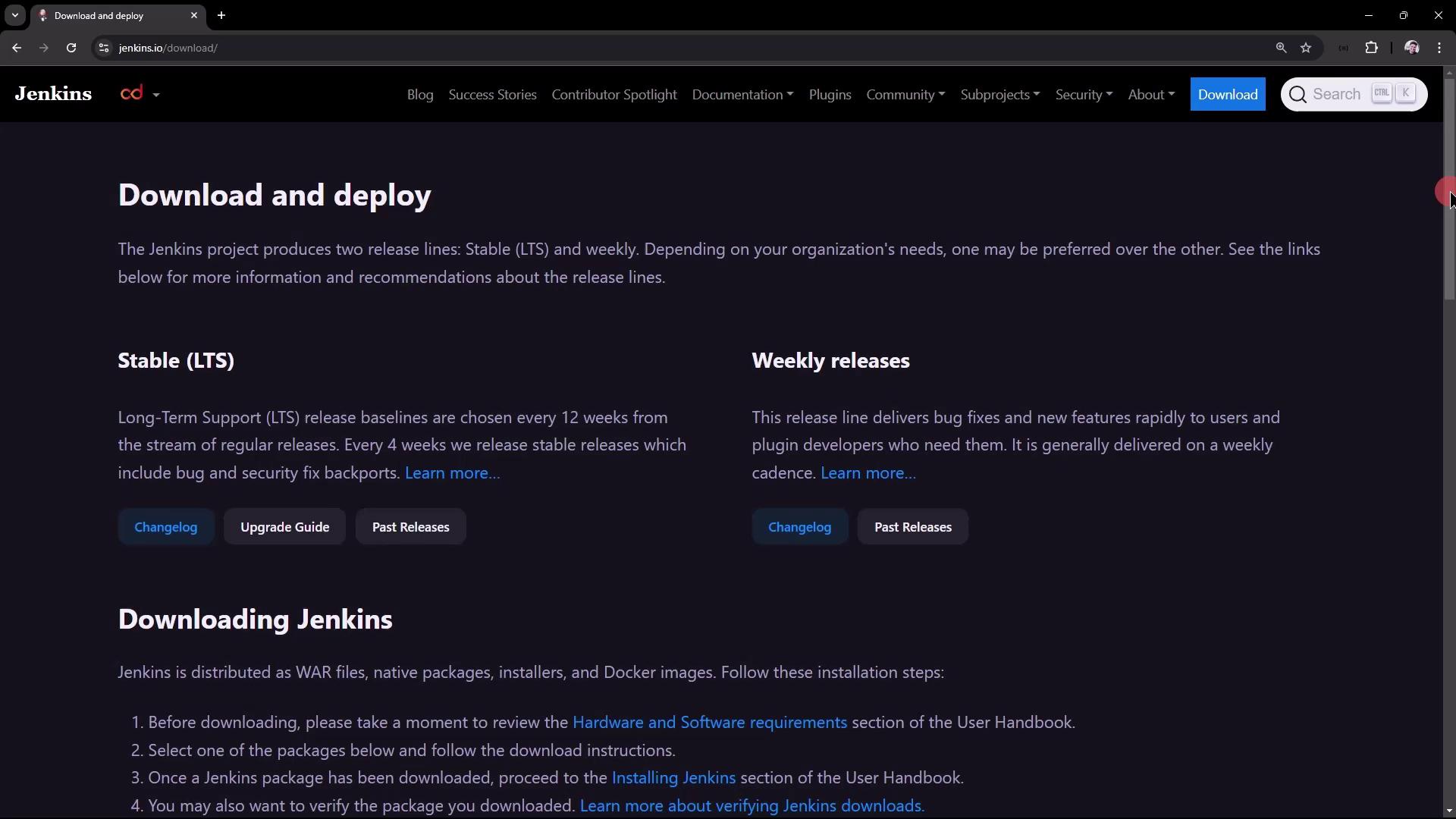
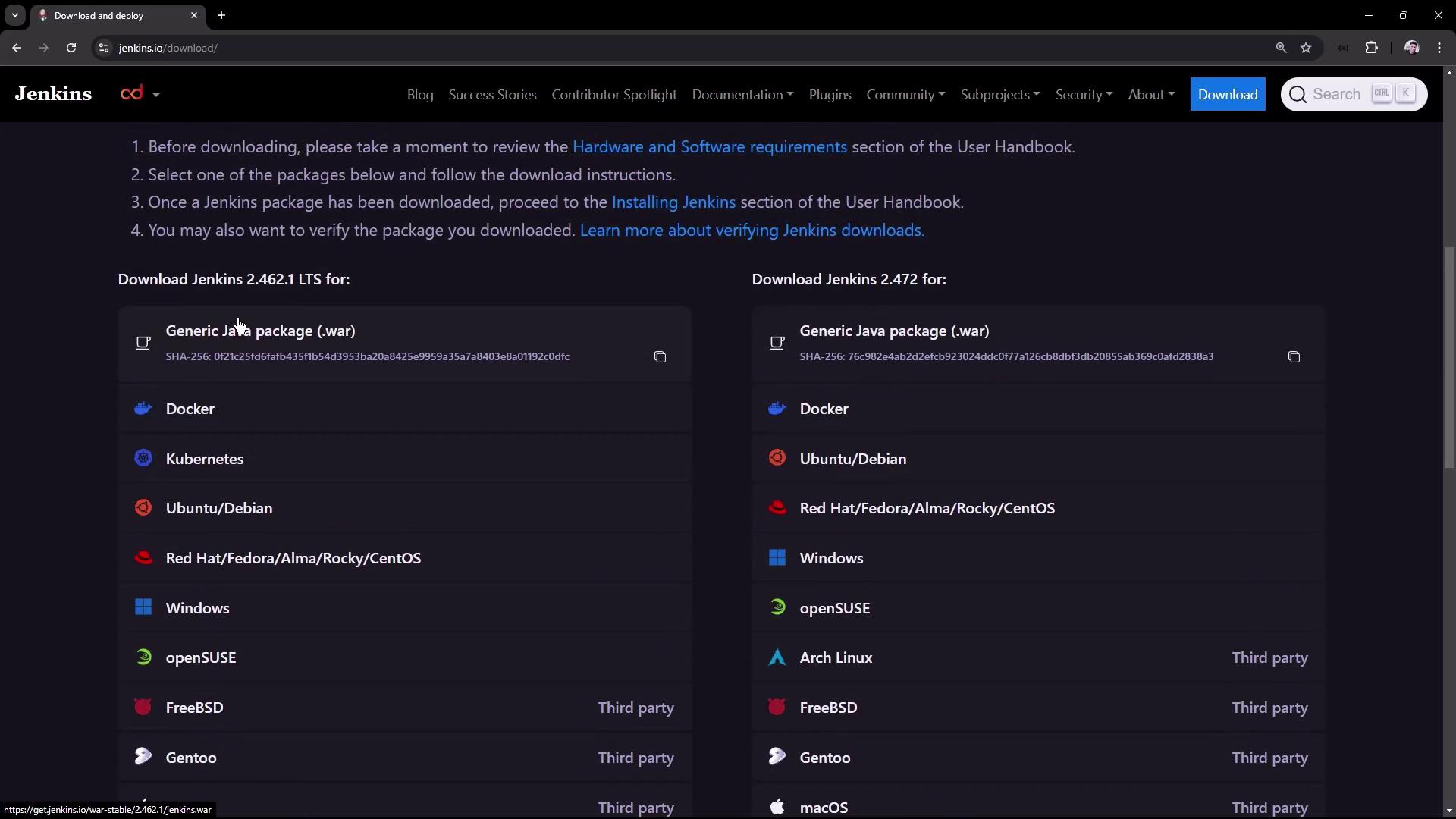
Scroll to your platform on the [Jenkins download page][download]. You can select Docker, Kubernetes, Windows, or Debian/Ubuntu packages.
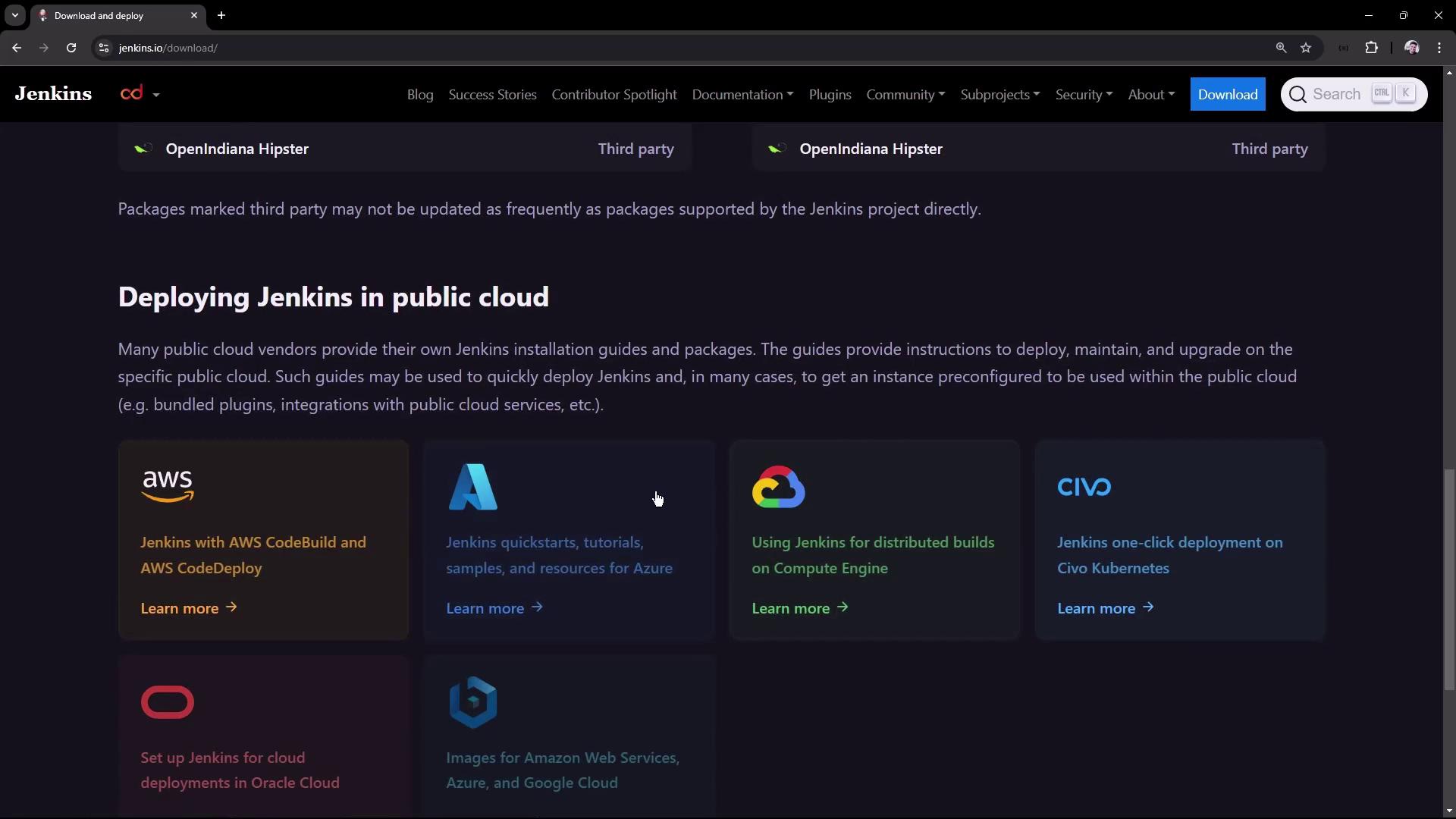
For public-cloud deployments, you also have AWS, Azure, Google Cloud, Oracle Cloud, and others:
In this tutorial, we’ll proceed with **Jenkins LTS** on **Ubuntu**.
## 2. System Prerequisites
Our test VM specifications:
| Resource | Specification |
| -------- | ------------- |
| RAM | 4 GB |
| CPU | 2 cores |
| OS | Ubuntu 20.04+ |
Refer to the [Jenkins Linux prerequisites][prereq] for full details.

## 3. Add Jenkins APT Repository
Add the Jenkins GPG key and repository:
```bash theme={null}
sudo wget -O /usr/share/keyrings/jenkins-keyring.asc \
https://pkg.jenkins.io/debian-stable/jenkins.io-2023.key
echo "deb [signed-by=/usr/share/keyrings/jenkins-keyring.asc] \
https://pkg.jenkins.io/debian-stable binary/" \
| sudo tee /etc/apt/sources.list.d/jenkins.list > /dev/null
```
Update APT and install Jenkins:
```bash theme={null}
sudo apt-get update
sudo apt-get install -y jenkins
```
## 4. Install Jenkins
During the installation, you should see output confirming the package download:
```plaintext theme={null}
Get:10 https://pkg.jenkins.io/debian-stable binary/ Packages [27.6 kB]
Hit:11 http://archive.ubuntu.com/ubuntu focal InRelease
Fetched 409 kB in 3s (147 kB/s)
Reading package lists... Done
The following NEW packages will be installed:
jenkins net-tools
0 upgraded, 2 newly installed, 0 to remove and 8 not upgraded.
Get:1 https://pkg.jenkins.io/debian-stable binary/ jenkins 2.462.1 [91.2 MB]
```
## 5. Verify Jenkins Service
Immediately check Jenkins status:
```bash theme={null}
sudo systemctl status jenkins
```
If Java is missing, you’ll see a failure:
```plaintext theme={null}
● jenkins.service - Jenkins Continuous Integration Server
Active: failed (Result: exit-code)
…
jenkins[31418]: jenkins: failed to find a valid Java installation
```
Inspect logs for details:
```bash theme={null}
sudo journalctl -u jenkins --no-pager
java -version
# Command 'java' not found
```
Jenkins requires a supported Java runtime to start. Installing or configuring Java is mandatory.
## 6. Install Java 17
Jenkins LTS supports **Java 17** per the [Java Support Policy][java-support].
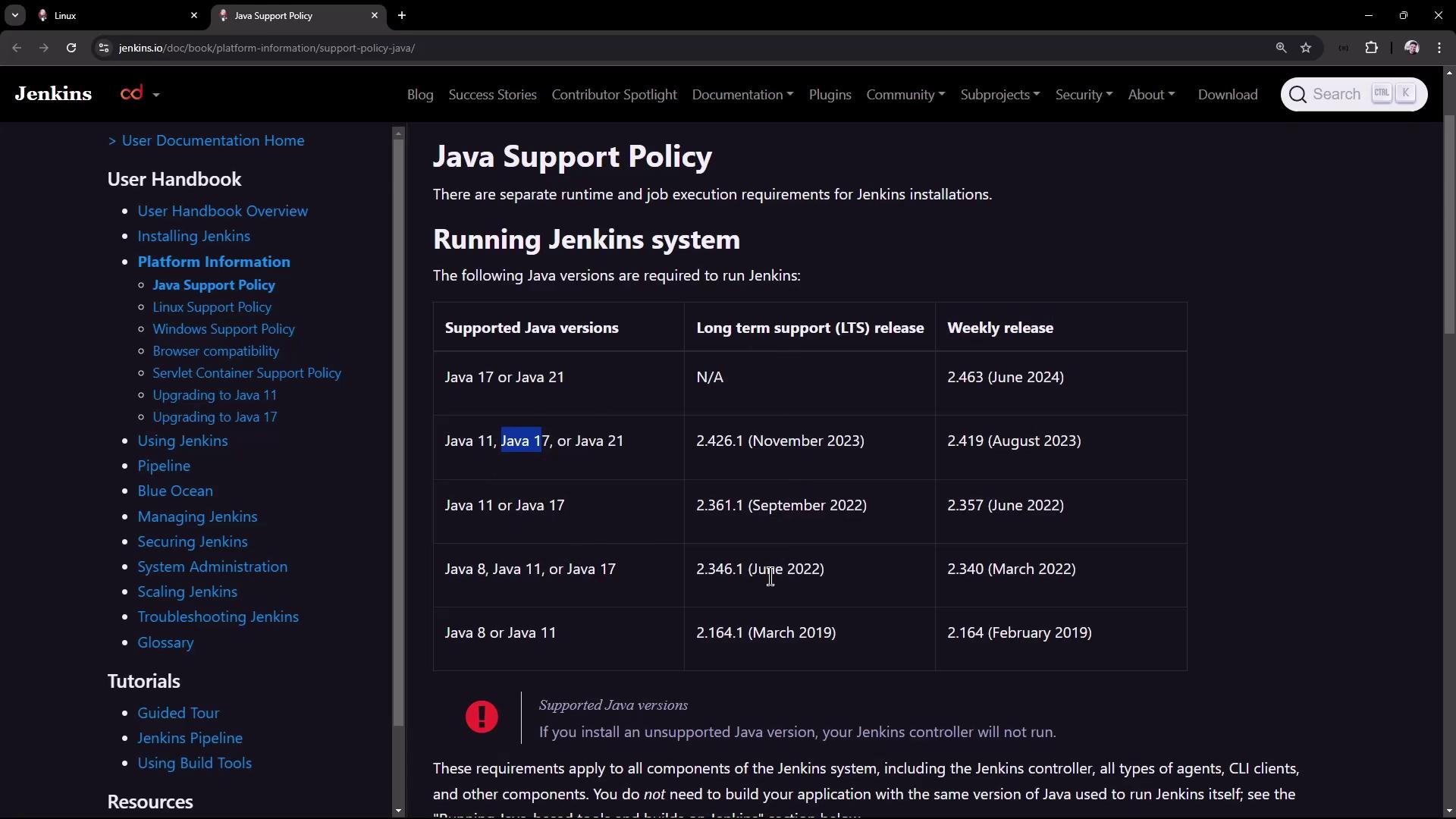
Install OpenJDK 17 and fontconfig:
```bash theme={null}
sudo apt update
sudo apt install -y openjdk-17-jre fontconfig
java -version
```
Expected output:
```plaintext theme={null}
openjdk version "17.0.8" 2023-07-18
OpenJDK Runtime Environment (build 17.0.8+7-Debian-1deb12u1)
OpenJDK 64-Bit Server VM (build 17.0.8+7-Debian-1deb12u1, mixed mode)
```
## 7. Start Jenkins
Restart and check status:
```bash theme={null}
sudo systemctl restart jenkins
sudo systemctl status jenkins
```
You should see:
```plaintext theme={null}
● jenkins.service - Jenkins Continuous Integration Server
Active: active (running) since Mon 2024-08-19 08:03:40 UTC; 10s ago
Main PID: 34102 (java)
CGroup: /system.slice/jenkins.service
└─34102 /usr/bin/java -Djava.awt.headless=true -jar /usr/share/java/jenkins.war ...
```
## 8. Retrieve Initial Admin Password
Find the initial admin password in the logs:
```bash theme={null}
sudo journalctl -u jenkins | grep 'initialAdminPassword'
```
Or directly read the file:
```bash theme={null}
sudo cat /var/lib/jenkins/secrets/initialAdminPassword
```
Inspect the Jenkins home directory:
```bash theme={null}
ls /var/lib/jenkins
# config.xml plugins secrets updates users jobs ...
```
## 9. Complete Setup Wizard
1. Open `http://:8080` in your browser.
2. **Unlock Jenkins** with the admin password from `/var/lib/jenkins/secrets/initialAdminPassword`.
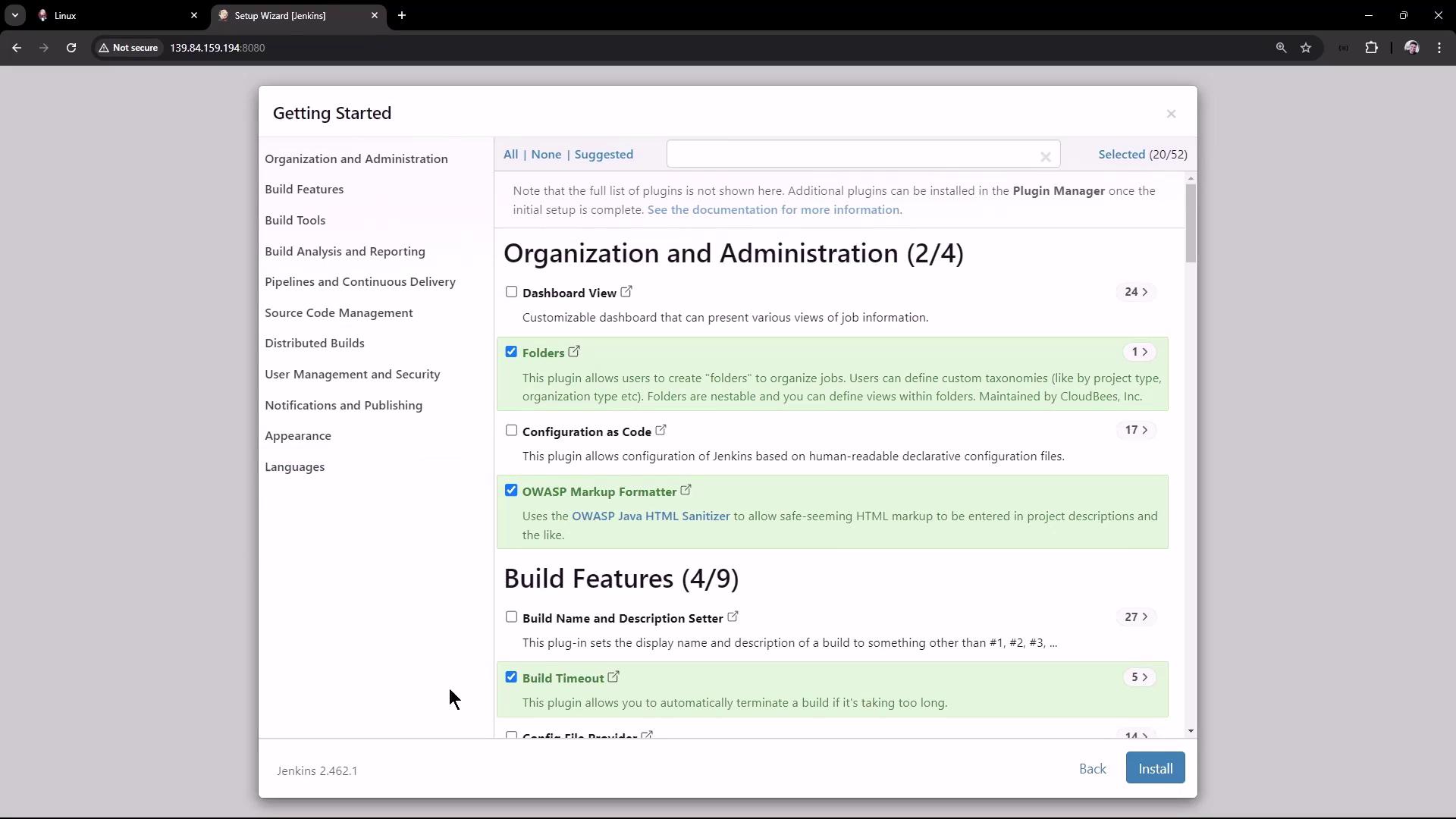
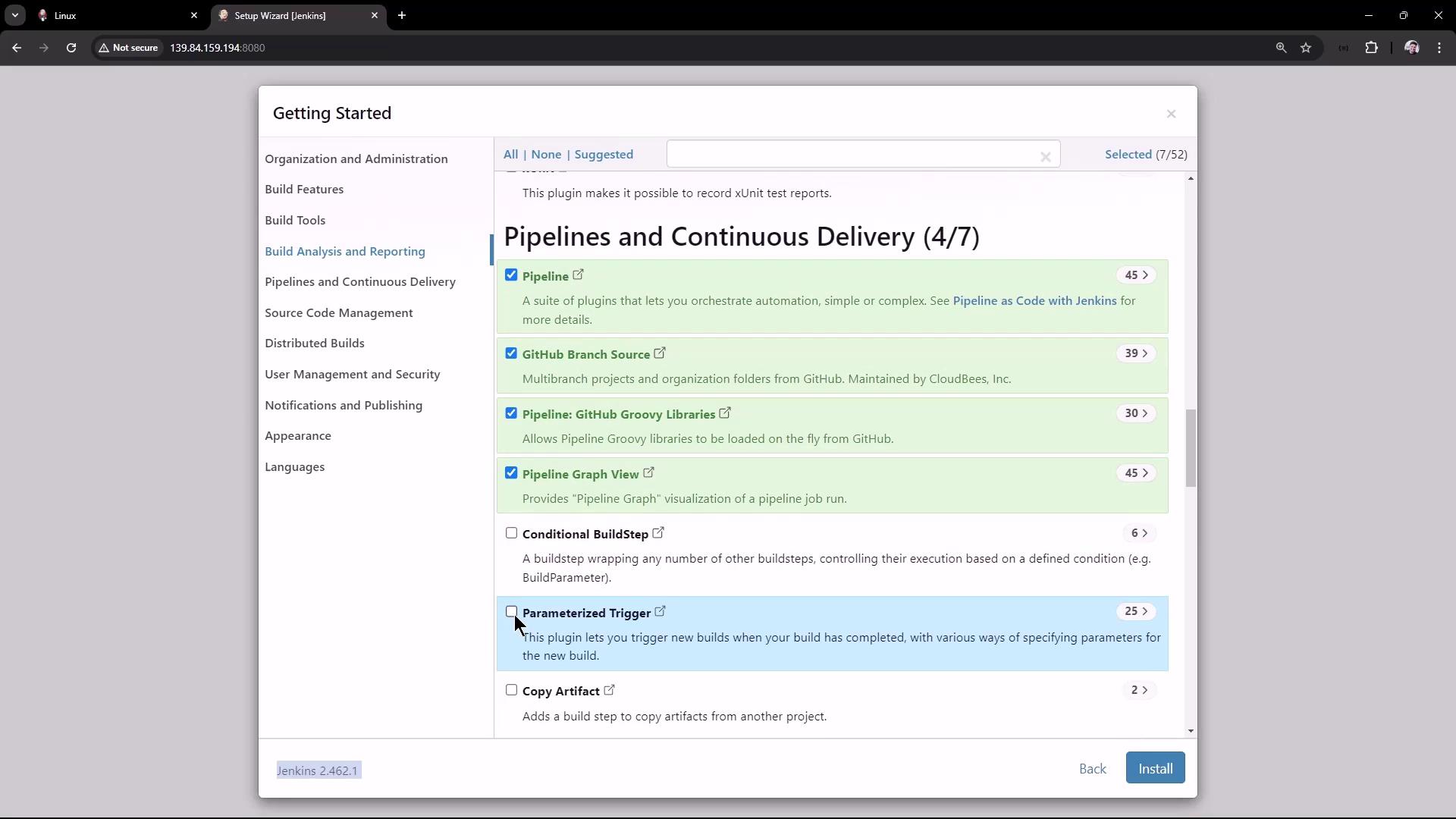
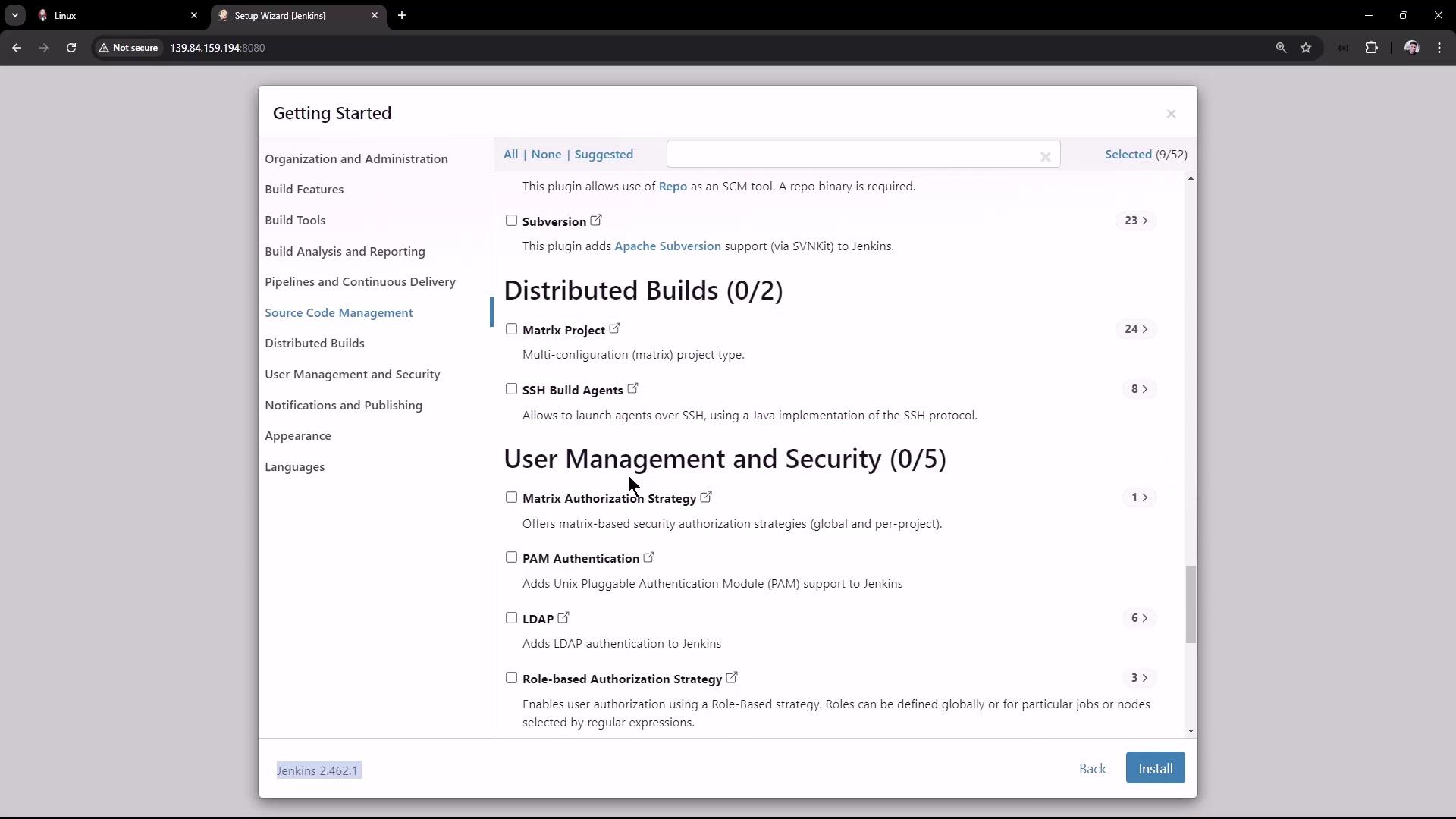
3. **Select Plugins**
* Choose **Suggested Plugins** or pick specific ones.
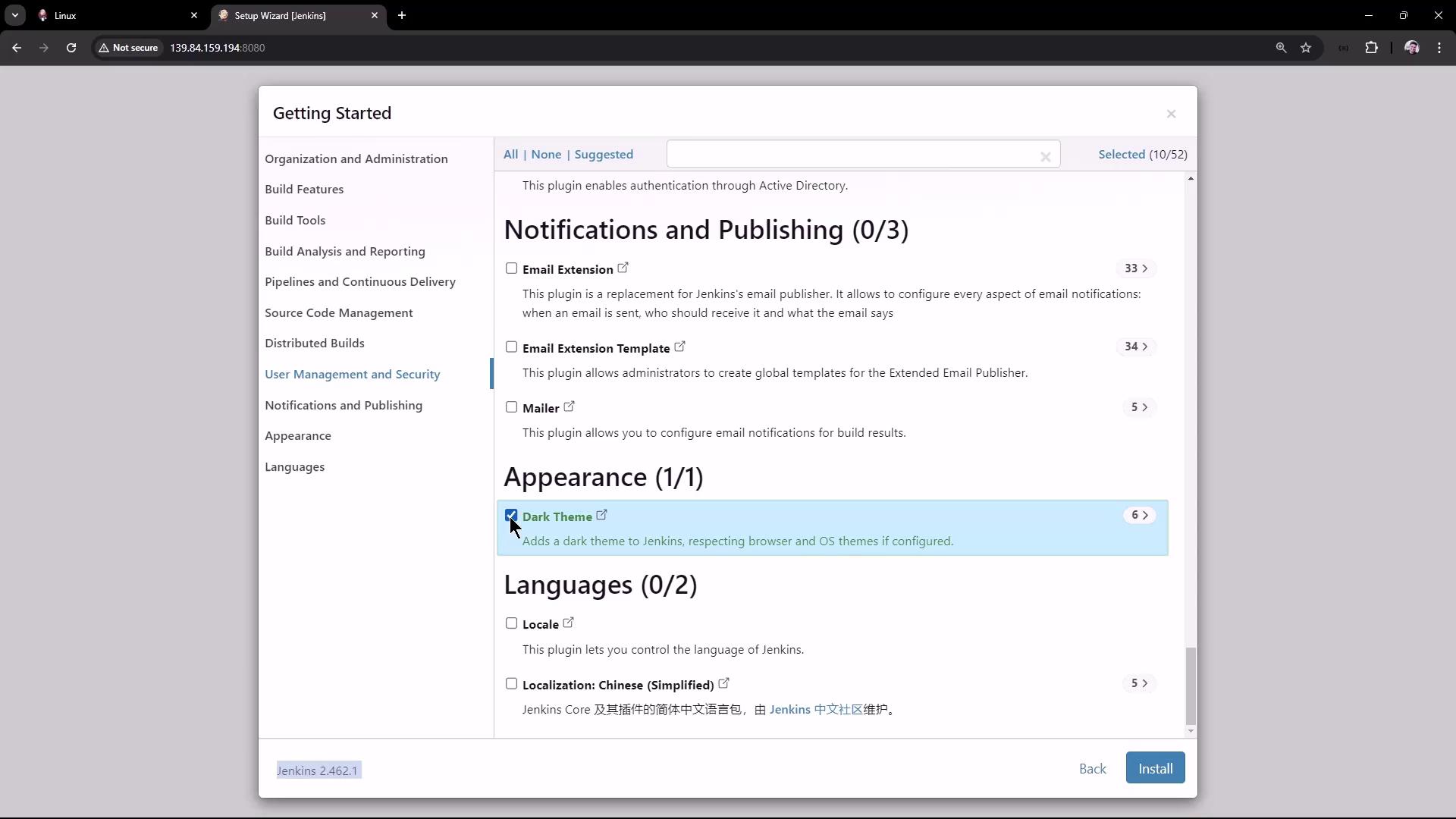
4. **Choose Appearance**\
Pick your UI theme (e.g., Dark Theme):
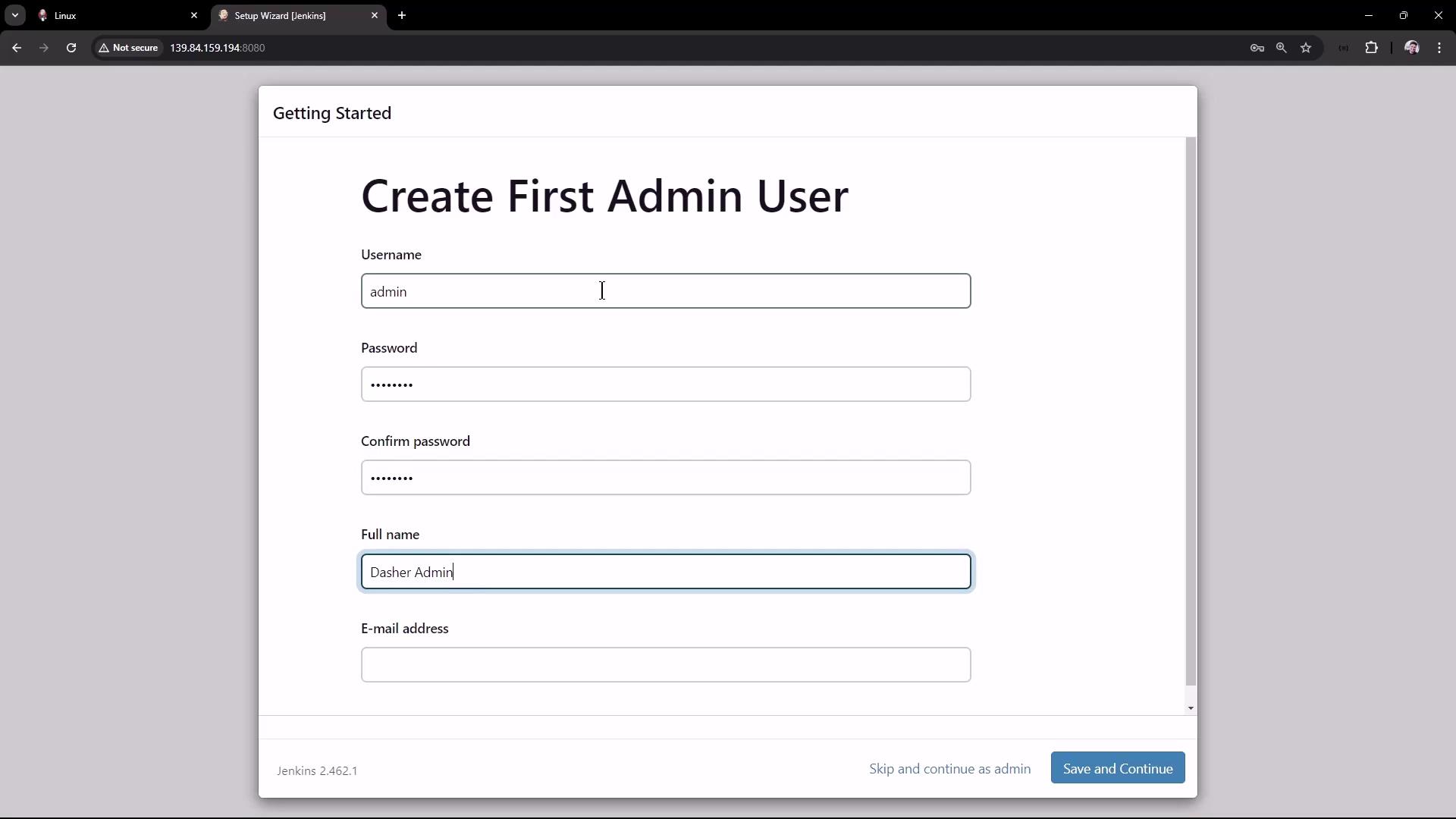
5. **Create First Admin User**\
Fill in credentials:
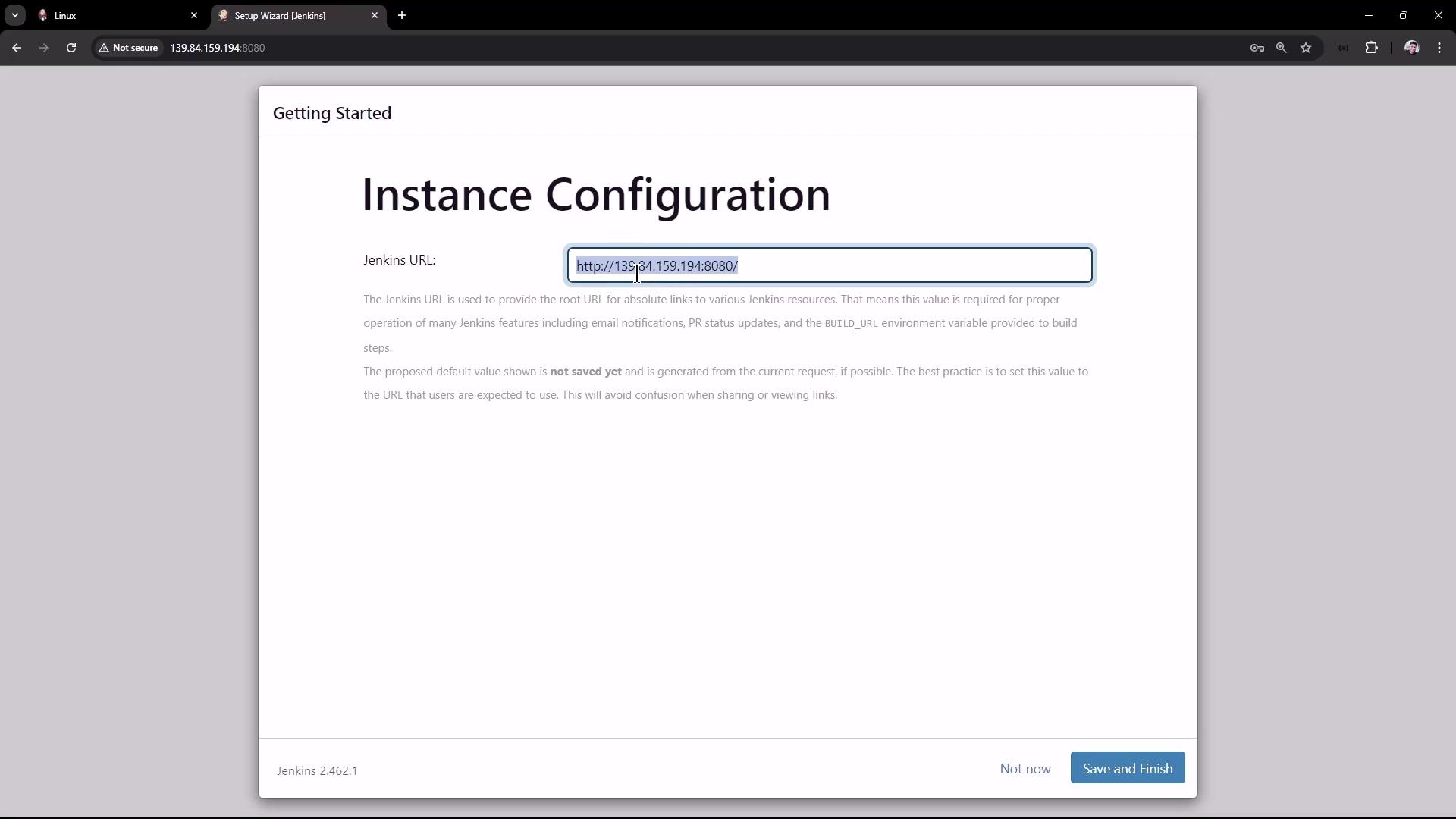
6. **Configure Jenkins URL**\
Confirm or edit the root URL, then **Save and Finish**:
Once done, Jenkins will be ready to use. Start creating your first build pipeline!
## 10. References
* [Jenkins Download & Setup][download]
* [Linux Prerequisites for Jenkins][prereq]
* [Jenkins Java Support Policy][java-support]
* [Jenkins Official Documentation][jenkins-docs]
[download]: https://www.jenkins.io/download/
[prereq]: https://www.jenkins.io/doc/book/installing/#prerequisites
[java-support]: https://www.jenkins.io/doc/book/system-administration/java/
[jenkins-docs]: https://www.jenkins.io/doc/