> ## Documentation Index
> Fetch the complete documentation index at: https://notes.kodekloud.com/llms.txt
> Use this file to discover all available pages before exploring further.
# Demo Running the Jenkins WAR as a standalone application
> This guide explains how to run Jenkins from its WAR file, providing control over JVM options, ports, and context paths for testing or side-by-side instances.
In this guide, we’ll move beyond the default `apt` installation and launch Jenkins directly from its WAR file. This approach gives you full control over JVM options, ports, and context paths—ideal for testing or side-by-side instances.
***
## 1. Inspecting the Apt-Installed Jenkins Service
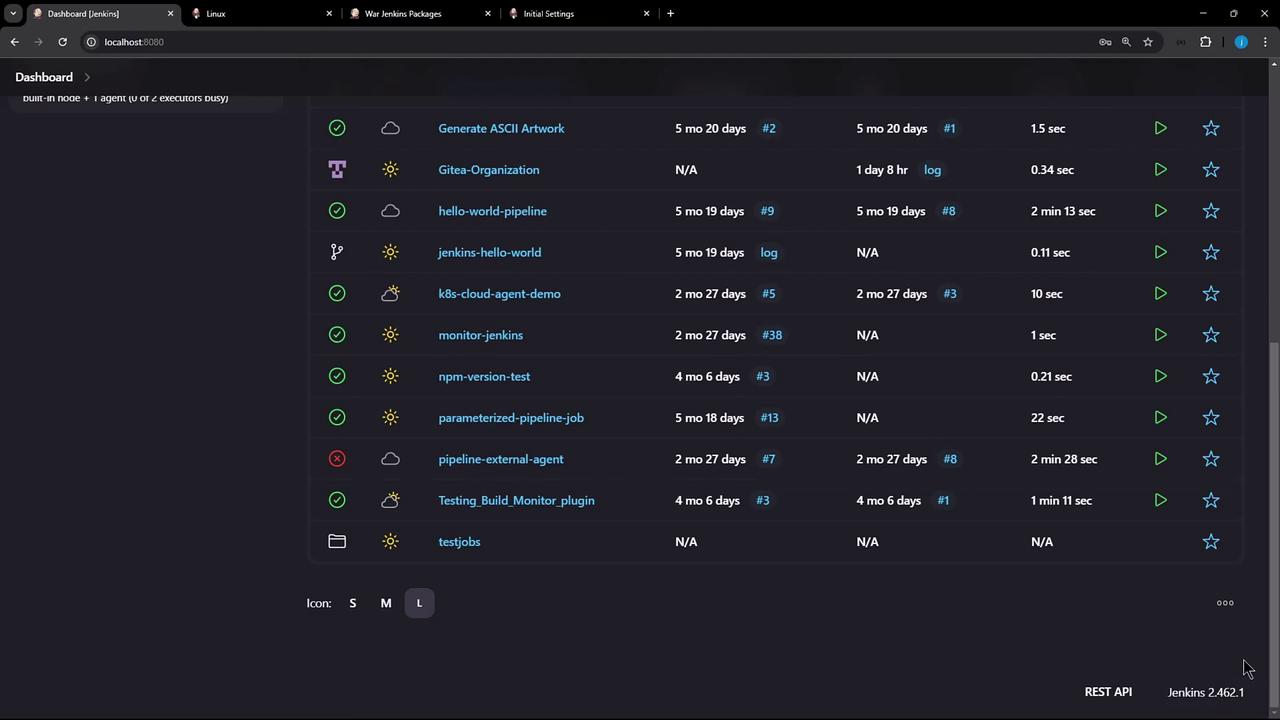
Start by confirming the existing Jenkins process managed via `apt`:
```bash theme={null}
ps aux | grep -i jenkins
```
```text theme={null}
jenkins 27173 8.4 8.2 10874592 134834 ? Ssl 17:51 0.58 /usr/bin/java -Xms1G -Xmx1G -jar /usr/share/java/jenkins.war \
--webroot=/var/cache/jenkins/war --httpPort=8080
root 29978 0.0 0.0 4088 2080 pts/6 S+ 18:03 0.00 grep --color=auto -i jenkins
```
Here you can see:
* A 1 GB heap (`-Xms1G -Xmx1G`)
* The WAR file at `/usr/share/java/jenkins.war`
* Webroot under `/var/cache/jenkins/war`
* HTTP bound to port 8080
***
## 2. Downloading a Specific Jenkins WAR Version
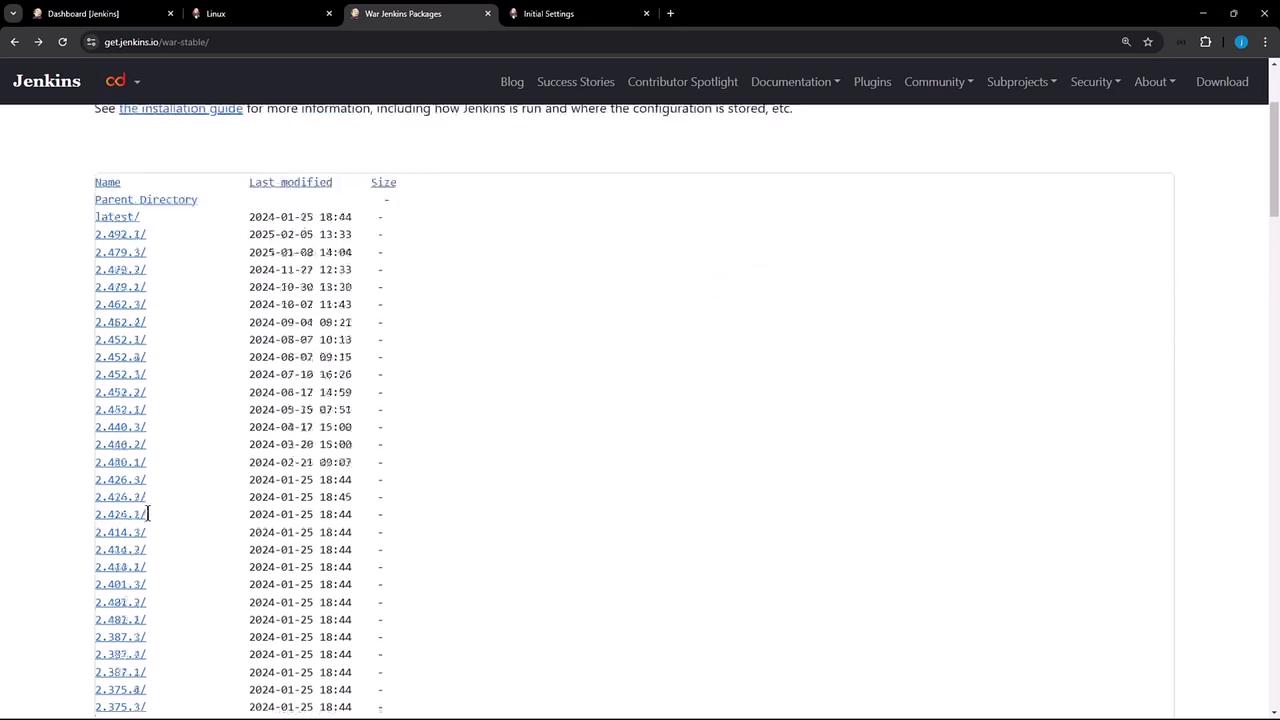
To try a newer release, browse the Jenkins WAR directory and choose **2.479.3** (released Jan 1, 2025):
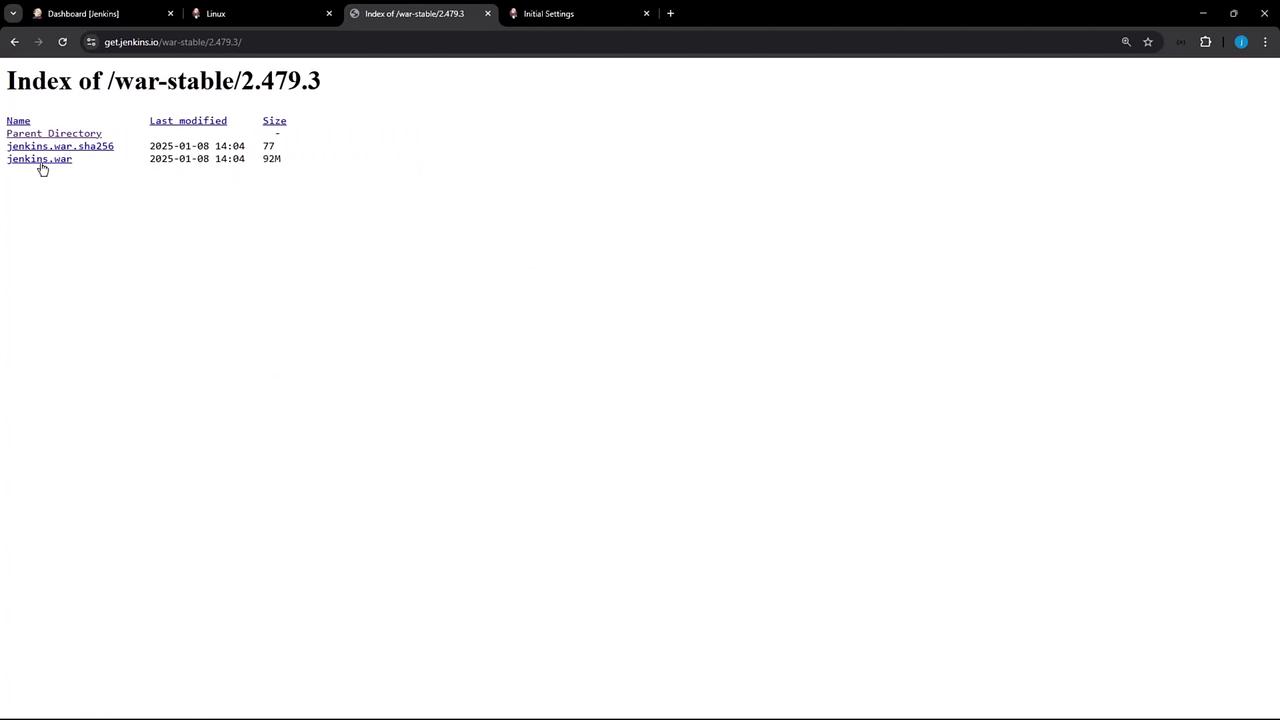
Once you’ve picked the version, verify the file and checksum:
On your Ubuntu server:
```bash theme={null}
mkdir -p ~/jenkins-war
cd ~/jenkins-war
wget https://get.jenkins.io/war-stable/2.479.3/jenkins.war
# Confirm the download
ls -lh jenkins.war
# -rw-r--r-- 1 root root 92M Jan 8 16:34 jenkins.war
```
***
## 3. Launching Jenkins with Custom Parameters
By default, `java -jar jenkins.war` binds to port 8080—which conflicts with the apt-installed service. Override this with:
```bash theme={null}
java -jar jenkins.war --httpPort=7777 --prefix=/dasher-technologies
```
After a few seconds, you’ll see Jetty start up and the initial setup wizard prompt:
```text theme={null}
2025-02-05 18:09:12.026+0000 [id=1] INFO org.eclipse.jetty.server.Server#doStart: Started Server@19c65cdc{STARTING}[12.0.16,sto=0] @1525ms
...
***********************************************************************
Jenkins initial setup is required. An admin user has been created and a password generated.
Please use the following password to proceed to installation:
456e352c1ea424f9bfc923315957c2
This may also be found at: /root/.jenkins/secrets/initialAdminPassword
***********************************************************************
```
Save the generated password. You can always retrieve it later from `/root/.jenkins/secrets/initialAdminPassword`.
***
## 4. Unlocking Jenkins and Installing Plugins
Open your browser at:
```text theme={null}
http://localhost:7777/dasher-technologies
```
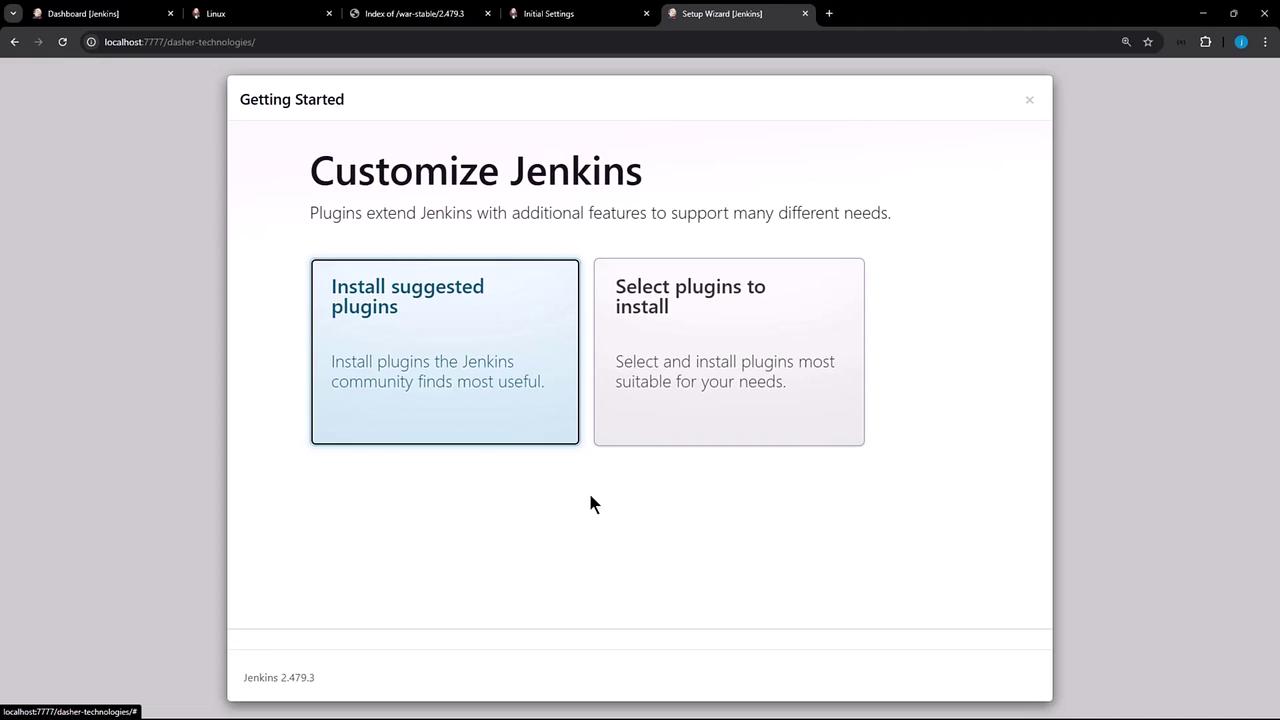
Enter the admin password when prompted. The setup wizard will then let you:
* Install **Suggested Plugins**
* **Select Plugins** to customize your install
***
## 5. Common Startup Options
Jenkins supports various JVM and server flags. Below are frequently used HTTP/HTTPS settings:
| Option | Description | Example |
| ----------------------------- | ----------------------------------------------- | ------------------------------ |
| `--httpPort=` | Bind HTTP server to this port | `--httpPort=7777` |
| `--httpListenAddress=` | Set HTTP bind address | `--httpListenAddress=0.0.0.0` |
| `--httpsPort=` | Enable HTTPS on this port (use `-1` to disable) | `--httpsPort=8443` |
| `--httpsListenAddress=` | Set HTTPS bind address | `--httpsListenAddress=0.0.0.0` |
| `--prefix=` | Specify the URL prefix (context path) | `--prefix=/custom-path` |
| `--sessionTimeout=` | Define session timeout in minutes | `--sessionTimeout=30` |
| `--httpsKeyStore=` | Path to your Java keystore for HTTPS | `/path/to/keystore` |
| `--httpsKeyStorePassword=` | Password for the HTTPS keystore | `YourPassword` |
For the complete list of server options, see [Jenkins HTTP Server Options].
***
## 6. Verifying Multiple Jenkins Instances
In another terminal, confirm both the `apt`-installed and standalone WAR instances are running:
```bash theme={null}
ps aux | grep -i jenkins
```
```text theme={null}
jenkins 27173 5.4 8.8 10874592 1435160 ? Ssl 17:52 1.02 /usr/bin/java -Xms1G -Xmx1G -jar /usr/share/java/jenkins.war --webroot=/var/cache/jenkins/war --httpPort=8080
root 31980 19.6 5.6 13983116 912304 pts/6 Sl+ 18:09 0.21 java -jar jenkins.war --httpPort=7777 --prefix=/dasher-technologies
root 32769 0.0 0.0 4088 1960 pts/8 S+ 18:11 0.00 grep --color=auto -i jenkins
```
You now have two independent Jenkins servers running:
* Port **8080** via `apt`
* Port **7777** with custom context `/dasher-technologies`
Thank you for following this demo!
***
## Links and References
* [Jenkins HTTP Server Options]
* [Jenkins Documentation](https://www.jenkins.io/doc/)
* [Get Jenkins WAR](https://get.jenkins.io/war/)
[Jenkins HTTP Server Options]: https://www.jenkins.io/doc/book/managing/system-properties/#http-server-options