> ## Documentation Index
> Fetch the complete documentation index at: https://notes.kodekloud.com/llms.txt
> Use this file to discover all available pages before exploring further.
# Demo System Settings
> This article covers configuring key settings in Jenkins, including node parameters, Jenkins URL, and system administrator email for notifications.
In this lesson, we explore the key sections under **Manage Jenkins → Configure System**. You’ll learn how to adjust node parameters, set your Jenkins URL, and specify the system administrator email for notifications.
## Node Configuration
On the **Configure System** page, the primary node settings include:
| Setting | Description | Default/Example |
| ------------------- | ------------------------------------------------------------- | --------------------------------- |
| Home directory | Filesystem path where Jenkins stores all data | `/var/jenkins_home` |
| System message | Custom text displayed at the top of the dashboard | — |
| Number of executors | How many concurrent builds this node can run | 2 |
| Labels | Identifiers for targeting this node in jobs | none |
| Usage | Scheduling policy (e.g., “Use this node as much as possible”) | Use this node as much as possible |
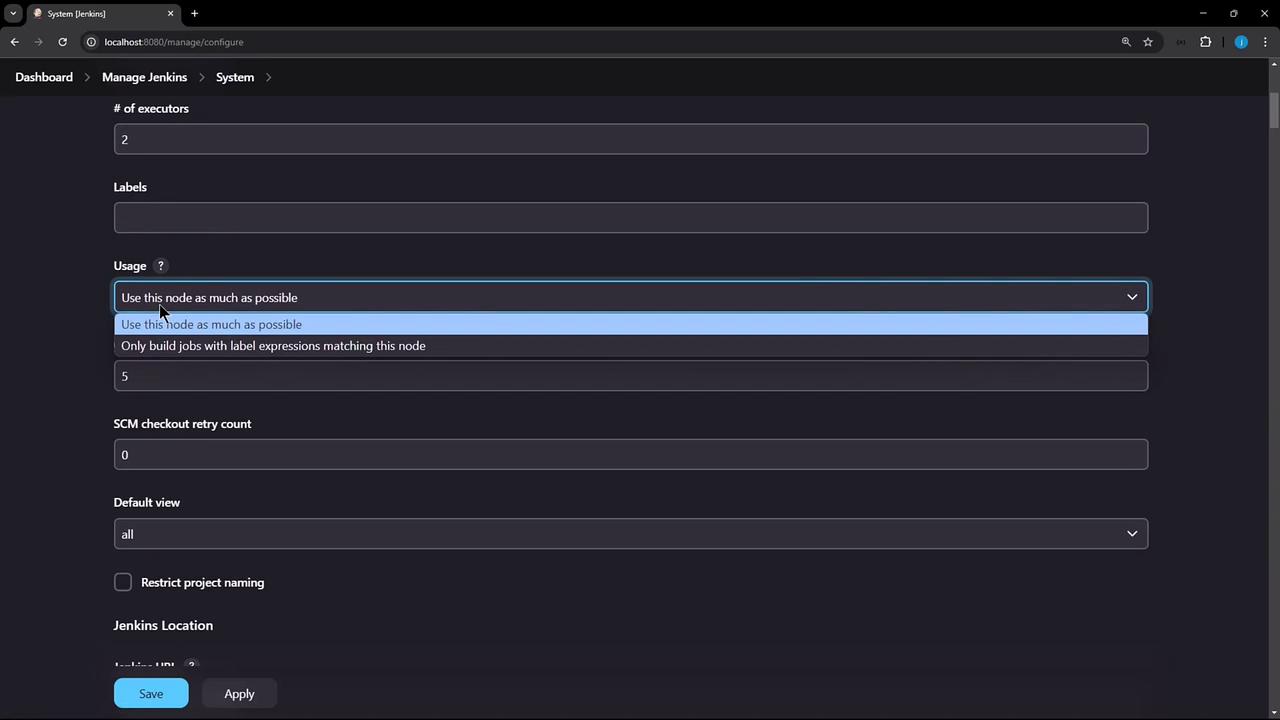
You can enforce naming conventions by defining patterns under the **Item naming** section. This practice improves consistency across jobs.
## Jenkins Location
Accurately setting the Jenkins URL is critical for links, webhooks, and notifications. Keep these best practices in mind:
* Choose a memorable hostname, for example, `jenkins.example.com`.
* Always use **HTTPS** to secure traffic.
* Avoid exposing internal hostnames or overly complex domains.
Configuring `localhost` as your Jenkins URL in production will trigger warnings and prevent external integrations from working correctly.
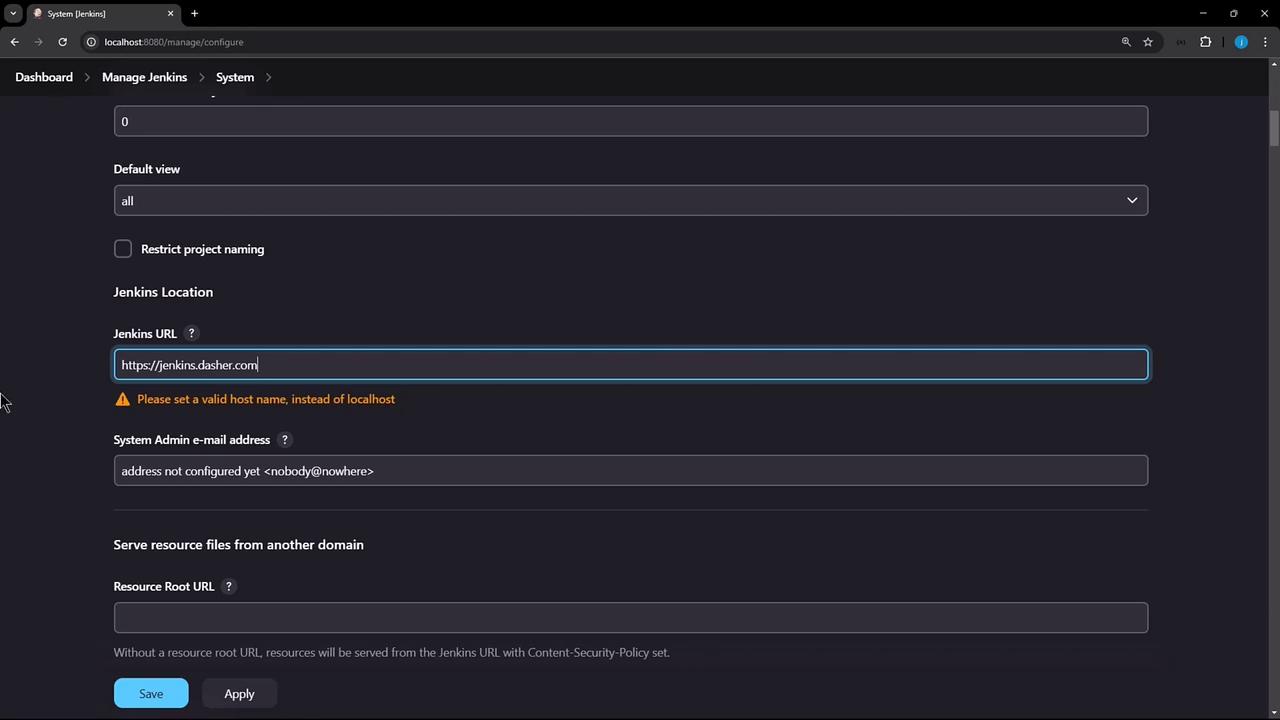
In this local demo, we’ll revert to:
```text theme={null}
http://localhost:8080
```
but be sure to replace it with your HTTPS address in a real deployment.
## System Admin Email
Specify the system administrator’s email address to receive critical alerts and build-failure notifications. This field integrates with your email notification settings, ensuring you’re alerted to issues in real time.
## Links and References
* [Jenkins System Configuration](https://www.jenkins.io/doc/book/managing/system-configuration/)
* [Jenkins Location Section](https://www.jenkins.io/doc/book/managing/system-configuration/#jenkins-location)
* [Configuring Email Notifications](https://www.jenkins.io/doc/pipeline/steps/mail/)