> ## Documentation Index
> Fetch the complete documentation index at: https://notes.kodekloud.com/llms.txt
> Use this file to discover all available pages before exploring further.
# Demo Timestamp
> This article explains how to enable and customize timestamps in Jenkins build logs for better tracking of build steps.
Adding timestamps to your Jenkins console output helps you pinpoint exactly when each build step starts and ends. In this guide, you’ll learn how to:
* View default console output
* Enable timestamps for a single job
* Configure global timestamp formats
* Define custom date-time patterns
***
## 1. Default Jenkins Console Output
By default, Jenkins provides console logs without timestamps:
```console theme={null}
Started by user emma
Running as SYSTEM
Building in workspace /var/lib/jenkins/workspace/npm-version-test
[npm-version-test] $ /bin/sh -xe /tmp/jenkins378958400214127704.sh
+ node -v
v22.6.0
+ npm -v
10.8.2
[Gitea] do not publish assets due to source being no GiteaCMSource
Finished: SUCCESS
```
Without timestamps, it’s difficult to measure the duration of each step or correlate events across builds.
***
## 2. Enable Timestamps Per Job
1. Navigate to your job (e.g., **npm-version-test**) and click **Configure**.
2. Under **Build Environment**, check **Add timestamps to the Console Output**.
3. Save and run the job.
Now you’ll see timestamps in the format `HH:mm:ss`:
```console theme={null}
00:28:38 Started by user siddharth
00:28:38 Running as SYSTEM
00:28:38 Building on the built-in node in workspace /var/lib/jenkins/workspace/npm-version-test
00:28:39 [npm-version-test] $ /bin/sh -xe /tmp/jenkins1225959520377962572.sh
00:28:39 + node -v
00:28:39 v12.6.0
00:28:39 + npm -v
00:28:39 6.8.2
00:28:39 [Gitea] do not publish assets due to source being no GiteaCMSSource
00:28:39 Finished: SUCCESS
```
If **Add timestamps** is not available, install or update the [Timestamper Plugin](https://plugins.jenkins.io/timestamper/) via **Manage Jenkins → Manage Plugins**.
***
## 3. Configure Global Timestamp Format
To apply a custom format across all jobs:
1. Go to **Dashboard → Manage Jenkins → Configure System**.
2. Locate the **Timestamper** section.
3. Edit **System clock time format** or **Elapsed time format**.
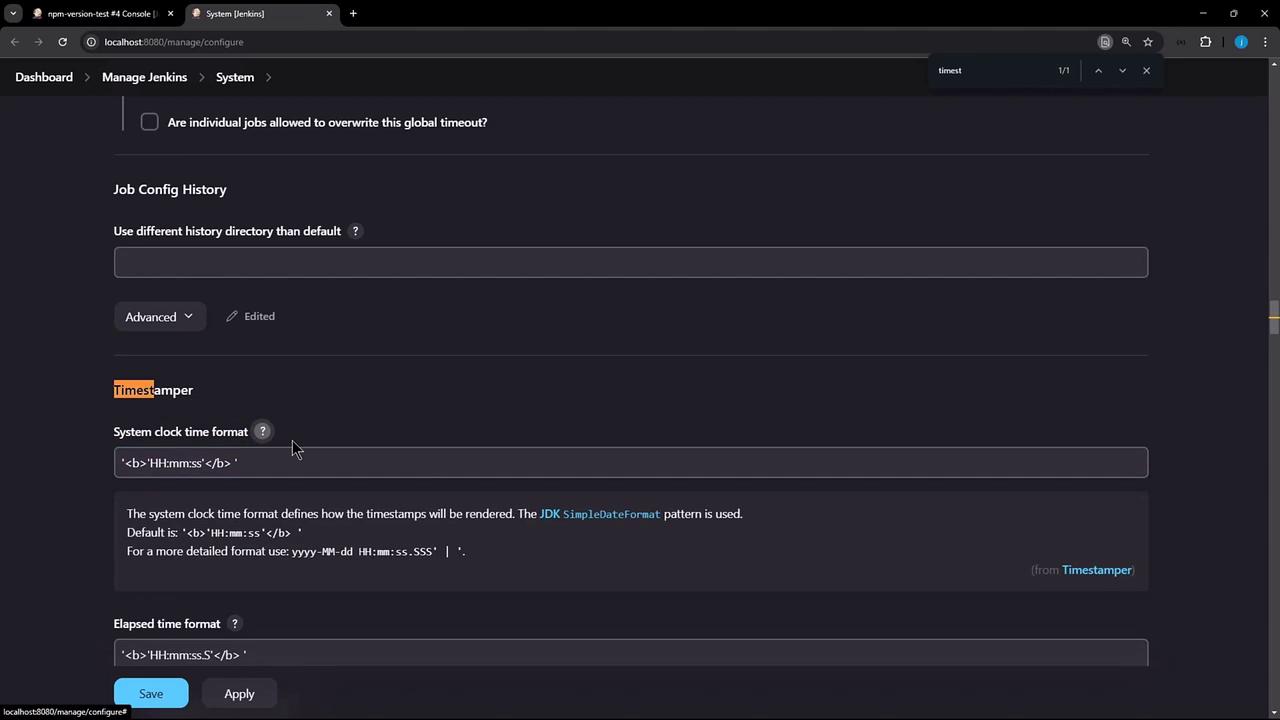
The default pattern is `HH:mm:ss`, but you can choose **Detailed** or enter your own using Java’s `SimpleDateFormat`.
***
## 4. Define a Custom Date-Time Pattern
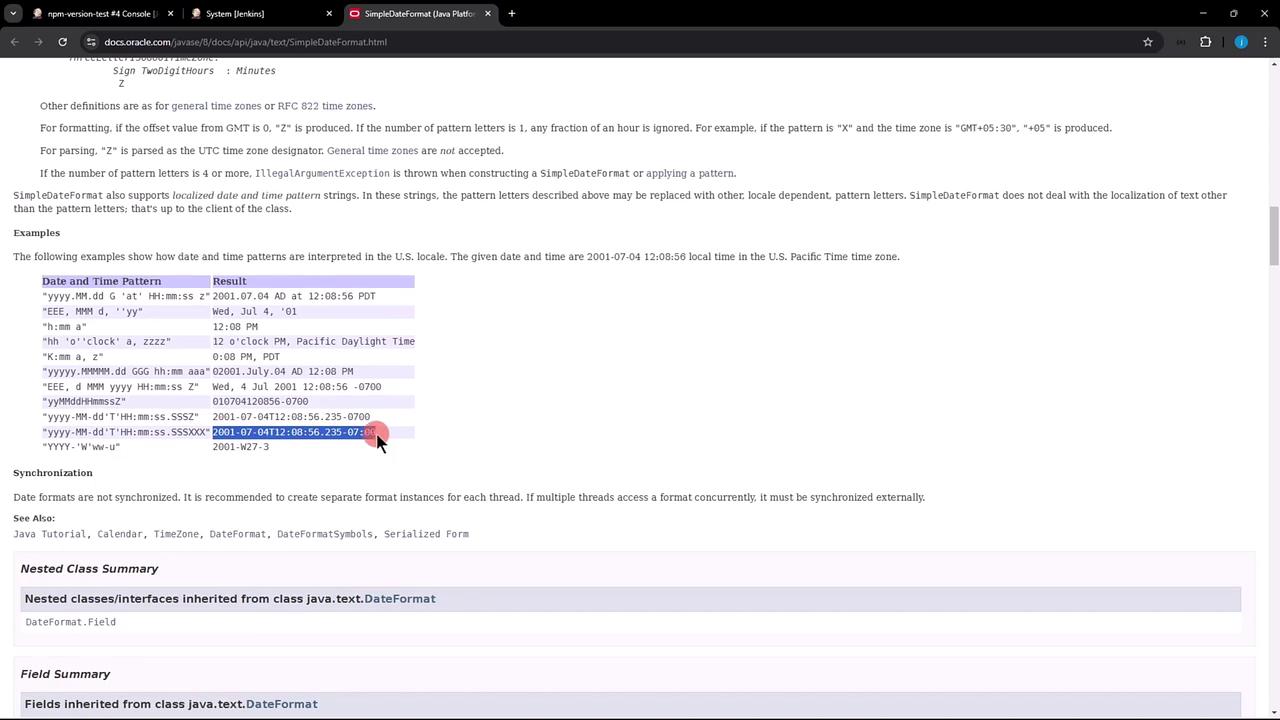
Jenkins uses Java’s [SimpleDateFormat](https://docs.oracle.com/javase/8/docs/api/java/text/SimpleDateFormat.html). Below is a quick reference:
| Pattern | Description | Example |
| ------- | ---------------- | ------- |
| yyyy | Year | 2025 |
| MM | Month in year | 02 |
| dd | Day of month | 06 |
| HH | Hour (00–23) | 00 |
| mm | Minute | 28 |
| ss | Second | 38 |
| SSS | Millisecond | 991 |
| XXX | Time zone offset | +05:30 |
### Example Pattern
To include date, time, milliseconds, and timezone:
```text theme={null}
yyyy-MM-dd'T'HH:mm:ss.SSSXXX
```
#### Apply Your Pattern
1. Paste the pattern into **System clock time format**.
2. Click **Apply** and **Save**.
3. Rerun your job to see updated timestamps:
```console theme={null}
2025-02-06T00:28:38.991+05:30 Started by user siddharth
2025-02-06T00:28:38.992+05:30 Running as SYSTEM
2025-02-06T00:28:38.993+05:30 Building on the built-in node in workspace /var/lib/jenkins/workspace/npm-version-test
[npm-version-test] $ /bin/sh -xe /tmp/jenkins12295959205377962572.sh
+ node -v
v22.6.0
+ npm -v
10.8.2
[Gitea] do not publish assets due to source being no GiteaSCMSource
2025-02-06T00:28:39.254+05:30 Finished: SUCCESS
```
Feel free to adjust the pattern to fit your organization’s logging standards.
***
## Links and References
* [Jenkins Timestamper Plugin](https://plugins.jenkins.io/timestamper/)
* [Oracle SimpleDateFormat Documentation](https://docs.oracle.com/javase/8/docs/api/java/text/SimpleDateFormat.html)
* [Jenkins Console Output Settings](https://www.jenkins.io/doc/book/managing/)