> ## Documentation Index
> Fetch the complete documentation index at: https://notes.kodekloud.com/llms.txt
> Use this file to discover all available pages before exploring further.
# Demo Working with Freestyle Job
> Learn to set up a Jenkins Freestyle project that fetches advice from an API and renders it as ASCII art using the Cowsay library.
In this tutorial, you’ll learn how to set up a Jenkins Freestyle project that fetches a random piece of advice from the AdviceSlip REST API and renders it as fun ASCII artwork using the [Cowsay library](https://github.com/shiena/cowsay). This example demonstrates REST integration, shell scripting, and environment configuration in Jenkins.
## 1. Create a New Freestyle Project
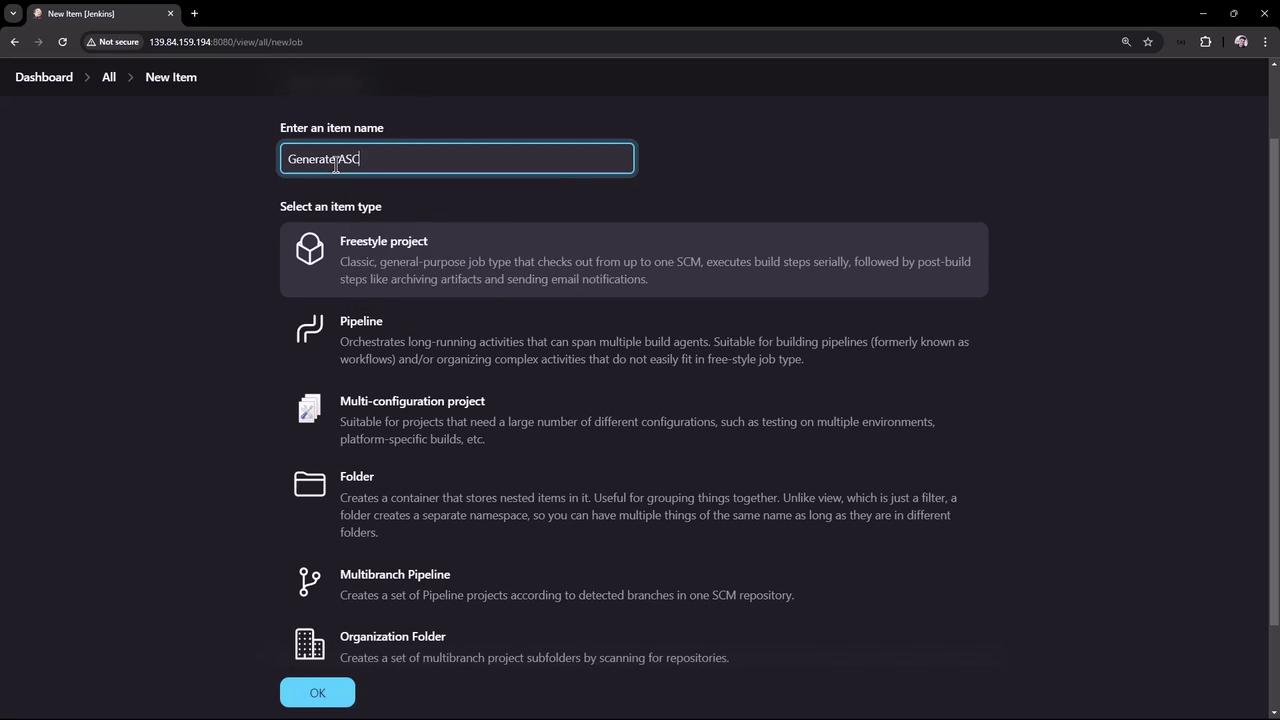
1. Log into Jenkins and click **New Item**.
2. Enter **generate ASCII artwork** as the project name.
3. Select **Freestyle project** and click **OK**.
## 2. Configure General Settings
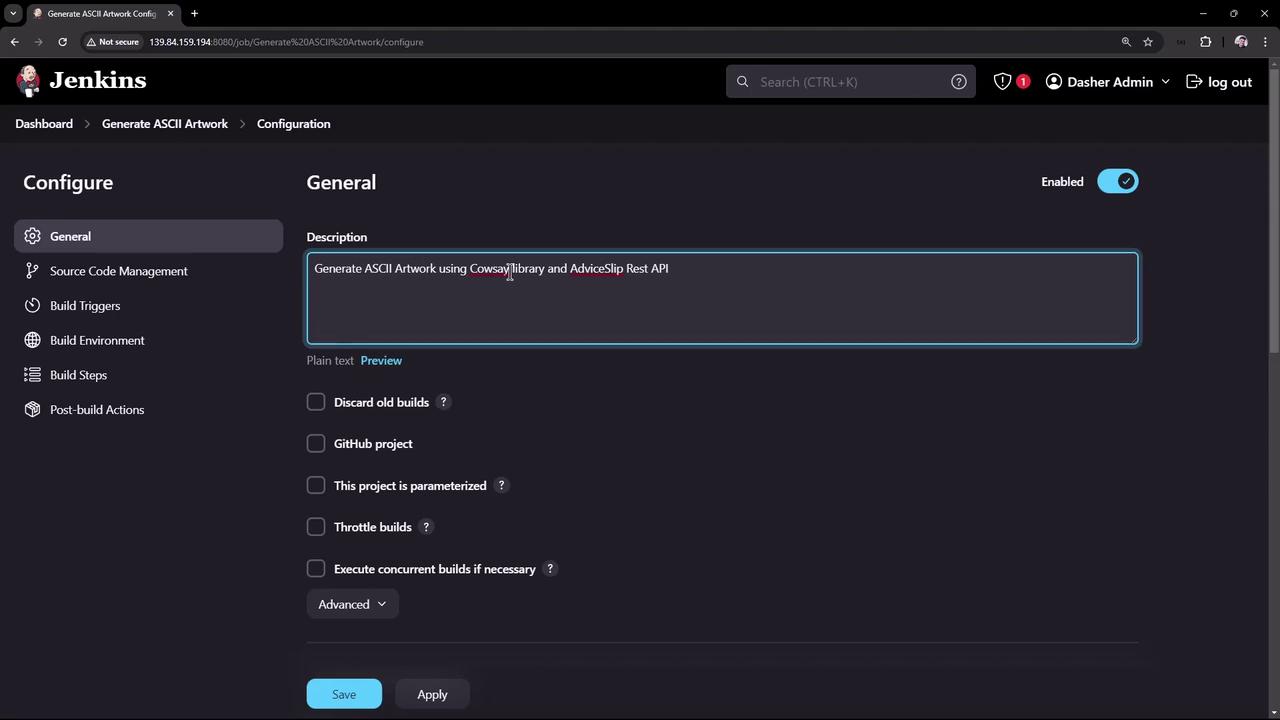
Under **General**, set up the project metadata:
* **Description**: Generate ASCII artwork using the Cowsay library and AdviceSlip REST API
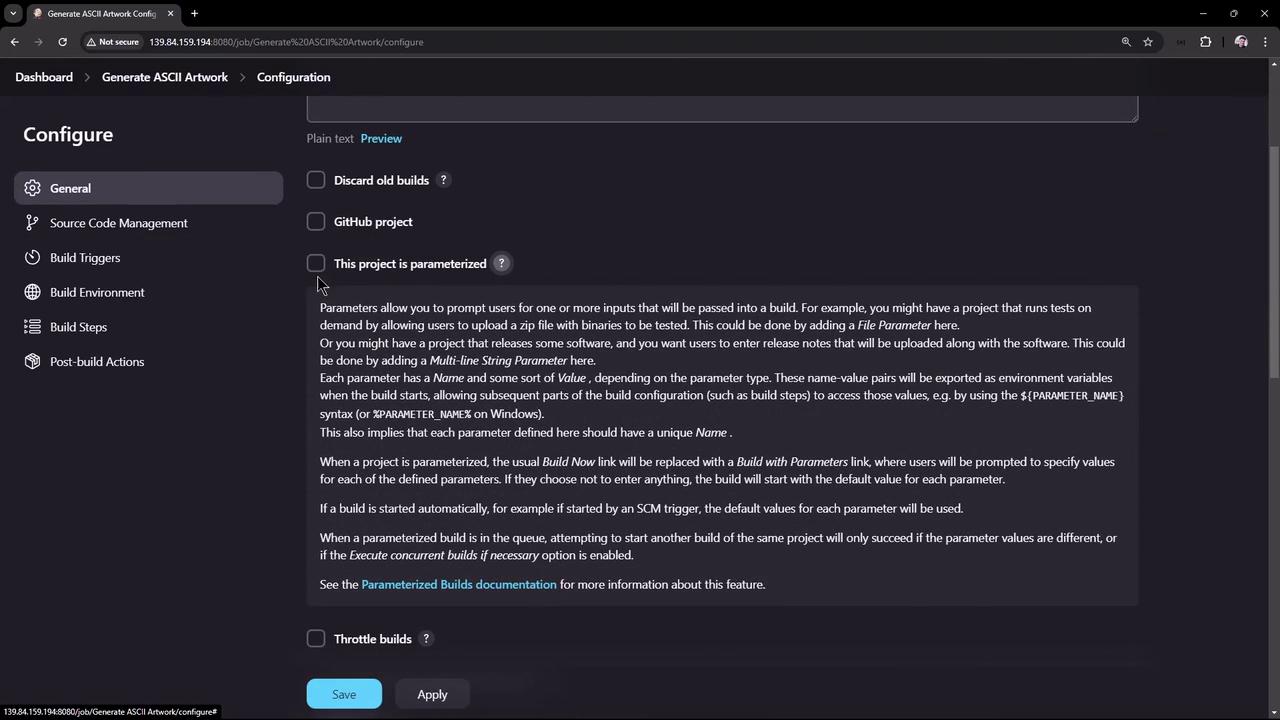
* Leave **Discard old builds**, **This project is parameterized**, and other options at their defaults.
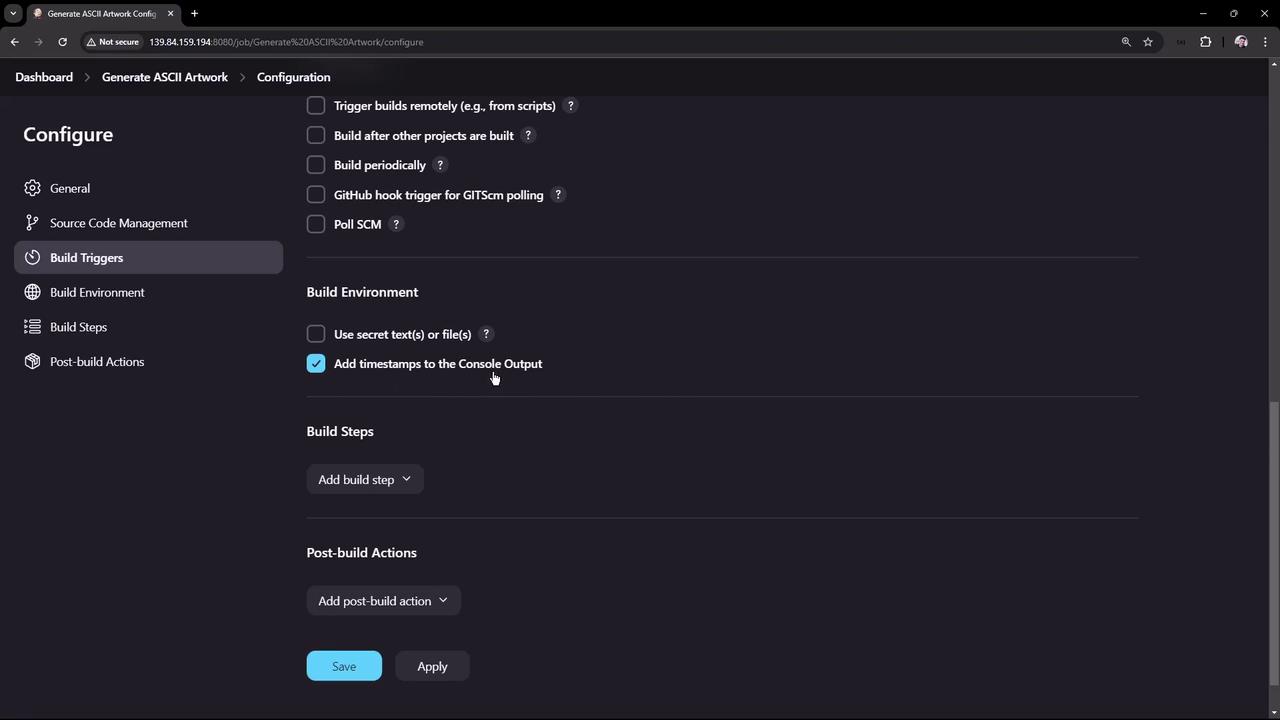
* **Source Code Management**: **None**
* **Build Triggers**: (none)
* **Build Environment**: Enable **Add timestamps to the console output** (requires the [Timestamp Plugin](https://plugins.jenkins.io/timestamper/)).
## 3. Add Build Step: Execute Shell
Choose **Add build step → Execute shell** and paste this script. It fetches advice, validates it, installs Cowsay, adjusts the PATH, and prints the ASCII art.
```bash theme={null}
#!/bin/bash
set -e
# 1. Fetch advice from AdviceSlip API
curl -s https://api.adviceslip.com/advice > advice.json
# 2. Extract the advice text and validate word count (>5)
jq -r '.slip.advice' advice.json > advice.message
WORD_COUNT=$(wc -w < advice.message)
if [ "$WORD_COUNT" -le 5 ]; then
echo "Advice: $(cat advice.message) has $WORD_COUNT words or less."
exit 1
fi
# 3. Install cowsay and ensure the binary is in PATH
sudo apt-get update -y
sudo apt-get install cowsay -y
export PATH="$PATH:/usr/games:/usr/local/games"
# 4. Generate ASCII artwork
cat advice.message | cowsay -f "$(shuf -n 1 /usr/share/cowsay/cows)"
```
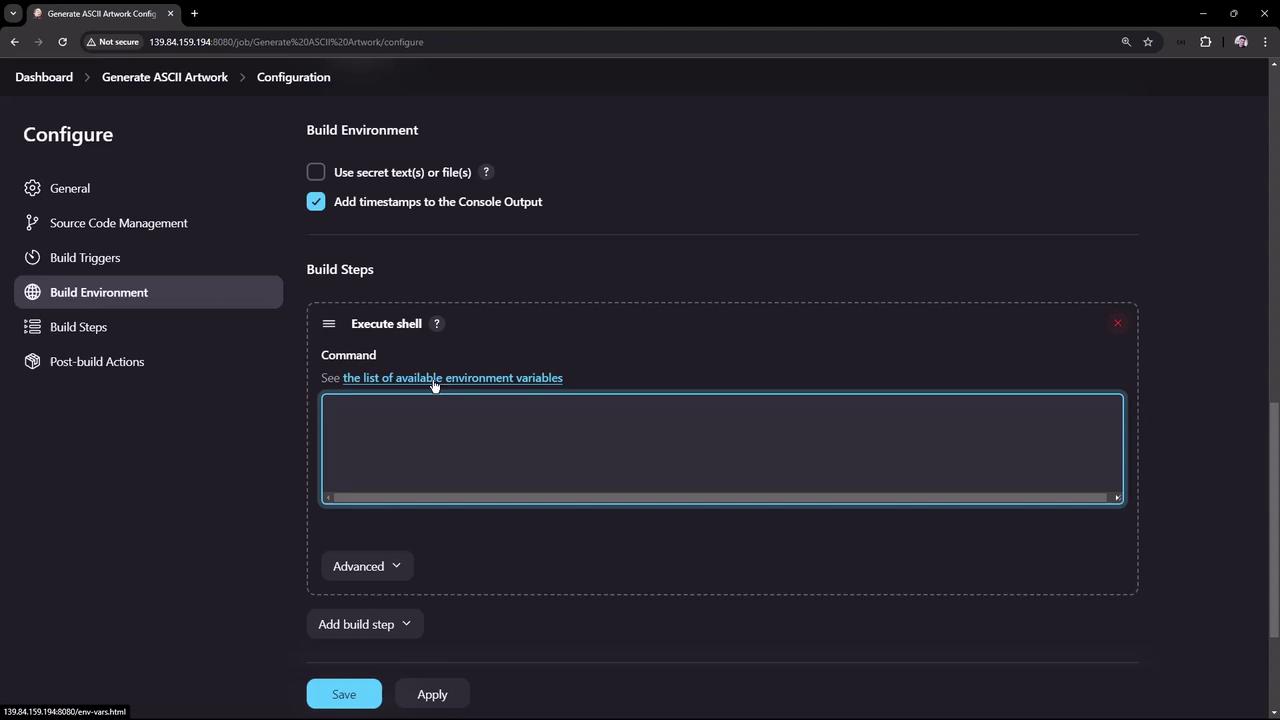
### Script Breakdown
| Script Section | Purpose |
| ------------------------ | ------------------------------------------------------------ |
| `curl` fetch | Download JSON from AdviceSlip API |
| `jq` + `wc` | Extract text and enforce a minimum of 6 words |
| `apt-get install cowsay` | Install the Cowsay package |
| `export PATH` | Add `/usr/games` and `/usr/local/games` to the PATH |
| `cowsay` render | Pipe advice into a random cowsay template to produce artwork |
### Sample AdviceSlip API Response
```json theme={null}
{
"slip": {
"id": 135,
"advice": "If you want to be happily married, marry a happy person."
}
}
```
## 4. Save and Run the Job
* Click **Save**, then **Build Now**.
* On the first run, you may see an error because the workspace doesn’t exist yet:
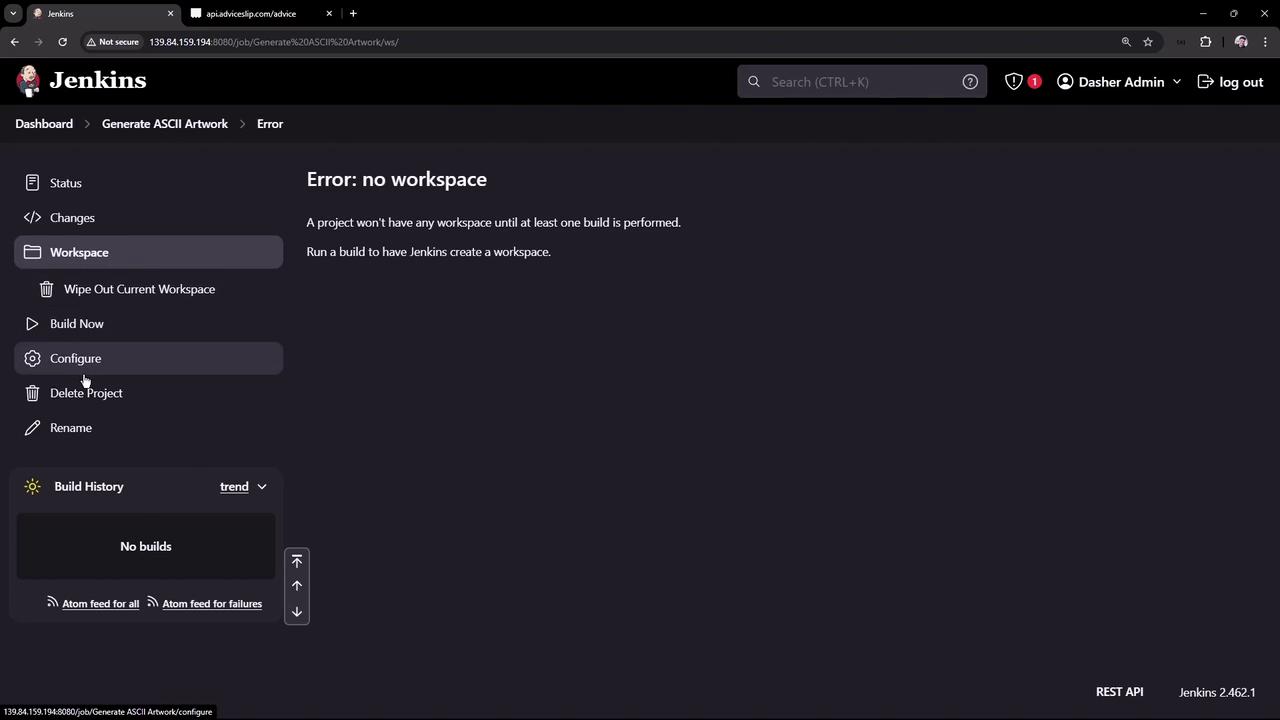
## 5. Investigate a Failed Build
A common failure occurs when Cowsay isn’t found in the PATH:
```console theme={null}
09:23:12 + curl -s https://api.adviceslip.com/advice
09:23:13 + sudo apt-get install cowsay -y
...
09:23:16 + cowsay -f unipony-smaller.cow
/tmp/jenkins*.sh: line 14: cowsay: not found
Build step 'Execute shell' marked build as failure
Finished: FAILURE
```
The Jenkins service user’s default environment may exclude `/usr/games`. Always export or globally configure PATH so that Jenkins can locate installed binaries.
## 6. Update the Script and Rebuild
After adding the `export PATH` line, save and run **Build Now** again. Success output:
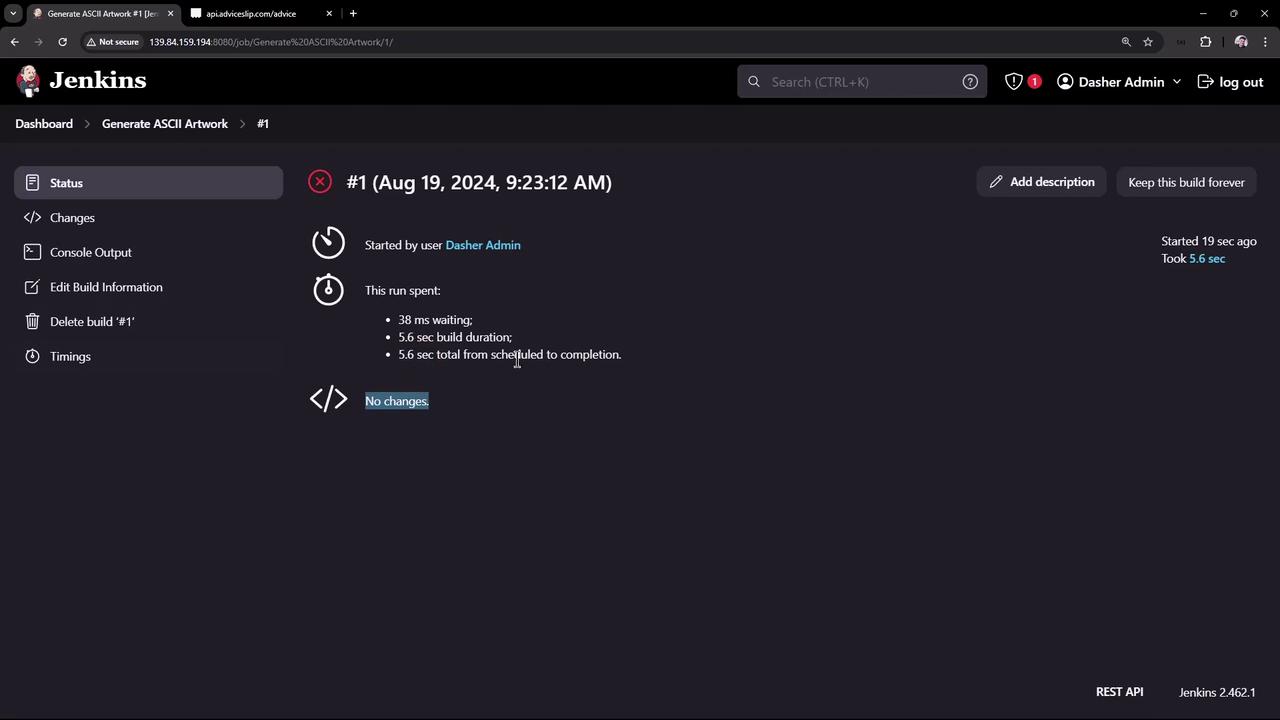
```console theme={null}
14:58:24 + sudo apt-get install cowsay -y
14:58:24 + export PATH=/usr/local/sbin:/usr/local/bin:/usr/sbin:/usr/bin:/snap/bin:/usr/games:/usr/local/games
14:58:24 + cat advice.message
14:58:24 + cowsay -f vader.cow
/ Some people would be better off if they \
| took their own advice. |
-------------------------------------------
\ ^__^
\ (oo)\_______
(__)\ )\/\
||----w |
|| ||
Cowth Vader
Finished: SUCCESS
```
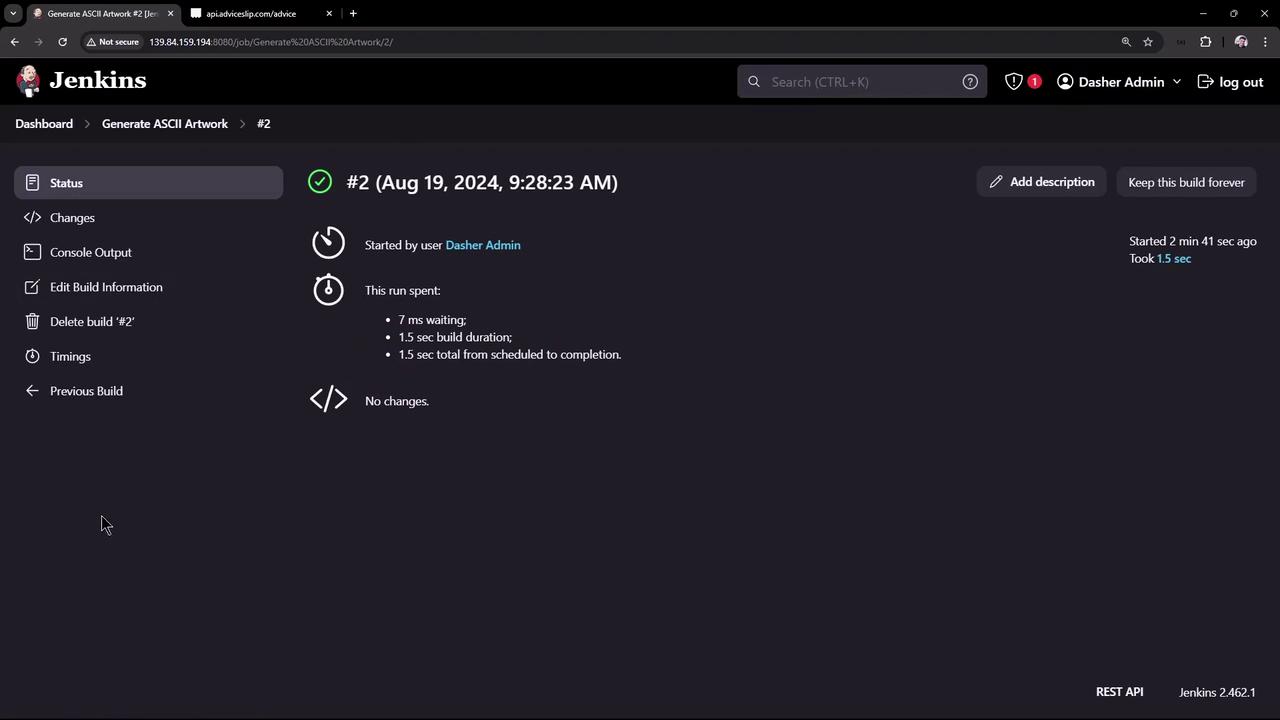
## 7. Review Build History and Workspace
You can inspect past runs, access permalinks, and browse the workspace files:
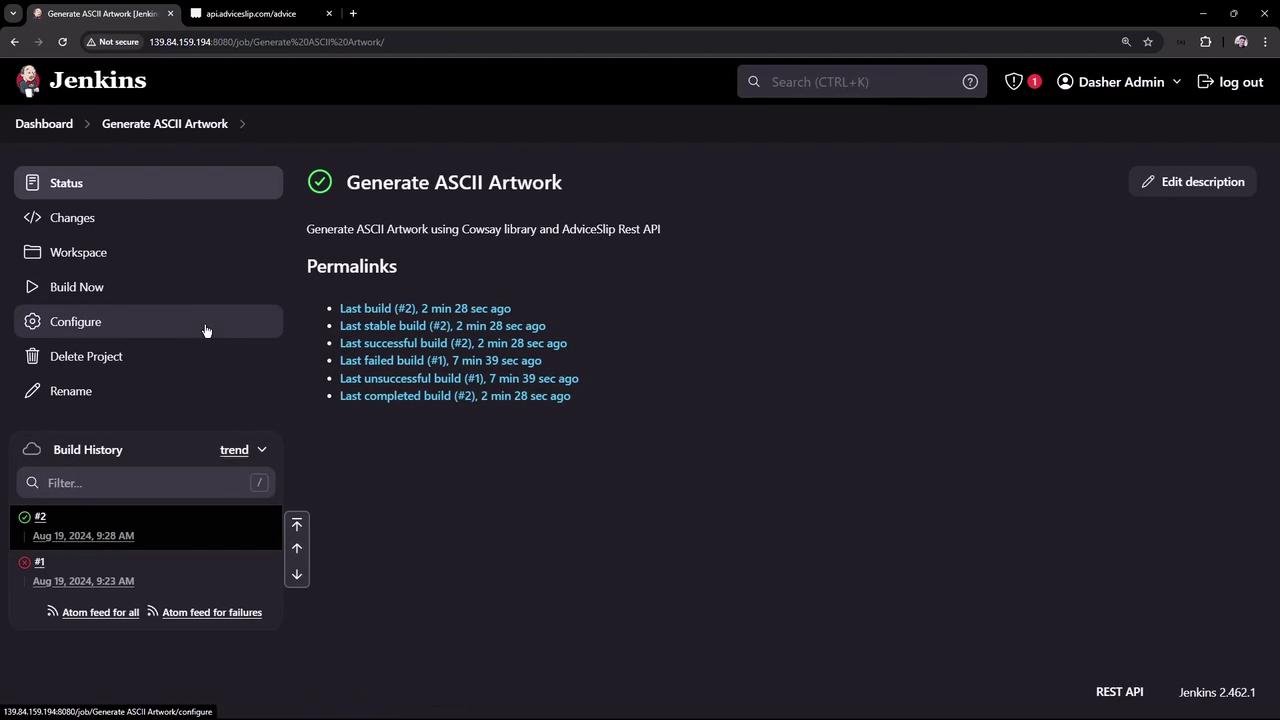
## 8. (Optional) Configure Global Environment Variables
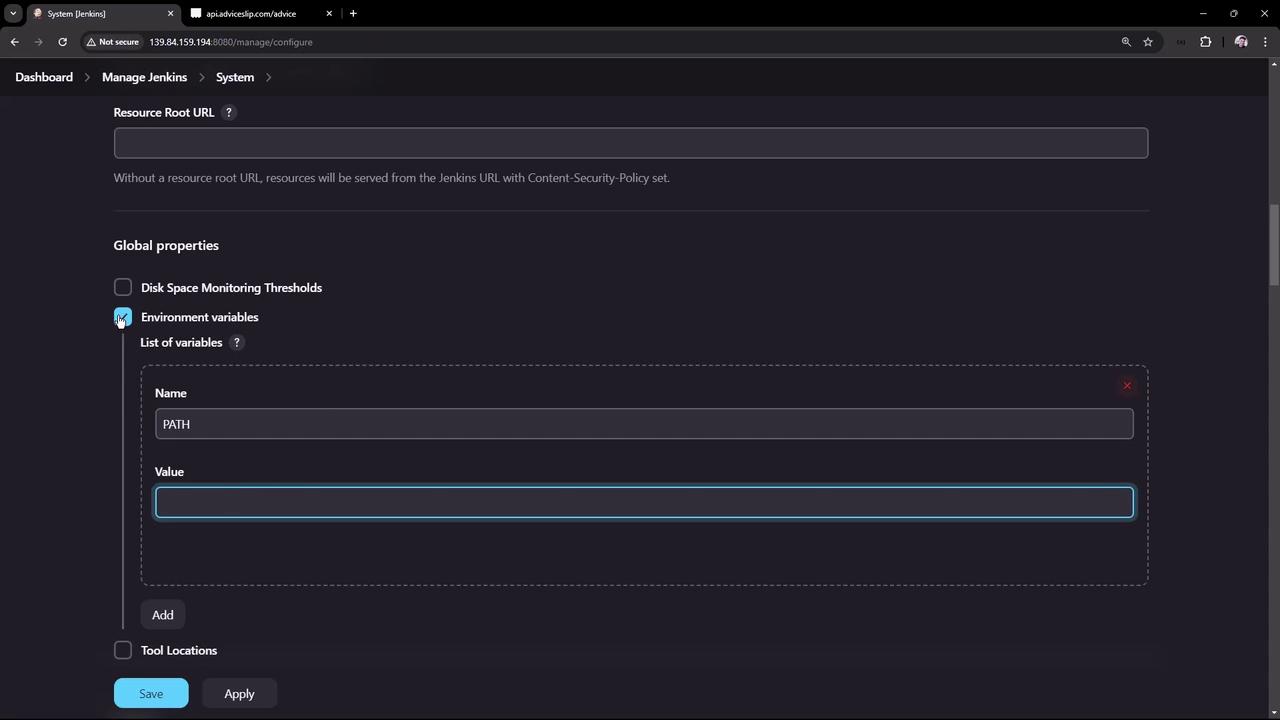
To avoid repeating `export PATH` in every job:
1. Go to **Manage Jenkins → Configure System**.
2. Under **Global properties**, check **Environment variables**.
3. Add:
* **Name**: `PATH`
* **Value**: `/usr/local/sbin:/usr/local/bin:/usr/sbin:/usr/bin:/snap/bin:/usr/games:/usr/local/games`
When you override `PATH` globally, include the full default PATH. Jenkins does not expand environment variables in the value field. Alternatively, adjust `/etc/default/jenkins` or use the [Environment Injector Plugin](https://plugins.jenkins.io/envinject/) to append directories.
***
## Links and References
* [Jenkins Freestyle Project](https://www.jenkins.io/doc/book/managing/projects/)
* [AdviceSlip REST API](https://api.adviceslip.com)
* [Cowsay GitHub Repository](https://github.com/shiena/cowsay)
* [Timestamp Plugin](https://plugins.jenkins.io/timestamper/)
* [Environment Injector Plugin](https://plugins.jenkins.io/envinject/)