> ## Documentation Index
> Fetch the complete documentation index at: https://notes.kodekloud.com/llms.txt
> Use this file to discover all available pages before exploring further.
# Demo Publish Reports to AWS S3
> Learn to upload Jenkins pipeline test, coverage, and security reports to an Amazon S3 bucket for centralized storage and sharing.
In this guide, you’ll learn how to upload your Jenkins pipeline’s test, coverage, and security reports to an Amazon S3 bucket. This approach centralizes all your build artifacts in S3 for easy sharing and long-term storage.
**Table of Contents**
1. [Inspecting the Jenkins Workspace](#inspecting-the-jenkins-workspace)
2. [Creating the S3 Bucket](#creating-the-s3-bucket)
3. [Configuring IAM and Jenkins Credentials](#configuring-iam-and-jenkins-credentials)
4. [Installing the Pipeline: AWS Steps Plugin](#installing-the-pipeline-aws-steps-plugin)
5. [Generating an S3 Upload Snippet](#generating-an-s3-upload-snippet)
6. [Adding the Upload Stage to the Jenkinsfile](#adding-the-upload-stage-to-the-jenkinsfile)
7. [Authenticating with AWS in the Pipeline](#authenticating-with-aws-in-the-pipeline)
8. [Running the Pipeline](#running-the-pipeline)
9. [Reviewing the Console Output](#reviewing-the-console-output)
10. [Verifying Artifacts in S3](#verifying-artifacts-in-s3)
11. [Links and References](#links-and-references)
***
## Inspecting the Jenkins Workspace
First, browse your Jenkins workspace via the Classic UI to verify all generated reports are present:
```bash theme={null}
nodejs:22-6-0 – Use a tool from a predefined Tool Installation
# Fetch environment variables for a given tool via withEnv
#### REPLACE below with Kubernetes http://IP_Address:30000/api-docs/ ####
chmod 777 $(pwd)
docker run -v $(pwd):/zap/wrk:/rw ghcr.io/zaproxy/zap-api-scan.py -t http://134.209....
solar-system-gitops-argocd – Verify if file exists in workspace
rm -rf solar-system-gitops-argocd – Shell Script
```
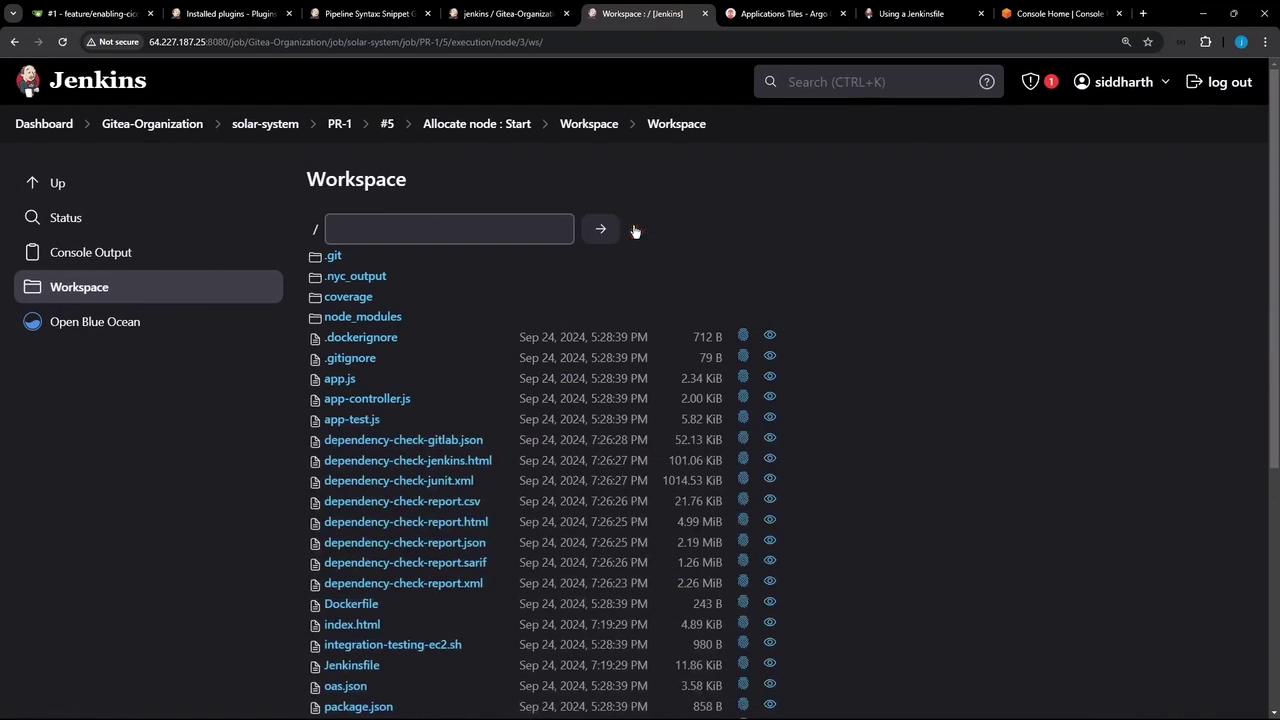
**Common reports and locations:**
| Report Type | Directory / File Pattern |
| ----------------- | ------------------------------------ |
| Code coverage | `coverage/` |
| Dependency-check | `dependency-check-report.html`, etc. |
| Unit test results | `test-results.xml` |
| Container scans | `trivy*.*` |
| OWASP ZAP scans | `zap*.*` |
***
## Creating the S3 Bucket
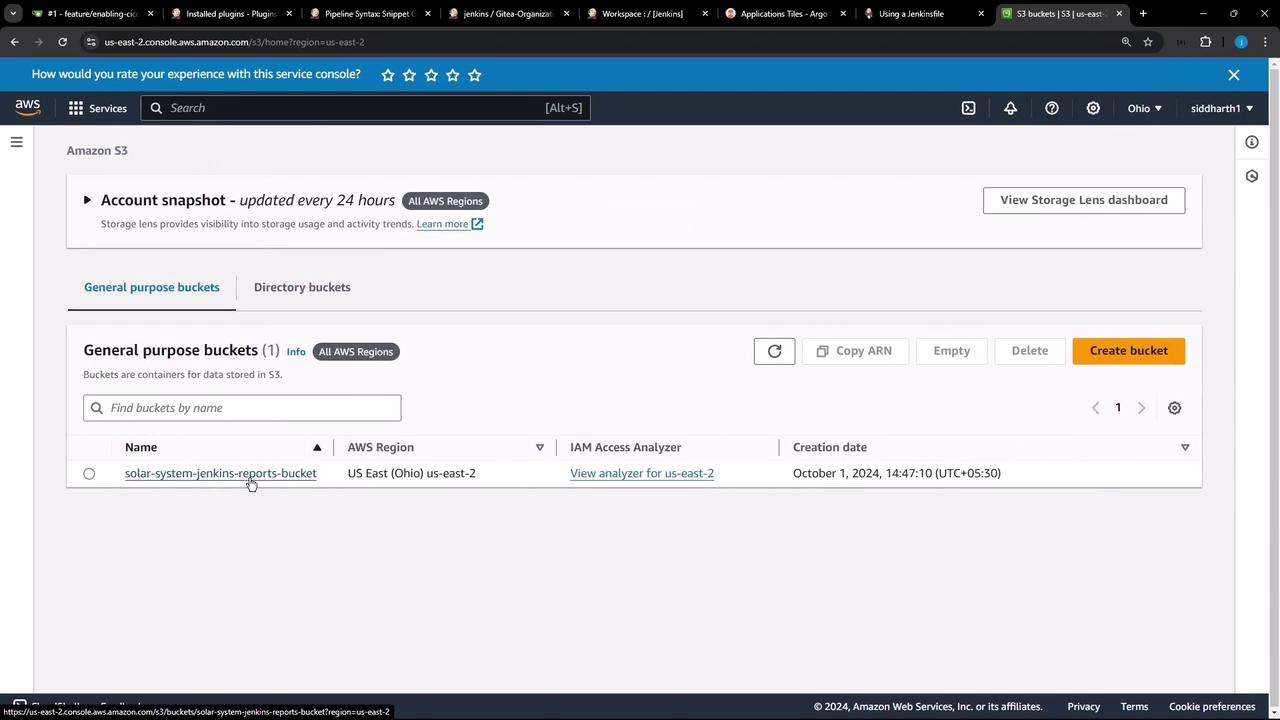
In the AWS S3 console, create a new bucket (e.g., `solar-system-jenkins-reports-bucket`) in **US East (Ohio)**. This bucket will house all your Jenkins reports:
***
## Configuring IAM and Jenkins Credentials
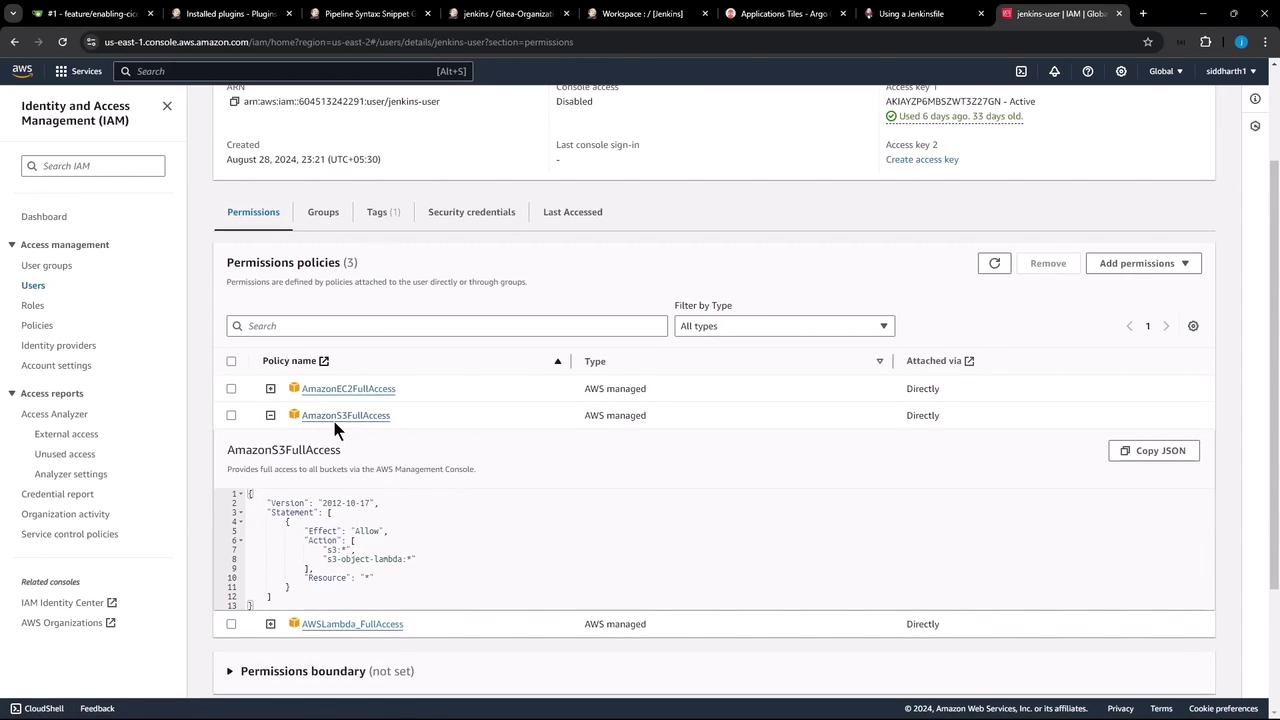
1. In AWS IAM, create or select a user with the `AmazonS3FullAccess` policy.
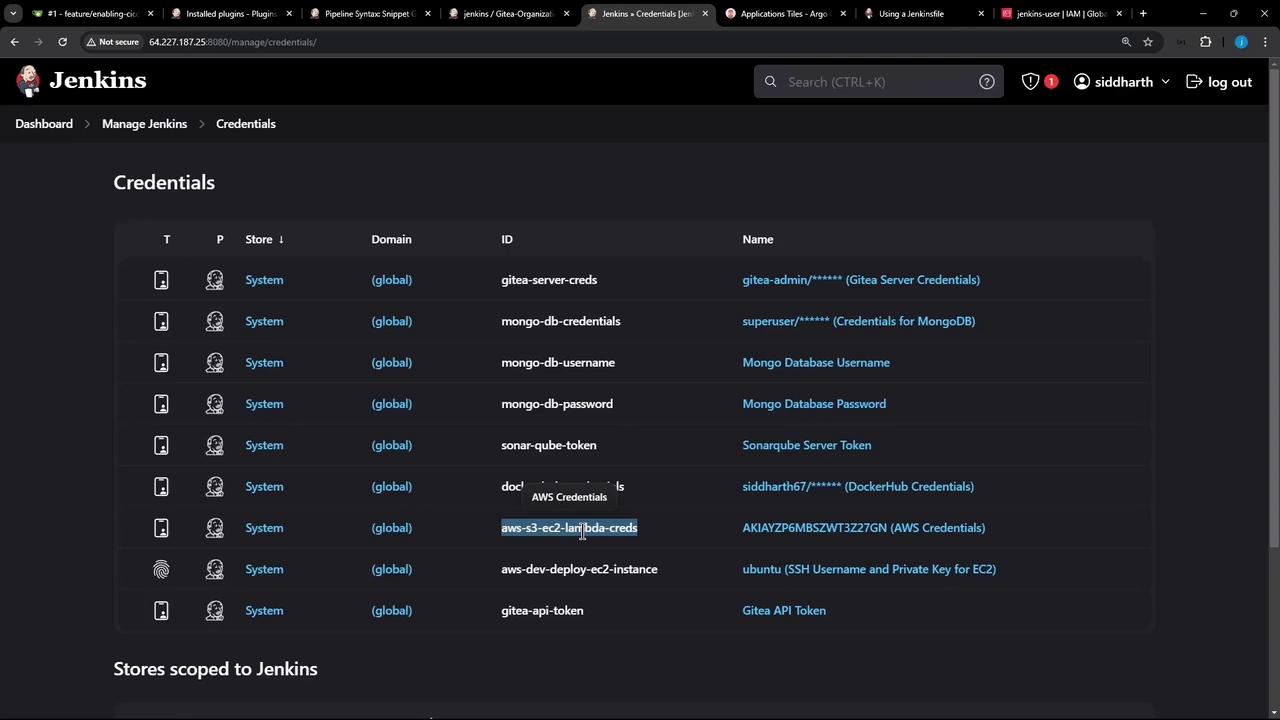
2. In Jenkins, go to **Credentials** and add a new **AWS Credentials** entry. Set the ID to `aws-s3-ec2-lambda-creds`.
Do not hard-code AWS keys in your `Jenkinsfile`. Always use Jenkins Credentials and the `withAWS` wrapper.
***
## Installing the Pipeline: AWS Steps Plugin
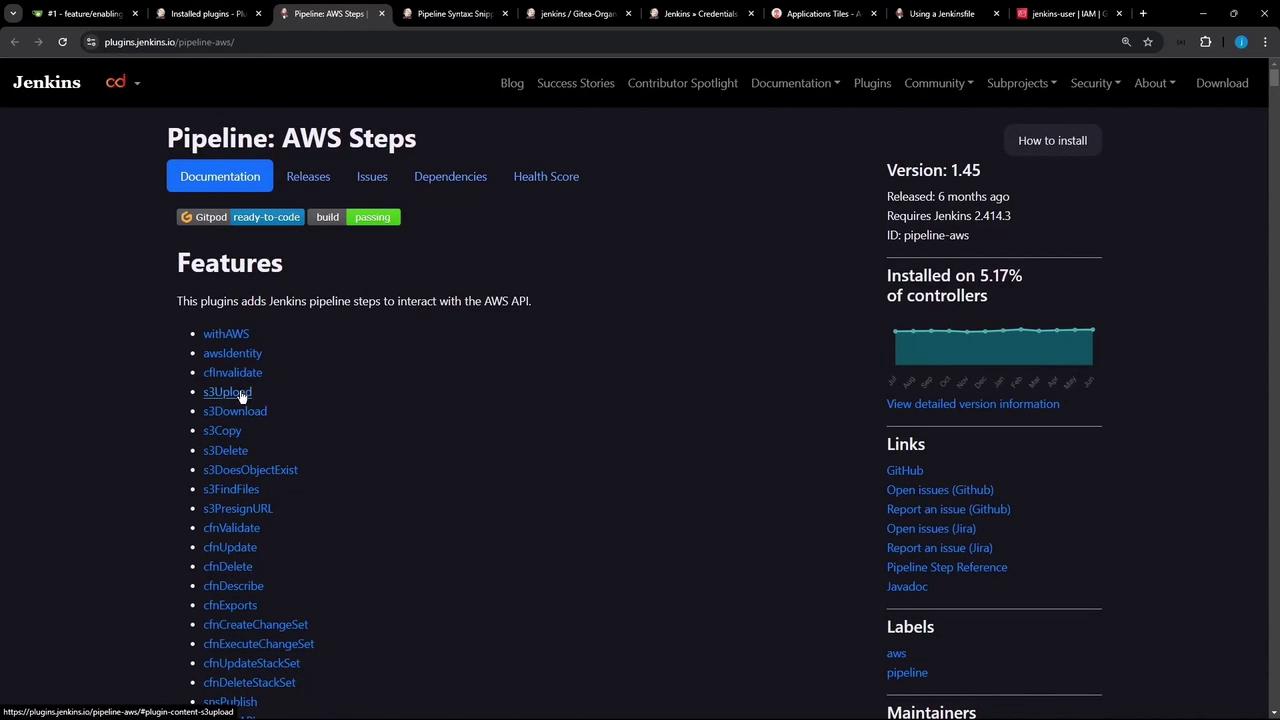
Install **Pipeline: AWS Steps** via **Manage Jenkins → Manage Plugins**. This plugin provides the `s3Upload` and `withAWS` steps you’ll need.
***
## Generating an S3 Upload Snippet
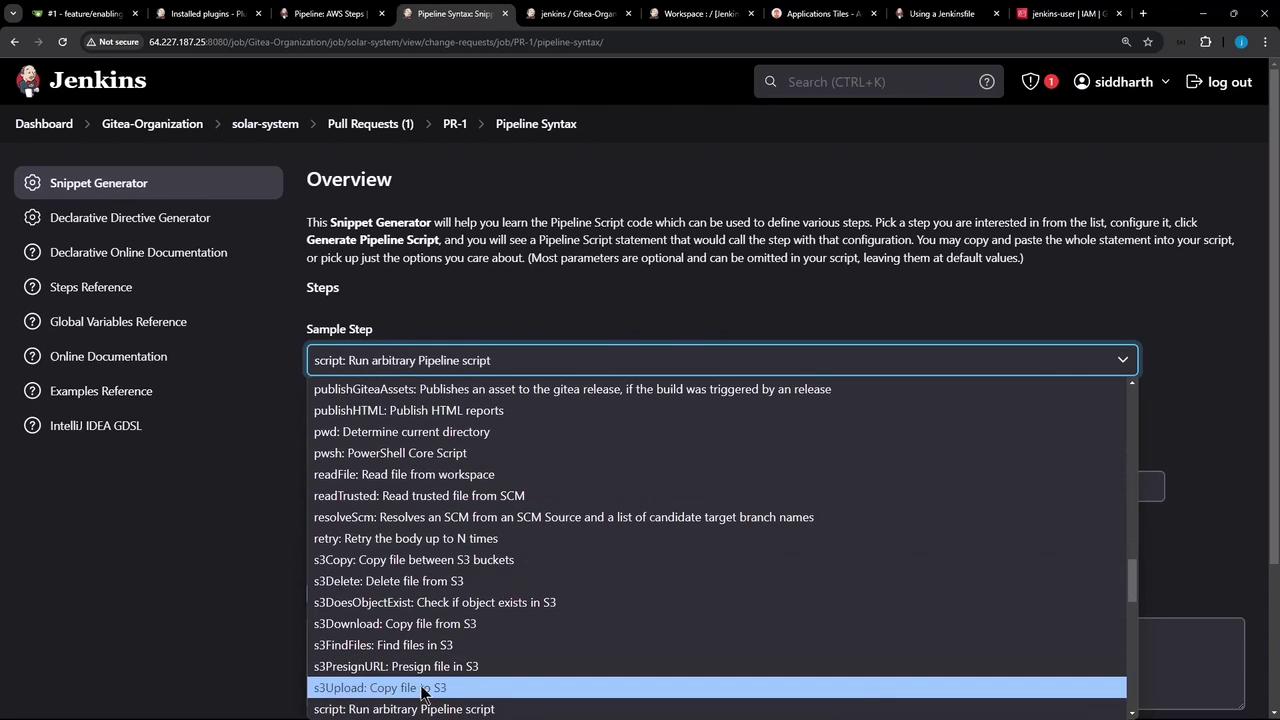
Use Jenkins’s **Snippet Generator** to preview the `s3Upload` syntax and options:
***
## Adding the Upload Stage to the Jenkinsfile
Add a new stage named **Upload – AWS S3** that runs only on PR branches. It will:
1. Create a `reports-$BUILD_ID` directory
2. Copy all relevant reports into it
3. Upload the folder to your S3 bucket
```groovy theme={null}
stage('Upload - AWS S3') {
when {
branch 'PR*'
}
steps {
withAWS(credentials: 'aws-s3-ec2-lambda-creds', region: 'us-east-2') {
sh '''
ls -ltr
mkdir reports-$BUILD_ID
cp -rf coverage/ reports-$BUILD_ID/
cp dependency* test-results.xml trivy*.* zap*.* reports-$BUILD_ID/
ls -ltr reports-$BUILD_ID/
'''
s3Upload(
file: "reports-$BUILD_ID",
bucket: 'solar-system-jenkins-reports-bucket',
path: "jenkins-$BUILD_ID/"
)
}
}
}
```
Use double quotes for Groovy string interpolation (`"reports-$BUILD_ID"`).\
You can adjust `path:` to organize reports by job, branch, or date.
***
## Authenticating with AWS in the Pipeline
The `withAWS` step injects your IAM credentials and region into the build. Generate this snippet in the Snippet Generator by searching for **withAWS**.
***
## Running the Pipeline
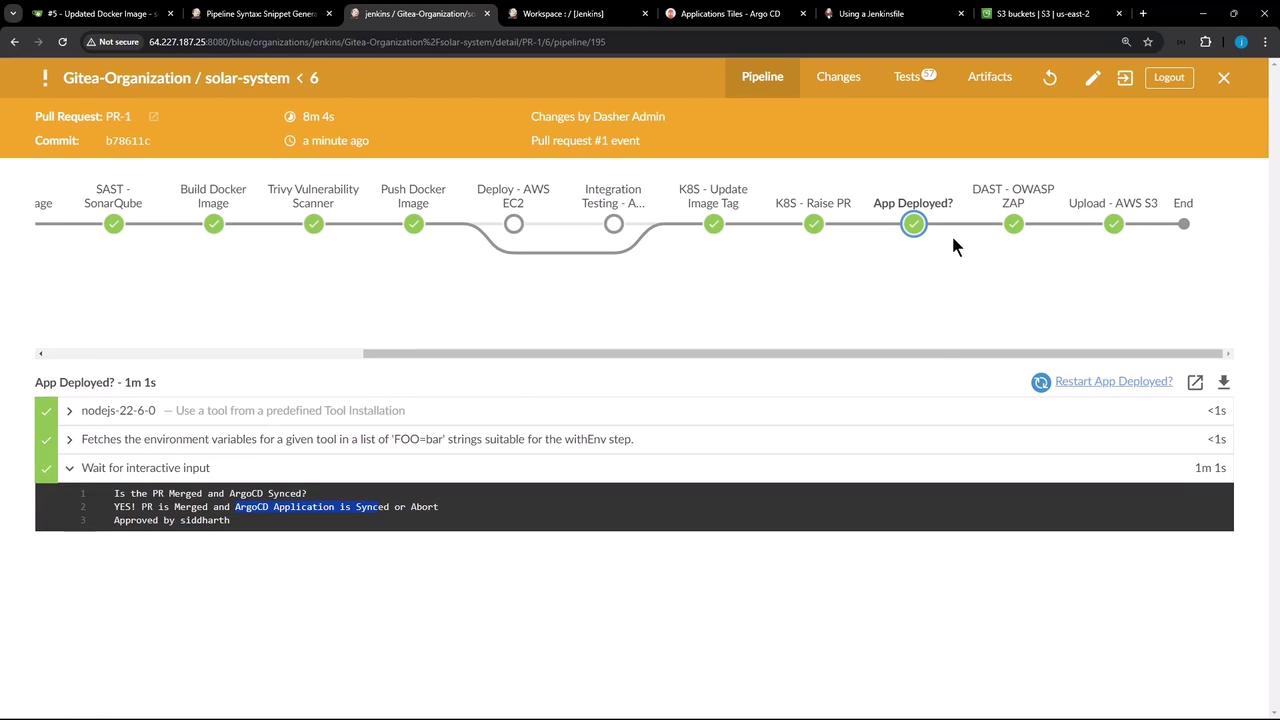
Commit and push your updated `Jenkinsfile` to trigger a build. The **Upload – AWS S3** stage should appear and complete successfully:
***
## Reviewing the Console Output
Inspect the logs to verify the file listing, directory creation, copy commands, and S3 upload progress:
```bash theme={null}
$ ls -ltr
...
# mkdir reports-6
# cp -rf coverage/ reports-6/
# cp dependency* test-results.xml trivy*.* zap*.* reports-6/
Uploading file:/var/lib/jenkins/workspace/.../reports-6/ to s3://solar-system-jenkins-reports-bucket/jenkins-6/
Finished: Uploading to solar-system-jenkins-reports-bucket/jenkins-6/test-results.xml
Finished: Uploading to solar-system-jenkins-reports-bucket/jenkins-6/trivy-image-CRITICAL-results.html
...
```
***
## Verifying Artifacts in S3
Head back to the S3 console and navigate into your bucket. You should see a `jenkins-/` folder with all your copied reports.
That’s it! You’ve successfully configured your Jenkins pipeline to publish test, coverage, and security reports to Amazon S3.
***
## Links and References
* [Jenkins Pipeline: AWS Steps Plugin](https://plugins.jenkins.io/pipeline-aws/)
* [AWS S3 Documentation](https://docs.aws.amazon.com/s3/)
* [Jenkins Documentation](https://www.jenkins.io/doc/)
* [AWS IAM Best Practices](https://docs.aws.amazon.com/IAM/latest/UserGuide/best-practices.html)