> ## Documentation Index
> Fetch the complete documentation index at: https://notes.kodekloud.com/llms.txt
> Use this file to discover all available pages before exploring further.
# Demo Pipeline Caching
> This article explains how to use the Job Cacher plugin in Jenkins to cache dependencies and speed up CI build times.
Efficient dependency caching in a Jenkins Pipeline can dramatically reduce CI build times by reusing artifacts and installed modules across runs. In this guide, we’ll walk through installing and configuring the **Job Cacher** plugin to cache `node_modules` for an `npm`-based project.
## Why Cache Dependencies in Jenkins?
* Avoid repeated `npm install` on every build
* Save minutes or even hours for large dependency sets
* Ensure consistent environments by locking on `package-lock.json`
Caching works best when build agents start from a clean state (e.g., containers). The Job Cacher plugin handles archiving and restoring cache transparently.
***
## 1. Install the Job Cacher Plugin
1. Navigate to **Manage Jenkins › Manage Plugins › Available**.
2. Search for **Job Cacher** and install.
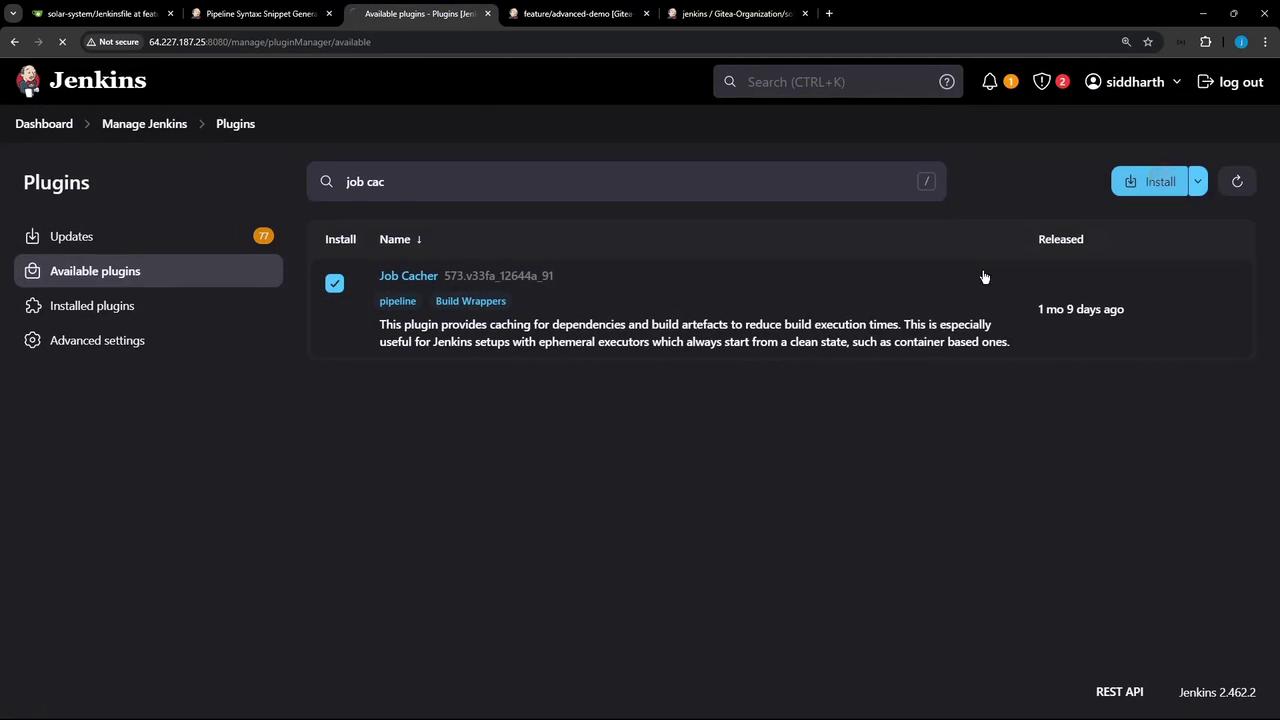
3. After installation, perform a **Safe Restart** to activate the plugin:

***
## 2. Configure Cache via Snippet Generator
Open your Pipeline job configuration and click **Snippet Generator**. From the **Sample Step** dropdown, select **cache: Caches files from previous build to current build**.
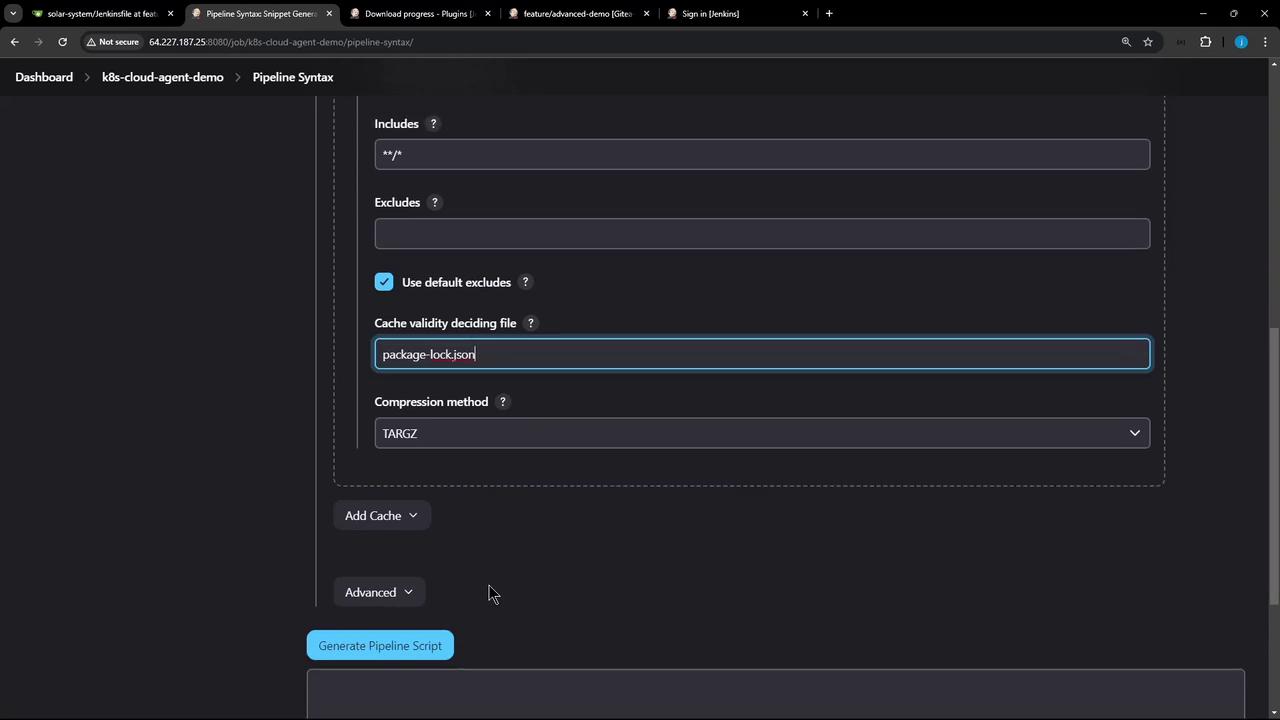
| Field | Example Value |
| ---------------------------- | ---------------------- |
| Cache name | `npm-dependency-cache` |
| Path | `node_modules` |
| Includes | `**/*` |
| Excludes | (leave empty) |
| Cache validity deciding file | `package-lock.json` |
| Compression | `tar` or `zip` |
| Max cache size (MB) | `550` |
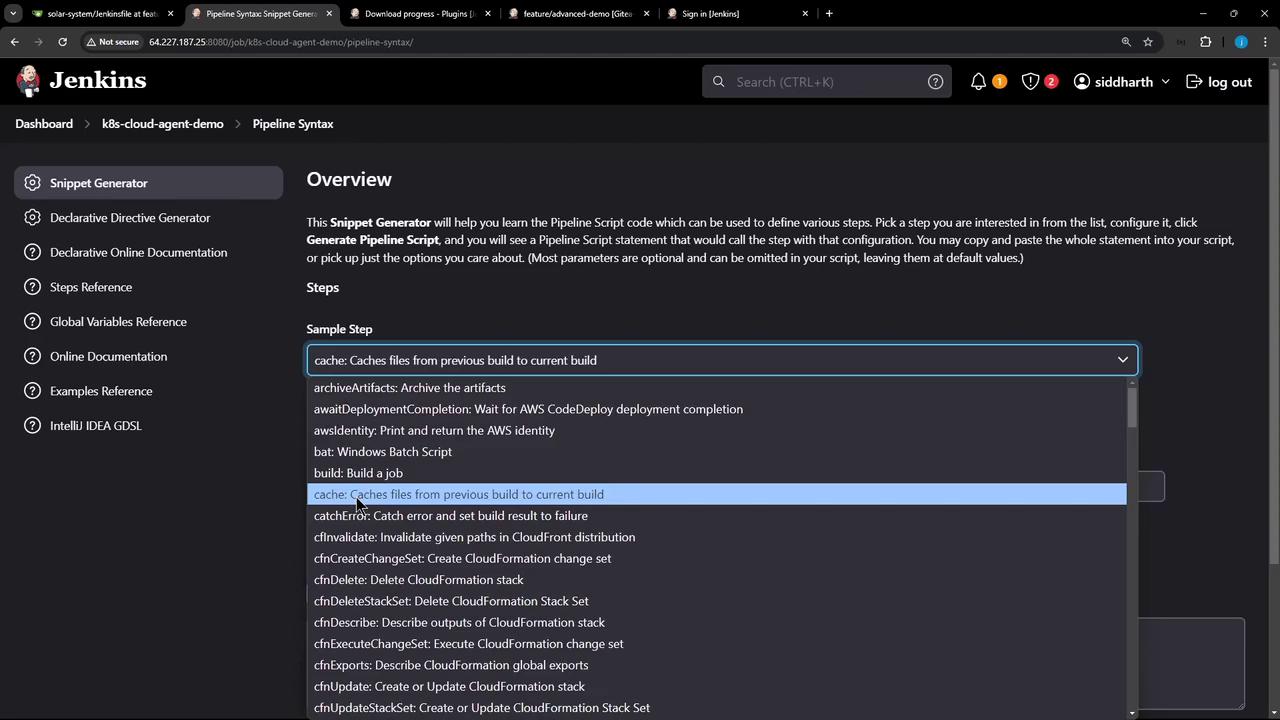
Click **Generate Pipeline Script** to preview the snippet:
```groovy theme={null}
cache(caches: [
arbitraryFileCache(
cacheName: 'npm-dependency-cache',
cacheValidityDecidingFile: 'package-lock.json',
includes: '**/*',
excludes: '',
path: 'node_modules'
)
], defaultBranch: '', maxCacheSize: 550) {
// your build steps here
}
```
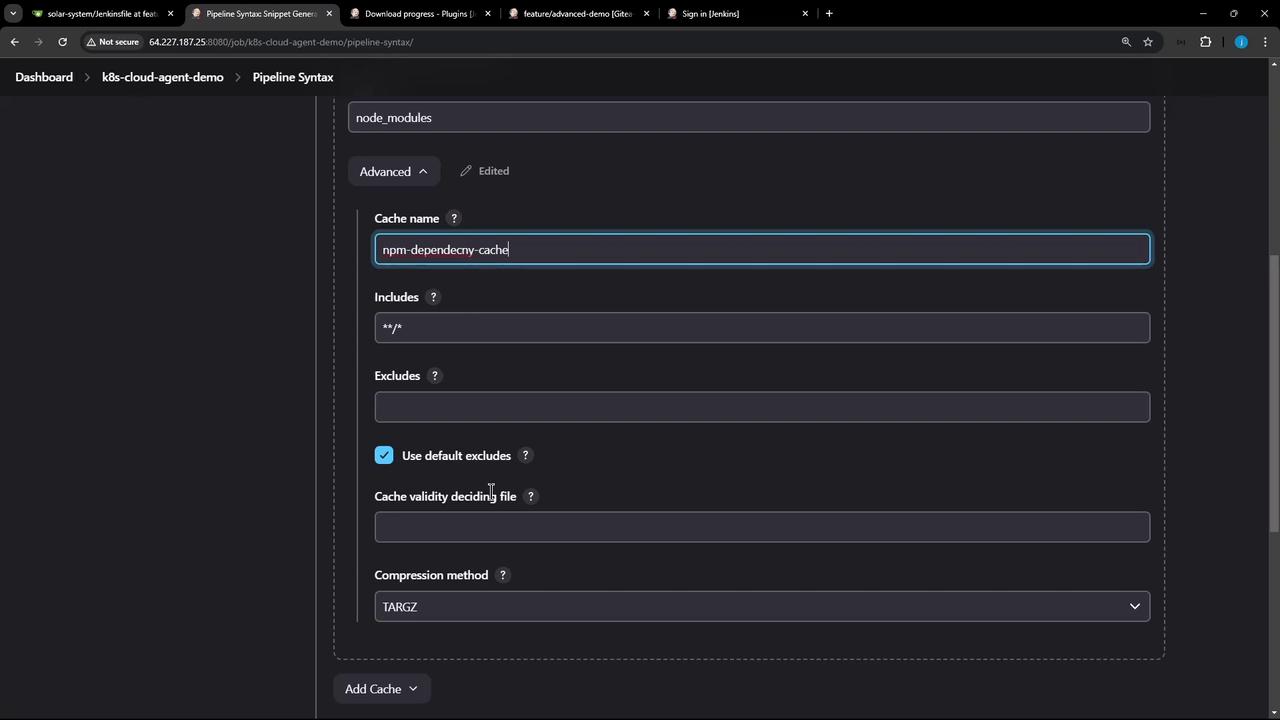
### Advanced Settings
For additional tuning—such as custom includes/excludes or compression—you can tweak the advanced fields:
***
## 3. Update Your Jenkinsfile
Embed the generated cache block in your `Jenkinsfile` to wrap the **Installing Dependencies** stage. Then use `stash` and `unstash` to share the cached folder across parallel and subsequent stages.
```groovy theme={null}
pipeline {
agent any
options { timestamps() }
stages {
stage('Installing Dependencies') {
steps {
cache(
maxCacheSize: 550,
caches: [
arbitraryFileCache(
cacheName: 'npm-dependency-cache',
cacheValidityDecidingFile: 'package-lock.json',
includes: ['**/*'],
path: 'node_modules'
)
]
) {
sh 'node -v'
sh 'npm install --no-audit'
stash includes: 'node_modules/', name: 'solar-system-node-modules'
}
}
}
stage('Dependency Scanning') {
steps {
// security scan, linting, etc.
}
}
stage('Unit Testing') {
parallel {
stage('NodeJS 18') {
options { retry(2) }
steps {
unstash 'solar-system-node-modules'
sh 'node -v'
sh 'npm test'
}
}
stage('NodeJS 19') {
options { retry(2) }
steps {
container('node-19') {
unstash 'solar-system-node-modules'
sh 'node -v'
sh 'npm test'
}
}
}
}
}
stage('Code Coverage') {
steps {
catchError(buildResult: 'SUCCESS', message: 'Coverage will be addressed later') {
unstash 'solar-system-node-modules'
sh 'node -v'
sh 'npm run coverage'
}
}
}
}
}
```
Always commit your `package-lock.json` to source control. The cache validity hinges on this file’s checksum to detect changes.
***
## 4. Observe the First Build: Cache Miss
When you run the pipeline the first time, Jenkins will not find an existing cache, execute `npm install`, then create and store a new cache.
```bash theme={null}
Searching cache in job-specific caches...
Skip restoring cache as no up-to-date cache exists
+ node -v
v22.6.0
+ npm install --no-audit
up to date in 1s
Stashed 4993 file(s)
Creating cache...
got a47b9ef602dbc79d72ab6385105e0142 for cacheValidityDecidingFile(s)
cache created in 164ms
```
***
## 5. Subsequent Build: Cache Hit
On the next build, the plugin will detect that `package-lock.json` is unchanged, restore the `node_modules` folder, and skip reinstalling.
```bash theme={null}
Searching cache in job-specific caches...
Found cache for npm-dependency-cache with id 3ec03583f8eaec275cb2183db769ff47
Restoring cache...
+ npm install --no-audit
up to date in 1s
Stashed 4993 file(s)
Skip cache creation as the cache is up-to-date
```
***
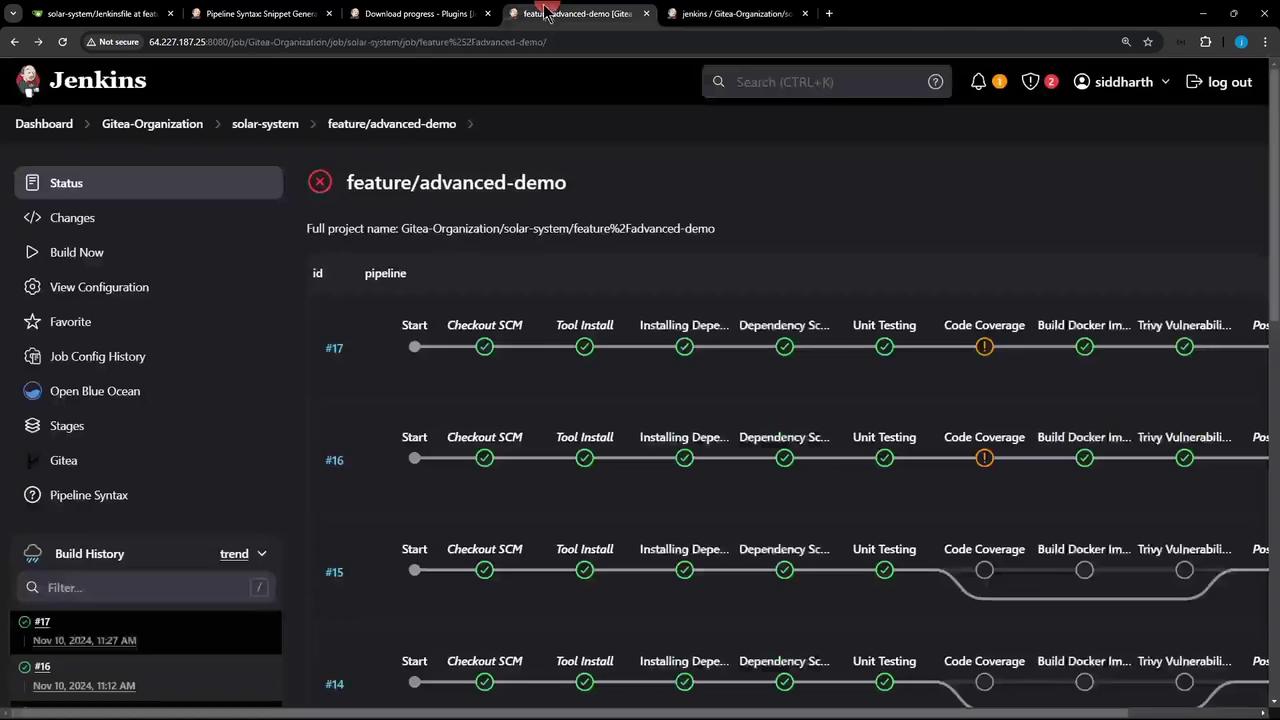
## 6. Visualizing the Pipeline
Here’s a classic Jenkins Blue Ocean (or classic) view showing stages from **Installing Dependencies** through **Code Coverage**:
***
By integrating Job Cacher into your Jenkins Pipeline, you’ll eliminate redundant dependency installs and accelerate your CI process. Next, try modifying `package-lock.json` to see cache invalidation in action!