> ## Documentation Index
> Fetch the complete documentation index at: https://notes.kodekloud.com/llms.txt
> Use this file to discover all available pages before exploring further.
# Demo Declarative vs Scripted Pipeline
> This guide explores the differences between Declarative and Scripted Jenkins Pipelines using sample Jenkinsfiles stored in a Git repository.
In this guide, we’ll explore the differences between **Declarative** and **Scripted** Jenkins Pipelines using two sample `Jenkinsfile`s stored in a Git repository. You’ll learn how each pipeline type handles source control, error handling, and post-build actions.
## Repository Overview
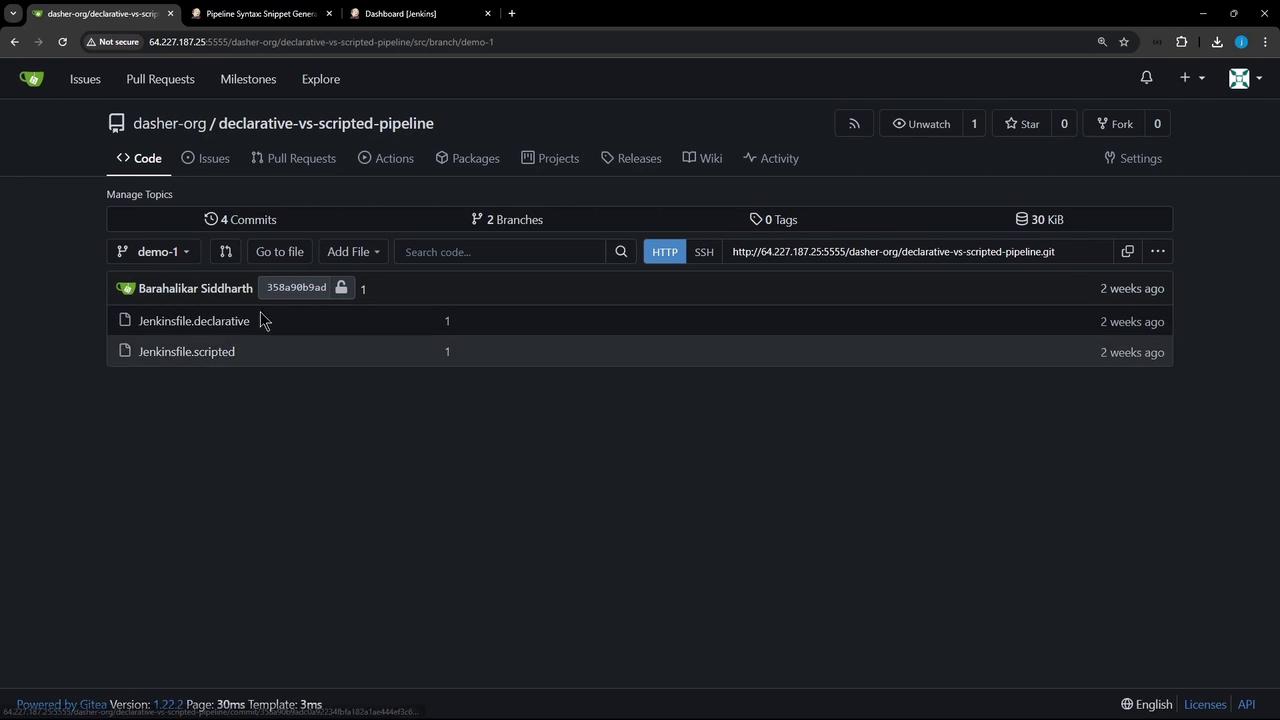
Our Gitea repository **declarative-vs-scripted-pipeline** holds two pipeline definitions:
* **Jenkinsfile.declarative** – a Declarative Pipeline
* **Jenkinsfile.scripted** – a Scripted Pipeline
## Declarative Pipeline (`Jenkinsfile.declarative`)
A Declarative Pipeline uses a fixed, structured syntax that’s easy to read and maintain. Here’s a minimal example:
```groovy theme={null}
pipeline {
agent any
stages {
stage('Echo Message') {
steps {
sh 'ls -ltr'
sh 'echo "This is executed within a DECLARATIVE Pipeline"'
}
}
}
post {
always {
sh 'echo "This will always run"'
sh 'rm -rf *'
}
}
}
```
Key features of Declarative Pipelines:
* **Built-in SCM Checkout** via an automatic stage
* **Structured Syntax**: `pipeline`, `agent`, `stages`, `post`
* **Stage Restarts**: rerun from any completed stage
## Scripted Pipeline (`Jenkinsfile.scripted`)
Scripted Pipelines require you to explicitly call `checkout scm` if you need source files. They do *not* include automatic SCM checkout.
A Scripted Pipeline offers full Groovy flexibility. Here’s a basic example without SCM checkout:
```groovy theme={null}
node {
try {
stage('Echo Message') {
sh 'ls -ltr'
sh 'echo This is executed within a SCRIPTED Pipeline'
}
} catch (err) {
echo "Failed: ${err}"
} finally {
sh 'echo "This will always run."'
// sh 'rm -rf *'
}
}
```
## 1. Configuring a Declarative Pipeline Job
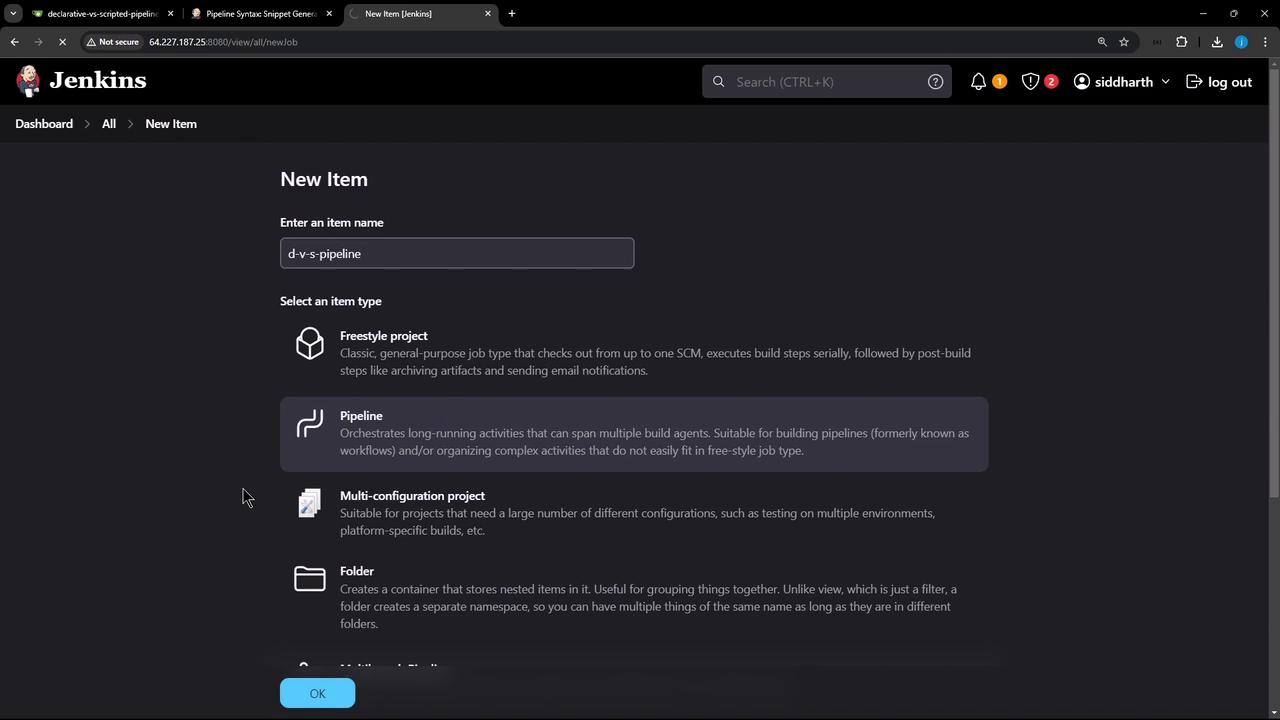
1. In the Jenkins dashboard, click **New Item**, enter `d-v-s-pipeline`, select **Pipeline**, then **OK**.
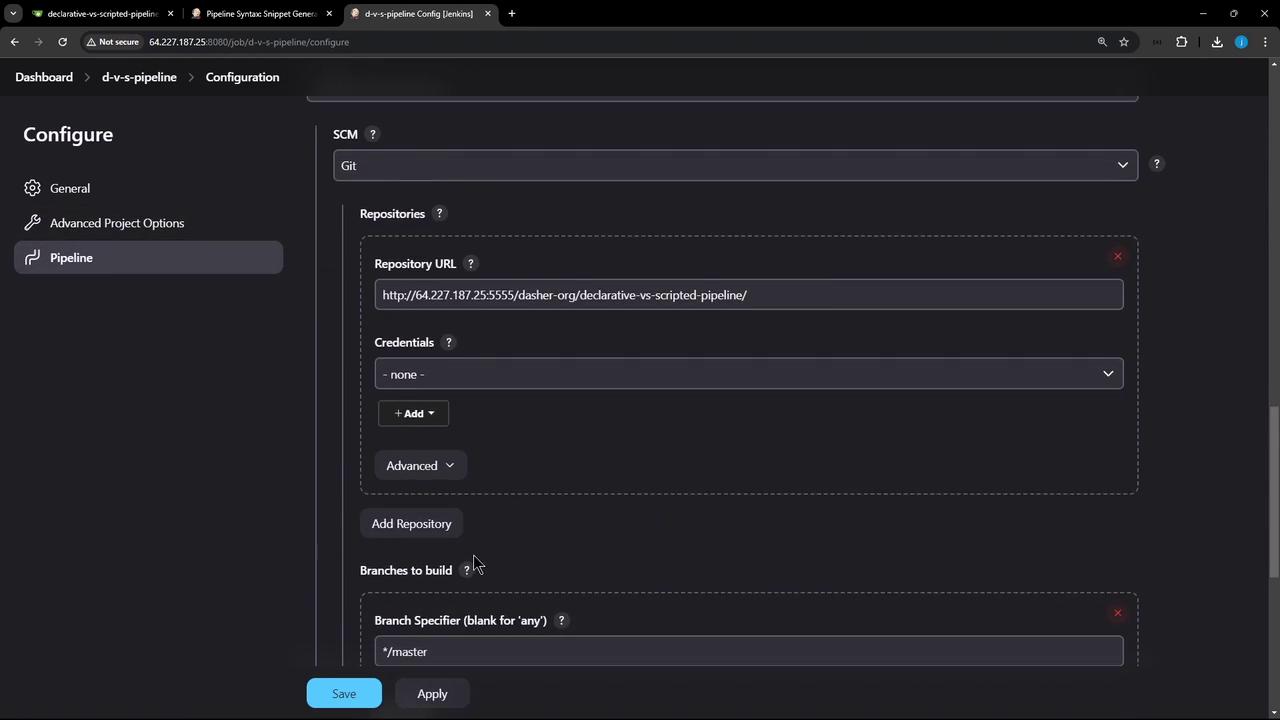
2. Under **Pipeline**, choose **Pipeline script from SCM**, then set:
* **SCM**: Git
* **Repository URL** and **Credentials**
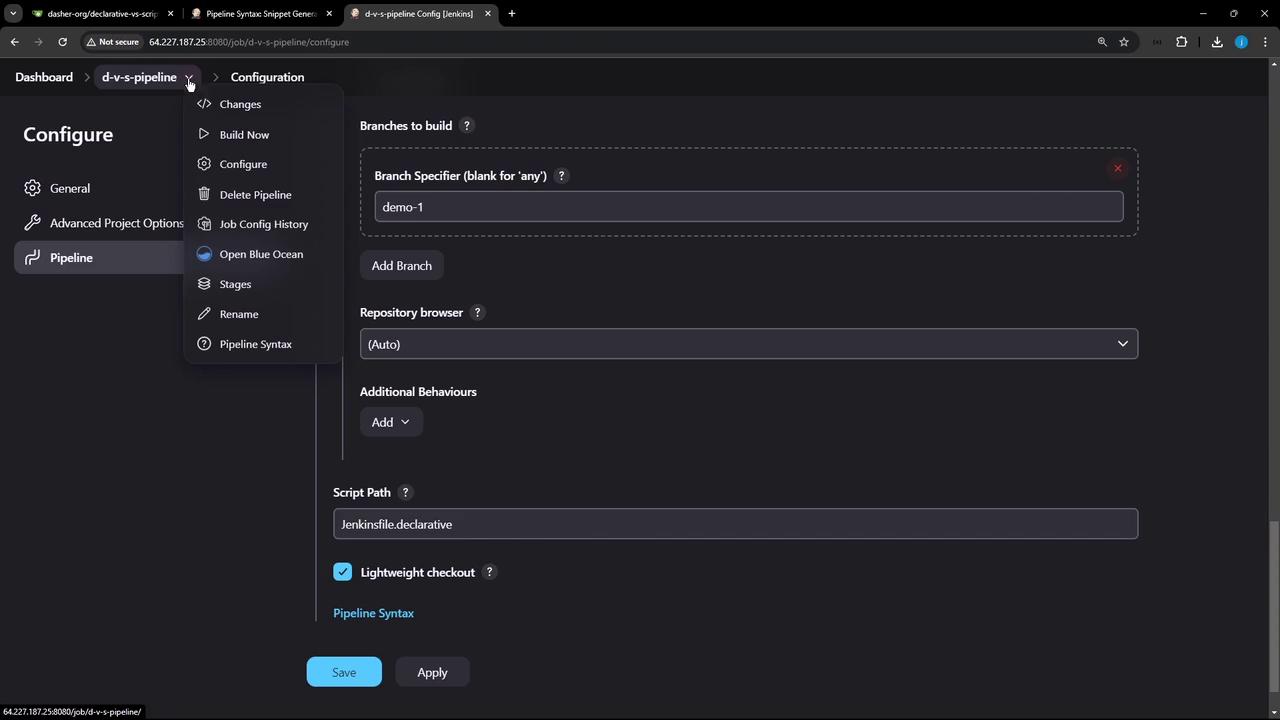
* **Branch**: `demo-1`
* **Script Path**: `Jenkinsfile.declarative`
3. Click **Apply** & **Save**, then **Build Now**. In Blue Ocean or the classic pipeline view, you’ll see:
* *(Declarative: Checkout SCM)*
* **Echo Message**
* *(Declarative: Post Actions)*
### Sample Declarative Pipeline Logs
```text theme={null}
Checking out Revision abcdef12345 (origin/demo-1)
[Pipeline] stage (Echo Message)
[Pipeline] sh
+ ls -ltr
Jenkinsfile.declarative Jenkinsfile.scripted
[Pipeline] sh
+ echo This is executed within a DECLARATIVE Pipeline
This is executed within a DECLARATIVE Pipeline
[Pipeline] stage (Declarative: Post Actions)
[Pipeline] sh
+ echo This will always run
This will always run
[Pipeline] sh
+ rm -rf *
```
***
## 2. Running the Scripted Pipeline
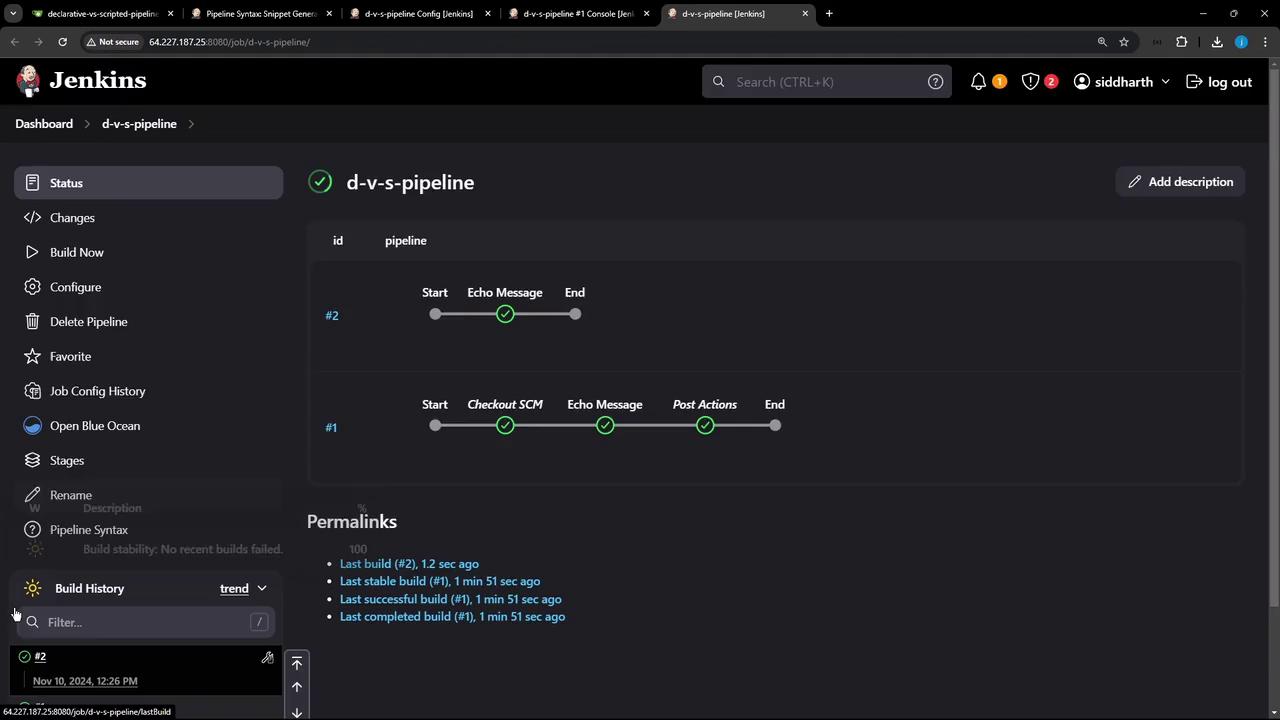
Edit the job’s **Script Path** to `Jenkinsfile.scripted` and start a new build. Since we haven’t added `checkout scm`, the build will:
* Execute **Echo Message** without listing repository files
* Run the **finally** block for cleanup
### Sample Scripted Pipeline Logs (without checkout)
```text theme={null}
+ ls -ltr
(total 0)
+ echo This is executed within a SCRIPTED Pipeline
This is executed within a SCRIPTED Pipeline
+ echo This will always run
This will always run
```
***
## 3. Key Differences
| Pipeline Feature | Declarative Pipeline | Scripted Pipeline |
| ------------------ | ------------------------------------------------- | ---------------------------------------------- |
| SCM Checkout | Automatic `Checkout SCM` stage | Must add `checkout scm` explicitly |
| Syntax | Structured DSL (`pipeline`, `stages`, `post`) | Free-form Groovy (`node`, `try-catch-finally`) |
| Restart from Stage | Supported | Not supported |
| Post Actions | Built-in `post` block (`always`, `success`, etc.) | Implement via `finally` block |
***
## 4. Enabling SCM Checkout in Scripted Pipeline
To include source checkout, update **Jenkinsfile.scripted**:
```groovy theme={null}
node {
try {
stage('Echo Message') {
checkout scm
sh 'ls -ltr'
sh 'echo This is executed within a SCRIPTED Pipeline'
}
} catch (err) {
echo "Failed: ${err}"
} finally {
sh 'echo "This will always run."'
// sh 'rm -rf *'
}
}
```
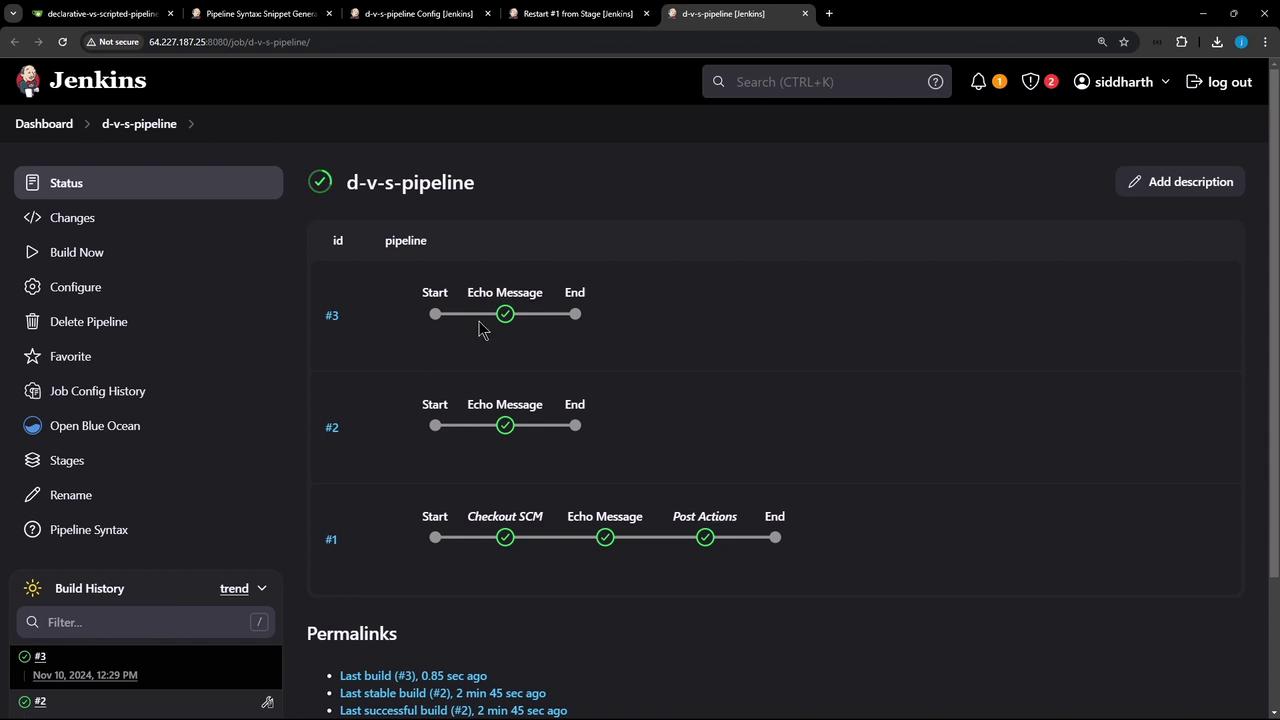
Commit your changes and rebuild. Now the pipeline will fetch your repository before running the stage:
### Sample Scripted Pipeline Logs (with checkout)
```text theme={null}
> git rev-parse --resolve-git-dir /var/lib/jenkins/workspace/d-v-s-pipeline/.git # timeout=10
> git fetch remote.origin.url http://... # timeout=10
> git checkout -f abcdef12345 # timeout=10
+ ls -ltr
Jenkinsfile.declarative Jenkinsfile.scripted
+ echo This is executed within a SCRIPTED Pipeline
This is executed within a SCRIPTED Pipeline
+ echo This will always run
This will always run
```
***
## Conclusion
* **Declarative Pipelines**: Use for built-in SCM checkout, stage-level restarts, and a clear, opinionated syntax.
* **Scripted Pipelines**: Opt for full Groovy control, but remember to manage SCM checkout and error handling manually.
Thank you for following this comparison of Declarative vs. Scripted Jenkins Pipelines!
## Links and References
* [Jenkins Pipeline Documentation](https://www.jenkins.io/doc/book/pipeline/)
* [Jenkins Blue Ocean](https://www.jenkins.io/projects/blueocean/)
* [Gitea Git Hosting](https://gitea.io/)