> ## Documentation Index
> Fetch the complete documentation index at: https://notes.kodekloud.com/llms.txt
> Use this file to discover all available pages before exploring further.

# Demo Create Organization Folder Project

> This tutorial explains how to create an Organization Folder project in Jenkins using Gitea-hosted repositories.

In this step-by-step tutorial, you'll learn how to use Jenkins' Organization Folder project type with Gitea-hosted repositories. You'll:

1. Migrate a GitHub repository to Gitea
2. Install and configure the Gitea plugin in Jenkins
3. Create and configure an Organization Folder
4. Observe automatic multibranch pipeline creation and webhook-triggered builds

***

## 1. Migrate the Solar System Repository to Gitea

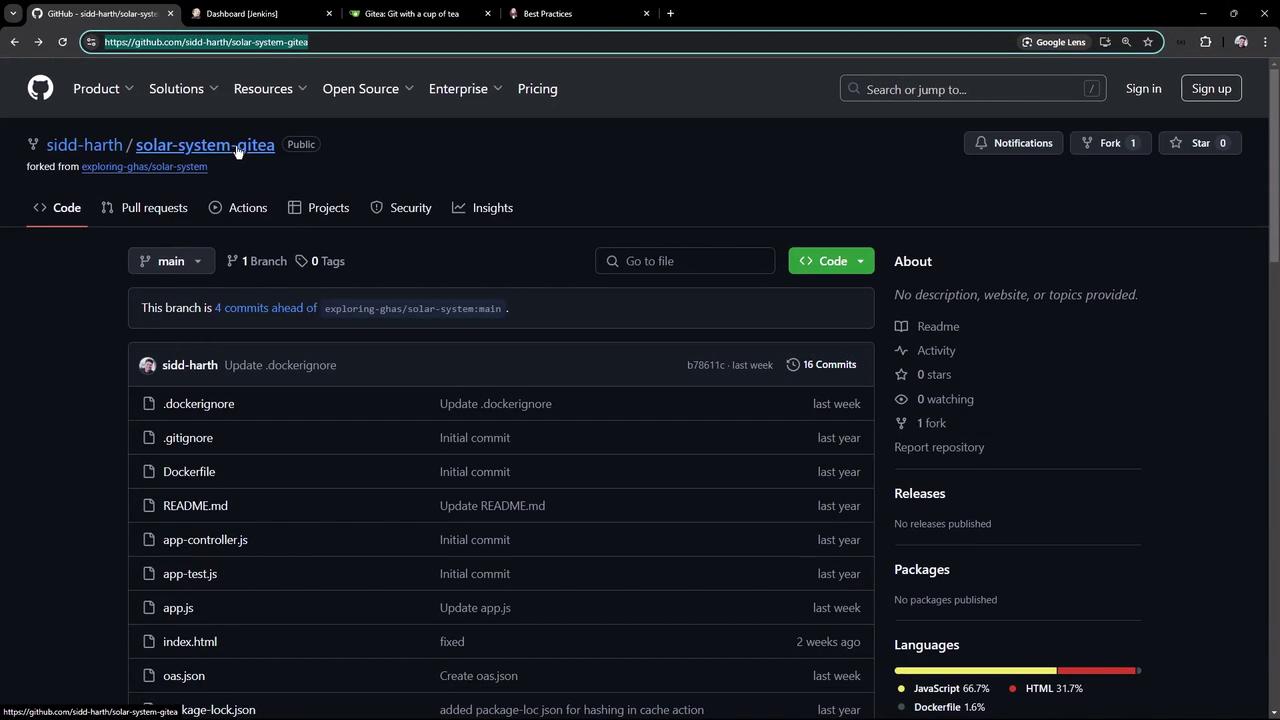
First, copy the clone URL of the Solar System repository from GitHub:
<Frame>
  ![The image shows a GitHub repository page for a project named "solar-system-gitea," displaying files, commit history, and language usage statistics.](https://kodekloud.com/kk-media/image/upload/v1752871026/notes-assets/images/Certified-Jenkins-Engineer-Demo-Create-Organization-Folder-Project/github-repo-solar-system-gitea.jpg)
</Frame>

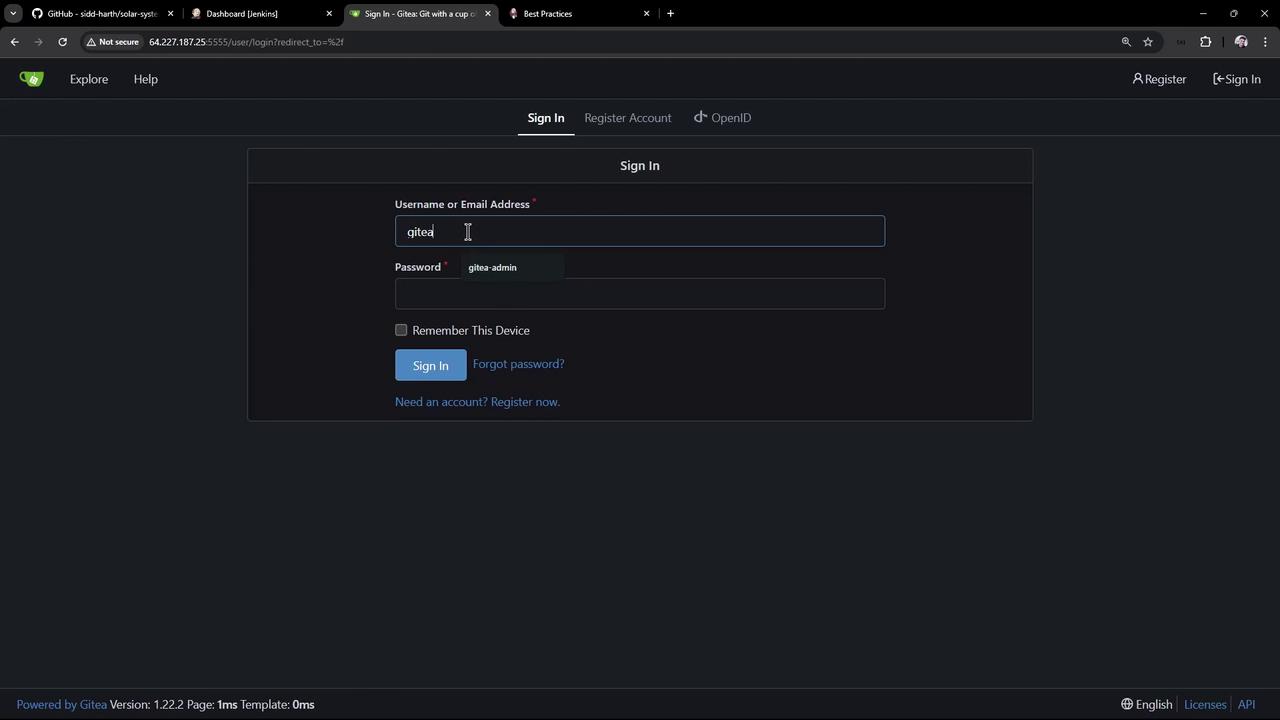
Sign in to your Gitea instance:

<Frame>
  ![The image shows a login page for Gitea, with fields for entering a username or email address and a password. There are options to sign in, register, or recover a forgotten password.](https://kodekloud.com/kk-media/image/upload/v1752871027/notes-assets/images/Certified-Jenkins-Engineer-Demo-Create-Organization-Folder-Project/gitea-login-page-username-password.jpg)
</Frame>

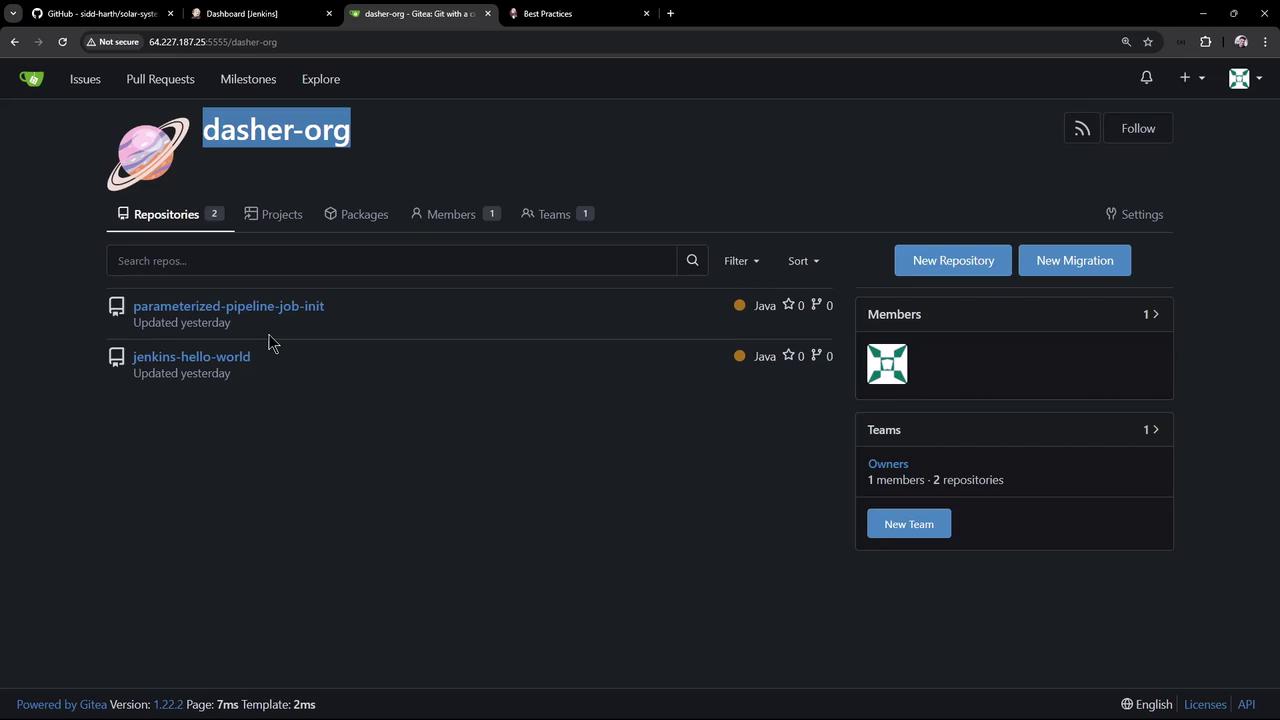
Go to your organization (e.g., `dasher-org`) and click **+ → New Migration**:
<Frame>
  ![The image shows a Gitea dashboard for the "dasher-org" organization, displaying two Java repositories and information about members and teams.](https://kodekloud.com/kk-media/image/upload/v1752871028/notes-assets/images/Certified-Jenkins-Engineer-Demo-Create-Organization-Folder-Project/gitea-dashboard-dasher-org-java-repos.jpg)
</Frame>

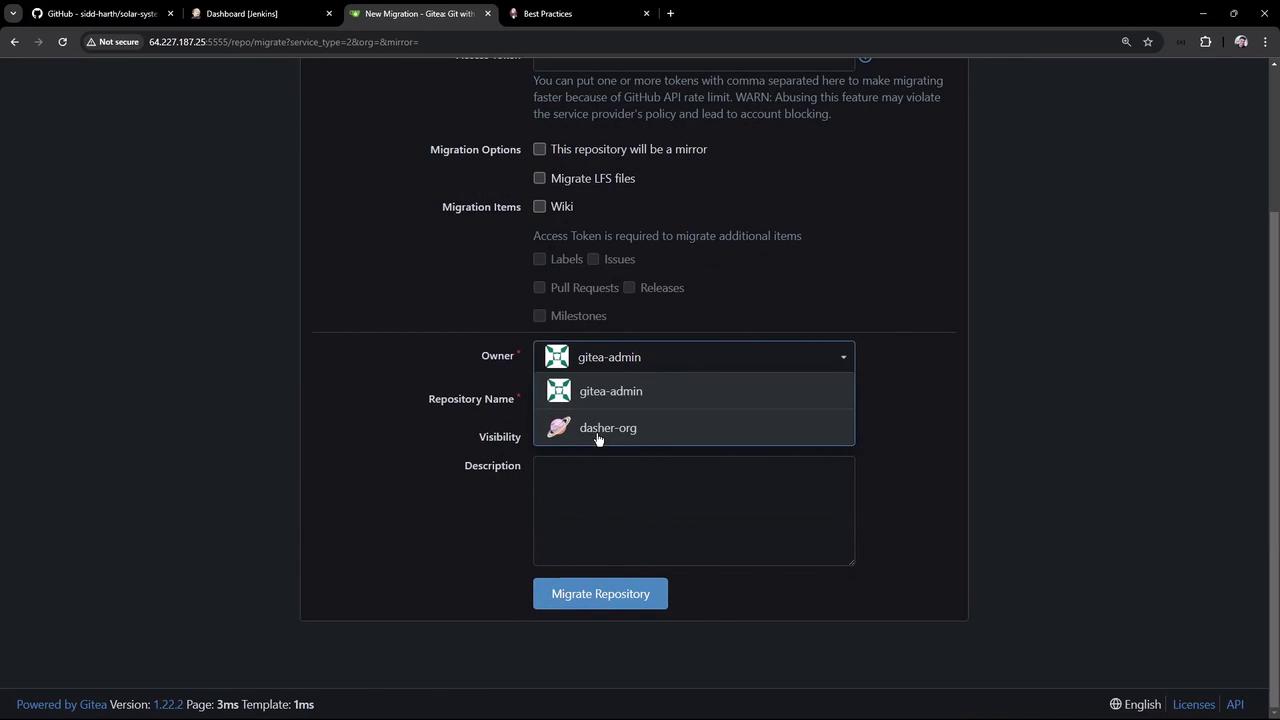
Paste the GitHub URL, set the owner to `dasher-org`, and name the repo **solar-system**:
<Frame>
  ![The image shows a Gitea interface for migrating a repository, with options for selecting the owner, repository name, and visibility. There are checkboxes for migration options and items, and a "Migrate Repository" button.](https://kodekloud.com/kk-media/image/upload/v1752871029/notes-assets/images/Certified-Jenkins-Engineer-Demo-Create-Organization-Folder-Project/gitea-repository-migration-interface.jpg)
</Frame>

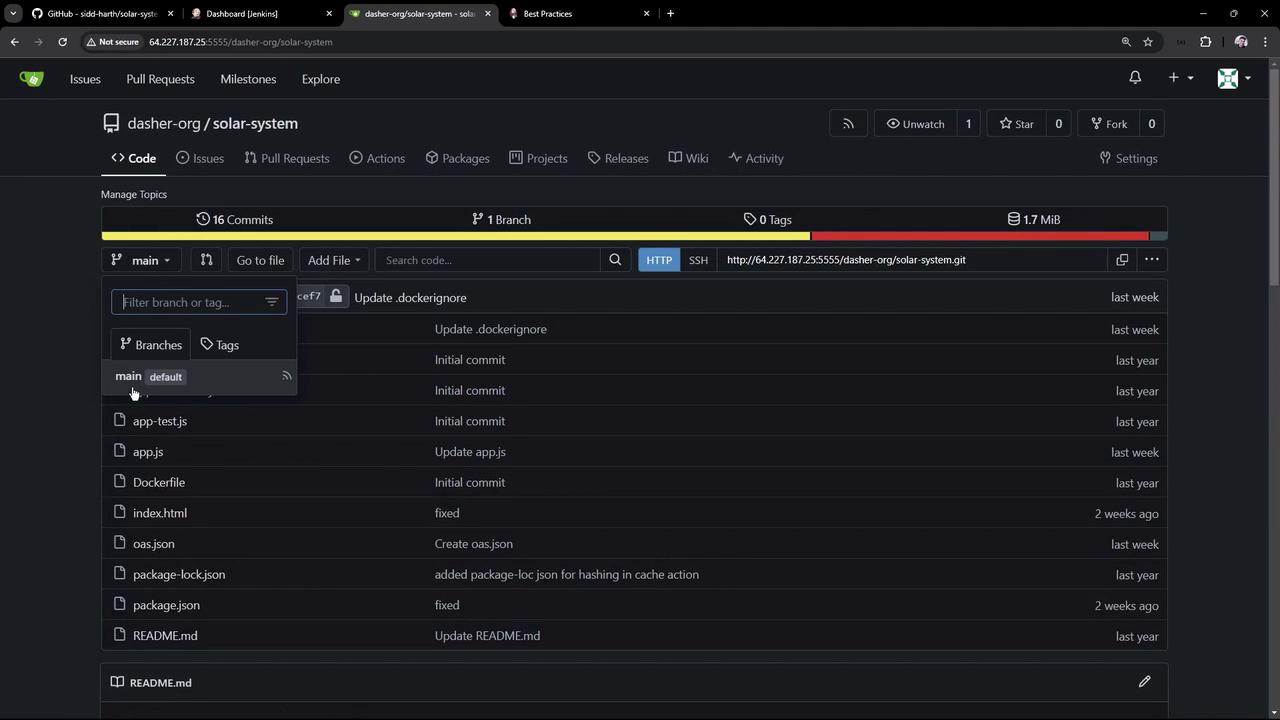
Once migration completes, verify the new repository by visiting its Gitea page:
<Frame>
  ![The image shows a GitHub repository interface for a project named "solar-system" under the organization "dasher-org." It displays details like commits, branches, and files, with a dropdown menu for branch selection.](https://kodekloud.com/kk-media/image/upload/v1752871030/notes-assets/images/Certified-Jenkins-Engineer-Demo-Create-Organization-Folder-Project/github-repo-solar-system-dasher-org.jpg)
</Frame>

***

## 2. Why Use an Organization Folder?

Manually creating a separate Pipeline job for each repository or branch can quickly become a maintenance headache. With the Organization Folder, Jenkins automatically scans your SCM, creates or removes jobs based on your configuration, and keeps everything in sync.

| Aspect            | Manual Pipelines            | Organization Folder       |
| ----------------- | --------------------------- | ------------------------- |
| Setup per repo    | Manual each time            | Single configuration      |
| Branch management | Manual updates              | Automatic discovery       |
| Scalability       | Limited by manual processes | Scales with your codebase |

<Callout icon="lightbulb" color="#1CB2FE">
  Organization Folders streamline multibranch pipeline management and support GitHub, Bitbucket, Gitea, and more.
</Callout>

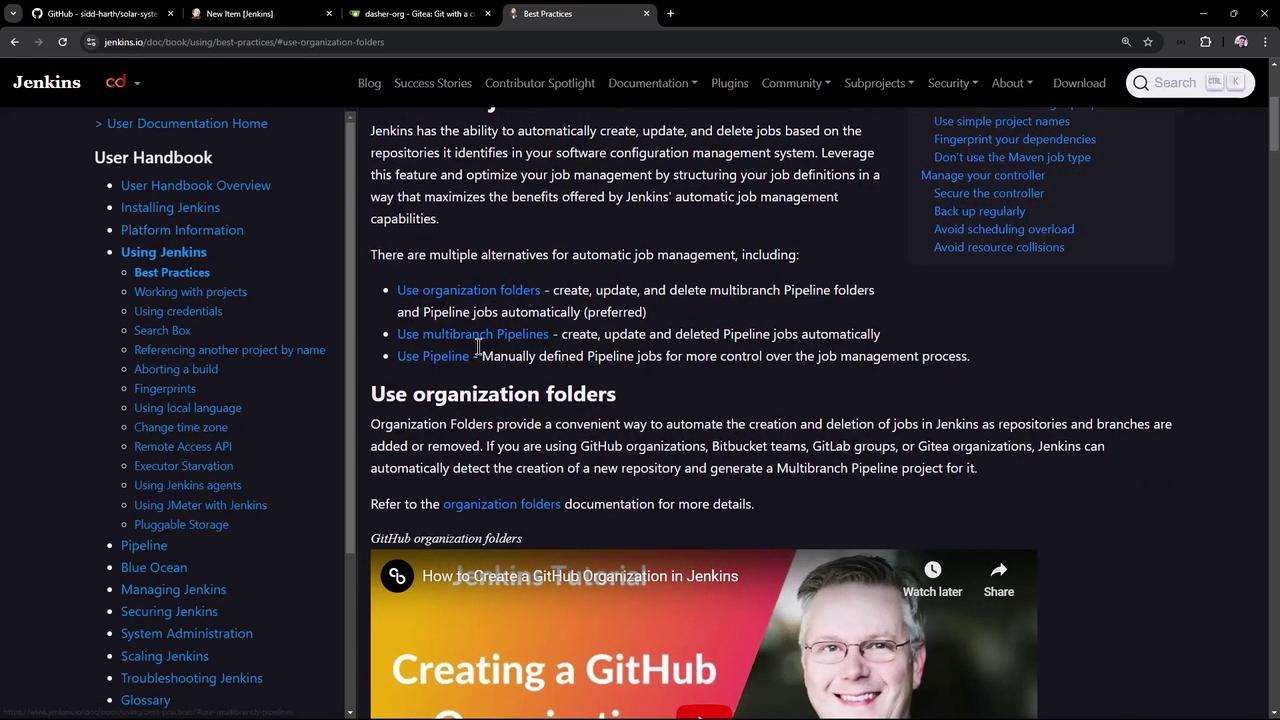
For further details, see the [Jenkins documentation](https://www.jenkins.io/doc/):
<Frame>
  ![The image shows a webpage from the Jenkins documentation, specifically discussing best practices for using organization folders to manage jobs automatically. It includes a sidebar with navigation links and a video thumbnail about creating a GitHub organization in Jenkins.](https://kodekloud.com/kk-media/image/upload/v1752871032/notes-assets/images/Certified-Jenkins-Engineer-Demo-Create-Organization-Folder-Project/jenkins-organization-folders-best-practices.jpg)
</Frame>

***

## 3. Create an Organization Folder in Jenkins

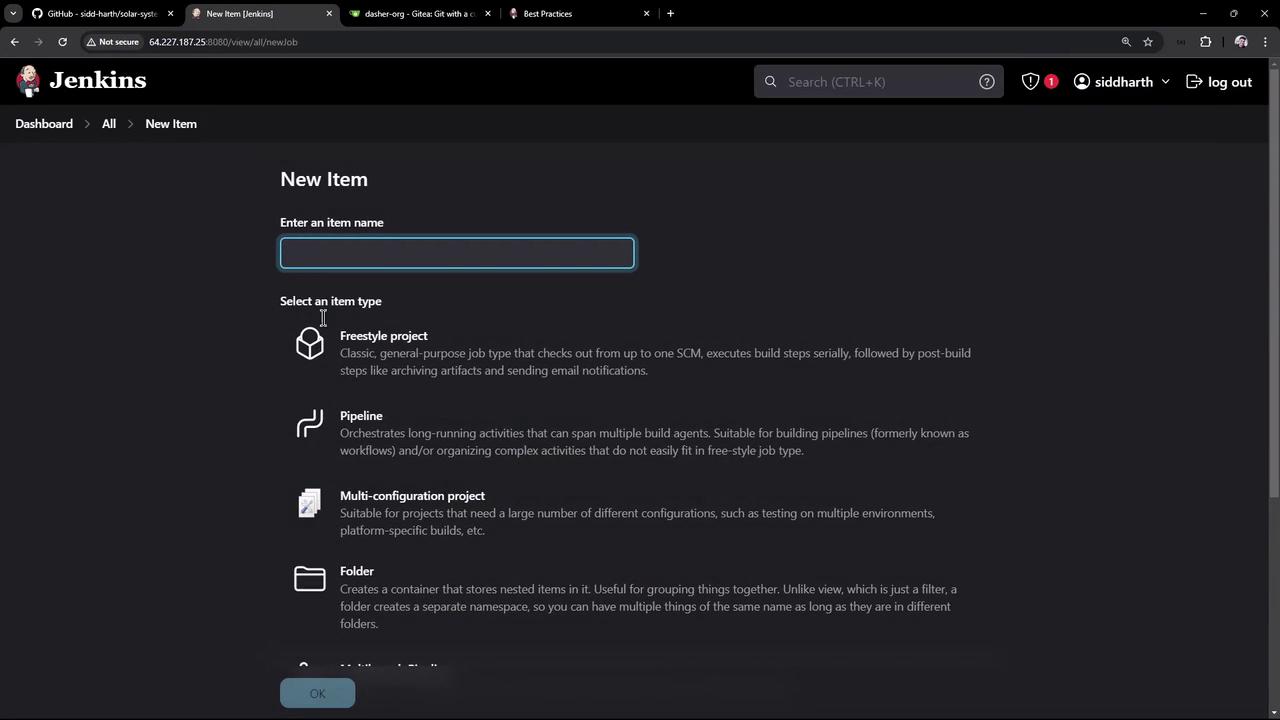
1. From the Jenkins dashboard, click **New Item**.
2. Enter **GitHub Organization** (or any descriptive name).
3. Select **Organization Folder** and click **OK**:
<Frame>
  ![The image shows a Jenkins interface for creating a new item, with options to select different project types such as Freestyle project, Pipeline, Multi-configuration project, and Folder.](https://kodekloud.com/kk-media/image/upload/v1752871033/notes-assets/images/Certified-Jenkins-Engineer-Demo-Create-Organization-Folder-Project/jenkins-new-item-interface.jpg)
</Frame>

***

## 4. Install and Configure the Gitea Plugin

### Install the Plugin

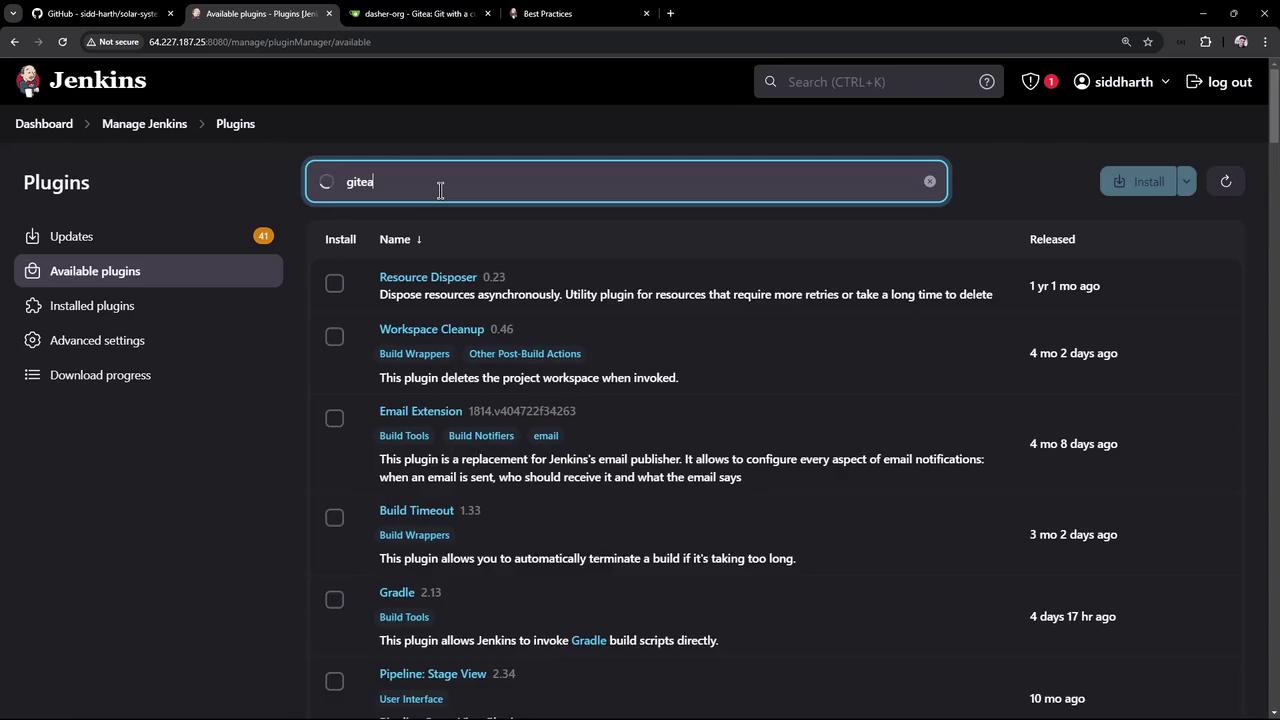
1. Navigate to **Manage Jenkins → Manage Plugins**.
2. In the **Available** tab, search for **Gitea plugin**.
3. Select and install it, checking **Restart Jenkins when installation is complete and no jobs are running**:
<Frame>
  ![The image shows a Jenkins interface with a search for plugins, displaying a list of available plugins with details like name, version, and release date.](https://kodekloud.com/kk-media/image/upload/v1752871033/notes-assets/images/Certified-Jenkins-Engineer-Demo-Create-Organization-Folder-Project/jenkins-plugin-search-interface.jpg)
</Frame>

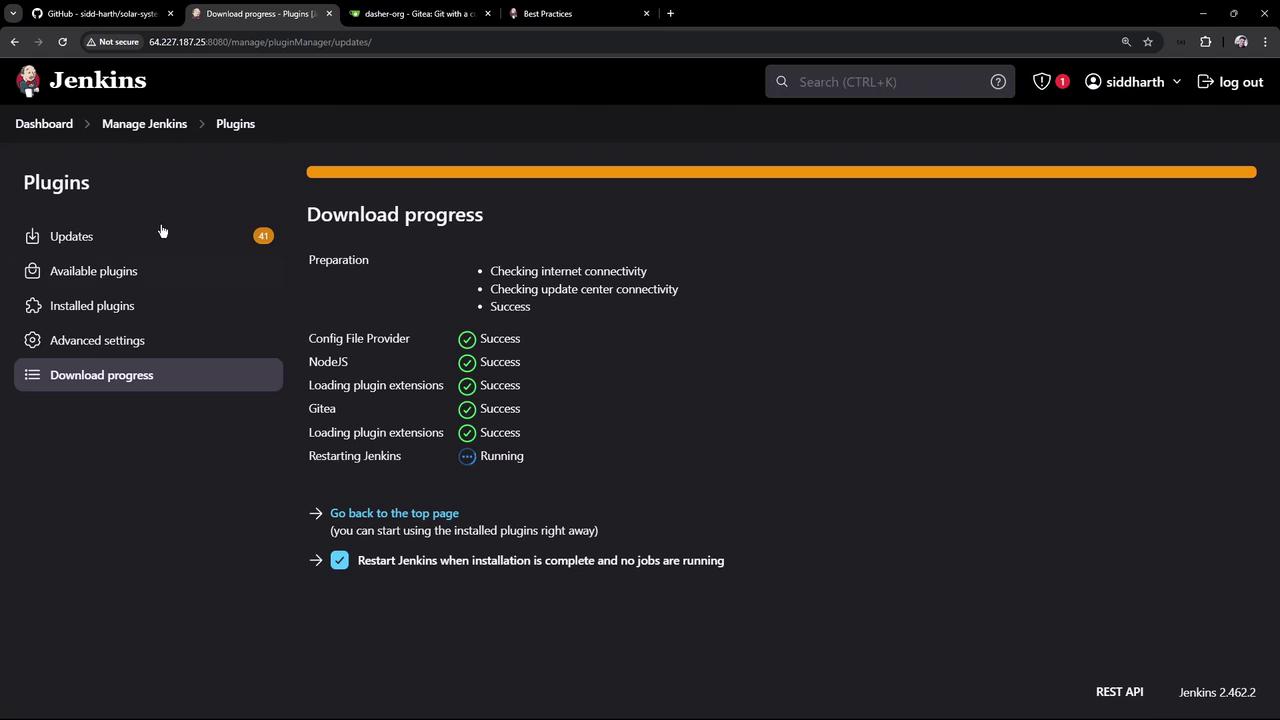
Wait for the installation to finish:

<Frame>
  ![The image shows a Jenkins interface displaying the download progress of plugins, with various components marked as successful and Jenkins currently running.](https://kodekloud.com/kk-media/image/upload/v1752871035/notes-assets/images/Certified-Jenkins-Engineer-Demo-Create-Organization-Folder-Project/jenkins-plugin-download-progress.jpg)
</Frame>

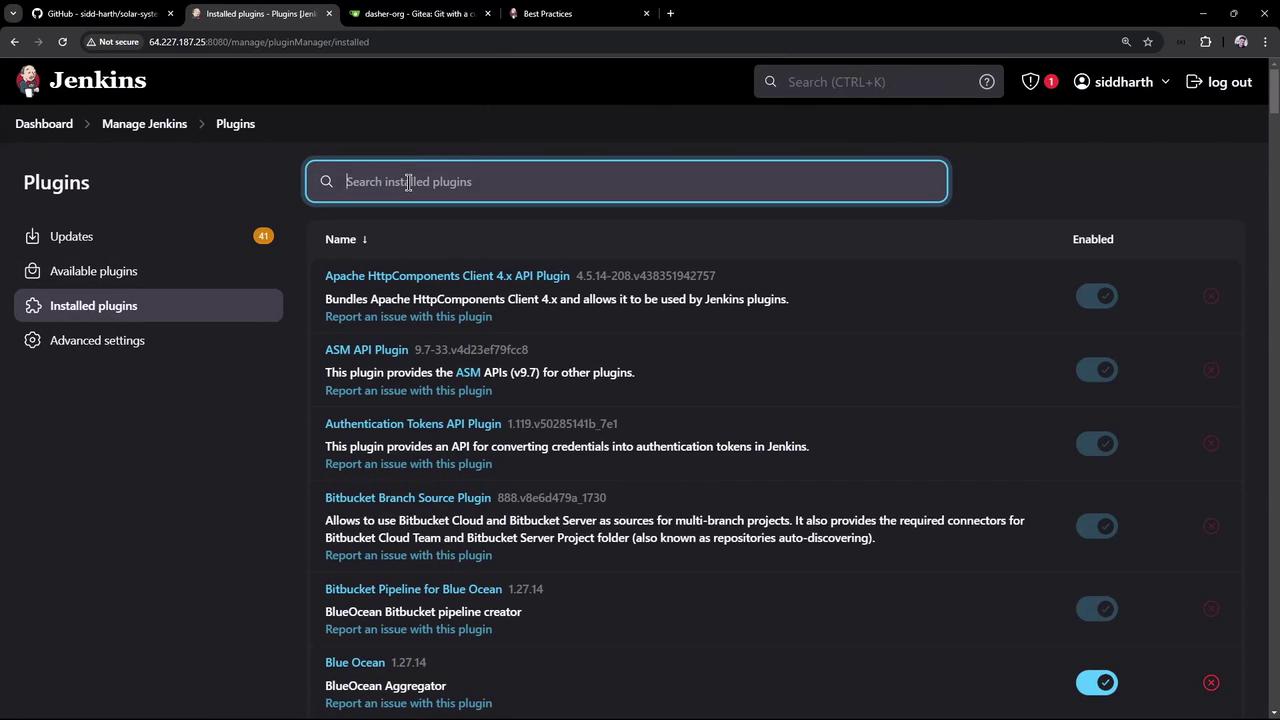
After Jenkins restarts, verify the plugin is listed under **Installed**:
<Frame>
  ![The image shows the Jenkins interface displaying a list of installed plugins, with options to search and manage them.](https://kodekloud.com/kk-media/image/upload/v1752871036/notes-assets/images/Certified-Jenkins-Engineer-Demo-Create-Organization-Folder-Project/jenkins-plugins-interface-management.jpg)
</Frame>

### Configure Gitea Server

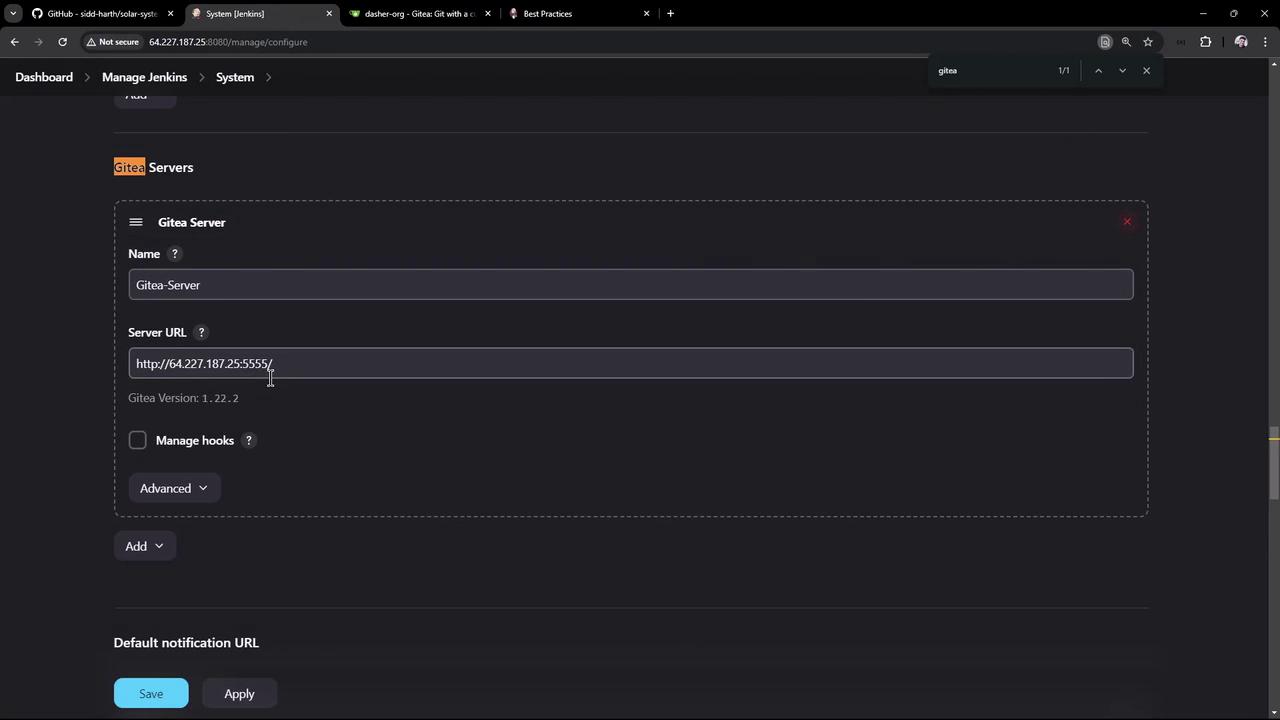
1. Go to **Manage Jenkins → Configure System**.
2. Scroll to **Gitea Servers** and click **Add Gitea Server**.
3. Enter:
   * **Name**: Gitea server
   * **API URL**: `https://<your-gitea-url>/api/v1`
4. Check **Manage hooks** to enable automatic webhook creation.
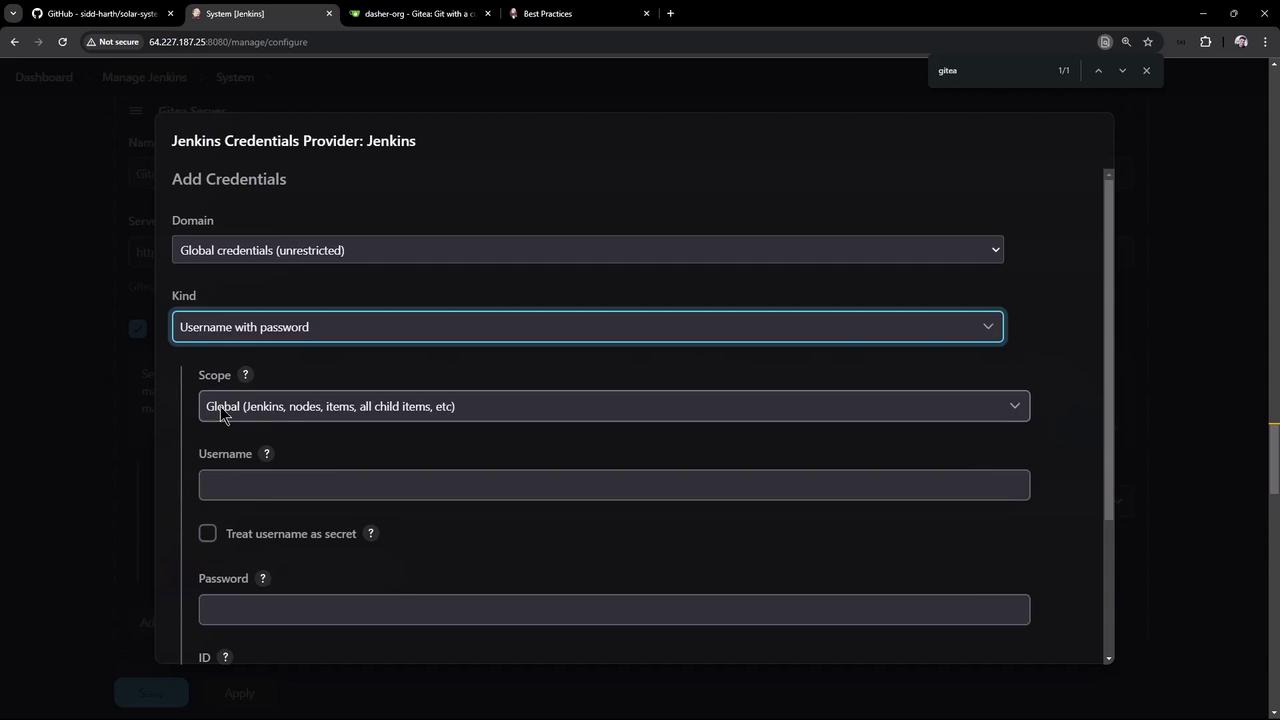
5. Next to **Credentials**, click **Add**, select **Username with password**, and enter your Gitea credentials (scope: Global):
<Frame>
  ![The image shows a Jenkins configuration screen for setting up a Gitea server, including fields for the server name and URL. There are options to manage hooks and advanced settings, with "Save" and "Apply" buttons at the bottom.](https://kodekloud.com/kk-media/image/upload/v1752871037/notes-assets/images/Certified-Jenkins-Engineer-Demo-Create-Organization-Folder-Project/jenkins-gitea-configuration-screen.jpg)
</Frame>

<Frame>
  ![The image shows a Jenkins interface for adding credentials, with fields for domain, kind, scope, username, and password. The browser has multiple tabs open, including GitHub and Gitea.](https://kodekloud.com/kk-media/image/upload/v1752871038/notes-assets/images/Certified-Jenkins-Engineer-Demo-Create-Organization-Folder-Project/jenkins-add-credentials-interface.jpg)
</Frame>

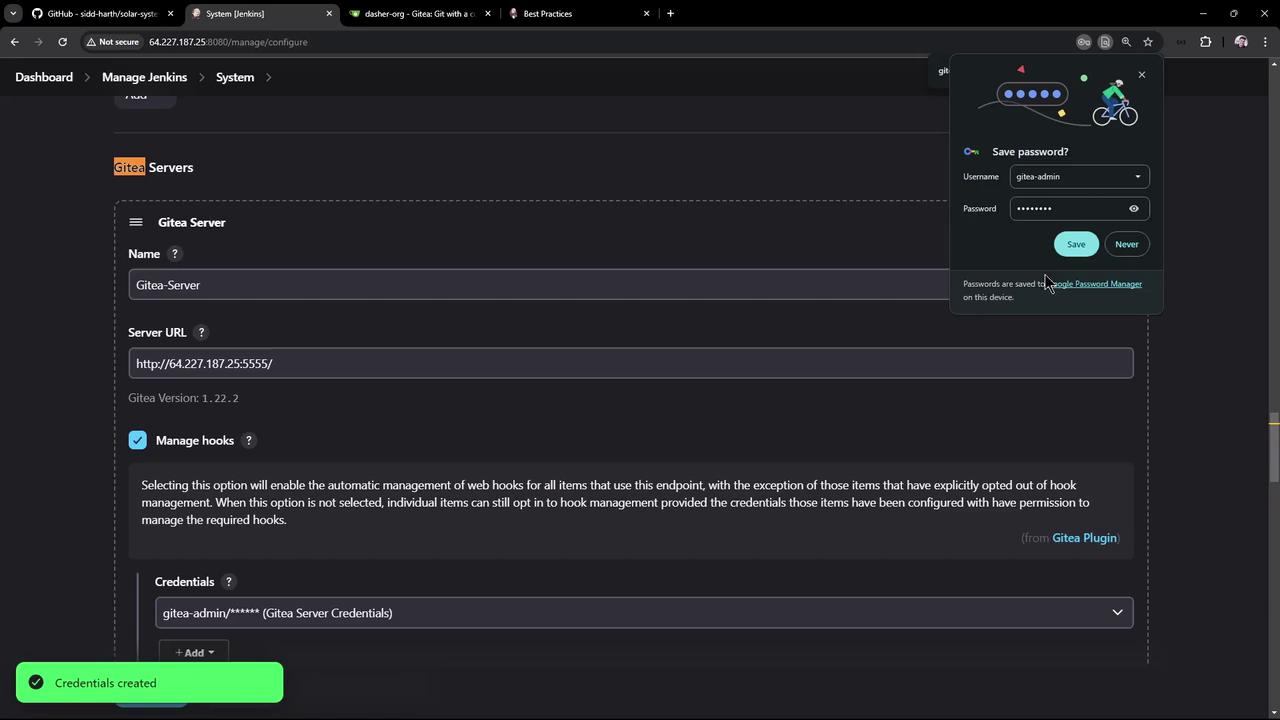
6. Click **Apply** and **Save**:

<Frame>
  ![The image shows a Jenkins configuration page for setting up a Gitea server, including fields for server name, URL, and credentials. A password manager prompt is visible, offering to save the username and password.](https://kodekloud.com/kk-media/image/upload/v1752871039/notes-assets/images/Certified-Jenkins-Engineer-Demo-Create-Organization-Folder-Project/jenkins-gitea-configuration-page-2.jpg)
</Frame>

***

## 5. Configure the Organization Folder

1. Open the **GitHub Organization** item and click **Configure**.
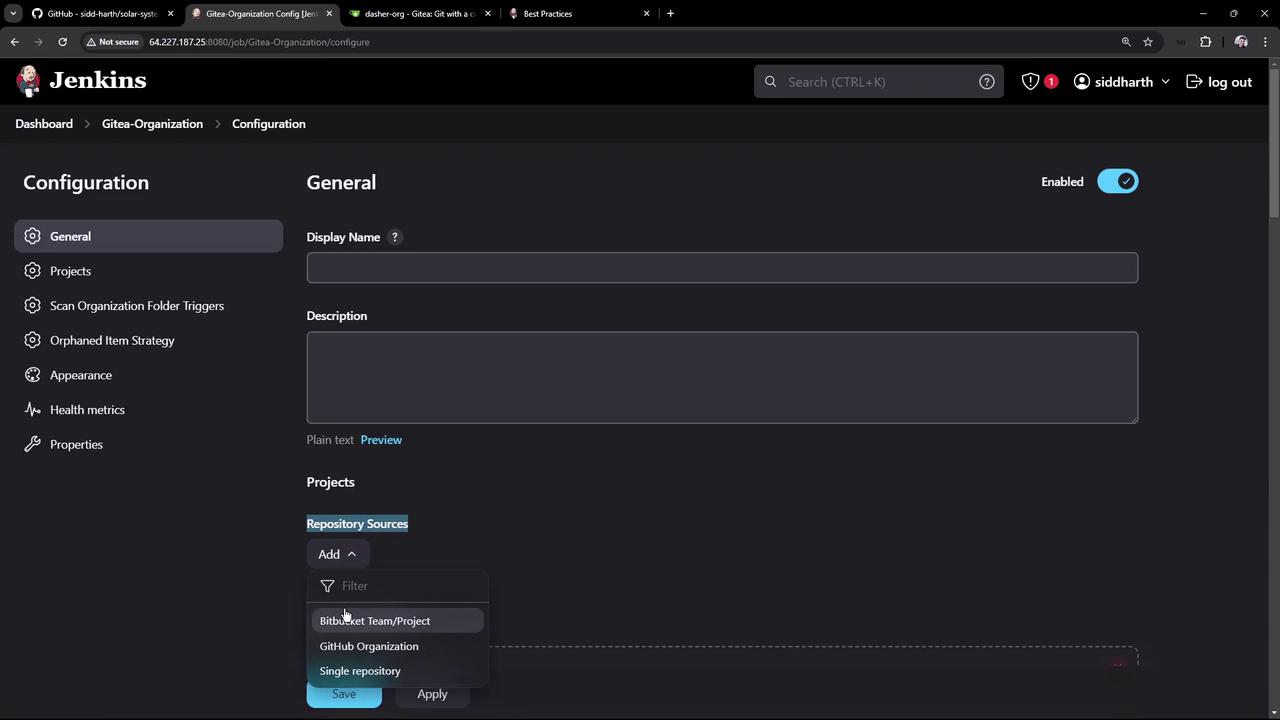
2. Under **Repository Sources**, click **Add Source → GitHub Organization**.
3. Select:
   * **GitHub Server**: your configured server
   * **Credentials**: the admin credential you added
   * **Owner**: `dasher-org`
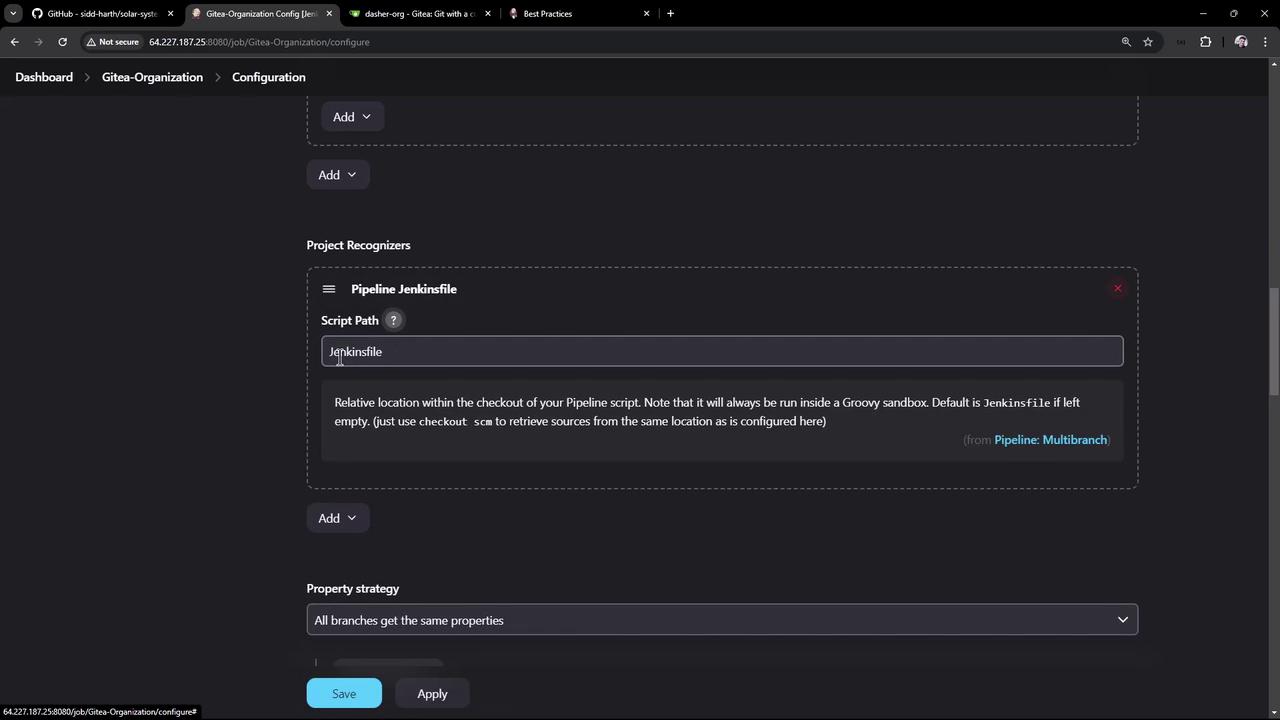
4. Leave discovery and project recognizer settings at default (looks for `Jenkinsfile`):
<Frame>
  ![The image shows a Jenkins configuration page with options for setting up a project, including repository sources like Bitbucket and GitHub. The interface includes fields for display name and description, with a sidebar for additional settings.](https://kodekloud.com/kk-media/image/upload/v1752871040/notes-assets/images/Certified-Jenkins-Engineer-Demo-Create-Organization-Folder-Project/jenkins-configuration-page-bitbucket-github.jpg)
</Frame>

<Frame>
  ![The image shows a configuration screen for a Jenkins pipeline, specifically setting the script path for a Jenkinsfile. There are options to add project recognizers and set property strategies for branches.](https://kodekloud.com/kk-media/image/upload/v1752871041/notes-assets/images/Certified-Jenkins-Engineer-Demo-Create-Organization-Folder-Project/jenkins-pipeline-configuration-screen.jpg)
</Frame>

5. Click **Save**. Jenkins begins scanning the organization immediately.

***

## 6. Organization Scan and Job Creation

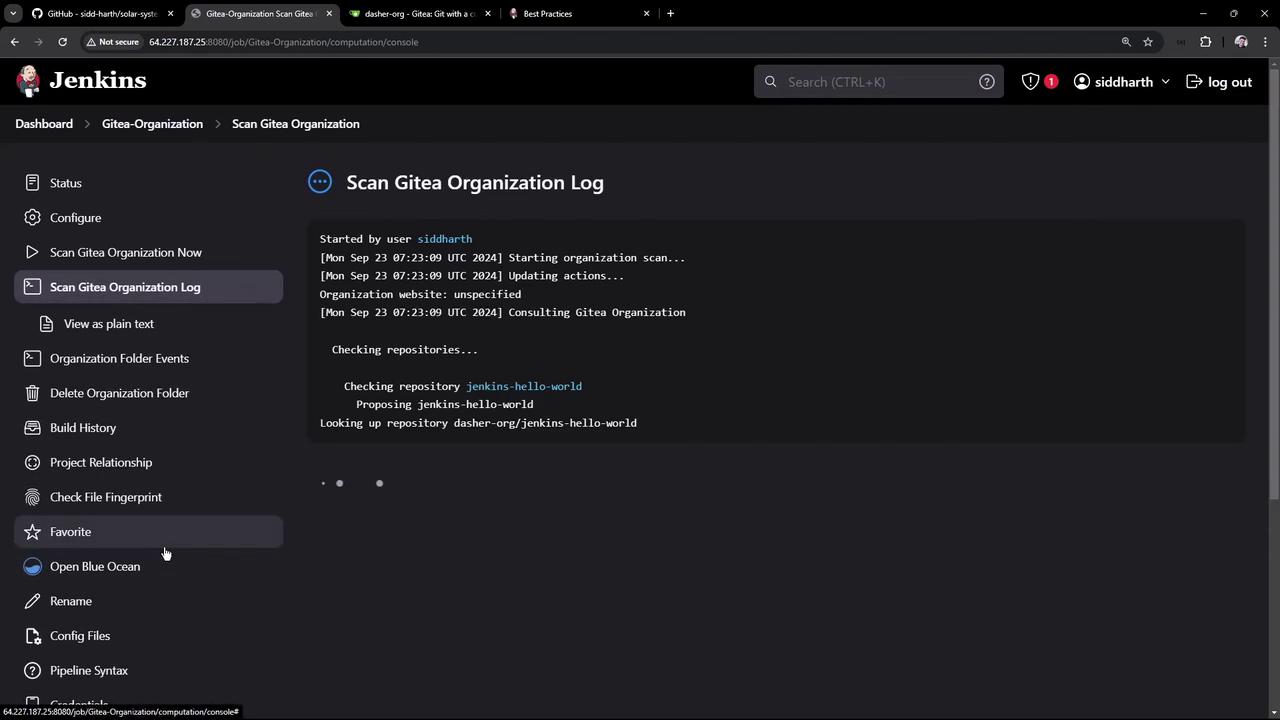
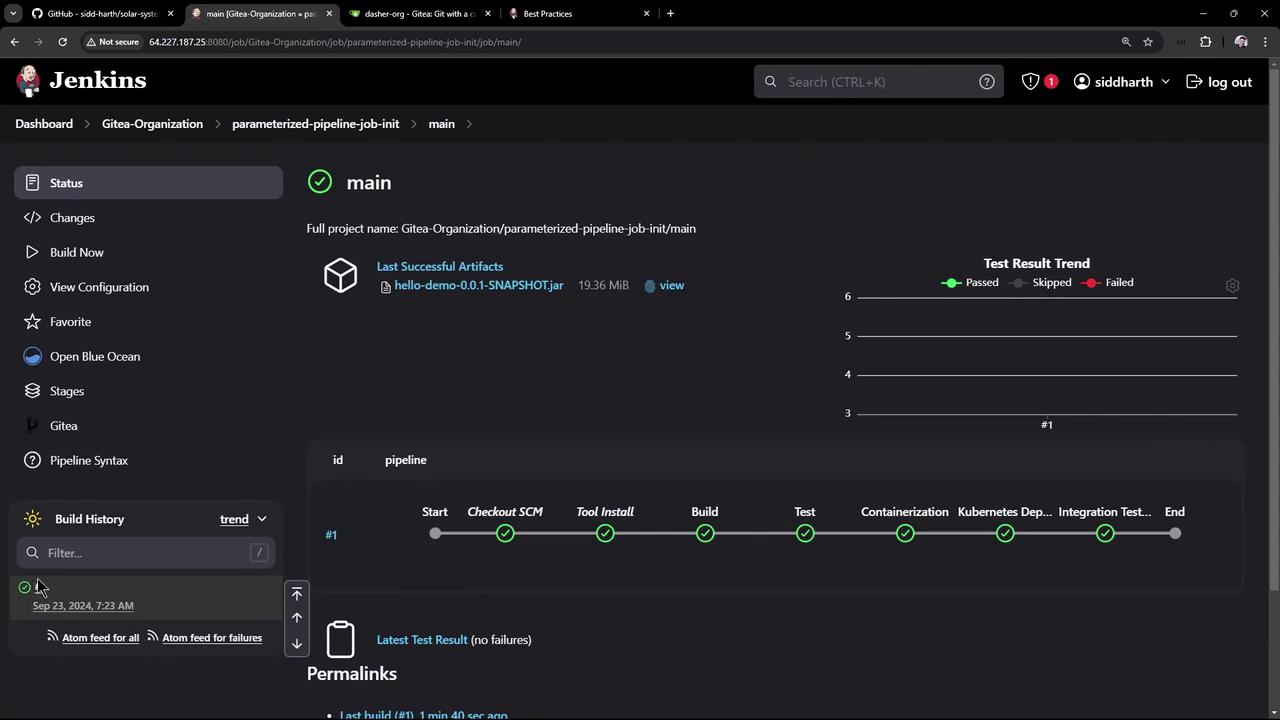
During the scan, Jenkins inspects each repository and its branches for a `Jenkinsfile`. Only those that match will have jobs created or updated.
<Frame>
  ![The image shows a Jenkins dashboard with a log of a Gitea organization scan. It includes details about the scan process, such as checking repositories and updating actions.](https://kodekloud.com/kk-media/image/upload/v1752871042/notes-assets/images/Certified-Jenkins-Engineer-Demo-Create-Organization-Folder-Project/jenkins-dashboard-gitea-scan-log.jpg)
</Frame>

Example scan output:

```text theme={null}
Checking repository parameterized-pipeline-job-init
Proposing parameterized-pipeline-job-init
Looking up repository dasher-org/parameterized-pipeline-job-init

Checking branches...
Checking branch main
'Jenkinsfile' found
Met criteria

1 branches were processed (query completed)

Checking repository solar-system
Proposing solar-system
Looking up repository dasher-org/solar-system

Checking branches...
Checking branch main
'Jenkinsfile' not found
Does not meet criteria

1 branches were processed
Checking pull requests...
0 pull requests were processed

3 repositories were processed
[Mon Sep 23 07:23:10 UTC 2024] Finished organization scan. Scan took 1.8 sec
Finished: SUCCESS
```

In this example:

* `parameterized-pipeline-job-init` → multibranch pipeline created
* `solar-system` → skipped (no `Jenkinsfile`)
<Frame>
  ![The image shows a Jenkins dashboard displaying the status of a pipeline job, with a successful build and test result trend. It includes details like the project name, last successful artifacts, and build history.](https://kodekloud.com/kk-media/image/upload/v1752871043/notes-assets/images/Certified-Jenkins-Engineer-Demo-Create-Organization-Folder-Project/jenkins-dashboard-pipeline-status.jpg)
</Frame>

***

## 7. Inspecting Branch Pipelines

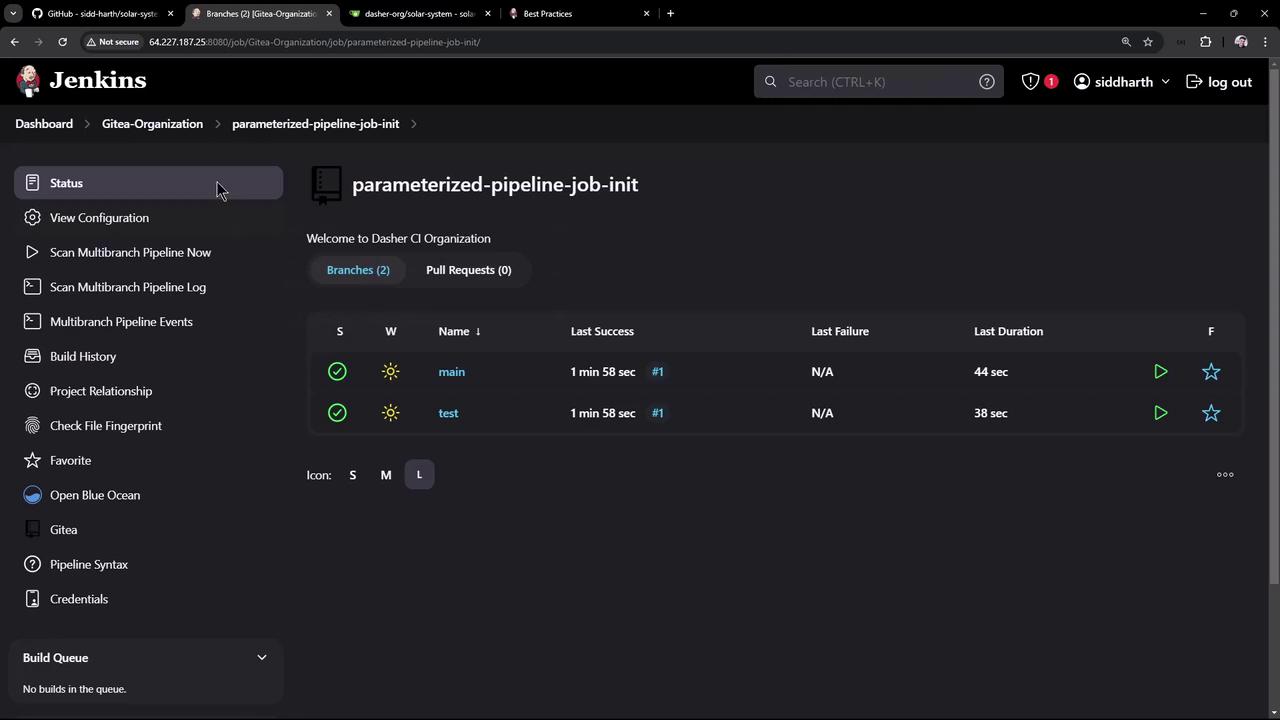
Click the **parameterized-pipeline-job-init** item to view branch-level pipelines:
<Frame>
  ![The image shows a Jenkins dashboard displaying the status of a parameterized pipeline job with branches "main" and "test," both having successful builds.](https://kodekloud.com/kk-media/image/upload/v1752871045/notes-assets/images/Certified-Jenkins-Engineer-Demo-Create-Organization-Folder-Project/jenkins-dashboard-parameterized-pipeline.jpg)
</Frame>

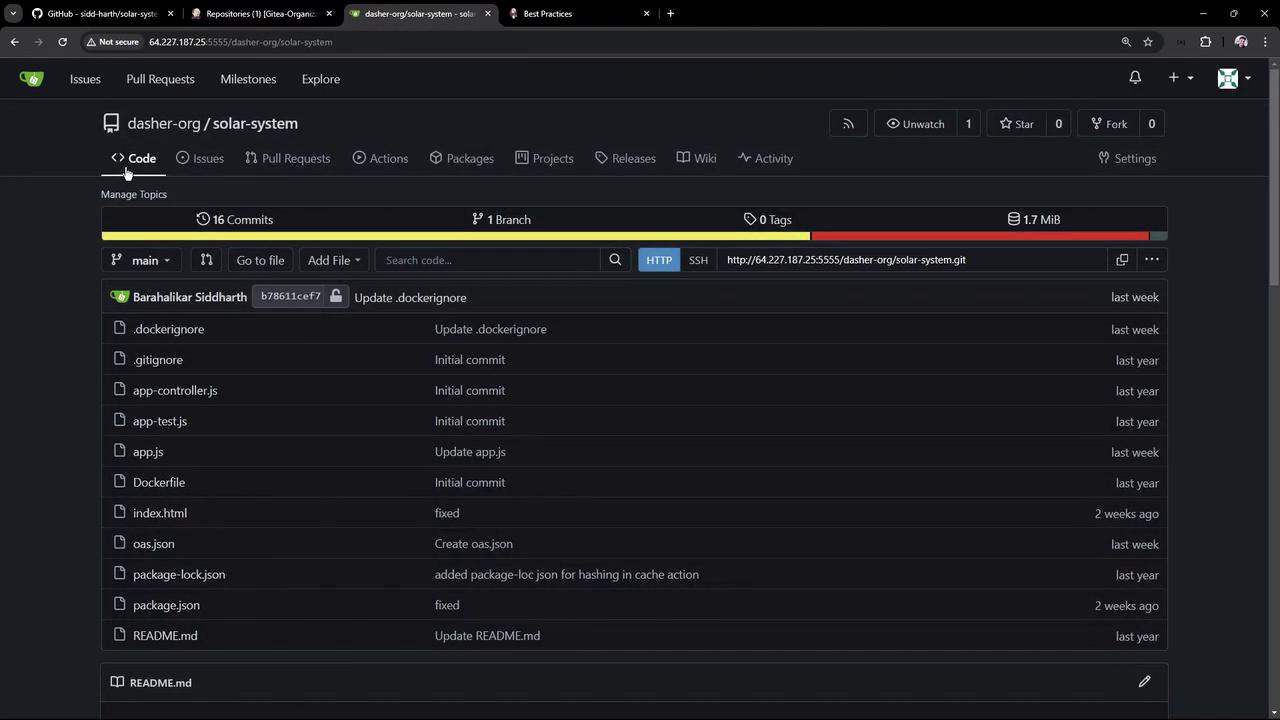
Repository details such as files and commit history are pulled from Gitea:
<Frame>
  ![The image shows a GitHub repository interface with a list of files and their commit messages. It includes details like the number of commits, branches, and file sizes.](https://kodekloud.com/kk-media/image/upload/v1752871046/notes-assets/images/Certified-Jenkins-Engineer-Demo-Create-Organization-Folder-Project/github-repo-files-commits-interface.jpg)
</Frame>

***

## 8. Webhook Configuration and Automatic Triggers

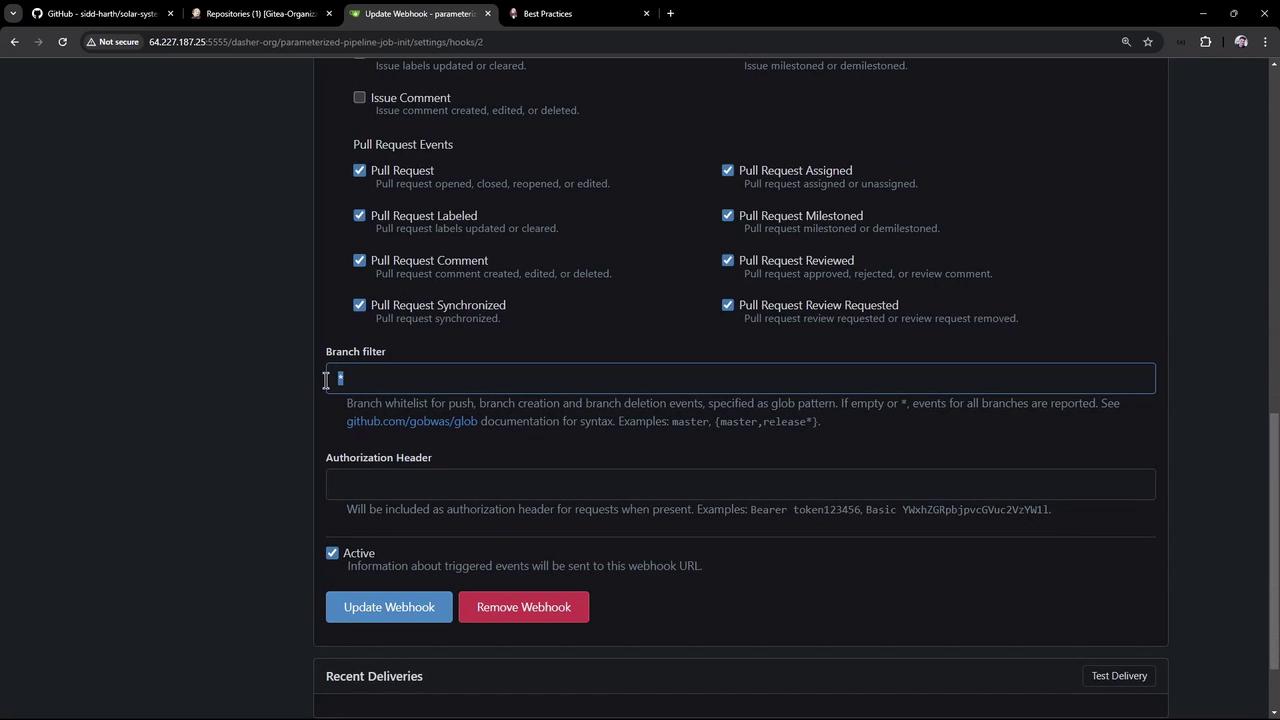
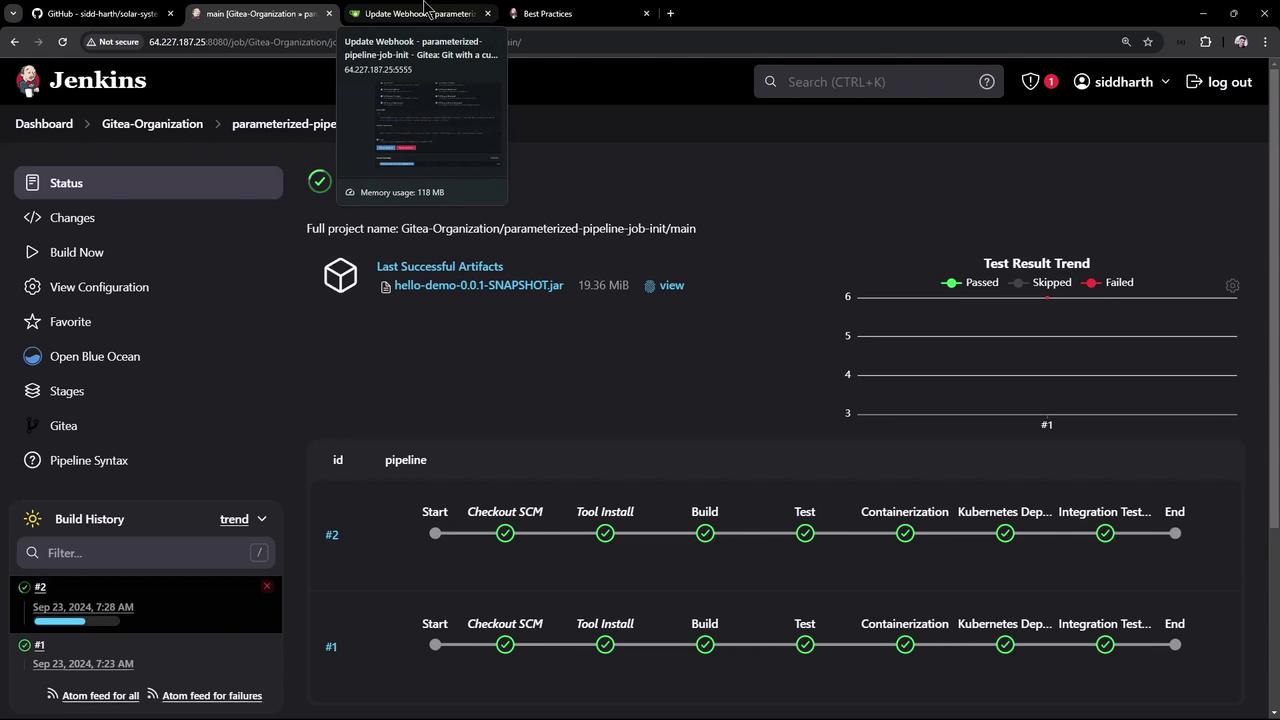
By enabling **Manage hooks**, Jenkins automatically adds webhooks to each repository. These webhooks trigger builds on push, branch/tag creation, and pull request events.
<Frame>
  ![The image shows a GitHub settings page for updating a webhook, with options for selecting pull request events and a branch filter. There are buttons for updating or removing the webhook at the bottom.](https://kodekloud.com/kk-media/image/upload/v1752871047/notes-assets/images/Certified-Jenkins-Engineer-Demo-Create-Organization-Folder-Project/github-webhook-settings-update.jpg)
</Frame>

For example, edit the `README` in the `main` branch:

```bash theme={null}
git checkout main
# edit README.md
git add README.md
git commit -m "Edited README"
git push origin main
```

The webhook notifies Jenkins, triggering a new build:
<Frame>
  ![The image shows a Jenkins dashboard displaying the status of a pipeline job, with stages like "Checkout SCM," "Build," and "Test" marked as completed. It also includes a test result trend graph and build history.](https://kodekloud.com/kk-media/image/upload/v1752871048/notes-assets/images/Certified-Jenkins-Engineer-Demo-Create-Organization-Folder-Project/jenkins-dashboard-pipeline-status-2.jpg)
</Frame>

<Callout icon="triangle-alert" color="#FF6B6B">
  Ensure your Gitea API token has permissions to create webhooks and read repositories.
</Callout>

***

## Conclusion

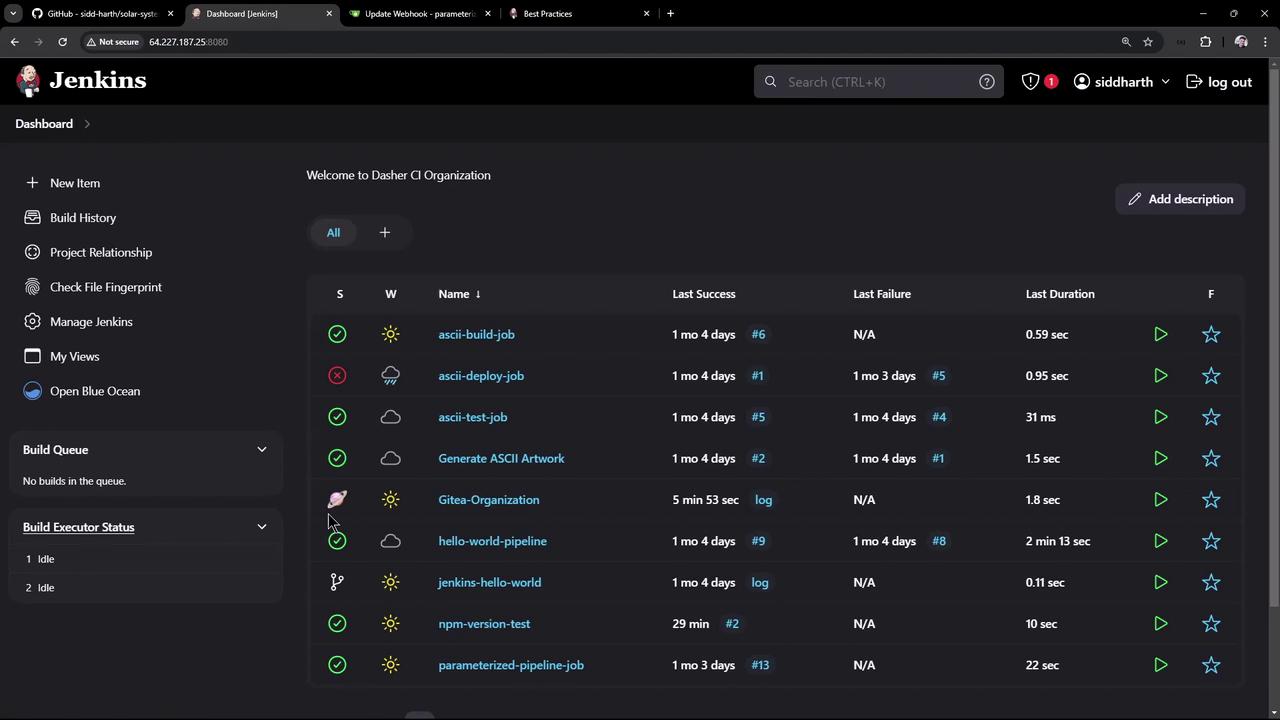
After adding a `Jenkinsfile` to the `solar-system` repository, Jenkins picks it up in the next scan and automatically creates a pipeline:
<Frame>
  ![The image shows a Jenkins dashboard displaying a list of jobs with their statuses, last success, last failure, and duration details.](https://kodekloud.com/kk-media/image/upload/v1752871049/notes-assets/images/Certified-Jenkins-Engineer-Demo-Create-Organization-Folder-Project/jenkins-dashboard-job-statuses-2.jpg)
</Frame>

***

## Links and References

* [Jenkins Documentation](https://www.jenkins.io/doc/)
* [Gitea Documentation](https://docs.gitea.io/)
* [Gitea Plugin for Jenkins](https://plugins.jenkins.io/gitea/)

<CardGroup>
  <Card title="Watch Video" icon="video" cta="Learn more" href="https://learn.kodekloud.com/user/courses/certified-jenkins-engineer/module/73d0066f-a01f-4d13-a00c-c9baf9aae603/lesson/bc021ff4-53fe-4109-a393-5da33f5bde18" />
</CardGroup>