> ## Documentation Index
> Fetch the complete documentation index at: https://notes.kodekloud.com/llms.txt
> Use this file to discover all available pages before exploring further.
# Demo Fixing Vulnerabilities Publish HTML Report
> Learn to fix vulnerabilities and publish HTML and JUnit reports in Jenkins for improved visibility and compliance tracking.
In this walkthrough, you’ll learn how to address critical vulnerabilities flagged by `npm audit` and OWASP Dependency-Check, then expose the HTML and JUnit reports in your Jenkins pipeline for better visibility and compliance tracking.
## 1. Identify Failing Dependency Scans
First, run an audit locally to pinpoint blocking issues:
```bash theme={null}
npm audit --audit-level=critical
```
Example output:
```bash theme={null}
@babel/traverse <7.23.2
Severity: critical
Babel vulnerable to arbitrary code execution when compiling specifically crafted malicious code - https://github.com/advisories/GHSA-67hx-6x53-jw92
...
8 vulnerabilities (2 moderate, 5 high, 1 critical)
To address all issues, run:
npm audit fix
```
In Jenkins, the **Dependency Scanning** stage may look like this:
```groovy theme={null}
stage('Dependency Scanning') {
parallel {
stage('NPM Dependency Audit') {
steps {
sh '''
npm audit --audit-level=critical
echo $?
'''
}
}
}
}
```
## 2. Fix the Critical Vulnerability
To resolve the critical issue in `@babel/traverse`, install a version ≥ 7.23.2:
```bash theme={null}
npm install @babel/traverse@^7.23.2
```
Re-run the audit to confirm the fix:
```bash theme={null}
npm audit --audit-level=critical && echo $?
# 0 (no critical vulnerabilities found)
```
Your `package.json` will update under `dependencies`:
```json theme={null}
{
"dependencies": {
"@babel/traverse": "^7.23.2",
"cors": "^2.8.5",
"express": "^4.18.2",
"mongoose": "^5.13.20",
"nyc": "^15.1.0"
}
}
```
Commit the changes:
```bash theme={null}
git add package.json package-lock.json
git commit -m "fix critical vulnerability in @babel/traverse"
git push
```
## 3. Verify in Jenkins
Once pushed, Jenkins triggers a new build. Both **NPM Audit** and **OWASP Dependency Check** stages should now pass:
```bash theme={null}
npm install --no-audit
npm audit --audit-level=critical && echo $?
# vulnerability summary (2 moderate, 5 high)
# + echo 0
```
## 4. Publish the HTML Report
Expose the OWASP Dependency-Check HTML report in Jenkins by using the `htmlPublisher` step.
1. Open **Snippet Generator** > **Pipeline Syntax** > **htmlPublisher**.
2. Set:
* Report directory: `./`
* Report files: `dependency-check-jenkins.html`
* Report name: **Dependency Check HTML Report**
3. Copy the generated Groovy snippet.
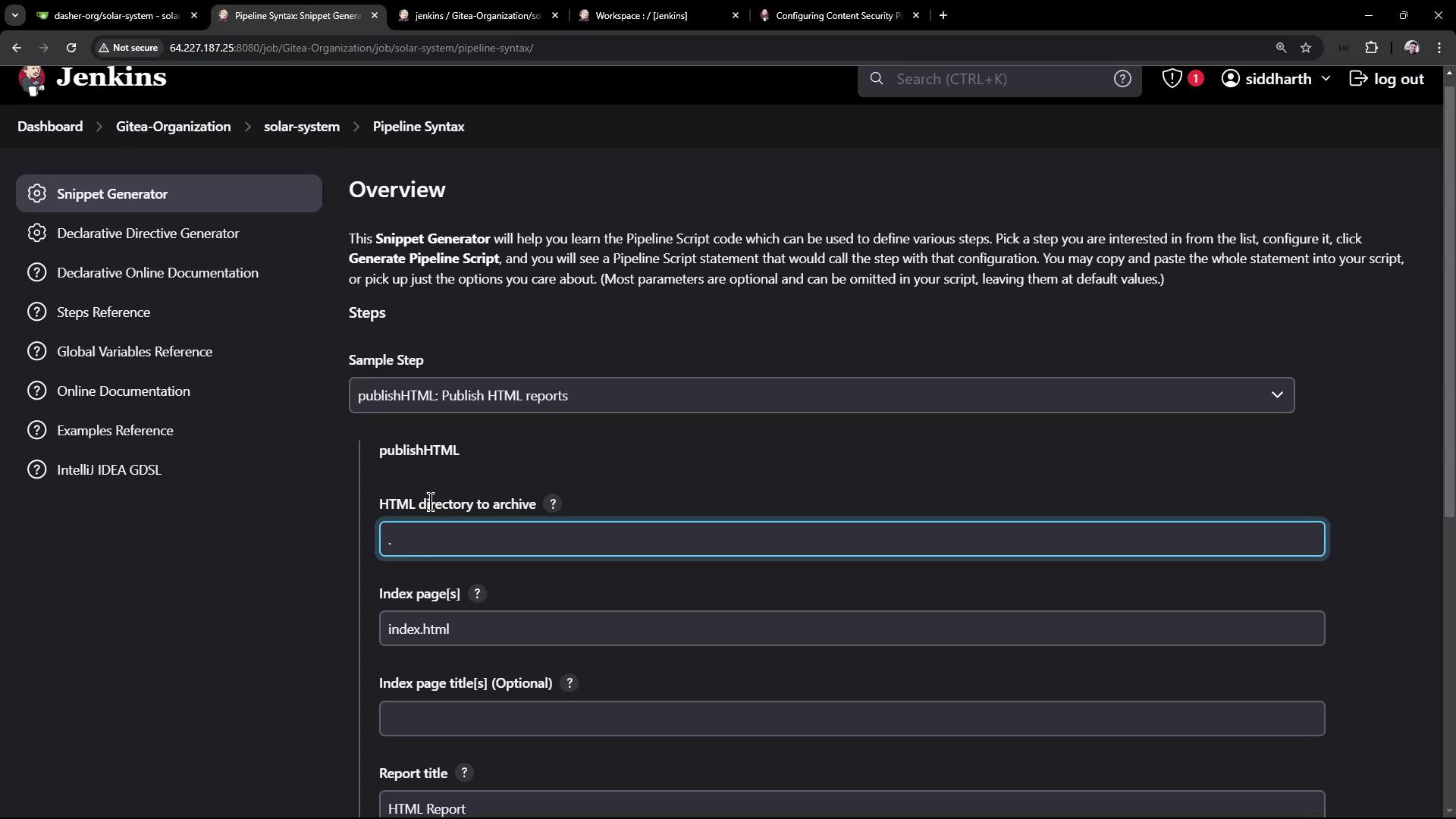
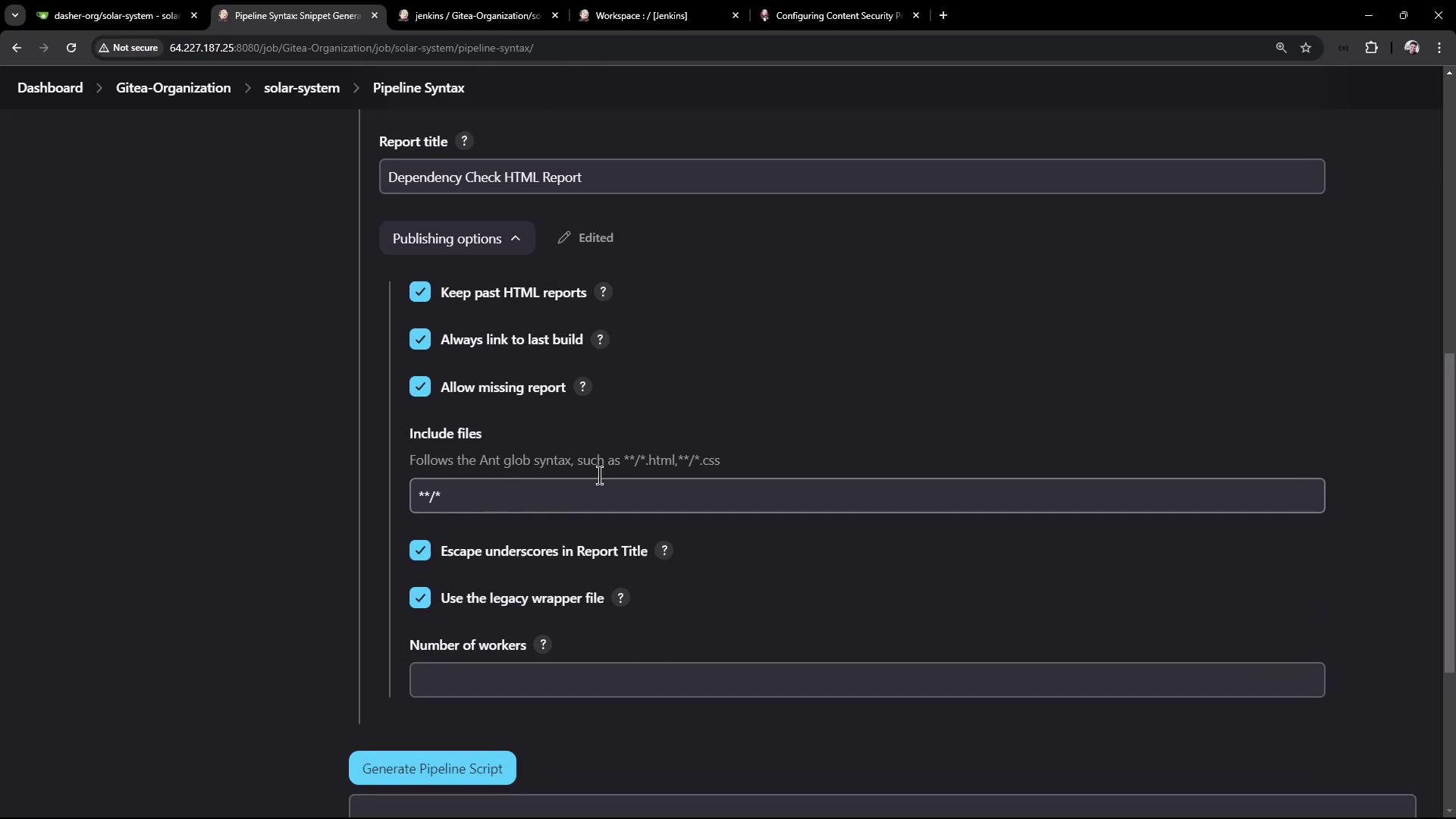
Add it to your OWASP stage:
```groovy theme={null}
stage('OWASP Dependency Check') {
steps {
dependencyCheck additionalArguments: '''
--scan ./
--out ./
--format ALL
--prettyPrint
''', odcInstallation: 'OWASP-DepCheck-10'
dependencyCheckPublisher failedTotalCritical: 1,
pattern: 'dependency-check-report.xml',
stopBuild: true
publishHTML(
allowMissing: true,
alwaysLinkToLastBuild: true,
keepAll: true,
reportDir: './',
reportFiles: 'dependency-check-jenkins.html',
reportName: 'Dependency Check HTML Report',
useWrapperFileDirectly: true
)
}
}
```
Commit and push your changes:
```bash theme={null}
git commit -am "publish Dependency-Check HTML report"
git push
```
After the build completes, view the archived HTML under **Artifacts**:
```plaintext theme={null}
[htmlpublisher] Archiving HTML reports...
[htmlpublisher] Archiving at BUILD level ...
```
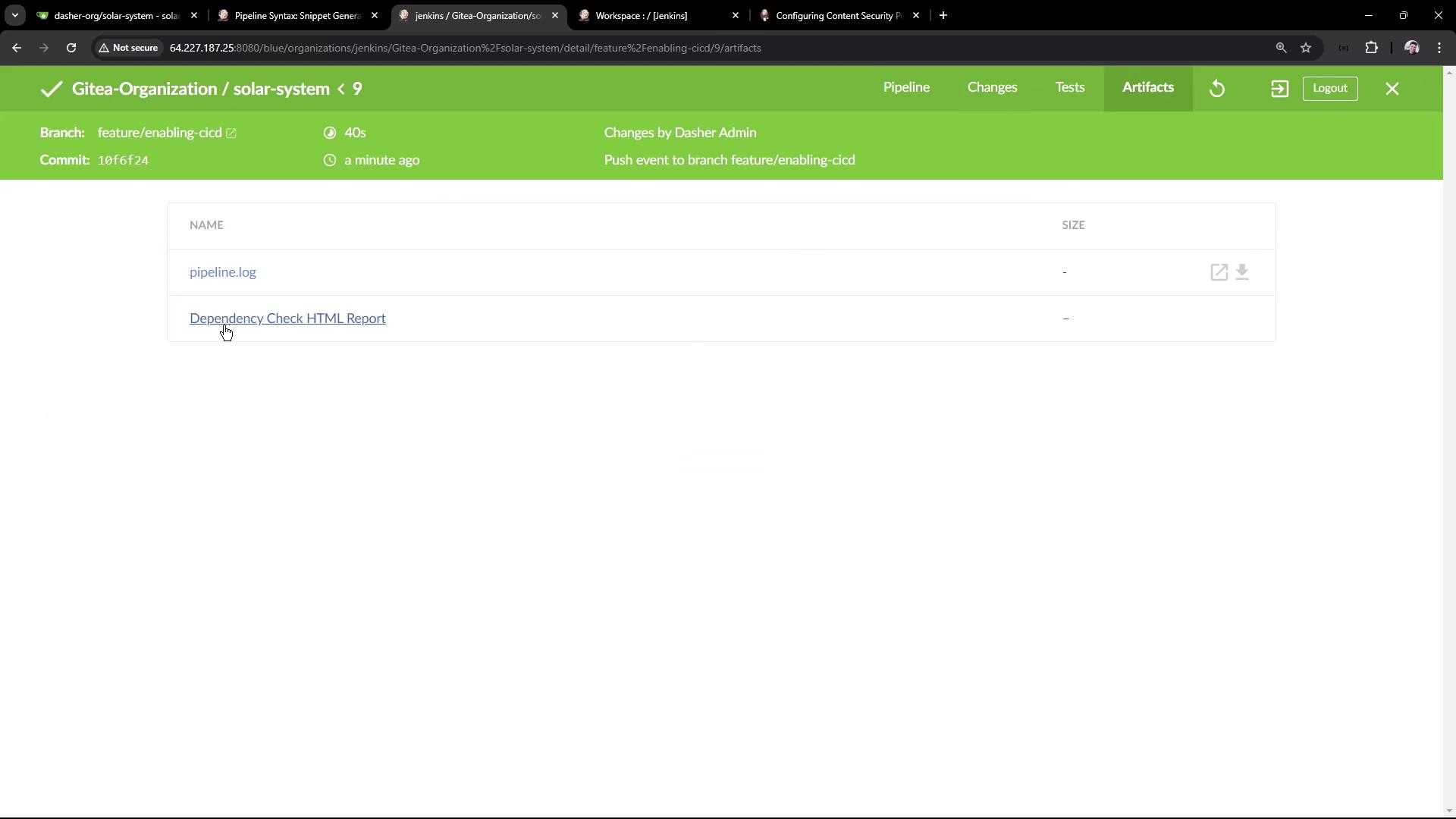
By default, Jenkins enforces a strict Content Security Policy that may strip inline CSS/JS. To allow CSS in archived HTML reports, execute in the **Script Console**:
```java theme={null}
System.setProperty(
"hudson.model.DirectoryBrowserSupport.CSP",
"sandbox allow-same-origin; default-src 'self'; img-src 'self'; style-src 'self';"
);
```
Then rebuild the job to see the styled report.
## 5. Publish JUnit XML Results
Show OWASP results in the **Test Results** tab by adding a `junit` publisher:
1. Ensure the JUnit plugin is installed.
2. In **Snippet Generator**, select **junit**.
3. Configure:
* Test results: `dependency-check-junit.xml`
* Allow empty results: `true`
* Keep properties: `true`
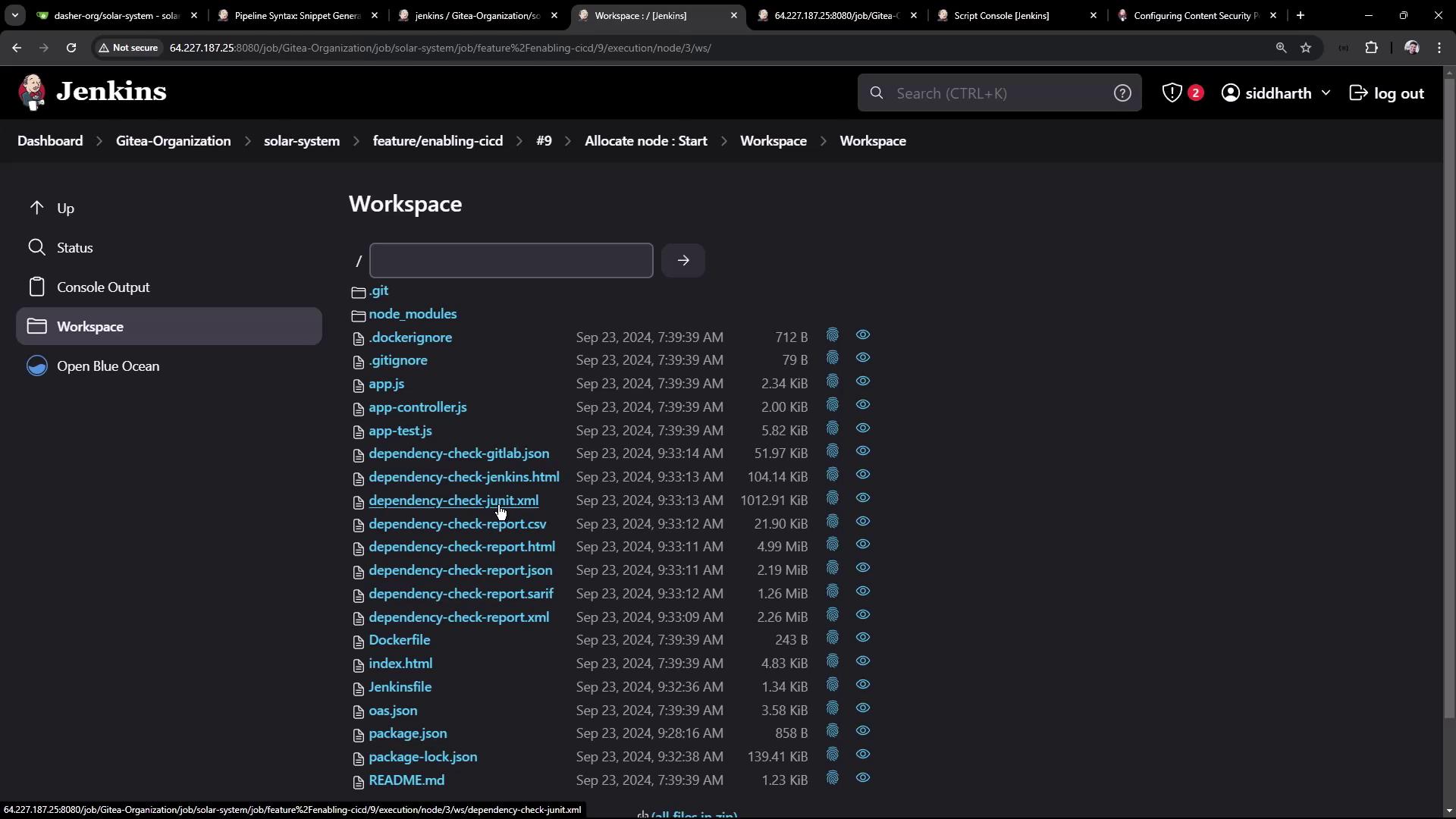
Insert this snippet before or after your existing publishers:
```groovy theme={null}
junit allowEmptyResults: true,
keepProperties: true,
testResults: 'dependency-check-junit.xml'
```
Full stage example:
```groovy theme={null}
stage('OWASP Dependency Check') {
steps {
dependencyCheck /* ... */
dependencyCheckPublisher /* ... */
junit(
allowEmptyResults: true,
keepProperties: true,
testResults: 'dependency-check-junit.xml'
)
publishHTML(/* ... */)
}
}
```
Commit and push:
```bash theme={null}
git commit -am "configure JUnit results for Dependency-Check"
git push
```
## 6. View Test Results and Reports
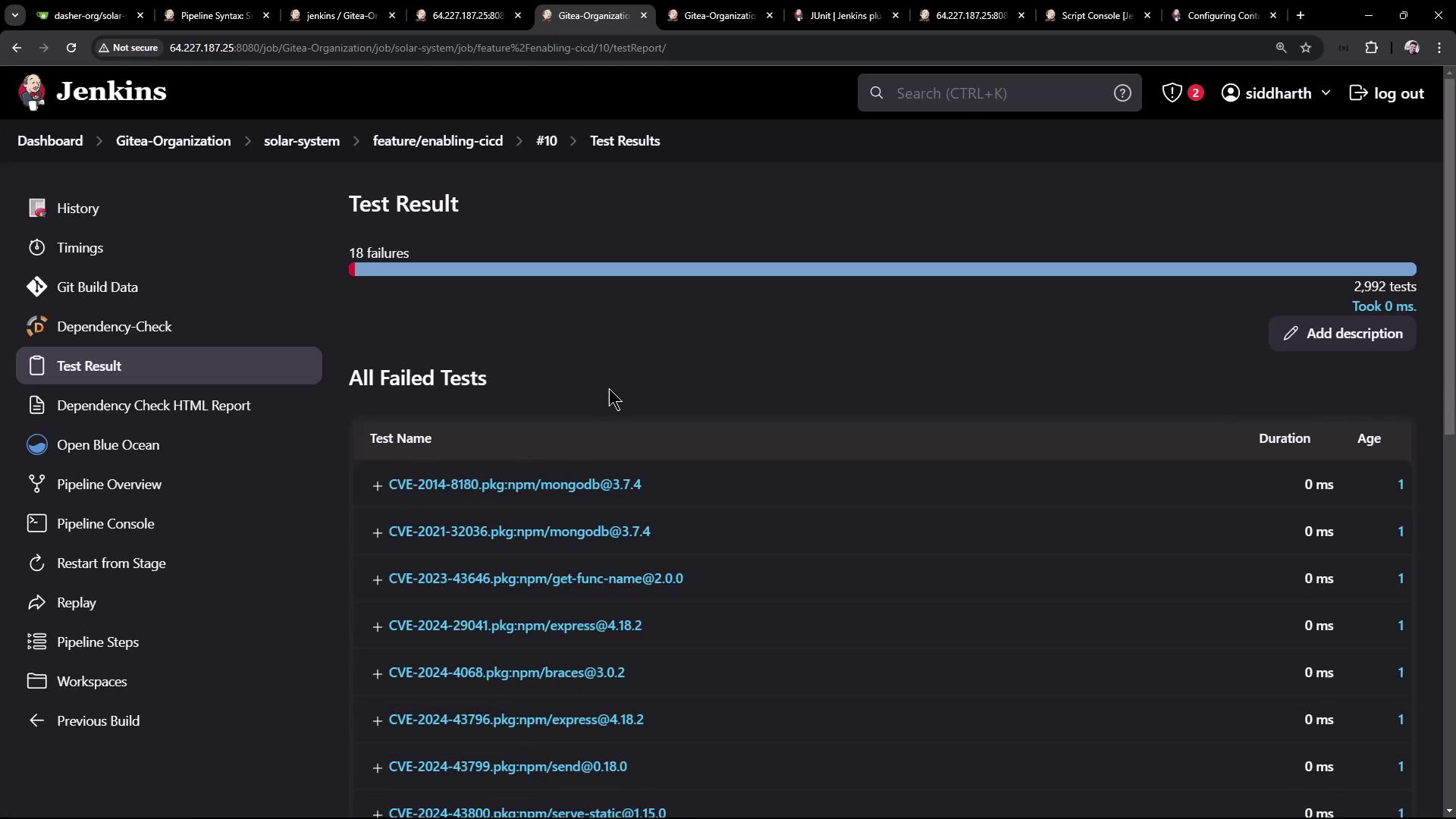
When the pipeline completes (it may show **unstable** if high-severity issues persist), Jenkins displays a **Test Result** tab:
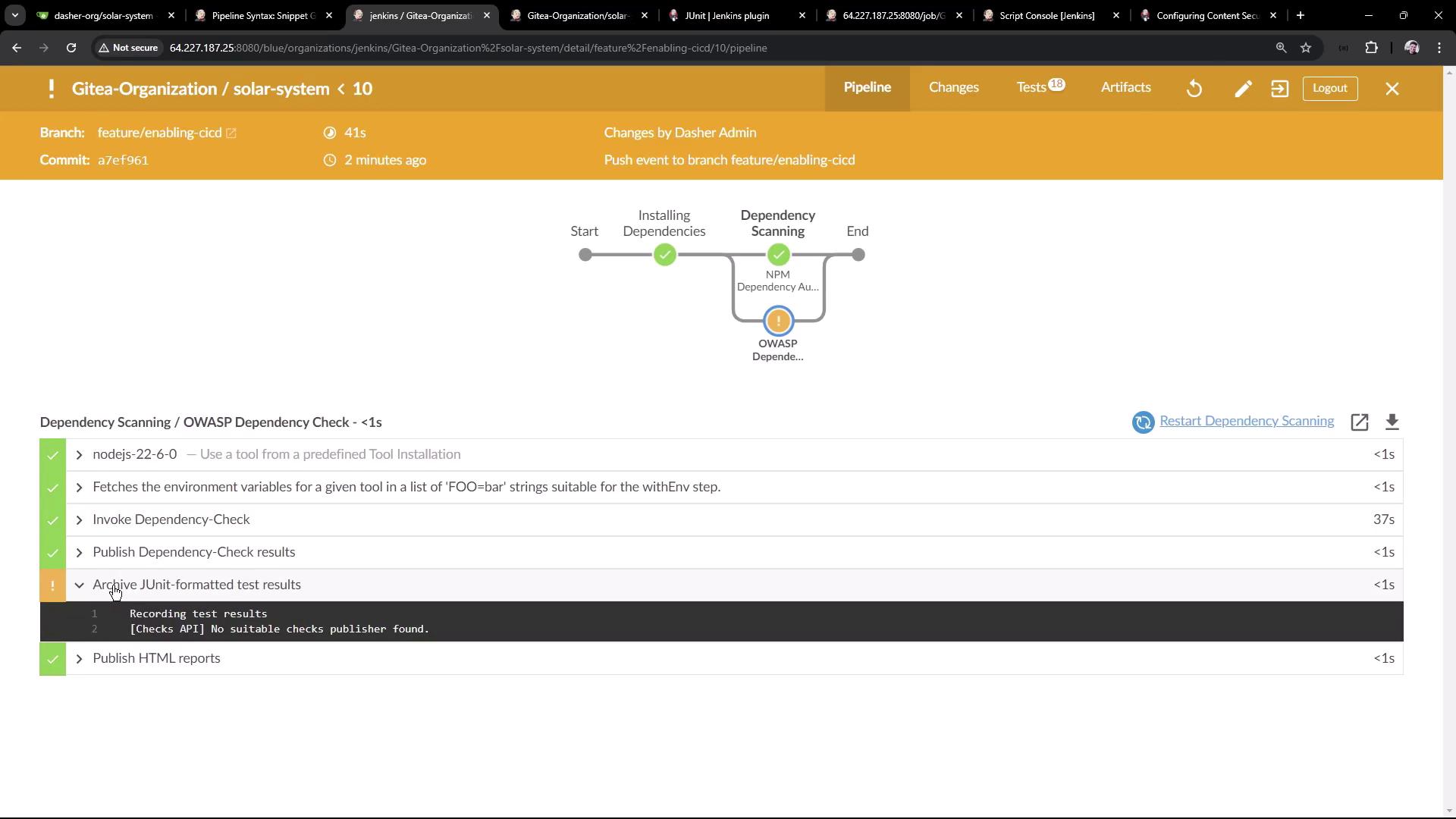
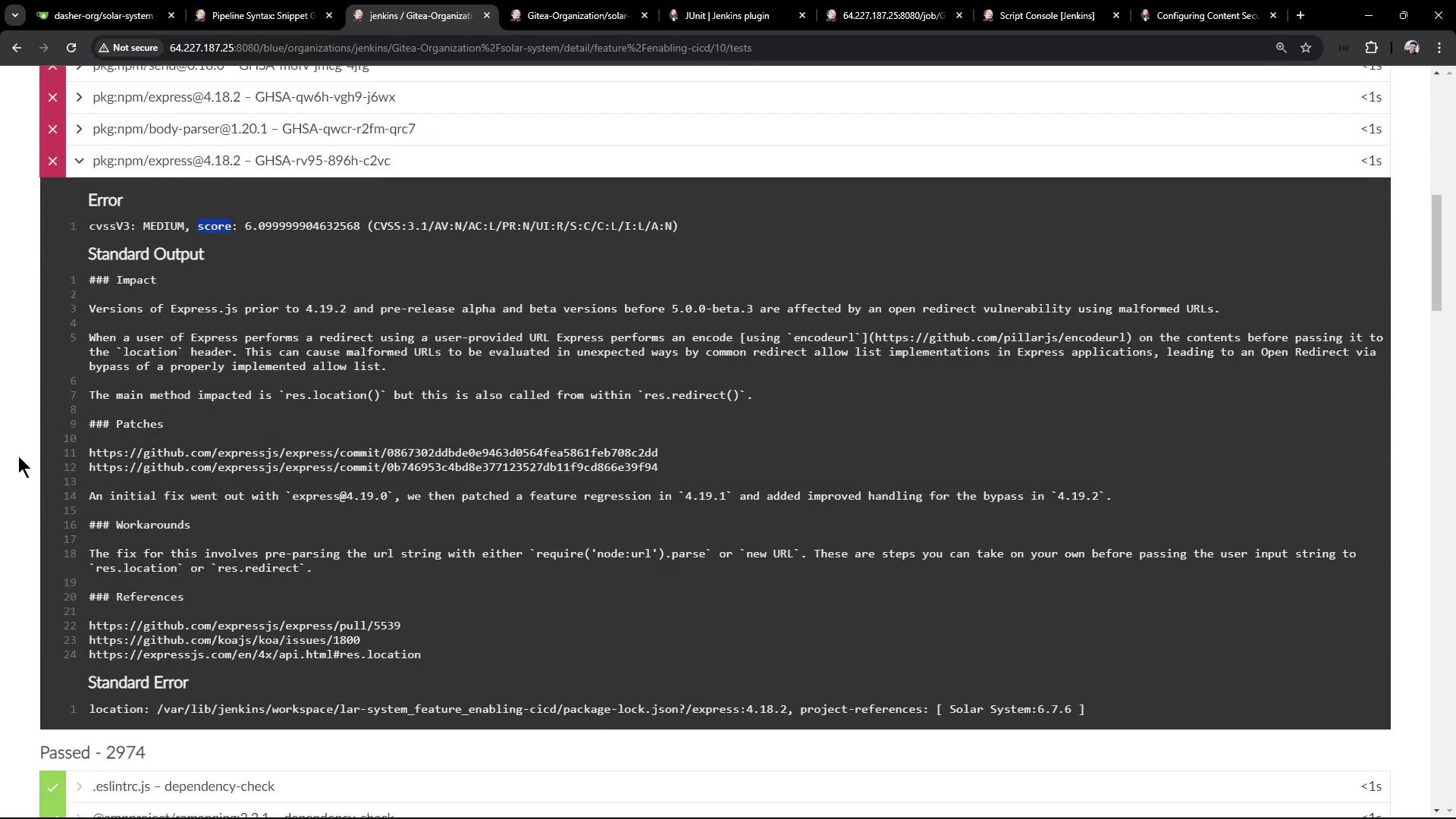
Click **Test Results** to inspect passes, failures, and detailed CVSS scores, impacts, and patch guidance:
In the classic UI, the **Test Results** section lists failures and history:
Your **Dependency Check HTML Report** now renders with full CSS styling and detailed insights into library risks.
***
Thank you for following this guide! For further reading, check out:
* [npm audit documentation](https://docs.npmjs.com/cli/v9/commands/npm-audit)
* [OWASP Dependency-Check](https://jeremylong.github.io/DependencyCheck/)
* [Jenkins Pipeline Syntax](https://www.jenkins.io/doc/book/pipeline/syntax/)