> ## Documentation Index
> Fetch the complete documentation index at: https://notes.kodekloud.com/llms.txt
> Use this file to discover all available pages before exploring further.
# Demo Install Dependencies
> This tutorial demonstrates integrating a Node.js install step into a Jenkins Pipeline and verifying the Node.js version.
## Demo: Install Node.js Dependencies in Your Jenkins Pipeline
In this tutorial, we’ll show you how to integrate a Node.js install step into your [Jenkins Pipeline][1], verify your Node.js version, and install project dependencies. By the end, you’ll see how Blue Ocean displays your pipeline stages and where the `node_modules` folder appears in the workspace.
### Prerequisites
Make sure the [NodeJS Plugin](https://plugins.jenkins.io/nodejs/) is installed and configured under **Manage Jenkins** → **Global Tool Configuration**.
### Pipeline Configuration
1. Open your `Jenkinsfile`.
2. Configure the Node.js tool and define two stages:
* **VM Node Version**: Verifies `node` and `npm` versions.
* **Installing Dependencies**: Runs `npm install --no-audit`.
| Stage Name | Purpose | Command |
| ----------------------- | ------------------------------------- | ------------------------ |
| VM Node Version | Check Node.js and npm versions | `node -v`, `npm -v` |
| Installing Dependencies | Install project dependencies with npm | `npm install --no-audit` |
```groovy theme={null}
pipeline {
agent any
tools {
nodejs 'nodejs-22-6-0'
}
stages {
stage('VM Node Version') {
steps {
sh 'node -v'
sh 'npm -v'
}
}
stage('Installing Dependencies') {
steps {
sh 'npm install --no-audit'
}
}
}
}
```
Using `--no-audit` skips vulnerability checks. Consider running `npm audit` or integrating a security scanner in your CI/CD pipeline for production workloads.
### Run the Pipeline
1. Commit and push your `Jenkinsfile` changes.
2. In [Blue Ocean][3], watch the pipeline execute both stages in sequence.
#### Sample Output for “Installing Dependencies”
```bash theme={null}
+ npm install --no-audit
added 365 packages in 5s
44 packages are looking for funding
run 'npm fund' for details
```
### Verify the Workspace
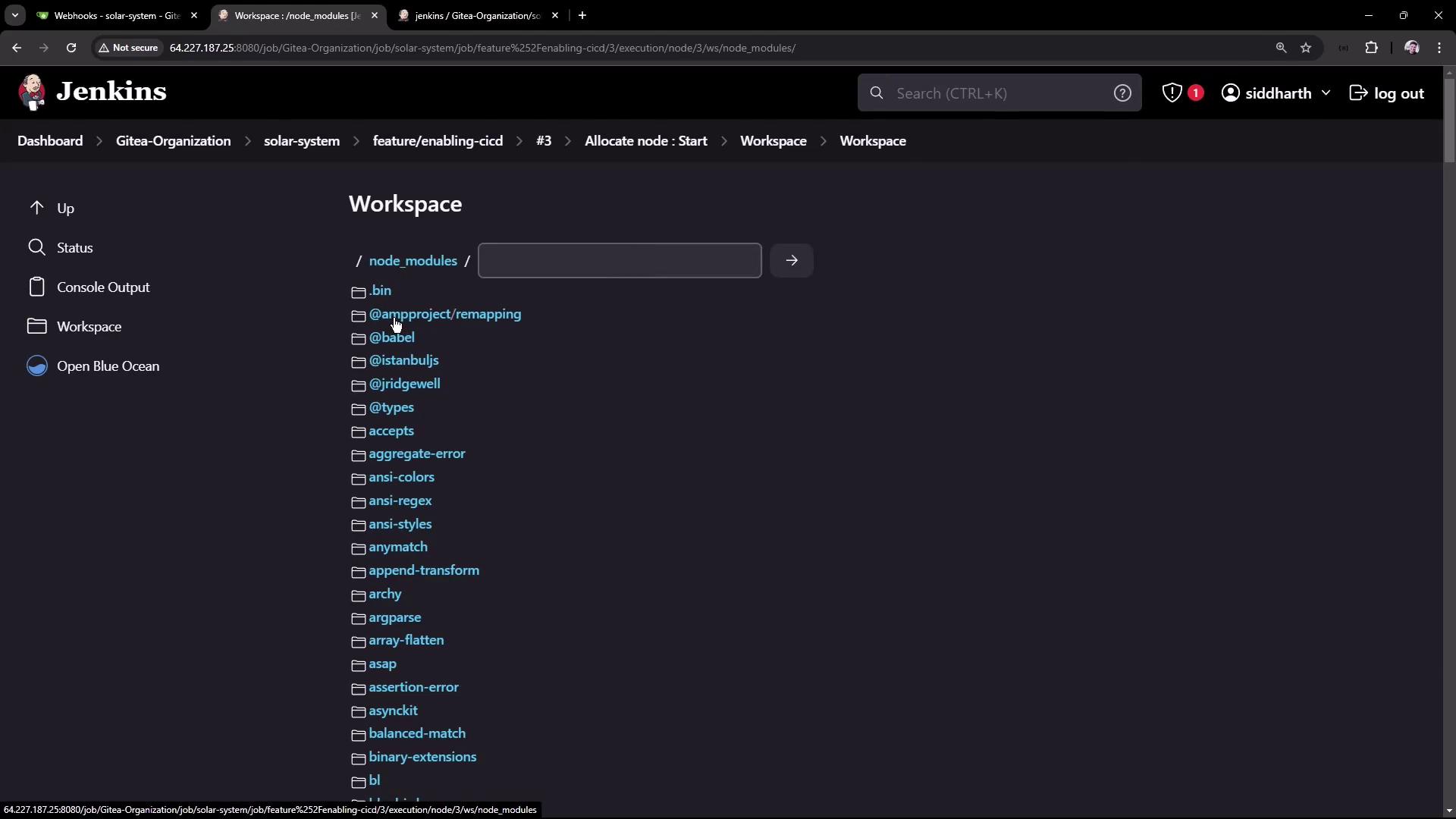
After the build completes, navigate to **Workspaces** in the Jenkins UI. You should see a `node_modules` directory with all installed dependencies:
***
## Links and References
* [Jenkins Pipeline][1] – Official Pipeline documentation
* [Node.js][2] – Download and documentation
* [Blue Ocean][3] – Modern Jenkins UI
[1]: https://www.jenkins.io/doc/book/pipeline
[2]: https://nodejs.org/
[3]: https://www.jenkins.io/projects/blueocean/