> ## Documentation Index
> Fetch the complete documentation index at: https://notes.kodekloud.com/llms.txt
> Use this file to discover all available pages before exploring further.
# Demo InstallSetup NodeJS Build Tool
> This tutorial explains how to integrate Node.js into Jenkins pipelines using host installation and Jenkins-managed tools.
In this tutorial, you will learn how to integrate Node.js into your Jenkins pipelines by using both the host installation and Jenkins-managed Node.js tool. By the end, you'll be able to run Node.js commands in freestyle jobs across controllers and agents.
* A running Jenkins controller (version 2.x or later).
* Shell access to the Jenkins host machine.
* Administrative privileges to install plugins.
## 1. Verify Node.js on the Jenkins Host
SSH into the Jenkins server and confirm that Node.js and npm are installed:
```bash theme={null}
node -v
npm -v
systemctl status jenkins
# ● jenkins.service - Jenkins Continuous Integration Server
# Active: active (running)
```
If Node.js is available on the controller, freestyle jobs can execute `node` and `npm` directly. Agents without Node.js will fail unless you provide a managed installation.
## 2. Test Node.js in a Freestyle Project
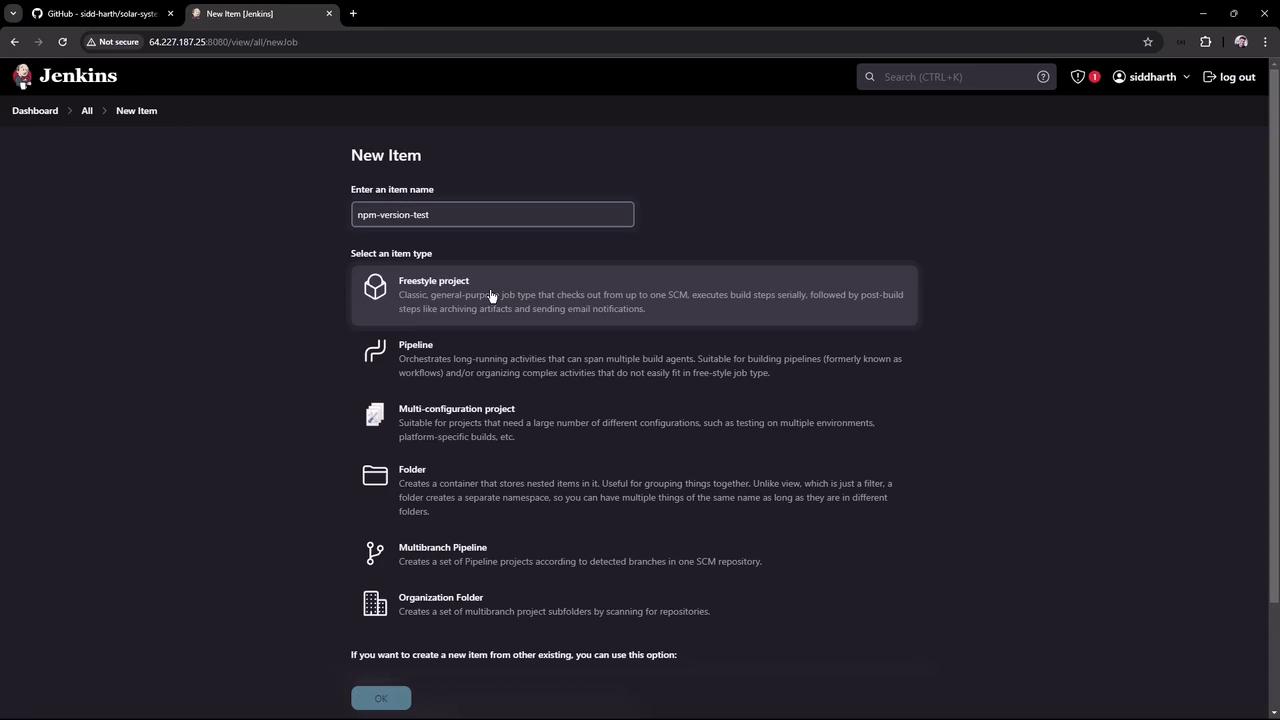
1. In Jenkins, click **New Item**, enter `npm-version-test`, choose **Freestyle project**, then **OK**.
2. Under **Build** → **Execute shell**, add:
```bash theme={null}
node -v
npm -v
```
3. Save and run the job. You should see:
```bash theme={null}
Started by user example
Building in workspace /var/lib/jenkins/workspace/npm-version-test
[npm-version-test] $ /bin/sh -xe /tmp/jenkins.sh
+ node -v
v20.16.0
+ npm -v
10.8.1
Finished: SUCCESS
```
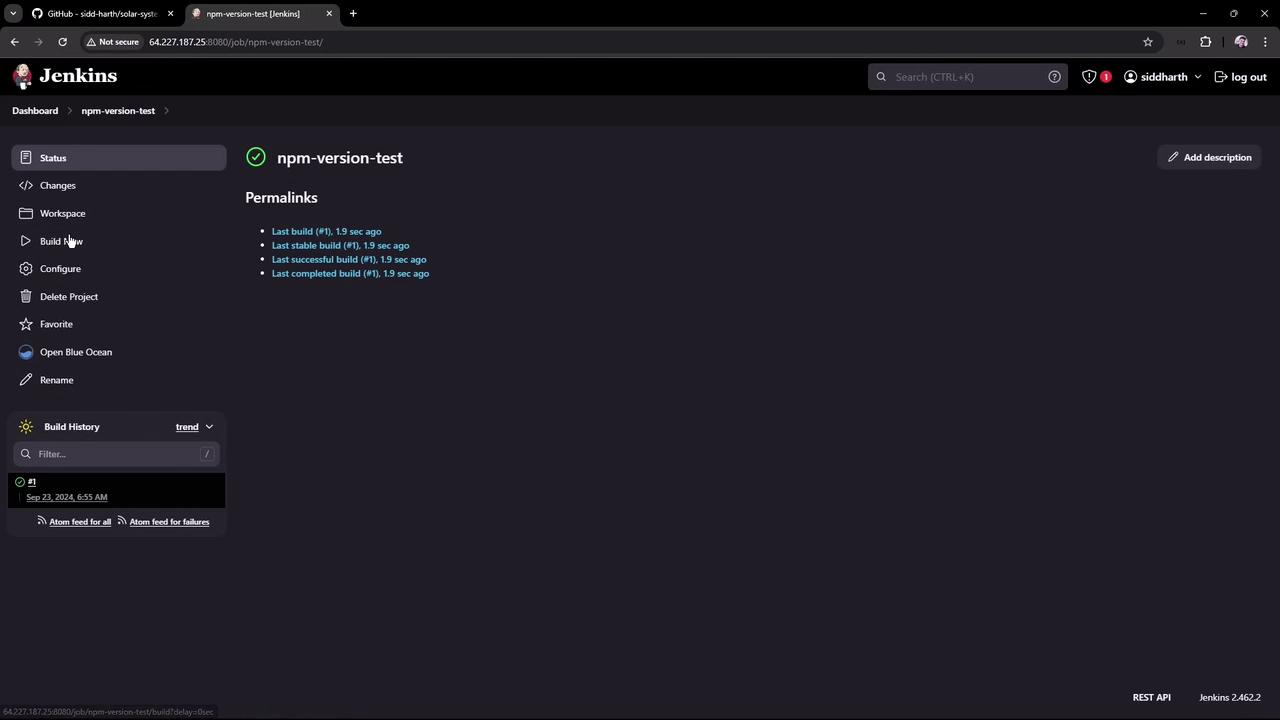
If your builds run on agents without Node.js, this job will fail. To ensure consistency, use Jenkins-managed tools.
## 3. Install the NodeJS Plugin
Add Node.js as a managed tool in Jenkins:
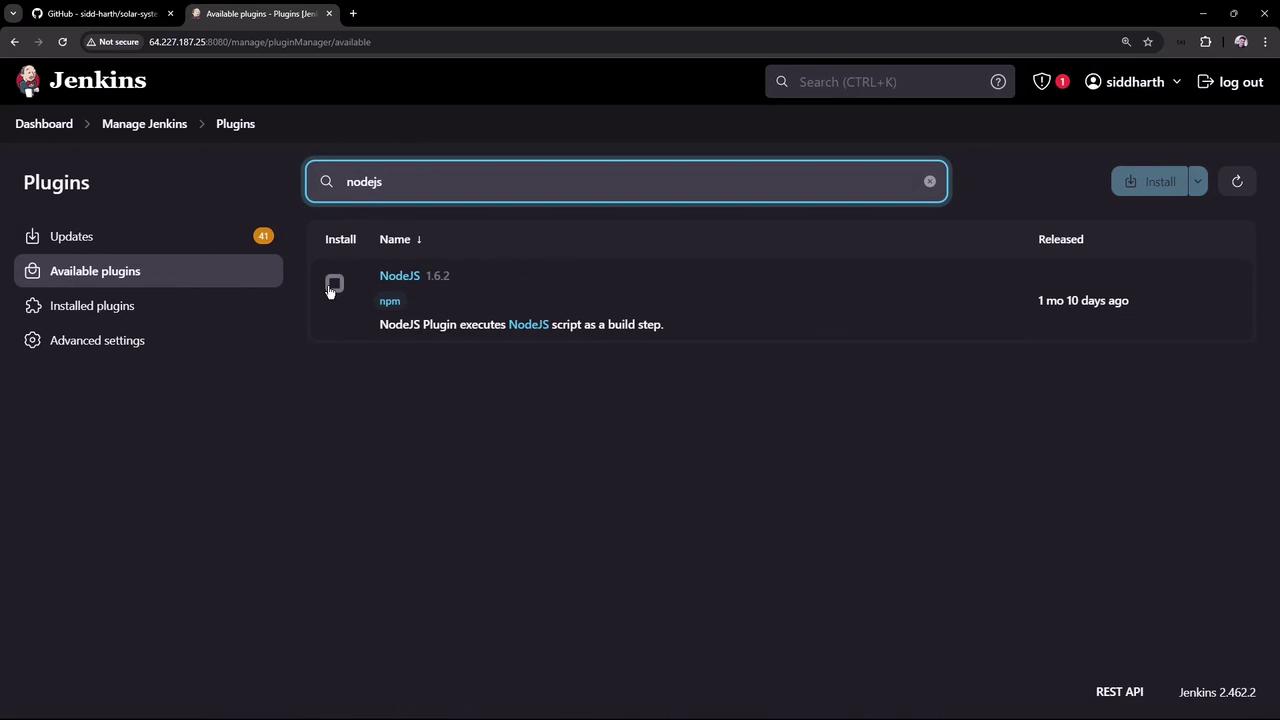
1. Go to **Manage Jenkins** → **Manage Plugins** → **Available**.
2. Search for **NodeJS**, select **NodeJS plugin (v1.6.2)**, then **Install without restart**.
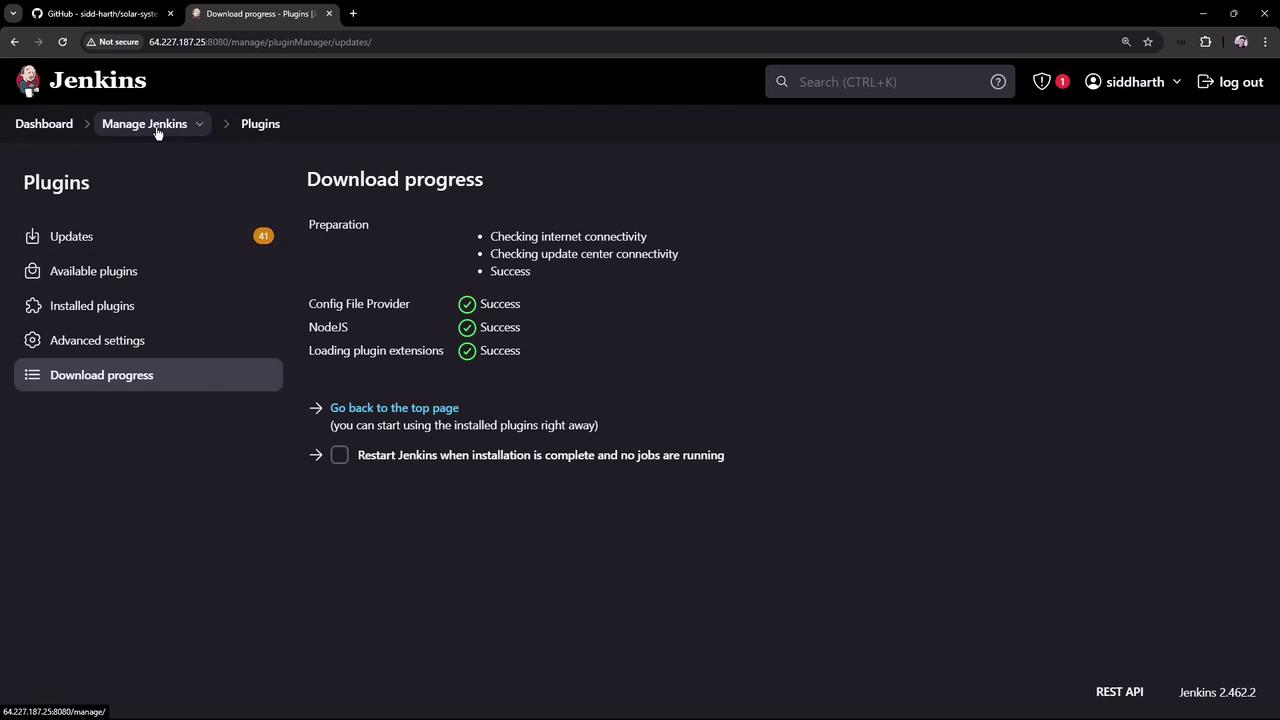
Wait for the installation to complete:
## 4. Configure Node.js as a Global Tool
1. Navigate to **Manage Jenkins** → **Global Tool Configuration**.
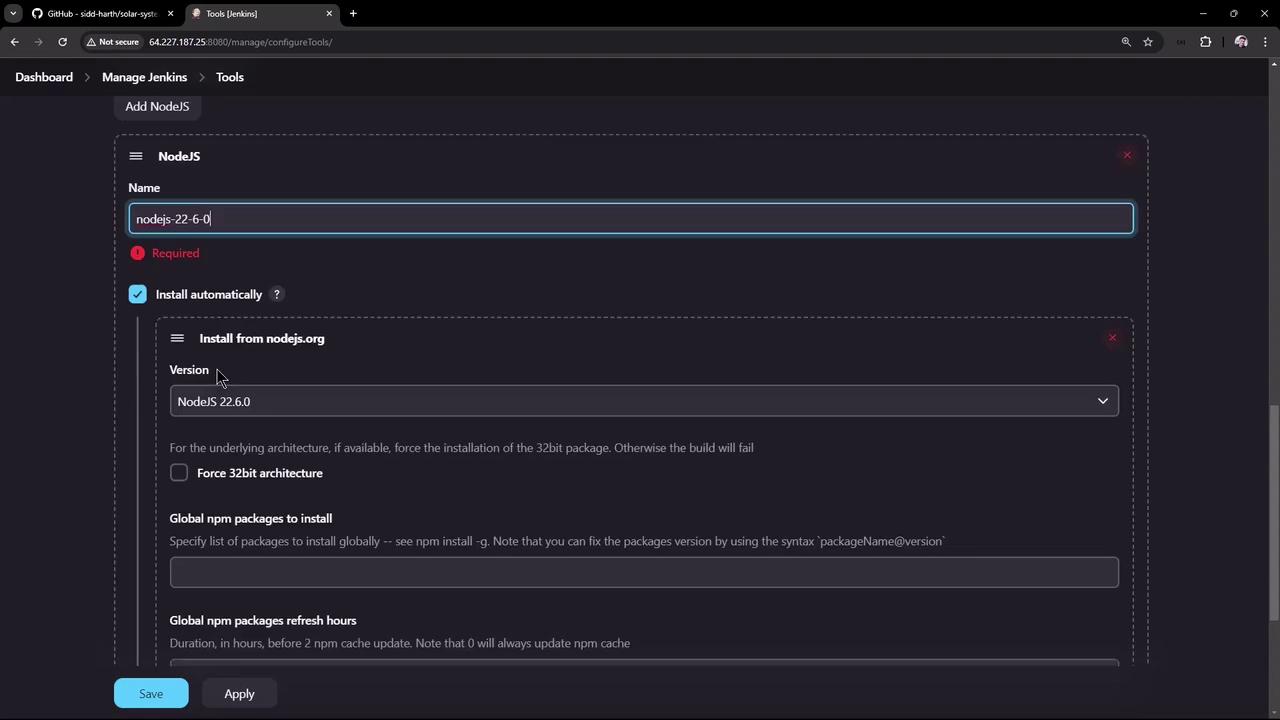
2. Under **NodeJS installations**, click **Add NodeJS**, then fill in:
* **Name**: `Node.js 22.6.0`
* **Install automatically**: checked
* **Version**: `22.6.0`
3. Click **Save**.
## 5. Use the Managed Node.js in a Freestyle Job
1. Open the **npm-version-test** job and click **Configure**.
2. In **Build Environment**, enable **Provide Node & npm bin/ folder to PATH**, then select **Node.js 22.6.0**.
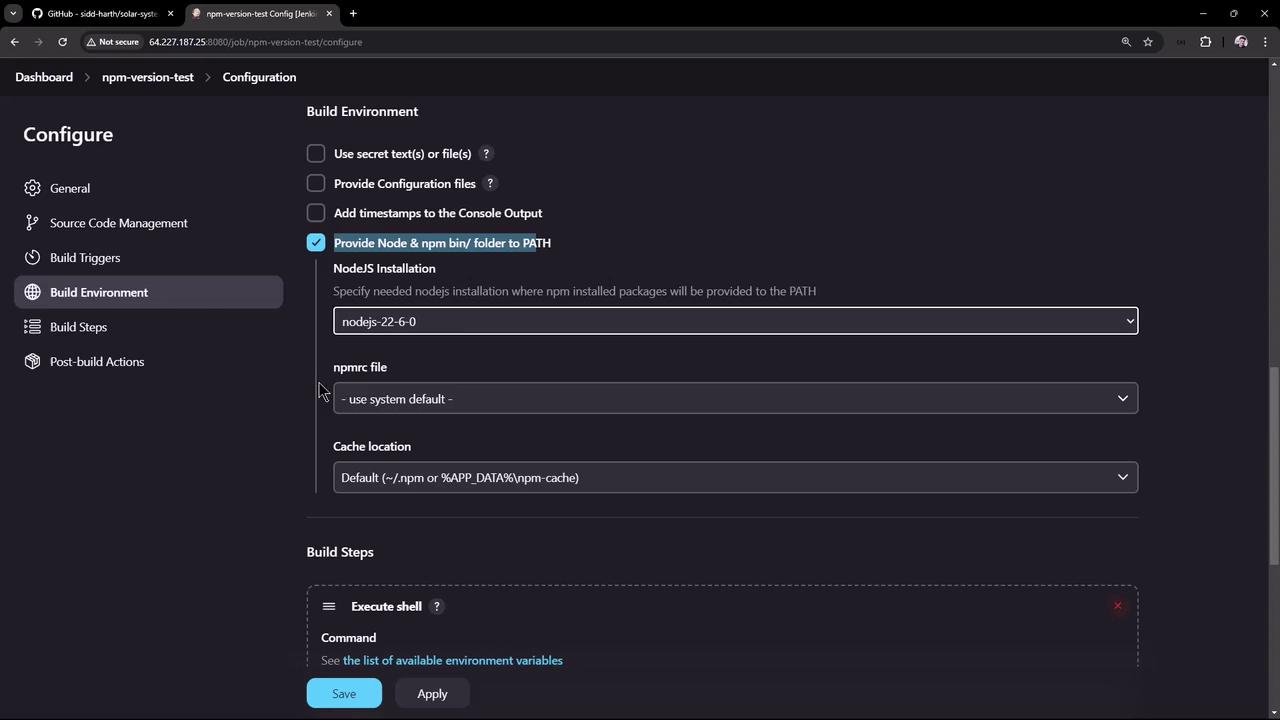
3. Save and trigger the build. The first run installs Node.js on the controller:
```bash theme={null}
Started by user example
Building in workspace /var/lib/jenkins/workspace/npm-version-test
Unpacking https://nodejs.org/dist/v22.6.0/node-v22.6.0-linux-x64.tar.gz to /var/lib/jenkins/tools/.../nodejs-22-6-0
[npm-version-test] $ /bin/sh -xe /tmp/jenkins.sh
+ node -v
v22.6.0
+ npm -v
10.8.2
Finished: SUCCESS
```
Subsequent builds reuse the cached installation, ensuring consistent Node.js versions across all agents.
## Summary
| Step | Description |
| ------------------------- | ----------------------------------------------------------- |
| Verify Host Installation | Check `node -v` and `npm -v` on the Jenkins controller. |
| Freestyle Project Test | Run a basic freestyle job using host-installed Node.js. |
| Install NodeJS Plugin | Add NodeJS plugin via **Manage Plugins**. |
| Global Tool Configuration | Define Node.js under **Global Tool Configuration**. |
| Use Managed Node.js | Enable Node.js in **Build Environment** of a freestyle job. |
## Links and References
* [Jenkins Documentation](https://www.jenkins.io/doc/)
* [NodeJS Plugin](https://plugins.jenkins.io/nodejs/)
* [Node.js Official Site](https://nodejs.org/)