> ## Documentation Index
> Fetch the complete documentation index at: https://notes.kodekloud.com/llms.txt
> Use this file to discover all available pages before exploring further.
# Demo Unit Testing and Analyze JUnit Reports
> Optimize your Jenkins CI/CD pipeline by adding a dedicated Unit Testing stage and publishing JUnit reports for clear visibility into your test results.
Optimize your Jenkins CI/CD pipeline by adding a dedicated **Unit Testing** stage, securely managing database credentials, and publishing JUnit reports for clear visibility into your test results.
## Table of Contents
* [Pipeline Stages Overview](#pipeline-stages-overview)
* [Adding the Unit Testing Stage](#adding-the-unit-testing-stage)
* [Debugging a Failed Test Stage](#debugging-a-failed-test-stage)
* [Configuring Environment Variables](#configuring-environment-variables)
* [Managing Jenkins Credentials](#managing-jenkins-credentials)
* [Wrapping Tests with Credentials](#wrapping-tests-with-credentials)
* [Publishing and Viewing Test Results](#publishing-and-viewing-test-results)
* [Final Pipeline Snippet](#final-pipeline-snippet)
* [References](#references)
## Pipeline Stages Overview
| Stage Name | Purpose | Example Command |
| ----------------------- | --------------------------------------------- | ------------------------- |
| Installing Dependencies | Install project dependencies with npm | `sh 'npm install'` |
| Dependency Scanning | Audit packages for vulnerabilities | `npm audit` / OWASP tools |
| Unit Testing | Run Mocha tests and generate JUnit XML report | `sh 'npm test'` |
## Adding the Unit Testing Stage
Open your `Jenkinsfile` and insert a `Unit Testing` stage right after `Dependency Scanning`:
```groovy theme={null}
pipeline {
agent any
stages {
stage('Installing Dependencies') {
steps {
sh 'npm install'
}
}
stage('Dependency Scanning') {
// existing scanning steps
}
stage('Unit Testing') {
steps {
sh 'npm test'
}
}
}
}
```
Commit and push the changes to trigger a new build:
```bash theme={null}
git add Jenkinsfile
git commit -m "Add Unit Testing stage"
git push origin feature/enabling-cicd
```
Navigate to the Jenkins pipeline UI; the build will start automatically.
## Debugging a Failed Test Stage
In our example, the Unit Testing stage fails because MongoDB credentials are missing:
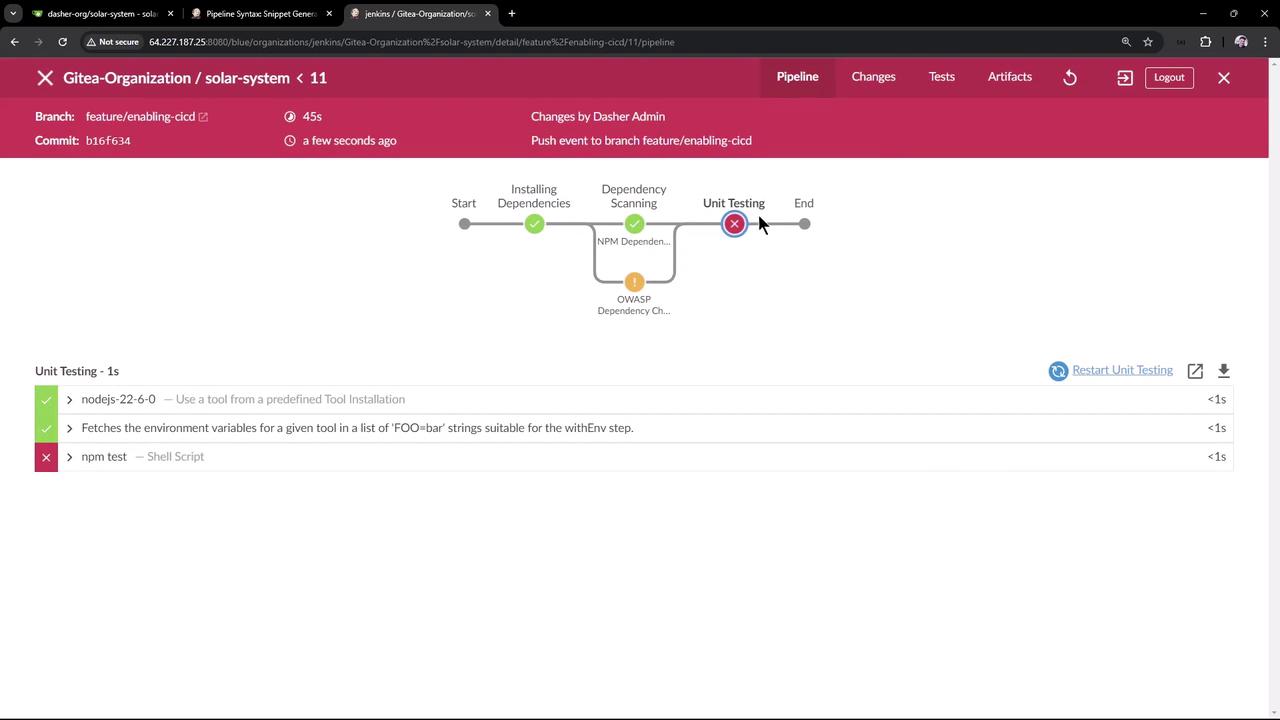
### Error Output
```bash theme={null}
> npm test
> Solar System@6.7.6 test
> mocha app-test.js --timeout 10000 --reporter mocha-junit-reporter --exit
MongooseError: The `uri` parameter to `openUri()` must be a string, got `undefined`. Make sure the first parameter to `mongoose.connect()` or `mongoose.createConnection()` is a string.
```
Your `app.js` expects these environment variables:
```javascript theme={null}
mongoose.connect(process.env.MONGO_URI, {
user: process.env.MONGO_USERNAME,
pass: process.env.MONGO_PASSWORD,
useNewUrlParser: true,
useUnifiedTopology: true
}, err => {
if (err) console.log("error!! " + err);
});
```
Without `MONGO_URI`, `MONGO_USERNAME`, or `MONGO_PASSWORD`, the connection fails.
## Configuring Environment Variables
You can define `MONGO_URI` in your `Jenkinsfile`, but be aware of plaintext exposure.
```groovy theme={null}
pipeline {
agent any
environment {
MONGO_URI = "mongodb+srv://supercluster.d83jj.mongodb.net/superData"
}
stages { ... }
}
```
Storing sensitive connection strings directly in the `Jenkinsfile` exposes them in plaintext. Use [Jenkins Credentials](#managing-jenkins-credentials) for usernames and passwords.
## Managing Jenkins Credentials
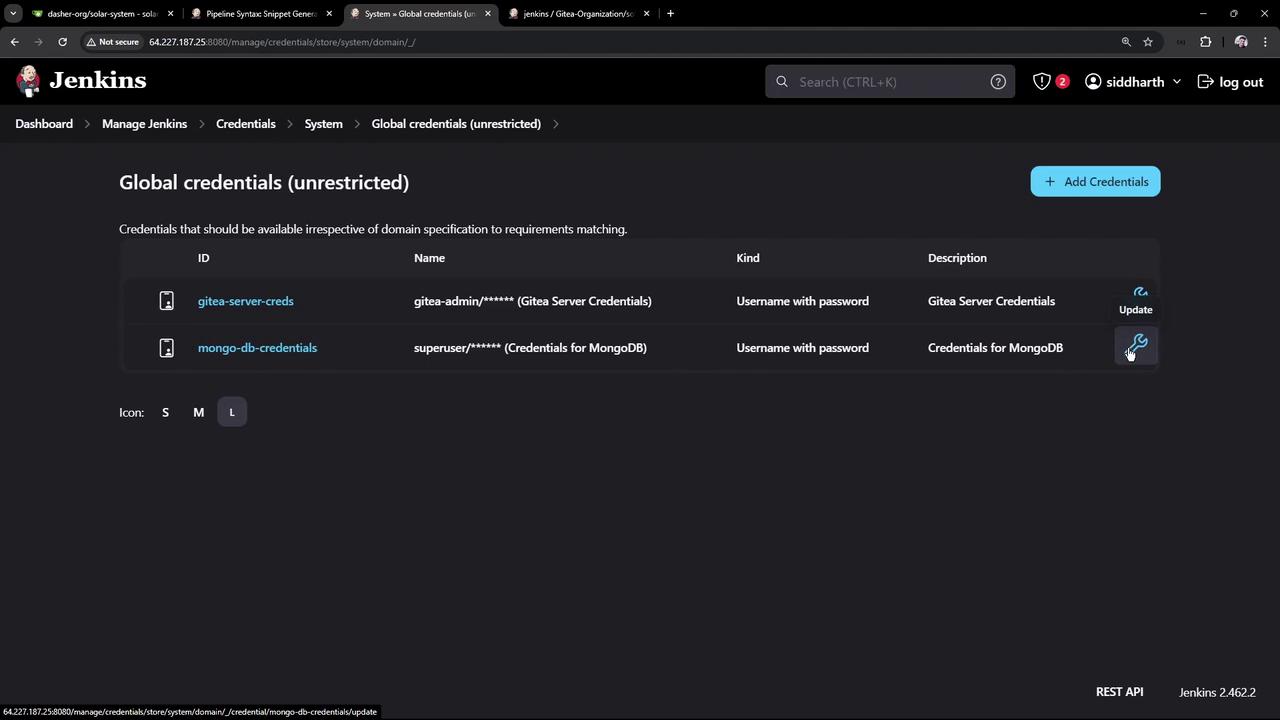
1. Go to **Manage Jenkins > Credentials > System > Global credentials (unrestricted)**.
2. Click **Add Credentials** and choose **Username with password**.
* **ID**: `mongo-db-credentials`
* **Username**: `superuser`
* **Password**: `superpassword`
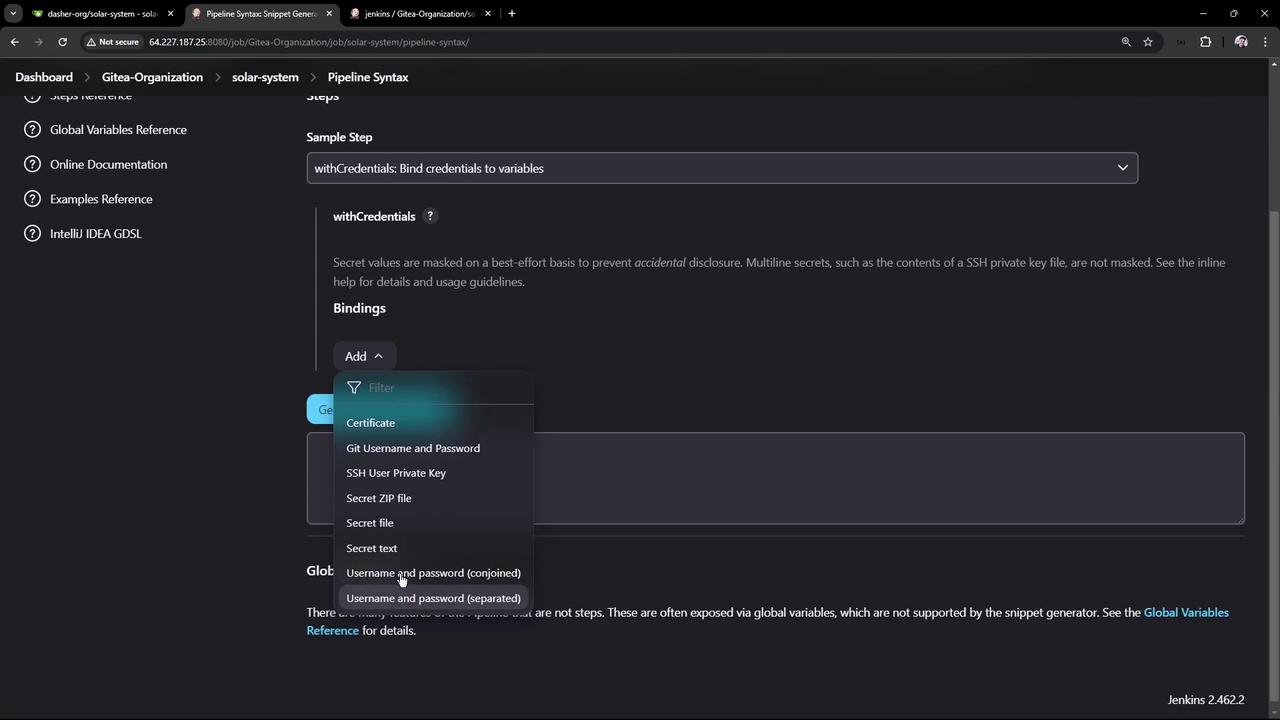
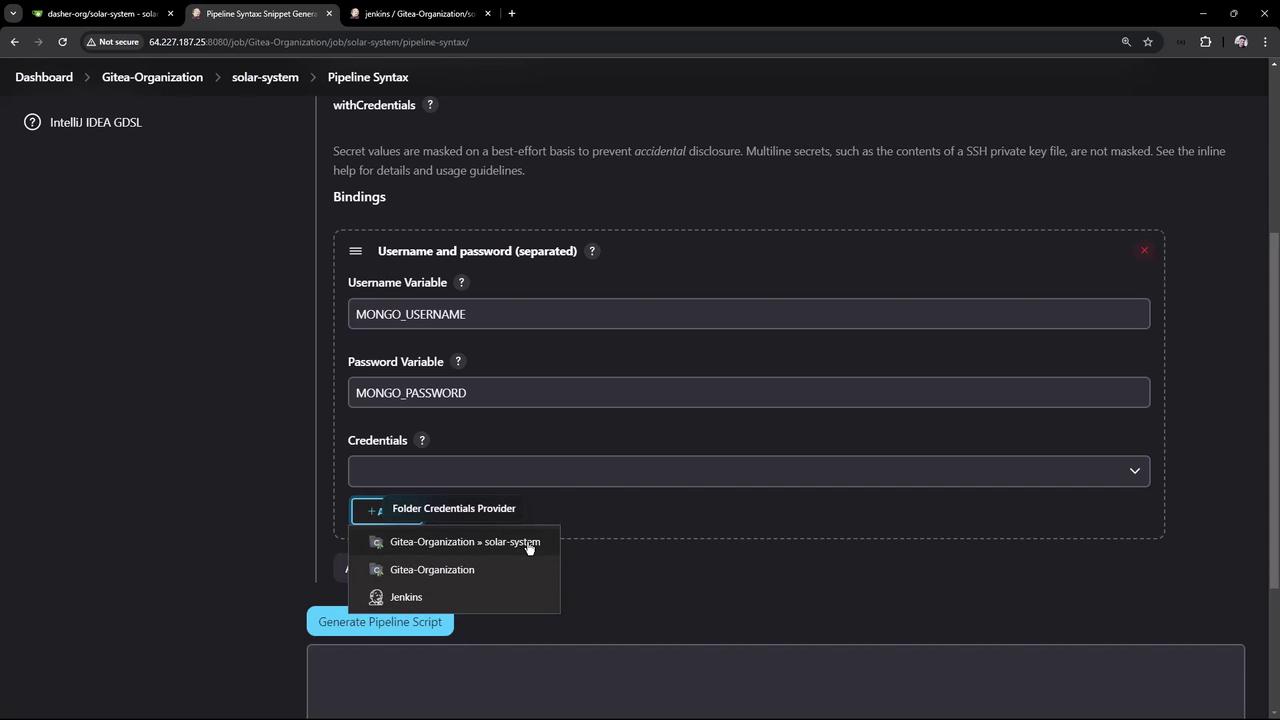
Use the **Pipeline Syntax** Snippet Generator to see how `withCredentials` bindings look:
## Wrapping Tests with Credentials
Update the `Unit Testing` stage to inject credentials at runtime and archive JUnit reports:
```groovy theme={null}
stage('Unit Testing') {
steps {
withCredentials([
usernamePassword(
credentialsId: 'mongo-db-credentials',
usernameVariable: 'MONGO_USERNAME',
passwordVariable: 'MONGO_PASSWORD'
)
]) {
sh 'npm test'
}
// Archive JUnit XML results
junit allowEmptyResults: true, testResults: '**/test-results.xml'
}
}
```
The `junit` step will fail the build if no XML files are found unless you set `allowEmptyResults: true`.\
See [Pipeline Syntax: junit](https://www.jenkins.io/doc/pipeline/steps/junit/) for details.
Commit and push—your next build will connect to MongoDB, run tests, and generate a JUnit report.
## Publishing and Viewing Test Results
After a successful build:
1. Open the **Workspace** to verify `test-results.xml` exists.
2. Click **Test Result** in the sidebar for a summary of test cases.
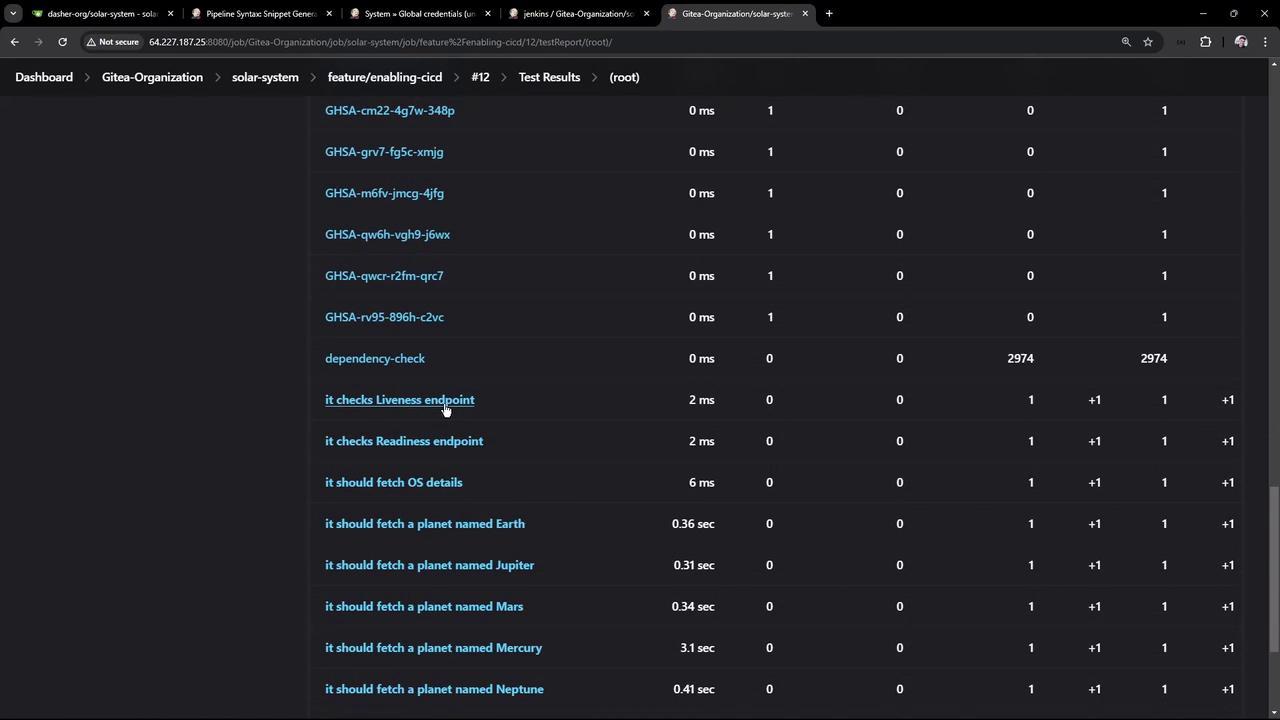
You’ll see each test—**liveness**, **readiness**, and **planet-fetching** endpoints—with pass/fail status.
## Final Pipeline Snippet
```groovy theme={null}
pipeline {
agent any
tools {
// e.g., nodejs 'nodejs-22-6-0'
}
environment {
MONGO_URI = "mongodb+srv://supercluster.d83jj.mongodb.net/superData"
}
stages {
stage('Installing Dependencies') {
steps {
sh 'npm install'
}
}
stage('Dependency Scanning') {
parallel {
stage('NPM Dependency Audit') {
steps {
sh 'npm audit --audit-level=high'
}
}
stage('OWASP Dependency Check') {
steps {
// OWASP scanning commands
}
}
}
}
stage('Unit Testing') {
steps {
withCredentials([
usernamePassword(
credentialsId: 'mongo-db-credentials',
usernameVariable: 'MONGO_USERNAME',
passwordVariable: 'MONGO_PASSWORD'
)
]) {
sh 'npm test'
}
junit '**/test-results.xml'
}
}
}
}
```
With this setup, your Jenkins pipeline runs secure unit tests against MongoDB and provides detailed JUnit reports right in the UI.
## References
* [Jenkins Pipeline Syntax](https://www.jenkins.io/doc/book/pipeline/syntax/)
* [Mocha JUnit Reporter](https://github.com/michaelleeallen/mocha-junit-reporter)
* [Jenkins Credentials Binding Plugin](https://plugins.jenkins.io/credentials-binding/)