> ## Documentation Index
> Fetch the complete documentation index at: https://notes.kodekloud.com/llms.txt
> Use this file to discover all available pages before exploring further.
# Demo Load TrivyScan Library in Jenkins Pipeline
> This tutorial explains how to integrate a TrivyScan shared library into a Jenkins pipeline for automated vulnerability scanning and report generation.
In this tutorial, you’ll learn how to integrate a custom TrivyScan shared library into your Jenkins pipeline to automate vulnerability scanning and report generation. We will walk through the following steps:
1. Define TrivyScan methods in your shared library
2. Configure the global pipeline library in Jenkins
3. Override the default library version using a feature branch
4. Invoke the `vulnerability` and `reportsConverter` methods inside a declarative pipeline
5. Wrap library calls in `script` blocks to comply with pipeline syntax
6. View generated reports and Slack notifications
***
## 1. Define TrivyScan Methods in Your Shared Library
Create `vars/TrivyScan.groovy` in your shared library repository with two methods:
* **vulnerability**: Runs Trivy image scans with different severity thresholds
* **reportsConverter**: Converts JSON scan results into HTML and JUnit XML
```groovy theme={null}
// vars/TrivyScan.groovy
def vulnerability(String imageName) {
sh """
echo "Scanning image: ${imageName}"
trivy image ${imageName} \
--severity LOW,MEDIUM,HIGH \
--exit-code 0 --quiet \
--format json -o trivy-image-MEDIUM-results.json
trivy image ${imageName} \
--severity CRITICAL \
--exit-code 1 --quiet \
--format json -o trivy-image-CRITICAL-results.json
"""
}
def reportsConverter() {
sh """
# Convert to HTML reports
trivy convert --format template \
--template "@/usr/local/share/trivy/templates/html.tpl" \
--output trivy-image-MEDIUM-results.html trivy-image-MEDIUM-results.json
trivy convert --format template \
--template "@/usr/local/share/trivy/templates/html.tpl" \
--output trivy-image-CRITICAL-results.html trivy-image-CRITICAL-results.json
# Convert to JUnit XML reports
trivy convert --format template \
--template "@/usr/local/share/trivy/templates/junit.tpl" \
--output trivy-image-MEDIUM-results.xml trivy-image-MEDIUM-results.json
trivy convert --format template \
--template "@/usr/local/share/trivy/templates/junit.tpl" \
--output trivy-image-CRITICAL-results.xml trivy-image-CRITICAL-results.json
"""
}
```
Commit and push on a feature branch:
```bash theme={null}
git checkout -b featureTrivyScan
git add vars/TrivyScan.groovy
git commit -m "Add TrivyScan shared library methods"
git push origin featureTrivyScan
```
***
## 2. Configure Jenkins Global Pipeline Library
In Jenkins, go to **Manage Jenkins** → **Configure System** → **Global Pipeline Libraries** and add or update your library:
| Property | Value |
| ------------------------------ | ----------------------------- |
| Name | dasher-trusted-shared-library |
| Default version | main |
| Allow default version override | ☑️ Enabled |
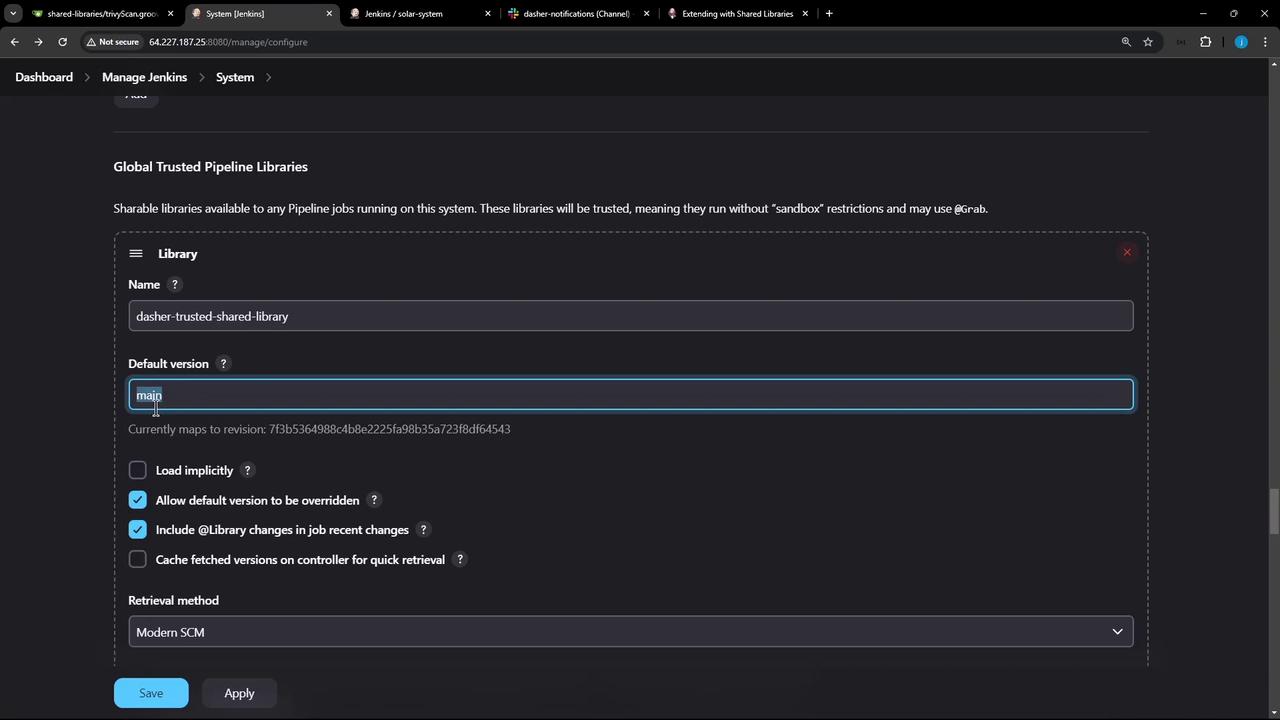
Enabling version override allows pipelines to specify a branch or tag in the `@Library` annotation.
***
## 3. Load a Specific Library Version in Your Jenkinsfile
At the very top of your `Jenkinsfile`, reference the feature branch:
```groovy theme={null}
@Library('dasher-trusted-shared-library@featureTrivyScan') _
```
This makes the `trivyScan` methods available to your pipeline.
***
## 4. Invoke TrivyScan Methods in a Declarative Pipeline
Below is a sample Declarative Pipeline that:
* Builds a Docker image
* Runs Trivy scans
* Converts scan results to HTML and JUnit
* Publishes the reports
```groovy theme={null}
@Library('dasher-trusted-shared-library@featureTrivyScan') _
pipeline {
agent any
environment {
GIT_COMMIT = "${env.GIT_COMMIT}"
}
stages {
stage('Build Docker Image') {
steps {
echo "Building Docker image"
sh 'docker build -t myrepo/solar-system:${GIT_COMMIT} .'
}
}
stage('Trivy Vulnerability Scanner') {
steps {
script {
trivyScan.vulnerability("myrepo/solar-system:${GIT_COMMIT}")
}
}
post {
always {
script {
trivyScan.reportsConverter()
}
publishHTML([
allowMissing: true, alwaysLinkToLastBuild: true, keepAll: true,
reportDir: '.', reportFiles: 'trivy-image-*.html', reportName: 'Trivy HTML Reports'
])
publishHTML([
allowMissing: true, alwaysLinkToLastBuild: true, keepAll: true,
reportDir: '.', reportFiles: 'trivy-image-*.xml', reportName: 'Trivy JUnit Reports'
])
}
}
}
}
}
```
In Declarative Pipelines, any method calls on shared library objects must be wrapped inside a `script {}` block to avoid syntax errors.
***
## 5. View Pipeline Output and Reports
Once you push your branch, Jenkins will trigger a build. In the **Console Output**, look for `trivy image ...` commands:
```bash theme={null}
echo "Scanning image: myrepo/solar-system:c9dc5eb9b28174642a87fb0e2c8f92845fa4b1d"
trivy image myrepo/solar-system:c9dc5eb9b28174642a87fb0e2c8f92845fa4b1d --severity LOW,MEDIUM,HIGH --exit-code 0 --quiet --format json -o trivy-image-MEDIUM-results.json
trivy image myrepo/solar-system:c9dc5eb9b28174642a87fb0e2c8f92845fa4b1d --severity CRITICAL --exit-code 1 --quiet --format json -o trivy-image-CRITICAL-results.json
...
```
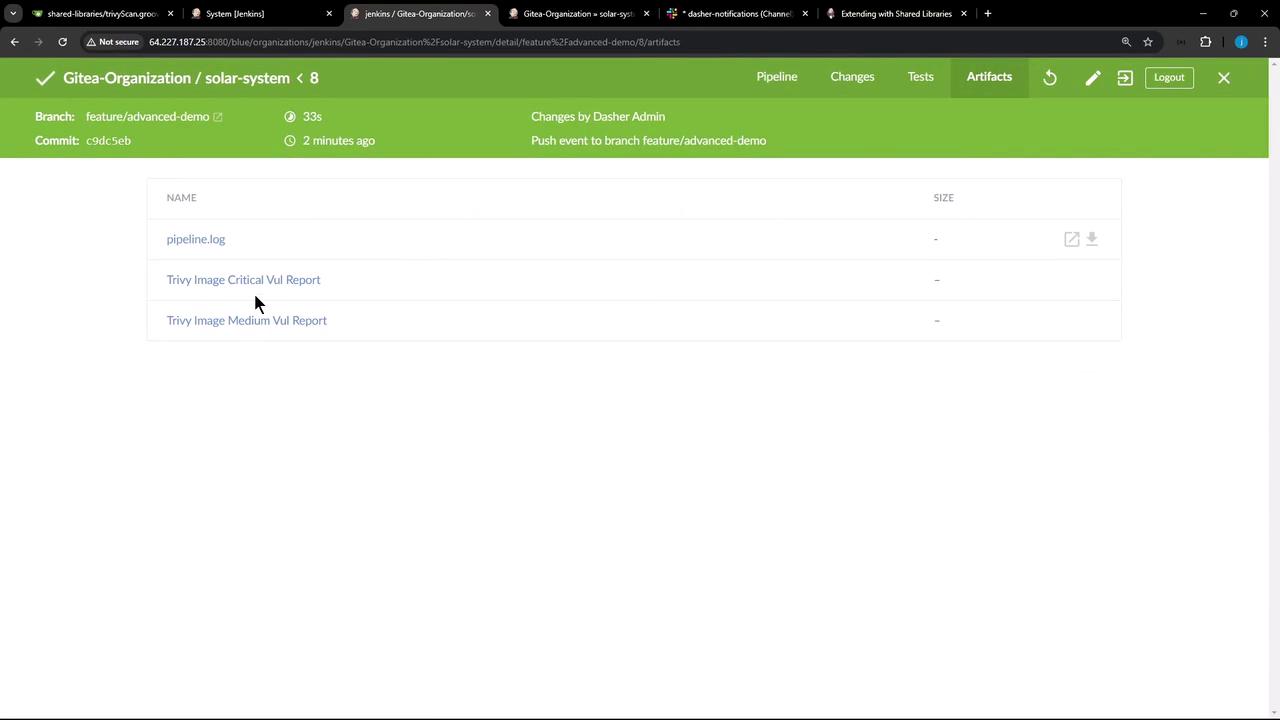
In **Pipeline Artifacts**, you’ll find both HTML and XML reports:
***
## 6. Verify Slack Notifications
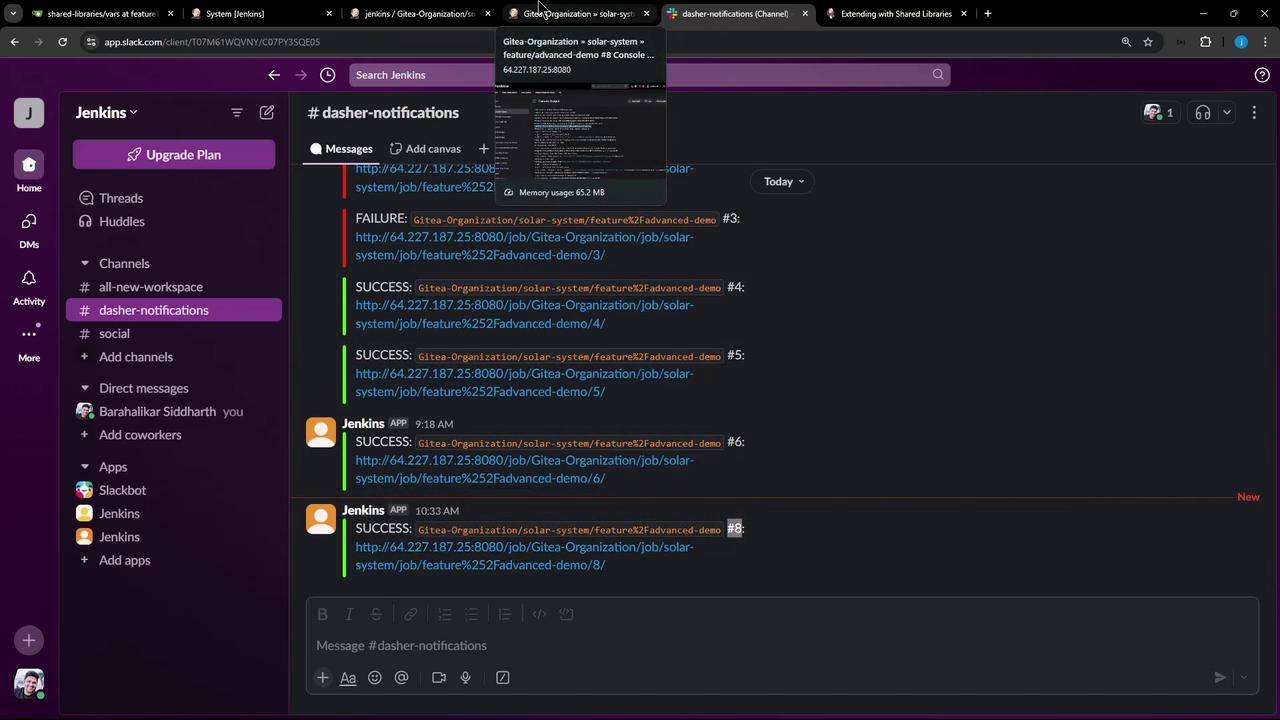
If you also have a Slack notifications shared library on this branch, you should see build alerts in your channel:
Make sure your Slack token and channel are configured securely in Jenkins credentials to prevent unauthorized access.
***
## Links and References
* [Jenkins Pipeline Shared Libraries](https://www.jenkins.io/doc/book/pipeline/shared-libraries/)
* [Trivy: A Simple and Comprehensive Vulnerability Scanner](https://github.com/aquasecurity/trivy)
* [publishHTML Plugin](https://plugins.jenkins.io/publish-html/)