> ## Documentation Index
> Fetch the complete documentation index at: https://notes.kodekloud.com/llms.txt
> Use this file to discover all available pages before exploring further.
# Solution Rolling update
> This article covers rolling updates and rollbacks in Kubernetes, focusing on deployment strategies and application upgrades.
In this lab, we dive into rolling updates and rollbacks in Kubernetes, with a primary focus on rolling updates. For brevity, the alias "k" is used to represent "kubectl" throughout this guide.
An alias has been set for kubectl:
```bash theme={null}
alias k='kubectl'
alias kubectl='k3s kubectl'
alias vi='vim'
```
## Deploying and Inspecting the Application
We have deployed a simple web application. Begin by inspecting the pods and services to verify the deployment status.
When running:
```bash theme={null}
k get pod
```
You should see an output similar to:
```text theme={null}
NAME READY STATUS RESTARTS AGE
frontend-5c74c57d95-mkgjh 1/1 Running 0 48s
frontend-5c74c57d95-dkbbj 1/1 Running 0 48s
frontend-5c74c57d95-gk60xp 1/1 Running 0 48s
frontend-5c74c57d95-xpwbt 1/1 Running 0 48s
```
Similarly, check the deployment status:
```bash theme={null}
k get deploy
```
Expected output:
```text theme={null}
NAME READY UP-TO-DATE AVAILABLE AGE
frontend 4/4 4 4 55s
```
Once fully deployed, open your browser and access the application. It should display “hello, front end” on the landing page.
## Validating Application Color and Running Tests
By default, the application is set to blue. Validate this by checking the pods:
```bash theme={null}
k get pod
```
Output example:
```text theme={null}
NAME READY STATUS RESTARTS AGE
frontend-5c74c57d95-nkgjh 1/1 Running 0 48s
frontend-5c74c57d95-dkbj1 1/1 Running 0 48s
frontend-5c74c57d95-gk6xp 1/1 Running 0 48s
frontend-5c74c57d95-xpwbt 1/1 Running 0 48s
```
And check the deployment:
```bash theme={null}
k get deploy
```
```text theme={null}
NAME READY UP-TO-DATE AVAILABLE AGE
frontend 4/4 4 4 55s
```
The output confirms that the application is blue. Next, execute the test script `curl-test.sh` to simulate multiple user requests. The output should confirm the application’s version and color:
```bash theme={null}
Hello, Application Version: v1 ; Color: blue OK
Hello, Application Version: v1 ; Color: blue OK
Hello, Application Version: v1 ; Color: blue OK
Hello, Application Version: v1 ; Color: blue OK
Hello, Application Version: v1 ; Color: blue OK
Hello, Application Version: v1 ; Color: blue OK
Hello, Application Version: v1 ; Color: blue OK
Hello, Application Version: v1 ; Color: blue OK
Hello, Application Version: v1 ; Color: blue OK
Hello, Application Version: v1 ; Color: blue OK
Hello, Application Version: v1 ; Color: blue OK
Hello, Application Version: v1 ; Color: blue OK
```
To further verify, inspect the deployment details:
```bash theme={null}
k get deploy
```
```text theme={null}
NAME READY UP-TO-DATE AVAILABLE AGE
frontend 4/4 4 4 2m41s
```
Then view the container image used in the deployment:
```bash theme={null}
k describe deploy frontend
```
Key details from the output:
* Container image: `kodekloud/webapp-color:v1`
* RollingUpdate strategy details (25% max unavailable, 25% max surge)
The rolling update strategy ensures that only a subset of pods is updated at a time, providing a smooth transition during application upgrades.
## Reviewing the Rolling Update Strategy
The current deployment strategy is RollingUpdate, meaning that only a few pods are taken down at any given time during an upgrade. Verification using the following commands confirms the strategy in action:
```bash theme={null}
k get deploy
```
```text theme={null}
NAME READY UP-TO-DATE AVAILABLE AGE
frontend 4/4 4 4 2m41s
```
```bash theme={null}
k describe deploy frontend
```
Review the details showing:
* StrategyType: RollingUpdate
* RollingUpdateStrategy: 25% max unavailable, 25% max surge
With 4 replicas, only one pod is updated at a time. This minimizes downtime and ensures continuous service availability.
## Upgrading the Application to v2
To simulate an upgrade, update the container image to `kodekloud/webapp-color:v2`. There are two methods available:
1. Edit the deployment manually using `kubectl edit deployment frontend`.
2. Use the `kubectl set image` command.
In this lab, we use the latter:
```bash theme={null}
k set image deploy frontend simple-webapp=kodekloud/webapp-color:v2
```
After executing the command, verify the update:
```bash theme={null}
k describe deploy frontend
```
Key observations include:
* The deployment revision increments (e.g., revision: 2).
* The output shows a mix of updated and non-updated pods.
* Running the test script now reveals mixed responses:
```bash theme={null}
Hello, Application Version: v1 ; Color: blue OK
...
Hello, Application Version: v2 ; Color: green OK
...
```
As the update progresses, eventually all pods will run version v2 and display green.
## Adjusting the Deployment Strategy to Recreate
Next, we modify the deployment strategy from RollingUpdate to Recreate. In the Recreate strategy, all existing pods are shut down before new ones are created, which might result in temporary downtime.
Edit the deployment using:
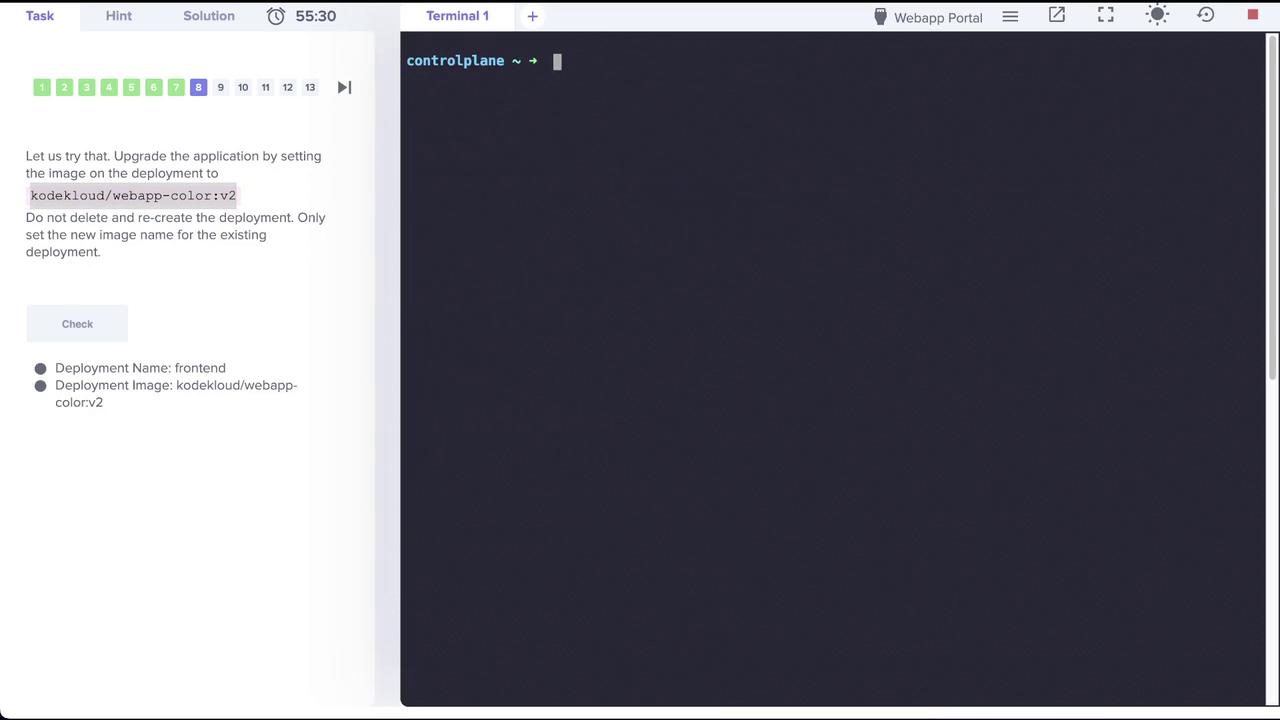
Using `kubectl edit deployment frontend`, update the strategy section. Change from:
```yaml theme={null}
strategy:
rollingUpdate:
maxSurge: 25%
maxUnavailable: 25%
type: RollingUpdate
```
to
```yaml theme={null}
strategy:
type: Recreate
```
After editing, the deployment configuration should resemble:
```yaml theme={null}
apiVersion: apps/v1
kind: Deployment
metadata:
name: frontend
namespace: default
spec:
minReadySeconds: 20
replicas: 4
selector:
matchLabels:
name: webapp
strategy:
type: Recreate
template:
metadata:
labels:
name: webapp
spec:
containers:
- name: simple-webapp
image: kodekloud/webapp-color:v2
imagePullPolicy: IfNotPresent
ports:
- containerPort: 8080
```
Verify the strategy change with:
```bash theme={null}
k describe deploy frontend
```
The output should now display:
```text theme={null}
StrategyType: Recreate
```
Switching to the Recreate strategy will result in downtime since all the pods are terminated before new ones are created.
## Upgrading the Application to v3 with Recreate Strategy
Now that the deployment is set to the Recreate strategy, upgrade the application by updating the container image to `kodekloud/webapp-color:v3`:
```bash theme={null}
k set image deploy frontend simple-webapp=kodekloud/webapp-color:v3
```
Immediately after running the command, execute the test script:
```bash theme={null}
./curl-test.sh
```
During the upgrade, you might see several request failures:
```bash theme={null}
Failed
Failed
Failed
Failed
Failed
Failed
Failed
```
These errors occur because all pods are temporarily down during the recreate process. Once the update completes, accessing the application will show version v3 with red color:
```bash theme={null}
Hello, Application Version: v3 ; Color: red OK
Hello, Application Version: v3 ; Color: red OK
Hello, Application Version: v3 ; Color: red OK
Hello, Application Version: v3 ; Color: red OK
Hello, Application Version: v3 ; Color: red OK
Hello, Application Version: v3 ; Color: red OK
Hello, Application Version: v3 ; Color: red OK
Hello, Application Version: v3 ; Color: red OK
Hello, Application Version: v3 ; Color: red OK
Hello, Application Version: v3 ; Color: red OK
Hello, Application Version: v3 ; Color: red OK
Hello, Application Version: v3 ; Color: red OK
```
This concludes the lab on rolling updates and strategy changes in Kubernetes. Enjoy experimenting with dynamic update strategies and managing your deployments efficiently!