> ## Documentation Index
> Fetch the complete documentation index at: https://notes.kodekloud.com/llms.txt
> Use this file to discover all available pages before exploring further.
# Lab Solution Ingress Networking 2 optional
> Demonstrates deploying an NGINX Ingress Controller and creating path based routing to expose video and wear apps while troubleshooting HTTP to HTTPS redirect issues
This lab demonstrates path-based routing using an NGINX Ingress Controller to expose two applications—`video` and `wear`—running in the `app-space` namespace. You'll deploy the controller, expose it via a Service, create an Ingress resource with path rules, and troubleshoot a common redirect issue.
## Prerequisites
* A running Kubernetes cluster with `kubectl` configured to connect to the control plane.
* `video` and `wear` apps already deployed in the `app-space` namespace (services named `video-service` and `wear-service` listening on port `8080`).
## Quick alias for kubectl
For convenience, alias `kubectl` to `k`:
```bash theme={null}
root@controlplane:~#
root@controlplane:~# alias k=kubectl
```
Using an alias like `k` speeds up interactive work. If you want this alias to persist, add the alias command to your shell profile (e.g. `~/.bashrc` or `~/.profile`).
## Verify application Pods
Confirm the application Pods are running:
```bash theme={null}
root@controlplane:~# k get pod -A
NAMESPACE NAME READY STATUS RESTARTS AGE
app-space default-backend-5cf9bfb9d-jqcp2 1/1 Running 0 50s
app-space webapp-video-84f8655bd8-qpbn5 1/1 Running 0 50s
app-space webapp-wear-6ff9445955-mmtqh 1/1 Running 0 49s
kube-system coredns-74ff55c5b-4zq8j 1/1 Running 0 20m
... (other kube-system components)
```
***
## Step 1 — Create namespace for the Ingress controller
Create a dedicated namespace for the Ingress controller objects:
```bash theme={null}
root@controlplane:~# k create namespace ingress-space
namespace/ingress-space created
```
## Step 2 — Create the NGINX ConfigMap
The controller needs a ConfigMap for configuration settings:
```bash theme={null}
root@controlplane:~# k create configmap nginx-configuration -n ingress-space
configmap/nginx-configuration created
```
## Step 3 — Check RBAC objects for the Ingress controller
Verify the Role and RoleBinding that grant the controller the necessary permissions:
```bash theme={null}
root@controlplane:~# k get roles -n ingress-space
NAME CREATED AT
ingress-role 2022-04-19T21:05:42Z
root@controlplane:~# k get rolebindings -n ingress-space
NAME ROLE AGE
ingress-role-binding Role/ingress-role 20s
root@controlplane:~# k describe role ingress-role -n ingress-space
Name: ingress-role
Labels: app.kubernetes.io/name=ingress-nginx
app.kubernetes.io/part-of=ingress-nginx
Annotations:
PolicyRule:
Resources Non-Resource URLs Resource Names Verbs
--------- ----------------- -------------- -----
configmaps [] [] [get create]
configmaps [] [ingress-controller-leader-nginx] [get update]
endpoints [] [] [get]
namespaces [] [] [get]
pods [] [] [get]
secrets [] [] [get]
```
The Role grants permission for configmaps, endpoints, namespaces, pods, and secrets, which the controller needs to operate.
***
## Step 4 — Deploy the Ingress Controller Deployment
The supplied deployment YAML had YAML syntax/typo issues (example of common errors):
```yaml theme={null}
spec:
replicas: 1
selector:
matchLabels:
name: nginx-ingress
tempLate:
metadata:
tabels:
name: nginx-ingress
spec:
serviceAccountName: ingress-serviceaccount
containers:
- name: nginx-ingress-controller
image: quay.io/kubernetes-ingress-controller/nginx-ingress-controller:0.21.0
args:
- /nginx-ingress-controller
- --configmap=$(POD_NAMESPACE)/nginx-configuration
- --default-backend-service=app-space/default-http-backend
env:
- name: POD_NAME
valueFrom:
fieldRef:
fieldPath: metadata.name
- name: POD_NAMESPACE
valueFrom:
fieldRef:
fieldPath: metadata.namespace
ports:
- name: http
containerPort: 80
- name: https
containerPort: 443
```
This example shows typical YAML pitfalls: incorrect key casing (`tempLate`), misspelled keys (`tabels`), and wrong indentation. Such typos cause `kubectl` to fail with YAML parsing errors. Always validate YAML (e.g., `kubectl apply --dry-run=client -f `) before creating resources.
Fix the YAML (correct `template`, `metadata`, indentation, and include `metadata.namespace: ingress-space`) and apply it. After creating the corrected Deployment, the Ingress controller Pod should start in `ingress-space`.
If you encountered a parsing error like this when creating the resource:
```bash theme={null}
root@controlplane:~# k create -f ingress-controller.yaml
error: error parsing ingress-controller.yaml: error converting YAML to JSON: yaml: line36: mapping values are not allowed in this context
```
open and fix the file before retrying.
***
## Step 5 — Expose the Ingress Controller with a Service
Expose the controller so external traffic can reach it. A quick method is `kubectl expose`:
```bash theme={null}
root@controlplane:~# k expose deploy ingress-controller -n ingress-space --name ingress --port=80 --target-port=80 --type NodePort
service/ingress exposed
root@controlplane:~# k get svc -n ingress-space
NAME TYPE CLUSTER-IP EXTERNAL-IP PORT(S) AGE
ingress NodePort 10.109.33.190 80:32741/TCP 9s
```
The controller’s Service picked NodePort `32741`. If you need a specific NodePort, edit the Service and set `spec.ports[0].nodePort`:
```bash theme={null}
root@controlplane:~# k edit svc ingress -n ingress-space
# edit the nodePort field to the desired value, then save
service/ingress edited
```
Example Service YAML (as seen prior to editing):
```yaml theme={null}
apiVersion: v1
kind: Service
metadata:
name: ingress
namespace: ingress-space
spec:
clusterIP: 10.109.33.190
externalTrafficPolicy: Cluster
ports:
- nodePort: 32741
port: 80
protocol: TCP
targetPort: 80
selector:
name: nginx-ingress
type: NodePort
```
***
## Step 6 — Create the Ingress resource to route requests to the apps
Create an Ingress in the `app-space` namespace that routes:
* `/wear` -> `wear-service:8080`
* `/watch` -> `video-service:8080`
Confirm existing services:
```bash theme={null}
root@controlplane:~# k get svc -n app-space
NAME TYPE CLUSTER-IP EXTERNAL-IP PORT(S) AGE
default-http-backend ClusterIP 10.109.67.66 80/TCP 10m
video-service ClusterIP 10.99.96.249 8080/TCP 10m
wear-service ClusterIP 10.105.104.69 8080/TCP 10m
```
Create the Ingress using `kubectl create` with rules:
```bash theme={null}
root@controlplane:~# k create ingress ingress-wear-watch -n app-space --rule="/wear=wear-service:8080" --rule="/watch=video-service:8080"
ingress.networking.k8s.io/ingress-wear-watch created
root@controlplane:~# k get ingress -n app-space
NAME CLASS HOSTS ADDRESS PORTS AGE
ingress-wear-watch * 80 8s
```
Describe it to verify backend mappings and endpoints:
```bash theme={null}
root@controlplane:~# k describe ingress -n app-space
Name: ingress-wear-watch
Namespace: app-space
Address:
Default backend: default-http-backend:80 ()
Rules:
Host Path Backends
---- ---- --------
*
/wear wear-service:8080 (10.244.0.6:8080)
/watch video-service:8080 (10.244.0.4:8080)
Annotations:
Events:
```
***
## Step 7 — Verify traffic and troubleshoot redirects
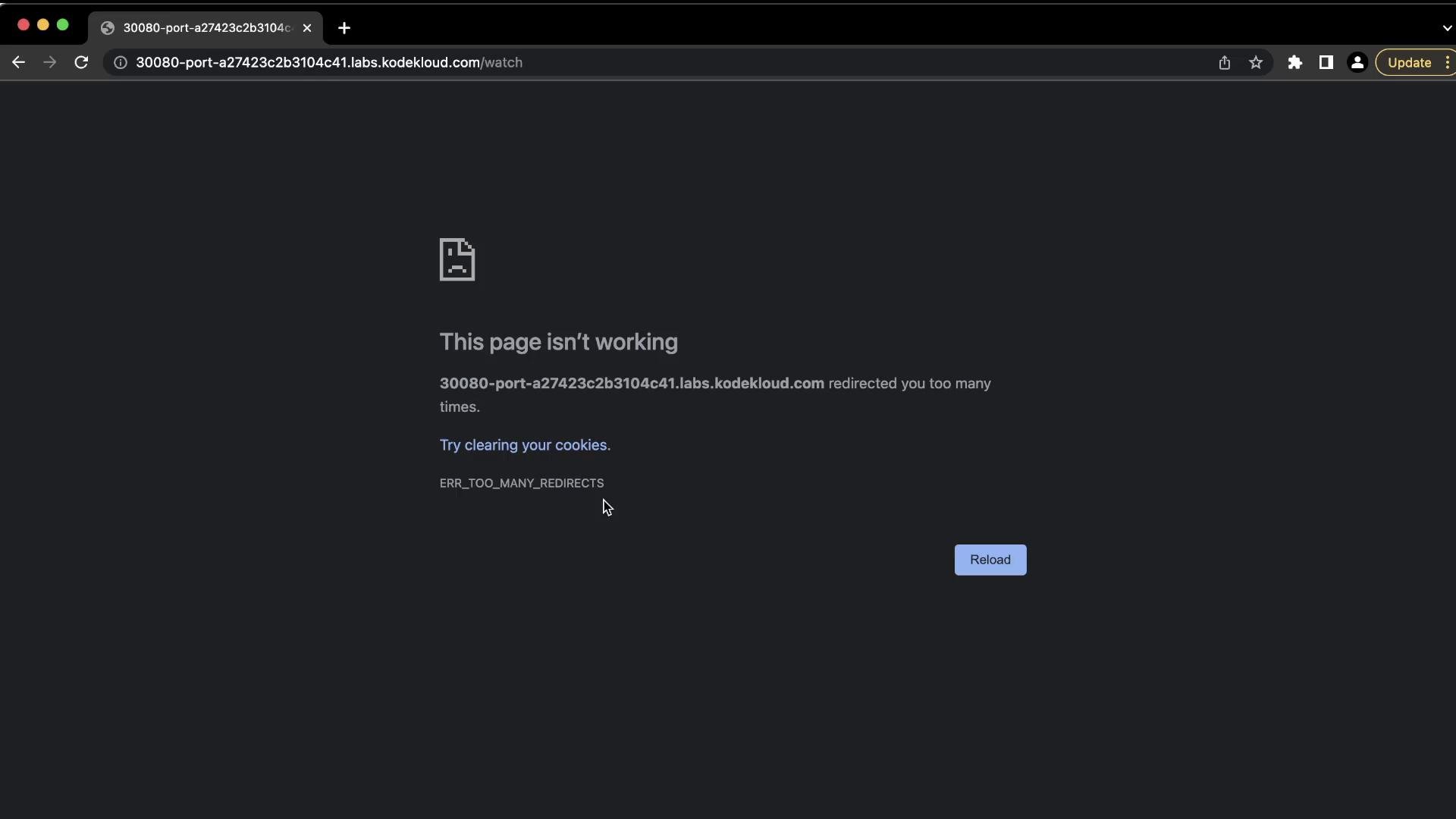
When accessing the Ingress in a browser, you might see a redirect error (ERR\_TOO\_MANY\_REDIRECTS). This commonly occurs when the NGINX Ingress Controller automatically redirects HTTP requests to HTTPS while your Ingress or clients are not configured for TLS, causing a redirect loop.
Example browser screenshot showing the error:
 Check Pod and application logs to ensure backends are healthy:
```bash theme={null}
root@controlplane:~# k get pods -n app-space
NAME READY STATUS RESTARTS AGE
default-backend-5cf9bfb9d-jqcp2 1/1 Running 0 12m
webapp-video-84f8655bd8-qpbn5 1/1 Running 0 12m
webapp-wear-6ff9445955-mmtqh 1/1 Running 0 12m
root@controlplane:~# k logs webapp-video-84f8655bd8-qpbn5 -n app-space
* Serving Flask app "app" (lazy loading)
* Environment: production
WARNING: Do not use the development server in a production environment.
* Debug mode: off
* Running on http://0.0.0.0:8080/ (Press CTRL+C to quit)
```
Inspect controller logs for redirect responses (HTTP 308 indicates a permanent redirect):
```text theme={null}
... "GET /watch HTTP/1.1" 308 171 "-" "Mozilla/5.0 ..." ... [app-space-video-service-8080] ...
```
A 308 status means the controller (or an upstream) is issuing a permanent redirect from HTTP to HTTPS.
Resolution: disable automatic SSL redirect for this Ingress by adding the annotation `nginx.ingress.kubernetes.io/ssl-redirect: "false"` (and add a rewrite target if required). Example Ingress YAML with the fix:
```yaml theme={null}
apiVersion: networking.k8s.io/v1
kind: Ingress
metadata:
name: ingress-wear-watch
namespace: app-space
annotations:
nginx.ingress.kubernetes.io/rewrite-target: /
nginx.ingress.kubernetes.io/ssl-redirect: "false"
spec:
rules:
- http:
paths:
- path: /wear
pathType: Exact
backend:
service:
name: wear-service
port:
number: 8080
- path: /watch
pathType: Exact
backend:
service:
name: video-service
port:
number: 8080
```
Apply the edit:
```bash theme={null}
root@controlplane:~# k edit ingress ingress-wear-watch -n app-space
ingress.networking.k8s.io/ingress-wear-watch edited
```
After disabling SSL redirect, HTTP requests should reach the backend services and the web applications will be accessible through the Ingress paths. Example: `/watch` should display the application content (the lab demonstrates a live-stream page):
Check Pod and application logs to ensure backends are healthy:
```bash theme={null}
root@controlplane:~# k get pods -n app-space
NAME READY STATUS RESTARTS AGE
default-backend-5cf9bfb9d-jqcp2 1/1 Running 0 12m
webapp-video-84f8655bd8-qpbn5 1/1 Running 0 12m
webapp-wear-6ff9445955-mmtqh 1/1 Running 0 12m
root@controlplane:~# k logs webapp-video-84f8655bd8-qpbn5 -n app-space
* Serving Flask app "app" (lazy loading)
* Environment: production
WARNING: Do not use the development server in a production environment.
* Debug mode: off
* Running on http://0.0.0.0:8080/ (Press CTRL+C to quit)
```
Inspect controller logs for redirect responses (HTTP 308 indicates a permanent redirect):
```text theme={null}
... "GET /watch HTTP/1.1" 308 171 "-" "Mozilla/5.0 ..." ... [app-space-video-service-8080] ...
```
A 308 status means the controller (or an upstream) is issuing a permanent redirect from HTTP to HTTPS.
Resolution: disable automatic SSL redirect for this Ingress by adding the annotation `nginx.ingress.kubernetes.io/ssl-redirect: "false"` (and add a rewrite target if required). Example Ingress YAML with the fix:
```yaml theme={null}
apiVersion: networking.k8s.io/v1
kind: Ingress
metadata:
name: ingress-wear-watch
namespace: app-space
annotations:
nginx.ingress.kubernetes.io/rewrite-target: /
nginx.ingress.kubernetes.io/ssl-redirect: "false"
spec:
rules:
- http:
paths:
- path: /wear
pathType: Exact
backend:
service:
name: wear-service
port:
number: 8080
- path: /watch
pathType: Exact
backend:
service:
name: video-service
port:
number: 8080
```
Apply the edit:
```bash theme={null}
root@controlplane:~# k edit ingress ingress-wear-watch -n app-space
ingress.networking.k8s.io/ingress-wear-watch edited
```
After disabling SSL redirect, HTTP requests should reach the backend services and the web applications will be accessible through the Ingress paths. Example: `/watch` should display the application content (the lab demonstrates a live-stream page):
 ***
## Summary — Key points and troubleshooting checklist
* Validate your Ingress Controller Deployment YAML for correct keys (`template`), spelling and indentation before applying.
* The NGINX Ingress Controller may enforce SSL redirects by default. If you don't have TLS configured, set the annotation `nginx.ingress.kubernetes.io/ssl-redirect: "false"` on the Ingress to prevent HTTP→HTTPS redirect loops.
* Use `kubectl expose` to quickly create a Service, then `kubectl edit svc` to set a specific `nodePort` if necessary.
* To troubleshoot routing issues:
* Verify Services and Endpoints: `kubectl get svc -n `, `kubectl get endpoints -n `
* Inspect the Ingress: `kubectl describe ingress -n `
* Check controller logs for redirect/route errors.
* Check application logs to ensure the app is listening on the expected port.
## Reference links
* [Kubernetes Ingress documentation](https://kubernetes.io/docs/concepts/services-networking/ingress/)
* [NGINX Ingress Controller docs](https://kubernetes.github.io/ingress-nginx/)
* [kubectl cheat sheet](https://kubernetes.io/docs/reference/kubectl/cheatsheet/)
## Quick resource table
| Resource | Purpose | Example command |
| - | - | - |
| Namespace | Isolate Ingress controller objects | `k create namespace ingress-space` |
| ConfigMap | Controller config | `k create configmap nginx-configuration -n ingress-space` |
| Deployment | NGINX Ingress Controller | `k apply -f ingress-controller.yaml` |
| Service | Expose controller externally (NodePort) | `k expose deploy ingress-controller -n ingress-space --type NodePort` |
| Ingress | Path-based routing to services | `k create ingress ingress-wear-watch -n app-space --rule="/wear=wear-service:8080" --rule="/watch=video-service:8080"` |
This completes the ingress networking lab with path-based routing, controller deployment, service exposure, and a common SSL redirect troubleshooting example.
This documentation is built and hosted on [Mintlify](https://mintlify.com), a developer documentation platform.
***
## Summary — Key points and troubleshooting checklist
* Validate your Ingress Controller Deployment YAML for correct keys (`template`), spelling and indentation before applying.
* The NGINX Ingress Controller may enforce SSL redirects by default. If you don't have TLS configured, set the annotation `nginx.ingress.kubernetes.io/ssl-redirect: "false"` on the Ingress to prevent HTTP→HTTPS redirect loops.
* Use `kubectl expose` to quickly create a Service, then `kubectl edit svc` to set a specific `nodePort` if necessary.
* To troubleshoot routing issues:
* Verify Services and Endpoints: `kubectl get svc -n `, `kubectl get endpoints -n `
* Inspect the Ingress: `kubectl describe ingress -n `
* Check controller logs for redirect/route errors.
* Check application logs to ensure the app is listening on the expected port.
## Reference links
* [Kubernetes Ingress documentation](https://kubernetes.io/docs/concepts/services-networking/ingress/)
* [NGINX Ingress Controller docs](https://kubernetes.github.io/ingress-nginx/)
* [kubectl cheat sheet](https://kubernetes.io/docs/reference/kubectl/cheatsheet/)
## Quick resource table
| Resource | Purpose | Example command |
| - | - | - |
| Namespace | Isolate Ingress controller objects | `k create namespace ingress-space` |
| ConfigMap | Controller config | `k create configmap nginx-configuration -n ingress-space` |
| Deployment | NGINX Ingress Controller | `k apply -f ingress-controller.yaml` |
| Service | Expose controller externally (NodePort) | `k expose deploy ingress-controller -n ingress-space --type NodePort` |
| Ingress | Path-based routing to services | `k create ingress ingress-wear-watch -n app-space --rule="/wear=wear-service:8080" --rule="/watch=video-service:8080"` |
This completes the ingress networking lab with path-based routing, controller deployment, service exposure, and a common SSL redirect troubleshooting example.
This documentation is built and hosted on [Mintlify](https://mintlify.com), a developer documentation platform.