> ## Documentation Index
> Fetch the complete documentation index at: https://notes.kodekloud.com/llms.txt
> Use this file to discover all available pages before exploring further.
# Solution Deploy Network Solution optional
> This guide covers installing WeaveNet on Kubernetes and troubleshooting application pods stuck in ContainerCreating state.
This guide explains how to install the WeaveNet pod networking solution on your Kubernetes cluster and troubleshoot why an application pod might be stuck in the "ContainerCreating" state. We discuss inspecting pod status, deploying the network solution, customizing configuration settings, and verifying that everything is operating correctly.
***
## Inspecting the Application Pod
An application named "app" has been deployed in the default namespace. Begin by checking the pod status:
```bash theme={null}
kubectl get pods
```
If you see that the pod is stuck in the "ContainerCreating" state, it indicates that the pod is not running. To diagnose further, describe the pod to review its events:
```bash theme={null}
kubectl describe pod app
```
Focus on the events section at the bottom of the output. You may encounter an error message like:
```plaintext theme={null}
Warning FailedCreatePodSandbox 35s kubelet Failed to create pod sandbox: rpc error: code = Unknown desc = failed to setup network for sandbox "d25e340bdc7fb268f261540c1bcd937e356ccae1fa9f2ef621e3f7e89": plugin type="weave-net" name="weave" failed (add): unable to allocate IP address: Post "http://127.0.0.1:6784/ip/add?…": dial tcp 127.0.0.1:6784: connect: connection refused
```
This error typically means that the network is not configured properly because the container runtime was unable to allocate an IP address.
***
## Deploying WeaveNet
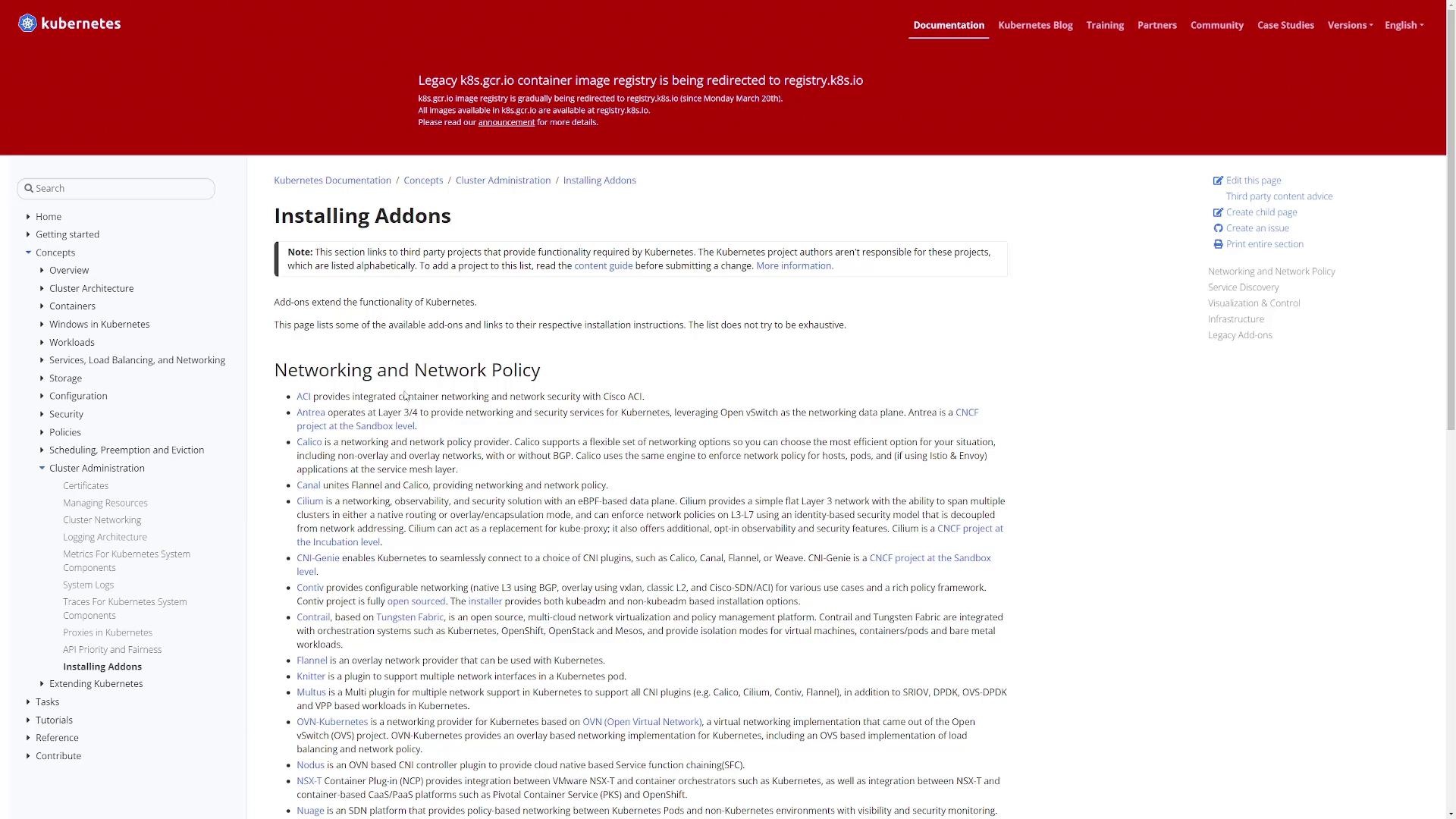
To fix the network configuration issue, deploy the WeaveNet networking plugin to your cluster. For more background on installing add-ons, see the [Kubernetes documentation on installing add-ons](https://kubernetes.io/docs/concepts/cluster-administration/addons/).
Follow these steps:
1. Open the Kubernetes add-ons documentation, which covers various networking add-ons like ACI, Antrea, and Calico.
2. Install WeaveNet by applying the manifest file with this command:
```bash theme={null}
kubectl apply -f https://github.com/weaveworks/weave/releases/download/2.8.1/weave-daemonset-k8s.yaml
```
3. Review your cluster's CIDR settings
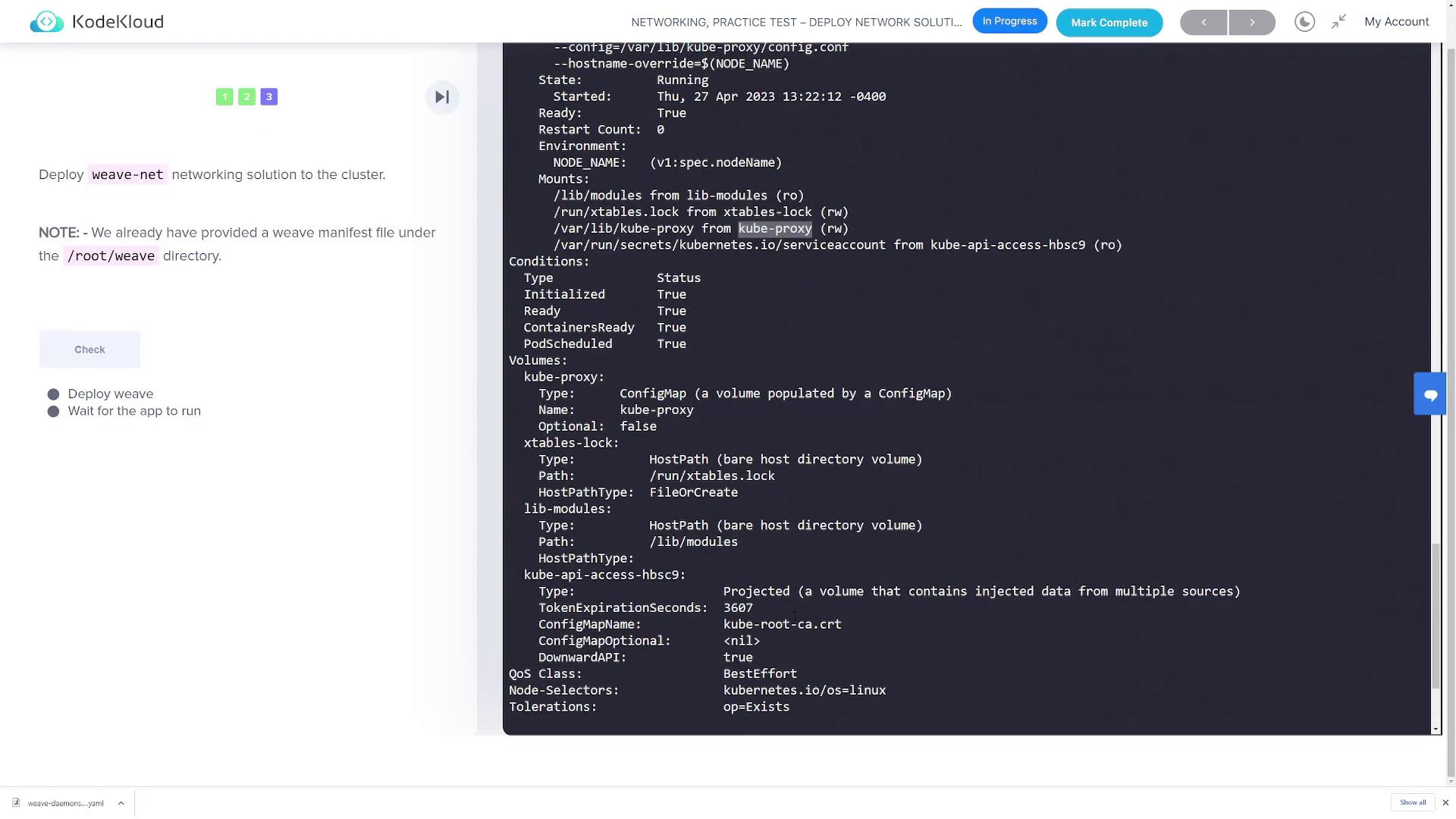
Review your cluster's CIDR settings. If you have set a specific cluster CIDR in your kube-proxy (for example, `clusterCIDR: 10.244.0.0/16`), ensure that WeaveNet is configured to use a compatible IP allocation range. List the WeaveNet pods and check their logs to verify:
```bash theme={null}
kubectl get pod -n kube-system | grep weave
kubectl logs -n kube-system
```
If the default manifest does not fit your cluster settings, adjust the configuration. For instance, to set the IP allocation range to "10.0.0.0/24", update the environment variables in the manifest’s container configuration:
```yaml theme={null}
containers:
- name: weave
env:
- name: IPALLOC_RANGE
value: "10.0.0.0/24"
```
***
## Verifying and Customizing the WeaveNet Manifest
To further customize WeaveNet, first download the manifest:
```bash theme={null}
wget https://github.com/weaveworks/weave/releases/download/v2.8.1/weave-daemonset-k8s.yaml
```
Open the file to review the container definitions. You will find a section like:
```yaml theme={null}
metadata:
labels:
name: weave-net
spec:
initContainers:
- name: weave-init
image: 'weaveworks/weave-kube:latest'
imagePullPolicy: Always
command:
- /home/weave/init.sh
securityContext:
privileged: true
volumeMounts:
- name: cni.bin
mountPath: /host/opt
- name: cni-bin2
mountPath: /host/home
- name: cni/conf
mountPath: /host/etc
- name: lib/modules
mountPath: /lib/modules
- name: xtables-lock
mountPath: /run/xtables.lock
- name: weave
image: 'weaveworks/weave-kube:latest'
imagePullPolicy: Always
command:
- /home/weave/launch.sh
env:
- name: INIT_CONTAINER
value: "true"
- name: HOSTNAME
valueFrom:
fieldRef:
apiVersion: v1
fieldPath: spec.nodeName
```
To specify the IP allocation range for WeaveNet, add the environment variable under the container’s env section:
```yaml theme={null}
env:
- name: INIT_CONTAINER
value: "true"
- name: HOSTNAME
valueFrom:
fieldRef:
fieldPath: spec.nodeName
- name: IPALLOC_RANGE
value: "10.244.0.0/16"
```
After making the necessary modifications, apply the updated manifest:
```bash theme={null}
kubectl apply -f weave-daemonset-k8s.yaml
```
***
## Verifying the Deployment
After applying the manifest, ensure that the WeaveNet pods are running successfully in the kube-system namespace:
```bash theme={null}
kubectl get pods -n kube-system
```
You should see an output similar to:
```plaintext theme={null}
NAME READY STATUS RESTARTS AGE
weave-net-xxxxx 2/2 Running 0 10s
```
This output confirms that WeaveNet has been deployed successfully as a DaemonSet across your nodes.
***
## Additional Diagnostics
If you encounter issues such as evicted pods or ongoing network problems, use the following commands to gather more information:
```bash theme={null}
kubectl get evicted
kubectl get pods
```
Review the events for issues like resource constraints or network connectivity problems. Additionally, inspect the kube-proxy configuration with:
```bash theme={null}
kubectl describe configmap kube-proxy -n kube-system
```
Ensure that the configuration includes a matching cluster CIDR, such as:
```yaml theme={null}
apiVersion: kubeproxy.config.k8s.io/v1alpha1
...
clusterCIDR: 10.244.0.0/16
```
Make sure any modifications in the WeaveNet manifest align with your cluster’s CIDR settings.
***
## Conclusion
Once WeaveNet is deployed and confirmed to be running, recheck the status of the "app" pod:
```bash theme={null}
kubectl get pods
```
If the network configuration is correct, the pod should transition from the "ContainerCreating" state to Running. This completes the exercise on deploying the WeaveNet networking solution and troubleshooting pod creation issues.