> ## Documentation Index
> Fetch the complete documentation index at: https://notes.kodekloud.com/llms.txt
> Use this file to discover all available pages before exploring further.
# Advanced Kubectl Commands
> This article explains using JSONPath with kubectl for managing Kubernetes outputs, covering commands, queries, formatting, and practice tests.
Hello, and welcome to this lesson on using JSONPath with kubectl in Kubernetes. My name is Mumshad Mannambeth. In this session, we will explain why JSONPath is an essential tool for managing large Kubernetes outputs and demonstrate how to use it effectively with kubectl. We'll cover viewing JSON output, constructing JSONPath queries, using loops, custom column formatting, and sorting functions. Towards the end, you'll find practice tests that will help reinforce your learning.
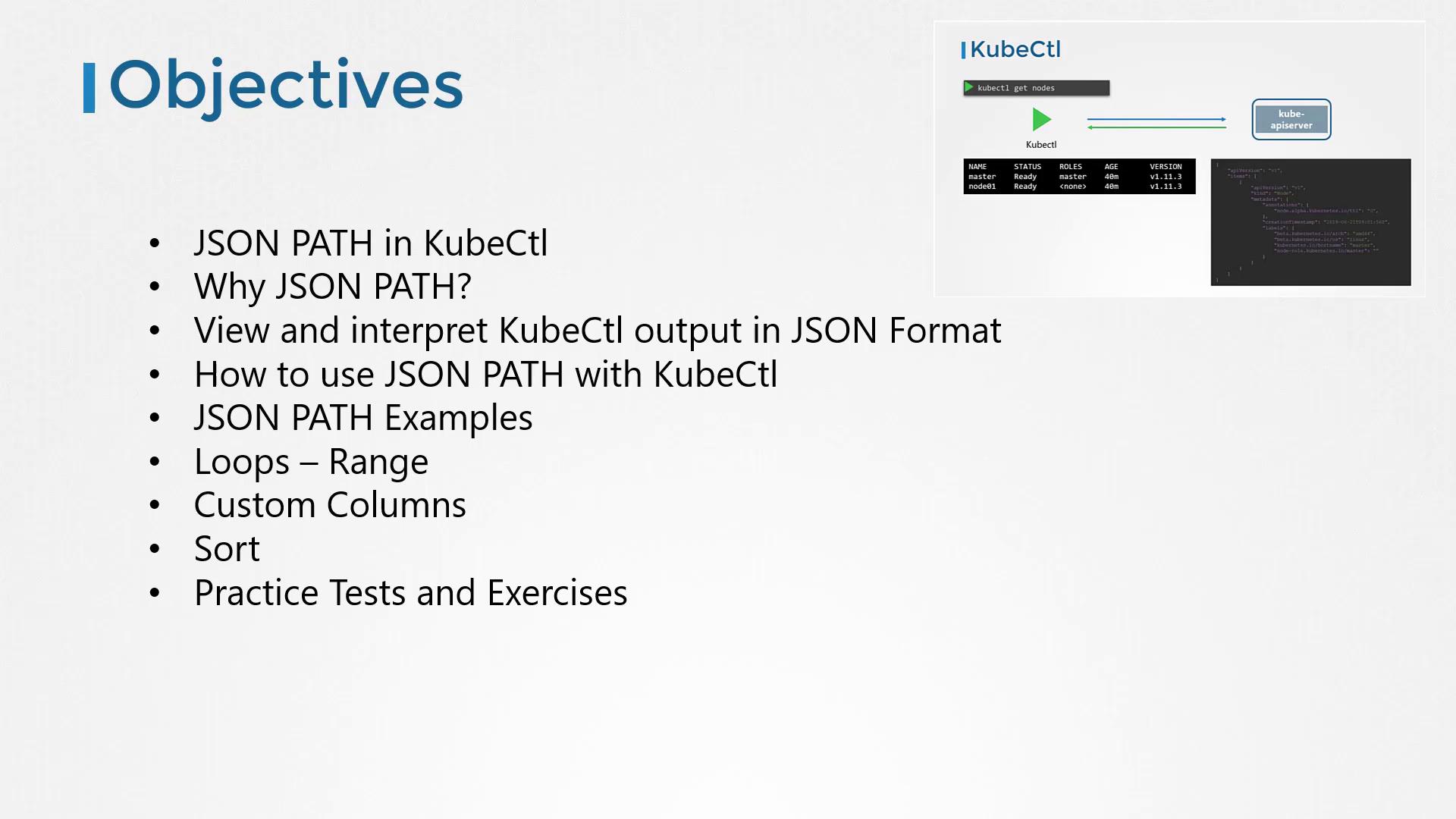
To kick off, consider some of these basic commands:
```bash theme={null}
kubectl get nodes -o custom-columns=NODE:.metadata.name,.CPU:.status.capacity.cpu
kubectl get nodes --sort-by=.metadata.name
kubectl get nodes --sort-by=.status.capacity.cpu
```
Before diving deeper, it's important to understand how JSONPath queries work. If you're new to JSONPath, consider exploring free online tutorials and practice tests to build a strong foundation.
Experiment with JSONPath on a Kubernetes dataset to understand its structure before applying more complex queries with kubectl.
## Why Use JSONPath?
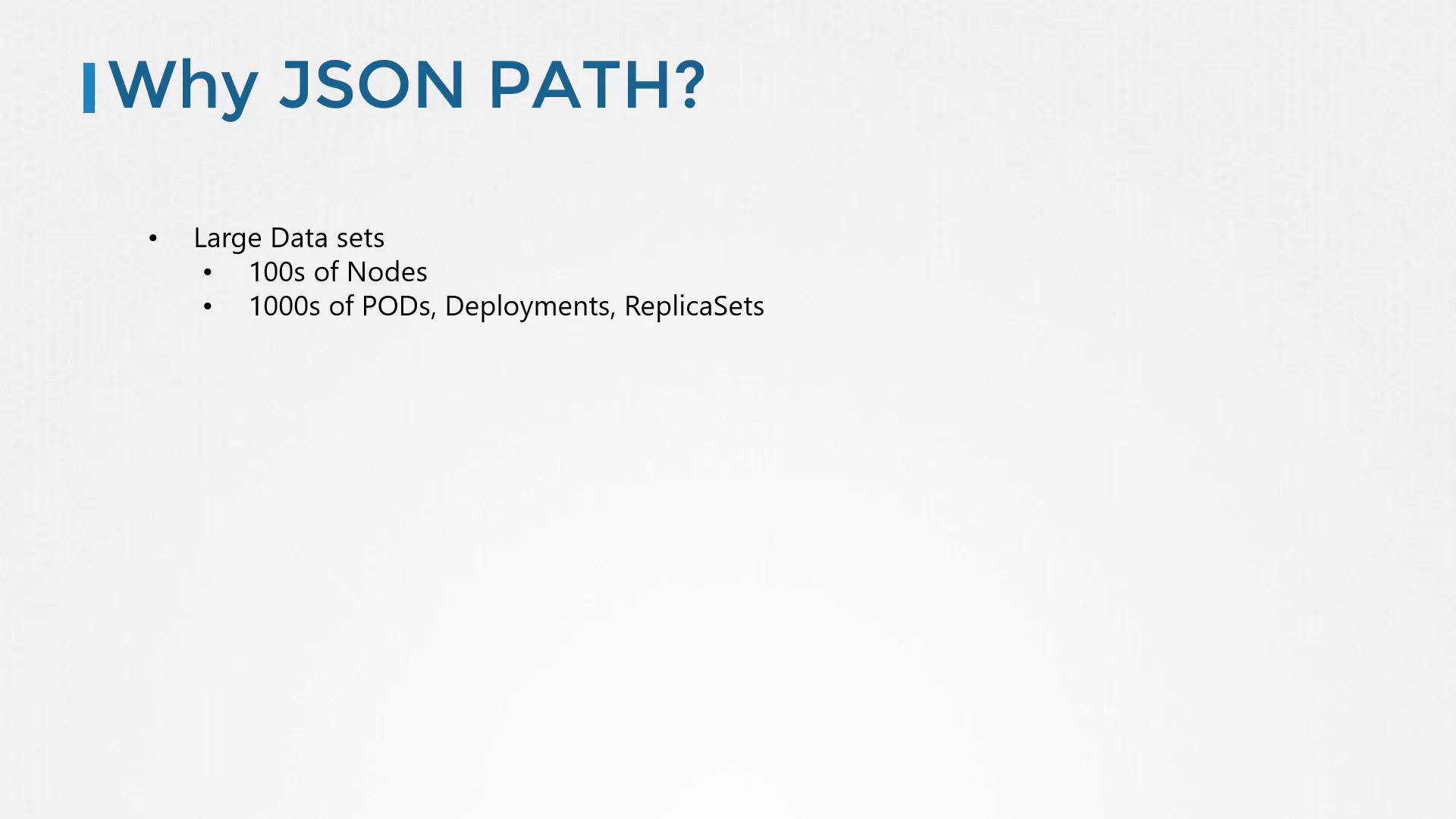
In production environments with hundreds of nodes and thousands of objects—such as deployments, pods, ReplicaSets, services, and secrets—the standard kubectl output might not provide the precise data you need. While kubectl gives a quick summary, JSONPath queries let you filter and format large datasets with precision. This functionality enables you to generate customized reports tailored to your needs.
## How Kubectl Works
Kubectl is the command-line interface for Kubernetes that communicates with the API server. Every command retrieves data in JSON format and converts it into a human-readable format. For example, the basic command to list nodes is:
```bash theme={null}
kubectl get nodes
```
The typical output looks like this:
```text theme={null}
NAME STATUS ROLES AGE VERSION
master Ready master 40m v1.11.3
node01 Ready 40m v1.11.3
```
Behind the scenes, the JSON output might resemble:
```json theme={null}
{
"apiVersion": "v1",
"items": [
{
"apiVersion": "v1",
"kind": "Node",
"metadata": {
"annotations": {
"node.alpha.kubernetes.io/ttl": "0"
},
"creationTimestamp": "2019-06-21T09:01:56Z",
"labels": {
"beta.kubernetes.io/arch": "amd64",
"beta.kubernetes.io/os": "linux",
"kubernetes.io/hostname": "master",
"node-role.kubernetes.io/master": ""
}
}
}
]
}
```
Kubectl trims excessive details to keep the output clear. For a more detailed view, use the `-o wide` option:
```bash theme={null}
kubectl get nodes -o wide
```
This might return:
```text theme={null}
NAME STATUS ROLES AGE VERSION INTERNAL-IP EXTERNAL-IP OS-IMAGE KERNEL-VERSION
master Ready master 7m v1.11.3 172.17.0.44 Ubuntu 16.04.2 LTS 4.15.0-24-generic
node01 Ready 6m v1.11.3 172.17.0.63 Ubuntu 16.04.2 LTS 4.15.0-24-generic
```
If you need the full details—like resource capacity, taints, conditions, hardware architecture, etc.—use `kubectl describe` or query the JSON directly.
## Building a JSONPath Query
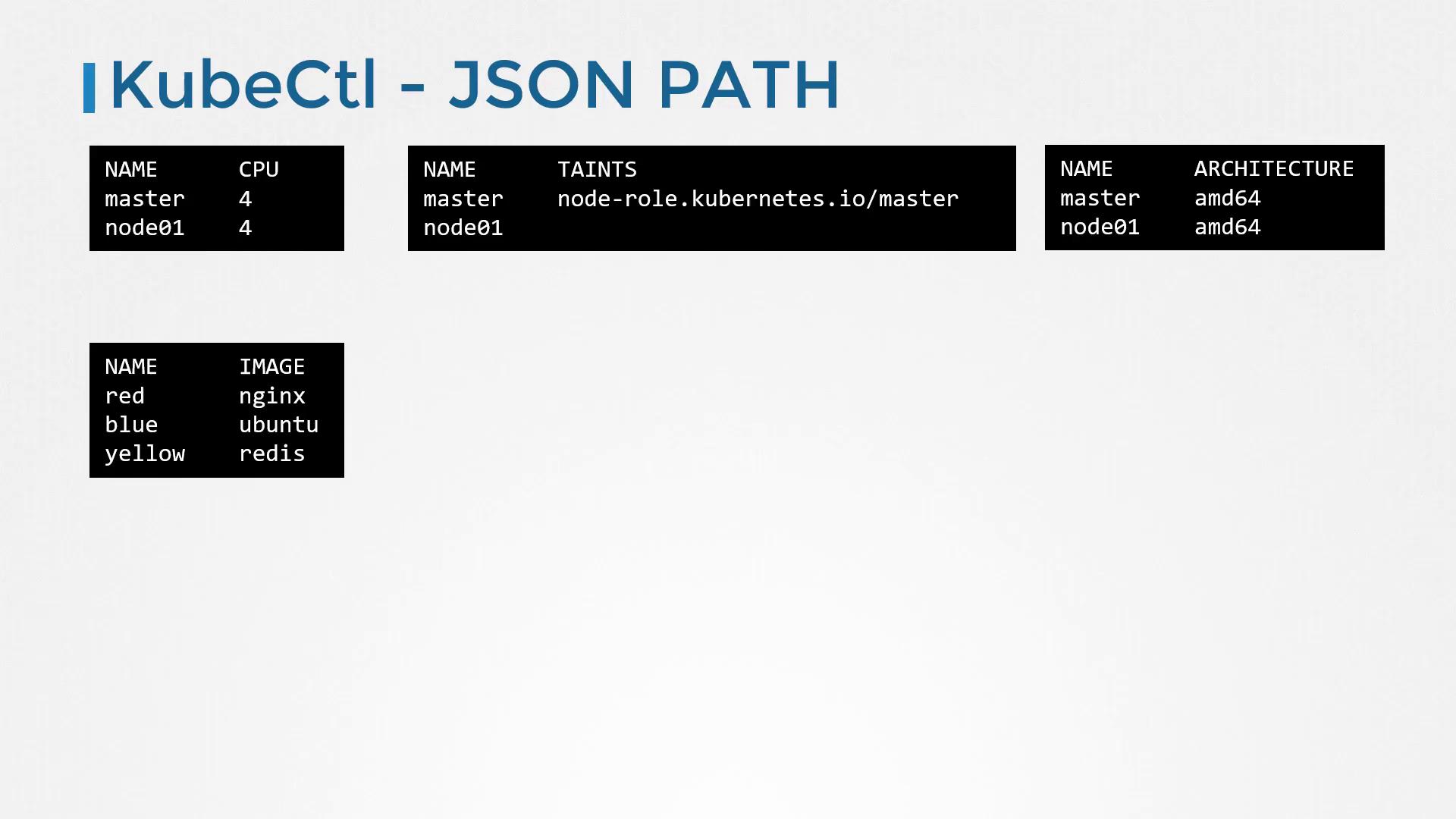
Imagine needing a report that displays specific fields, such as node names and CPU counts. No default command provides this directly—that’s where JSONPath shines. Follow these steps to build a JSONPath query with kubectl:
1. **Retrieve Raw Data**\
Start by retrieving the node details:
```bash theme={null}
kubectl get nodes
```
2. **View Full JSON Output**\
Add the `-o json` option to see the complete data:
```bash theme={null}
kubectl get nodes -o json
kubectl get pods -o json
```
For instance, a sample JSON output for pods might look like:
```json theme={null}
{
"apiVersion": "v1",
"kind": "List",
"items": [
{
"apiVersion": "v1",
"kind": "Pod",
"metadata": {
"name": "nginx-5557945897-gznjp"
},
"spec": {
"containers": [
{
"image": "nginx:alpine",
"name": "nginx"
}
],
"nodeName": "node01"
}
}
]
}
```
3. **Analyze the JSON Structure**\
For example, to extract the image from the first container in the first pod, the JSONPath query is:
* Query: `.items[0].spec.containers[0].image`
4. **Query with Kubectl**\
Embed your query in single quotes and curly braces:
```bash theme={null}
kubectl get pods -o=jsonpath='{.items[0].spec.containers[0].image}'
```
If you're new to JSONPath, try using online evaluators like jsonpath.com to experiment with and refine your queries.
Using JSONPath, you can extract various fields. For example:
* `{.items[*].metadata.name}` returns all node names.
* `{.items[*].status.nodeInfo.architecture}` provides hardware architectures.
* `{.items[*].status.capacity.cpu}` shows CPU counts per node.
Example command:
```bash theme={null}
kubectl get nodes -o=jsonpath='{.items[*].metadata.name}'
```
Output:
```text theme={null}
master node01
```
Similarly:
```bash theme={null}
kubectl get nodes -o=jsonpath='{.items[*].status.nodeInfo.architecture}'
```
Output:
```text theme={null}
amd64 amd64
```
And:
```bash theme={null}
kubectl get nodes -o=jsonpath='{.items[*].status.capacity.cpu}'
```
Output:
```text theme={null}
4 4
```
You can even combine queries. For instance, to display node names on one line and their CPU counts on the next:
```bash theme={null}
kubectl get nodes -o=jsonpath='{.items[*].metadata.name}{"\n"}{.items[*].status.capacity.cpu}'
```
This produces:
```text theme={null}
master node01
4 4
```
## Advanced Formatting with Loops and Custom Columns
For a neatly formatted table, you can leverage JSONPath loops. Using the `range` keyword functions as an iterator over each node. For every node, you can print its name, followed by a tab (`\t`), its CPU count, and a newline (`\n`):
```bash theme={null}
kubectl get nodes -o=jsonpath='{range .items[*]}{.metadata.name}{"\t"}{.status.capacity.cpu}{"\n"}{end}'
```
Alternatively, the built-in custom columns functionality provides a simpler option. For example:
```bash theme={null}
kubectl get nodes -o=custom-columns=NODE:.metadata.name,CPU:.status.capacity.cpu
```
Note that with custom columns, you don’t need to include the `.items` in your JSONPath query because kubectl automatically iterates through the list.
If you need to sort the output, use the `--sort-by` option. For example:
```bash theme={null}
kubectl get nodes --sort-by=.metadata.name
kubectl get nodes --sort-by=.status.capacity.cpu
```
## Final Thoughts
Mastering JSONPath queries with kubectl empowers you to extract and present detailed information from your Kubernetes environment accurately and efficiently. With practice, you'll create powerful commands that display data in exactly the format you need.
Below is a summary of key commands demonstrated in this lesson:
| Command | Description | Example |
| --------------- | -------------------------- | ---------------------------------------------------------------------------------- |
| Custom Columns | Display specific columns | `kubectl get nodes -o=custom-columns=NODE:.metadata.name,CPU:.status.capacity.cpu` |
| Sorting by Name | Sort nodes alphabetically | `kubectl get nodes --sort-by=.metadata.name` |
| Sorting by CPU | Sort nodes by CPU capacity | `kubectl get nodes --sort-by=.status.capacity.cpu` |
Now, explore the practice tests and exercises to further solidify your understanding of these advanced kubectl commands. Happy learning!