> ## Documentation Index
> Fetch the complete documentation index at: https://notes.kodekloud.com/llms.txt
> Use this file to discover all available pages before exploring further.
# JSON Path in Kubernetes
> Using JSONPath with kubectl to extract, filter, and format Kubernetes API JSON for reporting, scripting, and troubleshooting
 This guide shows how to use JSONPath with `kubectl` to extract, filter, and format information from Kubernetes API JSON output.
This article covers:
* Why JSONPath is useful in Kubernetes.
* How `kubectl` exposes JSON output from the API server.
* A step-by-step workflow to build JSONPath queries.
* Practical examples: `range` loops, custom columns, sorting.
* Best practices and testing recommendations.
Before you begin, you should already be familiar with basic JSONPath syntax. If this is new, consider an introductory JSONPath tutorial (for example on YouTube) or KodeKloud practice labs to inspect JSON structures interactively.
This guide shows how to use JSONPath with `kubectl` to extract, filter, and format information from Kubernetes API JSON output.
This article covers:
* Why JSONPath is useful in Kubernetes.
* How `kubectl` exposes JSON output from the API server.
* A step-by-step workflow to build JSONPath queries.
* Practical examples: `range` loops, custom columns, sorting.
* Best practices and testing recommendations.
Before you begin, you should already be familiar with basic JSONPath syntax. If this is new, consider an introductory JSONPath tutorial (for example on YouTube) or KodeKloud practice labs to inspect JSON structures interactively.
 Why use JSONPath?
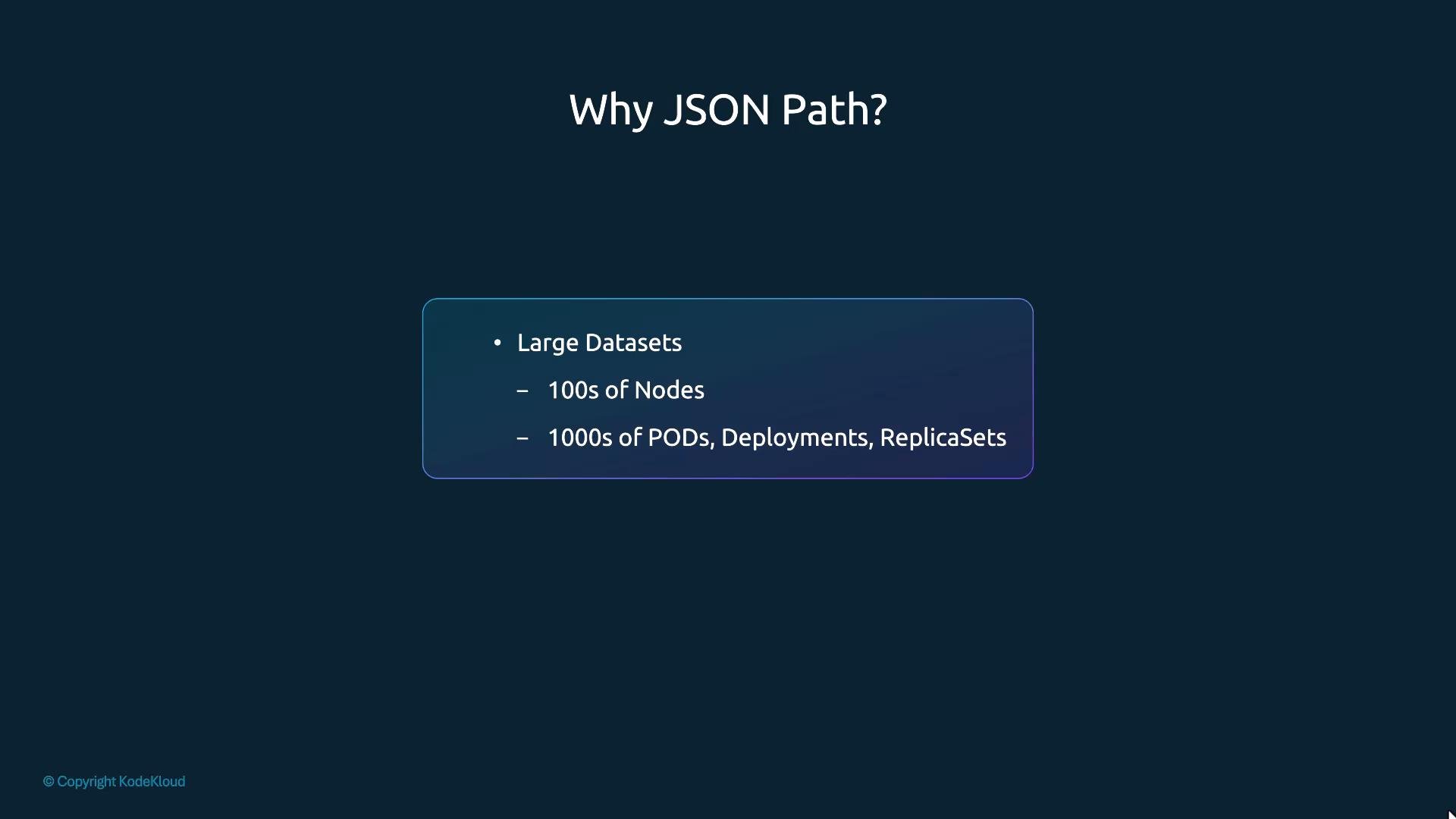 In production clusters you may need to analyze hundreds of nodes and thousands of objects (Pods, Deployments, ReplicaSets, Services, Secrets, etc.). `kubectl` provides convenient human-readable tables, but those default views hide many fields. JSONPath lets you query the raw JSON from the Kubernetes API to:
* Extract specific fields across many objects.
* Create compact reports (name → image, name → CPU, name → taints).
* Feed results into scripts or monitoring tools.
How kubectl and JSONPath work (overview)
* `kubectl` queries the Kubernetes API server.
* The API server returns JSON documents for the requested resources.
* `kubectl` formats those documents as tables by default; use `-o json` to see full JSON.
* JSONPath expressions let you extract parts of that JSON; pass them with `-o jsonpath=''`.
Start by inspecting the raw JSON to discover paths and structure.
Quick example: default vs raw JSON
```bash theme={null}
$ kubectl get nodes
NAME STATUS ROLES AGE VERSION
master Ready master 40m v1.11.3
node01 Ready 40m v1.11.3
```
Request raw JSON:
```bash theme={null}
$ kubectl get nodes -o json
```
Sample response snippet:
```json theme={null}
{
"apiVersion": "v1",
"items": [
{
"apiVersion": "v1",
"kind": "Node",
"metadata": {
"annotations": {
"node.alpha.kubernetes.io/ttl": "0"
},
"creationTimestamp": "2019-06-21T09:01:56Z",
"labels": {
"beta.kubernetes.io/arch": "amd64",
"beta.kubernetes.io/os": "linux",
"kubernetes.io/hostname": "master",
"node-role.kubernetes.io/master": ""
}
}
}
]
}
```
If you need more detail than `kubectl get -o wide` shows, `-o json` and `kubectl describe` expose fields like `status.capacity`, `spec.taints`, `status.conditions`, and more.
Common use cases
| Resource / Goal | Why | Example command |
| - | -: | - |
| List node names | Quick inventory | `kubectl get nodes -o=jsonpath='{.items[*].metadata.name}'` |
| Node name → CPU capacity | Report node resources | `kubectl get nodes -o=jsonpath='{range .items[*]}{.metadata.name}{"\t"}{.status.capacity.cpu}{"\n"}{end}'` |
| Pod → container images | Audit images used by pods | `kubectl get pods -o=jsonpath='{range .items[*]}{.metadata.name}{"\t"}{.spec.containers[*].image}{"\n"}{end}'` |
Step-by-step workflow to build JSONPath queries
1. Identify the `kubectl` command that returns the resource: `kubectl get nodes`, `kubectl get pods`, etc.
2. Inspect JSON output: `kubectl get -o json` to learn the object structure.
3. Draft the JSONPath expression (test with online JSONPath evaluators or directly with `kubectl`).
4. Run `kubectl get -o jsonpath=''`. Wrap the expression in single quotes to avoid shell interpolation.
Start by running `kubectl get -o json` to inspect the structure. Finding the correct path in the JSON before writing the JSONPath expression saves time.
Example: Extract a container image from a Pod
1. Inspect the pod JSON:
```bash theme={null}
$ kubectl get pods -o json
```
Relevant JSON snippet:
```json theme={null}
{
"apiVersion": "v1",
"kind": "List",
"items": [
{
"apiVersion": "v1",
"kind": "Pod",
"metadata": {
"name": "nginx-5557945897-gznjp"
},
"spec": {
"containers": [
{
"image": "nginx:alpine",
"name": "nginx"
}
],
"nodeName": "node01"
}
}
]
}
```
2. JSONPath for the first container image:
`.items[0].spec.containers[0].image`
3. Use with `kubectl`:
```bash theme={null}
$ kubectl get pods -o=jsonpath='{.items[0].spec.containers[0].image}'
nginx:alpine
```
Useful JSONPath patterns with kubectl get nodes
* Names of all nodes:
```bash theme={null}
$ kubectl get nodes -o=jsonpath='{.items[*].metadata.name}'
master node01
```
* Architecture of all nodes:
```bash theme={null}
$ kubectl get nodes -o=jsonpath='{.items[*].status.nodeInfo.architecture}'
amd64 amd64
```
* CPU capacity of all nodes:
```bash theme={null}
$ kubectl get nodes -o=jsonpath='{.items[*].status.capacity.cpu}'
4 4
```
Combine queries (inline):
```bash theme={null}
$ kubectl get nodes -o=jsonpath='{.items[*].metadata.name} {.items[*].status.capacity.cpu}'
master node01 4 4
```
Formatting output: newlines and tabs
Insert literal newline (`\n`) and tab (`\t`) characters inside JSONPath output by embedding them as quoted strings in the expression:
```bash theme={null}
$ kubectl get nodes -o=jsonpath='{.items[*].metadata.name} {"\n"} {.items[*].status.capacity.cpu}'
master node01
4 4
```
Iterating items with `range`
The JSONPath `range` construct produces row-based output (one resource per line) which is ideal for human-readable reports:
```bash theme={null}
$ kubectl get nodes -o=jsonpath='{range .items[*]}{.metadata.name}{"\t"}{.status.capacity.cpu}{"\n"}{end}'
master 4
node01 4
```
Breakdown:
* `range .items[*]` — loop over each array element.
* `{.metadata.name}` — print name.
* `{"\t"}` — tab separator.
* `{.status.capacity.cpu}` — print CPU capacity.
* `{"\n"}` — newline after each row.
* `{end}` — close loop.
If you find escaping difficult, build and test expressions incrementally using `-o json` or an external JSONPath tester.
Custom columns with `-o custom-columns`
For simple tabular output, `-o=custom-columns` is often easier. Note: paths are relative to the item (no leading `.items`):
```bash theme={null}
$ kubectl get nodes -o=custom-columns=NODE:.metadata.name,CPU:.status.capacity.cpu
NODE CPU
master 4
node01 4
```
Sorting results with `--sort-by`
Sort resources by a JSONPath expression (path should start with a dot and reference fields of the item):
* Sort by name:
```bash theme={null}
$ kubectl get nodes --sort-by=.metadata.name
```
* Sort and show custom columns:
```bash theme={null}
$ kubectl get nodes --sort-by=.metadata.name -o=custom-columns=NODE:.metadata.name,CPU:.status.capacity.cpu
NODE CPU
master 4
node01 4
```
Quick reference examples
* Get pod images across all pods:
```bash theme={null}
$ kubectl get pods -o=jsonpath='{range .items[*]}{.metadata.name}{"\t"}{.spec.containers[*].image}{"\n"}{end}'
nginx-5557945897-gznjp nginx:alpine
```
* List node names only:
```bash theme={null}
$ kubectl get nodes -o=jsonpath='{.items[*].metadata.name}'
```
Best practices
* Inspect `-o json` first to locate the exact path.
* Build JSONPath expressions incrementally and test frequently.
* Use `custom-columns` for simple, fixed-column tabular output.
* For multi-line, row-oriented reports prefer `range` or `custom-columns`.
* Quote JSONPath expressions with single quotes in the shell to avoid unwanted expansions.
If you are new to JSONPath, practice on sample `kubectl -o json` output. Iteratively build the path and test with `kubectl -o jsonpath` to reduce trial-and-error.
Links and references
* [Kubernetes Documentation](https://kubernetes.io/docs/)
* JSONPath reference and testers (search for "JSONPath evaluator" to find interactive tools)
* KodeKloud learning platform for hands-on Kubernetes labs
That concludes this lesson. Try these commands against real cluster resources to reinforce the patterns and make them part of your debugging and reporting toolkit.
This documentation is built and hosted on [Mintlify](https://mintlify.com), a developer documentation platform.
In production clusters you may need to analyze hundreds of nodes and thousands of objects (Pods, Deployments, ReplicaSets, Services, Secrets, etc.). `kubectl` provides convenient human-readable tables, but those default views hide many fields. JSONPath lets you query the raw JSON from the Kubernetes API to:
* Extract specific fields across many objects.
* Create compact reports (name → image, name → CPU, name → taints).
* Feed results into scripts or monitoring tools.
How kubectl and JSONPath work (overview)
* `kubectl` queries the Kubernetes API server.
* The API server returns JSON documents for the requested resources.
* `kubectl` formats those documents as tables by default; use `-o json` to see full JSON.
* JSONPath expressions let you extract parts of that JSON; pass them with `-o jsonpath=''`.
Start by inspecting the raw JSON to discover paths and structure.
Quick example: default vs raw JSON
```bash theme={null}
$ kubectl get nodes
NAME STATUS ROLES AGE VERSION
master Ready master 40m v1.11.3
node01 Ready 40m v1.11.3
```
Request raw JSON:
```bash theme={null}
$ kubectl get nodes -o json
```
Sample response snippet:
```json theme={null}
{
"apiVersion": "v1",
"items": [
{
"apiVersion": "v1",
"kind": "Node",
"metadata": {
"annotations": {
"node.alpha.kubernetes.io/ttl": "0"
},
"creationTimestamp": "2019-06-21T09:01:56Z",
"labels": {
"beta.kubernetes.io/arch": "amd64",
"beta.kubernetes.io/os": "linux",
"kubernetes.io/hostname": "master",
"node-role.kubernetes.io/master": ""
}
}
}
]
}
```
If you need more detail than `kubectl get -o wide` shows, `-o json` and `kubectl describe` expose fields like `status.capacity`, `spec.taints`, `status.conditions`, and more.
Common use cases
| Resource / Goal | Why | Example command |
| - | -: | - |
| List node names | Quick inventory | `kubectl get nodes -o=jsonpath='{.items[*].metadata.name}'` |
| Node name → CPU capacity | Report node resources | `kubectl get nodes -o=jsonpath='{range .items[*]}{.metadata.name}{"\t"}{.status.capacity.cpu}{"\n"}{end}'` |
| Pod → container images | Audit images used by pods | `kubectl get pods -o=jsonpath='{range .items[*]}{.metadata.name}{"\t"}{.spec.containers[*].image}{"\n"}{end}'` |
Step-by-step workflow to build JSONPath queries
1. Identify the `kubectl` command that returns the resource: `kubectl get nodes`, `kubectl get pods`, etc.
2. Inspect JSON output: `kubectl get -o json` to learn the object structure.
3. Draft the JSONPath expression (test with online JSONPath evaluators or directly with `kubectl`).
4. Run `kubectl get -o jsonpath=''`. Wrap the expression in single quotes to avoid shell interpolation.
Start by running `kubectl get -o json` to inspect the structure. Finding the correct path in the JSON before writing the JSONPath expression saves time.
Example: Extract a container image from a Pod
1. Inspect the pod JSON:
```bash theme={null}
$ kubectl get pods -o json
```
Relevant JSON snippet:
```json theme={null}
{
"apiVersion": "v1",
"kind": "List",
"items": [
{
"apiVersion": "v1",
"kind": "Pod",
"metadata": {
"name": "nginx-5557945897-gznjp"
},
"spec": {
"containers": [
{
"image": "nginx:alpine",
"name": "nginx"
}
],
"nodeName": "node01"
}
}
]
}
```
2. JSONPath for the first container image:
`.items[0].spec.containers[0].image`
3. Use with `kubectl`:
```bash theme={null}
$ kubectl get pods -o=jsonpath='{.items[0].spec.containers[0].image}'
nginx:alpine
```
Useful JSONPath patterns with kubectl get nodes
* Names of all nodes:
```bash theme={null}
$ kubectl get nodes -o=jsonpath='{.items[*].metadata.name}'
master node01
```
* Architecture of all nodes:
```bash theme={null}
$ kubectl get nodes -o=jsonpath='{.items[*].status.nodeInfo.architecture}'
amd64 amd64
```
* CPU capacity of all nodes:
```bash theme={null}
$ kubectl get nodes -o=jsonpath='{.items[*].status.capacity.cpu}'
4 4
```
Combine queries (inline):
```bash theme={null}
$ kubectl get nodes -o=jsonpath='{.items[*].metadata.name} {.items[*].status.capacity.cpu}'
master node01 4 4
```
Formatting output: newlines and tabs
Insert literal newline (`\n`) and tab (`\t`) characters inside JSONPath output by embedding them as quoted strings in the expression:
```bash theme={null}
$ kubectl get nodes -o=jsonpath='{.items[*].metadata.name} {"\n"} {.items[*].status.capacity.cpu}'
master node01
4 4
```
Iterating items with `range`
The JSONPath `range` construct produces row-based output (one resource per line) which is ideal for human-readable reports:
```bash theme={null}
$ kubectl get nodes -o=jsonpath='{range .items[*]}{.metadata.name}{"\t"}{.status.capacity.cpu}{"\n"}{end}'
master 4
node01 4
```
Breakdown:
* `range .items[*]` — loop over each array element.
* `{.metadata.name}` — print name.
* `{"\t"}` — tab separator.
* `{.status.capacity.cpu}` — print CPU capacity.
* `{"\n"}` — newline after each row.
* `{end}` — close loop.
If you find escaping difficult, build and test expressions incrementally using `-o json` or an external JSONPath tester.
Custom columns with `-o custom-columns`
For simple tabular output, `-o=custom-columns` is often easier. Note: paths are relative to the item (no leading `.items`):
```bash theme={null}
$ kubectl get nodes -o=custom-columns=NODE:.metadata.name,CPU:.status.capacity.cpu
NODE CPU
master 4
node01 4
```
Sorting results with `--sort-by`
Sort resources by a JSONPath expression (path should start with a dot and reference fields of the item):
* Sort by name:
```bash theme={null}
$ kubectl get nodes --sort-by=.metadata.name
```
* Sort and show custom columns:
```bash theme={null}
$ kubectl get nodes --sort-by=.metadata.name -o=custom-columns=NODE:.metadata.name,CPU:.status.capacity.cpu
NODE CPU
master 4
node01 4
```
Quick reference examples
* Get pod images across all pods:
```bash theme={null}
$ kubectl get pods -o=jsonpath='{range .items[*]}{.metadata.name}{"\t"}{.spec.containers[*].image}{"\n"}{end}'
nginx-5557945897-gznjp nginx:alpine
```
* List node names only:
```bash theme={null}
$ kubectl get nodes -o=jsonpath='{.items[*].metadata.name}'
```
Best practices
* Inspect `-o json` first to locate the exact path.
* Build JSONPath expressions incrementally and test frequently.
* Use `custom-columns` for simple, fixed-column tabular output.
* For multi-line, row-oriented reports prefer `range` or `custom-columns`.
* Quote JSONPath expressions with single quotes in the shell to avoid unwanted expansions.
If you are new to JSONPath, practice on sample `kubectl -o json` output. Iteratively build the path and test with `kubectl -o jsonpath` to reduce trial-and-error.
Links and references
* [Kubernetes Documentation](https://kubernetes.io/docs/)
* JSONPath reference and testers (search for "JSONPath evaluator" to find interactive tools)
* KodeKloud learning platform for hands-on Kubernetes labs
That concludes this lesson. Try these commands against real cluster resources to reinforce the patterns and make them part of your debugging and reporting toolkit.
This documentation is built and hosted on [Mintlify](https://mintlify.com), a developer documentation platform.