> ## Documentation Index
> Fetch the complete documentation index at: https://notes.kodekloud.com/llms.txt
> Use this file to discover all available pages before exploring further.
# Solution Application Failure
> This document provides troubleshooting steps for resolving application failures in a two-tier architecture across multiple Kubernetes namespaces.
This document outlines a comprehensive troubleshooting session for a two-tier application deployed across several namespaces. The goal of each deployment is to display a green webpage upon successful connection. Throughout this session, we inspect environment variables, service configurations, deployment settings, and port mappings to systematically identify and resolve the issues. The following cases illustrate the debugging process in each namespace.
***
## Case 1: Alpha Namespace
In the **alpha** namespace, although the UI loads, the application state shows as failed. The error message indicates:
```text theme={null}
Environment Variables: DB_Host=mysql-service; DB_Database=Not Set; DB_User=root; DB_Password=paswrd; 2003: Can't connect to MySQL server on 'mysql-service:3306' (-2 Name does not resolve)
```
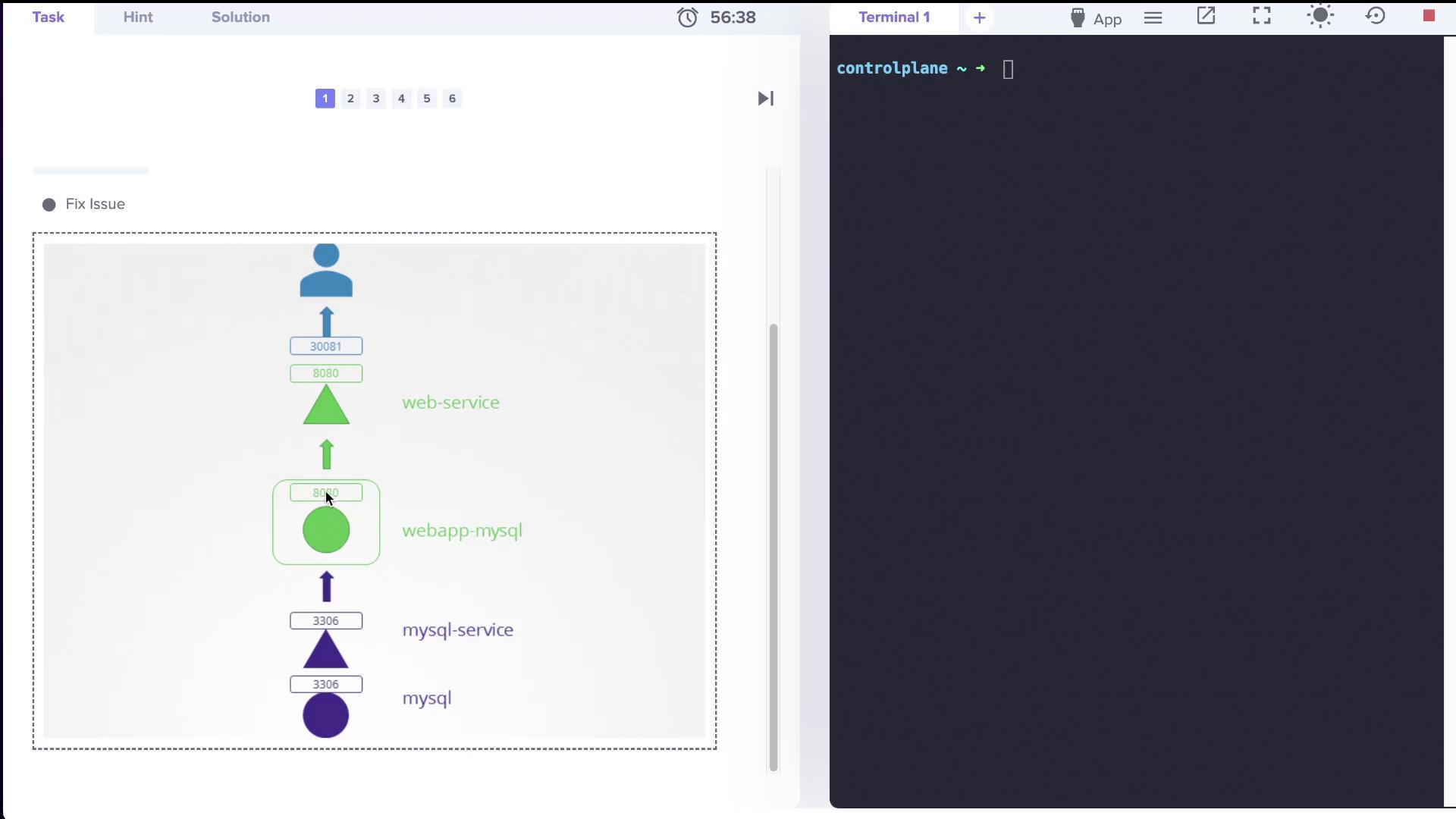
This error suggests that the application is unable to resolve the MySQL service name. The architecture diagram below outlines the two-tier design. The web service listens on port 8080 and is exposed via NodePort 30081, requiring a connection to the MySQL service.
### Troubleshooting Steps
1. **Check Pods in the Alpha Namespace**
Verify that the pods in the alpha namespace are running correctly.
```bash theme={null}
k get pods -n alpha
NAME READY STATUS RESTARTS AGE
webapp-mysql-84fbfc644f-nhfv 1/1 Running 0 3m48s
mysql 1/1 Running 0 3m48s
```
2. **Set Default Namespace to Alpha**
To prevent repeatedly specifying the namespace, execute:
```bash theme={null}
k config set-context --current --namespace=alpha
```
3. **Inspect Deployments and Services**
Confirm that the web application is deployed as a deployment and that the services for both the web application and MySQL exist.
* To check deployments:
```bash theme={null}
k get deploy
NAME READY UP-TO-DATE AVAILABLE AGE
webapp-mysql 1/1 1 1 5m4s
```
* To check services:
```bash theme={null}
k get svc
NAME TYPE CLUSTER-IP EXTERNAL-IP PORT(S) AGE
mysql ClusterIP 10.43.208.47 3306/TCP 5m12s
web-service NodePort 10.43.232.249 8080:30081/TCP 5m12s
```
4. **Resolve MySQL Name Resolution Issue**
The error occurs because the application expects the MySQL service name to be `mysql-service`, but the actual service is named `mysql`. To fix this, update the MySQL service to match the expected name:
* Create a YAML file (for example, `/tmp/kubectl-edit-3970124164.yaml`) with the following content:
```yaml theme={null}
apiVersion: v1
kind: Service
metadata:
name: mysql-service
namespace: alpha
spec:
clusterIP: 10.43.208.47
ports:
- port: 3306
protocol: TCP
targetPort: 3306
selector:
name: mysql
sessionAffinity: None
type: ClusterIP
```
* Then, run:
```bash theme={null}
kubectl delete svc mysql
kubectl create -f /tmp/kubectl-edit-3970124164.yaml
```
* Verify the changes:
```bash theme={null}
k get svc
NAME TYPE CLUSTER-IP EXTERNAL-IP PORT(S) AGE
web-service NodePort 10.43.232.249 8080:30081/TCP 8m16s
mysql-service ClusterIP 10.43.208.47 3306/TCP 4s
```
After these corrections, the application is able to successfully connect to the MySQL service.
***
## Case 2: Beta Namespace
In the **beta** namespace, the tutor application initially fails with the following error message:
```text theme={null}
Environment Variables: DB_Host=mysql-service; DB_Database=Not Set; DB_User=root; DB_Password=paswrd; 2003: Can't connect to MySQL server on 'mysql-service:3306' (111 Connection refused)
```
### Troubleshooting Steps
1. **Switch Context to Beta**
```bash theme={null}
k config set-context --current --namespace=beta
```
2. **Verify Pods and Services**
* Check the pods:
```bash theme={null}
k get pods
NAME READY STATUS RESTARTS AGE
webapp-mysql-84fbfc644f-jwmc 1/1 Running 0 73s
mysql 1/1 Running 0 74s
```
* Check the services:
```bash theme={null}
k get svc
NAME TYPE CLUSTER-IP EXTERNAL-IP PORT(S) AGE
mysql-service ClusterIP 10.43.114.115 3306/TCP 84s
web-service NodePort 10.43.33.34 8080:30081/TCP 84s
```
3. **Inspect Deployment for Environment Variables**
Ensure that the deployment's configuration sets `DB_Host` to `mysql-service`:
```bash theme={null}
k describe deploy webapp-mysql
```
4. **Fix Target Port Mismatch**
The issue was caused by a mismatch in port configuration; the MySQL service’s `targetPort` was set to 8080 rather than 3306. Update the service configuration:
* Sample YAML configuration:
```yaml theme={null}
apiVersion: v1
kind: Service
metadata:
name: mysql-service
namespace: beta
spec:
ports:
- port: 3306
protocol: TCP
targetPort: 3306
selector:
name: mysql
type: ClusterIP
```
* After editing, verify the update:
```bash theme={null}
k describe svc mysql-service
Name: mysql-service
Namespace: beta
Ports:
- port: 3306/TCP
targetPort: 3306/TCP
Endpoints: 10.42.0.12:3306
```
The adjustment of the target port enables the application to correctly connect to the MySQL service.
***
## Case 3: Gamma Namespace
In the **gamma** namespace, both pods and services report running status, yet the application initially fails to load.
### Troubleshooting Steps
1. **Switch Context to Gamma**
```bash theme={null}
k config set-context --current --namespace=gamma
```
2. **Verify Pods and Services**
* Inspect pods:
```bash theme={null}
k get pods
NAME READY STATUS RESTARTS AGE
mysql 1/1 Running 0 75s
webapp-mysql-84fbfc644f-wqm6v 1/1 Running 0 75s
```
* Inspect services:
```bash theme={null}
k get svc
NAME TYPE CLUSTER-IP EXTERNAL-IP PORT(S) AGE
mysql-service ClusterIP 10.43.31.131 3306/TCP 78s
web-service NodePort 10.43.201.61 8080:30081/TCP 78s
```
3. **Examine the Web Service Configuration**
Confirm that the selectors and endpoints are set properly by describing the service:
```bash theme={null}
k describe svc web-service
```
The output should indicate that the web service on port 8080 (exposed via NodePort 30081) correctly maps to the pod IP address (e.g., 10.42.0.1:8080).
4. **Review the Deployment Configuration**
Verify that the deployment’s environment variables (DB\_Host, DB\_User, DB\_Password) and image configuration are correct:
```bash theme={null}
k describe deploy webapp-mysql
```
5. **Check the MySQL Service Selector**
If endpoints are missing from the MySQL service, confirm that its selector matches the MySQL pod labels. If necessary, adjust the selector:
```bash theme={null}
k edit svc mysql-service
```
After these checks and adjustments, connectivity is restored, and the application becomes accessible.
***
## Case 4: Delta Namespace
The **delta** namespace presents two issues. Initially, the application shows a connection error:
```text theme={null}
Environment Variables: DB_Host=mysql-service; DB_Database=Not Set; DB_User=sql-user; DB_Password=paswrd; 2003: Can't connect to MySQL server on 'mysql-service:3306' (111 Connection refused)
```
A subsequent error indicates “access denied for user sql-user,” implying incorrect credentials.
### Troubleshooting Steps
1. **Switch Context to Delta**
```bash theme={null}
k config set-context --current --namespace=delta
```
2. **Check Pods and Services**
* Inspect pods:
```bash theme={null}
k get pods
NAME READY STATUS RESTARTS AGE
mysql 1/1 Running 0 32s
webapp-mysql-7fbcc4fb8f-dfmnw 1/1 Running 0 32s
```
* Inspect services:
```bash theme={null}
k get svc
NAME TYPE CLUSTER-IP EXTERNAL-IP PORT(S) AGE
mysql-service ClusterIP 10.43.186.56 3306/TCP 34s
web-service NodePort 10.43.18.113 8080:30081/TCP 34s
```
3. **Review and Update Deployment Credentials**
Describing the deployment shows that `DB_User` is set as `sql-user`:
```bash theme={null}
k describe deploy webapp-mysql
```
To resolve the credential issue (the correct user should be `root`), edit the deployment:
```bash theme={null}
k edit deploy webapp-mysql
```
Change `DB_User` from `sql-user` to `root` and save the modification.
4. **Monitor the Pod Update**
Ensure that the updated pod is running. Once the deployment refreshes, the application should successfully connect to the MySQL service.
***
## Case 5: Epsilon Namespace
In the **epsilon** namespace, the initial error encountered is an "Access denied" message:
```text theme={null}
Environment Variables: DB_Host=mysql-service; DB_Database=Not Set; DB_User=sql-user; DB_Password=paswrd*1 1045 (28000): Access denied for user 'sql-user'@'10.42.0.19' (using password: YES)
```
### Troubleshooting Steps
1. **Switch Context to Epsilon**
```bash theme={null}
k config set-context --current --namespace=epsilon
```
2. **Verify Pods**
Confirm that both MySQL and the web application pods are running:
```bash theme={null}
k get pods
NAME READY STATUS RESTARTS AGE
mysql 1/1 Running 0 54s
webapp-mysql-7fbcc4fb8f-lcqvd 1/1 Running 0 54s
```
3. **Edit Deployment for Correct Credentials**
Access and modify the deployment to change `DB_User` from `sql-user` to `root`:
```bash theme={null}
k edit deploy webapp-mysql
```
After updating and saving, verify that the error now reflects the root user.
4. **Check MySQL Pod Configuration**
Describe the MySQL pod to confirm the `MYSQL_ROOT_PASSWORD`:
```bash theme={null}
k describe pod mysql
```
If the `MYSQL_ROOT_PASSWORD` does not match `paswrd` as expected, update the MySQL configuration. Since changing pod configurations may require recreating the pod, use the command below:
```bash theme={null}
k replace --force -f /tmp/kubectl-edit-31959777508.yaml
```
After these modifications, the application within the epsilon namespace connects successfully.
In production, environment variables are best managed with [ConfigMaps](https://kubernetes.io/docs/concepts/configuration/configmap/) and [Secrets](https://kubernetes.io/docs/concepts/configuration/secret/) rather than being hard-coded in deployments.
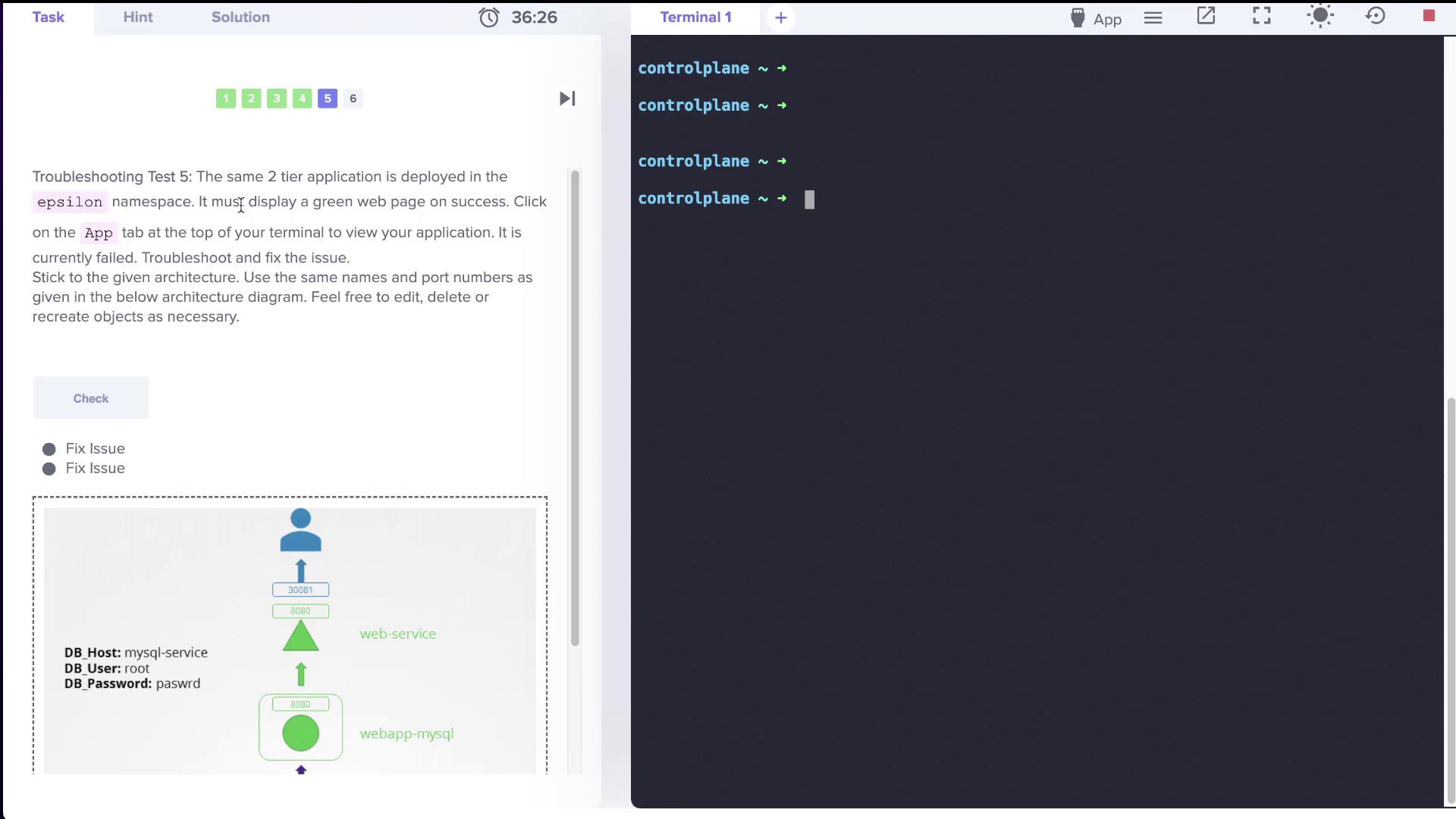
An image below illustrates the troubleshooting process in the epsilon namespace:
***
## Case 6: Zeta Namespace
The **zeta** namespace initially returned a "Bad Gateway" error.
### Troubleshooting Steps
1. **Switch Context to Zeta**
```bash theme={null}
k config set-context --current --namespace=zeta
```
2. **Inspect the Web Service Configuration**
On examining the service, it was discovered that the NodePort was set incorrectly (e.g., 30088 instead of the required 30081). To update the NodePort, edit the web service with the following YAML:
```yaml theme={null}
apiVersion: v1
kind: Service
metadata:
name: web-service
namespace: zeta
spec:
type: NodePort
ports:
- port: 8080
targetPort: 8080
nodePort: 30081
protocol: TCP
selector:
name: webapp-mysql
```
Save the file and verify the update:
```bash theme={null}
k get svc
NAME TYPE CLUSTER-IP EXTERNAL-IP PORT(S) AGE
web-service NodePort 10.43.72.229 8080:30081/TCP ...
```
3. **Update Deployment Credentials**
An "Access denied" error still appeared, indicating that `DB_User` was set to `sql-user` instead of `root`:
```text theme={null}
Environment Variables: DB_Host=mysql-service; DB_Database=Not Set; DB_User=sql-user; DB_Password=paswrd; 1045 (28000): Access denied for user 'sql-user'@'10.42.0.22' (using password: YES)
```
Edit the deployment to update the credential:
```bash theme={null}
k edit deploy webapp-mysql
```
Change `DB_User` from `sql-user` to `root` and save. Deploy the updated configuration and verify that the pod is running with the correct credentials.
4. **Verify MySQL Pod Password**
Lastly, check that the MySQL pod's `MYSQL_ROOT_PASSWORD` is correctly configured. If it is not, update the value using:
```bash theme={null}
k replace --force -f /tmp/kubectl-edit-31959777508.yaml
```
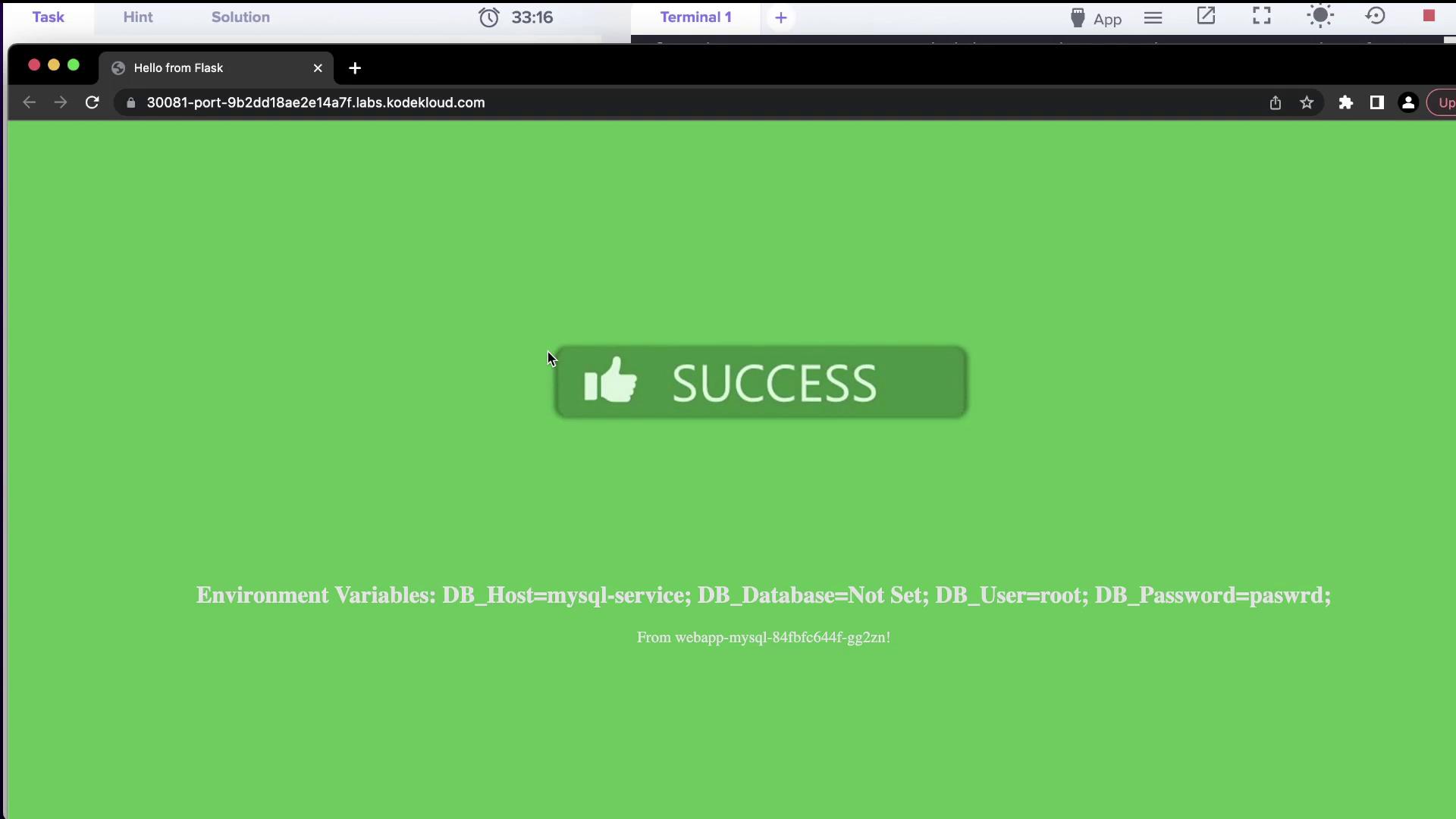
After these corrections, the application in the zeta namespace becomes fully accessible and establishes a successful database connection.
An image confirming the successful deployment is shown below:
***
## Conclusion
This troubleshooting session illustrates the importance of verifying pod status, inspecting service configurations, and maintaining correct environment variables across Kubernetes namespaces. The table below summarizes the key challenges and their resolutions:
| Namespace | Common Issues | Resolution Steps |
| --------- | ---------------------------------------- | ------------------------------------------------------------- |
| Alpha | Service name mismatch | Renamed service from "mysql" to "mysql-service" |
| Beta | Incorrect target port | Updated MySQL service `targetPort` from 8080 to 3306 |
| Gamma | Selector misconfiguration | Verified endpoints and corrected selectors for MySQL service |
| Delta | Incorrect DB credentials | Updated deployment `DB_User` from `sql-user` to `root` |
| Epsilon | "Access denied" due to wrong credentials | Modified deployment and ensured correct `MYSQL_ROOT_PASSWORD` |
| Zeta | Wrong NodePort and credential issues | Adjusted NodePort to 30081 and updated deployment credentials |
Following these systematic troubleshooting methods helps ensure that service names, port configurations, selectors, and credentials are properly set, leading to a successful connection between the web and database components.
Happy troubleshooting, and stay tuned for more labs and lessons in upcoming sessions!
For more in-depth Kubernetes information, check out the [Kubernetes Documentation](https://kubernetes.io/docs/).