> ## Documentation Index
> Fetch the complete documentation index at: https://notes.kodekloud.com/llms.txt
> Use this file to discover all available pages before exploring further.
# Demo Encrypting Secret Data at Rest
> This guide explains how to encrypt secret data at rest in Kubernetes, covering creation, inspection, and configuration of encryption for sensitive information.
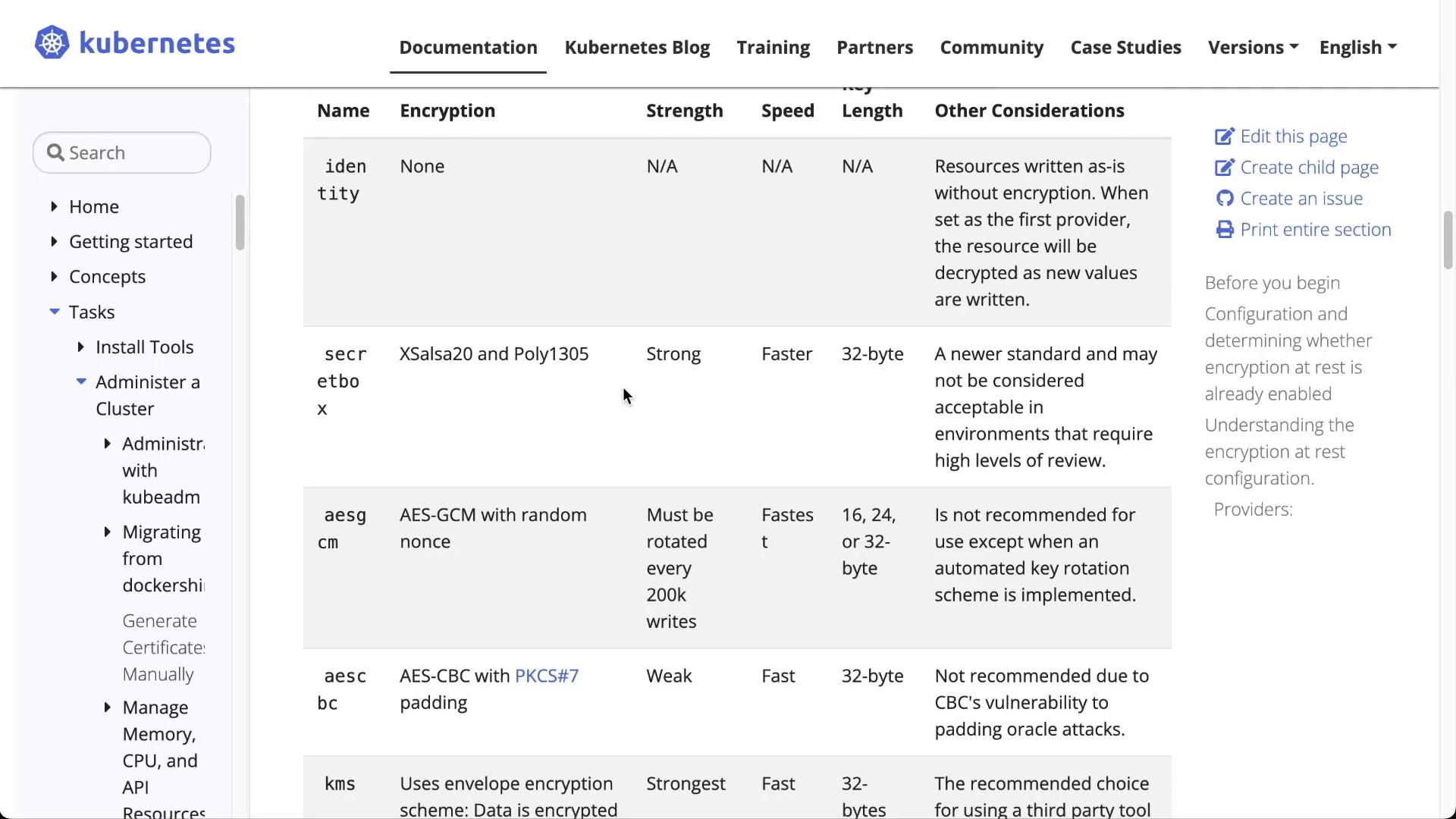
In this guide, you will learn how to encrypt secret data at rest in Kubernetes. Based on the [official Kubernetes documentation](https://kubernetes.io/docs/), this tutorial walks you through the storage of secret objects, inspecting them in etcd, and configuring encryption at rest to secure sensitive data.
***
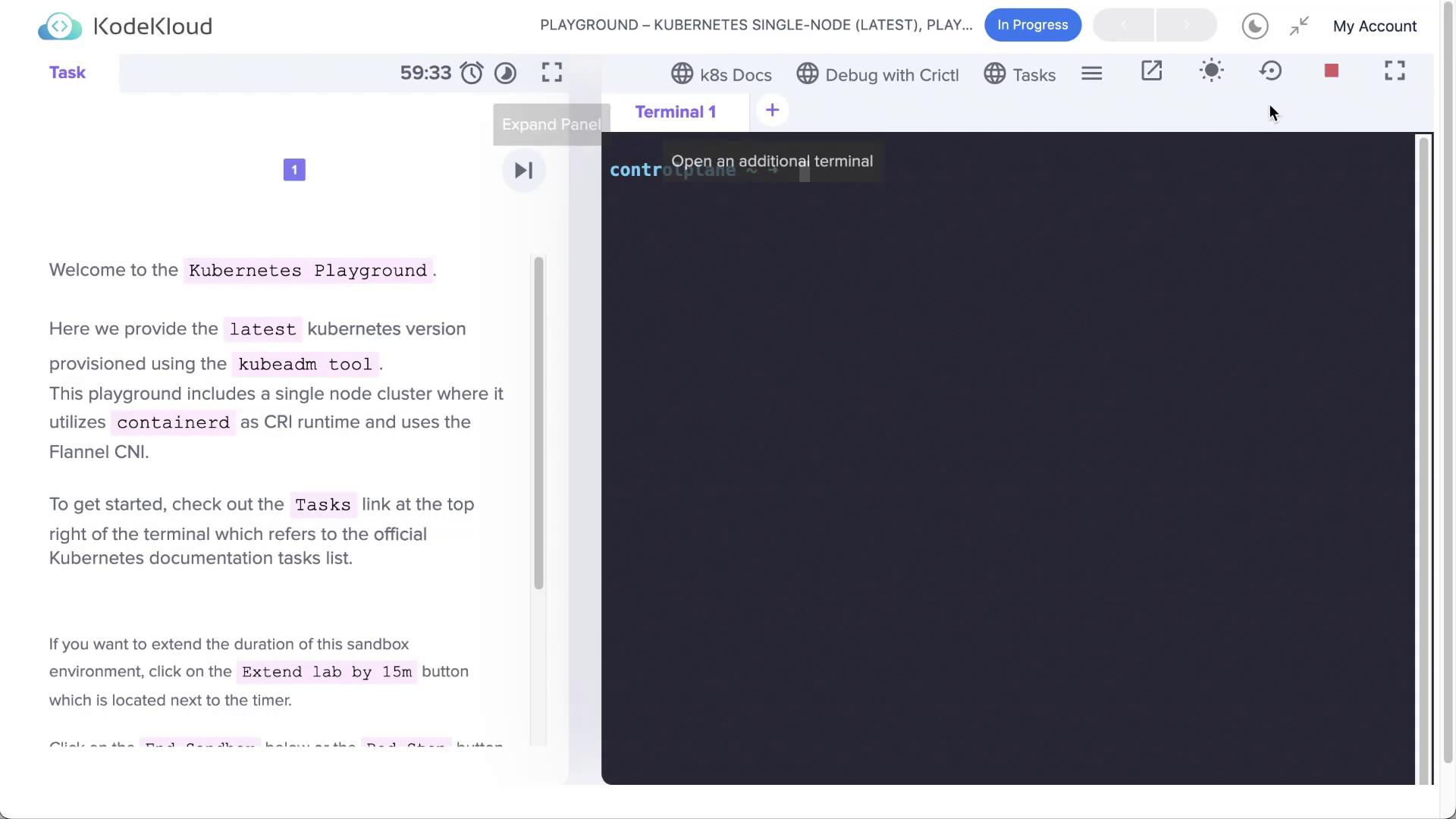
In the beginning, launch a Kubernetes playground running a single-node cluster based on Kubernetes and ContainerD.
Once the playground is up, open the terminal.
***
## Creating a Secret Object
Kubernetes secrets help to store sensitive data such as passwords, tokens, or keys. There are multiple methods to create a secret object, including from files, literals, or environment variable files. Below are some examples:
```bash theme={null}
# Create a new secret named "my-secret" from files in folder "bar"
kubectl create secret generic my-secret --from-file=path/to/bar
# Create a secret with specified keys from files rather than using disk filenames as keys
kubectl create secret generic my-secret --from-file=ssh-privatekey=path/to/id_rsa --from-file=ssh-publickey=path/to/id_rsa.pub
# Create a secret with literal key-value pairs
kubectl create secret generic my-secret --from-literal=key1=supersecret --from-literal=key2=topsecret
# Create a secret using a combination of a file and a literal value
kubectl create secret generic my-secret --from-file=ssh-privatekey=path/to/id_rsa --from-literal=passphrase=topsecret
# Create a secret from environment variable files
kubectl create secret generic my-secret --from-env-file=path/to/foo.env --from-env-file=path/to/bar.env
```
Additional options include:
* **--allow-missing-template-keys=true:** Ignores errors in templates if fields or keys are missing.
* **--append-hash=false:** Appends a hash of the secret to its name.
* **--dry-run:** Specify "none", "server", or "client" to perform a dry run or see what object would be sent.
For this demonstration, a secret is created with a literal value:
```bash theme={null}
kubectl create secret generic my-secret --from-literal=key1=supersecret
```
The output confirms the creation:
```bash theme={null}
secret/my-secret created
# Listing the secret
kubectl get secret
NAME TYPE DATA AGE
my-secret Opaque 1 5s
```
You can inspect the secret details with:
```bash theme={null}
kubectl describe secret my-secret
```
To view the secret in YAML format, use:
```bash theme={null}
kubectl get secret my-secret -o yaml
```
Example YAML output:
```yaml theme={null}
apiVersion: v1
data:
key1: c3VwZXJzZWNyZXQ=
kind: Secret
metadata:
creationTimestamp: "2022-10-24T05:34:13Z"
name: my-secret
namespace: default
resourceVersion: "2111"
uid: dfe97c62-5aa1-46a8-b71c-ffa0cd4c08ec
type: Opaque
```
If you decode the base64-encoded value, you will obtain the cleartext secret:
```bash theme={null}
echo "c3VwZXJzZWNyZXQ=" | base64 --decode
```
Output:
```text theme={null}
supersecret
```
Because secrets are stored as base64 encoded plaintext, anyone with access to etcd can decode and view them. Avoid storing secret definition files in public repositories without further protection.
***
## Inspecting Secret Data in etcd
Next, examine how Kubernetes stores secrets in etcd, where the data is kept unencrypted by default. To inspect the stored secrets, use the etcdctl utility with API version 3.
1. Start by verifying that etcd is running on your cluster:
```bash theme={null}
kubectl get pods -n kube-system
```
You should see an etcd pod (for example, "etcd-controlplane").
2. Confirm the existence of the certificate file:
```bash theme={null}
ls /etc/kubernetes/pki/etcd/ca.crt
```
3. If etcdctl is not installed, install it using:
```bash theme={null}
apt-get install etcd-client
```
4. Set the ETCDCTL\_API to version 3 and check the etcdctl version:
```bash theme={null}
etcdctl
```
5. Retrieve and inspect your secret stored in etcd. Adjust the key path to match your secret (e.g., "my-secret"):
```bash theme={null}
ETCDCTL_API=3 etcdctl \
--cacert=/etc/kubernetes/pki/etcd/ca.crt \
--cert=/etc/kubernetes/pki/etcd/server.crt \
--key=/etc/kubernetes/pki/etcd/server.key \
get /registry/secrets/default/my-secret | hexdump -C
```
The output will display a hex dump showing the secret fields, including the cleartext value ("supersecret"), confirming that etcd stores the data unencrypted.
***
## Configuring Encryption at Rest
To secure secret data, enable encryption at rest in etcd. Begin by verifying whether encryption is already configured in your cluster. Check the Kube API server for the "encryption-provider-config" flag:
```bash theme={null}
ps -aux | grep kube-api | grep "encryption-provider-config"
```
If no output is returned, encryption is not yet enabled.
1. Inspect the API server manifest, typically located in:
```bash theme={null}
ls /etc/kubernetes/manifests/
```
2. Open the kube-apiserver manifest:
```bash theme={null}
vi /etc/kubernetes/manifests/kube-apiserver.yaml
```
Since encryption is missing from the configuration, create an encryption configuration file and update the kube-apiserver manifest accordingly.
### Encryption Configuration File
Create a YAML file (for example, `enc.yaml`) with the following content. This configuration specifies that secret objects will be encrypted using the AESCBC provider:
```yaml theme={null}
apiVersion: apiserver.config.k8s.io/v1
kind: EncryptionConfiguration
resources:
- resources:
- secrets
providers:
- aescbc:
keys:
- name: key1
secret: INSERT_BASE64_ENCODED_32_BYTE_KEY_HERE
- identity: {}
```
Generate a 32-byte random key and encode it in base64 using:
```bash theme={null}
head -c 32 /dev/urandom | base64
```
Replace `INSERT_BASE64_ENCODED_32_BYTE_KEY_HERE` with the generated key. Move the `enc.yaml` file to your control plane node:
```bash theme={null}
mkdir -p /etc/kubernetes/enc
mv enc.yaml /etc/kubernetes/enc/
```
### Updating the Kube API Server Manifest
Edit the kube-apiserver manifest (`/etc/kubernetes/manifests/kube-apiserver.yaml`) to apply the encryption configuration:
1. Append the following flag to reference the encryption configuration file:
```yaml theme={null}
- --encryption-provider-config=/etc/kubernetes/enc/enc.yaml
```
2. Under the `volumeMounts` section of the kube-apiserver container, add:
```yaml theme={null}
- name: enc
mountPath: /etc/kubernetes/enc
readOnly: true
```
3. Under the `volumes` section, add a hostPath volume:
```yaml theme={null}
- name: enc
hostPath:
path: /etc/kubernetes/enc
type: DirectoryOrCreate
```
A simplified excerpt of the manifest changes:
```yaml theme={null}
spec:
containers:
- name: kube-apiserver
command:
- kube-apiserver
- --advertise-address=10.6.118.3
# ... other flags ...
- --encryption-provider-config=/etc/kubernetes/enc/enc.yaml
volumeMounts:
# ... existing volume mounts ...
- name: enc
mountPath: /etc/kubernetes/enc
readOnly: true
volumes:
# ... existing volumes ...
- name: enc
hostPath:
path: /etc/kubernetes/enc
type: DirectoryOrCreate
```
After saving your changes, the kube-apiserver will automatically restart and apply the new encryption settings.
***
## Verifying Encryption
Once the API server has restarted with the new encryption configuration, create a new secret so it will be encrypted on write:
```bash theme={null}
kubectl create secret generic my-secret-2 --from-literal=key2=topsecret
```
Verify that the secret is created:
```bash theme={null}
kubectl get secret
NAME TYPE DATA AGE
my-secret Opaque 1 16m
my-secret-2 Opaque 1 3s
```
Now, inspect the new secret in etcd:
```bash theme={null}
ETCDCTL_API=3 etcdctl \
--cacert=/etc/kubernetes/pki/etcd/ca.crt \
--cert=/etc/kubernetes/pki/etcd/server.crt \
--key=/etc/kubernetes/pki/etcd/server.key \
get /registry/secrets/default/my-secret-2 | hexdump -C
```
The output will confirm that the secret value ("topsecret") is no longer plainly visible because it is now encrypted.
Note that secrets created before enabling encryption remain unencrypted until updated. To re-encrypt these, fetch and replace them without modifying the data:
```bash theme={null}
kubectl get secrets --all-namespaces -o json | kubectl replace -f -
```
***
## Summary
This article demonstrated how to:
1. Create and inspect Kubernetes secrets.
2. Verify that secrets are stored in etcd as base64-encoded plaintext.
3. Enable encryption at rest by creating an encryption configuration file.
4. Update the kube-apiserver manifest to integrate the encryption config.
5. Confirm that new secrets are encrypted and secure in etcd.
Encrypting secret data at rest is essential for protecting sensitive information from unauthorized access. Remember that encryption applies only to future changes unless existing secrets are updated.
Thank you for following this guide on encrypting Kubernetes secrets at rest!