> ## Documentation Index
> Fetch the complete documentation index at: https://notes.kodekloud.com/llms.txt
> Use this file to discover all available pages before exploring further.
# Pre requisite Security in Docker
> This article reviews essential Docker security concepts, including process isolation, user context, and privilege management.
Welcome to this comprehensive guide on Docker security. In this article, we explore key Docker security concepts that form the basis for understanding security contexts in Kubernetes. If you are already comfortable with Docker security, feel free to move on to the next sections.
## Overview of Docker Process Isolation
Imagine a host machine running Docker with multiple processes such as OS services, the Docker daemon, and an SSH server. When you launch an Ubuntu container that executes a sleep command for one hour, you run:
```bash theme={null}
docker run ubuntu sleep 3600
```
Containers are lightweight because, unlike virtual machines, they share the host’s kernel. They achieve isolation through Linux namespaces. Each container gets its own isolated namespace, so checking processes within the container might show the sleep process with a PID of 1. However, on the host, the process appears with a different PID. For example, running:
```bash theme={null}
ps aux
```
might yield:
```bash theme={null}
USER PID %CPU %MEM VSZ RSS TTY STAT START TIME COMMAND
root 1 0.0 0.0 4528 828 ? Ss 03:06 0:00 sleep 3600
```
Here, even though the sleep process is isolated within the container, it is visible on the host but with a different PID.
A more detailed host process listing could look like:
```bash theme={null}
ps aux
USER PID %CPU %MEM VSZ RSS TTY STAT START TIME COMMAND
project 3720 0.1 0.1 95500 4916 ? R 06:06 0:00 sshd: project@pts/0
project 3725 0.0 0.1 95196 4132 ? S 06:06 0:00 sshd: project@notty
project 3727 0.2 0.1 21352 5340 pts/0 Ss 06:06 0:00 -bash
root 3802 0.0 0.0 8924 3616 ? Sl 06:06 0:00 docker-containerd-shim --namespace m
root 3816 1.0 0.0 4528 828 ? Ss 06:06 0:00 sleep 3600
```
The difference in PID values between the container and the host is due to the isolation provided by Linux namespaces.
## User Context and Privilege Management
By default, Docker runs container processes as the root user. On the host, both container and host processes might appear to run as root. For example:
```bash theme={null}
ps aux
USER PID %CPU %MEM VSZ RSS TTY STAT START TIME COMMAND
root 1 0.0 0.0 4528 828 ? Ss 03:06 0:00 sleep 3600
```
If you prefer a non-root execution within a container, specify a user ID using the --user flag. To run as user ID 1000, execute:
```bash theme={null}
docker run --user=1000 ubuntu sleep 3600
```
After running this command, checking the process list on the host will show the container process running as user 1000:
```bash theme={null}
ps aux
USER PID %CPU %MEM VSZ RSS TTY STAT START TIME COMMAND
1000 1 0.0 0.0 4528 828 ? Ss 03:06 0:00 sleep 3600
```
Alternatively, you can set a default non-root user within your Docker image. For instance, create a Dockerfile for a custom Ubuntu image:
```dockerfile theme={null}
FROM ubuntu
USER 1000
```
Build and run your custom image:
```bash theme={null}
docker build -t my-ubuntu-image .
docker run my-ubuntu-image sleep 3600
```
Verifying the process confirms that it runs under user 1000:
```bash theme={null}
ps aux
USER PID %CPU %MEM VSZ RSS TTY STAT START TIME COMMAND
1000 1 0.0 0.0 4528 828 ? Ss 03:06 0:00 sleep 3600
```
Defining the default user in the Dockerfile removes the need to specify the user each time the container runs.
## Docker Root User and Linux Capabilities
A common question concerns whether the root user inside a container has the same privileges as the host's root user. By design, Docker restricts the container's root privileges using Linux capabilities.
On a standard Linux system, the root user can modify file permissions, control network ports, manage processes, reboot the system, and perform various critical tasks. In contrast, Docker limits these actions within containers. This means that a container's root user cannot, for example, reboot the host or impact other containers.
The diagram below illustrates some of the key Linux capabilities (like CHOWN, KILL, and NET\_ADMIN) available to a process:
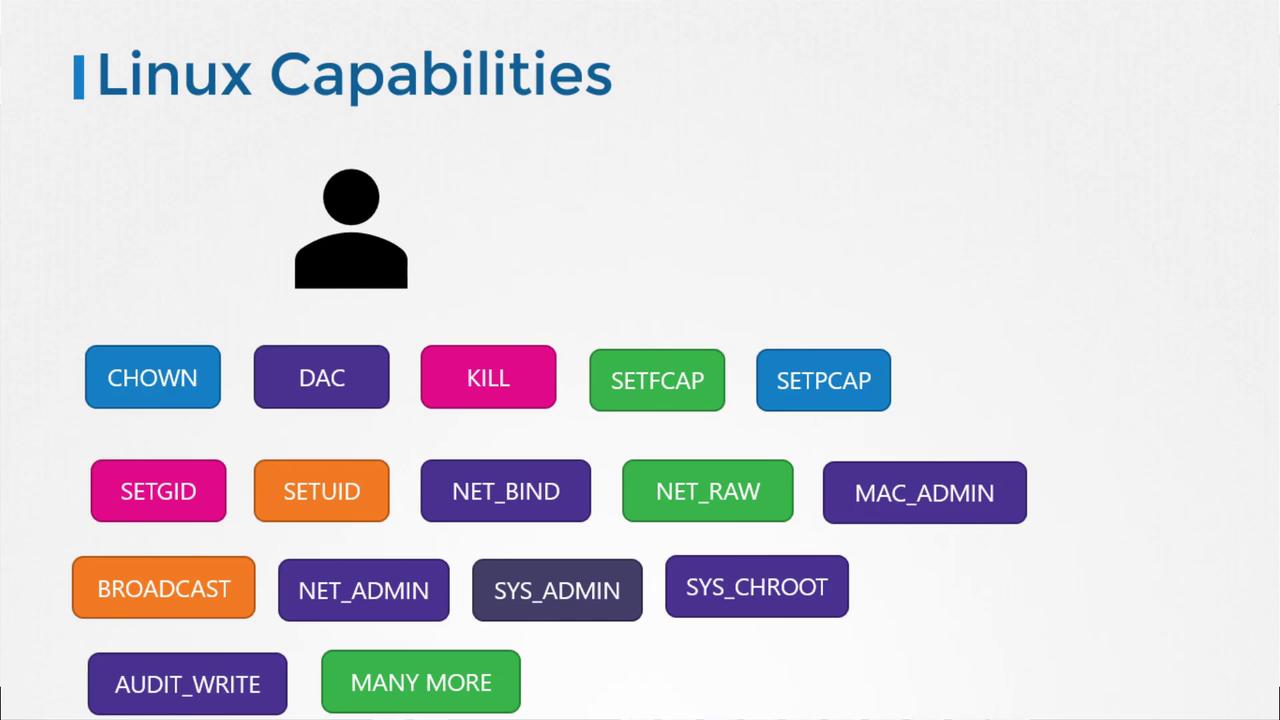
Docker provides runtime flags to customize these capabilities. You can add a capability with the --cap-add option:
```bash theme={null}
docker run --cap-add MAC_ADMIN ubuntu
```
To remove specific capabilities, use --cap-drop. If you need to run a container with full privileges, the --privileged flag is available, though it should be used with caution.
Avoid using the --privileged flag in production environments unless absolutely necessary, as it elevates container privileges significantly.
## Conclusion
This article reviewed essential Docker security concepts, including:
* Process isolation using Linux namespaces
* User context and privilege management
* Limiting root user actions through Linux capabilities
These principles are crucial for understanding similar security mechanisms in Kubernetes. For further reading, explore [Kubernetes Basics](https://kubernetes.io/docs/concepts/overview/what-is-kubernetes/).
Thank you for reading this guide on Docker security.