> ## Documentation Index
> Fetch the complete documentation index at: https://notes.kodekloud.com/llms.txt
> Use this file to discover all available pages before exploring further.
# Secrets
> This article explains how to securely manage sensitive data using Secrets in Kubernetes.
Welcome to this comprehensive guide on managing Secrets in Kubernetes. In this article, we explain how to securely handle sensitive data for your applications. We begin by reviewing a Python web application that connects to a MySQL database. Upon a successful connection, the application displays a success message. However, the application currently contains hardcoded values for the hostname, username, and password. While moving configuration data to a ConfigMap is suitable for non-sensitive information, it is not recommended for handling passwords and other sensitive data.
Below is an excerpt from the Python application:
```python theme={null}
import os
from flask import Flask, render_template
import mysql.connector
app = Flask(__name__)
@app.route("/")
def main():
mysql.connector.connect(host="mysql", database="mysql",
user="root", password="paswrd")
return render_template('hello.html', color=fetchcolor())
if __name__ == "__main__":
app.run(host="0.0.0.0", port="8080")
```
## Storing Sensitive Data: ConfigMaps vs Secrets
While ConfigMaps are a great option for storing configuration data in plain text, they are not designed to keep passwords or keys secure. This is where Secrets come in. Kubernetes Secrets store sensitive information in an encoded format, making them more secure than using ConfigMaps for these purposes.
Here is an example of a ConfigMap definition:
```yaml theme={null}
apiVersion: v1
kind: ConfigMap
metadata:
name: app-config
data:
```
Storing passwords in plain text—even in a ConfigMap—exposes them to potential security risks. Using Secrets ensures that sensitive data is handled more securely.
## Working with Secrets
Similar to ConfigMaps, handling Secrets typically involves two steps:
1. Creating the Secret.
2. Injecting the Secret into a Pod.
Below are some sample encoded values corresponding to your application's configuration:
```plaintext theme={null}
DB_Host: bXlzcWw=
DB_User: cm9vdA==
DB_Password: cGFzd3Jk
```
And here is the plain text corresponding to those encoded values:
```plaintext theme={null}
DB Host: mysql
DB User: root
DB Password: paswrd
```
There are two primary methods for creating a Secret: the imperative approach and the declarative approach.
## Imperative Method
The imperative method allows you to create a Secret directly from the command line without a definition file. For example:
```bash theme={null}
kubectl create secret generic --from-literal==
```
A practical example would be:
```bash theme={null}
kubectl create secret generic \
app-secret --from-literal=DB_Host=mysql \
--from-literal=DB_User=root \
--from-literal=DB_Password=paswrd
```
Alternatively, you can create a Secret from a file:
```bash theme={null}
kubectl create secret generic --from-file=
```
For instance:
```bash theme={null}
kubectl create secret generic \
app-secret --from-file=app_secret.properties
```
If you need to include multiple key-value pairs, use additional `--from-literal` options. For larger datasets, creating the Secret from a file might be more efficient.
## Declarative Method
The declarative approach leverages a definition file to create a Secret, similar to how ConfigMaps are defined. A typical Secret definition includes the API version, kind, metadata, and data fields. Note that sensitive values should always be encoded in base64. Below is an example of a Secret definition file. Although the values appear in plain text here for demonstration, they must be encoded for production use:
```yaml theme={null}
apiVersion: v1
kind: Secret
metadata:
name: app-secret
data:
DB_Host: mysql
DB_User: root
DB_Password: paswrd
```
You can then create the Secret using:
```bash theme={null}
kubectl create -f secret-data.yaml
```
To encode data on a Linux host, you can use the base64 command. For example:
```bash theme={null}
echo -n 'mysql' | base64
# Output: bXlzcWw=
echo -n 'root' | base64
# Output: cm9vdA==
echo -n 'paswrd' | base64
# Output: cGFzd3Jk
```
## Viewing and Decoding Secrets
To list all Secrets in your cluster, run:
```bash theme={null}
kubectl get secrets
```
Example output:
```plaintext theme={null}
NAME TYPE DATA AGE
app-secret Opaque 3 10m
```
For detailed information about a specific Secret, use:
```bash theme={null}
kubectl describe secrets
```
This command displays the Secret's attributes without revealing the actual sensitive data. To inspect the encoded values, execute:
```bash theme={null}
kubectl get secret app-secret -o yaml
```
To decode an encoded value, for example:
```bash theme={null}
echo -n 'bXlzcWw=' | base64 --decode
echo -n 'cm9vdA==' | base64 --decode
# Output: root
```
## Injecting Secrets into Pods
Once you have created your Secret, you can inject its data into a Pod. There are two common methods for this: as environment variables or by mounting them as files in a volume.
### As Environment Variables
Below is an example of a pod definition that imports the Secret as environment variables:
```yaml theme={null}
apiVersion: v1
kind: Pod
metadata:
name: simple-webapp-color
labels:
name: simple-webapp-color
spec:
containers:
- name: simple-webapp-color
image: simple-webapp-color
ports:
- containerPort: 8080
envFrom:
- secretRef:
name: app-secret
```
And here is the corresponding Secret definition with properly encoded data:
```yaml theme={null}
apiVersion: v1
kind: Secret
metadata:
name: app-secret
data:
DB_Host: bXlzcWw=
DB_User: cm9vdA==
DB_Password: cGFzd3Jk
```
When the pod is created, the Secret's data will be available to the container as environment variables.
### As Mounted Volumes
Another approach involves mounting Secrets as files within a Pod. When mounted, each key in the Secret becomes a file, and its content is the corresponding decoded value. For example:
```yaml theme={null}
volumes:
- name: app-secret-volume
secret:
secretName: app-secret
```
Listing the mounted volume may reveal files like:
```bash theme={null}
ls /opt/app-secret-volumes
# Output: DB_Host DB_Password DB_User
```
And to view the database password:
```bash theme={null}
cat /opt/app-secret-volumes/DB_Password
# Output: paswrd
```
## Important Considerations When Working with Secrets
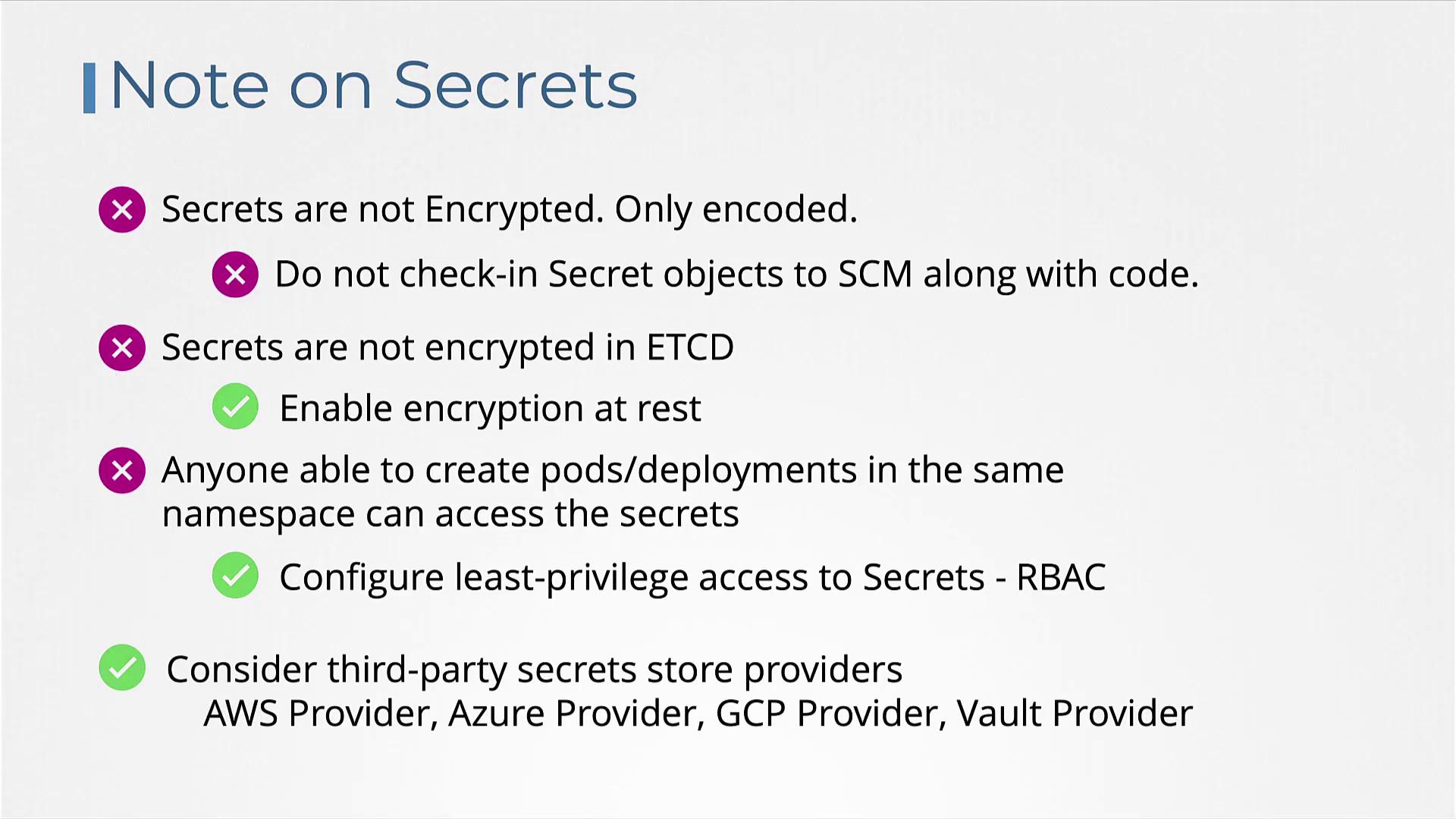
1. Secrets are encoded in base64, not encrypted. Anyone with access to the Secret object can decode the sensitive data.
2. Avoid version controlling your secret definition files to prevent accidental exposure.
3. By default, Secrets stored in etcd are not encrypted. Consider enabling encryption at rest in your Kubernetes cluster.
Ensure that secrets in etcd are properly encrypted and that access is restricted using Role-Based Access Control (RBAC). Do not expose your secret files in public repositories.
For example, here is an encryption configuration file that secures Secrets along with other resources:
```yaml theme={null}
apiVersion: apiserver.config.k8s.io/v1
kind: EncryptionConfiguration
resources:
- resources:
- secrets
providers:
- identity: {}
- aesgcm:
keys:
- name: key1
secret: C2VjcmVjT0glZzIHNLY3VyZQ==
- name: key2
secret: dGhpcpyBcyBwYXNzd29yZA==
- aescbc:
keys:
- name: key1
secret: C2VjcmVjT0glZzIHNLY3VyZQ==
- name: key2
secret: dGhpcpyBcyBwYXNzd29yZA==
- secretbox:
keys:
- name: key1
secret: YWjjZGVnZ2hpamtsbW5vcHyc3R1nd4eXoXMjM0NTY=
```
You must pass this file to the Kubernetes API server. Here is an example of modifying the kube-apiserver pod configuration to make use of the encryption configuration:
```yaml theme={null}
apiVersion: v1
kind: Pod
metadata:
annotations:
kubeddm.kubernetes.io/kube-apiserver.advertise-address.endpoint: 10.10.30.4:6443
creationTimestamp: null
labels:
component: kube-apiserver
tier: control-plane
name: kube-apiserver
namespace: kube-system
spec:
containers:
- command:
- kube-apiserver
# ...
- --encryption-provider-config=/etc/kubernetes/enc/enc.yaml # <--- add this line
volumeMounts:
# ...
- name: enc
mountPath: /etc/kubernetes/enc
readOnly: true # <--- add this line
volumes:
# ...
- name: enc
hostPath:
path: /etc/kubernetes/enc
type: DirectoryOrCreate # <--- add this line
```
This setup ensures that Secrets stored in etcd are encrypted. Note that only users with the correct permissions can create pods or deployments that have access to these Secrets. It is important to enforce proper RBAC policies.
Additionally, consider leveraging third-party secret management providers such as AWS, Azure, GCP, or HashiCorp Vault. These external providers help in storing secrets securely outside of etcd and enforce robust security measures.
For further details on advanced secret management and external providers, check out the [Certified Kubernetes Security Specialist (CKS)](https://learn.kodekloud.com/user/courses/certified-kubernetes-security-specialist-cks) course.
That concludes our guide on Kubernetes Secrets. Now, head over to the labs and practice managing Secrets to enhance your security skills in a Kubernetes environment.