> ## Documentation Index
> Fetch the complete documentation index at: https://notes.kodekloud.com/llms.txt
> Use this file to discover all available pages before exploring further.
# Solution Commands and Arguments Optional
> This article explores Kubernetes tasks related to pods, commands, and arguments while providing step-by-step lab instructions and technical diagrams.
In this lesson, we will explore several Kubernetes tasks related to pods, commands, and arguments while working with Dockerfiles. The content follows step-by-step lab instructions, and each technical diagram is kept with its associated explanation.
***
## 1. Examining a Pod's Command and Arguments
Begin by checking how many pods are currently running. In our example, there is a single pod.
Next, inspect the pod named `ubuntu-sleeper` to reveal the command it is executing. According to its definition, the container uses the Ubuntu image and runs the command:
```bash theme={null}
sleep 4800
```
To display these details, run:
```bash theme={null}
kubectl describe pod ubuntu-sleeper
```
The output will include the following information:
* **Command:**
```bash theme={null}
sleep
```
* **Args:**
```bash theme={null}
4800
```
This confirms that the pod executes `sleep 4800`.
***
## 2. Creating a Pod That Sleeps for 5000 Seconds
To modify an existing pod definition (`ubuntu-sleeper-2.yaml`), update it so that the container using the Ubuntu image sleeps for 5000 seconds. An initial basic file may look like this:
```yaml theme={null}
apiVersion: v1
kind: Pod
metadata:
name: ubuntu-sleeper-2
spec:
containers:
- name: ubuntu
image: ubuntu
```
You can instruct the container to sleep for 5000 seconds using one of two options. Both methods are valid, but in this guide we use the first option.
### Option 1: Single Command Array
Specify both the command and its argument in one array:
```yaml theme={null}
apiVersion: v1
kind: Pod
metadata:
name: ubuntu-sleeper-2
spec:
containers:
- name: ubuntu
image: ubuntu
command: ["sleep", "5000"]
```
### Option 2: Separate Command and Args
Alternatively, define the command and arguments separately:
```yaml theme={null}
apiVersion: v1
kind: Pod
metadata:
name: ubuntu-sleeper-2
spec:
containers:
- name: ubuntu
image: ubuntu
command: ["sleep"]
args: ["5000"]
```
After creating this pod, verify that it is running and that the command and argument have been set to 5000.
***
## 3. Troubleshooting an Incorrect Pod Manifest
Consider a third file, `ubuntu-sleeper-3.yaml`, intended to create a pod that runs `sleep 1200`. The file is as follows:
```yaml theme={null}
apiVersion: v1
kind: Pod
metadata:
name: ubuntu-sleeper-3
spec:
containers:
- name: ubuntu
image: ubuntu
command:
- "sleep"
- "1200"
```
Even though the file appears correctly formatted, Kubernetes may return an error like:
"cannot unmarshal number into the Go struct field Container.command of type string."
This error indicates that every element in the command array must be a string. Ensure both `"sleep"` and `"1200"` are enclosed in quotes. Use the below command to create the pod:
```bash theme={null}
kubectl create -f ubuntu-sleeper-3.yaml
```
Any deviation from quoted strings will trigger an error, reinforcing the importance of proper YAML syntax.
***
## 4. Updating a Pod That Is Not Directly Editable
Suppose you need to update the `ubuntu-sleeper-3` pod, altering its sleep duration from 1200 seconds to 2000 seconds. Directly editing a running pod using a command like:
```bash theme={null}
kubectl edit pod ubuntu-sleeper-3
```
may trigger an error because Kubernetes restricts modifications of most pod fields once created.
The recommended approach is to update your local pod manifest file and then perform a forced replace.
To force an update, use:
```bash theme={null}
kubectl replace --force -f /tmp/kubectl-edit-2693604347.yaml
```
This command deletes the existing pod and creates a new one with the updated specifications. Note that termination may take some time as the container handles the kill signal.
***
## 5. Analyzing Dockerfiles and Container Startup Commands
Understanding Dockerfiles is crucial. Below are two examples that illustrate how the `ENTRYPOINT` and `CMD` instructions interact.
### Dockerfile 1
Located at `/root/webapp-color/Dockerfile`, this file contains:
```dockerfile theme={null}
FROM python:3.6-alpine
RUN pip install flask
COPY . /opt/
EXPOSE 8080
WORKDIR /opt
ENTRYPOINT ["python", "app.py"]
```
This Dockerfile instructs the container to run `python app.py` on startup.
### Dockerfile 2
The second file, `/root/webapp-color/Dockerfile2`, uses a `CMD` instruction along with the `ENTRYPOINT`:
```dockerfile theme={null}
FROM python:3.6-alpine
RUN pip install flask
COPY . /opt/
EXPOSE 8080
WORKDIR /opt
ENTRYPOINT ["python", "app.py"]
CMD ["--color", "red"]
```
When a container is created from this image, it executes the entrypoint (`python app.py`) followed by the CMD arguments (`--color red`), resulting in:
```bash theme={null}
python app.py --color red
```
***
## 6. Overriding Commands and Arguments in a Pod Manifest
In the `webapp-color-2` directory, there are two files:
* **Dockerfile2:**
```dockerfile theme={null}
FROM python:3.6-alpine
RUN pip install flask
COPY . /opt/
EXPOSE 8080
WORKDIR /opt
ENTRYPOINT ["python", "app.py"]
CMD ["--color", "red"]
```
* **webapp-color-pod.yaml:**
```yaml theme={null}
apiVersion: v1
kind: Pod
metadata:
name: webapp-green
labels:
name: webapp-green
spec:
containers:
- name: simple-webapp
image: kodekloud/webapp-color
command: ["--color", "green"]
```
Despite the Dockerfile specifying an `ENTRYPOINT` and `CMD`, the pod manifest overrides these settings by providing a new command. As a consequence, the container starts with the arguments `--color green` and does not execute the original entrypoint command.
To override the ENTRYPOINT, you must use the `--command` flag or specify a new command array that includes the entire command.
***
## 7. Combining Command and Arguments in a Pod Manifest
In the `webapp-color-3` directory, similar files are used:
* **Dockerfile2:**
```dockerfile theme={null}
FROM python:3.6-alpine
RUN pip install flask
COPY . /opt/
EXPOSE 8080
WORKDIR /opt
ENTRYPOINT ["python", "app.py"]
CMD ["--color", "red"]
```
* **webapp-color-pod-2.yaml:**
```yaml theme={null}
apiVersion: v1
kind: Pod
metadata:
name: webapp-green
labels:
name: webapp-green
spec:
containers:
- name: simple-webapp
image: kodekcloud/webapp-color
command: ["python", "app.py"]
args: ["--color", "pink"]
```
Here, the pod manifest explicitly sets both the command and the arguments. The actual command executed by the container will be:
```bash theme={null}
python app.py --color pink
```
This demonstrates the flexibility Kubernetes offers when combining command and argument settings.
***
## 8. Creating a Pod with Overridden Application Arguments
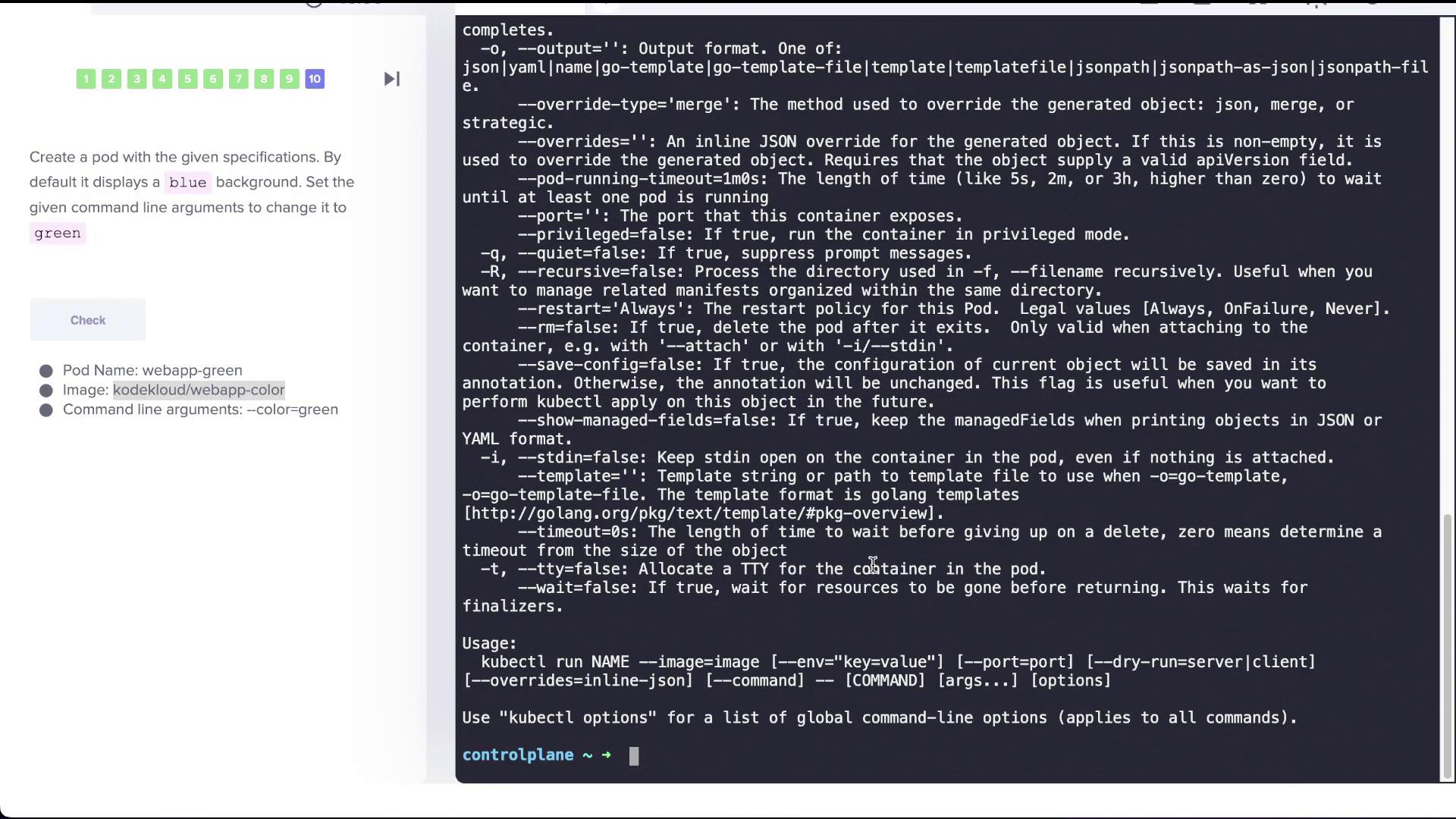
The final task involves creating a pod using the image `kodekloud/webapp-color`. By default, this image displays a blue background, but we want to override its startup arguments to display green.
Running the pod without overrides uses the default CMD:
```bash theme={null}
kubectl run webapp-green --image=kodekloud/webapp-color
```
To override the default arguments and pass `--color=green`, separate the options for `kubectl` from those passed to the container using a double dash (`--`):
```bash theme={null}
kubectl run webapp-green --image=kodekloud/webapp-color -- --color=green
```
This command instructs Kubernetes to use the image’s default entrypoint (`python app.py`) and pass the `--color=green` argument to the container. Verify that the pod runs with the updated settings, resulting in a green background.
***
## Conclusion
This lesson has covered several important practices in Kubernetes:
* Inspecting pod commands and arguments.
* Defining pod manifests with command arrays.
* Understanding the distinctions between `ENTRYPOINT` and CMD in a Dockerfile.
* Overriding default commands and arguments at runtime using a pod manifest.
* Employing the double dash (`--`) to separate `kubectl` options from container arguments.
Happy learning and keep exploring Kubernetes!