> ## Documentation Index
> Fetch the complete documentation index at: https://notes.kodekloud.com/llms.txt
> Use this file to discover all available pages before exploring further.
# Helm Concept
> Describes Helm packaging and templating for deploying Kubernetes applications using charts, values.yaml, repositories and CLI commands illustrated with a WordPress example
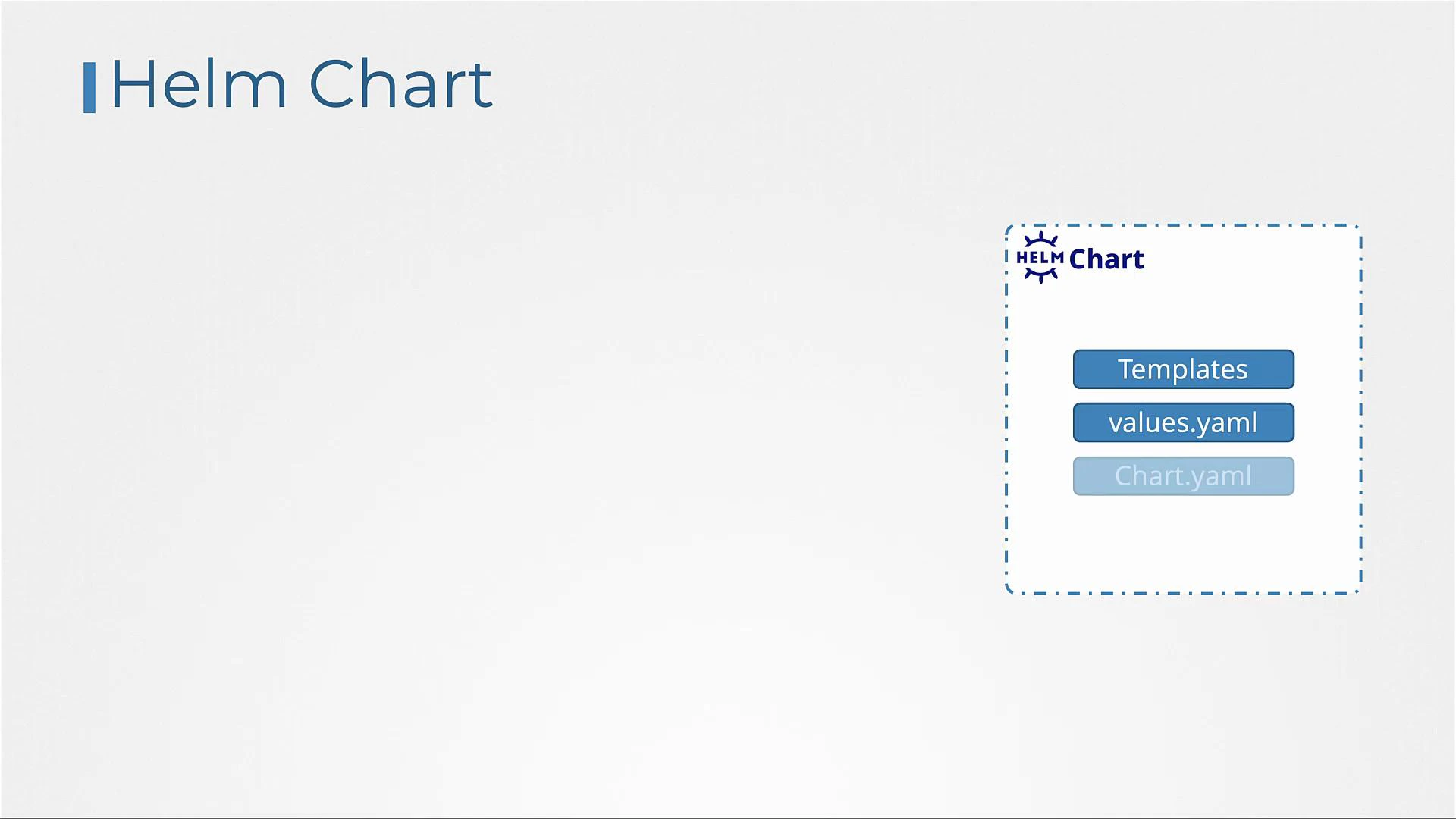
This lesson explains how Helm packages, templating, and values solve Kubernetes configuration and deployment challenges for applications like WordPress. A Helm chart bundles manifest templates (parameterized using Go templating) together with a values.yaml file that supplies concrete values. When Helm renders the templates with values, it produces the final Kubernetes manifests that are applied to the cluster.
Templates use Go template syntax (for example, `{{ .Values.image }}`) so a single values.yaml can customize many resources in one place. Below are example template files that you might find in a WordPress Helm chart. Each template demonstrates how variables are referenced and where values come from.
templates/deployment.yaml
```yaml theme={null}
apiVersion: apps/v1
kind: Deployment
metadata:
name: wordpress
labels:
app: wordpress
spec:
selector:
matchLabels:
app: wordpress
tier: frontend
strategy:
type: Recreate
template:
metadata:
labels:
app: wordpress
tier: frontend
spec:
containers:
- name: wordpress
image: { { .Values.image } }
```
templates/pv.yaml
```yaml theme={null}
apiVersion: v1
kind: PersistentVolume
metadata:
name: wordpress-pv
spec:
capacity:
storage: { { .Values.storage } }
accessModes:
- ReadWriteOnce
gcePersistentDisk:
pdName: wordpress-2
fsType: ext4
```
templates/service.yaml
```yaml theme={null}
apiVersion: v1
kind: Service
metadata:
name: wordpress
labels:
app: wordpress
spec:
ports:
- port: 80
selector:
app: wordpress
tier: frontend
type: LoadBalancer
```
templates/pvc.yaml
```yaml theme={null}
apiVersion: v1
kind: PersistentVolumeClaim
metadata:
name: wp-pv-claim
labels:
app: wordpress
spec:
accessModes:
- ReadWriteOnce
resources:
requests:
storage: { { .Values.storage } }
```
templates/secret.yaml
```yaml theme={null}
apiVersion: v1
kind: Secret
metadata:
name: wordpress-admin-password
data:
password: { { .Values.passwordEncoded } }
```
These template variables (for example, .Values.image, .Values.storage, .Values.passwordEncoded) are populated from the chart's values.yaml file. Anyone deploying the chart can customize the deployment by editing that single file.
Example values.yaml
```yaml theme={null}
image: wordpress:4.8-apache
storage: 20Gi
passwordEncoded: CajhWVUxSdzIZQzg0
```
Together, templates + values.yaml form a Helm chart. Charts also include Chart metadata (Chart.yaml) describing the chart itself.
 Example Chart.yaml
```yaml theme={null}
apiVersion: v2
name: wordpress
version: 9.0.3
description: Web publishing platform for building blogs and websites.
keywords:
- wordpress
- cms
- blog
- http
- web
- application
- php
home: http://www.wordpress.com/
sources:
- https://github.com/bitnami/bitnami-docker-wordpress
maintainers:
- email: containers@bitnami.com
name: Bitnami
```
You can author your own chart or reuse community charts hosted on Artifact Hub. Artifact Hub is a central index of community-contributed Helm charts and other Kubernetes packages.
Example Chart.yaml
```yaml theme={null}
apiVersion: v2
name: wordpress
version: 9.0.3
description: Web publishing platform for building blogs and websites.
keywords:
- wordpress
- cms
- blog
- http
- web
- application
- php
home: http://www.wordpress.com/
sources:
- https://github.com/bitnami/bitnami-docker-wordpress
maintainers:
- email: containers@bitnami.com
name: Bitnami
```
You can author your own chart or reuse community charts hosted on Artifact Hub. Artifact Hub is a central index of community-contributed Helm charts and other Kubernetes packages.
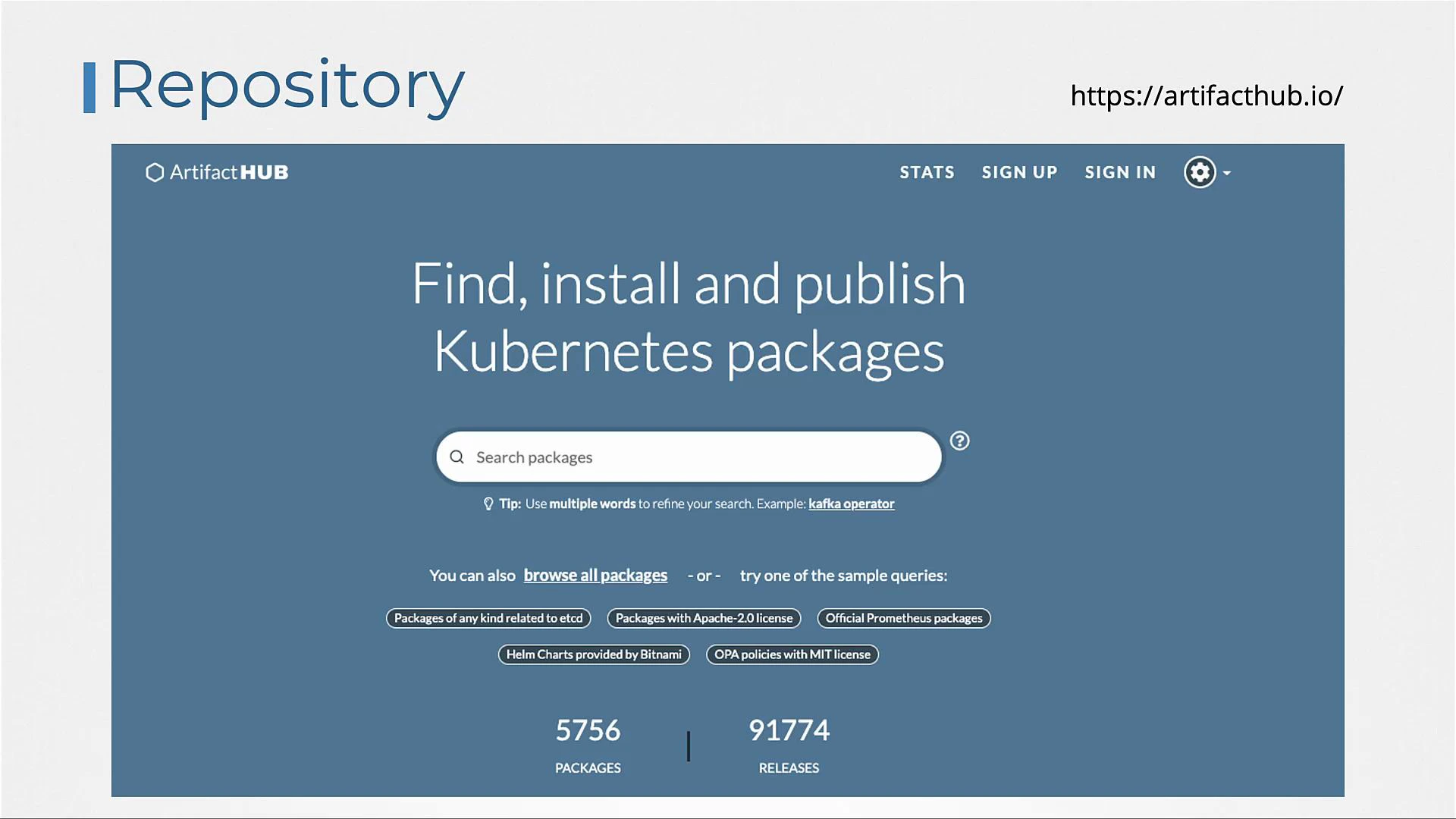 As of this lesson, there are thousands of charts available on Artifact Hub. You can search charts from the web UI or directly from the Helm CLI.
Search Artifact Hub from the Helm CLI:
```bash theme={null}
helm search hub wordpress
# Example output:
# https://hub.helm.sh/charts/kube-wordpress/wordp... 0.1.0 1.1 this is my wordpress package
# https://hub.helm.sh/charts/groundhog2k/wordpress 0.4.1 5.8.0-apache A Helm chart for Wordpress on Kubernetes
# https://hub.helm.sh/charts/bitnami-aks/wordpress 12.1.1 5.8.0 Web publishing platform for Wordpress...
```
If you want to use charts from a specific repository (for example Bitnami), add that repo to your local Helm configuration and search the repo:
```bash theme={null}
helm repo add bitnami https://charts.bitnami.com/bitnami
helm search repo wordpress
# Example output:
# NAME CHART VERSION APP VERSION DESCRIPTION
# bitnami/wordpress 12.1.14 5.8.1 Web publishing platform for building blogs and ...
```
To install a chart on your cluster:
```bash theme={null}
helm install
# Example:
helm install my-release bitnami/wordpress
```
Each installation of a chart is called a release. You can install the same chart multiple times under different release names; each release is independent:
```bash theme={null}
helm install release-1 bitnami/wordpress
helm install release-2 bitnami/wordpress
helm install release-3 bitnami/wordpress
```
Common chart components and their purpose
| Chart file / template | Purpose |
| ------------------------- | ----------------------------------------------------------------------------- |
| templates/deployment.yaml | Defines the application Deployment and container image reference. |
| templates/service.yaml | Exposes the application via Service (ClusterIP, NodePort, LoadBalancer). |
| templates/pv.yaml | Defines a PersistentVolume to back storage requests (cluster-level resource). |
| templates/pvc.yaml | Requests storage from PVs (namespaced PersistentVolumeClaim). |
| templates/secret.yaml | Stores credentials or secrets (data must be base64-encoded). |
| values.yaml | Central place to override template variables per deployment. |
| Chart.yaml | Chart metadata: name, version, description, maintainers, sources. |
Useful Helm commands (summary)
| Command | What it does |
| ----------------- | ---------------------------------------------------- |
| helm search hub | Searches Artifact Hub from the CLI for charts. |
| helm repo add | Adds a remote chart repository (e.g., Bitnami). |
| helm search repo | Searches charts in the local repo index. |
| helm install | Installs a chart as a release in the cluster. |
| helm list | Lists deployed releases. |
| helm uninstall | Removes a release from the cluster. |
| helm pull --untar | Downloads and extracts a chart to a local directory. |
Examples and tips:
```bash theme={null}
helm list
# Shows installed releases, e.g.:
# NAME NAMESPACE REVISION UPDATED STATUS CHART APP VERSION
helm uninstall my-release
helm pull --untar bitnami/wordpress
ls wordpress
# Example listing:
# Chart.lock README.md ci values.schema.json
helm install release-4 ./wordpress
# Install the local, modified chart directory
```
Kubernetes Secret data values (the "data" field) must be base64-encoded. In the earlier secret template, .Values.passwordEncoded is expected to already be base64-encoded. If you prefer to supply the raw password in values.yaml and have Helm encode it during rendering, you can use the b64enc template function, for example:
```yaml theme={null}
data:
password: {{ .Values.password | b64enc }}
```
Alternatively, use the Secret's stringData field to provide raw (unencoded) string values and let the API server handle encoding:
```yaml theme={null}
stringData:
password: "{{ .Values.password }}"
```
Avoid including raw passwords in plain text in version control; consider using external secret management or encrypted values files.
This lesson covered the essential Helm concepts for packaging and deploying applications: templates, values, charts, repositories, and the basic Helm CLI workflow. For production use and advanced exam topics, explore additional Helm features such as subcharts, chart dependencies, chart testing, hooks, and templating functions.
Further reading and references
* Helm documentation: [https://helm.sh/docs/](https://helm.sh/docs/)
* Artifact Hub: [https://artifacthub.io/](https://artifacthub.io/)
* Kubernetes documentation: [https://kubernetes.io/docs/](https://kubernetes.io/docs/)
As of this lesson, there are thousands of charts available on Artifact Hub. You can search charts from the web UI or directly from the Helm CLI.
Search Artifact Hub from the Helm CLI:
```bash theme={null}
helm search hub wordpress
# Example output:
# https://hub.helm.sh/charts/kube-wordpress/wordp... 0.1.0 1.1 this is my wordpress package
# https://hub.helm.sh/charts/groundhog2k/wordpress 0.4.1 5.8.0-apache A Helm chart for Wordpress on Kubernetes
# https://hub.helm.sh/charts/bitnami-aks/wordpress 12.1.1 5.8.0 Web publishing platform for Wordpress...
```
If you want to use charts from a specific repository (for example Bitnami), add that repo to your local Helm configuration and search the repo:
```bash theme={null}
helm repo add bitnami https://charts.bitnami.com/bitnami
helm search repo wordpress
# Example output:
# NAME CHART VERSION APP VERSION DESCRIPTION
# bitnami/wordpress 12.1.14 5.8.1 Web publishing platform for building blogs and ...
```
To install a chart on your cluster:
```bash theme={null}
helm install
# Example:
helm install my-release bitnami/wordpress
```
Each installation of a chart is called a release. You can install the same chart multiple times under different release names; each release is independent:
```bash theme={null}
helm install release-1 bitnami/wordpress
helm install release-2 bitnami/wordpress
helm install release-3 bitnami/wordpress
```
Common chart components and their purpose
| Chart file / template | Purpose |
| ------------------------- | ----------------------------------------------------------------------------- |
| templates/deployment.yaml | Defines the application Deployment and container image reference. |
| templates/service.yaml | Exposes the application via Service (ClusterIP, NodePort, LoadBalancer). |
| templates/pv.yaml | Defines a PersistentVolume to back storage requests (cluster-level resource). |
| templates/pvc.yaml | Requests storage from PVs (namespaced PersistentVolumeClaim). |
| templates/secret.yaml | Stores credentials or secrets (data must be base64-encoded). |
| values.yaml | Central place to override template variables per deployment. |
| Chart.yaml | Chart metadata: name, version, description, maintainers, sources. |
Useful Helm commands (summary)
| Command | What it does |
| ----------------- | ---------------------------------------------------- |
| helm search hub | Searches Artifact Hub from the CLI for charts. |
| helm repo add | Adds a remote chart repository (e.g., Bitnami). |
| helm search repo | Searches charts in the local repo index. |
| helm install | Installs a chart as a release in the cluster. |
| helm list | Lists deployed releases. |
| helm uninstall | Removes a release from the cluster. |
| helm pull --untar | Downloads and extracts a chart to a local directory. |
Examples and tips:
```bash theme={null}
helm list
# Shows installed releases, e.g.:
# NAME NAMESPACE REVISION UPDATED STATUS CHART APP VERSION
helm uninstall my-release
helm pull --untar bitnami/wordpress
ls wordpress
# Example listing:
# Chart.lock README.md ci values.schema.json
helm install release-4 ./wordpress
# Install the local, modified chart directory
```
Kubernetes Secret data values (the "data" field) must be base64-encoded. In the earlier secret template, .Values.passwordEncoded is expected to already be base64-encoded. If you prefer to supply the raw password in values.yaml and have Helm encode it during rendering, you can use the b64enc template function, for example:
```yaml theme={null}
data:
password: {{ .Values.password | b64enc }}
```
Alternatively, use the Secret's stringData field to provide raw (unencoded) string values and let the API server handle encoding:
```yaml theme={null}
stringData:
password: "{{ .Values.password }}"
```
Avoid including raw passwords in plain text in version control; consider using external secret management or encrypted values files.
This lesson covered the essential Helm concepts for packaging and deploying applications: templates, values, charts, repositories, and the basic Helm CLI workflow. For production use and advanced exam topics, explore additional Helm features such as subcharts, chart dependencies, chart testing, hooks, and templating functions.
Further reading and references
* Helm documentation: [https://helm.sh/docs/](https://helm.sh/docs/)
* Artifact Hub: [https://artifacthub.io/](https://artifacthub.io/)
* Kubernetes documentation: [https://kubernetes.io/docs/](https://kubernetes.io/docs/)