> ## Documentation Index
> Fetch the complete documentation index at: https://notes.kodekloud.com/llms.txt
> Use this file to discover all available pages before exploring further.
# Manage Kubernetes secrets
> This article provides a guide on securing applications with Kubernetes Secrets, detailing creation, injection, and best practices for managing sensitive data.
Welcome to this comprehensive guide on securing your applications with Kubernetes Secrets. In this lesson, you'll learn how to replace hardcoded sensitive data in your applications with a more secure approach using Kubernetes Secrets. We will walk through a Python web application example, demonstrate both imperative and declarative methods for creating Secrets, and explain how to inject these Secrets into your Pods securely.
## Example Application Overview
In our example, a simple Python web application connects to a MySQL database. On a successful connection, the application displays a success message. However, the code currently hardcodes the database hostname, username, and password. Although non-sensitive data such as hostnames or usernames can be stored in a ConfigMap, using the same approach for sensitive information like passwords is not recommended.
Below is an excerpt of the Python application code:
```python theme={null}
import os
from flask import Flask, render_template # Added render_template import
app = Flask(__name__)
@app.route("/")
def main():
# Warning: Hardcoding credentials (host, user, password) is not secure.
mysql.connector.connect(host="mysql", database="mysql",
user="root", password="paswrd")
return render_template('hello.html', color=fetchcolor())
if __name__ == "__main__":
app.run(host="0.0.0.0", port="8080")
```
Hardcoding credentials in your application code is insecure. Use Kubernetes Secrets to manage sensitive configuration data securely.
A sample ConfigMap for non-sensitive configurations might look like this:
```yaml theme={null}
apiVersion: v1
kind: ConfigMap
metadata:
name: app-config
data:
# Non-sensitive configuration data can be placed here.
```
While a ConfigMap can hold non-sensitive values safely, passwords require an extra layer of security. This is where Kubernetes Secrets become essential—they store sensitive information in an encoded format rather than plain text.
## Steps to Work with Kubernetes Secrets
Creating and using Secrets generally involves two main steps:
1. **Create the Secret.**
2. **Inject the Secret into a Pod.**
### Mapping Plain Text to Base64 Encoded Values
Consider the following mapping between plain text values and their corresponding base64-encoded values:
Plain text:
```text theme={null}
DB Host: mysql
DB User: root
DB Password: paswrd
```
Encoded format:
```text theme={null}
DB_Host: bXlzcWw=
DB_User: cm9vdA==
DB_Password: cGFzd3Jk
```
Always encode your sensitive data using base64 when creating a declarative Secret. Avoid using plain text values.
## Creating a Secret
There are two primary methods to create a Kubernetes Secret: the imperative and declarative approaches.
### Imperative Approach
With the imperative approach, you can directly add key-value pairs from the command line. For example, to create a secret named "app-secret" with values for DB\_Host, DB\_User, and DB\_Password, use:
```bash theme={null}
kubectl create secret generic app-secret --from-literal=DB_Host=mysql --from-literal=DB_User=root --from-literal=DB_Password=paswrd
```
Alternatively, if you have your data stored in a file, you can create the secret with:
```bash theme={null}
kubectl create secret generic app-secret --from-file=app_secret.properties
```
### Declarative Approach
For a more controlled process, create a YAML definition for the Secret. Note that all values must be base64 encoded. Here is an example:
```yaml theme={null}
apiVersion: v1
kind: Secret
metadata:
name: app-secret
data:
DB_Host: bXlzcWw=
DB_User: cm9vdA==
DB_Password: cGFzd3Jk
```
Create the Secret by applying the YAML file:
```bash theme={null}
kubectl create -f secret-data.yaml
```
> Note: When specifying data values in plain text, the information is not secure. Ensure that the secret values are base64 encoded using one of the available encoding methods.
### Encoding Secret Data
On a Linux system, you can generate the base64-encoded version of your secret by running:
```bash theme={null}
echo -n 'mysql' | base64
echo -n 'root' | base64
echo -n 'paswrd' | base64
# Output: cGFzd3Jk
```
## Viewing and Decoding Secrets
To list all Secrets, execute:
```bash theme={null}
kubectl get secrets
```
Sample output:
```plaintext theme={null}
NAME TYPE DATA AGE
app-secret Opaque 3 10m
```
To view detailed information about a specific Secret without revealing its actual values, use:
```bash theme={null}
kubectl describe secrets app-secret
```
For example:
```plaintext theme={null}
Name: app-secret
Namespace: default
Labels:
Annotations:
Type: Opaque
Data
====
DB_Host: 10 bytes
DB_User: 4 bytes
DB_Password: 6 bytes
```
To display the Secret in YAML format (this shows the encoded values), run:
```bash theme={null}
kubectl get secret app-secret -o yaml
```
To decode an encoded value, execute:
```bash theme={null}
echo -n 'bXlzcWw=' | base64 --decode
echo -n 'cm9vdA==' | base64 --decode
# Output: root
```
## Injecting Secrets into a Pod
After creating a Secret, you can inject it into a Pod in two ways: as environment variables or as files via a mounted volume.
### Injecting as Environment Variables
Use the `envFrom` property in your container specification to inject the Secret data as environment variables. For example:
```yaml theme={null}
apiVersion: v1
kind: Pod
metadata:
name: simple-webapp-color
labels:
name: simple-webapp-color
spec:
containers:
- name: simple-webapp-color
image: simple-webapp-color
ports:
- containerPort: 8080
envFrom:
- secretRef:
name: app-secret
```
All key-value pairs in the "app-secret" will be available as environment variables in your container.
### Injecting as Files in a Volume
Alternatively, mount the Secret as a volume so that each key is written into a separate file. Example configuration:
```yaml theme={null}
volumes:
- name: app-secret-volume
secret:
secretName: app-secret
```
Mount the volume into your container (for instance, at `/opt/app-secret-volumes`) and inspect the files:
```bash theme={null}
ls /opt/app-secret-volumes
cat /opt/app-secret-volumes/DB_Password
# Output: paswrd
```
## Security Considerations
When managing Secrets in Kubernetes, keep the following security best practices in mind:
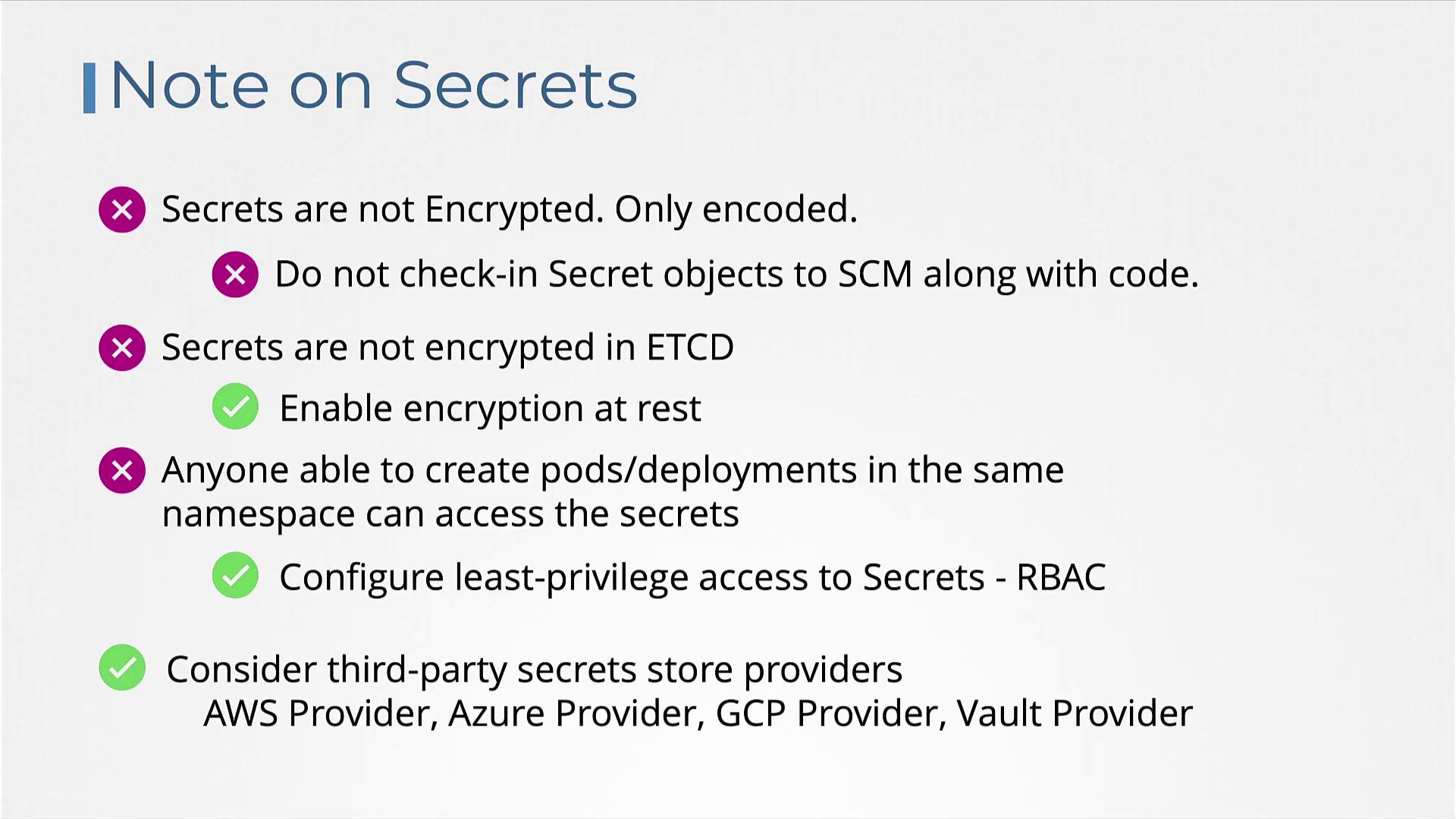
* Kubernetes Secrets are encoded but not encrypted, meaning anyone with access can decode them using base64.
* Avoid checking in secret definition files to version control systems, such as GitHub.
* By default, Secrets stored in etcd are not encrypted. Consider enabling encryption at rest for enhanced security.
### Enabling Encryption at Rest
To enhance security, enable encryption at rest by configuring an encryption file similar to the snippet below:
```yaml theme={null}
apiVersion: apiserver.config.k8s.io/v1
kind: EncryptionConfiguration
resources:
- resources:
- secrets
providers:
- identity: {}
- aesgcm:
keys:
- name: key1
secret: c2VjcmV0IGlzIHN1bXdlcnZlZQ==
- name: key2
secret: dGhpcPyBcyBwYXNzd29yZA==
- aescbc:
keys:
- name: key1
secret: c2VjcmV0IGlzIHN1bXdlcnZlZQ==
- name: key2
secret: dGhpcPyBcyBwYXNzd29yZA==
- secretbox:
keys:
- name: key1
secret: YWjZGVmZ2hpamtsbW5vcHyc3R1nd4eXokMjY=
```
Then, pass the configuration to the kube-apiserver. Modify your API server Pod specification as follows:
```yaml theme={null}
apiVersion: v1
kind: Pod
metadata:
annotations:
kubeadm.kubernetes.io/kube-apiserver.advertise-address.endpoint: 10.10.30.4:6443
labels:
component: kube-apiserver
tier: control-plane
name: kube-apiserver
namespace: kube-system
spec:
containers:
- command:
- kube-apiserver
# ... other command arguments ...
- --encryption-provider-config=/etc/kubernetes/enc/enc.yaml # Add this line
volumeMounts:
# ... other mounts ...
- name: enc
mountPath: /etc/kubernetes/enc
readOnly: true # Add this line
volumes:
# ... other volumes ...
- name: enc
hostPath:
path: /etc/kubernetes/enc
type: DirectoryOrCreate # Add this line
```
Keep in mind that anyone who can create Pods or Deployments in the same namespace could potentially access these Secrets. Use role-based access control (RBAC) to limit access effectively.
For additional protection, consider integrating third-party secret providers such as the AWS Provider, Azure Provider, GCP Provider, or Vault Provider. These external solutions store Secrets outside etcd and provide advanced security controls.
## Conclusion
In this lesson, we covered the importance of managing sensitive data in Kubernetes using Secrets. We discussed both imperative and declarative methods to create Secrets, learned how to inject them into your Pods as environment variables or as files in a volume, and reviewed critical best practices along with encryption strategies. Practice these techniques to improve the security of your Kubernetes deployments and safeguard your sensitive data.
For more detailed information, explore the official [Kubernetes Documentation](https://kubernetes.io/docs/).