> ## Documentation Index
> Fetch the complete documentation index at: https://notes.kodekloud.com/llms.txt
> Use this file to discover all available pages before exploring further.
# Linux Syscalls
> This article explores Linux syscalls, detailing their role in process execution and interactions between user applications and the kernel.
In this article, we'll explore Linux syscalls (system calls) and examine what happens under the hood when an application or process runs. We will review how a process executes on Linux by examining some fundamental concepts of the Linux operating system.
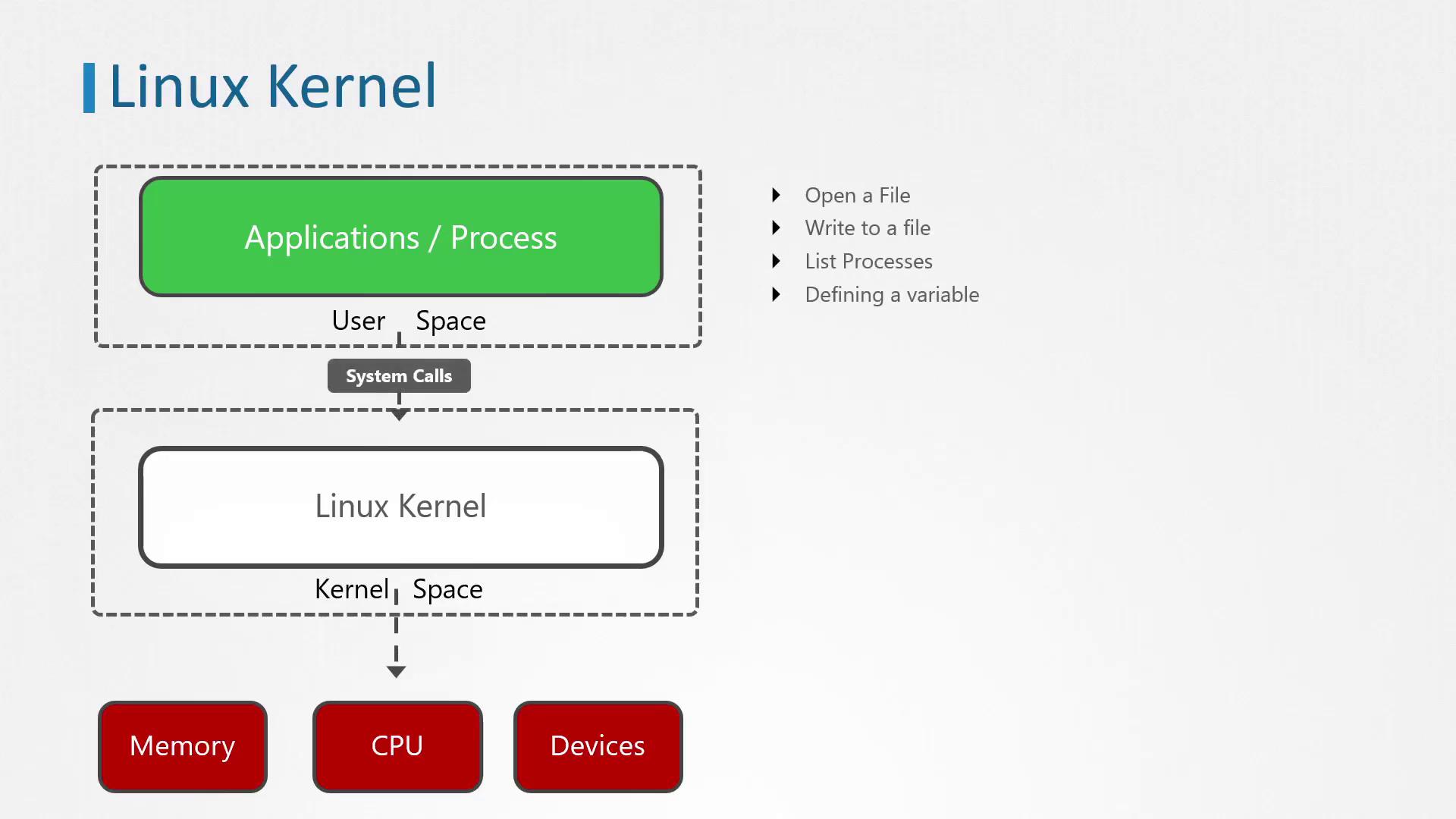
The Linux kernel is the central component that acts as an interface between the hardware and running processes. It efficiently manages system resources by operating in a dedicated memory area called kernel space, while user applications (written in languages such as C, Java, or Python) run in user space. The kernel space contains the kernel code, device drivers, and its extensions—all essential for proper communication between hardware and applications.
## How Programs Use System Calls
System calls enable applications running in user space to request services from the kernel. For instance, when an application needs to open a file stored on disk, it cannot access the hardware directly; instead, it must instruct the kernel to perform the necessary operations. Consider the task of creating an empty file named `error.log` in the `/tmp` directory. This process involves a series of system calls, beginning with the `execve` call to execute the binary (such as the `touch` command).
The Linux kernel architecture involves many layers: user space, kernel space, system calls, and the interactions with memory, CPU, and devices. The image below reinforces this conceptual framework:
Common system calls include `open`, `close`, `read`, and several others. The `execve` system call, for example, is used to execute a program by passing an array of arguments. In our example, it executes the `touch` command with `/tmp/error.log` as an argument. The output provided indicates that 23 environment variables were inherited during this call.
## Tracing Syscalls with strace
One effective method for tracing the system calls made by a process is by using the `strace` command.
> **Tip**
>
> To verify if `strace` is installed and locate its executable path, run:
```bash theme={null}
which strace
/usr/bin/strace
```
`strace` is available by default on most Linux distributions. It traces system calls invoked by an application as well as the signals delivered to it. For example, to observe the system calls made when creating a file in `/tmp`, prefix the operation with the `strace` command:
```bash theme={null}
strace touch /tmp/error.log
```
The output will begin with a line similar to the following:
```bash theme={null}
execve("/usr/bin/touch", ["touch", "/tmp/error.log"], 0x7ffce8f874f8 /* 23 vars */) = 0
...
[Output Truncated]
```
In this example:
* `execve` is the system call used to execute the program.
* The first argument is the absolute path to the executable (`/usr/bin/touch`).
* The second argument is an array containing `"touch"` and the file path `/tmp/error.log`.
* The comment `/* 23 vars */` indicates that the call inherited 23 environment variables.
To verify the number of inherited environment variables, execute:
```bash theme={null}
env | wc -l
```
The output should display `23`.
## Tracing a Running Process
To trace system calls of a process that is already running, first determine its PID. For example, to find the PID of the `etcd` process, run:
```bash theme={null}
pidof etcd
```
Assuming the PID is `3596`, attach `strace` to the process as follows:
```bash theme={null}
strace -p 3596
```
You might see output similar to this while `etcd` continues to run:
```bash theme={null}
strace: Process 3596 attached
futex(0x1ac6be8, FUTEX_WAIT_PRIVATE, 0, NULL) = 0
futex(0xc000540bc8, FUTEX_WAKE_PRIVATE, 1) = 1
```
Press Control+C to detach once you have gathered the necessary information.
## Displaying a Summary of Syscalls
To generate a summary report of system call usage, add the `-c` flag to `strace`:
```bash theme={null}
strace -c touch /tmp/error.log
```
This command produces an output summary like the one below:
```plaintext theme={null}
% time seconds usecs/call calls errors syscall
------ ----------- ----------- ------ ------ -----------
0.00 0.000000 0 1 0 read
0.00 0.000000 0 6 0 close
0.00 0.000000 0 2 0 fstat
0.00 0.000000 0 5 0 mmap
0.00 0.000000 0 4 0 mprotect
0.00 0.000000 0 1 0 munmap
0.00 0.000000 0 3 0 brk
0.00 0.000000 0 3 3 access
0.00 0.000000 0 1 0 dup2
0.00 0.000000 0 1 0 execve
0.00 0.000000 0 1 0 arch_prctl
0.00 0.000000 0 1 0 openat
0.00 0.000000 0 1 0 utimensat
------ ----------- ----------- ------ ------ -----------
100.00 0.000000 32 3 total
```
Even simple commands like `touch` invoke multiple system calls; complex applications can generate hundreds or even thousands of system calls per second.
> **Summary**
>
> This exploration of Linux syscalls illustrates the fundamental interactions between user applications and the kernel. Understanding these interactions is essential for troubleshooting, performance tuning, and system analysis.
This concludes our in-depth look at Linux syscalls. For more advanced topics, consider exploring related resources such as the [Linux Kernel Documentation](https://www.kernel.org/doc/html/latest/) and online tutorials on system performance analysis.