> ## Documentation Index
> Fetch the complete documentation index at: https://notes.kodekloud.com/llms.txt
> Use this file to discover all available pages before exploring further.

# Demo ASG based Architecture

> This guide explains how to build an Auto Scaling Group-based architecture on AWS in the Tokyo region for a Fault Injection Service experiment.

In this guide, we’ll walk through building an Auto Scaling Group (ASG)–based architecture on AWS, using the Asia Pacific (Tokyo) region. By the end, you’ll have three core components in place: an EC2 launch template, an Auto Scaling group, and a CloudWatch Logs group—ready for a Fault Injection Service (FIS) experiment.

| Component             | Purpose                                          | AWS Console Reference                                                              |
| --------------------- | ------------------------------------------------ | ---------------------------------------------------------------------------------- |
| EC2 Launch Template   | Defines instance configuration and metadata tags | [https://aws.amazon.com/ec2/](https://aws.amazon.com/ec2/)                         |
| Auto Scaling Group    | Manages instance scaling across AZs for HA       | [https://aws.amazon.com/autoscaling/](https://aws.amazon.com/autoscaling/)         |
| CloudWatch Logs Group | Aggregates logs from all instances               | [https://aws.amazon.com/cloudwatch/logs/](https://aws.amazon.com/cloudwatch/logs/) |

## 1. Create an EC2 Launch Template

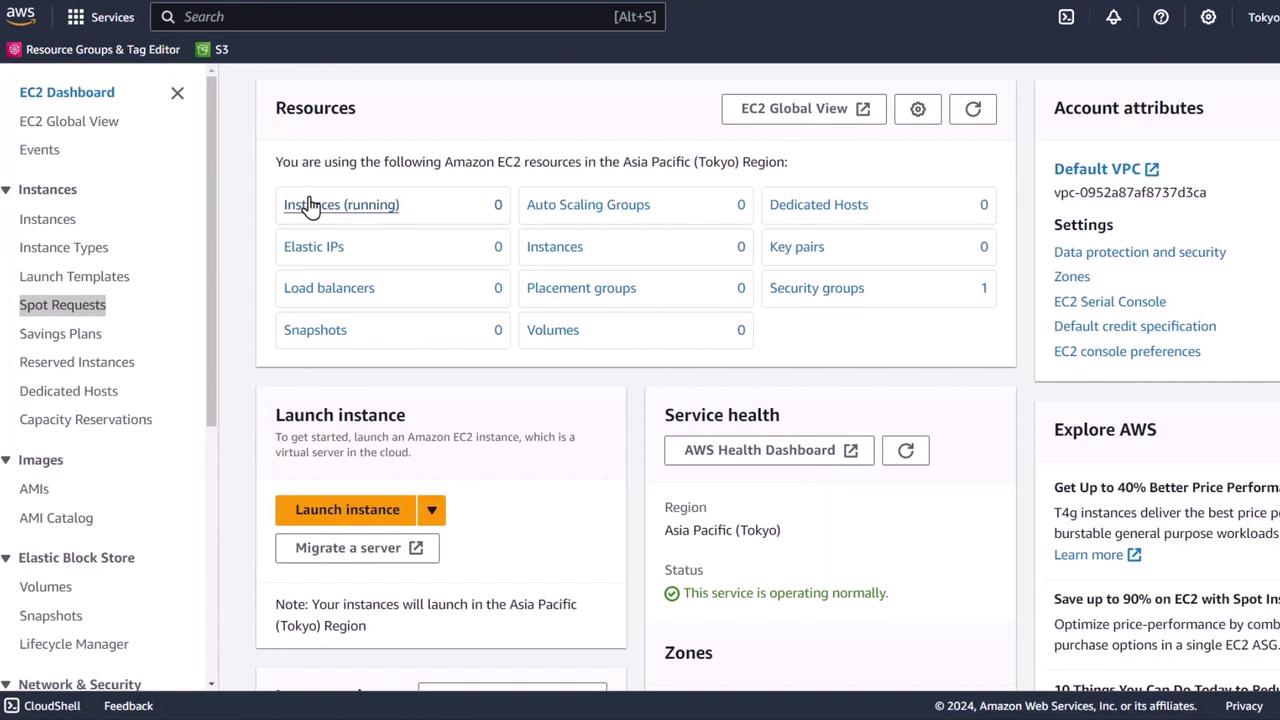
1. Go to the [Amazon EC2 dashboard](https://aws.amazon.com/ec2/) in the Tokyo region.
<Frame>
  ![The image shows an Amazon EC2 dashboard from AWS, displaying resources and options for managing instances in the Asia Pacific (Tokyo) region. It includes sections for launching instances, service health, and account attributes.](https://kodekloud.com/kk-media/image/upload/v1752871760/notes-assets/images/Chaos-Engineering-Demo-ASG-based-Architecture/amazon-ec2-dashboard-tokyo-region.jpg)
</Frame>

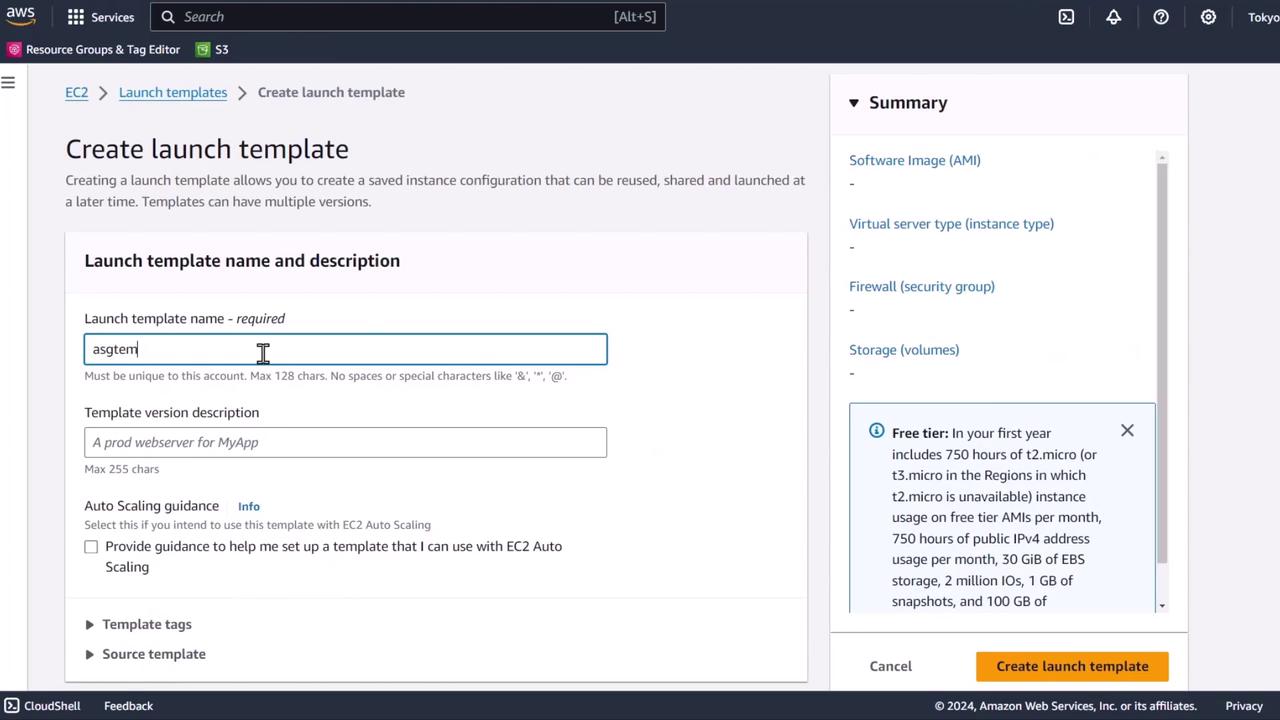
2. Click **Launch Templates** → **Create launch template**.
<Frame>
  ![The image shows an AWS interface for creating a launch template, with fields for the template name and description, and a summary section on the right.](https://kodekloud.com/kk-media/image/upload/v1752871762/notes-assets/images/Chaos-Engineering-Demo-ASG-based-Architecture/aws-launch-template-interface-summary.jpg)
</Frame>

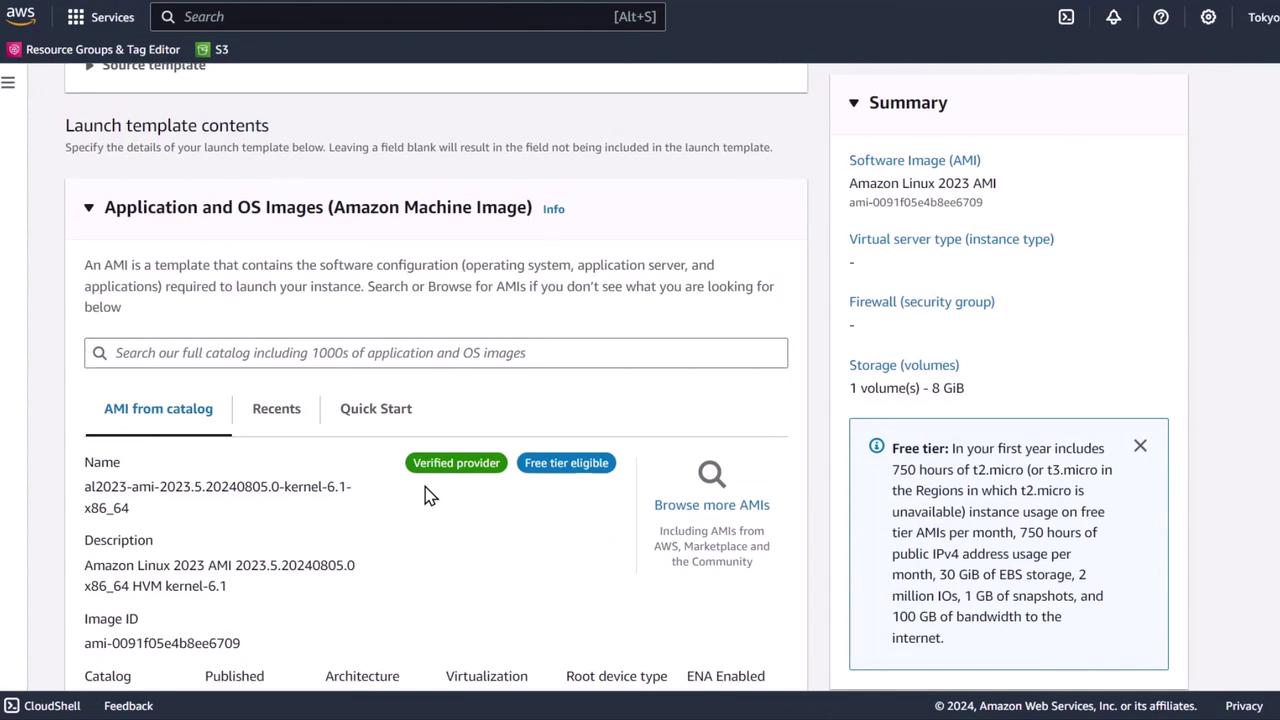
3. Choose an **Amazon Linux 2023 AMI** (free tier eligible) and select the **t3.micro** instance type.
<Frame>
  ![The image shows an AWS console interface for selecting an Amazon Machine Image (AMI) with details about an Amazon Linux 2023 AMI. It includes options for browsing AMIs and a summary of the selected image.](https://kodekloud.com/kk-media/image/upload/v1752871763/notes-assets/images/Chaos-Engineering-Demo-ASG-based-Architecture/aws-console-amazon-machine-image-ami.jpg)
</Frame>

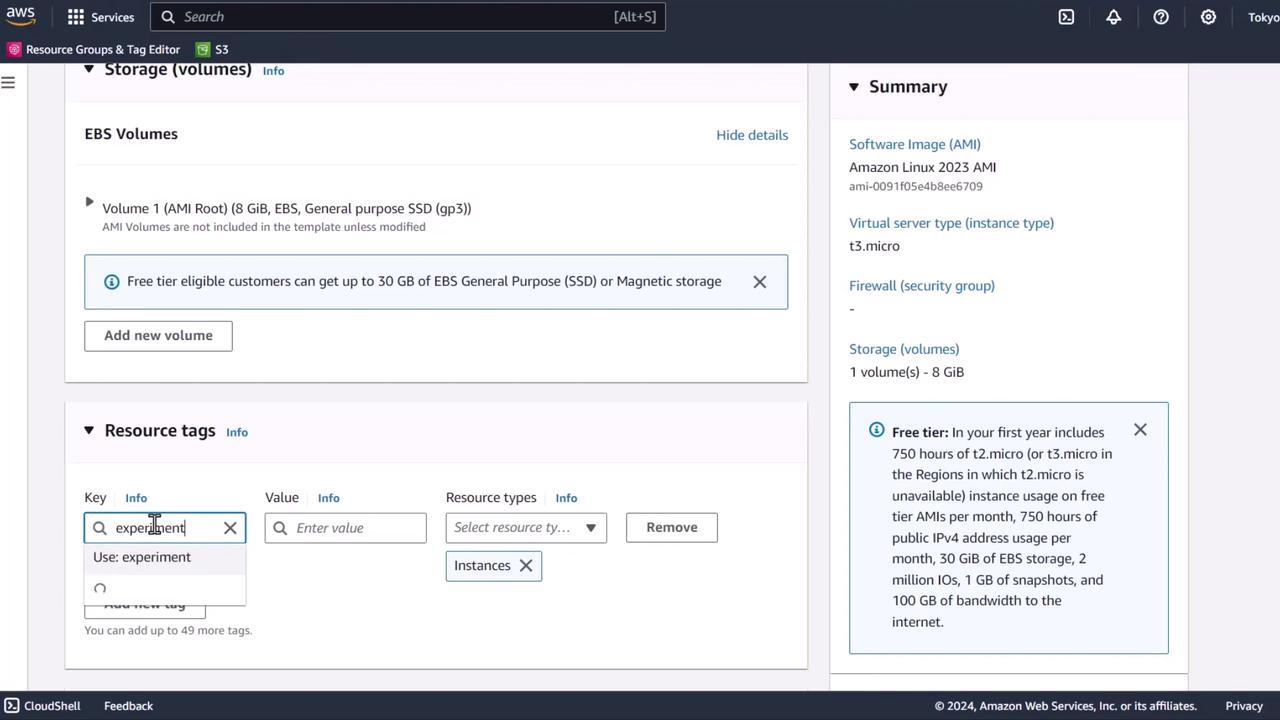
4. Under **Advanced details**, add resource tags:
   * Key: `experiment`
   * Value: `ready`
<Frame>
  ![The image shows an AWS management console interface, displaying storage volumes and resource tags for an instance, with a summary of software image and free tier details.](https://kodekloud.com/kk-media/image/upload/v1752871764/notes-assets/images/Chaos-Engineering-Demo-ASG-based-Architecture/aws-management-console-storage-volumes.jpg)
</Frame>

<Callout icon="lightbulb" color="#1CB2FE">
  All instances launched from this template will inherit the tags—useful for identifying resources in your FIS experiment.
</Callout>

5. Review settings and click **Create launch template**.

## 2. Configure the Auto Scaling Group

1. Navigate to **Auto Scaling Groups** → **Create Auto Scaling group**.
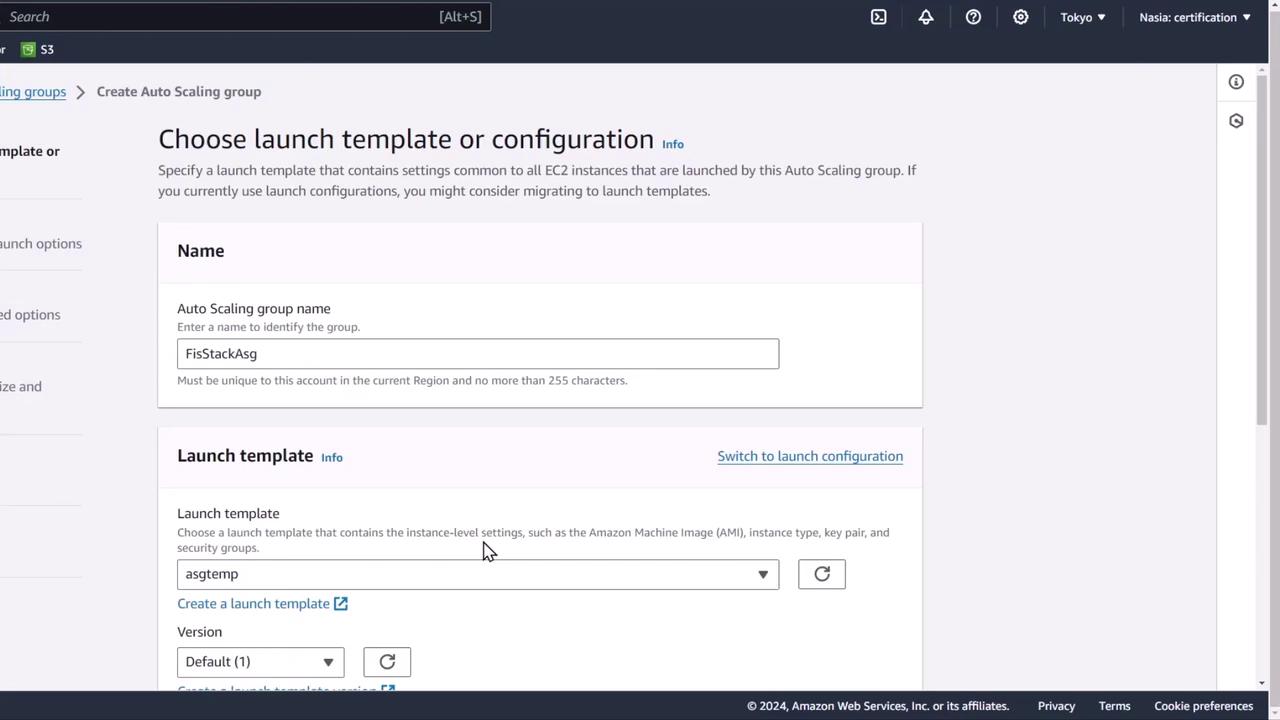
<Frame>
  ![The image shows a web interface for creating an Auto Scaling group in AWS, where a user can specify a launch template and configuration details.](https://kodekloud.com/kk-media/image/upload/v1752871765/notes-assets/images/Chaos-Engineering-Demo-ASG-based-Architecture/aws-auto-scaling-group-interface.jpg)
</Frame>

2. Select the Launch Template you just created, then choose your default VPC and two subnets across separate Availability Zones.
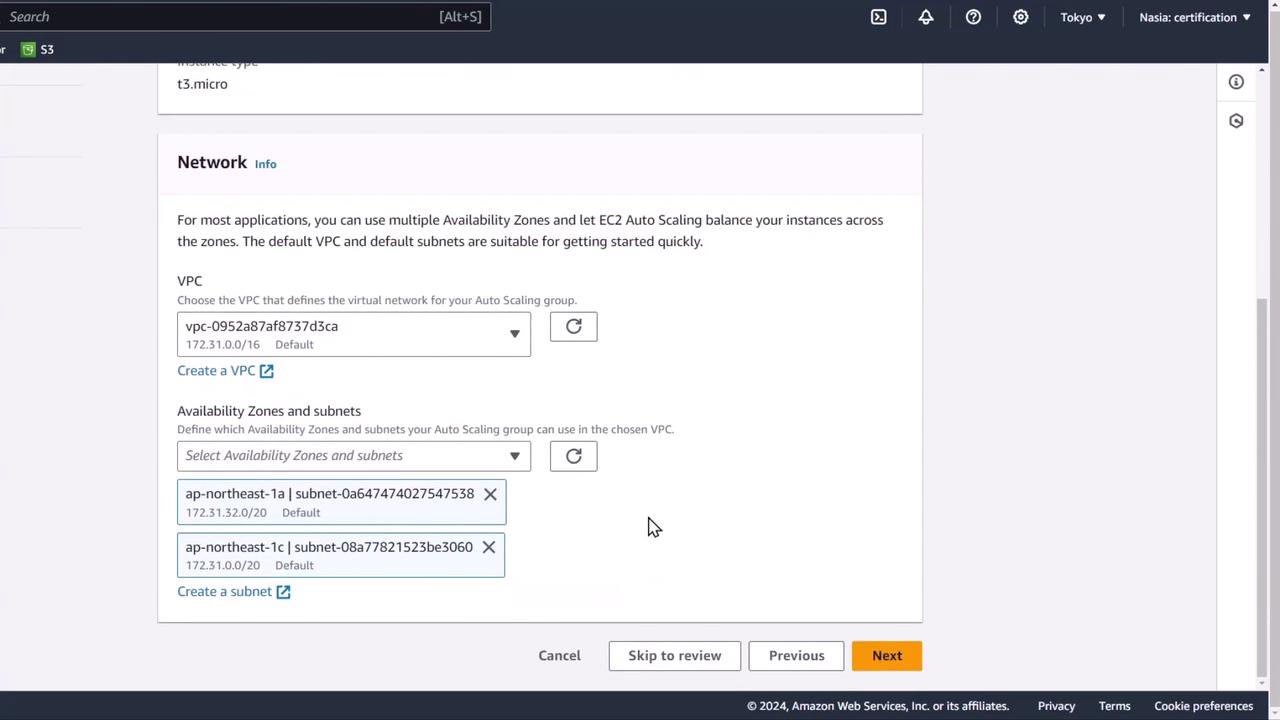
<Frame>
  ![The image shows a configuration screen for setting up a network in Amazon Web Services (AWS), specifically for selecting a VPC and availability zones for an EC2 Auto Scaling group.](https://kodekloud.com/kk-media/image/upload/v1752871766/notes-assets/images/Chaos-Engineering-Demo-ASG-based-Architecture/aws-network-configuration-vpc-ec2-autoscaling.jpg)
</Frame>

3. Set the group capacity:

   | Minimum | Desired | Maximum |
   | ------- | ------- | ------- |
   | 1       | 1       | 4       |

   This configuration ensures one instance under normal load and scales out to four if needed.
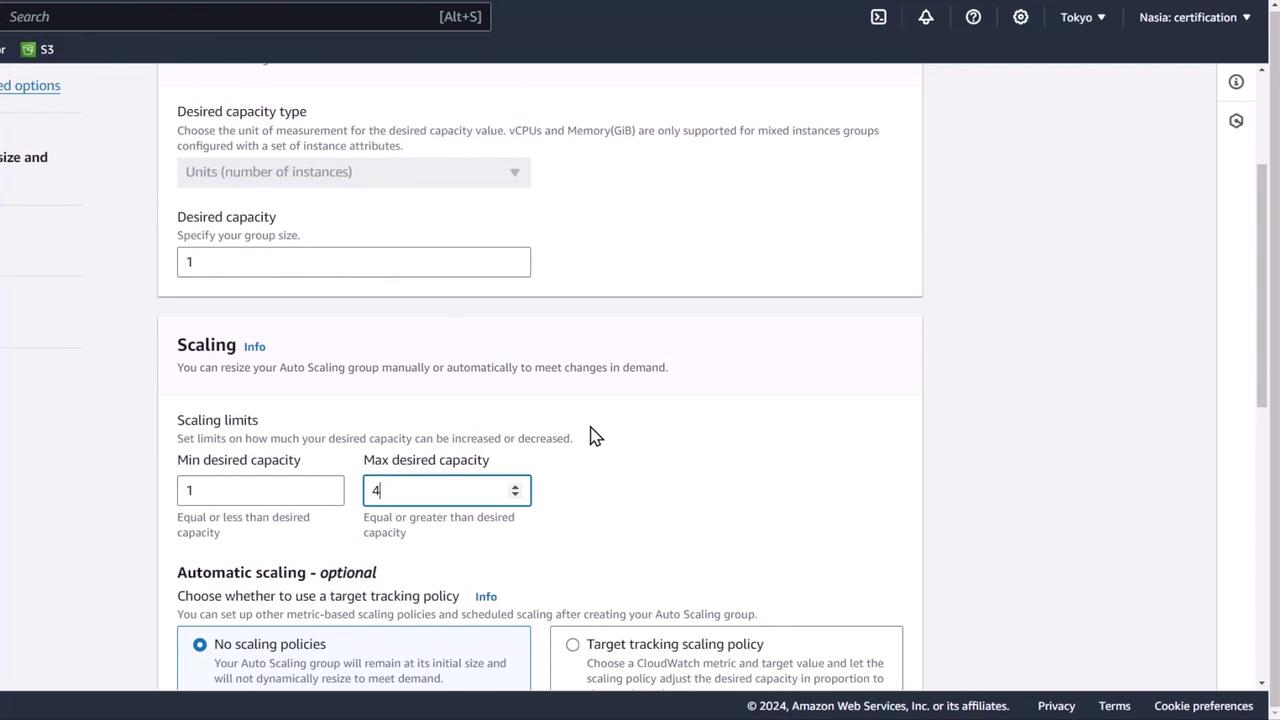
<Frame>
  ![The image shows a screenshot of an AWS management console interface, specifically the settings for configuring auto-scaling group capacity and scaling policies.](https://kodekloud.com/kk-media/image/upload/v1752871767/notes-assets/images/Chaos-Engineering-Demo-ASG-based-Architecture/aws-management-console-auto-scaling-settings.jpg)
</Frame>

<Callout icon="triangle-alert" color="#FF6B6B">
  Distributing instances across AZs is critical for high availability—ensure you select at least two subnets in different zones.
</Callout>

4. Leave remaining options at default and click **Create Auto Scaling group**.
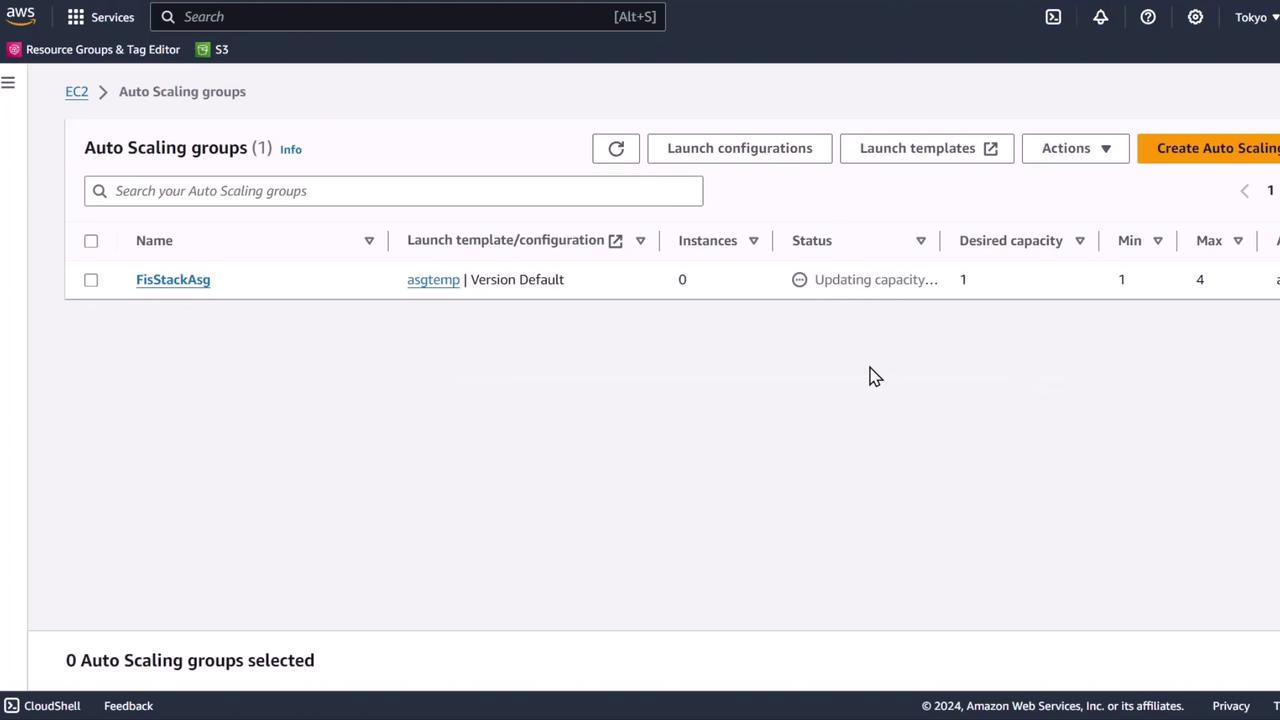
<Frame>
  ![The image shows an AWS EC2 Auto Scaling groups dashboard with one group named "FisStackAsg" in the process of updating capacity.](https://kodekloud.com/kk-media/image/upload/v1752871768/notes-assets/images/Chaos-Engineering-Demo-ASG-based-Architecture/aws-ec2-auto-scaling-dashboard-fisstackasg.jpg)
</Frame>

## 3. Create a CloudWatch Logs Group

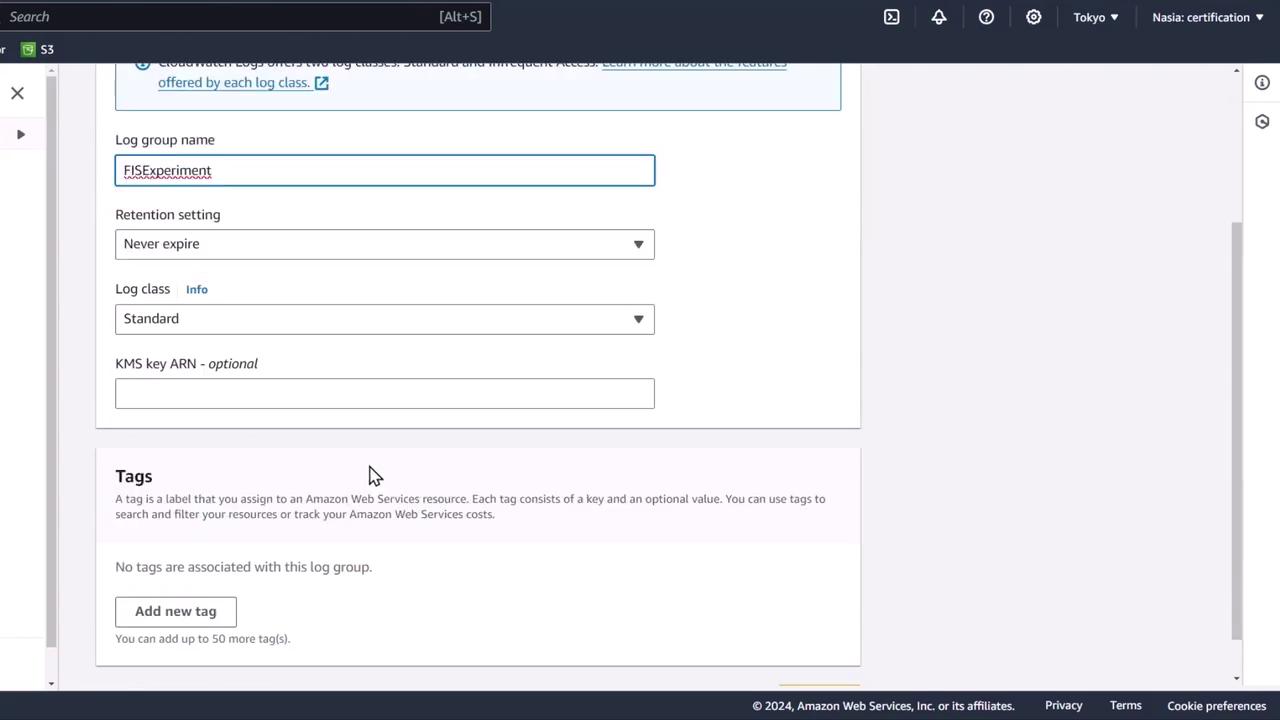
1. Open the [CloudWatch Logs console](https://aws.amazon.com/cloudwatch/logs/) and click **Create log group**.
2. Enter **fis-experiment** as the log group name and accept default settings.
<Frame>
  ![The image shows a configuration screen for creating a log group in Amazon Web Services (AWS), with fields for log group name, retention setting, log class, and optional KMS key ARN. There is also a section for adding tags to the log group.](https://kodekloud.com/kk-media/image/upload/v1752871770/notes-assets/images/Chaos-Engineering-Demo-ASG-based-Architecture/aws-log-group-configuration-screen.jpg)
</Frame>

## 4. Verify the Architecture

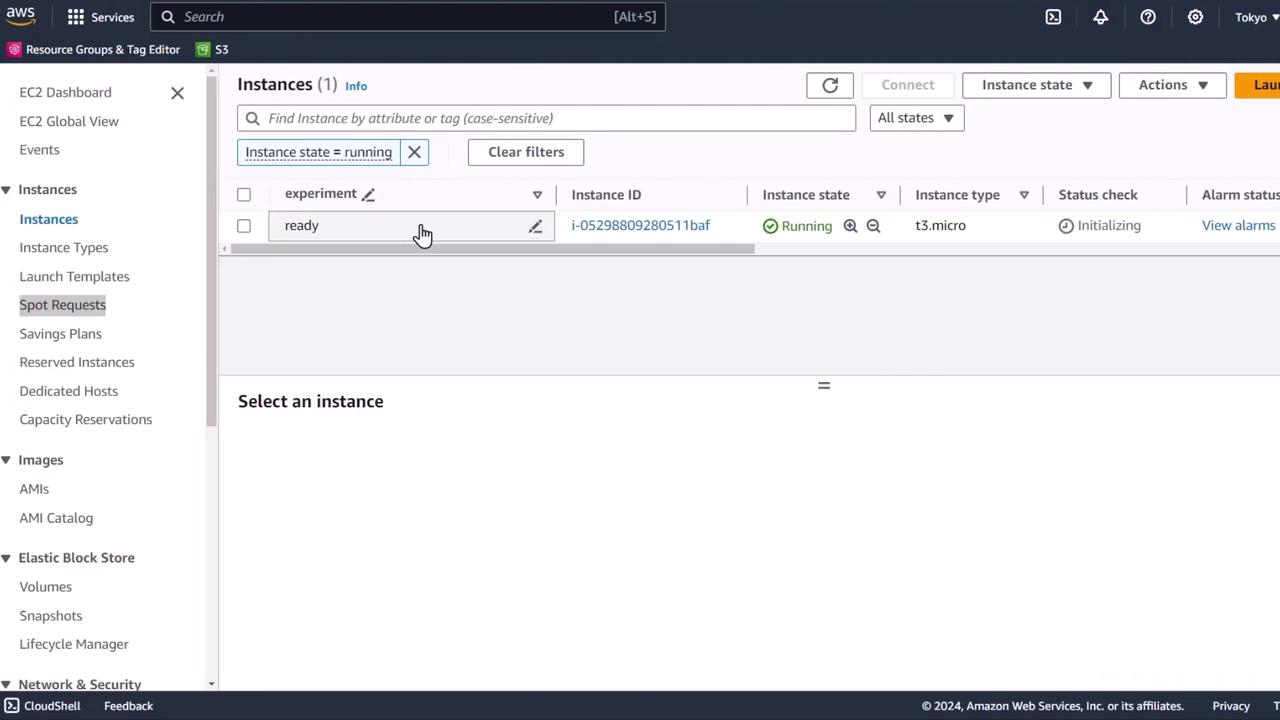
Return to the EC2 console. Your Auto Scaling group should have launched one `t3.micro` instance with the tag `experiment=ready`.
<Frame>
  ![The image shows an AWS EC2 dashboard with a running instance of type t3.micro. The instance is in the "Initializing" status check phase.](https://kodekloud.com/kk-media/image/upload/v1752871771/notes-assets/images/Chaos-Engineering-Demo-ASG-based-Architecture/aws-ec2-dashboard-t3-micro-instance.jpg)
</Frame>

You now have a fully configured ASG-based architecture—optimized for high availability and ready for your [AWS Fault Injection Service (FIS) experiment](https://aws.amazon.com/fis/).

<CardGroup>
  <Card title="Watch Video" icon="video" cta="Learn more" href="https://learn.kodekloud.com/user/courses/chaos-engineering/module/d49a2b6d-60a1-4603-965d-7e8292688875/lesson/05bb7c6d-0a68-4333-b197-b6bd0d7ff474" />
</CardGroup>
