> ## Documentation Index
> Fetch the complete documentation index at: https://notes.kodekloud.com/llms.txt
> Use this file to discover all available pages before exploring further.
# Demo Create FIS Experiment
> Create a Fault Injection Simulator experiment template to terminate 50% of instances in an Auto Scaling group for resilience testing.
In this walkthrough, you’ll create a Fault Injection Simulator (FIS) experiment template that terminates 50% of instances in an Auto Scaling group. AWS FIS helps you build resilience by running controlled chaos experiments.
## Prerequisites
* An AWS account with permissions for FIS, EC2, IAM, and CloudWatch Logs
* An existing Auto Scaling group tagged with `experiment=ready`
* A service role (for example, `fis-workshop-ec2-service-role`) allowing FIS to terminate EC2 instances
## Step 1: Open the FIS Console
1. Sign in to the [AWS Management Console](https://console.aws.amazon.com/).
2. Navigate to **Fault Injection Simulator** under **Resilience**.
3. In the sidebar, choose **Experiment templates**, then click **Create experiment template**.
## Step 2: Define Experiment Template Details
On the **Create experiment template** page, complete the basic fields:
| Parameter | Value | Description |
| ----------- | ------------------------------- | ---------------------------------------------- |
| AWS account | Your current account | Automatically populated |
| Name | fis-workshop-asg-50-percent | Unique template name |
| Description | Terminate half of the instances | High-level summary of the fault injection goal |
Click **Next** to move on to action configuration.
## Step 3: Configure the Termination Action
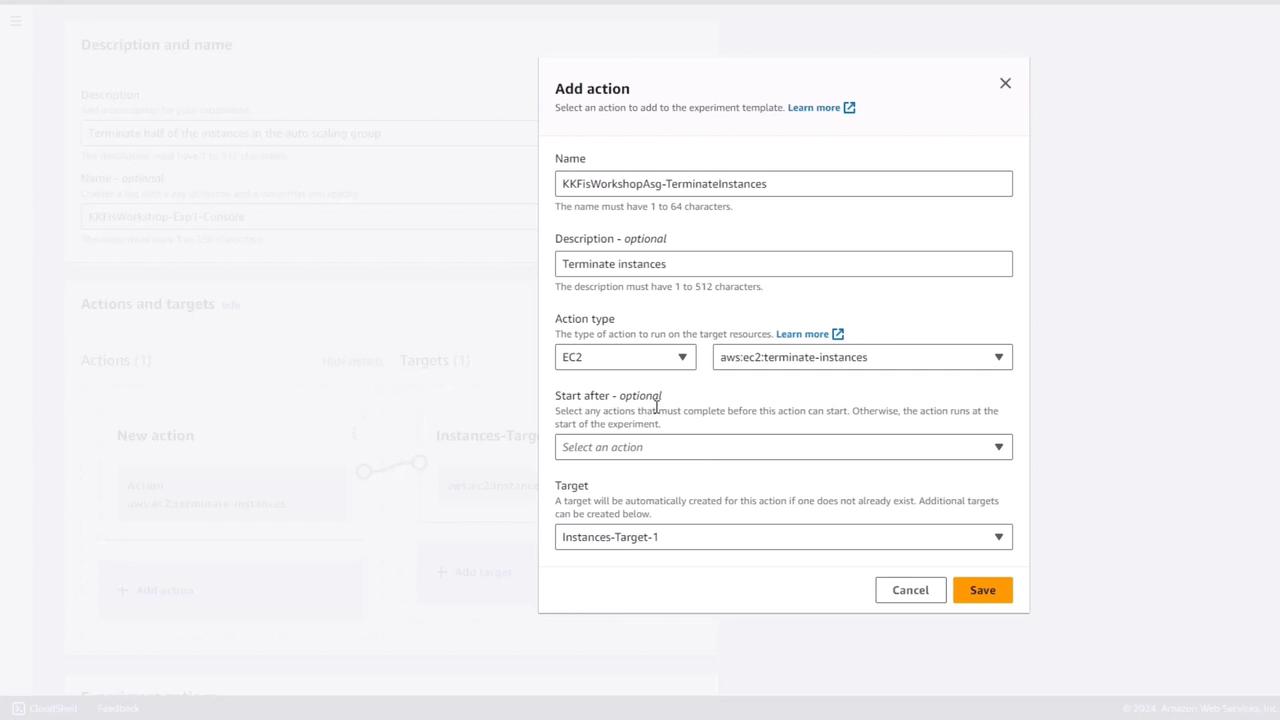
Actions specify the faults FIS injects. For this template:
* **Action name**: `terminate-instances`
* **Action type**: EC2 → Terminate instance
* **Targets**: keep default (`instances-target1`)
* **Start after**: leave blank (unused for single-action workflows)
## Step 4: Define Target Resources
Specify which instances FIS should target:
1. Click **Edit target** next to `instances-target1`.
2. Set **Target name** to `FIS Workshop ASG 50%`.
3. Choose **Resource type**: EC2 instance.
4. Under **Target selection**, choose **Tags and filters**.
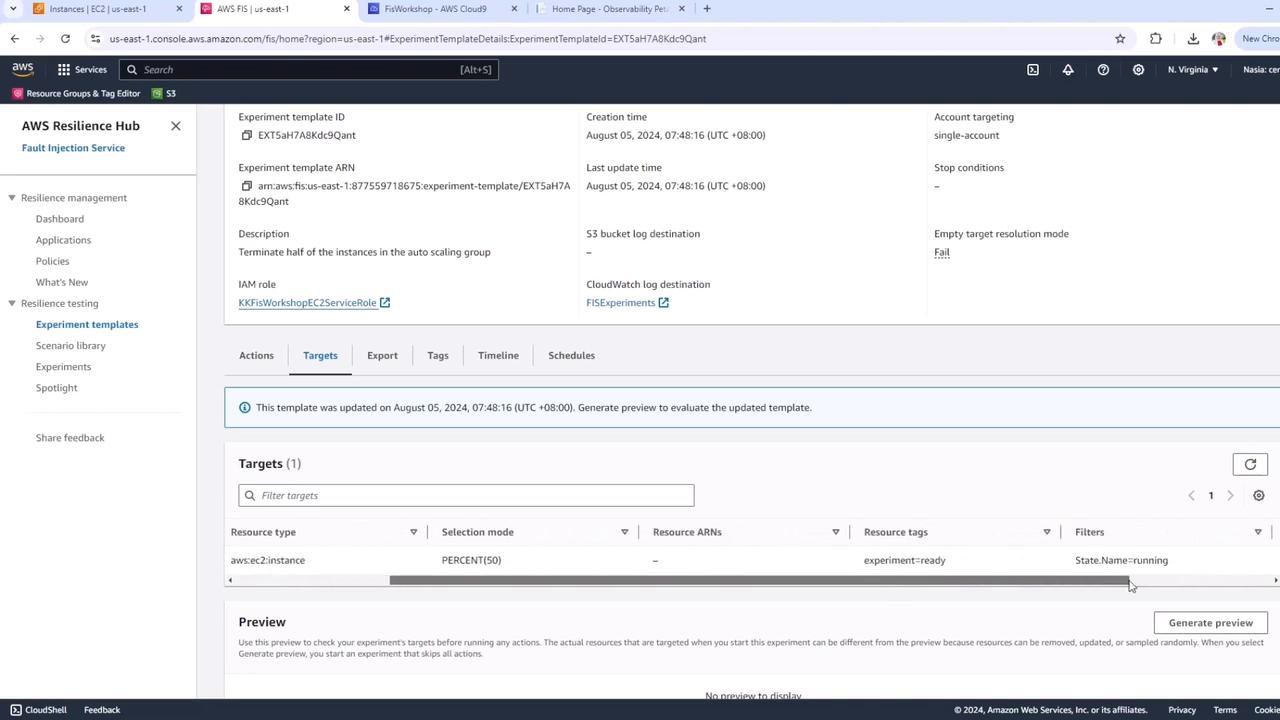
Configure **Tags and filters**:
* **Tag filter**
* Key: `experiment`
* Value: `ready`
* **Resource filter**
* Filter name: `State name`
* Value: `running`
* **Selection mode**
* Percentage: `50%`
This ensures only running EC2 instances tagged `experiment=ready` are considered, and exactly half are terminated.

## Step 5: Select IAM Role & Logging
1. Scroll to **IAM role** and select your FIS service role (e.g., `fis-workshop-ec2-service-role`).
2. Choose a **CloudWatch Logs group** to capture FIS events.
No stop conditions are defined in this demo. In production, always add stop conditions (e.g., CPUUtilization thresholds) to avoid uncontrolled failures.
## Step 6: Create the Experiment Template
Click **Create template**. A confirmation appears noting that no stop conditions exist—this is expected for this workshop. Confirm to finalize the template.
Your experiment template is now ready. When executed, it will terminate 50% of the instances in the specified Auto Scaling group.
## Links and References
* [AWS Fault Injection Simulator Documentation](https://docs.aws.amazon.com/fis/latest/userguide/)
* [Amazon EC2 TerminateInstances API](https://docs.aws.amazon.com/AWSEC2/latest/APIReference/API_TerminateInstances.html)
* [CloudWatch Logs User Guide](https://docs.aws.amazon.com/AmazonCloudWatch/latest/logs/)